Learning how to check motherboard compatibility before a build saves money and stress. A motherboard is the main circuit board that connects your CPU, RAM, storage, and power. If one part does not match, the PC may not boot.
That failure can mean returns, delays, and extra shipping costs.
Manufacturer specifications indicate that compatibility depends on socket, chipset, memory type, form factor, and physical clearance. As of 2026, DDR4 and DDR5 boards still split the market, so checking each item matters. This guide walks through the checks in order.
Start simple, then move to fit and power.
how to check motherboard compatibility before a build
Match the CPU socket and chipset first. Then confirm RAM generation and speed. Check BIOS support for that CPU.
Match motherboard size to case. Finally verify GPU, cooler, storage, and PSU fit. Do this before buying any part.
Use manufacturer lists to confirm.
Why Motherboard Compatibility Checks Fail Builds
Most failed builds start with one skipped check. A CPU can fit the socket but still need a newer BIOS. RAM can be the right generation but not on the board's memory list.
A case can hold the board but block a long GPU.
Aggregate user reviews report that returns often come from simple mismatches. Socket, memory type, and form factor cause many of them. Physical fit causes others, especially in smaller cases.
If you are reusing parts, check every reused item again. A cooler that worked on an older socket may not mount on a new one. A PSU with enough wattage may still lack the right GPU cable.
Compatibility is not just "will it fit." It is also "will it run at the expected speed and power level."
You can reduce risk by checking in this order: CPU, memory, BIOS, form factor, physical clearance, storage, and power. That order catches the expensive mistakes first.
What "Compatible" Actually Means in a PC Build
Compatible means the parts can connect, communicate, power on, and run safely. It does not mean every feature works at the highest speed. A board may support a CPU but only with a newer BIOS.
A board may accept DDR5 but only at certain speeds.
The CPU socket is the physical mount and electrical interface for the processor. The chipset is the controller set that decides features like PCIe lanes, USB ports, and overclocking support. Form factor is the board size, such as ATX, micro-ATX, or Mini-ITX.
RAM generation is the memory type, such as DDR4 or DDR5.
Physical clearance is just as important. GPU length, cooler height, PSU length, and radiator size all matter. A board can be electrically perfect and still fail because the GPU hits the front fans.
Manufacturer documentation is the final source for these limits. Board makers publish CPU support lists, memory QVLs, and case manuals publish max dimensions. Use those before you buy.
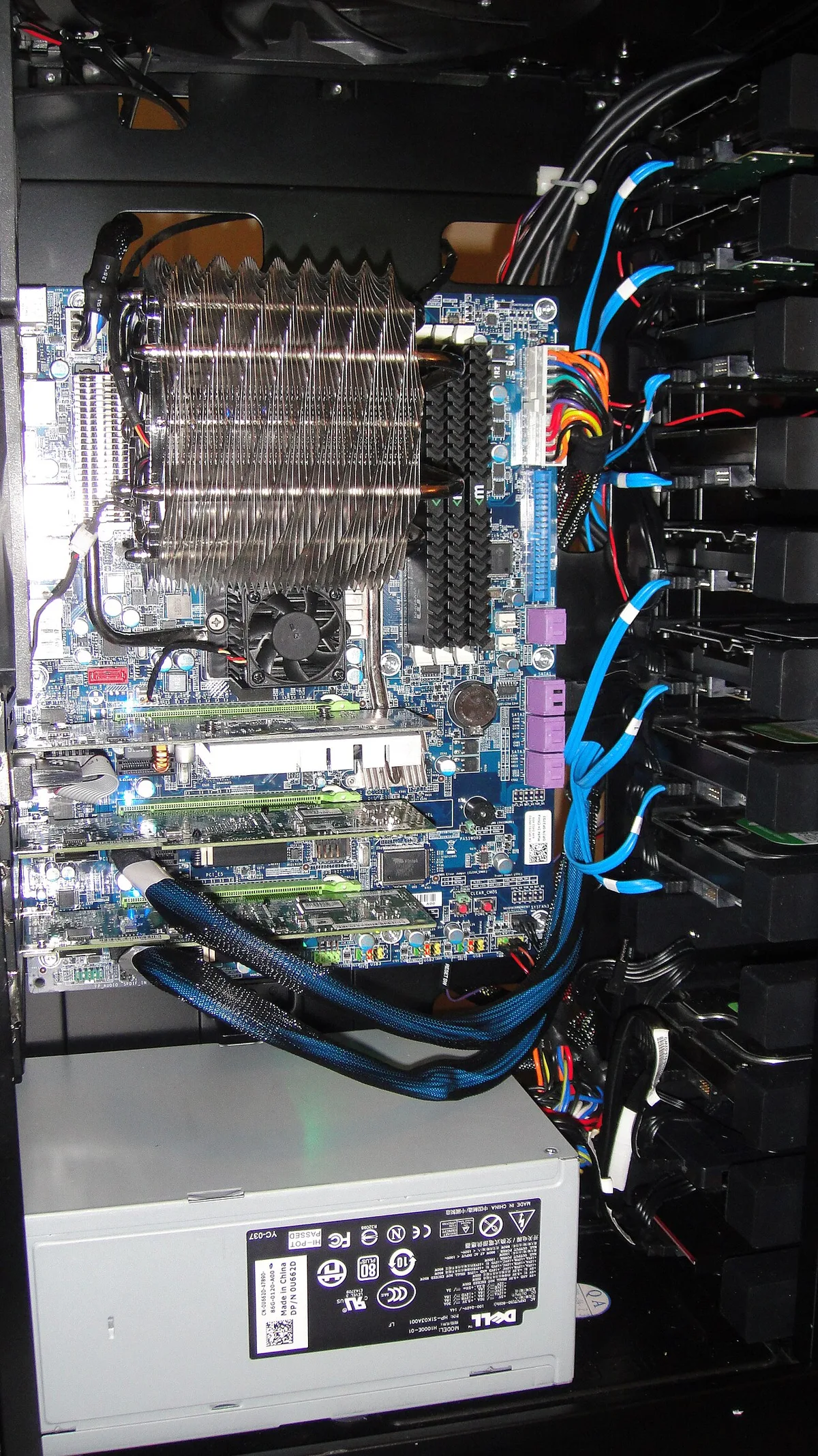
Image source: Wikimedia Commons / Eduncan911 (CC BY-SA)
A quick table helps keep the checks straight:
| Check | What to verify | Common mismatch |
|---|---|---|
| CPU | Socket and chipset | Right socket, wrong BIOS |
| RAM | DDR4 vs DDR5 | Board and kit mismatch |
| Board size | ATX, micro-ATX, Mini-ITX | Standoff or case holes |
| GPU | Length and slot width | Hits drive cage or fans |
| Power | Wattage and connectors | Missing 12VHPWR or EPS |
The Five Things That Must Match Before You Buy
First, match the CPU to the socket. This is non-negotiable. An AM5 processor will not work in an AM4 board.
An LGA1700 processor will not work in an LGA1200 board. If you are unsure, check the socket name on both parts.
Second, match the RAM generation to the board. DDR4 and DDR5 are not interchangeable. The notch position and pin count differ.
Buying the wrong kit means the system will not boot.
Third, match the board size to the case. ATX boards need ATX or larger cases. Mini-ITX boards fit many cases, but airflow and cable room can suffer.
Standoff placement also matters.
Fourth, match storage to available ports and lanes. A board may have two M.2 slots, but one may share lanes with SATA ports. That means installing an NVMe drive can disable a SATA port.
Check the manual before planning storage.
Fifth, match power and cooling to the parts. A high-end CPU and GPU need enough PSU wattage and the right cables. A tall air cooler may block RAM slots or touch the side panel.
Measure these before buying.
If you are choosing between board sizes, compare airflow, expansion, and case fit. Many builders start with the case, then pick a board that fits. That is fine if you still check socket, RAM, and BIOS support.
How to Check Motherboard Compatibility Step by Step
Start with the CPU and chipset match. Find the socket on the board and the processor. Then check the chipset features you need.
Some chipsets limit overclocking or PCIe lane counts. If you need many USB ports or PCIe slots, verify them now.
Confirm RAM generation and speed support. Check the board's memory page for supported speeds. If you want XMP or EXPO profiles, make sure the board lists them.
A kit can run at stock speed even if its rated speed is not on the QVL, but stability is less certain.
Check BIOS version and CPU support list. This is a common trap. A board may support a CPU only after a BIOS update.
If the board ships with an older BIOS, the system may not POST. Some boards support BIOS Flashback, which updates without a CPU installed.
Verify motherboard form factor vs. case. Check the case manual for supported board sizes. Look at standoff positions and cable routing.
A board that fits on paper may still leave no room for the GPU or PSU cables.
Confirm GPU, cooler, and case clearances. Measure GPU length against the case limit. Measure cooler height against the case limit.
Check if the cooler overhangs the first RAM slot. If you use an AIO, check radiator support and tube length.
Check storage interfaces and port sharing. Count M.2 slots and SATA ports. Read the manual for shared lanes.
If you plan two NVMe drives, confirm both can run at full speed at the same time.
Match PSU wattage and connectors. Use a wattage estimate based on CPU and GPU. Then add headroom for fans, drives, and future upgrades.
Check for EPS, PCIe, and any newer GPU power connectors.
Do a dry-fit and POST test. Place the board on its box or a non-conductive surface. Install CPU, cooler, RAM, and PSU.
Power on outside the case. If it POSTs, move to final assembly. This catches many errors before screws and cables make them harder to fix.
For a deeper comparison of board sizes, see board size differences. For socket basics, see socket basics.
CPU, RAM, and BIOS Branches That Trip People Up
AM4 vs. AM5 and LGA1700 gotchas. AM4 supports many older Ryzen chips, while AM5 is newer and uses DDR5.
LGA1700 covers recent Intel Core chips, but board generations still differ. A CPU name alone is not enough. Check the exact model and stepping.
DDR4 vs. DDR5 board confusion. Some platforms support only one memory type.
Do not assume a board can take both. Check the DIMM slots and board name. If you are upgrading, confirm the CPU's memory controller supports the RAM speed you want.
BIOS updates before the CPU will POST. This is a real-world branch. If the board's BIOS is too old, the new CPU may not be recognized.
Look for BIOS Flashback or a "CPU-less update" feature. If neither exists, you may need an older supported CPU to update first.
Memory QVL and XMP/EXPO support. The QVL lists tested memory kits. It is not a strict compatibility wall, but it is the safest path.
If your kit is not on the list, it may still work at default speed. For rated speed, the QVL matters more.
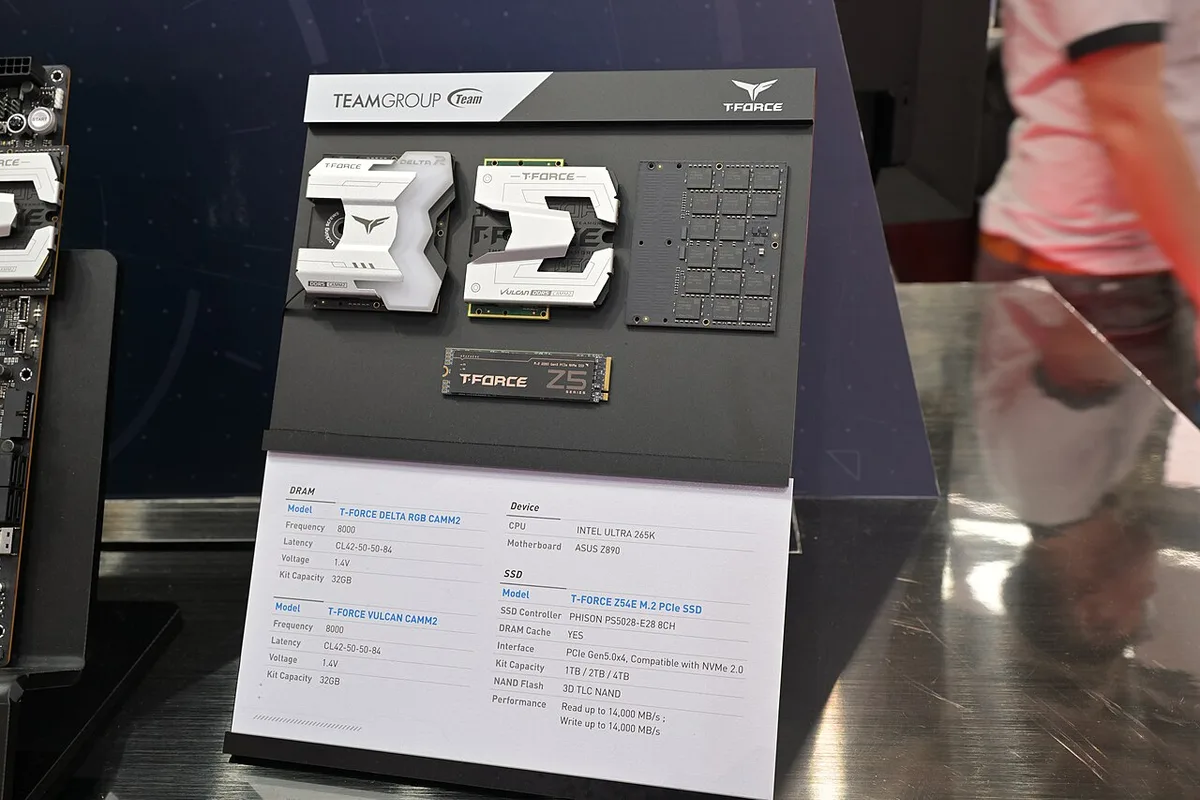
Image source: Wikimedia Commons / 4300streetcar (CC BY)
For socket matching details, see socket matching. For chipset features, see chipset features. For choosing a board, see choosing a board.
For M.2 planning, see M.2 slots. For GPU space, see GPU clearance.
Manufacturer specifications indicate that Intel and AMD publish processor support lists and memory guidance. For example, Intel ARK and AMD processor specifications list socket, TDP, and memory support. PCI-SIG defines PCIe standards, which helps when checking lane and generation support.
Physical Fit, Storage, and Power Checks
GPU length and PCIe slot clearance. Measure the card from the bracket to the end of the shroud. Compare that to the case spec, not the board spec.
Some cases list max GPU length with front fans installed and without. A 330mm card in a case rated for 320mm will not close.
CPU cooler height and RAM clearance. Air coolers list height in millimeters. Check the case limit first.
Then check whether the heatsink overhangs the first DIMM slot. A tall cooler can block tall RAM heat spreaders. Low-profile RAM solves this, but only if you plan ahead.
M.2 vs. SATA port conflicts. Many boards disable SATA ports when certain M.2 slots are populated.
The manual shows which combinations work. If you need both NVMe and SATA drives, check this table before buying. A simple plan is to list every drive, then map each to a port.
PSU length and cable reach. Full-size ATX PSUs can be 140mm to 200mm long. Some compact cases cannot fit the longer ones.
Cable length also matters. The EPS cable must reach the top of the board. The PCIe cable must reach the GPU.
Modular PSUs help with routing but do not fix short cables.
For GPU space planning, see GPU space planning. For PCIe slot use, see PCIe slot usefulness.
Common Mistakes That Cause Failed Boots
Forgetting the BIOS update is the most common trap. A new CPU on an older board may not POST. The system fans spin, but nothing appears on screen.
Always check the CPU support list before assuming a defect.
Mixing RAM generations is another frequent error. DDR4 and DDR5 look similar in photos but will not fit the same slot. The notch position differs.
Forcing the wrong kit can damage the slot and the module.
Ignoring standoff placement causes shorts. ATX boards have a specific standoff pattern. Extra standoffs in the wrong spots can touch solder pads on the back.
That can short the board and kill it instantly.
Skipping the dry-fit test leads to cable problems. Once the board is screwed in, fixing a missed standoff or cable is harder. A five-minute test on the box saves hours of disassembly later.
Using the wrong PSU cable is dangerous. Modular PSU cables are not interchangeable between brands. A cable from one brand can have different pinouts.
That can fry a drive or the board. Use only the cables that came with the PSU.
Per UL safety standards, power supplies should carry proper safety certification. Check for UL, CE, or equivalent marks before buying a no-name unit.
Pro Tips for a Smoother First Build
Check the motherboard manual before opening any box. The manual lists CPU support, memory QVL, port sharing, and dimensions. Ten minutes of reading prevents most compatibility surprises.
Buy RAM from the QVL when possible. A kit on the QVL has been tested at rated speeds. If your kit is not on the list, it may still work, but at default speed.
For rated XMP or EXPO speeds, the QVL is the safer path.
Plan storage before buying drives. List each drive and its interface. Then map them to board ports.
If two drives share a lane, decide which one gets priority. This avoids discovering a disabled port after assembly.
Measure everything in millimeters. Case specs, GPU length, cooler height, and PSU length are all in millimeters. Mixing inches and millimeters causes errors.
Write all numbers in one unit on a single note.
Keep the build simple on the first attempt. Start with one drive, one RAM kit, and the stock cooler. Add upgrades after the first successful boot.
Fewer variables make troubleshooting easier.
For CPU power planning, see CPU power consumption. For motherboard features, see motherboard features.
Frequently Asked Questions
How do I know if my CPU fits my motherboard?
Check the socket name on both parts. Then check the board's CPU support list. The socket must match exactly.
The CPU must also appear on the support list with your BIOS version.
Can I use DDR4 RAM on a DDR5 motherboard?
No. DDR4 and DDR5 use different slots and notch positions. They are not interchangeable.
Check the board spec for the correct generation before buying memory.
Do I need to update the BIOS before installing a new CPU?
Sometimes. If the board ships with an older BIOS, a newer CPU may not POST. Check the CPU support list for the required BIOS version.
Some boards support BIOS Flashback without a CPU installed.
What happens if my GPU is too long for the case?
The side panel will not close. The card may also block front fans or drive cages. Measure GPU length against the case spec.
Check whether the spec includes front fans.
Can two M.2 drives run at full speed at the same time?
It depends on the board. Some boards share PCIe lanes between M.2 slots. Others split lanes and reduce speed.
Check the manual's port sharing table before buying a second NVMe drive.
Is a dry-fit test really necessary?
Yes. A dry-fit catches missed standoffs, cable length issues, and POST problems. It takes five minutes on the box.
It saves hours of disassembly if something is wrong.
Final Decision Guide: Build or Re-Check
If every check passes, build. If any check fails, stop and re-verify before buying. The cost of a wrong part is higher than the cost of an extra hour of research.
Use the checklist in order: CPU, RAM, BIOS, form factor, clearance, storage, power.
If you are unsure about one item, that item is the one to research. Do not guess on socket, memory generation, or BIOS version. Those three cause the most failed boots.
Physical fit is easier to fix than a wrong socket.
For a full motherboard selection process, see motherboard selection. For case size comparisons, see case size differences. For chipset details, see chipset details.
Manufacturer documentation from Intel, AMD, and board makers is the authority for compatibility. PCI-SIG defines PCIe standards. JEDEC defines memory standards.
When in doubt, trust the spec sheet over a forum post.
1 thought on “How to Check Motherboard Compatibility Before a Build”
Comments are closed.