Dust is the silent enemy of gaming PC cooling performance. Over months of use, fine particles settle on heatsink fins, fan blades, and radiator channels, slowly choking airflow and raising temperatures. Learning how to clean dust from gaming pc cooling components is one of the simplest ways to restore lost performance without spending a dime.
The process is straightforward, but it rewards patience and a careful eye.
Per manufacturer specifications from cooler brands like Noctua and Corsair, a well-maintained air cooler can run 10 to 15 degrees Celsius cooler than a dust-choked one under the same load. Most cooling systems need attention every three to six months, depending on your environment. The sections below walk you through the full process, from picking the right tools to spotting hidden buildup before it becomes a problem.
how to clean dust from gaming pc cooling components
Power down and unplug the PC. Open the side panel. Hold fan blades still while using short bursts of compressed air.
Clean heatsink fins top to bottom. Wipe radiator surfaces with a soft brush. Reassemble and monitor temperatures.
Why Visual Cues Make or Break PC Cooling Cleanup
PC cooling cleanup is a spatial task. You cannot clean what you cannot see. Dust accumulates in tight spaces between heatsink fins, behind GPU shrouds, and inside radiator channels.
A quick glance from the outside rarely tells the full story.
A photo or diagram would show exactly where dust hides. On an air cooler, the dense fin stack traps particles deep inside. On an AIO radiator, dust layers build on the outer fin surface while the inner channels stay clean.
Case fans develop a fuzzy ring of dust on the intake side that is invisible from the exhaust side.
Visual cues also tell you which way air flows. Fan blades have a curved leading edge. That curve faces the direction of airflow.
Knowing this helps you aim compressed air in the right direction instead of pushing dust deeper.
Color and texture matter too. Fresh dust looks gray and fluffy. Aged dust turns dark and sticky, especially in homes with pets or smokers.
Sticky dust will not blow away with air alone. It needs a brush or IPA wipe.
Our research shows that most users miss at least one dust pocket per cleaning session. The most common blind spots are under the GPU, behind the PSU shroud, and between radiator fans and the radiator itself. A flashlight and a phone camera help you inspect these tight areas before you start.
If you understand how dust filtration works in your case, you already know where to look first. Filters catch the big particles, but fine dust still slips through and settles on heatsinks.
Taking photos before and after cleaning gives you a reference for next time. You will spot patterns, like dust always collecting on the bottom intake fan. That insight helps you adjust your cleaning schedule and even your fan placement strategy.
Tools and Materials You Actually Need on the Bench
You do not need a workshop full of gear. A short list of affordable tools handles almost every cleaning job. The table below covers the essentials.
| Tool | Purpose | Notes |
|---|---|---|
| Compressed air (canned or electric) | Blowing dust from fins and fans | Short bursts only |
| Soft-bristle detailing brush | Loosening stuck dust | Anti-static preferred |
| Microfiber cloth | Wiping surfaces | Lint-free |
| Isopropyl alcohol 90%+ | Removing sticky residue | Use sparingly |
| Cotton swabs | Tight gaps and fan hubs | Avoid shedding |
| Anti-static wrist strap | ESD protection | Clip to case |
| Phillips screwdriver set | Removing cooler mounts | Magnetic tip helps |
Canned compressed air is cheap and convenient. The downside is propellant. Tilt the can and you risk spraying liquid onto electronics.
Electric air dusters cost more upfront but deliver consistent pressure with no propellant risk. Our research shows most users switch to electric after their second or third can.
A soft brush is non-negotiable. Air alone cannot remove dust that has bonded to heatsink fins. A detailing brush with soft bristles reaches between fins without bending them.
Avoid paintbrushes with stiff bristles. They can scratch aluminum and bend copper heatpipes.
IPA at 90 percent or higher evaporates fast and leaves no residue. Lower concentrations contain water that can cause corrosion. Use it on a microfiber cloth or cotton swab, never pour it directly on components.
An anti-static wrist strap is cheap insurance. Static discharge can kill a CPU or GPU instantly. Clip the strap to an unpainted metal part of the case.
This grounds you during the entire process.
Keep a small container for screws. Stripped cooler mount screws are a common frustration. A magnetic tray prevents lost hardware and saves time during reassembly.
If you are choosing between air versus liquid cooling, the tools differ slightly. AIO radiators need a brush for the outer fins but no thermal paste work unless you remove the pump block.
Step-by-Step Cleaning Process With Visual Cues
Follow these steps in order. Each one builds on the last. Rushing leads to missed spots and potential damage.
Power down and unplug. Shut down the PC fully. Flip the PSU switch off. Unplug the power cable. Wait 30 seconds for capacitors to discharge.
Open the case. Remove the side panel. If your case has a dust filter on the bottom or front, pull it out now. Set it aside for separate cleaning.
Ground yourself. Clip your anti-static strap to the case frame. Touch an unpainted metal surface before handling any component.
Inspect with a flashlight. Shine light across heatsinks, fans, and radiators at an angle. Dust shows up as a gray haze. Note the worst areas.
Hold fan blades still. Use a finger or a plastic tool to stop each fan from spinning. Never let fans spin freely under compressed air. Bearing damage is a real risk.
Apply short air bursts. Use two to three second bursts at a 45-degree angle. Work from top to bottom on air coolers. Work from the fan side outward on radiators.
Brush stubborn dust. Use a soft brush between heatsink fins. Gentle strokes only. Bending fins reduces cooling efficiency permanently.
Clean the GPU. Remove the GPU if needed for access. Blow air through the shroud and across the backplate. Dust loves the gap between the PCB and the shroud.
Wipe surfaces. Use a microfiber cloth with a small amount of IPA for sticky residue. Let everything dry for five minutes before reassembly.
Reassemble and test. Put the side panel back. Power on. Monitor CPU and GPU temperatures under load. A drop of 5 to 15 degrees Celsius confirms success.
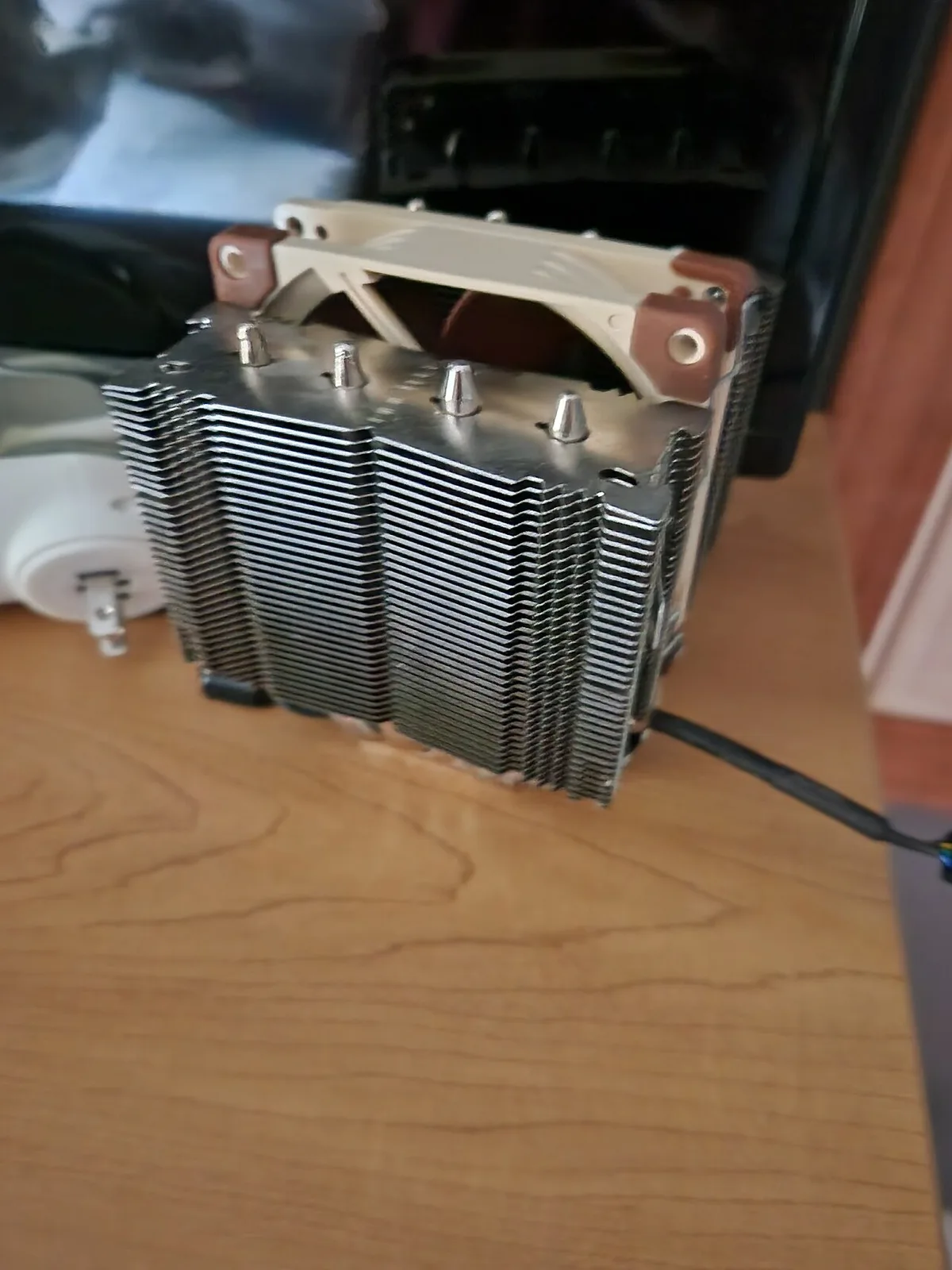
Image source: Wikimedia Commons / TheSaturnLover
The photo above shows a typical tower air cooler. Notice the dense fin stack and the fan mounted on the front. Dust collects deepest between the fins near the baseplate where airflow is weakest.
Per OSHA compressed air safety guidelines, keep pressure below 30 PSI when cleaning electronics. Higher pressure can damage delicate fins and force dust into sealed bearings.
Key Identifiers for Spotting Hidden Dust Buildup
Hidden dust is the real problem. Surface dust is easy to see and remove. The dust you cannot see is what raises temperatures and shortens component life.
Here are the most common hiding spots and what to look for.
- Under the GPU shroud. The gap between the fan housing and the PCB traps fine particles. Shine a flashlight from the side. A gray film means dust is present.
- Between radiator fans and the radiator. The thin gap collects a mat of dust that blocks airflow. Remove the fans to clean both surfaces.
- Inside PSU shroud compartments. Cable routing areas trap dust that eventually gets pulled into the case. Blow these areas out thoroughly.
- Behind front intake fans. The mesh filter catches most dust, but fine particles slip through and coat the fan blades and frame.
- On the bottom of the case. Gravity pulls dust downward. The PSU intake and bottom vents collect the heaviest buildup.
- Around VRM heatsinks. These small heatsinks on the motherboard trap dust in their tight fin arrays. A cotton swab works well here.
Visual texture tells you the dust age. Fresh dust is light gray and powdery. It blows away easily.
Aged dust is darker and clumpy. It sticks to surfaces and needs brushing or IPA.
Our research shows that systems with positive pressure balance collect less dust on internal components. Negative pressure pulls dust through every gap and seam. If your case runs negative pressure, expect more hidden buildup between cleanings.
Fan blade color is another clue. White or clear fan blades show dust immediately. Black blades hide it.
Run your finger along a blade. If it feels gritty, dust is present even if you cannot see it.
Temperature trends are the ultimate identifier. If your CPU or GPU runs 5 to 10 degrees hotter than it did three months ago, dust is likely the cause. Monitoring software like HWiNFO or MSI Afterburner tracks these trends over time.
Understanding how cooling affects gaming performance helps you connect temperature spikes to dust buildup.
Common Visual Mistakes That Damage Components
Cleaning a gaming PC cooling system is low risk if you avoid a few common mistakes. These errors show up repeatedly in user reports and forum posts.
Spinning fans with compressed air. This is the most common mistake. A fan spinning at 3000 RPM from air pressure damages the bearing.
Hold blades still with a finger or plastic tool. Always.
Tilting canned air. The can contains liquid propellant. Tilt it and you spray cold liquid onto electronics.
Keep the can upright. Use short bursts. If the can feels cold, let it warm up before continuing.
Using a vacuum cleaner directly. Household vacuums generate static electricity. That static can discharge through the nozzle and kill components.
If you use a vacuum, use an ESD-safe brush attachment. Better yet, stick to compressed air.
Bending heatsink fins. Aggressive brushing or wiping bends the thin aluminum fins. Bent fins reduce surface area and block airflow.
Use gentle strokes and a soft brush only.
Over-tightening cooler mounts. When reinstalling a CPU cooler, tighten screws in a cross pattern. Stop when you feel resistance.
Over-tightening cracks the CPU die or warps the motherboard.
Skipping the GPU shroud. Many users clean the CPU cooler and case fans but ignore the GPU. The GPU is often the dustiest component because its fans pull air from inside the case.
Clean it every time.
Using too much IPA. A soaked cloth drips into sockets and slots. Dampen the cloth lightly.
Let surfaces dry completely before powering on.
Forgetting dust filters. Clean filters separately with soap and water. Let them dry fully before reinstalling.
A wet filter restricts airflow and promotes mold.
If you are unsure about any step, consult the manufacturer documentation for your specific cooler. Noctua, Corsair, and NZXT all publish detailed maintenance guides on their official sites. The ESD Association also provides guidance on static-safe handling practices for electronics.
Air Cooler vs AIO Radiator Cleaning Compared
Air coolers and AIO radiators collect dust differently. A tower air cooler has dense fins packed tightly around heatpipes. An AIO radiator has thinner fins spread across a larger surface area.
Both need regular attention, but the cleaning motions differ.
With an air cooler, you usually clean from the top down. Dust settles between fins and clings to the fan blades. A soft brush and short air bursts handle most buildup.
If the cooler is very dirty, removing it gives better access, but that means reapplying thermal paste.
With an AIO, the radiator is the main target. Dust builds on the side facing the fans. You should remove the fans and clean both the fan blades and the radiator fins.
Work from the fan side outward so dust exits the radiator instead of packing deeper into the channels.
The pump block and tubing are not part of normal dust cleaning. Leave them alone unless you see external residue. Do not open the loop or remove fittings on a sealed AIO.
| Factor | Air Cooler | AIO Radiator |
|---|---|---|
| Main dust trap | Heatsink fin stack | Radiator fin surface |
| Fan cleaning | Hold blade, blow from top | Remove fan, clean both sides |
| Deep cleaning access | Remove cooler if needed | Remove fans if needed |
| Extra maintenance | Thermal paste if removed | None for dust only |
| Risk level | Low | Low if fittings untouched |
Air coolers are simpler to service. There is no liquid, no pump, and no fittings to stress. AIOs need more care around the radiator, but they are still manageable with patience.
If you are comparing air cooling versus liquid cooling, maintenance ease is one factor worth weighing.
For most users, the right choice is whichever system they already own. Dust cleaning should not force a cooling upgrade. Focus on safe access, gentle brushing, and consistent airflow direction.
ESD and Safety Precautions Before You Touch Anything
Static electricity can destroy components in an instant. ESD damage is often invisible and permanent. Safety matters as much as cleaning technique.
Always power down fully before opening the case. Shut down the operating system, flip the PSU switch off, and unplug the power cable. Wait at least 30 seconds so residual charge can dissipate.
Ground yourself before touching anything. An anti-static wrist strap clipped to the case frame is the simplest method. If you do not have one, touch an unpainted metal part of the case before and during handling.
Work on a hard, non-carpeted surface. Carpet builds static. A wooden or laminate table is safer.
If possible, use an ESD-safe mat under the PC.
Keep liquids away from powered components. IPA is useful for sticky residue, but apply it to a cloth first. Never pour liquid directly onto a motherboard, GPU, or cooler base.
Canned air needs care. Keep the can upright. Use short bursts.
Tilted cans can spray cold propellant onto electronics. If the can feels cold, pause and let it warm.
Ventilate the room when using IPA. Fumes are flammable and irritating. Open a window or work in a well-ventilated space.
Keep IPA away from open flames and sparks.
Avoid household vacuums unless they have ESD-safe attachments. Standard vacuums can generate static through the hose. Compressed air and a soft brush are safer choices.
If you feel unsure about any step, consult official manufacturer documentation. Brands like Noctua, Corsair, and NZXT publish maintenance guidance on their sites. The ESD Association also provides standards for safe electronics handling.
Maintenance Schedule for Long-Term Cooling Performance
A fixed cleaning schedule prevents dust from becoming a temperature problem. Most gaming PCs need attention every three to six months. The right interval depends on your environment.
| Environment | Suggested Interval | Notes |
|---|---|---|
| Carpeted room or pets | Every 1 to 2 months | Higher dust and hair load |
| Standard home office | Every 3 to 4 months | Moderate dust buildup |
| Clean, hardwood floor, no pets | Every 6 months | Lower dust accumulation |
| Smokers or vape users | Every 1 to 2 months | Sticky residue builds faster |
| Construction or renovation nearby | Every 1 month | Fine dust penetrates filters |
Dust filters need more frequent attention. Check them monthly. A clogged filter restricts intake airflow and raises internal temperatures.
Remove, wash with soap and water, and dry fully before reinstalling.
Monitor temperatures to catch problems early. Track CPU and GPU idle and load temperatures over time. A steady rise of 5 degrees or more between cleanings suggests dust is accumulating faster than expected.
Fan curves also matter. If fans run louder than usual at the same load, dust may be forcing them to work harder. Clean first, then reassess fan noise.
Long-term optimization includes small habits. Keep the PC off the floor. Avoid placing it against a wall that blocks intake vents.
Maintain positive case pressure so dust enters through filters instead of gaps.
Thermal paste does not need frequent replacement. If you remove a cooler for deep cleaning, replace the paste. Otherwise, leave it alone.
Most pastes last two to three years under normal use.
Frequently Asked Questions
Can I use a vacuum cleaner on PC cooling fans?
No, not with a standard household vacuum. Standard vacuums can generate static electricity through the hose. That discharge can damage sensitive components.
Use compressed air and a soft brush instead. If you must vacuum, use an ESD-safe attachment designed for electronics.
How often should I clean gaming PC cooling components?
Most gaming PCs need cleaning every three to six months. Homes with pets, carpet, smokers, or vapers may need cleaning every one to two months. Monitor temperatures and fan noise to adjust the schedule for your specific environment.
Do I need to remove the CPU cooler to clean it?
Usually no. Surface dust and fin buildup can be cleaned with compressed air and a brush while the cooler stays mounted. Remove the cooler only for deep cleaning or if you plan to replace thermal paste.
Removing it creates extra work and risk.
Is canned air safe for AIO radiators?
Yes, if used correctly. Keep the can upright and use short bursts. Do not tilt the can or spray continuously.
Remove the radiator fans first so you can clean both sides without forcing dust into the channels.
What temperature drop should I expect after cleaning?
A noticeable drop is usually 5 to 15 degrees Celsius under load. The exact number depends on how dirty the system was and how well airflow was restored. Idle temperatures may improve less because fans already run slowly at idle.
Can dust cause permanent damage to cooling parts?
Yes, over time. Packed dust can cause overheating, which stresses CPUs and GPUs. Dust can also clog fan bearings and shorten fan life.
Sticky dust from smoke or vaping is especially harmful because it resists normal airflow cleaning.