how to fix a gaming laptop microphone not working usually starts with one simple question: is Windows hearing the right device? Most failures are settings, permission, or driver issues, not dead hardware. Check mute keys, default input, and app access before assuming a repair.
A quick test recording can save an hour of guessing.
In our research, many gaming laptops ship with a built-in mic array and a separate headset jack, so the wrong default is common. Manufacturer specs indicate typical input sample rates around 48 kHz at 16-bit. As of 2026, Windows privacy controls still gate app access.
Let's walk through the checks in order.
Why a Gaming Laptop Microphone Stops Working
A gaming laptop microphone can fail at four different layers. The hardware layer includes the built-in mic array, the 3.5 mm jack, or the Bluetooth headset. The system layer includes Windows Sound settings and the default recording device.
The app layer includes Discord, Steam Voice, or game chat. The permission layer includes microphone access for desktop and Microsoft Store apps.
Built-in microphones are often dual or triple arrays with beamforming and noise cancellation. That helps voice clarity, but it also adds software processing that can mute or suppress the signal. A hardware mute button, a keyboard mute hotkey, or a headset inline switch can also kill audio before Windows ever sees it.
Driver problems are another common cause. Realtek, Waves MaxxAudio, Nahimic, and Dolby suites can conflict after updates. Manufacturer control software may also change input profiles.
If the mic works in one app but not another, the cause is usually selection, permission, or exclusive mode, not the mic itself.
First Check: Built-In Mic, Headset, or Bluetooth Device
Start by identifying which microphone you expect to use. Do not assume Windows picked it. Open Sound settings, then Input, and look at the active device name.
If you use a headset, make sure the plug is fully seated and the mic boom is not muted.
For Bluetooth, pairing is only half the job. The headset may connect for playback while the microphone profile fails. If voice chat sounds robotic or drops, reconnect the headset and check the input device again.
Our guide on pairing Bluetooth headphones with your gaming laptop can help with the connection side.
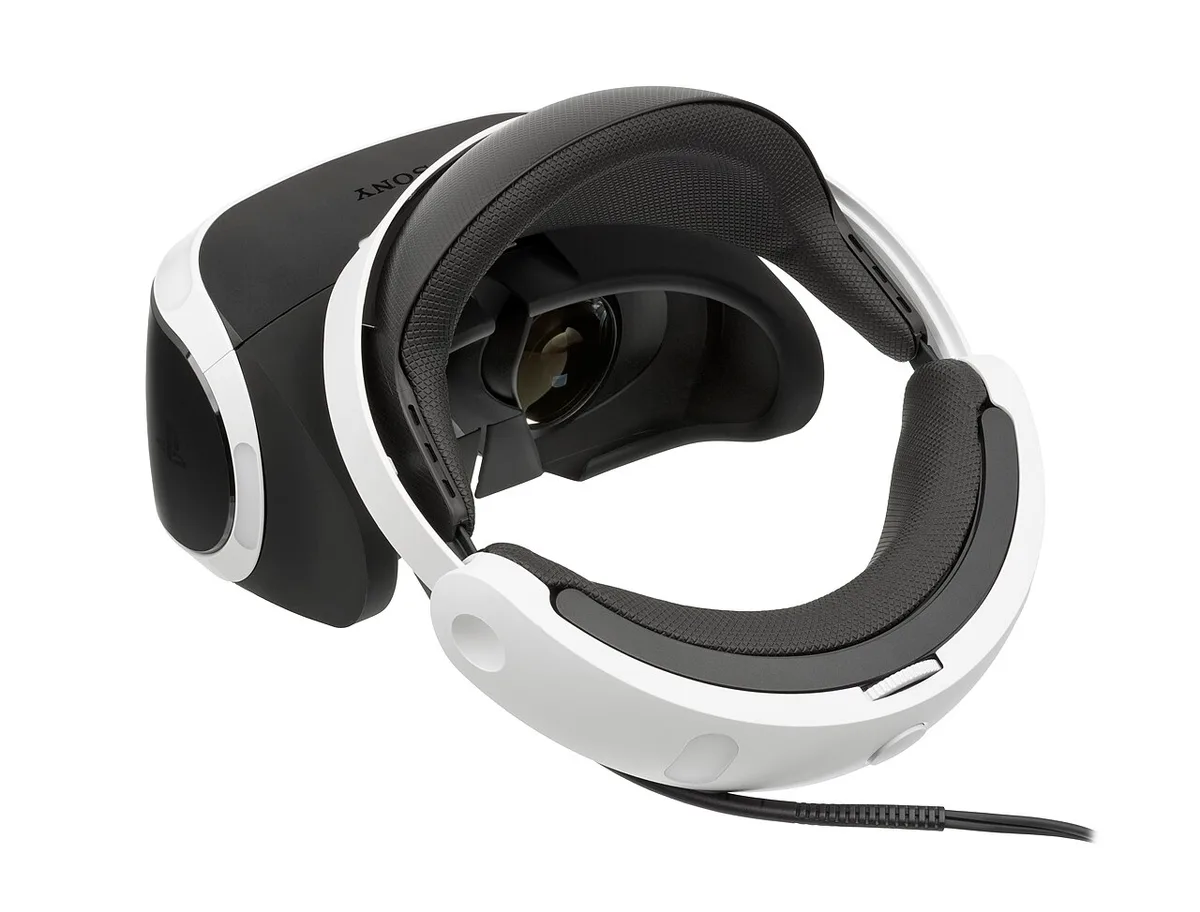
Image source: Wikimedia Commons / Evan-Amos
If you use a 3.5 mm headset, test the mic on another device if possible. A bent plug or damaged cable can look like a software issue. If the mic works elsewhere, move on to Windows settings.
If it fails everywhere, the headset may need replacement.
Sort the Symptom Before You Touch Settings
The symptom tells you where to look first. A missing device points to driver, BIOS, or hardware. A flat level meter points to mute, gain, or wrong device.
Distortion points to boost, clipping, or enhancement conflicts.
| Symptom | Likely cause | First check |
|---|---|---|
| No mic listed | Driver or BIOS | Device Manager and BIOS audio |
| Level meter flat | Mute or wrong device | Mute key and default input |
| Quiet or muffled | Gain or mic position | Mic boost and boom placement |
| Static or clipping | Boost or interference | Disable enhancements |
| Echo or feedback | Speakers too loud | Use headset or lower output |
Do not change five settings at once. Change one, test, and note the result. This keeps you from creating a new problem while chasing the first one.
A simple voice recorder test is enough for most checks.
The Troubleshooting Decision Tree
Use this decision tree to avoid random fixes. It keeps the process logical and saves time.
- If the mic is missing in Sound settings, check Device Manager first. If it is disabled, enable it. If it is missing entirely, check BIOS audio settings.
- If the mic is listed but the level meter does not move, check the hardware mute, keyboard mute, and inline switch. Then confirm the correct default input.
- If the level meter moves but apps cannot hear you, check app permissions and app-specific input selection. Discord and game clients can override Windows.
- If the mic works in one app but not another, disable exclusive mode and test again. One app may be holding the device.
- If audio is distorted, lower mic boost and disable enhancements. Noise suppression can also over-process speech.
- If Bluetooth voice chat fails, reconnect and test the headset profile. Our article on why Bluetooth audio lags on gaming laptops covers related wireless audio issues.
Fixes to Try in the Right Order
Work from the simplest fix to the deeper one. This order prevents unnecessary driver changes.
- Check physical mute. Press the mic mute key, check headset switches, and look for a red light or on-screen mute indicator.
- Set the correct default input. In Windows Sound settings, choose the mic you actually use. Test the level meter while speaking.
- Check app permissions. Allow microphone access for desktop apps and the specific game or chat app.
- Select the mic inside the app. Discord, Steam Voice, and game clients often have their own input dropdown.
- Adjust gain. Set input volume to a sensible level, then add mic boost only if speech is too quiet. Too much boost causes clipping.
- Disable enhancements. Turn off echo cancellation, noise suppression, or spatial processing if your voice sounds unnatural.
- Restart audio services. Restarting the Windows Audio service can clear a stuck device state.
- Update or reinstall the driver. Use Device Manager or the manufacturer support page. If a recent update broke the mic, roll back.
- Check BIOS audio. Some laptops allow the built-in mic to be disabled in firmware.
- Test with another mic. A cheap USB mic or headset helps separate Windows problems from hardware failure.
If you suspect a deeper hardware issue, our troubleshooting guide for gaming laptop Ethernet problems is not about microphones, but it shows the same step-by-step mindset. For port-related questions, see how to find which gaming laptop ports support charging.
For authoritative setup details, Microsoft's official Windows support pages and your laptop manufacturer's documentation are the best references. Microsoft's root support site is at support.microsoft.com, and manufacturers such as ASUS, MSI, Lenovo, Dell, HP, and Acer publish model-specific audio guidance. Realtek also documents driver behavior at realtek.com.
Driver, BIOS, and Hardware Failure Signs
When settings look right but the mic still fails, look deeper. Driver corruption is common after Windows updates. Realtek, Waves MaxxAudio, Nahimic, and Dolby suites can conflict.
Reinstalling or rolling back often fixes it.
Device Manager shows the hardware status. If the mic has a yellow warning icon, the driver is broken. If it is missing entirely, the driver may not be installed or the device is disabled in BIOS.
BIOS audio settings matter. Some laptops let you disable the built-in microphone in firmware. If the mic vanished after a BIOS update, check those settings.
Manufacturer documentation confirms the path varies by brand.
Hardware failure has clear signs. If the mic never appears in any OS, even on a fresh install, the array may be faulty. Physical damage near the hinge or palm rest can break mic wiring.
A USB or Bluetooth mic that fails on multiple devices is likely dead hardware.
When to stop software fixes: if three different microphones fail on the same laptop, the port or Bluetooth module may be at fault. If only the built-in mic fails across OS reinstalls, the internal array may need service. At that point, contact the manufacturer or a repair shop.
Built-In Mic vs. Headset Mic: Which Fix Path Fits
The right fix depends on which mic you use. Each path has different causes and solutions.
Built-in mic:
- Pros: no extra gear, always available, decent for quick chat.
- Cons: picks up keyboard and fan noise, weaker noise rejection in loud rooms.
- Fix focus: privacy settings, driver, BIOS, and enhancement tuning.
Headset mic (3.5 mm or USB):
- Pros: better isolation, closer to mouth, consistent quality.
- Cons: cable wear, jack seating issues, inline mute switches.
- Fix focus: jack connection, headset mute, default device selection.
Bluetooth headset:
- Pros: wireless freedom.
- Cons: profile switching, latency, codec limits.
- Fix focus: re-pairing, input selection, and connection stability.
Who should use which? If you game in a quiet room and want simplicity, the built-in mic is fine. If you stream, play ranked, or share a room, a headset mic is the better long-term choice.
USB mics offer the most consistent results because they bypass the analog jack entirely.
Mistakes That Waste Time and Make It Worse
Some fixes create new problems. Avoid these common errors.
- Changing five settings at once makes it impossible to know what worked.
- Uninstalling all audio drivers at once can break playback too.
- Using high mic boost causes clipping and distorted voice.
- Ignoring app-level input selection leads to false conclusions.
- Disabling all enhancements may remove useful noise suppression.
- Skipping the hardware mute check wastes hours of software troubleshooting.
- Assuming a missing mic means broken hardware without checking BIOS.
One more mistake: updating drivers from random sites. Always use the manufacturer support page or Windows Update. Third-party driver tools can install wrong or outdated versions.
If a recent update broke the mic, rolling back is safer than forcing a newer one.
Audio Settings to Lock In After the Fix
Once the mic works, lock in settings so it stays working. Small adjustments prevent future failures.
- Set the correct default input and keep it selected.
- Set input volume around 70 to 80 percent for headroom.
- Add mic boost only if needed, usually 0 to 10 dB.
- Disable exclusive mode to prevent apps from locking the device.
- Keep one noise suppression method, not three stacked.
- Save your Discord or game client input selection.
Test with a short recording after every change. Speak at normal volume and listen back. If your voice sounds clear and consistent, the settings are solid.
If it clips, lower boost. If it is quiet, raise input volume before adding boost.
Frequently Asked Questions
Why is my gaming laptop mic not detected?
It may be disabled in Device Manager or BIOS, or the driver is missing. Check Device Manager for a warning icon, enable the device if disabled, and verify BIOS audio settings. If it is missing on a fresh OS install, the hardware may be faulty.
Why does my mic work in Windows but not in Discord?
Discord has its own input device selector and may be using the wrong mic. Open Discord voice settings, choose the correct input device, set input sensitivity, and disable automatic gain if your voice cuts out. Also check Windows app permissions.
Should I update or roll back my audio driver?
If the mic stopped after an update, roll back first. If it has never worked or the driver is old, update from the manufacturer support page. Avoid third-party driver tools.
Test after each change so you know which version works.
Is a built-in gaming laptop mic good enough for streaming?
It works for casual chat, but it picks up keyboard and fan noise. For streaming or ranked play, a headset or USB mic gives better isolation and consistency. If you use the built-in mic, enable noise suppression and keep the laptop on a stable surface.
Can BIOS disable the microphone?
Yes, some laptops allow disabling the built-in mic in firmware. If the mic vanished after a BIOS update or reset, enter BIOS and check audio settings. The exact menu varies by manufacturer, so consult your model's documentation.
1 thought on “How to Fix a Gaming Laptop Microphone That’s Not Working”
Comments are closed.