How to Fix Low Disk Space Causing Game Stutter on a Gaming Laptop starts with understanding that a nearly full drive chokes the operating system and the game engine at the same time. When free space drops below roughly ten percent the SSD controller cannot find clean blocks for new writes. This forces read-modify-write cycles that spike latency and show up as frame hitches.
The fix is not a single button but a decision tree that matches your laptop's hardware layout.
Microsoft recommends keeping at least 15 percent of a system drive free for paging, updates and temporary files. A 512 GB NVMe drive therefore needs about 75 GB of breathing room. Let's walk through the diagnostic steps and the right fix for your specific configuration.
How to Fix Low Disk Space Causing Game Stutter on a Gaming Laptop
Low disk space causes stutter by starving the SSD controller and Windows paging system. Clear temporary files first. Move large games to a second drive if one exists.
Uninstall titles you no longer play. Disable hibernation to reclaim gigabytes. Upgrade the internal SSD if no secondary slot is available.
Why a Full Drive Causes Game Stutter on a Gaming Laptop
Modern games stream assets continuously from storage. An NVMe SSD writes new data to empty blocks. When the drive fills the controller must erase blocks before writing.
That erase cycle adds latency measured in milliseconds. The game thread stalls waiting for the texture or mesh to arrive. Windows also expands the page file onto the same crowded volume.
Both mechanisms compete for the same flash cells. The result is 1% low frame drops that feel like micro-freezes. SATA SSDs and mechanical drives suffer the same queue depth pressure but at lower absolute speeds.
Check Your Storage Setup Before You Delete Anything
Open Settings > System > Storage. Note the drive letters and total capacity. Press Ctrl+Shift+Esc to open Task Manager.
Click the Performance tab and select each disk. The type column reads NVMe, SATA SSD or HDD. This tells you which branch of the decision tree applies.
Single Drive vs Dual Drive Laptops
A single-drive laptop has one C: volume. All games, Windows and page file share that space. A dual-drive model adds a D: or E: volume often labeled Data.
That second drive is the natural target for Steam library folders or Epic install locations.
NVMe SSD vs SATA SSD vs HDD
NVMe drives deliver 1500 to 7000 MB/s sequential reads. SATA SSDs cap near 560 MB/s. Mechanical drives sit at 80 to 160 MB/s.
The faster the drive the less time the game spends waiting but the same free-space rule applies across all types.
Quick Space Fixes That Won't Touch Your Game Files
Run Storage Sense from Settings > System > Storage. Turn on automatic cleanup of temporary files and Recycle Bin items older than 30 days. Open Disk Cleanup as administrator.
Check system files. Select Previous Windows installations, Delivery Optimization files and Thumbnails. Click OK.
Disable hibernation if you never use it. Open Command Prompt as admin and run powercfg -h off. This deletes hiberfil.sys which can equal your RAM size.
Reduce System Restore allocation to 2% via Control Panel > System > System Protection. Clear the Downloads folder manually. Empty the Recycle Bin.
Move or Uninstall Games Based on Your Laptop's Drive Configuration
The right action depends on the drive layout you identified earlier.
Branch 1: One Drive, No Empty Slot
Uninstall games you have not launched in 60 days. Use the Steam, Epic or Xbox app uninstaller to preserve cloud saves. Back up save folders manually if the game lacks cloud sync.
Install an external NVMe SSD over USB 3.2 Gen 2 or Thunderbolt for current titles. Samsung T9 and WD Black P40 are proven performers. Keep the external drive dedicated to games.
Branch 2: Second Drive Available
Open Steam > Settings > Storage > Add Drive. Select the secondary volume. Right-click installed games > Properties > Installed Files > Move Install Folder.
Epic and Xbox apps offer the same move function. Verify the game launches from the new location before deleting the old folder.
Branch 3: You Can Upgrade the Internal SSD
Check the service manual for M.2 2280 slot keying and PCIe generation support. Buy a 1 TB or 2 TB NVMe drive with DRAM cache. Clone the existing drive using Macrium Reflect or Samsung Data Migration.
Swap the module. Expand the C: partition in Disk Management. This path preserves every file and setting.
When Stutter Continues After Clearing Disk Space
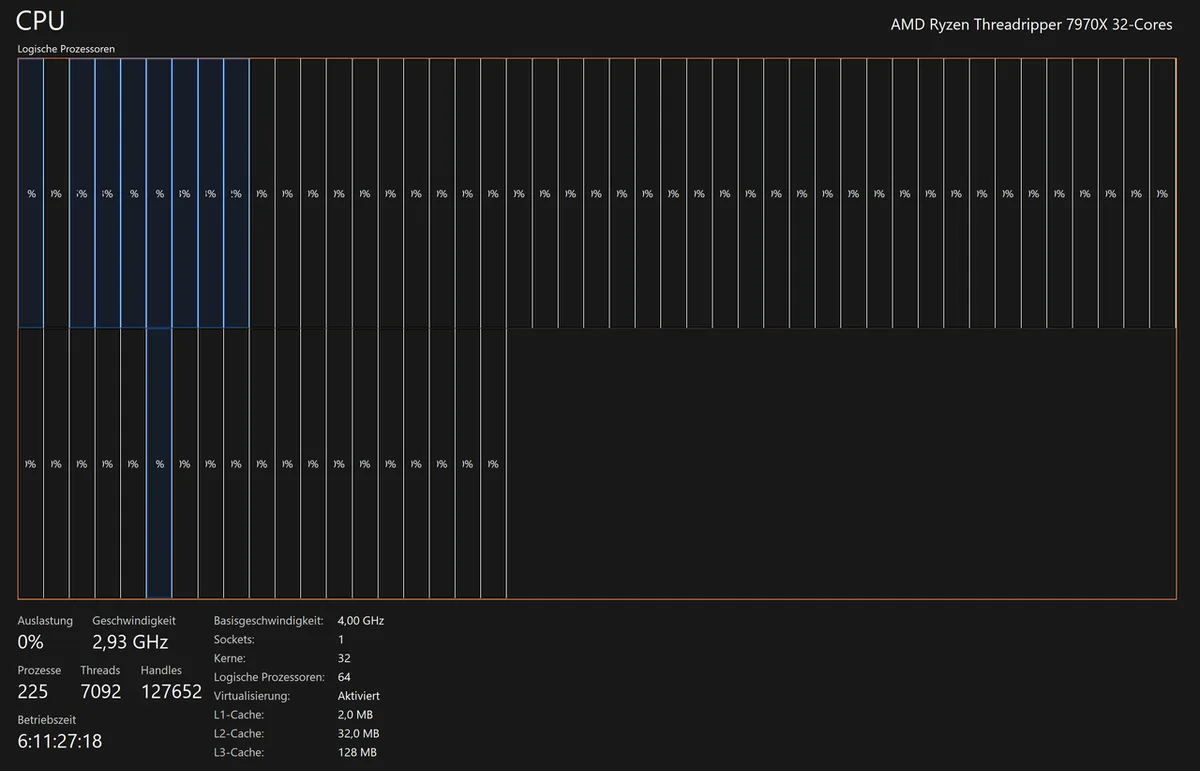
Free space is now above 20% but the game still hitches. Open Task Manager Performance tab while the game runs. Watch the Active Time percentage on the game drive.
Sustained 100% means the storage subsystem cannot keep up.
Check the page file size. Windows manages it automatically but a crowded drive forces it to fragment. Set a fixed size of 1.5x RAM on the fastest drive.
Update the SSD firmware via the vendor tool. Update chipset and storage drivers from the laptop manufacturer support page. Verify the game is not installed on a slow external HDD.
If the drive is an older DRAM-less NVMe model its SLC cache may exhaust during long sessions. Consider the upgrade path in Branch 3. Also check for CPU power limit throttling or single-channel RAM which can mimic storage stutter.
How to Fix CPU Power Limit Throttling on a Gaming Laptop and How to Fix Single Channel RAM on Gaming Laptop cover those scenarios.
Mistakes That Turn a Full Drive Into a Bigger Problem
Deleting the wrong files can cost you hours of progress or break your boot process. The most dangerous mistake is manually deleting folders inside Program Files or Windows. Those folders contain installed applications and system components that cannot be restored from the Recycle Bin.
Defragmenting an SSD is another classic error. Defrag tools move data around to consolidate files. On an SSD this burns write cycles without any speed benefit.
SSDs handle random access natively and defrag offers nothing. Use the Trim command instead, which runs automatically on modern Windows.
Uninstalling a game without checking cloud save status can delete your progress. Steam and Epic sync saves automatically but only if the game supports it. Check the cloud icon in the library before you uninstall.
For games without cloud support, back up the save folder manually.
Wiping the page file entirely is risky. Windows uses the page file as a safety net for memory overflow. Memory bottlenecks cause similar symptoms and deserve a separate check.
Set it to a fixed size rather than disabling it. A zero page file can cause crashes when RAM runs low.
Running Disk Cleanup with everything selected can remove Windows update caches that the system needs. Untick Delivery Optimization files and Windows Error Reporting unless you are sure you will not need them.
Finally, do not ignore the warning signs. A drive that sits at one hundred percent active for long periods will fail sooner than one with breathing room. Replace it before it dies.
Decision Guide: Match the Fix to Your Laptop
Your laptop's drive layout decides the path. Answer these three questions to find your branch.
First, check how many physical drives you have. Open the Task Manager Performance tab and count the disk entries. One disk means a single drive.
Two or more means a dual-drive setup.
Second, identify the drive type. NVMe, SATA SSD, or HDD. NVMe is fastest, but the free-space rule applies equally to all.
Third, check for an empty M.2 slot. Open Device Manager and expand Storage controllers. If you see a second controller or an unused slot, you can upgrade.
If you have one drive and no upgrade option, uninstall unused games and add an external SSD. If you have a second drive, move your largest game libraries there. If you can upgrade the internal SSD, clone your system and expand the partition.
If the drive is an HDD, replacing it with an SSD gives the largest single improvement.
Match your situation to the table below for the recommended action.
| Your Setup | Recommended Action |
|---|---|
| Single NVMe, no empty slot | Uninstall unused games, add external SSD |
| Single NVMe, empty M.2 slot | Upgrade internal SSD |
| Dual drive (NVMe + SATA) | Move games to secondary drive |
| Single HDD | Replace with SSD, then reinstall |
| Dual HDD | Upgrade primary to SSD, move games to secondary |
The fastest fix for a crowded drive is freeing space. The best long-term fix is adding storage. Pick the option that matches your hardware and budget.
If stutter persists after storage fixes, check for CPU issues. E-core stutter can mimic disk hitches and is worth ruling out.
Frequently Asked Questions
How much free space should I keep on my gaming drive?
Keep at least 15 to 20 percent of the total capacity free. A 512 GB drive needs about 77 to 102 GB of empty space. This buffer lets the SSD controller find clean blocks and lets Windows manage the page file without fragmentation.
Can I move Steam games to another drive without reinstalling?
Yes. Open Steam settings, select Storage, add the new drive, then right-click a game and choose Move Install Folder. Steam relocates the files and updates the library path.
The game launches normally from the new location.
Does disabling hibernation really free up space?
Yes. The hiberfil.sys file equals your installed RAM size. A laptop with 16 GB of RAM stores a 16 GB hibernation file.
Run powercfg -h off in an admin Command Prompt to delete it and reclaim that space.
Will an external SSD be fast enough for gaming?
Modern external SSDs over USB 3.2 Gen 2 or Thunderbolt reach 1000 to 2000 MB/s. That is slower than an internal NVMe but faster than any SATA SSD. Games stream assets well from a quality external drive.
Keep the operating system on the internal drive.
How do I know if my stutter is from disk space or something else?
Open Task Manager and run a game. Watch the Performance tab for the game drive. If Active Time hits 100 percent during stutter moments, the drive is the bottleneck.
If the drive stays under 90 percent, check CPU usage, RAM capacity, and GPU temperature. CPU core bottlenecks can produce the same frame pacing problems and need a different fix.
3 thoughts on “Fix Low Disk Space & Stop Game Stutter on Gaming Laptops”
Comments are closed.