How to check how many RAM slots a laptop has is usually harder than it sounds. Many laptops hide memory under shields, soldered chips, or glued bottom panels. You can waste money on upgrades that never fit.
You can also open a machine you should have left closed.
As of 2026, most consumer laptops use LPDDR5 or DDR5 memory, and many ultrabooks solder it directly to the board. A true Small Outline Dual In-line Memory Module, or SO-DIMM, is the removable stick type you are looking for. The safest first step is to match your exact model number with the maker's service documentation.
Then you can decide whether software, a manual, or a careful physical check gives the clearest answer.
how to check how many RAM slots a laptop has
You can check slots in three layers. First, use Task Manager or CPU-Z. Second, read the official service manual.
Third, inspect the motherboard if needed. Soldered memory means no removable slot.
Why Your Laptop’s RAM Slots Are Hidden in Plain Sight
Laptop makers chase thin designs. That often means memory sits under the keyboard, under a shield, or directly on the motherboard. You may see a clean bottom cover with no obvious door.
That does not mean the machine has no upgrade path.
The real question is whether memory is soldered or removable. Soldered memory is fixed to the board during manufacturing. Removable memory uses a SO-DIMM slot with side clips.
A slot can also be empty, which matters for upgrades.
Use the exact model number, not just the brand. A Dell Inspiron 15 3520 can differ by region, year, and configuration. The same is true for HP, Lenovo, ASUS, and Acer systems.
Model numbers usually sit on a sticker under the laptop or inside the battery bay.
Here is a quick way to separate the two common layouts:
| Layout type | What you usually see | Upgrade outlook |
|---|---|---|
| Soldered-only | Memory chips flat on the board, no clips | No removable slot |
| One or two SO-DIMM slots | Long stick, side clips, empty or filled | Usually upgradeable |
| Mixed design | Some soldered memory plus one slot | Partial upgrade path |
If your laptop is thin, light, and sealed, expect soldered memory first. If it is a gaming or business model, expect slots more often. Still, verify before buying anything.
The Quick Visual Check: Identifying Soldered vs. Removable Memory
You do not need to open the laptop for the first visual clues. Look at the chassis, the spec sheet, and the bottom cover. A removable slot often comes with a small access panel.
That panel may have one or two screws. Some models hide it under a rubber foot.
If you open the bottom cover later, look for the clips. A SO-DIMM slot has two metal or plastic retainers on the sides. The stick sits at an angle, then presses down until the clips catch.
Soldered chips look like small black rectangles sitting flat against the board. They do not have clips.
Do not confuse a Wi-Fi card with memory. A Wi-Fi card also uses a small slot and side clips. It is usually near the edge, with antenna cables attached.
Memory sticks are longer and sit in pairs in many laptops.
Also watch for shields. Some makers cover RAM with a metal shield or thermal pad. The shield can look like a solid block.
Under it may be one or two SO-DIMM slots. Do not pry at shields without checking the manual first.
A clean bottom cover with no screws is a warning sign. Many ultrabooks use adhesive and hidden clips. Opening them can bend the lid or break tabs.
If that is your laptop, stop and use the manual route first.
Step-by-Step: Using Software to Spot Physical Gaps (And Its Limits)
Software can tell you what memory is installed. It cannot always prove how many physical slots exist. That gap matters.
A tool may show 16 GB installed and two channels, yet the laptop may have one soldered chip and one slot.
Start with the built-in tools. On Windows, open Task Manager and go to the Performance tab. Look at Memory.
It shows total memory, speed, and slots used. It may show how many slots are available, but that reading can be wrong on some models.

Image source: Wikimedia Commons / Microsoft
Use a second tool for cross-checking. CPU-Z shows memory type, channel mode, and module details. HWiNFO can show more board-level data.
On Linux, dmidecode can report memory devices. On macOS, System Information shows memory details, though many Macs use soldered or unified memory.
Here is a practical software workflow:
- Record your exact model number.
- Check Task Manager for total memory and slots used.
- Run CPU-Z and compare the memory tab.
- Note DDR generation, speed, and channel mode.
- Search the official manual for the same model.
- Treat software as a clue, not final proof.
The biggest software trap is the “0 slots” result. That can happen when drivers are outdated, the BIOS reports data oddly, or memory is soldered. Another trap is counting logical channels as slots.
A dual-channel setup can show two channels even if both sticks are soldered.
If software says one slot used and one available, that is promising. Still, confirm with the manual. If software says two slots used, you may still have no empty slot.
If it says soldered, believe that until a manual or teardown proves otherwise.
The Gold Standard: Consulting Manufacturer Service Manuals and Teardowns
The most reliable non-invasive source is the manufacturer service manual. It shows exploded views, part locations, screw sizes, and memory layouts. It can also warn you about warranty risks and hidden connectors.
Start with the support page for your exact model. Dell, HP, Lenovo, ASUS, and Acer usually host manuals, parts lists, and specifications. Search by service tag, serial number, or full model string.
A generic model name is not enough.
Look for terms like “memory module,” “SO-DIMM,” “system board,” and “removal.” The manual should state whether memory is soldered, removable, or mixed. It may also list maximum supported capacity per slot and total system limit.
Teardown guides can help when the manual is vague. iFixit-style guides show real photos of the board. They can reveal whether a shield hides a slot. They also show cable routing, which helps you avoid damage.
Use them as visual support, not as your only source.
Manufacturer specifications can also help. Intel and AMD publish processor memory controller limits. Those limits tell you the maximum memory speed and capacity the CPU supports.
They do not tell you the laptop’s slot count. For that, the board design matters.
If two sources disagree, trust the official service manual over a forum post. If the manual is missing, check the parts list. A listing for a memory module often implies a slot.
A listing that only shows a system board may imply soldered memory.
Opening the Chassis: A Safe, Visual Walkthrough for Confirmation
Opening the laptop is the final confirmation step. Do it only after software and manuals point to a possible slot. Work slowly.
A stripped screw or broken clip can turn a simple check into a repair bill.
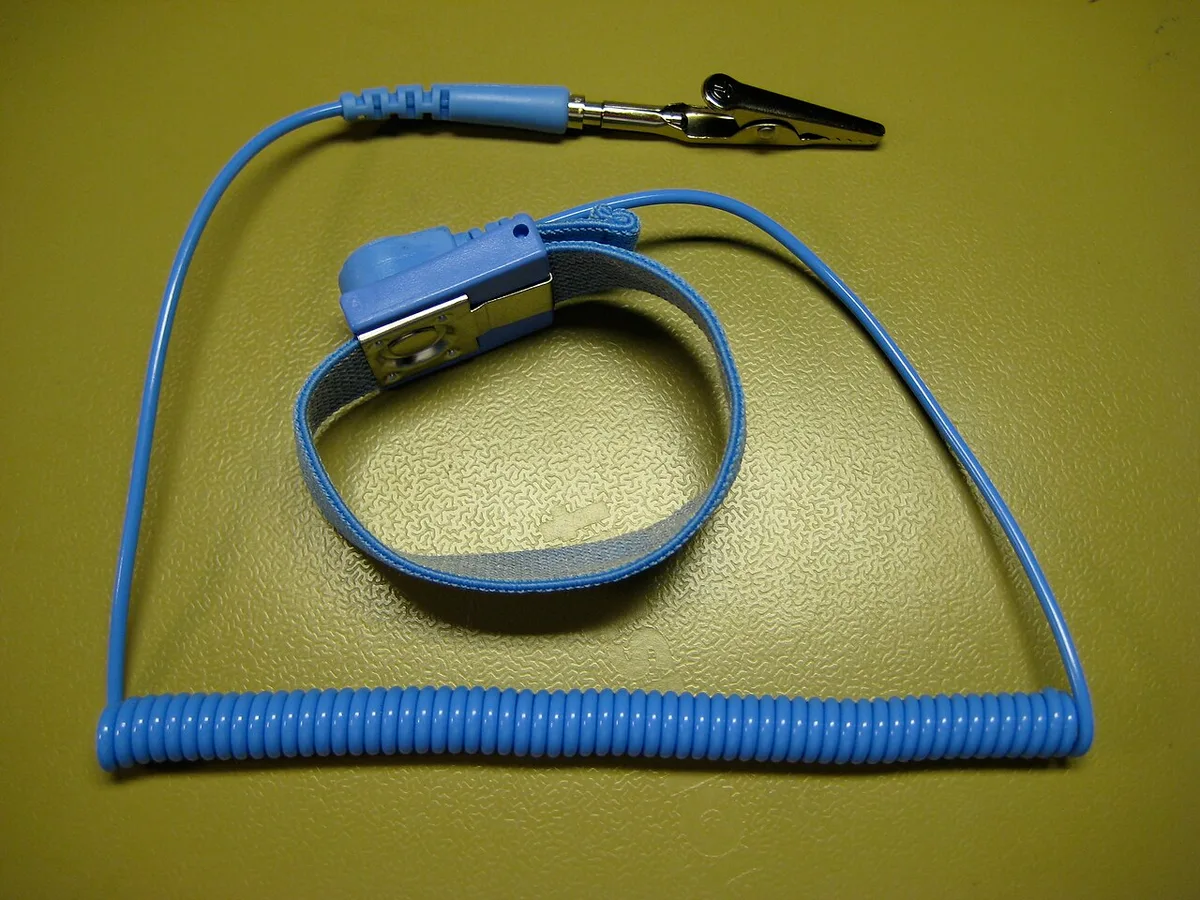
Image source: Wikimedia Commons / Kms (CC BY)
Power the laptop off fully. Unplug the charger. If the battery is removable, take it out.
If it is internal, disconnect it before touching memory. Press the power button for a few seconds to discharge residual power.
Use the right screwdriver. Many laptops use Phillips #0 or #00 screws. Keep screws in labeled cups by location.
Some screws are different lengths, and mixing them can damage the chassis.
Lift the bottom cover from the correct edge. Check the manual for pry points. Use a plastic spudger, not a metal flathead.
Work around the edges in small steps. Never force a stuck corner.
Once inside, look before you touch. Find the battery first and disconnect it. Then locate the memory area.
Look for SO-DIMM slots, empty slots, soldered chips, and shields. Count only removable slots. A soldered chip does not count as a slot.
Check both sides of the board if the design allows. Some compact laptops place memory under a shield on the top side. Others use a secondary board.
Do not remove shields unless the manual shows how.
Close the laptop only after everything is seated. Reconnect the battery. Install screws in the correct order.
Power on and verify the system boots. If you see a boot error, recheck seating and connections.
Opening the chassis can affect warranty coverage. Some brands allow user-serviceable memory. Others seal the unit or mark warranty void if opened.
Check the warranty terms before you begin. If the laptop is under warranty and the issue is unclear, use an authorized service center.
If you need a link for standards and safety context, JEDEC publishes memory standards, and Intel publishes processor memory specifications. Those help you understand supported speeds and capacities. They do not replace the laptop maker’s service manual.
Decoding Motherboard Layouts: Recognizing Empty SO-DIMM Slots
An empty SO-DIMM slot looks like a long plastic socket with two side clips and a central key notch. It may be bare, or it may be covered by a metal shield or thermal pad. If both sides have chips, the slot is occupied.
If the clips are empty and the notch is visible, it is open.
Look for the notch position. DDR4 and DDR5 SO-DIMMs have different notch placements, so a stick must match the slot. The slot also has a locking mechanism at each end.
A filled slot shows the stick seated at an angle, with clips snapped over the ends.
Some boards use one slot on each side of the board. Others place two slots side by side. Gaming laptops often make them easy to see.
Thin laptops may hide one under a shield near the CPU.
Use a flashlight and magnification. Do not touch the gold contacts. If a shield covers the area, stop and check the manual before removing it.
| Visual clue | Likely meaning |
|---|---|
| Side clips with empty notch | Empty SO-DIMM slot |
| Stick angled and clipped | Occupied slot |
| Flat black chips, no clips | Soldered memory |
| Long card with antenna wires | Wi-Fi module |
Common Visual Traps: Mistaking Heatsinks or Shields for Slots
The most common trap is a heatsink or shield that looks like a slot. It may be a flat metal plate with screws. Under it could be memory, or it could be the CPU, GPU, or VRM area.
Do not remove it unless the manual shows the steps.
Another trap is the M.2 SSD slot. It is shorter than a SO-DIMM slot and uses one screw at the end. It may sit near memory, but it holds storage, not RAM.
A Wi-Fi card also uses clips, but it has antenna cables and a shorter body.
Battery connectors can look like memory slots too. They are usually white or black plastic housings with wires. Do not pull them.
Disconnecting the battery is a separate step from inspecting memory.
If you see a shield, treat it as a stop sign. Some shields are thermal pads, and lifting them can tear the pad. Some are glued.
If the manual does not show removal, leave it alone and use another method.
When to Stop: Warranty Risks and Ultrabook Reality Checks
Stop if the laptop is sealed, glued, or under warranty with unclear terms. Many ultrabooks use soldered LPDDR memory and no removable slot. Opening them may not reveal an upgrade path.
It can also risk the display cable or battery.
Check the warranty before you pick up a screwdriver. Some makers allow RAM upgrades. Others consider opening the chassis a warranty issue.
If the machine is new or expensive, use an authorized service center.
Also stop if the bottom cover fights you. Stripped screws, hidden clips, and adhesive are signs that the design is not meant for casual access. A repair shop can inspect it with proper tools and parts knowledge.
If your goal is only to know the slot count, software plus the manual is often enough. Physical inspection is best when the manual is vague and the laptop is clearly serviceable. Do not open a laptop just to satisfy curiosity.
Frequently Asked Questions About RAM Slot Identification
Can Task Manager show empty RAM slots?
Task Manager often shows total memory and slots used. It may not prove how many physical slots exist. Some laptops report soldered memory as a slot.
Cross-check with CPU-Z and the official manual before buying memory.
Does every laptop have upgradeable RAM?
No. Many modern laptops use soldered memory, especially thin and light models. Gaming and business laptops more often have SO-DIMM slots.
The exact model number and service manual determine the real layout.
How do I know if RAM is soldered?
Soldered memory appears as flat chips on the board with no clips. Software may label it as soldered or show no slot count. The manual should state it clearly.
If unsure, inspect the board carefully after disconnecting power.
Is it safe to open a laptop to check RAM slots?
It can be safe if you follow ESD precautions, disconnect power, and use proper tools. It is risky on sealed or glued laptops. Warranty terms may also matter.
Stop if screws, clips, or shields resist.
Can a laptop have one soldered and one removable slot?
Yes. Some designs use mixed memory. One chip may be soldered, while another SO-DIMM slot remains open or filled.
Software may show two channels, which can be confusing. The manual or physical inspection confirms it.
1 thought on “How to Check How Many RAM Slots Your Laptop Has”
Comments are closed.