You hear it every time you launch a game. The fans spin up, the noise climbs, and suddenly your laptop sounds like it's trying to take off. If you've been wondering why is my gaming laptop fan so loud, the answer is almost always one of three things: heat, dust, or an aggressive fan curve.
Manufacturer specifications indicate that most gaming laptop fans run between 3,000 and 6,500 RPM, pushing noise from a quiet 30 dB at idle to 50 dB or more under full load. That jump is normal, but a fan that screams at idle or rattles under load is not. Here's how to find the real cause and fix it in the right order.
why is my gaming laptop fan so loud
Your laptop fan gets loud when heat builds faster than cooling removes it. Dust-clogged vents and dried thermal paste are the two most common causes. An aggressive fan curve or high power mode can also push RPMs up.
Check temps and load first, then clean, then repaste if needed.
Why Your Gaming Laptop Fan Suddenly Sounds Like a Jet Engine
A gaming laptop fan at 5,000 RPM while you're running a demanding title is doing its job. The heatsink and heat pipes are pulling heat away from the CPU and GPU, and the fan is pushing it out. Noise around 45 to 55 dB is expected there.
It should drop within a minute or two after you close the game.
If the fan screams at idle, rattles, clicks, or grinds, that's not normal. The same goes for a laptop that used to be quiet and suddenly isn't. Those patterns point to dust buildup, dried thermal paste, a worn bearing, or a software setting that changed.
Sudden onset usually means something shifted, not that the machine is broken.
Most loud fan cases trace back to one of three causes. Work through them in order before spending money.
- Heat: CPU and GPU hit 90°C+ and the fan ramps to max.
- Dust: vents and heatsink fins clog, airflow drops, temps climb.
- Fan curve: OEM software sets aggressive RPM targets.
Room temperature matters too. A laptop in a 28°C room has less cooling headroom than one in a 20°C room. Gaming on a bed or couch blocks the bottom intake vents and traps heat.
Both raise fan speed even when nothing else is wrong.
Chassis thickness plays a role as well. Thin-and-light gaming laptops have less space for heat pipes and fans, so they run louder by design. Thicker models with vapor chambers and dual fans stay quieter under the same load.
Pushing higher refresh rates also raises GPU load and heat, which makes the fan work harder.
The Short Answer: It's Usually Heat, Dust, or a Bad Fan Curve
Most loud fan cases trace back to one of three causes. Work through them in order before spending money.
If It's Hot (90°C+ Under Load)
High temperatures force the fan to max speed. Causes include dried thermal paste, blocked vents, high ambient temp, or running on Turbo mode. Fix it by cleaning vents, repasting if the paste is 2+ years old, switching to Balanced mode, and elevating the laptop.
If It's Dusty
Dust acts like a blanket on the heatsink fins. Even a thin layer cuts airflow and raises temps 5 to 10°C. Clean intake and exhaust vents with compressed air every 3 to 6 months.
In dusty or pet-heavy homes, clean more often.
If the Fan Curve Is Too Aggressive
Some OEM software ships with loud default curves. MSI Center, Armoury Crate, and Lenovo Vantage all let you pick Quiet or Balanced modes. Third-party tools like FanControl give finer control.
A gentler curve trades a few degrees of temperature for much quieter operation. Storage performance won't change fan noise much, so don't chase SSD tweaks for this problem.
| Symptom | Likely Cause | First Fix |
|---|---|---|
| Loud only during gaming | Heat under load | Switch to Balanced mode |
| Loud at idle | Background process or aggressive curve | Check Task Manager, set Quiet mode |
| Grinding or clicking | Worn bearing | Replace fan |
| Suddenly louder than before | Dust buildup | Clean vents |
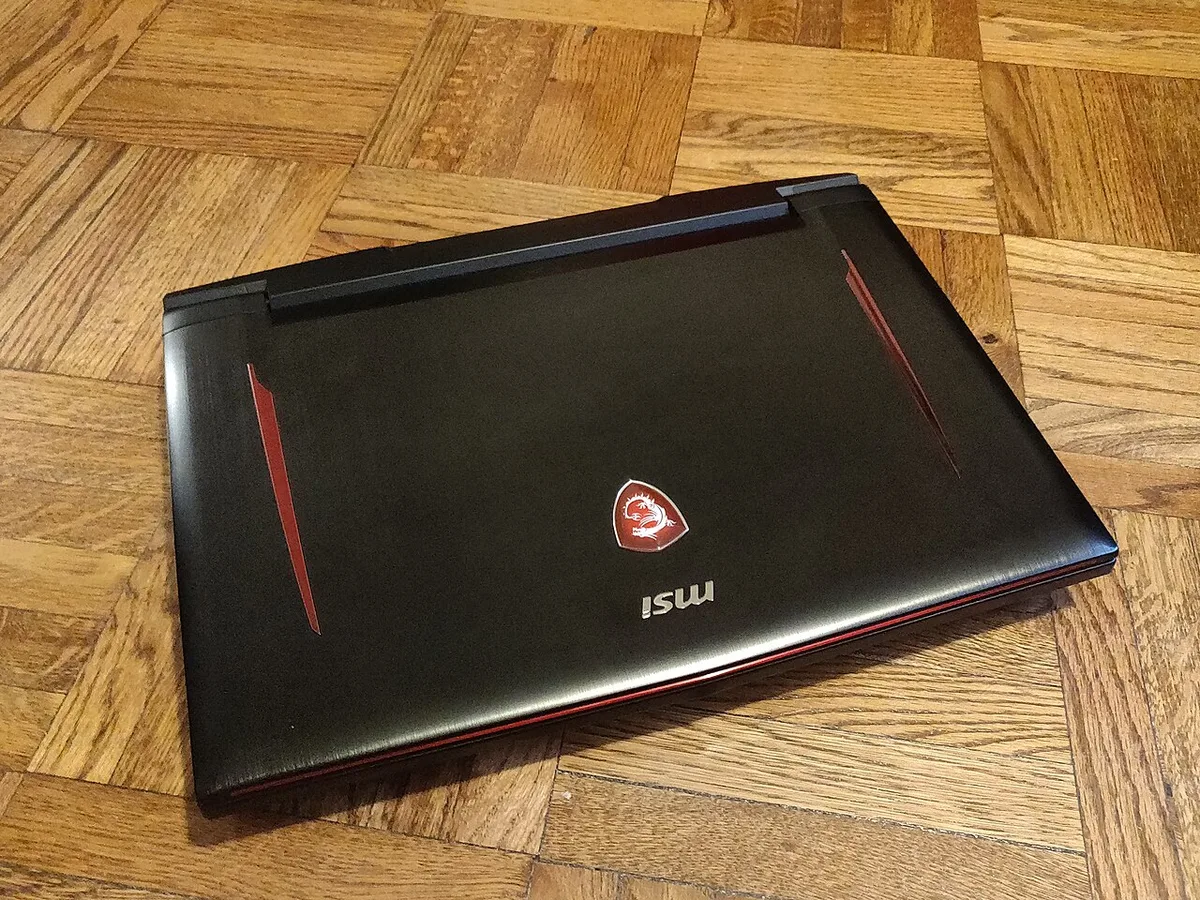
Image source: Wikimedia Commons / Kurt Kaiser
What Actually Drives Fan Speed on a Gaming Laptop
Fan speed is a function of temperature and power, not just game load. Understanding the chain helps you fix the right link instead of guessing.
CPU and GPU Power Limits
The CPU and GPU draw power measured in TDP. Higher TDP means more heat. Intel and AMD mobile chips boost clock speeds when cool, which spikes power draw and fan speed.
When hot, they throttle down. So fan noise often tracks boost behavior, not just game load. Per Intel's mobile processor thermal documentation, sustained power limits (PL1) and turbo limits (PL2) define how long a chip can run hot before throttling.
The Cooling Hardware Inside
Heat moves from chip to heatsink via heat pipes or a vapor chamber. Fans push air through the heatsink fins and out the exhaust. If any link in that chain is weak, the fan compensates by spinning faster.
Heat pipe count, fin density, and fan size all vary by model. Thin chassis often use fewer, smaller fans.
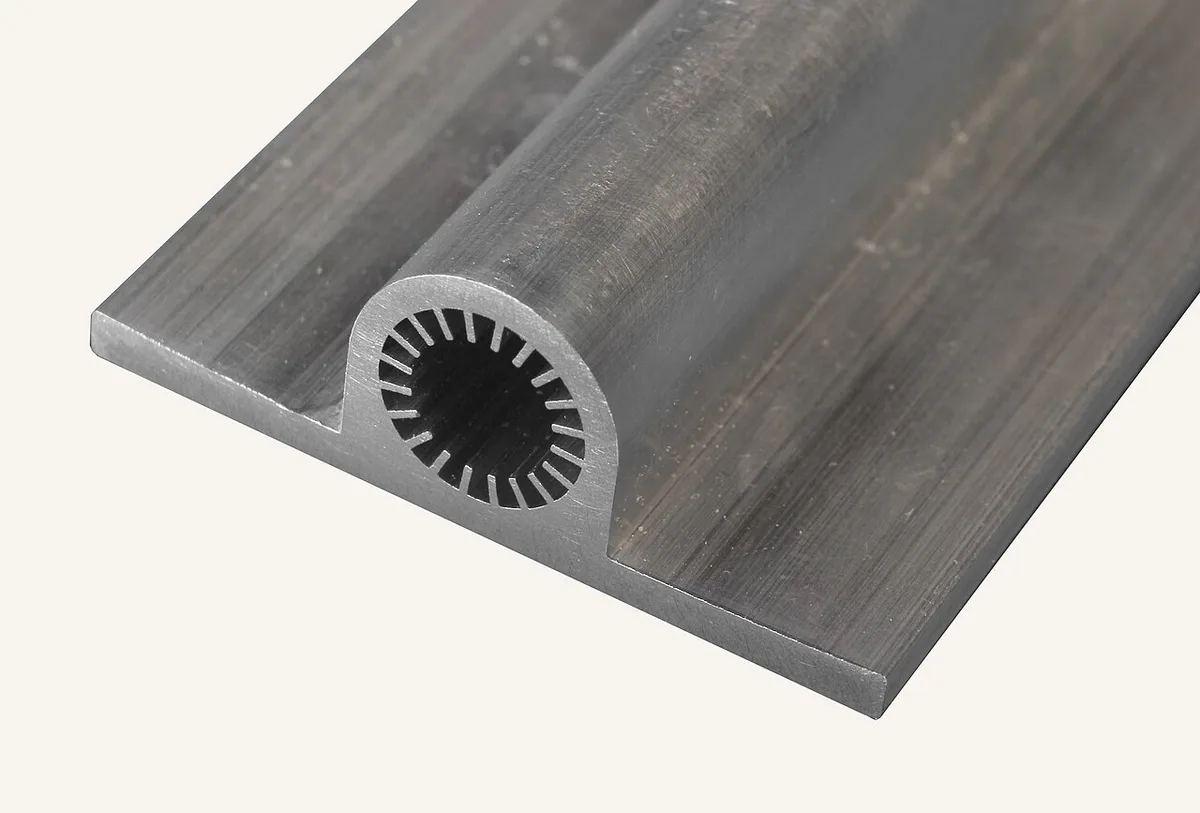
Image source: Wikimedia Commons / Saud (CC BY-SA)
Fan Curves and Embedded Controller Firmware
The embedded controller (EC) firmware reads temperature sensors and sets fan RPM based on a programmed curve. OEMs tune these curves differently. Some prioritize low temps over noise.
Updating BIOS can change the curve. Third-party software overrides it at the OS level.
| Metric | Typical Range |
|---|---|
| Idle CPU temp | 40 to 55°C |
| Load CPU/GPU temp | 80 to 95°C |
| Throttle point (CPU) | 95 to 100°C |
| Throttle point (GPU) | 83 to 90°C |
| Fan noise (idle) | 30 to 35 dB |
| Fan noise (load) | 45 to 55+ dB |
Match Your Symptom to the Real Cause
Use this decision tree to skip straight to the right fix.
Loud Only While Gaming
This is usually normal thermal behavior. The CPU and GPU are doing real work. Check temps first.
If they stay under 90°C, the noise is just the cost of performance. Switch to Balanced mode or cap your frame rate to reduce load. Running high-refresh gaming pushes more frames and more heat.
Loud at Idle
This is never normal. Check Task Manager for a runaway process. Scan for malware.
Look at your power mode, since Turbo or Performance modes can hold fans high even at idle. If nothing shows up, the fan curve itself may be aggressive, or the fan bearing may be failing.
Grinding, Clicking, or Rattling
That sound is mechanical, not thermal. A worn bearing, a loose screw, or dust stuck in the fan blades causes it. Power down, open the chassis if you're comfortable, and inspect.
If the bearing is worn, replace the fan. Don't ignore it, since a failing fan can seize and overheat the chip.
Suddenly Louder Than Last Month
Something changed. Dust builds up over weeks. Thermal paste degrades over 2 to 4 years.
A recent BIOS update may have changed the curve. A new game may be heavier than your usual load. Adding extra storage can also add heat inside the chassis, so check temps after any upgrade.
| Symptom | Likely Cause | First Action |
|---|---|---|
| Loud only in games | Normal load | Check temps, cap FPS |
| Loud at idle | Process or curve | Task Manager, Quiet mode |
| Grinding or clicking | Mechanical fault | Inspect and replace fan |
| Suddenly louder | Dust or paste | Clean, then repaste |
Fix It in Order: From Free Fixes to Deep Repairs
Work top to bottom. Stop when the noise drops to an acceptable level.
- Check temps and load. Use HWMonitor or HWiNFO64. Note CPU and GPU temps at idle and under load.
- Switch power mode. Move from Turbo or Performance to Balanced or Quiet in your OEM software.
- Close background apps. Check Task Manager for high CPU usage. Scan for malware.
- Elevate the laptop. Use a hard, flat surface. Never game on a bed or couch.
- Clean the vents. Use short bursts of compressed air held 2 to 3 inches from the vents. Hold the can upright. Don't spin the fans with the air blast.
- Update BIOS and drivers. Chipset and GPU driver updates can improve thermal management.
- Adjust the fan curve. Use FanControl or your OEM app to set a gentler curve.
- Repaste the CPU and GPU. DIY cost is $5 to $15 for paste. Service center runs $50 to $150. Paste degrades after 2 to 4 years.
- Replace the fan. Parts run $20 to $60 plus labor if you don't DIY.
- Add a cooling pad. Expect $20 to $40. It helps marginally but won't fix a real problem.
Safety notes. Disconnect the battery before opening the chassis. Use ESD precautions.
Liquid metal paste conducts electricity, so keep it off nearby components. Opening the chassis may void warranty depending on the brand. Memory upgrades and other internal work carry the same warranty risk, so check your manufacturer's policy first.
As of 2026, most major brands still allow user upgrades without voiding warranty, but seal stickers and unauthorized service center visits can cause issues. Check your specific model's service manual before opening anything.
Mistakes That Make Gaming Laptop Fan Noise Worse
Some fixes backfire. Avoid these common errors.
Gaming on Soft Surfaces
Beds, couches, and blankets block the bottom intake vents. Airflow drops, temps climb, and the fan screams. Use a hard, flat surface every time.
A lap desk or book works in a pinch.
Spinning Fans with Compressed Air
Holding the can close and blasting the fan spins it faster than its bearings allow. That damages the fan. Hold the can 2 to 3 inches away.
Use short bursts. Better yet, use a manual air bulb that doesn't spin the fan at all.
Repasting with Liquid Metal Incorrectly
Liquid metal conducts electricity. A drop on a nearby capacitor or resistor shorts the board. It also reacts with aluminum heatsinks.
Use standard thermal paste like Thermal Grizzly Kryonaut or Noctua NT-H2 unless you know exactly what you're doing.
Running Turbo Mode All the Time
Turbo holds the CPU and GPU at max power even when the game doesn't need it. That spikes heat and noise. Switch to Balanced for daily use.
Save Turbo for benchmarks or heavy rendering.
Ignoring Grinding Sounds
A grinding fan is a dying fan. It can seize and overheat the chip. Replace it before it fails.
Parts run $20 to $60. Labor is another $50 to $100 if you don't DIY.
Adding Storage Without Checking Heat
Adding a second SSD increases heat inside the chassis. Adding a second drive is fine, but monitor temps afterward. If noise climbs, improve airflow or repaste.
What Each Fix Costs and How Long It Takes
Most fixes are cheap or free. The table below shows typical costs and time.
| Fix | Cost (USD) | Time | Difficulty |
|---|---|---|---|
| Switch power mode | Free | 1 minute | Easy |
| Close background apps | Free | 5 minutes | Easy |
| Elevate laptop | Free | Instant | Easy |
| Clean vents with compressed air | $5 to $10 | 15 minutes | Easy |
| Update BIOS and drivers | Free | 30 minutes | Easy |
| Adjust fan curve | Free | 20 minutes | Moderate |
| Repaste (DIY) | $5 to $15 | 1 to 2 hours | Moderate |
| Repaste (service center) | $50 to $150 | 1 to 3 days | None |
| Replace fan | $20 to $60 + labor | 1 to 2 hours | Moderate |
| Cooling pad | $20 to $40 | Instant | Easy |
DIY repaste saves money but carries risk. Opening the chassis may void warranty depending on the brand. Upgrading RAM carries the same risk, so check your manufacturer's policy before opening anything.
Some brands like Dell and HP allow user upgrades. Others like Razer and Apple void warranty for any opening.
If you're not comfortable opening the chassis, use a service center. Authorized centers use the correct paste and torque specs. Third-party shops are cheaper but may use low-quality paste.
Keep It Quiet Long-Term: Maintenance That Actually Works
Prevention beats repair. A simple routine keeps fan noise low for years.
Clean Every 3 to 6 Months
Dust builds up fast in homes with pets or carpets. Clean intake and exhaust vents with compressed air. Do it more often in dusty environments.
A 5-minute cleaning every few months prevents the buildup that causes loud fans.
Repaste Every 2 to 4 Years
Thermal paste dries out. Heat transfer drops. Fan speed climbs.
Repaste before it becomes a problem. If your laptop is over 3 years old and running hot, repaste is likely overdue. Checking RAM slots is a good time to also inspect the heatsink if you're already inside.
Keep Ambient Temperature Low
Aim for room temps below 27°C (80°F). Hot rooms reduce cooling headroom. Use AC or a fan in summer.
Don't game in direct sunlight.
Use Balanced Mode for Daily Use
Reserve Turbo for heavy workloads. Balanced mode keeps temps and noise reasonable for most games. Your ears and your hardware will thank you.
Monitor Temps Monthly
Run HWiNFO64 once a month. Check idle and load temps. A 5°C rise over a few months signals dust or paste degradation.
Catch it early and the fix stays cheap.
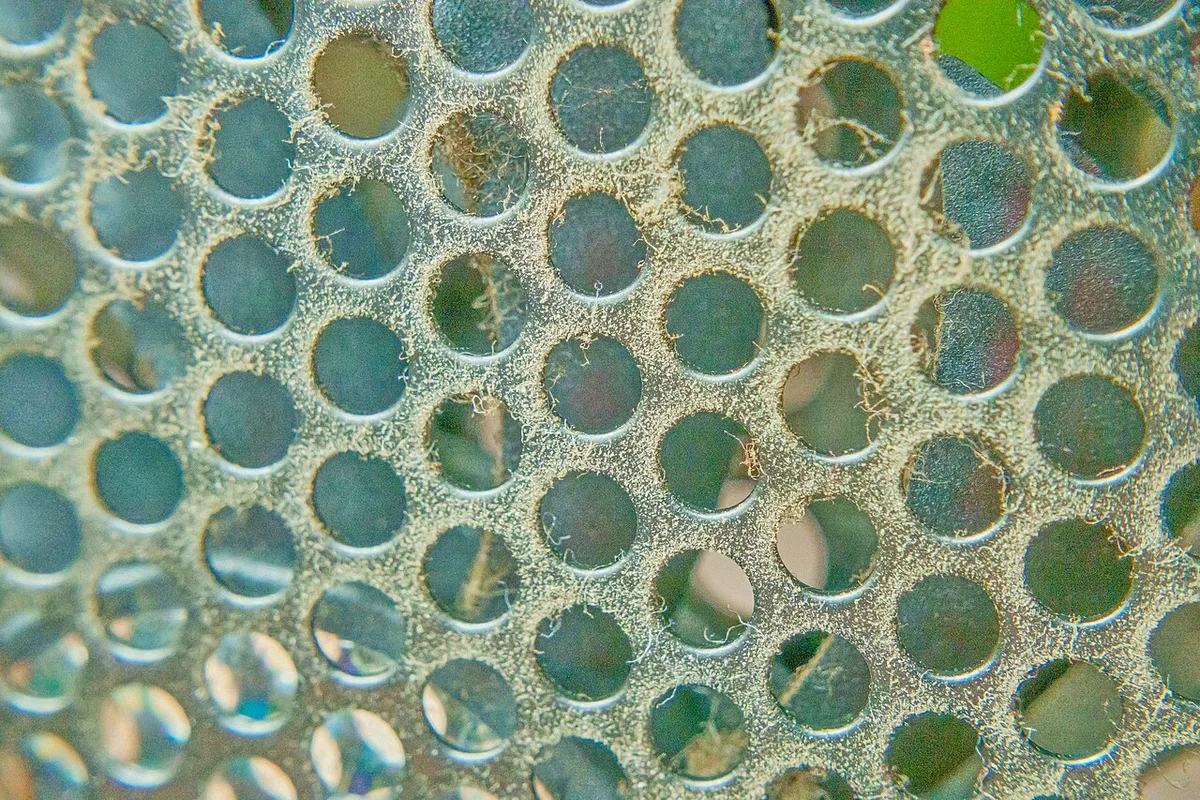
Image source: Wikimedia Commons / Junyu-K (CC BY-SA)
Cooling Pads Help Marginally
A cooling pad drops temps 2 to 5°C. That's real but small. It won't fix a clogged heatsink or dried paste.
Use it as a supplement, not a solution. The image above shows a typical pad with built-in fans.
FAQs: Loud Gaming Laptop Fan Questions Answered
Is it normal for a gaming laptop fan to be loud?
Yes, during gaming. Fan noise of 45 to 55 dB under load is normal. Loud fans at idle are not.
If your laptop screams while browsing or sitting idle, check for background processes, aggressive fan curves, or dust buildup.
How do I know if my laptop fan needs replacing?
Listen for grinding, clicking, or rattling. Those sounds mean a worn bearing. Also check RPM in HWiNFO64.
If RPM spikes to max but temps stay high, the fan may be failing. A seized fan pushes temps to throttle point within minutes.
Does a cooling pad actually help?
Slightly. Expect 2 to 5°C lower temps. That's useful in hot rooms or on soft surfaces.
It won't fix dust, dried paste, or a broken fan. Treat it as a supplement, not a fix.
Can I turn off the fan on my gaming laptop?
No. The fan is essential for cooling. Disabling it causes immediate overheating and throttling.
Some software lets you set a minimum RPM, but never zero. The embedded controller will override unsafe settings anyway.
How often should I clean my gaming laptop fan?
Every 3 to 6 months. Clean more often in dusty or pet-heavy homes. Use short bursts of compressed air.
Hold the can upright and 2 to 3 inches from the vents. Don't spin the fans with the air blast.
Will repasting void my warranty?
It depends on the brand. Dell, HP, and Lenovo often allow user upgrades. Razer and Apple may void warranty for any chassis opening.
Check your service manual and warranty terms before opening. Authorized service centers avoid this risk entirely.
1 thought on “Why Is My Gaming Laptop Fan So Loud? Causes & Fixes”
Comments are closed.