Is a gaming laptop good for 3D rendering? It can be, but only when the workload fits the machine. The answer changes with VRAM, cooling, render engine, and scene size.
In our research, a laptop GPU can match much of a desktop for viewport work. Sustained rendering is where heat and power limits start to matter. Keep that in mind as we walk through the decision branches below.
is a gaming laptop good for 3D rendering
Yes, for many hobby and mid-level projects. No, for heavy client scenes. Match VRAM to the scene first.
Keep the laptop plugged in while rendering.
How 3D Rendering Actually Uses a Gaming Laptop
3D rendering asks the GPU to calculate light, shadows, and materials. That is a sustained load, not a short gaming burst. VRAM holds textures, geometry, and lighting data.
Blender Cycles, OctaneRender, and Redshift lean hard on NVIDIA CUDA and OptiX. Blender Eevee and Unreal Engine lean on real-time GPU power. CPU matters for simulation, physics, and some render engines.
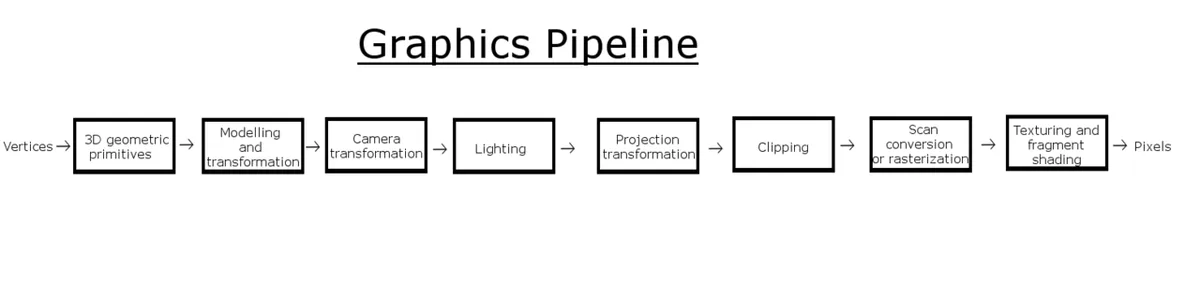
Image source: Wikimedia Commons / Elzahn (CC BY-SA)
A gaming laptop can feel fast in the viewport. Long final renders are the real test. That is where thermal throttling shows up.
The Decision Branches: When It Works and When It Doesn't
If your scenes fit in 8GB to 12GB of VRAM, a mid-range gaming laptop can work well. If you use Blender Eevee, real-time previews stay smooth. If you render overnight on small scenes, it is often fine.
If your scenes need 16GB or more VRAM, expect crashes or slow out-of-core rendering. If you deliver client work on tight deadlines, a desktop or cloud farm is safer. If you use AMD-only GPU tools, check CUDA support first.
If you travel often, portability can beat raw speed. If you stay at one desk, a desktop gives better value. If you need both, consider a laptop plus a cloud render farm.
Specs That Actually Matter for Rendering
GPU VRAM is the first spec to check. 8GB is entry level. 12GB is a safer middle. 16GB or more helps with large scenes.
GPU TGP matters almost as much as the GPU name. A 140W RTX 4080 laptop chip can outperform a lower-wattage RTX 4090 laptop chip. Cooling design decides how long boost clocks last.
| Spec | Good Starting Point | Why It Matters |
|---|---|---|
| GPU VRAM | 12GB or more | Prevents out-of-memory crashes |
| GPU TGP | 115W or higher | Sustains render speed |
| System RAM | 32GB | Handles large scenes and multitasking |
| Storage | 1TB NVMe SSD | Fast scene and texture loading |
| Cooling | Vapor chamber or strong fans | Reduces thermal throttling |
System RAM helps when scenes spill past VRAM. NVMe storage speeds up asset loading. A color-accurate display helps with look development.
Gaming Laptop vs. Desktop, Workstation, and Cloud Farm
A gaming laptop wins on portability and space. It loses on sustained power and upgrade paths. A desktop workstation wins on cooling, VRAM options, and long render stability.
Mobile workstations add ISV certifications and often better cooling. They cost more for similar GPU power. Cloud render farms remove local hardware limits but add per-render cost.
| Option | Best For | Main Drawback |
|---|---|---|
| Gaming laptop | Travel, mixed work, small scenes | Heat and VRAM limits |
| Desktop workstation | Heavy scenes, long renders | Not portable |
| Mobile workstation | Certified pro workflows | Higher price |
| Cloud render farm | Final frames, tight deadlines | Ongoing cost |
If you are weighing a workstation, read our comparison of workstation-class options. If you wonder about desktop power, see how desktop-level performance compares. For thermal limits, check why sustained heat changes results.
Choose the tool that matches your worst-case scene, not your average one. That is the safest way to avoid missed deadlines.
How to Get the Best Render Performance from a Gaming Laptop
Start with the basics. Keep the laptop plugged in. Switch to the high-performance power mode.
Use a cooling stand or elevate the rear edge.
Update to the right driver before a big project. For many 3D apps, NVIDIA Studio Drivers are the safer pick. Check the software maker's guidance first.
Blender and V-Ray publish their own requirements.
Then tune the scene. Lower polygon counts where possible. Use texture compression and proxy objects.
Enable denoising. Render only the changed region when testing.
Keep an eye on thermals. Tools like HWiNFO show CPU and GPU temperatures. If temps hit the high 90s, pause and improve airflow.
Clean dust from vents every few months.
If you need more GPU power later, some laptops support an eGPU over Thunderbolt 4. That adds cost and desk clutter. For many users, cloud rendering is the simpler upgrade path.
- Use a high-TGP laptop model when possible.
- Keep the chassis elevated and vents clear.
- Close heavy background apps.
- Schedule long renders overnight.
- Test small scenes before full frames.
If you are comparing workstation-class machines, read about workstation-class models. If you want to understand sustained power, compare desktop-level performance. For driver guidance, check the NVIDIA Studio Driver page.
Common Mistakes That Ruin Render Performance
The biggest mistake is trusting the GPU name alone. A laptop RTX 4090 can run far below a desktop RTX 4090. TGP and cooling matter more than the badge.
Another mistake is rendering on battery. Laptop GPUs drop power limits when unplugged. Frames slow down and render times jump.
People also ignore VRAM. An 8GB GPU can handle simple scenes. Large textures and heavy geometry push it past its limit.
That leads to crashes or slow out-of-core rendering.
Dust is another silent problem. Blocked vents raise temps over time. Fans get louder and clocks drop.
Clean the intake and exhaust areas regularly.
Software setup matters too. Game Ready Drivers can be fine for games. Studio Drivers are often better for 3D apps.
Test both if your app allows it.
- Do not buy based on GPU name only.
- Do not render on battery.
- Do not skip thermal monitoring.
- Do not ignore VRAM limits.
- Do not let dust build up.
If you want to understand why mobile chips lag, read about why mobile chips lag. For a broader desktop comparison, see desktop comparison. Blender's own system requirements are a useful baseline.
What It Costs and What You Actually Get
As of 2026, a capable rendering laptop usually starts around $1,200. Mid-range models land near $1,800 to $2,500. High-end machines can pass $3,000.
Entry models often have 8GB VRAM and lower TGP. They suit learning, small scenes, and viewport work. Mid-range models with 12GB VRAM give more headroom.
High-end models with 16GB VRAM handle larger scenes better.
You are paying for portability. A desktop with the same GPU name often costs less and runs faster. It also upgrades more easily.
The laptop wins when you need to work in more than one place.
Cloud rendering adds another cost layer. It can save a deadline. It also creates a recurring bill.
Balance local power with farm use.
| Price Band | Typical VRAM | Best Use |
|---|---|---|
| $1,200 to $1,700 | 8GB | Learning and small scenes |
| $1,800 to $2,500 | 12GB | Freelance and mid-size scenes |
| $3,000+ | 16GB+ | Heavy scenes and client work |
Repair support and warranty terms matter too. Check repair support before buying. Compare warranty terms before you commit.
Frequently Asked Questions
Can a gaming laptop run Blender Cycles well?
Yes, if the GPU has enough VRAM and the scene is not too large. NVIDIA RTX cards with 12GB or more handle many Cycles scenes. Lower-VRAM laptops may crash or fall back to slower CPU rendering.
How much VRAM do I need for 3D rendering?
8GB works for simple scenes and learning. 12GB is a safer middle for freelance work. 16GB or more helps with large textures, dense geometry, and complex lighting.
Should I use Game Ready or Studio Drivers?
For 3D work, Studio Drivers are often the safer choice. They target creative apps and stability. Game Ready Drivers can work well too.
Test the one your software supports best.
Is a gaming laptop better than a desktop for rendering?
No for raw sustained performance. Yes for portability. Desktops win on cooling, upgrade paths, and cost per frame.
Laptops win when you need to render away from one desk.
Can I upgrade a gaming laptop for 3D work?
Usually only RAM and storage. The GPU and CPU are often soldered. An eGPU can help, but it adds cost and setup complexity.
Do I need to keep it plugged in while rendering?
Yes. Rendering drains battery fast and lowers power limits. Keep the adapter connected.
Use the included high-wattage charger.
Final Verdict: Should You Buy One for 3D Rendering?
Buy a gaming laptop if portability is part of your workflow. It works well for learning, viewport-heavy tasks, and mid-size scenes. It also suits freelancers who move between clients.
Skip it if your work depends on large scenes, long overnight renders, or tight client deadlines. A desktop or cloud farm is safer there. If you need both, use the laptop for creation and the farm for finals.
Match the machine to your worst scene, not your average one. Check VRAM first. Then check TGP and cooling.
That order saves the most frustration.
If you are still deciding, compare creator-focused machines before buying. A gaming laptop can be a strong rendering tool. It just needs the right limits.
1 thought on “Is a Gaming Laptop Good for 3D Rendering?”
Comments are closed.