If you've ever cracked open a gaming PC, the motherboard is the big flat board everything plugs into. What does a motherboard do in a gaming PC? It's the central hub that connects your CPU, GPU, RAM, storage, and power supply into one working system.
Without it, none of those parts can talk to each other.
Manufacturer specifications from Intel and AMD confirm that the socket, chipset, and PCIe layout on a board dictate which parts you can use and how fast they run. As of 2026, even budget boards support PCIe 4.0 and DDR5 memory. This guide walks you through the visual layout so you can spot what matters before you build.
what does a motherboard do in a gaming pc
A motherboard connects your CPU, GPU, RAM, storage, and power supply so they work together. It routes data between parts through PCIe lanes and memory channels. It also delivers power to the CPU through its voltage regulators.
Without it, no component can communicate or power on. Every gaming PC needs one that matches its CPU socket and case size.
Why Visual Layouts Matter for Gaming Motherboards
When you're planning a gaming build, a photo of the motherboard tells you more than a spec sheet. You can see where the CPU socket sits, how many M.2 slots are available, and whether the VRM heatsinks look beefy enough for your processor. A quick glance at the board layout also shows you if the GPU slot has enough clearance for a triple-fan card.
Spec sheets list numbers. But numbers don't show you that the top M.2 slot sits right under your GPU, where it'll cook under load. Or that the front panel headers are buried under a massive heatsink.
These are things you only catch by looking at the board.
Visual layouts also help you plan cable routing. Boards with rear-mounted power connectors keep your build clean. Boards with side-mounted SATA ports force cables across the front of the case.
If you've ever struggled with a messy build, you know how much this matters.
Aggregate reviews report that builders who study the board layout before buying make fewer returns. They spot missing WiFi antennas, cramped RAM slots, and awkward I/O placement early. That saves time and money.
PCI-SIG publishes the PCIe standards that govern slot bandwidth, which is worth checking when comparing boards.
What a Motherboard Actually Does in a Gaming PC
A motherboard is the nervous system of your gaming PC. It doesn't compute graphics or run game logic. Instead, it moves data and power between every component so they can do their jobs.
The CPU socket holds your processor and connects it to the chipset. The chipset manages traffic between the CPU, RAM, storage, and USB devices. PCIe slots carry data between the CPU and your graphics card at high speed.
DIMM slots feed the CPU with system memory.
Power delivery is another critical job. The 24-pin ATX connector feeds the board. The 8-pin EPS connector feeds the CPU.
VRMs on the board step that power down to the exact voltage your CPU needs. Weak VRMs cause instability when you push the processor hard.
Storage connectivity matters too. M.2 slots give NVMe drives a direct PCIe path to the CPU or chipset. SATA ports handle older SSDs and hard drives.
The number and type of these connectors determine how much fast storage you can add.
Your graphics card's role in the system depends on the motherboard's PCIe lane allocation. A GPU running at PCIe 4.0 x16 gets full bandwidth. Drop to x8 and you may see a small performance hit in some titles.
Check how many lanes your board provides before you buy.
The board also handles networking. Built-in Ethernet and WiFi chips connect you to the internet. Audio codecs drive your headphones and speakers.
USB controllers manage your keyboard, mouse, and peripherals. All of this runs through the motherboard.
JEDEC sets the DDR memory standards that define RAM speeds and timings. Check your board's QVL (qualified vendor list) to see which memory kits are tested and approved.
Key Identifiers: CPU Socket, Chipset, RAM, and PCIe Slots
Every motherboard has four identifiers you should check first. Get any of them wrong and your build won't work.
The CPU socket is the most important. Intel uses LGA sockets like LGA1700. AMD uses PGA sockets like AM5.
The socket must match your processor exactly. No adapters exist for consumer gaming boards.
The chipset determines features. Intel's Z790 allows CPU overclocking. B760 does not.
AMD's X670E supports PCIe 5.0 for both GPU and storage. B650 limits PCIe 5.0 to storage only. Pick the chipset that matches your goals.
RAM slots tell you memory type and capacity. DDR5 boards have 2 or 4 DIMM slots. Each slot holds one stick.
Check the max speed the board supports. A board rated for DDR5-6000 won't run DDR5-7200 without overclocking.
PCIe slots carry your GPU and expansion cards. The top slot is usually PCIe 5.0 x16 on high-end boards. Lower slots may run at x4 or x1.
If you plan to add a capture card or sound card, check the lower slots carefully.
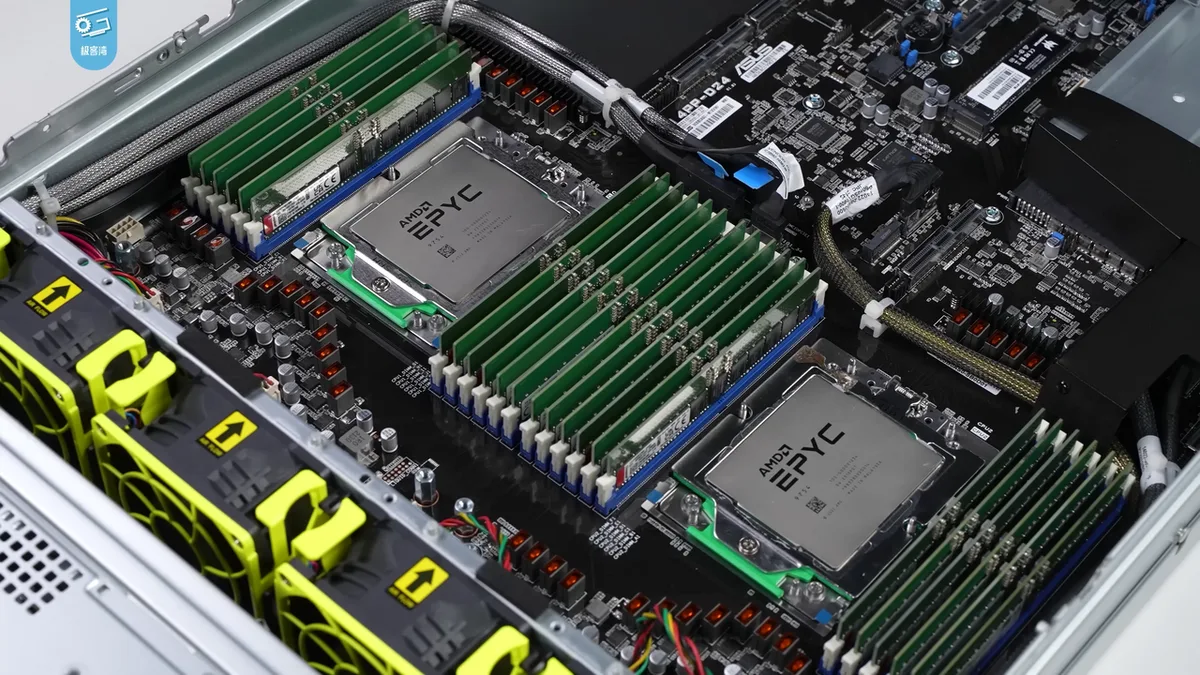
Image source: Wikimedia Commons / 极客湾Geekerwan (CC BY)
CPU generation compatibility is another factor. A board may support one or two CPU generations. Intel's LGA1700 covers 12th, 13th, and 14th gen chips.
AMD's AM5 covers Ryzen 7000, 8000, and 9000 series. Check the manufacturer's CPU support list before buying.
Integrated graphics support matters if you don't have a discrete GPU. Most modern CPUs include integrated graphics. But some high-end chips drop the iGPU entirely.
Make sure your board and CPU combo matches your needs.
Step-by-Step Visual Cues When Building a Gaming PC
Building a gaming PC goes smoother when you know what to look for on the board. Here are the visual cues that matter most.
First, locate the CPU socket. It's usually in the upper-center of the board. Lift the retention arm, align the CPU's triangle marker with the socket's triangle, and lower the arm.
You should feel a firm click.
Next, find the DIMM slots. They sit to the right of the CPU. Push each RAM stick down until both clips click.
If one clip doesn't engage, the stick isn't seated fully.
Then mount the M.2 drive. Look for a small screw and standoff near the M.2 slot. Slide the drive in at a 30-degree angle, then press it flat and screw it down.
Some boards have tool-less latches. Check your manual.
After that, install the GPU. Find the top PCIe x16 slot. It's the longest slot on the board.
Remove the slot covers on your case, align the GPU, and press down until it clicks. Secure it with screws.
Finally, connect power. The 24-pin ATX cable goes to the right edge of the board. The 8-pin EPS cable goes to the top-left.
Both have keyed connectors that only fit one way.
| Build Step | Visual Cue | Common Mistake |
|---|---|---|
| CPU install | Triangle marker alignment | Forcing the chip |
| RAM install | Both clips click | Half-seated stick |
| M.2 install | 30-degree angle entry | Over-tightening screw |
| GPU install | Slot clicks and locks | Not removing case cover |
| Power connect | Keyed connector fits | Forcing wrong orientation |
Fitting a large GPU into your case requires checking the slot position too. Some boards place the top PCIe slot very close to the CPU cooler. A big air cooler may block the slot.
Check clearance before you build.
Common Visual Mistakes and How to Spot Them
Even experienced builders make visual mistakes. Here are the most common ones and how to catch them.
The first mistake is misaligning the CPU. The triangle marker on the chip must match the triangle on the socket. If you force it wrong, you'll bend pins on AMD boards or damage the LGA pads on Intel boards.
Always check twice.
The second mistake is half-seating RAM. A stick that looks seated may not be fully clicked in. Push until you hear both clips snap.
Then press firmly on each end to confirm.
The third mistake is forgetting the I/O shield. This metal plate goes in the case before the motherboard. If you install the board first, you'll have to remove everything to put it in.
Check the case before you start.
The fourth mistake is blocking airflow. Large VRM heatsinks and M.2 heatsinks look impressive. But they can block fan intakes or trap heat.
Look at where your case fans point and make sure nothing blocks them.
Bottlenecking your graphics card can happen if you install it in the wrong slot. The second or third PCIe slot may run at x4 or x1. Always use the top x16 slot for your GPU.
Check the manual for slot speeds.
The fifth mistake is cable routing errors. Front panel headers are small and easy to miswire. The power switch, reset, HDD LED, and power LED each have specific pins.
Use the manual's diagram. A wrong connection won't damage anything, but your power button won't work.
As of 2026, most boards include Q-LED debug lights. These small LEDs near the 24-pin connector show which component failed POST. If the CPU LED stays lit, reseat the processor.
If the DRAM LED stays lit, reseat the RAM. These lights save hours of guessing.
Motherboard Specs That Actually Affect Gaming Performance
Not every spec on a motherboard changes your frame rate. The ones that matter most are VRM quality, PCIe lane layout, memory support, and cooling.
VRMs step power down for the CPU. A board with more phases and larger heatsinks keeps voltage stable during long gaming sessions. Manufacturer specs show that high-TDP chips like the Intel Core i9-14900K or AMD Ryzen 9 7950X need stronger VRMs than entry-level processors.
PCIe lane layout decides how your GPU and storage connect. Most gaming GPUs run fine at PCIe 4.0 x16. Some budget boards force the GPU to x8 when multiple M.2 drives are active.
That rarely hurts gaming, but it can matter for capture cards or AI workloads.
Memory support is another real factor. A board rated for DDR5-6000 may not post with a DDR5-7200 kit. Check the QVL before you buy RAM.
Faster memory helps in CPU-bound games, but only if the board supports it.
Networking and USB matter more than people think. A 2.5GbE port reduces latency in online games. WiFi 6E or WiFi 7 helps if you can't run Ethernet.
Rear USB ports should cover your mouse, keyboard, headset, and any controllers.
Audio codecs are usually fine on modern boards. If you use a high-end headset or external DAC, the onboard codec matters less. Most gamers won't notice the difference.
| Spec | Gaming Impact | What to Look For |
|---|---|---|
| VRM quality | High | Large heatsinks, 12+ phases |
| PCIe GPU slot | High | PCIe 4.0 or 5.0 x16 |
| Memory support | Medium | DDR5-6000 or higher |
| M.2 storage | Medium | Gen4 or Gen5 with heatsink |
| Networking | Medium | 2.5GbE or WiFi 6E/7 |
| USB ports | Low | Enough rear ports for peripherals |
UEFI Forum publishes the firmware standards that govern BIOS behavior. A board with a clean UEFI interface makes XMP or EXPO setup much easier.
ATX vs Micro-ATX vs Mini-ITX: Choosing by Layout and Space
Form factor is the first thing to match with your case. ATX boards measure 305 x 244 mm. Micro-ATX boards measure 244 x 244 mm.
Mini-ITX boards measure 170 x 170 mm.
ATX gives you the most room. You usually get 4 RAM slots, 3 or more M.2 slots, and multiple PCIe expansion slots. It fits standard mid-tower and full-tower cases.
This is the easiest layout for first-time builders.
Micro-ATX trims the width. You still get 2 to 4 RAM slots and 2 M.2 slots on most boards. Expansion slots drop to 2 or 3.
It fits smaller cases and costs less. It's a strong choice for budget gaming builds.
Mini-ITX is the smallest. You get 2 RAM slots, 1 or 2 M.2 slots, and 1 PCIe x16 slot. Cable routing is tighter.
CPU cooler height and GPU length limits matter more. It's best for small-form-factor gaming PCs.
Image source: Wikimedia Commons / VIA Gallery from Hsintien, Taiwan (CC BY)
| Form Factor | Size | Best For |
|---|---|---|
| ATX | 305 x 244 mm | Full builds, upgrades, airflow |
| Micro-ATX | 244 x 244 mm | Budget builds, compact cases |
| Mini-ITX | 170 x 170 mm | Small-form-factor gaming PCs |
Choose ATX if you want easy building and future upgrades. Choose Micro-ATX if you want to save money and space. Choose Mini-ITX only if case size is your top priority.
Check GPU clearance for your case before you pick a small board.
Real-World Gaming Scenarios and Board Layout Examples
Different gaming setups need different board layouts. The right choice depends on your resolution, CPU, and upgrade plans.
A 1080p budget build usually pairs a B-series board with a mid-range CPU. Look for 2 RAM slots, 1 M.2 slot, and a single PCIe x16 slot. WiFi is optional if you use Ethernet.
This keeps cost low without hurting gaming performance.
A 1440p or 4K build needs more headroom. A Z-series or X-series board with strong VRMs supports high-end CPUs. Look for 4 RAM slots, 2 or more M.2 slots, and PCIe 5.0 for the GPU.
Extra USB ports help with controllers and VR headsets.
A small-form-factor build needs careful planning. Mini-ITX boards often place the M.2 slot under the GPU. That can trap heat.
Check if the board includes an M.2 heatsink. Also confirm your CPU cooler fits the case height limit.
A streaming build needs expansion. A capture card takes a PCIe slot. Multiple M.2 drives store game footage.
Strong LAN matters more than WiFi. ATX or Micro-ATX layouts work best here.
| Gaming Scenario | Board Layout to Prioritize |
|---|---|
| 1080p budget | B-series, 2 RAM slots, 1 M.2 |
| 1440p/4K high-end | Z/X-series, strong VRM, PCIe 5.0 |
| Small-form-factor | Mini-ITX, low-profile cooler, short GPU |
| Streaming/content | ATX/Micro-ATX, extra PCIe slot, 2.5GbE |
If you plan to upgrade later, buy a board with extra RAM and M.2 slots now. That saves money compared to replacing the whole platform.
Frequently Asked Questions
Does a motherboard affect gaming FPS?
A motherboard rarely increases FPS by itself. It affects stability, memory speed, and GPU bandwidth. A weak VRM can cause throttling under load.
A board with slow memory support can limit CPU-bound games. Most FPS gains come from the GPU and CPU.
Can I upgrade my CPU without changing the motherboard?
You can if the new CPU fits the same socket. Intel LGA1700 supports 12th, 13th, and 14th gen chips. AMD AM5 supports Ryzen 7000, 8000, and 9000 series.
Always check the manufacturer's CPU support list and BIOS version before upgrading.
Do I need WiFi on my gaming motherboard?
You need WiFi only if you can't run Ethernet. A wired 2.5GbE connection gives lower latency and more stable speeds. WiFi 6E or WiFi 7 is fine for most games.
If your board lacks WiFi, a USB or PCIe adapter works.
Is PCIe 5.0 worth it for gaming right now?
PCIe 5.0 is not required for most gaming GPUs as of 2026. PCIe 4.0 x16 still provides enough bandwidth. PCIe 5.0 M.2 drives are faster, but game load times don't improve much.
Buy PCIe 5.0 if you want future-proofing, not immediate gains.
How many M.2 slots do I need for gaming?
One M.2 NVMe drive is enough for most gamers. A 1TB or 2TB Gen4 drive holds many games. Add a second slot if you record gameplay or store large libraries.
Extra slots cost more, so match them to your storage needs.
Does motherboard brand matter for gaming?
Brand matters less than specs and layout. ASUS, MSI, Gigabyte, and ASRock all make good gaming boards. Compare VRM cooling, port layout, and BIOS quality.
Read aggregate reviews for the specific model before buying.
3 thoughts on “What Does a Motherboard Actually Do in a Gaming PC?”
Comments are closed.