why must a motherboard socket match the cpu? Because the socket is the physical and electrical bridge between the processor and the rest of the board. If the pin layout, power delivery, and signal paths do not line up, the system will not boot, and forcing it can damage both parts.
Manufacturer specifications list one correct socket for each CPU family, and that detail matters as much as the chip itself. As of 2026, a common mismatch is buying an AM5 CPU for an AM4 board, or an LGA1700 chip for an LGA1200 socket. Get the socket right first, then confirm chipset and BIOS support.
why must a motherboard socket match the cpu
The socket must match the CPU. It sets the physical pin layout. It also sets electrical signals and power paths.
The wrong socket cannot connect the processor. It can damage pins or the board.
Why a Socket Mismatch Stops the Build Cold
A socket mismatch usually stops the build before the first boot. If the CPU does not sit flat, the lever may resist or close unevenly. If the pin map differs, the board may spin fans but never POST.
In some cases, the chip looks close enough to install, which makes the mistake costly.
Check the failure signs before you force anything. A wrong part often shows clear warnings.
- The CPU rocks or tilts in the socket.
- The retention lever needs unusual pressure.
- The system powers on but shows no display.
- The BIOS reports no CPU or unknown processor.
- Bent pins or scuffed contact pads appear after removal.
| Symptom | Likely cause | Best next step |
|---|---|---|
| CPU will not sit flat | Wrong socket or wrong orientation | Stop and compare the model numbers |
| Lever feels forced | Pin or land mismatch | Remove the CPU and inspect for damage |
| Fans spin, no POST | Electrical or BIOS mismatch | Check the CPU support list |
| Bent pins | Physical mismatch or poor handling | Do not reseat; contact the seller |
If you are planning an upgrade, review the signs you need a CPU upgrade before buying parts. That helps you decide whether the socket change is worth the full platform move.
The Real Reason Sockets and CPUs Must Match
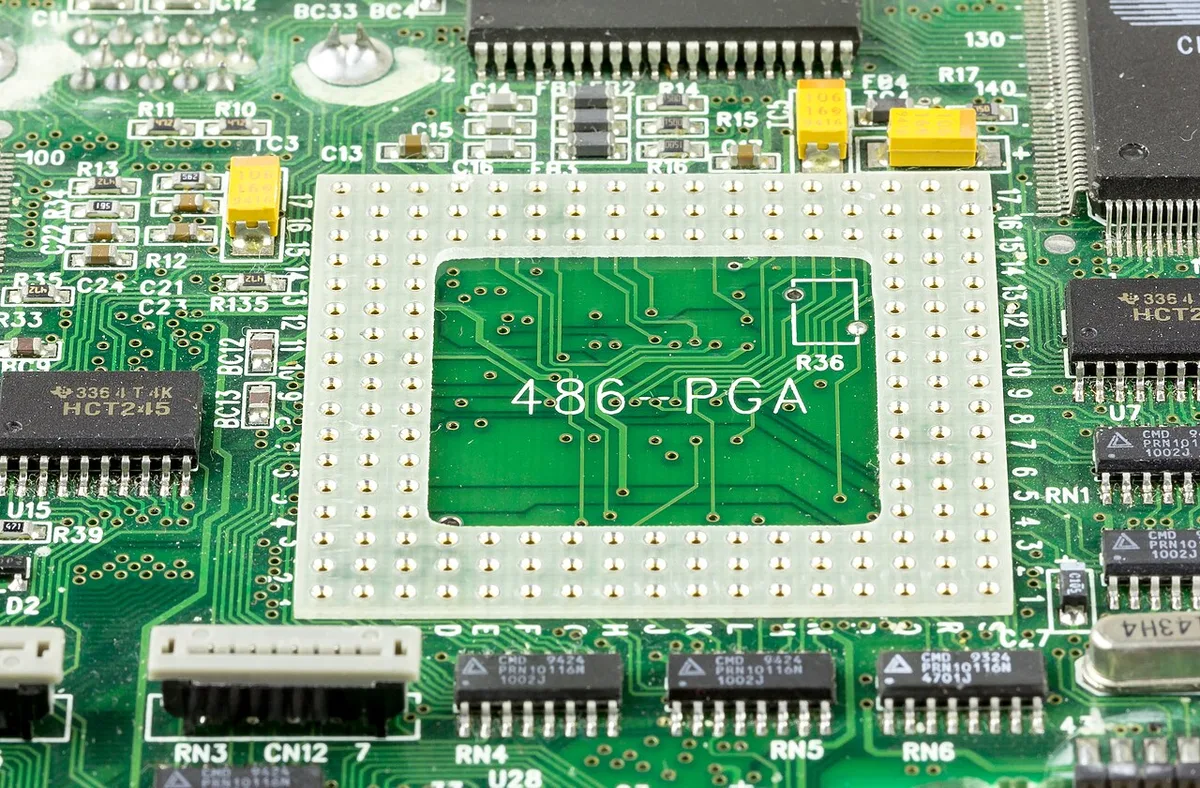
Image source: Wikimedia Commons / Raimond Spekking (CC BY-SA)
The socket is not just a hole pattern. It defines how electrical contacts touch the processor and how power reaches the chip. A CPU needs the correct voltage rails, clock signals, and data lanes at the right pins.
When those paths do not match, the processor cannot initialize.
Physical fit is only the first test. Some packages look similar but use different land layouts. Intel LGA sockets place pins on the motherboard, while many AMD PGA sockets place pins on the CPU.
BGA chips are soldered to the board and are not user-replaceable.
Electrical fit is the deeper issue. The same brand can change sockets between generations. That means a newer chip may fit an older board in size but not in signaling.
Always match the exact CPU model to the socket name.
Power delivery matters too. A socket may support a chip mechanically but not electrically. High-core CPUs need strong VRMs and enough current.
If the board cannot deliver that current, the CPU may throttle or shut down.
- Match the exact CPU model, not just the brand.
- Match the socket name exactly.
- Match the chipset and BIOS support.
- Match the cooler mounting hardware.
For platform planning, each CPU generation matters because socket changes often arrive with new memory and PCIe support.
Condition Variables That Decide Compatibility
Compatibility depends on more than the socket name. You need to check the CPU, motherboard, chipset, BIOS, cooling, and memory together. If one variable fails, the build can still fail.
Start with the CPU model number. Then check the motherboard socket. After that, check the chipset and BIOS version.
Finally, check power and cooling.
| Variable | What to verify | Why it matters |
|---|---|---|
| CPU model | Exact part number | Defines the required socket |
| Motherboard socket | Socket name and revision | Defines physical and electrical fit |
| Chipset | Platform support | Defines features and CPU support |
| BIOS version | Minimum required version | Lets the board recognize the CPU |
| Cooler mounting | Bracket and hole pattern | Prevents poor cooling or damage |
| Memory type | DDR4 or DDR5 | Avoids another platform mismatch |
If the board has the right socket but an older BIOS, the CPU may not POST. If the socket and BIOS are right but the VRMs are weak, the CPU may run poorly. This is why a full compatibility check beats a quick socket check.
When monitoring CPU behavior after a build, watch for unstable clocks or sudden shutdowns. Those signs can point to power delivery problems, not just heat.
Decision Branches by Platform
Use the CPU platform to choose your next step. Intel and AMD use different socket families, and each family has its own upgrade rules. Treat brand, generation, and socket as separate checks.
If you are on Intel, check the LGA number first. An LGA1700 CPU needs an LGA1700 socket. An LGA1200 CPU needs an LGA1200 socket.
Even if both are Intel, they are not interchangeable.
If you are on AMD, check AM4 versus AM5. AM4 CPUs use AM4 sockets. AM5 CPUs use AM5 sockets.
AM5 also moves to DDR5 and newer PCIe support, so a platform upgrade may include RAM.
If the CPU is soldered to the board, stop. BGA chips are not socketed. Laptop and mini PC processors often fall into this case.
| Platform | Common socket | Upgrade note |
|---|---|---|
| Intel desktop | LGA1700 | Check 12th to 14th gen support |
| Intel desktop | LGA1200 | Older 10th and 11th gen only |
| AMD desktop | AM5 | DDR5 and newer PCIe support |
| AMD desktop | AM4 | Broad but older CPU support |
| Laptop or mini PC | BGA | Usually not upgradeable |
If you are deciding between a CPU upgrade and a GPU upgrade, compare the bottleneck signs first. A socket mismatch can push you into a full platform change, which changes the budget.
Step-by-Step Compatibility Check Before You Buy
Follow this order before you place the order. It keeps you from buying a CPU that your board cannot use.
- Find the exact CPU model number on the manufacturer page.
- Note the required socket name.
- Check your motherboard model and socket name.
- Open the motherboard CPU support list.
- Confirm the minimum BIOS version.
- Check the chipset features you need.
- Check VRM and power delivery for the CPU's TDP.
- Check cooler mounting compatibility.
- Check memory support for that platform.
- Save screenshots or PDFs for warranty support.
If any step fails, stop and choose a different CPU or motherboard. Do not assume that a close socket name is close enough. Socket names are exact.
After installation, monitor CPU usage during gaming to confirm stable behavior. If usage spikes with poor performance, revisit power, cooling, or BIOS settings.
For authoritative specifications, use Intel's processor specifications and AMD's processor specifications. Motherboard vendors also publish CPU support lists by model and BIOS version.
BIOS, Chipset, and Power Delivery: The Hidden Gatekeepers
A matching socket is only the first gate. The chipset must also support the CPU, and the BIOS must know how to start it. If either one is missing, the board may show power but never POST.
Check the motherboard CPU support list before buying. It lists exact models, required BIOS versions, and notes about memory or PCIe limits. That list matters more than the socket label.
Power delivery is the next gate. A high-core CPU can draw more current than a budget board can supply. If the VRMs run too hot, the chip may throttle, crash, or shut down under load.
If you want to confirm stability after the build, watching CPU usage during gaming can reveal whether the chip is boosting and holding clocks.
- Match the socket first.
- Match the chipset second.
- Match the BIOS version third.
- Match VRM capacity to the CPU's TDP.
Socket Types and Physical Installation Differences
Socket type changes how the CPU connects to the board. LGA sockets put pins on the motherboard. PGA sockets put pins on the CPU.
BGA chips are soldered in place and are not user-replaceable.
Intel desktop boards often use LGA sockets, while many AMD desktop boards use PGA sockets. The mounting hardware and cooler brackets can differ too. A cooler that fits one socket may not fit another.
Installation is mostly mechanical, but orientation matters. Align the CPU triangle with the socket triangle. Lower the chip gently.
Close the lever without forcing it.
Socket names change with CPU generations, which is why understanding why CPU generations matter for gaming helps avoid buying an outdated platform.
| Socket style | Where the pins live | User replaceable? |
|---|---|---|
| LGA | Motherboard | Yes |
| PGA | CPU | Yes |
| BGA | Soldered to board | Usually no |
Mistakes That Break Boards and Waste Money
Most socket mistakes come from trusting the brand instead of the model number. Intel and AMD both reuse names across generations. That makes quick guesses risky.
Forcing a chip is the most expensive mistake. A lever should close with steady pressure, not a shove. If you feel resistance, stop and recheck orientation and socket name.
Another common mistake is ignoring cooler mounting. A CPU can be compatible but still run hot with the wrong bracket. That leads to throttling and repeated shutdowns.
Before spending money, check the signs a gaming PC needs a CPU upgrade so you are not replacing a socket for the wrong reason.
- Buying by brand instead of model number.
- Forcing the retention lever.
- Skipping the BIOS version check.
- Reusing an incompatible cooler bracket.
- Ignoring VRM and TDP limits.
What to Do If You Already Bought the Wrong Part
Stop before installation if the socket name does not match. Keep the CPU in its tray and packaging. Do not test fit it in the board.
If the chip was already installed, remove it carefully and inspect the pins or contact pads. Bent pins reduce resale value and may void coverage. Take photos before and after removal.
Next, check the seller's return policy and the manufacturer's warranty terms. Many retailers accept unopened parts. Opened CPUs may have stricter limits.
If the wrong chip was forced in and the system now shuts down, thermal throttling behavior can look similar to power delivery failure, so inspect pins before blaming heat.
- Do not power on after a forced install.
- Document damage with clear photos.
- Start the return or exchange process quickly.
- Recheck the full compatibility list before reordering.
Frequently Asked Questions
Can a CPU fit the wrong socket?
No. A CPU should not fit the wrong socket. If it seems close, stop.
The pin layout or land pattern is different. Forcing it can bend pins or damage the board.
Does the same brand mean the same socket?
No. The same brand can use several sockets across generations. Intel and AMD both change platforms over time.
Always check the exact CPU model and socket name.
Can a BIOS update fix a socket mismatch?
No. A BIOS update cannot change the physical socket. It can only add support for CPUs that already use the correct socket.
Check the CPU support list first.
What happens if I force a CPU into the wrong socket?
You can bend pins, crack the substrate, or damage the socket contacts. The board may also fail to POST. Stop immediately if the lever resists or the chip rocks.
How do I check CPU and motherboard compatibility?
Start with the CPU model number. Then match the socket, chipset, BIOS version, TDP, cooler mounting, and memory type. Use the motherboard support list for the final check.
Is a soldered CPU upgradeable?
Usually no. BGA chips are soldered to the board. Most laptop and mini PC processors fall into this category.
Check the device service manual before planning an upgrade.
2 thoughts on “Why Your CPU Must Match the Motherboard Socket”
Comments are closed.