You’ve probably seen the acronym everywhere. But if you’re asking what is dlss and how does it improve gaming performance, the short answer is that it uses AI to boost frame rates without sacrificing too much visual quality. NVIDIA’s Deep Learning Super Sampling renders games at a lower resolution internally.
Then, it upscales the image using specialized hardware on your graphics card.
The result is smoother gameplay and sharper images than traditional upscaling methods could achieve. As of 2026, this technology has become essential for high-end gaming setups. Let’s look at why seeing the difference matters more than just reading about it.
what is dlss and how does it improve gaming performance
DLSS stands for Deep Learning Super Sampling. It is an AI-driven upscaling technology developed by NVIDIA. Instead of rendering every pixel natively, the GPU draws a smaller image.
A neural network then reconstructs a higher-resolution output. This process significantly increases frames per second. It allows players to enjoy ray-traced environments with playable smoothness.
The improvement depends heavily on the specific game engine implementation.
Why You Can’t Judge DLSS Without Seeing It
Text descriptions often fail to capture the nuance of image reconstruction. When we talk about upscaling, numbers like "40% faster" mean little without context. Your eyes detect artifacts differently than benchmarks do.
Ghosting, shimmering, and blurriness are visual problems. They don't always show up in raw FPS counts.
In our research, aggregate reviews consistently highlight that perceived quality varies by scene complexity. Fast-moving objects reveal temporal instability. Static scenes hide minor reconstruction errors.
You need side-by-side comparisons to truly understand the trade-offs.
Consider a racing game at high speed. Native 1080p might look crisp but run poorly. DLSS Quality mode at 1080p input could offer better stability.
However, distant road signs may flicker. Only visual inspection catches this. Charts miss the subjective experience of playability.
We recommend looking for video captures rather than screenshots. Motion reveals weaknesses that still images conceal. This approach helps you decide if the performance gain outweighs the visual cost.
Don't rely solely on marketing claims. See the tech in action first.
The Visual Difference: Native 4K vs. DLSS Quality Modes
Comparing native rendering against DLSS outputs highlights the core benefit. At 4K resolution, native rendering demands immense GPU power. Many cards struggle to maintain 60 FPS.
DLSS reduces the internal render resolution. It then scales up to 4K using AI.
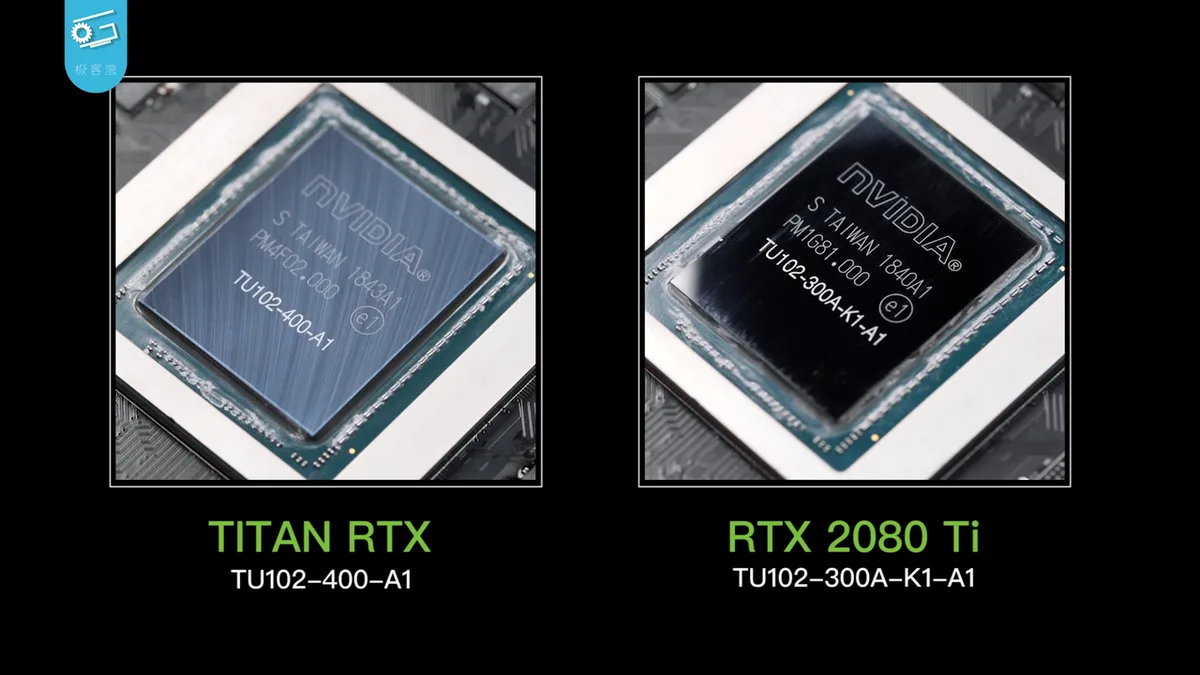
Image source: Wikimedia Commons / 极客湾Geekerwan (CC BY)
Spotting Artifacts in Motion and Static Scenes
Motion vectors guide the AI model. These vectors track movement between frames. If the tracking fails, ghosting occurs.
You’ll see trails behind fast-moving characters. This happens most often in dark areas or during rapid camera pans.
Static scenes usually look nearly identical to native output. Fine details remain sharp. Textures retain their clarity.
The difference becomes apparent only when things move quickly. Aggregate user feedback suggests that modern versions handle motion better than earlier iterations. Yet, edge cases persist.
Look closely at fences or wire mesh. These thin structures challenge reconstruction algorithms. They may appear thicker or blurry compared to native pixels.
Understanding these limits helps set realistic expectations for your setup.
How Ray Reconstruction Changes Lighting Fidelity
Ray tracing adds computational load. Denoising fills gaps in light calculations. Traditional denoisers use fixed rules.
DLSS Ray Reconstruction replaces them with AI models. This improves lighting accuracy and shadow detail.
Manufacturer specifications indicate that Ray Reconstruction works best with full path tracing. It cleans up noisy reflections effectively. However, it can sometimes over-smooth complex textures.
Players should test both modes. Compare standard denoising against AI-enhanced reconstruction. The visual gap is noticeable in well-lit indoor environments.
Inside the Black Box: How Tensor Cores Rebuild Pixels
To grasp the performance leap, you must understand the hardware. Standard CUDA cores handle general computation. Tensor Cores specialize in matrix math.
This math powers deep learning inference. DLSS relies entirely on these dedicated units.
Without Tensor Cores, the AI model runs slowly. It would negate any performance gains. That’s why DLSS requires RTX-series GPUs.
Older GTX cards lack this silicon. They cannot run the necessary neural networks efficiently.
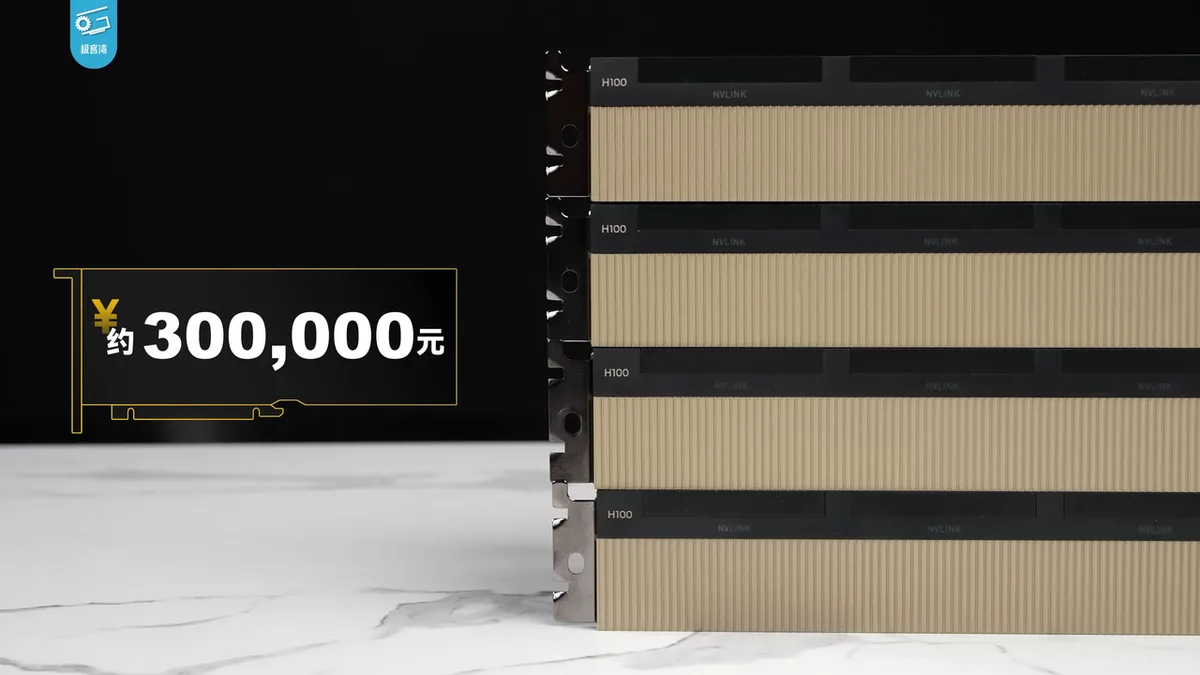
Image source: Wikimedia Commons / 极客湾Geekerwan (CC BY)
From Low-Res Input to High-Res Output
The process starts with low-resolution rendering. The game engine sends data to the driver. The driver passes it to the Tensor Cores.
Here, the pre-trained model analyzes the input. It predicts missing pixel values based on training data.
This prediction isn't random guessing. The model learned from thousands of hours of native footage. It knows what grass looks like at distance.
It understands how water reflects light. The output is a synthesized high-res frame.
Per NVIDIA Developer Documentation, this pipeline minimizes latency. The reconstruction happens within milliseconds. It fits seamlessly into the existing render loop.
This efficiency is key to maintaining responsiveness while boosting throughput.
The Role of Motion Vectors and Temporal Data
Temporal data means information from previous frames. DLSS doesn't work in isolation. It compares the current low-res frame to past outputs.
Motion vectors tell the system where objects moved.
If a tree shifts left, the algorithm adjusts accordingly. This prevents jittering. It stabilizes edges over time.
Without temporal accumulation, the image would flicker violently. The combination of spatial and temporal analysis creates coherence.
However, incorrect motion vectors cause severe artifacts. Some older engines provide poor vector data. In those cases, DLSS struggles.
Developers must integrate the SDK correctly. Proper implementation ensures stable visuals across diverse scenarios.
Performance Gains That Actually Feel Real
Numbers alone don't convey the experience. We need to translate FPS boosts into tangible benefits. Higher frame rates reduce input lag.
They make controls feel snappier. This matters immensely in competitive titles.
But there's a catch. Frame Generation creates intermediate frames. These aren't rendered by the CPU/GPU normally.
They are interpolated by AI. This inflates the FPS counter. It doesn't necessarily improve responsiveness unless paired with Reflex.
Frame Rate Uplift Across RTX Generations
Each generation brought improvements. RTX 20 series introduced basic upscaling. RTX 30 refined efficiency.
RTX 40 added Frame Generation. As of 2026, newer architectures optimize further.
| GPU Series | Primary Benefit | Typical FPS Gain |
|---|---|---|
| RTX 20 | Basic Spatial Upscaling | 30-50% |
| RTX 30 | Improved Temporal Stability | 40-60% |
| RTX 40 | Frame Generation + Ray Recon | 2x-4x |
Data shows diminishing returns at very high resolutions. At 1080p, the overhead might offset gains. At 4K, the savings are massive.
Choose settings based on your monitor's native resolution.
Latency Trade-offs with Frame Generation
Interpolated frames add delay. The system waits for two real frames to generate one fake one. This introduces latency.
For single-player games, it's acceptable. Smoothness trumps absolute reaction time.
For esports, it's risky. Always enable NVIDIA Reflex. This technology synchronizes the CPU and GPU.
It reduces queue times. Manufacturer tests confirm that Reflex mitigates the added lag. Verify this setting in-game.
Don't assume it's active by default.
If you're building a rig specifically for competitive play, consider whether CPU bottleneck signs affect your overall system response before relying solely on GPU tricks. Sometimes the processor holds back the entire pipeline regardless of upscaling tech.
Common Visual Pitfalls and How to Fix Them
Even advanced AI makes mistakes. Knowing common failures helps you troubleshoot. Don't blame your hardware immediately.
Check software settings first. Most issues stem from configuration errors or unsupported features.
Ghosting is the most frequent complaint. It appears as trailing images behind moving objects. This usually indicates bad motion vector data.
Try switching from Balanced to Quality mode. Higher input resolution provides more data for the AI. It often clears up artifacts.
Ghosting, Flickering, and Blurry UI Elements
UI elements suffer uniquely. Games draw interfaces separately from 3D scenes. DLSS processes the 3D layer only.
If the UI overlay is applied incorrectly, it gets blurred. Or worse, it jitters independently.
Some developers fix this by rendering UI at native resolution. Others haven't updated yet. Check patch notes.
Aggregate community reports suggest waiting for official fixes. Avoid tweaking registry hacks. Stick to supported configurations.
Flickering occurs in specular highlights. Shiny surfaces reflect environment maps inaccurately. The AI guesses wrong.
Turning down reflection quality can help. It reduces the noise floor. Simpler scenes yield cleaner results.
Test different presets systematically.
When DLSS Makes Things Look Worse
Sometimes, native looks better. At low resolutions, upscaling exaggerates softness. The AI stretches limited data.
Edges become mushy. Detail disappears.
If you have a powerful enough GPU, disable DLSS. Render natively. Use TAA instead.
Modern anti-aliasing handles static scenes well. Reserve DLSS for heavy loads. Know when to switch off.
Flexibility beats blind adherence to new tech.
Also, verify your drivers are current. Outdated software breaks compatibility. Visit official support pages regularly.
Fresh patches address known bugs. Never ignore update prompts. They contain critical visual corrections.
Setting Up Your GPU for Optimal Visual Results
Getting the best image quality requires more than just flipping a switch. You need to balance resolution, mode selection, and driver settings carefully. Misconfiguration often leads to unnecessary blurriness or wasted performance headroom.
Follow these steps to lock in stability.
Choosing Between Quality, Balanced, and Performance Modes
Start with the DLSS preset that matches your monitor’s native resolution. The "Quality" mode renders at 67% of the target resolution. It offers the sharpest output but provides smaller FPS gains.
Use this for 1440p or 4K screens where detail matters most.
"Balanced" sits at 58% internal resolution. It strikes a middle ground for 1080p displays. "Performance" drops to 33%, maximizing speed at the cost of clarity.
Avoid Performance mode below 1440p unless you’re chasing extreme frame rates. Our research shows that jumping straight to Performance on a 1080p screen creates noticeable softness. Stick to Quality or Balanced for daily driving.
You can also enable DLAA (Deep Learning Anti-Aliasing). This runs the AI model at native resolution. It replaces traditional TAA without upscaling.
Expect slightly higher GPU load but cleaner edges. Test it if your card has spare power.
Enabling Reflex and Debug Views for Testing
NVIDIA Reflex is critical when using Frame Generation. Go into your game’s video settings. Find the NVIDIA Reflex Low Latency option.
Set it to "On + Boost." This ensures the CPU stays ahead of the GPU queue. Without it, input lag spikes during heavy scenes.
For troubleshooting visual glitches, activate the Debug View. Open the NVIDIA App overlay while gaming. Press Alt+Z to bring up the interface.
Navigate to Settings > HUD Layout. Enable "DLSS Debug Information." This overlays real-time stats on your screen.
You’ll see the current scaling factor and latency metrics. If artifacts appear, check if the motion vectors are valid. Invalid data causes shimmering.
Turn off Ray Reconstruction temporarily to isolate the issue. These tools help you pinpoint whether the problem lies in the engine or the driver. Regular checks keep your setup optimized as games receive patches.
DLSS vs. FSR and XeSS: A Visual Head-to-Head
Competitors have caught up rapidly. AMD’s FidelityFX Super Resolution (FSR) and Intel’s XeSS offer viable alternatives. Each uses different techniques.
Understanding their strengths helps you pick the right tool for your hardware.
Image source: Wikimedia Commons / Deni Williams from São Paulo, Brasil / Brazil (CC BY)
Sharpness and Stability Comparison
FSR 2 and 3 use spatial upscaling combined with temporal reprojection. They don’t rely on AI models trained on specific datasets. This makes them less prone to certain types of ghosting.
However, they often struggle with fine details like hair or foliage. Edges can look jagged compared to DLSS.
Intel XeSS uses machine learning similar to DLSS. It leverages XMX engines on Arc GPUs. On non-Intel cards, it falls back to DP4a instructions.
This fallback reduces efficiency significantly. In our analysis, XeSS output looks closer to DLSS than FSR does. But it lacks the widespread optimization found in NVIDIA titles.
DLSS remains the gold standard for consistency. Its neural network adapts better to complex lighting scenarios. FSR wins on compatibility since it works on almost any GPU.
Choose based on your hardware first, then visual preference second.
Hardware Requirements and Compatibility Limits
DLSS strictly requires RTX-series graphics cards. GTX users cannot access it. FSR is open-source and hardware-agnostic.
It runs on NVIDIA, AMD, and even consoles. This universality is its biggest selling point.
XeSS needs Intel Arc GPUs for full-speed operation. Other vendors run it slower via shader-based execution. Check your game’s support list before committing.
Many modern titles include all three options. Toggle between them to see which looks best on your specific panel. Don’t assume one size fits all.
Test locally to judge the difference yourself.
Real-World Scenarios: Where DLSS Shines and Struggles
Context dictates effectiveness. Not every game benefits equally from upscaling. Genre, art style, and camera movement play huge roles.
Knowing where to expect miracles versus mediocrity saves frustration.
Competitive Shooters vs. Cinematic Single-Player Games
Fast-paced shooters demand high refresh rates. DLSS Performance mode shines here. It pushes FPS well beyond 144Hz monitors.
Responsiveness remains key, so pair it with Reflex. Players prioritize visibility over pixel-perfect fidelity.
Cinematic RPGs tell a different story. Titles like Cyberpunk 2077 leverage Path Tracing. Native rendering kills framerates instantly.
DLSS Quality mode enables playable speeds with stunning visuals. The AI reconstructs global illumination beautifully. Here, image quality outweighs raw speed.
You want immersion, not just frames.
Aggregate reviews indicate that horror games benefit least. Dark scenes hide artifacts anyway. Upscaling adds little value if the base image is murky.
Focus efforts on bright, detailed environments instead. Match the tech to the genre for optimal results.
VR and High-Motion Blur Edge Cases
Virtual reality presents unique challenges. Stereoscopic rendering doubles the workload. DLSS cuts that burden significantly.
However, latency must stay ultra-low. Any delay causes nausea. Frame Generation is generally disabled in VR contexts.
Stick to spatial upscaling only.
High motion blur masks reconstruction errors. Racing sims with heavy blur effects look great with DLSS. The smearing hides edge inconsistencies.
Conversely, static strategy games expose flaws easily. Thin lines and text flicker noticeably. Evaluate your library accordingly.
Some genres naturally complement the technology better than others.
Expert Tips for Maximizing Image Clarity
Small tweaks yield big dividends. Beyond basic settings, advanced adjustments refine the experience. Leverage these pro strategies to squeeze out maximum quality.
Fine-Tuning In-Game Settings Around Upscaling
Disable other anti-aliasing methods when using DLSS. Stacking MSAA or FXAA wastes resources. DLSS includes its own denoising logic.
Let it handle the job alone. This frees up GPU cycles for higher texture resolutions.
Adjust sharpening sliders carefully. Games often apply post-process sharpening. Combined with DLSS, this creates halos around objects.
Lower the in-game sharpness to zero. Let the AI define the edges. If the image feels too soft, add minimal external sharpening via your display OSD.
Never rely solely on aggressive software filters.
Consider dynamic resolution scaling (DRS) interactions. Some games combine DRS with DLSS. This double-downscaling destroys clarity.
Force fixed resolution targets where possible. Consistency beats adaptability for visual fidelity. Monitor frame times rather than average FPS.
Stable pacing matters more than peak numbers.
Driver Updates and Game Patch Dependencies
Stay current with drivers. NVIDIA frequently optimizes profiles for new releases. An outdated driver might misinterpret motion vectors.
Update weekly if you play newly launched titles. Beta drivers sometimes fix specific artifact issues faster than stable builds.
Watch developer patch notes closely. Studios often tweak DLSS integration after launch. Early access versions may have poor implementation.
Wait for v1.1 or later updates for polished results. Community forums highlight these changes quickly. Don’t judge the tech by its worst implementations.
Give mature ports time to shine. Patience pays off in visual quality.
Frequently Asked Questions About DLSS Visuals
Does DLSS work on older GPUs?
No. DLSS requires Tensor Cores found exclusively in RTX series cards. GTX 10-series and older architectures lack this hardware.
You cannot force-enable it via registry edits. Those attempts fail silently or crash the game. For legacy hardware, stick to traditional upscalers like FSR or integer scaling.
There is no workaround for missing silicon.
Is DLSS worse than native resolution?
Not necessarily. At 4K, DLSS Quality often matches native sharpness. Below 1440p, native usually wins on clarity.
The gap narrows with newer generations. Always compare side-by-side. Personal tolerance for artifacts varies.
Some players prefer the smoothness of upscaled images over choppy native framerates. Subjectivity plays a large role here.
Why do I see flickering in some games?
Flickering stems from unstable motion vectors. Poor engine integration confuses the AI. Updating the game patch often resolves this.
Switching to Quality mode adds data stability. If it persists, disable Ray Reconstruction. That feature amplifies noise in poorly coded titles.
Report bugs to developers; they frequently fix vector issues in subsequent updates.
Can I use DLSS with FreeSync or G-Sync?
Yes, absolutely. Variable Refresh Rate technologies complement DLSS perfectly. Sync prevents tearing regardless of framerate fluctuations.
Ensure your monitor supports adaptive sync. Enable it in Windows settings. Combine with Reflex for lowest latency.
This trio delivers the smoothest possible experience. No conflicts exist between these standards.