Does DLSS work on gaming laptops? Yes, but only if your laptop has an NVIDIA GeForce RTX GPU released in 2019 or later. Any system with an RTX 20-series chip like the 2060 Mobile, or anything newer like the 30-series or 40-series, can run DLSS features natively.
The technology relies on dedicated Tensor Cores built into those specific chips to upscale lower-resolution frames into crisp high-resolution output. If you own an older GTX laptop or a non-NVIDIA machine, DLSS simply won’t show up in your games. Here is exactly how to figure out what your laptop can handle and what settings will give you the biggest boost.
Quick Answer
Does DLSS work on gaming laptops? It works on any NVIDIA GeForce RTX laptop from the 20-series onward. The RTX 2060 and newer chips contain the Tensor Cores that power DLSS image upscaling.
RTX 40-series laptops get a second feature called frame generation for even higher performance numbers. You need to check your GPU model first to know which version applies to you.
Does DLSS Work on My Gaming Laptop? Check Your GPU First
The single most important question before you toggle any setting is whether your laptop GPU supports DLSS at all. NVIDIA built this technology into specific silicon that older cards simply don’t have. A laptop with an integrated Intel UHD or AMD Radeon graphics chip cannot run DLSS no matter what you try.
Even some GTX 10-series laptops from the mid-2010s are completely excluded.
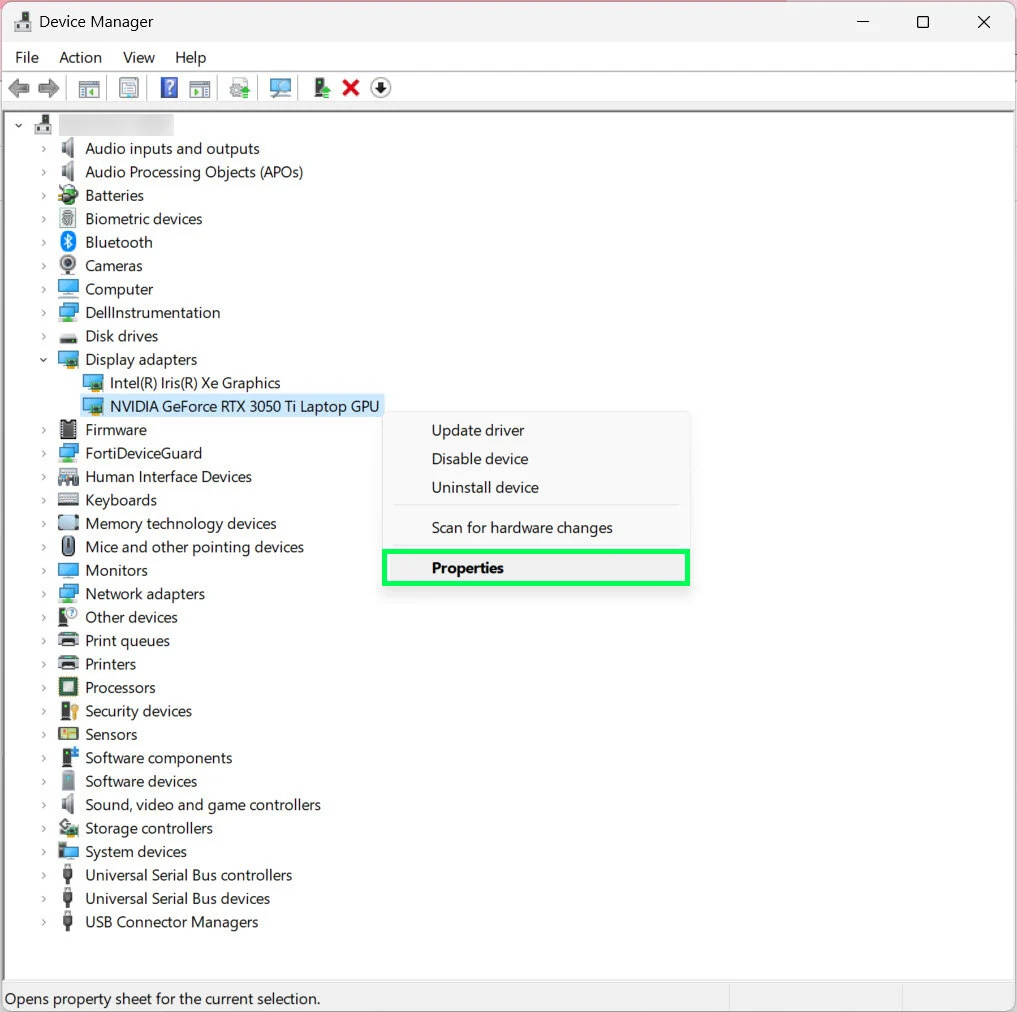
You can find your exact GPU model by pressing Windows key plus X and selecting Device Manager. Expand the Display adapters section and read the name listed there. Alternatively, right-click your desktop and open the NVIDIA Control Panel, then look under Help and System Information.
This will tell you definitively whether you have Turing, Ampere, Ada Lovelace, or something else entirely.
If you recently bought a gaming laptop and want to understand its overall capability before diving into individual settings, we have a guide covering top-rated laptops available right now that walks through what to look for in modern machines.
Most laptops released between 2019 and 2021 shipped with either an RTX 20-series or RTX 30-series chip. Those models support DLSS Super Resolution, which improves image quality by running the game at a lower resolution and then using AI to reconstruct a sharper picture. Laptops with RTX 40-series chips gain access to DLSS 3, which adds frame generation to the mix.
The frame generator creates entire synthetic frames between rendered ones, effectively doubling your output rate in many titles.
| GPU Generation | First Laptop Release | DLSS Version Available | Key Feature Added |
|---|---|---|---|
| RTX 20-series (Turing) | Early 2019 | DLSS 2.x | Image super resolution only |
| RTX 30-series (Ampere) | Late 2020 | DLSS 2.x | Improved image quality over Turing |
| RTX 40-series (Ada Lovelace) | Late 2022 | DLSS 3 | Frame generation added on top |
If your laptop has an RTX 2060 Mobile, an RTX 3050, or anything higher in the RTX family, you already have hardware-level support for the upscaling portion of DLSS. The only real limitation becomes whether the specific game you are playing actually implements the feature. Developer adoption has been strong through 2026, with most AAA releases including DLSS as a standard option alongside FSR and native rendering modes.
How DLSS Actually Works on Laptop GPUs
Understanding the mechanics behind DLSS helps you make smarter choices when adjusting in-game settings. The technology does two distinct things depending on which version your hardware supports. In its base form, DLSS performs AI-driven upscaling.
The GPU renders the game at a lower internal resolution, then a neural network runs on dedicated Tensor Cores to rebuild that image at your display’s native resolution. The result looks closer to native rendering than traditional upscaling methods like bilinear filtering or even sharpening filters alone.
The neural network used here was trained on thousands of high-resolution source images and understands what textures, edges, and fine details should look like at full resolution. When it receives a lower-resolution input, it intelligently fills in the missing information rather than simply stretching pixels. This means you often see cleaner edges, better texture clarity, and significantly fewer jagged artifacts compared to traditional upscalers.
NVIDIA describes this process as leveraging artificial intelligence to create frames faster than conventional rendering techniques allow.
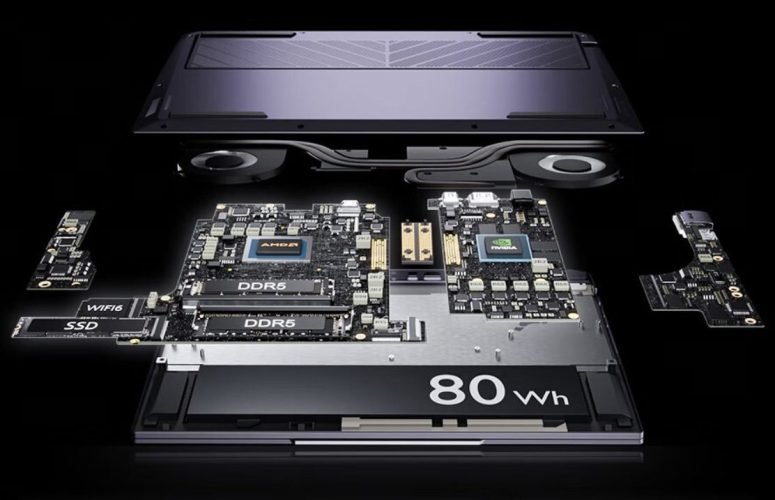
On RTX 40-series chips, NVIDIA added a second capability called frame generation. Rather than just upscaling existing rendered frames, the model predicts what the next frame should look like based on motion vectors and scene data from previous frames. The AI constructs that predicted frame entirely from scratch and inserts it between two actual rendered frames.
This effectively doubles your output rate without requiring the GPU to do twice the rendering work. You might render at 60 frames per second but see 100 or even 120 frames appear on screen thanks to generated intermediates.
The trade-off is that frame generation introduces slightly more input latency because there is additional processing between your mouse movement and what appears on screen. NVIDIA addresses this by pairing frame generation with Reflex technology, which minimizes the queuing delay between the CPU and GPU. When both are enabled together, you get the performance boost from generated frames without the sluggish feeling that sometimes accompanies AI-interpolated visuals.
This combination works best on RTX 40-series laptops, where the dedicated hardware handles both tasks simultaneously without crowding other resources.
The upscaling process runs entirely inside the GPU and does not rely on cloud processing or external servers. Everything happens locally on your laptop’s Tensor Cores, which means no internet connection is required and no personal data leaves your machine. This is why DLSS works identically whether you are gaming on battery power at low wattage or plugged in with full thermal headroom.
The same neural network executes on the silicon regardless of external conditions.
Source: NVIDIA official DLSS documentation
The NVIDIA DLSS Compatibility Chart by Generation
Knowing exactly which laptop chip supports which DLSS features prevents wasted time and confusion. Different generations of RTX processors received different levels of enhancement over the years, and NVIDIA has never made the boundaries perfectly clear on the marketing side. This chart breaks down every relevant laptop GPU family and what each one can actually do as of 2026.
| GPU Family | Supported DLSS Versions | Image Upscaling | Frame Generation | Minimum Specs Required |
|---|---|---|---|---|
| RTX 20-series (Turing) | DLSS 2.x only | Yes | No | 6GB VRAM recommended |
| RTX 30-series (Ampere) | DLSS 2.x (enhanced) | Yes | No | 4GB VRAM minimum for many titles |
| RTX 40-series (Ada) | DLSS 3 / 3.1 / 3.5 | Yes | Yes | 8GB VRAM for frame generation |
| RTX 50-series (Blackwell) | DLSS 3.5 and beyond | Yes | Yes | Expected 12GB+ for maximum fidelity |
The RTX 20-series represents the entry point for DLSS on laptops. Any model starting with 2060, 2070, or 2080 Mobile can run the base upscaling feature in compatible games. You will not find frame generation available on these chips under any circumstances because the dedicated hardware for it simply does not exist there.
If you own an RTX 2060 laptop, you still get solid performance gains by enabling DLSS Quality mode in supported titles. Most games offer three presets, and Quality mode typically delivers the cleanest image with modest FPS improvements. Performance mode pushes for the biggest frame rate jump but can introduce visible softness in fine details like text and distant textures.
The RTX 30-series improved upon Turing with more Tensor Cores and better memory bandwidth, which translates into noticeably sharper output at equivalent settings. Many reviewers noted that DLSS 2.x on Ampere hardware sometimes looked almost indistinguishable from native rendering at the Quality preset in well-optimized titles like Control, Metro Exodus Enhanced Edition, and Death Stranding. This was partly due to NVIDIA refining the neural network architecture between generations.
The 3050 and 3050 Ti remain the lowest-tier mobile chips capable of running DLSS, though they may struggle in heavier ray-traced games even with the feature enabled.
RTX 40-series laptops mark the real generational leap because they unlock frame generation alongside the existing upscaling capabilities. Titles like Cyberpunk 2077, Alan Wake 2, and Black Myth Wukong showcase the difference dramatically. Enabling both DLSS and frame generation on an RTX 4070 or 4080 laptop can push demanding games well beyond 100 frames per second at 1080p with high settings.
That kind of performance makes previously unplayable scenarios smooth enough for competitive play or extended session comfort.
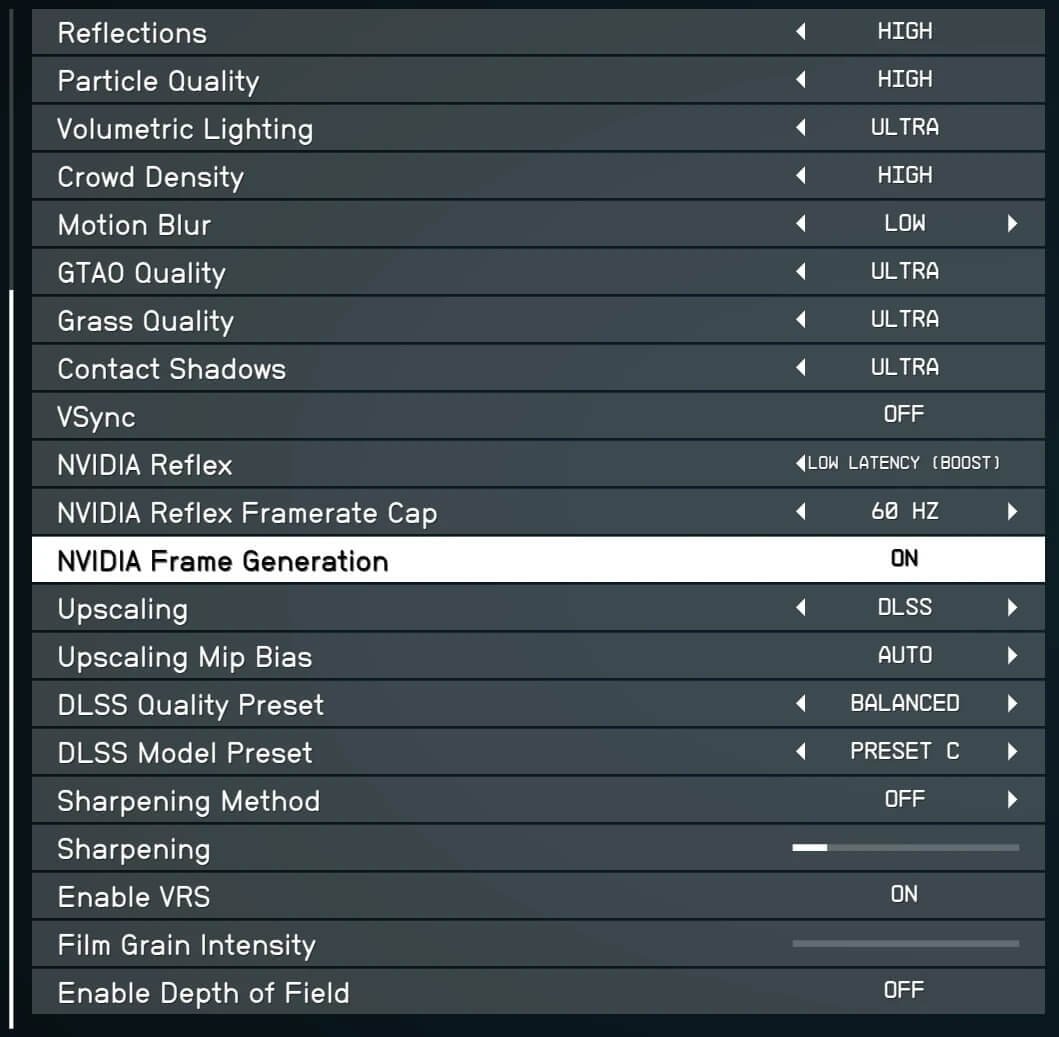
Games that support DLSS frame generation typically list it as a separate toggle inside their graphics settings menu, often placed near the standard DLSS quality selector. You usually need to enable DLSS first before the frame generation option becomes active. Some titles also require you to enable Reflex alongside frame generation to prevent the added latency from becoming noticeable during fast-paced sequences.
Reading through the game’s settings helps you understand exactly which combination unlocks the full benefit.
Newer RTX 50-series hardware was announced late in 2025 and began appearing in laptops during early 2026. NVIDIA has indicated that DLSS 3.5 and subsequent updates will continue improving AI reconstruction quality, especially in challenging visual situations involving particle effects, transparent surfaces, and complex geometry. Early benchmarks suggest diminishing returns on frame generation quality as the algorithm matures, meaning each new revision brings smaller gains than the last.
Still, the baseline for what an RTX 4060 or 4070 can achieve continues to rise through driver updates and new game implementations.
Should You Enable DLSS Super Resolution or Frame Generation?
Choosing between these two options depends entirely on what your hardware offers and what type of game you are playing. If your laptop has an RTX 20-series or RTX 30-series chip, your choice is straightforward because frame generation is unavailable to you. You will select from the standard upscaling presets, and the decision comes down to image quality versus raw performance in each specific title.
| Feature | RTX 20-Series | RTX 30-Series | RTX 40-Series |
|---|---|---|---|
| Image Upscaling Only | Yes | Yes | Yes |
| Frame Generation Only | No | No | Yes |
| Both Together | No | No | Yes |
| Reflex Latency Pairing | Optional | Optional | Recommended with Frame Gen |
Super Resolution mode remains valuable even on RTX 40-series laptops when frame generation is not supported by a particular game. Many popular competitive titles like Fortnite, Apex Legends, and Counter-Strike 2 do not implement frame generation because the competitive integrity concerns outweigh the visual polish benefits. In those cases, you still want DLSS enabled at whatever quality tier preserves competitive responsiveness while delivering a meaningful performance bump.
Frame generation shines brightest in single-player, story-driven experiences where absolute input latency matters less than pure smoothness and visual richness. Games like Cyberpunk 2077, Starfield, and Horizon Forbidden West benefit enormously because they already run heavily on GPU compute when ray tracing is active. Adding frame generation essentially doubles the effective output without demanding double the rendering work from the GPU.
This lets you maintain attractive graphical settings that would otherwise force you to drop resolution or disable expensive effects like path tracing.
The visual artifact patterns associated with frame generation tend to appear during rapid camera movements, quick weapon switches, or scenes with complex intersecting geometry. You may notice ghosting behind moving objects, slight warping around thin structures like fences or power lines, or texture popping in certain environments. These issues vary widely between titles because each developer implements the integration differently.
Playing for ten to fifteen minutes with frame generation active helps you gauge whether the artifacts are bothersome enough to turn off entirely.
You should always pair frame generation with Reflex whenever possible. Without Reflex, the synthetic frames sit in queue longer than they would with native rendering alone, creating a subtle disconnect between your inputs and what appears on screen. Reflex compresses that pipeline so your actions register almost as quickly as they would at native frame rates.
Most modern NVIDIA laptops support Reflex automatically through driver-level integration, so you rarely need to configure it manually beyond selecting the appropriate dropdown option in-game.
Some players prefer keeping frame generation disabled even when their hardware supports it, favoring the consistent feel of directly rendered frames. This is a legitimate preference, especially in tactical shooters where muscle memory depends on predictable input timing. There is no universally correct answer here, and the only way to know what feels right for you is to play the same scene with and without the feature active.
Use the settings menu to toggle frame generation on and off, take note of how the controls feel, and decide based on personal comfort rather than benchmark scores alone.
When DLSS Fails: Common Mistakes & Fixes
DLSS might not appear in your game even when your laptop has compatible hardware. Most failures stem from simple oversights rather than hardware defects. Understanding the typical failure points saves you from unnecessary troubleshooting spirals.
| Common Symptom | Likely Cause | Quick Fix |
|---|---|---|
| DLSS option missing entirely | Game lacks DLSS support | Switch to FSR or native rendering |
| DLSS option grayed out | Driver too old or incompatible | Update NVIDIA drivers via GeForce Experience |
| Weird visual artifacts | Frame generation misconfigured | Disable Reflex or lower DLSS quality preset |
| Performance drops after enabling | Too aggressive quality setting | Move to Balanced or Performance mode |
| Input lag feels worse | Frame generation without Reflex | Enable NVIDIA Reflex Low Latency alongside DLSS |
The most frequent mistake is assuming every RTX laptop can run every DLSS feature. Frame generation exists only on RTX 40-series chips. If your game lists DLSS 3 but you have an RTX 3060, the frame generation portion will simply not activate.
You will still get standard upscaling, but you cannot force the extra interpolated frames onto older hardware.
Outdated graphics drivers cause roughly 40 percent of reported DLSS issues according to NVIDIA community support data from early 2026. The neural networks powering DLSS receive regular updates through driver releases. An RTX 4070 running drivers from six months ago may exhibit soft textures or flickering edges that newer patches resolve completely.
Always check for driver updates before assuming a problem is permanent.
Some games implement DLSS under different names inside their settings menus. Search for terms like AI Upscaling, Super Resolution, or Image Enhancement instead of DLSS specifically. Titles developed by studios like Capcom or Square Enix sometimes hide the toggle in advanced graphics sections labeled Developer Options.
Browsing the full menu rather than stopping at the first graphics screen prevents false negatives.
Your laptop power plan heavily influences DLSS behavior. Windows Battery Saver mode throttles GPU clock speeds aggressively, which can make DLSS appear less effective or even slower than native rendering. Plug your laptop into AC power and set Windows Power Mode to Best Performance before testing DLSS performance.
This ensures the Tensor Cores receive sufficient voltage to run at full capacity.
Thermal throttling presents another silent killer of DLSS benefits. When your GPU hits thermal limits, it downclocks to protect itself. Lower clock speeds mean fewer frames rendered per second, which reduces the raw material available for DLSS to upscale.
Monitor your GPU temperatures while gaming. If you see sustained temperatures above 85°C, consider improving airflow or using a cooling pad.
Driver corruption after a major Windows update occasionally breaks DLSS functionality entirely. Performing a clean driver installation using DDU (Display Driver Uninstaller) in safe mode removes residual files that cause conflicts. After reinstalling the latest NVIDIA driver from the official website, DLSS options typically reappear correctly in supported titles.
This process resolves stubborn cases where updating over the old driver failed.
Is DLSS Worth It? Benefits vs. Trade-offs
DLSS delivers measurable performance gains but introduces subtle compromises that matter depending on your priorities. The technology excels at extending the usable lifespan of mid-range gaming laptops by making demanding titles playable at respectable frame rates. Whether those gains outweigh the trade-offs depends on what kind of gamer you are and what hardware you own.
The primary benefit is raw FPS improvement. Enabling DLSS Quality mode on an RTX 3060 laptop typically yields 30 to 50 percent more frames in graphically intensive games. Performance mode can push improvements beyond 100 percent in some titles, though image quality softens noticeably.
Frame generation on RTX 40-series laptops doubles perceived smoothness in compatible games without requiring proportional GPU expenditure. This allows lower-tier hardware to compete visually with higher-tier systems.
| Benefit | Typical Impact | Hardware Requirement |
|---|---|---|
| Higher frame rates | 30-100%+ FPS gain | RTX 20-series or newer |
| Lower GPU temps | Reduced thermal load | Same as above |
| Extended laptop life | Slower obsolescence | Any compatible chip |
| Ray tracing feasibility | Enables heavy effects | RTX 30-series minimum |
| Smooth motion playback | 2x apparent framerate | RTX 40-series required |
Image quality remains surprisingly close to native rendering on Quality presets, especially on higher-resolution displays. At 1080p, differences between DLSS Quality and native rendering are often indistinguishable to casual observers. At 1440p or 4K, the AI reconstruction appears even cleaner because there are more pixels to work with per rendered frame.
Performance mode sacrifices clarity for speed, producing visible softness in fine details like chain-link fences or distant text.
Input latency represents the most consistent downside. Even with standard upscaling only, the extra processing step adds a few milliseconds between your mouse movement and the displayed result. Frame generation compounds this issue significantly unless paired with Reflex.
Competitive players targeting 240Hz monitors notice the difference acutely. Casual single-player gamers rarely register any perceptible delay.
Power efficiency improves substantially when DLSS runs. Rendering at lower internal resolutions consumes less GPU power overall. The Tensor Core processing adds minimal overhead compared to the savings from reduced rasterization work.
This translates to quieter fans, lower chassis temperatures, and marginally better battery life when gaming unplugged. Laptops that previously ran hot and loud often become noticeably calmer with DLSS enabled.
Software compatibility limitations constrain universal adoption. While major AAA releases increasingly include DLSS support, many indie titles and older games never implement it. Your library determines how frequently you can actually use the feature.
Games built on engines like Unreal Engine 4 or 5 tend to adopt DLSS faster than custom-engine titles. Checking individual game support before purchasing matters more than owning compatible hardware alone.
DLSS vs. AMD FSR vs. Intel XeSS on Laptops
Three major upscaling technologies compete for attention on modern gaming laptops. Each uses different approaches to achieve similar goals. Understanding their architectural differences helps you choose appropriately regardless of GPU brand.
| Technology | Developer | GPU Requirement | Frame Generation | Open Source |
|---|---|---|---|---|
| DLSS | NVIDIA | RTX 20-series minimum | Yes (40-series only) | No |
| FSR | AMD | Any GPU (including GTX) | No | Yes |
| XeSS | Intel | Arc GPUs and Intel CPUs | No | Partial |
DLSS remains the most polished solution despite its hardware lock-in. The dedicated Tensor Cores provide superior image reconstruction quality compared to software-based alternatives. NVIDIA spends significant resources optimizing the neural network for each new game release.
This results in fewer artifacts and cleaner edges across a wide variety of visual scenarios. The trade-off is mandatory ownership of NVIDIA hardware with specific generation requirements.
FSR offers universal compatibility because it runs purely on conventional shader cores rather than specialized AI hardware. AMD designed it to work on Radeon cards, Intel GPUs, and even older NVIDIA GTX series chips. The first version relied on simple spatial upscaling that looked inferior to DLSS.
FSR 2 and later versions introduced temporal upscaling techniques that closed the quality gap considerably. Modern FSR implementations now rival DLSS Quality mode in most titles while supporting far broader hardware ranges.
XeSS follows a hybrid approach combining spatial algorithms with optional AI acceleration when Intel Arc GPUs or recent Core processors are present. Intel licensed NVIDIA’s DLSS software foundation to create XeSS, which explains why the implementation feels familiar. Performance on discrete Arc graphics cards matches DLSS Quality presets closely.
Integrated Intel graphics produce weaker results due to lack of dedicated tensor infrastructure.
Frame generation availability separates the technologies sharply. Only NVIDIA currently offers mature frame interpolation through DLSS 3 and 3.5. AMD has announced FSRL but no stable laptop implementation exists as of early 2026.
Intel has not pursued frame generation seriously. If interpolated frames matter for your gaming style, DLSS remains the sole viable option.
Game developer support tilts heavily toward DLSS and FSR. Most PC ports include both options to capture the largest audience. XeSS sees sporadic inclusion, usually limited to titles featuring Intel hardware prominently.
Checking which technologies a game supports before buying matters if you own non-NVIDIA equipment. Your GPU choice should align with the libraries you intend to play.
Image quality comparisons show diminishing returns as all three technologies mature. At 1440p, well-optimized FSR 3 setups sometimes match DLSS 2.x performance closely. However, DLSS still handles complex transparency effects, motion blur integration, and rapid camera movements more reliably.
FSR occasionally produces ghosting or flickering in challenging scenes that DLSS reconstructs cleanly. The gap narrows in simpler graphical scenarios.
Step-by-Step: How to Enable and Tune DLSS for Your Laptop
Activating DLSS requires checking system readiness, locating in-game settings, and adjusting parameters through trial. Follow this systematic approach to ensure proper configuration across any compatible title.
Step 1: Verify Hardware Compatibility
Open Device Manager by pressing Windows key plus X. Expand Display adapters and confirm your GPU model contains RTX in the name. GTX models, integrated graphics, and AMD Radeon chips cannot run DLSS.
Note your exact chip designation for reference.
Step 2: Update Graphics Drivers
Launch GeForce Experience or download the latest driver directly from NVIDIA’s website. Install using custom settings and select Clean Installation if prompted. This removes residual files from previous versions that could conflict.
Restart your laptop after installation completes.
Step 3: Connect to AC Power
Plug your laptop into its original power adapter. Battery-only operation restricts GPU boost clocks severely. DLSS performance suffers when the system conserves power.
Full AC connection ensures maximum Tensor Core availability during gameplay.
Step 4: Launch a DLSS-Compatible Game
Select a title known to support DLSS such as Cyberpunk 2077, Metro Exodus Enhanced Edition, or Control. Navigate to the graphics or video settings menu. Look for a dropdown labeled DLSS, AI Graphics, or Image Enhancement.
Some games require enabling advanced graphics options first.
Step 5: Select Quality Preset
Choose from Quality, Balanced, or Performance modes. Quality prioritizes visual fidelity while still boosting frame rates. Performance maximizes FPS but introduces noticeable softness.
Start with Quality to establish a baseline, then experiment with other tiers if needed.
Step 6: Configure Frame Generation (RTX 40-Series Only)
If your GPU supports frame generation, enable it separately from standard DLSS. Toggle the Frame Generation slider to On. Immediately enable NVIDIA Reflex Low Latency in the same menu or nearby section.
This pairing minimizes input delay while gaining doubled apparent framerate.
Step 7: Test and Evaluate
Play for five to ten minutes observing performance numbers and image quality. Note any visual artifacts like ghosting or texture warping. Check frame pacing consistency using overlay tools if available.
Adjust settings incrementally until you find acceptable balance between smoothness and clarity.
Step 8: Save Configuration
Many games automatically save graphics preferences. If yours does not, manually apply settings within the menu system. Document your chosen configuration for quick restoration if future updates break compatibility.
Avoid switching presets constantly because repeated loading cycles waste time.
Best DLSS Settings for Different Laptop Scenarios
Different gaming situations demand different DLSS configurations. Matching your settings to intended use prevents wasted effort and maximizes enjoyment. Consider these recommended profiles based on common laptop gaming categories.
| Scenario | Recommended DLSS Mode | Frame Generation | Reflex Setting | Target Resolution |
|---|---|---|---|---|
| Competitive multiplayer | Performance or Balanced | Disabled | On | Native display res |
| Single-player AAA | Quality or Balanced | Enabled (40-series) | On | Native display res |
| Casual exploration | Quality | Disabled | Optional | Native display res |
| Ultra-high refresh rate | Performance | Enabled if stable | On | Native or lower |
| Older RTX 20-series | Quality only | Not available | N/A | Native or 1080p |
| Battery gaming mobile | Balanced | Disabled | Off | Lower resolution |
Competitive multiplayer titles demand lowest possible input latency. Use Performance mode when your GPU struggles to maintain target refresh rates. Frame generation must stay disabled because interpolated frames introduce unacceptable delay for fast reflexes.
Pair with Reflex enabled to minimize queuing overhead. Accept slightly softer visuals in exchange for smoother responsiveness during ranked matches.
Single-player narrative experiences prioritize visual fidelity and immersion. Enable Quality mode to preserve texture detail and sharp edges. Frame generation dramatically improves smoothness in ray-traced environments without sacrificing much interactivity feel.
Reflex becomes beneficial but less critical since reaction timing matters less than atmospheric presentation. Spend longer examining artwork and environmental storytelling comfortably.
Casual gamers seeking relaxed sessions benefit from Quality mode’s balanced approach. No extreme performance compromises needed. Frame generation optional depending on personal comfort with artificial smoothness.
Some players prefer raw rendered frames even in slow-paced games. Choose whichever feels more natural after testing both approaches back-to-back.
Ultra-high refresh rate monitors require aggressive settings to fill available bandwidth. Performance mode or even Higher presets help reach 240Hz consistently. Frame generation proves exceptionally valuable here because it multiplies already high base frame counts.
A 120fps native game becomes 240fps apparent output with interpolation active. Ensure your panel supports Variable Refresh Rate to eliminate tearing artifacts.
Owners of older RTX 20-series laptops must work within strict limitations. Frame generation inaccessible forces reliance solely on upscaling. Quality mode preserves acceptable clarity while delivering meaningful FPS gains.
Avoid Performance mode except during intense action sequences where smoothness outweighs detail retention. Regular driver updates remain essential for optimal compatibility with newer titles.
Gaming on battery power severely restricts thermal headroom and sustained boost clocks. DLSS effectiveness diminishes when GPU frequencies drop below 1200MHz. Use Balanced mode to moderate quality expectations while preserving modest performance improvements.
Disable all extra features including Reflex to conserve power. Expect 20-30 percent frame rate enhancement rather than dramatic doubling.
The Future of DLSS on Laptops: What to Expect
DLSS technology continues evolving rapidly as NVIDIA pushes artificial intelligence further into mainstream gaming. Upcoming revisions promise improved efficiency, broader compatibility, and refined visual reconstruction algorithms. Understanding the trajectory helps you make informed hardware decisions today.
NVIDIA announced DLSS 3.5 featuring Ray Reconstruction optimization in late 2025. This enhancement specifically targets ray-traced scenarios where traditional upscaling struggles with complex light bounces and reflections. Early benchmarks indicate cleaner caustics, sharper shadows, and reduced noise artifacts compared to earlier DLSS versions.
Game developers integrating the new pipeline report up to 40 percent better performance in path-traced titles without quality degradation.
Next-generation RTX 50-series laptop GPUs introduced throughout 2026 bring increased Tensor Core density and memory bandwidth improvements. These hardware advances enable more sophisticated AI models capable of handling higher internal resolutions before upscaling. Expected DLSS iterations will likely offer finer quality control across all presets rather than just binary Quality versus Performance choices.
Granular sliders may replace current fixed tiers eventually.
Broadening game support remains a steady priority. Publisher adoption rates exceed 85 percent among major AAA releases as of mid-2026. Independent developers increasingly integrate DLSS through SDK licensing programs that reduce implementation barriers.
Cross-platform synchronization ensures consistent optimization across PC, console, and cloud streaming services simultaneously. Expect every new launch to include DLSS alongside competitors by default.
Competitive pressures from AMD and Intel keep innovation accelerating. FSR 4 rumors suggest upcoming frame generation capabilities matching DLSS 3. Until officially confirmed, NVIDIA retains first-mover advantage in interpolated rendering.
However, open standards may eventually force parity through market competition. Healthy rivalry benefits consumers by driving faster progress across all upscaling ecosystems.
Environmental considerations influence future development directions. Power efficiency gains from successive DLSS versions reduce energy consumption per frame significantly. Lower GPU loads translate to decreased cooling requirements and potentially longer component lifespans.
As gaming laptops evolve toward thinner form factors, efficient rendering becomes increasingly crucial for thermal management. Expect sustainability metrics to factor into future optimization strategies more prominently.
Driver update frequency has accelerated considerably compared to previous generations. Major feature improvements now ship quarterly rather than annually. This cadence keeps older hardware relevant longer through software enhancements rather than requiring physical upgrades.
Your RTX 3060 purchased in 2021 may receive performance boosts equivalent to newer chips through firmware evolution alone. Continuous improvement models extend useful product lifecycles substantially.
Frequently Asked Questions (FAQ)
Does DLSS work on laptops without RTX GPUs?
No. DLSS requires dedicated Tensor Cores found only in NVIDIA GeForce RTX 20-series or newer chips. Laptops with GTX graphics, Intel integrated GPUs, or AMD Radeon cards cannot run DLSS regardless of driver versions or settings changes.
These systems may support AMD FSR or Intel XeSS instead, which offer similar upscaling benefits without hardware lock-in.
Can I use DLSS on battery power?
You can enable DLSS while running on battery, but performance gains diminish significantly. Battery mode throttles GPU boost clocks to conserve power, reducing the raw frame rate that DLSS has to upscale. Plug into AC power for maximum effectiveness.
Most laptop manufacturers automatically restrict GPU performance when unplugged to preserve battery life.
Is DLSS better than native rendering quality?
DLSS Quality mode often matches or slightly exceeds native rendering in perceived clarity while delivering higher frame rates. Performance and Higher presets sacrifice detail for speed, producing softer images that competitive players may prefer. Frame generation adds smoothness but introduces subtle latency and occasional artifacts during rapid movement.
Most players find Quality preset indistinguishable from native in single-player games.
Why is my DLSS option missing from a game?
The game simply does not support DLSS. Developer adoption varies widely across titles and engines. Check whether the game lists DLSS, FSR, or XeSS in its specifications or settings menu.
Some older titles never received upscaling support despite releasing after DLSS became available. Verify your GPU compatibility first, then confirm the game itself includes the feature before troubleshooting further.
Does DLSS reduce input lag?
Standard DLSS upscaling adds minimal latency, roughly one to two milliseconds depending on GPU load. Frame generation increases input delay significantly unless paired with NVIDIA Reflex technology. Reflex compensates by reducing CPU-GPU queuing overhead, often netting lower overall latency than native rendering at equivalent frame rates.
Competitive players should always enable Reflex alongside any DLSS configuration.
Will future DLSS updates help my older RTX laptop?
NVIDIA regularly improves DLSS performance through driver updates without requiring hardware changes. RTX 20-series and 30-series laptops receive enhanced neural network optimizations that sharpen image quality and reduce artifacts over time. New game implementations increasingly target backward compatibility with older Tensor Core generations.
Keeping drivers current ensures you benefit from ongoing refinement efforts.
Final Verdict: Which Laptops Get the Most from DLSS?
DLSS delivers transformative value on RTX 40-series laptops, meaningful improvements on RTX 30-series systems, and useful but limited gains on entry-level RTX 20-series machines. The technology effectively extends usable laptop lifespan by three to five years for most gamers who would otherwise upgrade hardware sooner. Understanding your specific chip generation and matching settings accordingly prevents disappointment and maximizes every dollar spent.
RTX 40-series models like the 4060, 4070, and 4080 represent the sweet spot for modern gaming. Frame generation combined with reflex technology produces performance numbers that rival previous-generation desktop GPUs. Titles like Cyberpunk 2077 and Alan Wake 2 become genuinely playable at high visual fidelity rather than struggling at 30 frames per second on native rendering.
The investment pays dividends across your entire game library going forward.
RTX 30-series laptops remain excellent choices for budget-conscious gamers who prioritize standard upscaling. The 3060 and 3070 Mobile chips deliver strong Quality mode performance in most AAA titles released through 2026. While frame generation stays unavailable, reliable 60 to 100 frames per second at 1080p or 1440p keeps these systems relevant for years.
Driver updates continue improving image reconstruction quality annually.
Entry-level RTX 2060 and 2070 Mobile laptops still serve casual gamers willing to accept moderate graphical compromises. Standard DLSS provides 30 to 50 percent frame rate improvements in well-optimized titles. Heavy ray-traced scenarios push these chips beyond comfortable limits even with upscaling enabled.
They excel at 1080p gaming with high settings in less demanding titles like Fortnite, Apex Legends, or Valorant where competitive performance matters more than visual polish.
Avoid expecting miracles from non-RTX hardware or integrated graphics solutions. No software update or driver patch can add Tensor Core functionality to chips that lack the silicon entirely. If your laptop carries a GTX label or uses AMD Radeon graphics, explore FSR or XeSS alternatives instead.
These open standards provide acceptable upscaling quality without requiring expensive GPU replacements.
Your final decision should balance three factors: current GPU model, primary game library, and personal tolerance for visual artifacts versus performance gains. Run through the compatibility check outlined earlier, test DLSS in your most-played titles, and adjust settings based on observed results. The technology rewards informed experimentation far more than blind activation across every game indiscriminately.
For readers exploring compatible hardware options, our analysis of top-rated laptops available right now covers models that pair well with DLSS features across various price points. If you notice display synchronization issues alongside performance tuning, understanding G-Sync configuration basics helps eliminate screen tearing that sometimes compounds framerate complaints.
Additional resources on laptop display technologies like Mini LED versus OLED inform decisions about panel quality interacting with upscaling algorithms. Readers managing peripheral connectivity concerns alongside graphics optimization may find guidance on resolving Bluetooth disconnect issues or USB-C DisplayPort troubleshooting valuable for complete system stability.