Does adding more ram increase gaming fps? Sometimes. It depends on how much RAM you already have, whether your game is memory-heavy, and whether your system is CPU or GPU limited.
A RAM upgrade can smooth stutter and raise minimum FPS, but it is not a magic boost. Check your current usage first. Then decide based on bottleneck, not guesswork.
RAM (Random Access Memory) holds active game data so your CPU and GPU do not wait on storage. Modern titles often need 16GB for smooth play at 1080p or 1440p. As of 2026, many new releases list 16GB as recommended, while 8GB can still cause hitching.
The key is matching capacity, speed, and channel layout to your motherboard and CPU.
does adding more ram increase gaming fps
More RAM helps when your system runs out of memory during gameplay. It does little when your GPU or CPU is the main bottleneck. Expect smoother 1% lows and less stutter more than a huge average FPS jump.
Check RAM usage before you buy.
What RAM Actually Does During Gaming
RAM stores the data your game needs right now. That includes textures, level geometry, NPC logic, and background app data. When RAM fills up, Windows moves extra data to disk.
That paging causes stutters and poor 1% lows.
A bigger pool reduces paging. Faster RAM increases memory bandwidth. Both can help, but only in the right situation.
- Capacity fixes running out of memory.
- Speed helps when the CPU waits on memory.
- Dual-channel layout matters more than many people expect.
If you want a deeper capacity guide, see real-world RAM needs.
The Decision Tree: When More RAM Helps and When It Doesn't
Start with your current setup. Then follow the branch that matches your bottleneck.
| Current setup | Likely issue | RAM upgrade helps? |
|---|---|---|
| 8GB total, high RAM usage | Capacity bottleneck | Yes, often a lot |
| 16GB total, low RAM usage | Not memory limited | No, unless speed is poor |
| Single-channel RAM | Bandwidth bottleneck | Yes, add matching stick |
| 32GB total, high GPU load | GPU bottleneck | No, upgrade GPU first |
If your RAM usage stays below 70% during gameplay, more capacity probably will not raise FPS. If it hits 90% or more, expect smoother play after upgrading. If you run Discord, a browser, and a stream app, add that usage to your estimate.
Check these signs before spending money:
- Game hitching when new areas load
- High disk activity during gameplay
- RAM usage near 100% in Task Manager
- Poor 1% lows but decent average FPS
Capacity vs Speed: Which RAM Upgrade Matters More
Capacity and speed solve different problems. Capacity is about how much data fits. Speed is about how fast data moves.
For most gamers, fixing capacity comes first.
If you have 8GB, moving to 16GB usually matters more than buying faster RAM. If you already have 16GB, faster dual-channel memory can help CPU-heavy games. JEDEC standards define baseline memory behavior, while XMP and EXPO profiles tune speed beyond stock settings.
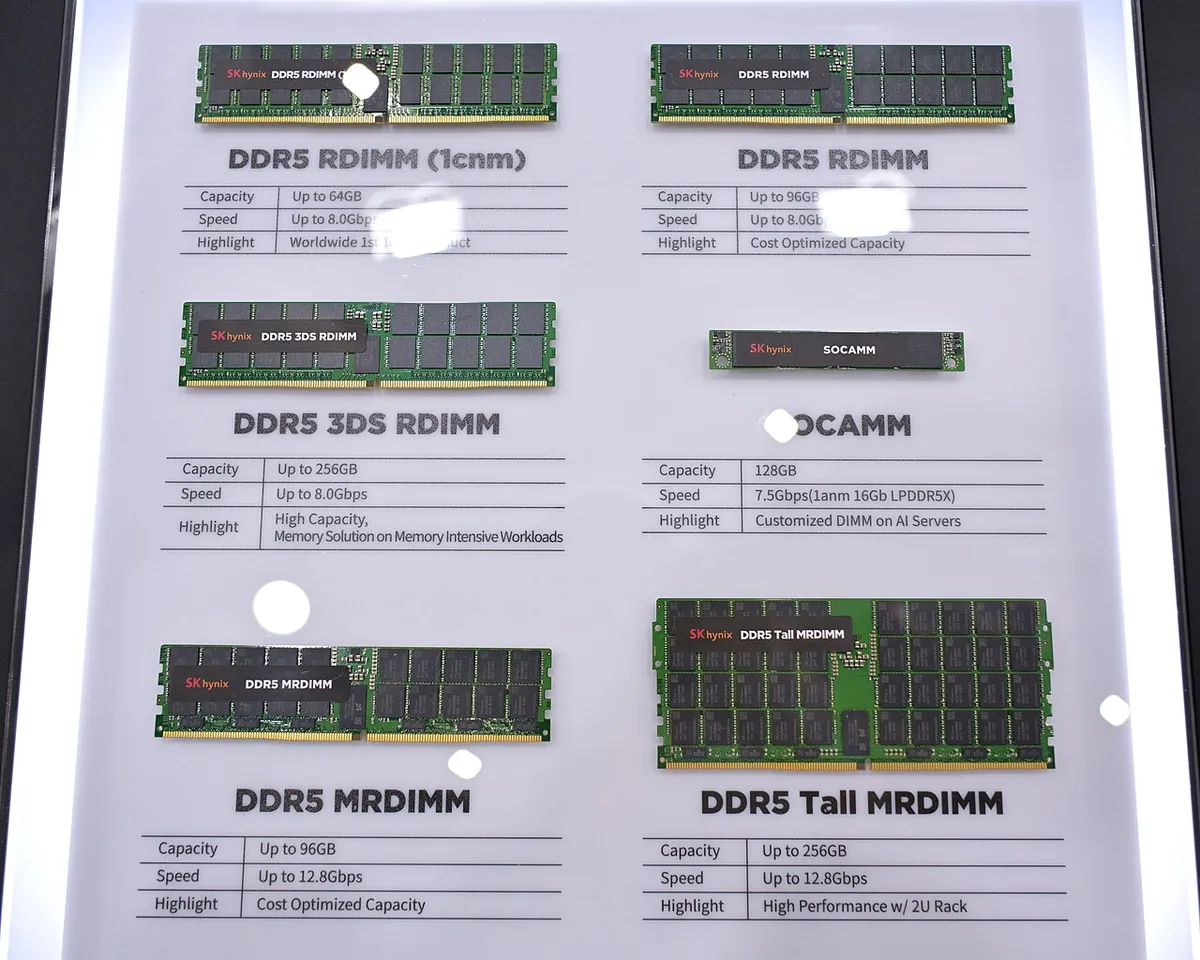
Image source: Wikimedia Commons / 4300streetcar (CC BY)
Use this simple rule:
- Under 16GB: prioritize capacity.
- At 16GB: prioritize dual-channel and a sensible speed.
- At 32GB: prioritize speed only if CPU-bound.
Memory overclocking support on your motherboard also affects how high you can push speeds. See memory overclocking support. Intel users can use Intel XMP profiles.
AMD users can use AMD EXPO profiles.
Single-Channel vs Dual-Channel: The Biggest Hidden FPS Killer
Single-channel RAM uses one memory channel. Dual-channel uses two. That doubles theoretical bandwidth in many setups.
The difference can be large in CPU-heavy games, especially with integrated graphics.
Many budget systems ship with one stick. Adding a matching second stick is often the cheapest FPS fix. Match capacity, speed, and ideally brand and model.
Mismatched kits can work, but stability varies.
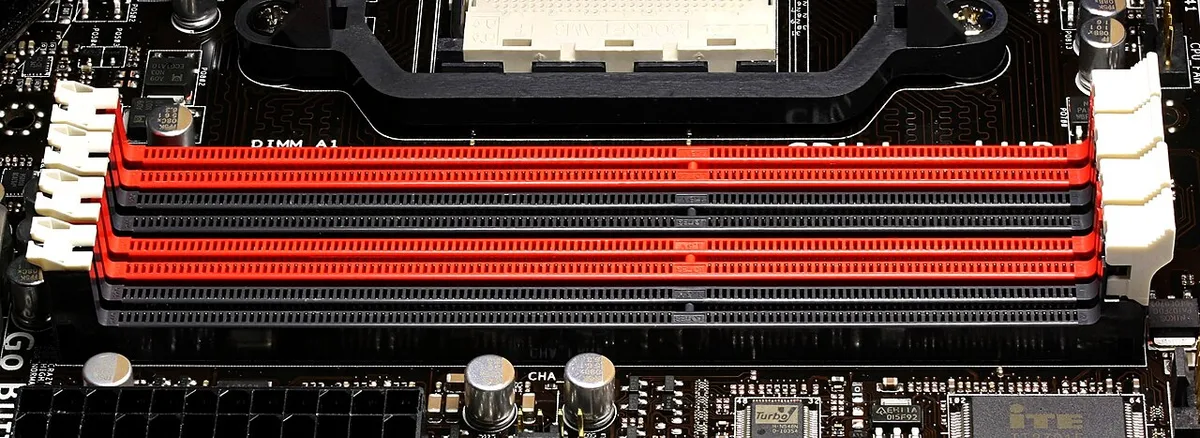
Image source: Wikimedia Commons / D-Kuru (CC BY-SA)
Check your motherboard manual for slot order. Install sticks in the recommended slots, usually A2 and B2. Then enable XMP or EXPO in BIOS if your kit supports it.
If you are unsure about board layout, review motherboard compatibility before a build.
How to Check Your Bottleneck Before Buying Anything
Check before you buy. Open Task Manager during a normal gaming session. Watch Memory, CPU, and GPU usage.
If memory stays high while CPU and GPU are not maxed, RAM is likely the limiter.
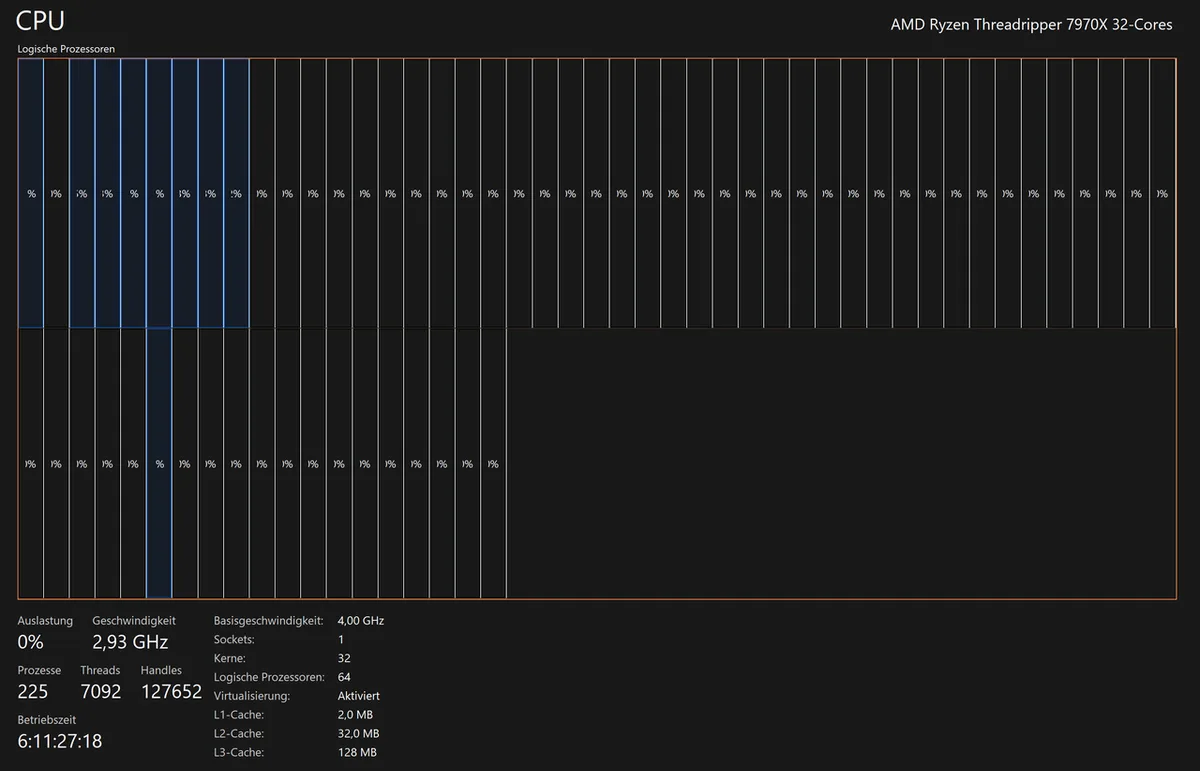
Image source: Wikimedia Commons / Software: Microsoft Corporation Screenshot: PantheraLeo1359531 😺 (talk)
Use this quick check:
- Press Ctrl + Shift + Esc.
- Open the Performance tab.
- Click Memory.
- Play for 10 minutes.
- Note average and peak usage.
- Check CPU and GPU graphs too.
| What you see | Likely bottleneck | Next step |
|---|---|---|
| Memory near 100% | RAM capacity | Add capacity |
| CPU near 100% | CPU | Upgrade CPU or lower settings |
| GPU near 100% | GPU | Upgrade GPU or lower settings |
| Memory low, FPS low | Settings or drivers | Check game settings |
If 1% lows are much lower than average FPS, memory paging may be the cause. If GPU usage stays pinned, read GPU upgrade timing before spending on RAM.
Real-World Scenarios: 8GB, 16GB, and 32GB in Practice
8GB is tight for modern games. 16GB is the safe target for most players. 32GB is for heavy multitasking, mods, or streaming.
| Capacity | Typical experience | Best for |
|---|---|---|
| 8GB | Stutter in modern games, browser tabs cause paging | Older esports, very light use |
| 16GB | Smooth 1080p/1440p, good headroom | Most gamers |
| 32GB | Extra room for mods, streaming, background apps | Creators and heavy multitaskers |
Use these if/then rules:
- If you have 8GB and modern games hitch, upgrade to 16GB.
- If you have 16GB and no high memory usage, spend elsewhere.
- If you stream while gaming, 32GB can reduce background pressure.
- If your GPU is weak, fix GPU first.
For a deeper capacity guide, see capacity planning guide.
Common RAM Upgrade Mistakes That Waste Money
Avoid buying based on capacity alone. Match the upgrade to your bottleneck.
- Buying 32GB when 16GB already has headroom.
- Ignoring single-channel layout.
- Not enabling XMP or EXPO.
- Mixing speeds or timings without checking compatibility.
- Skipping the motherboard QVL.
- Forgetting ESD precautions.
- Expecting a big average FPS jump from RAM alone.
Motherboard chipset and memory support also matter. Some boards limit speed or capacity. Check chipset memory support before buying a fast kit.
Step-by-Step: How to Upgrade and Verify Your RAM Properly
Power down, install correctly, then verify stability.
- Shut down and unplug the PC.
- Ground yourself with an anti-static strap or touch metal.
- Open the case.
- Remove old sticks if needed.
- Install new sticks in the recommended slots.
- Reconnect and boot.
- Enter BIOS.
- Enable XMP or EXPO.
- Save and exit.
- Boot to Windows.
- Check Task Manager capacity.
- Run a memory stress test.
- Benchmark a game.
If the system fails to boot, reseat the sticks or clear CMOS. Use MemTest86 for stability checks. If a BIOS update is required first, check BIOS Flashback.
Frequently Asked Questions
Does 32GB RAM increase FPS over 16GB?
Usually not by itself. Most games do not use more than 16GB. You may see smoother 1% lows in heavy mods or streaming setups.
If 16GB already has headroom, spend on GPU or CPU instead.
Is faster RAM better than more RAM for gaming?
It depends on your current setup. If you have 8GB, more RAM usually helps more. If you already have 16GB, faster dual-channel RAM can help CPU-heavy games.
Fix capacity first, then tune speed.
Can adding RAM fix stuttering?
Yes, if stuttering comes from memory pressure or paging. It will not fix stuttering caused by a weak GPU or CPU. Check RAM usage and frametimes before upgrading.
High memory usage near 100% is the clue.
Should I enable XMP after installing RAM?
Yes, if your kit supports it and your motherboard allows it. XMP applies the rated speed and timings. Without it, RAM may run at slower default speeds.
Check stability after enabling it.
Does RAM speed matter with a weak GPU?
Usually less than GPU upgrades. A weak GPU limits FPS before memory speed does. Faster RAM may help minimum FPS in some CPU-heavy games.
Upgrade the GPU first in most cases.