why should gaming pc ram be installed in matched slots? Because modern gaming motherboards split memory into two channels, and installing sticks in the wrong pair leaves half the bandwidth unused. Matched slots are the DIMM slots wired to the same memory channel pair.
Put both sticks there and the CPU can read and write across both at once. Put them in mismatched slots and the board often falls back to single-channel mode.
A typical DDR5-6000 dual-channel kit delivers roughly 96 GB/s of theoretical bandwidth, while the same kit in single-channel delivers about 48 GB/s. That gap shows up as lower average FPS and worse 1% lows in CPU-heavy games. We'll walk through how to find the right slots, install the modules, and verify dual-channel mode.
Why Matched Slots Matter (And Why Color Coding Isn't Enough)
Matched slots exist because your CPU's memory controller talks to RAM in parallel channels. When two sticks sit in the same channel pair, data moves across both at the same time. That is dual-channel mode, and it is the single biggest free performance gain in a gaming build.
Color coding helps, but it is not the whole story. Some boards use black and white slots. Others use gray and white.
A few use identical colors across all four slots. The manual's population table always wins over color guessing.
Here is what you gain and what you risk:
| Setup | Bandwidth | Gaming impact |
|---|---|---|
| Dual-channel matched slots | ~96 GB/s (DDR5-6000) | Higher FPS, smoother 1% lows |
| Single-channel wrong slots | ~48 GB/s | Lower FPS, stutter in CPU-bound scenes |
| Flex mode mixed sizes | Uneven | Works, but not ideal |
If you are still planning your build, it helps to know how much memory your build needs before you buy a kit. Buying a matched kit also matters more than chasing extra capacity.
How Dual-Channel Memory Actually Works
Your motherboard has two memory channels, usually labeled A and B. Each channel connects to one side of the CPU's memory controller. A standard DDR5 DIMM is 64 bits wide, so two channels together give a 128-bit path.
Interleaving is the magic part. The controller splits memory addresses across both channels, so reads and writes happen in parallel. That is why two 16 GB sticks can move data faster than one 32 GB stick.
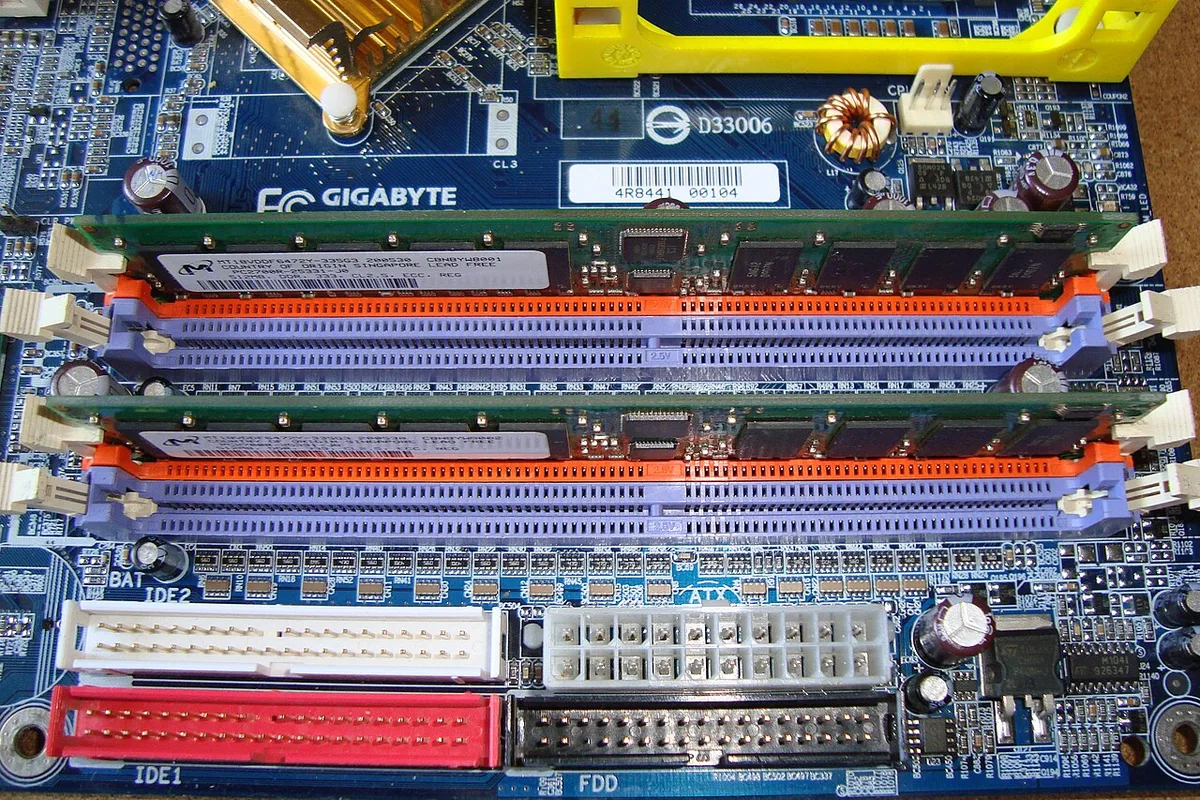
Image source: Wikimedia Commons / Mixabest
Manufacturer specifications indicate that dual-channel interleaving works best when both sticks match in capacity, speed, and timings. JEDEC memory standards define the DDR4 and DDR5 electrical and timing specs, so a JEDEC-compliant kit is a safe baseline.
Image source: Wikimedia Commons / Evan-Amos
If you plan to push speeds beyond stock, check memory overclocking support on the board before buying. XMP and EXPO profiles only work cleanly when the sticks are a matched pair.
Reading Your Motherboard: Slot Labels, Colors, and Channel Pairing
Slot labels are your real guide. Most boards print A1, A2, B1, and B2 near the slots. A2 and B2 are usually the matched pair for two sticks.
Some boards use DIMM_A1 style labels, but the logic is the same.
Color coding is a shortcut, not a guarantee. On many four-slot boards, slots one and three share one color, and slots two and four share another. The matched pair is often the same color, but not always.
Always check the manual's population table.
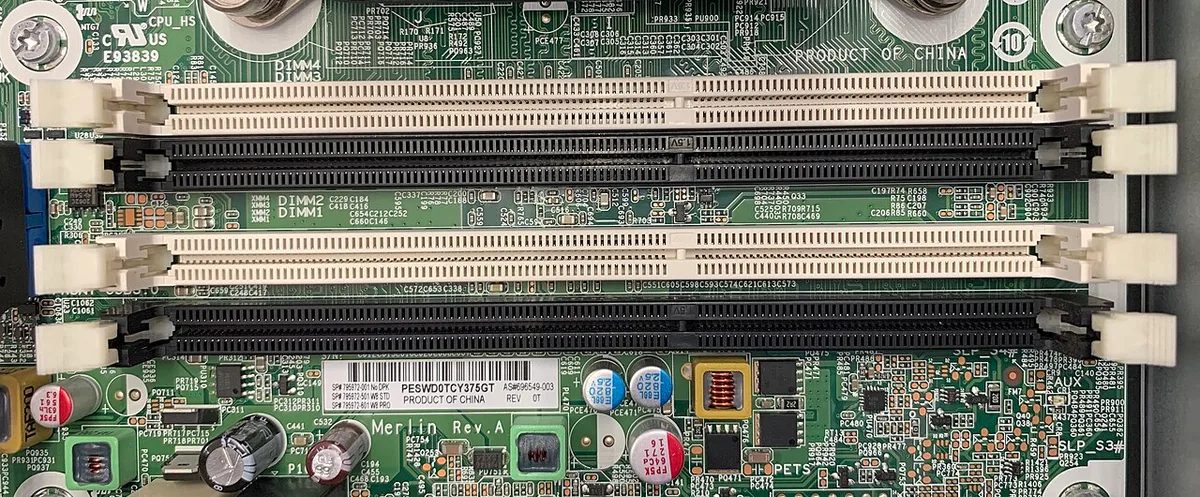
Image source: Wikimedia Commons / Project Kei (CC BY-SA)
A quick reference:
- Two sticks: usually A2 and B2
- Four sticks: A1, A2, B1, B2 in order
- Two-slot boards: both slots are the matched pair
Before building, it pays to check compatibility before a build. Form factor also changes slot count, so motherboard size affects case choice and your upgrade path.
Step-by-Step: Installing RAM in the Correct Matched Slots
Power down first. Switch off the PSU, unplug the cable, and press the power button to drain residual charge. Work on a non-carpeted surface and touch the case frame to discharge static.
- Open the retention clips at both ends of the target slots.
- Hold the module by the edges, not the gold contacts.
- Align the notch on the module with the key in the slot.
- Insert at roughly a 90-degree angle.
- Press down firmly until both clips snap shut.
Do not force it. If a stick resists, check notch alignment and slot orientation. Forcing modules can crack the slot or bend pins.
After seating, gently tug each module to confirm it is locked. Then close the case, reconnect power, and boot. If you want to verify the board itself is healthy, what a motherboard actually does in a gaming PC is worth a read.
Two Sticks vs. Four: Population Order Rules
Two sticks is the sweet spot for most gaming builds. It leaves room for upgrades, runs cooler, and is easier to troubleshoot. Four sticks fills all channels but can stress the memory controller at high speeds.

Image source: Wikimedia Commons / Wikimedia Commons contributor
Typical population order for a four-slot board:
| Number of sticks | Slots to fill | Notes |
|---|---|---|
| 1 | A2 | Single-channel, avoid for gaming |
| 2 | A2, B2 | Best balance of speed and upgrade room |
| 3 | A2, B1, B2 | Asymmetric, use only if needed |
| 4 | A1, A2, B1, B2 | Full population, check XMP stability |
If you run four sticks, test stability carefully. Dense population can limit top memory speeds, especially on high-core-count CPUs. For Intel builds, XMP support on an Intel gaming motherboard determines how far you can push it.
AMD builds rely on EXPO support on an AMD gaming motherboard for the same job.
What Happens When You Install RAM in the Wrong Slots
Single-Channel Fallback and Lost Bandwidth
Wrong slots do not always stop the PC from booting. The board may still run, but both sticks can end up on one channel. That leaves the other channel empty, and the system falls back to single-channel mode.
Bandwidth drops roughly in half, which hurts CPU-heavy games and integrated graphics.
POST Failures and No-Display Scenarios
A no-display boot usually comes from poor seating, not the slot choice alone. The module may look inserted while one end is slightly high. Press until both retention clips lock, then reseat if needed.
If the board still fails POST, test one stick at a time in the manual's recommended slot.
Flex Mode and Asymmetric Channel Confusion
Mixed capacities can run in Flex mode, where part of the memory is dual-channel and the rest is single-channel. A 16 GB plus 8 GB setup might give 8 GB of dual-channel plus 8 GB single. It works, but performance is uneven and XMP stability can suffer.
For gaming, a matched kit is the cleaner choice.
Verifying Dual-Channel Mode in BIOS and Software
The BIOS memory page is the first place to check. It should list the installed capacity and show dual-channel operation. If it shows single-channel, power down and move the sticks to the matched pair.
Software makes verification easier. CPU-Z shows the channel mode on the Memory tab. Windows Task Manager also shows slots used and memory speed.
Run a quick stability test after enabling XMP or EXPO, because a fast kit that is unstable is slower than a slower kit that holds.
If you are still deciding capacity, how much memory your build needs can help you avoid buying the wrong kit size.
Safety and ESD Precautions Before You Touch the Modules
Static electricity can damage memory modules. Work on a hard, non-carpeted surface and touch the metal case frame before handling parts. An anti-static wrist strap is optional but useful.
Power down fully. Switch off the PSU, unplug the cable, and press the power button to drain charge. Handle modules by the edges and avoid the gold contacts.
Do not force a stick into a slot, because cracked slots and bent retention clips are common repair costs.
Keep modules in their anti-static bags until installation. If the board has exposed VRMs, avoid resting the module on them. For builders comparing boards, motherboard VRMs and why they matter is a useful companion topic.
Frequently Asked Questions
Can I install RAM in any slot and still get dual-channel?
No. The board maps channels by physical slot, so wrong slots often run single-channel. The manual's population table is the safest guide.
Colors can help, but they are only a shortcut.
Does color coding always show the matched pair?
No. Many boards use two colors, but labels and the manual matter more. Some boards use identical colors across all slots.
Always trust the population table over color guessing.
Will mismatched RAM sizes work in matched slots?
Yes, often in Flex mode. Part of the memory runs dual-channel and the rest runs single-channel. It works, but performance is uneven and XMP stability can suffer.
How do I know if dual-channel is active?
Check the BIOS memory page or CPU-Z. Both should show dual-channel mode. Windows Task Manager also shows slots used and memory speed for a quick check.
Is four sticks better than two for gaming?
Usually no. Two sticks leave upgrade room and run cooler. Four sticks can stress the memory controller and limit top speeds, especially with high-speed kits.
What if my PC won't boot after installing RAM?
Reseat the modules and check notch alignment. Try the manual's recommended slots and test one stick at a time. A fully locked clip and correct population order fix most boot issues.