what is inside a gaming laptop matters more than the spec sheet alone. The same CPU and GPU can behave differently when crammed into a thin chassis with limited airflow. We look at the physical layout, not just the parts list.
That context helps explain heat, noise, and upgrade limits.
As of 2026, many gaming laptops ship with DDR5 or LPDDR5x memory, PCIe Gen4 or Gen5 SSDs, and mobile GPUs with strict power caps. Manufacturer specifications indicate that placement and cooling often decide sustained performance. The sections below walk through the stack from battery to ports.
what is inside a gaming laptop
what is inside a gaming laptop is a compact stack of parts. The battery, VRMs, CPU, GPU, RAM, SSD, fans, and heatsinks sit close together. Most models also include a Wi-Fi card and display panel assembly.
Layout and cooling matter as much as the parts themselves. Upgrades depend on whether RAM and storage are soldered.
Why You Can’t Just List Parts: The Spatial Reality of Laptop Internals
A parts list tells you what is there. It does not show how those parts share heat, power, and airflow. In a gaming laptop, the CPU and GPU often sit close to the battery, storage, and wireless card.
That tight packing is why sustained frame rate stability can differ from a desktop with the same chip.
Diagrams would show the motherboard as the central plate. Around it, you would see the battery pack low in the chassis, the cooling assembly above the CPU and GPU, and the fans pushing air across heatsink fins. Cables and brackets also affect airflow.
A clean layout can reduce hot spots even when the spec sheet looks similar.
The main point is simple. Internals are a system, not a shopping list. When you evaluate a laptop, look at heat pipe routing, fan size, and vent placement.
Those details explain why one machine stays fast while another throttles.
The Power Core: Battery Chemistry and VRM Circuitry Layout
The power core starts with the lithium-ion battery pack. It usually sits in the front or bottom area, away from the hottest chips. Next to it, the voltage regulator modules convert battery or adapter power into stable rails for the CPU and GPU.
If VRMs run hot, the whole system can behave inconsistently.
A typical gaming laptop uses a battery in the 56 Wh to 99 Wh range. Larger cells help runtime, but they also take space that could hold cooling hardware. VRM phase count varies by model.
More phases can spread heat better, but layout and heatsink contact matter too.
You can see this section as the laptop’s electrical foundation. Poor power delivery bottlenecks can make a strong GPU feel weak. Aggregate reviews report that some machines hit their advertised boost clocks only when the adapter and VRMs stay cool.
That is why charger size and cooling design belong in the same conversation.
| Power Part | Typical Location | Main Job |
|---|---|---|
| Battery pack | Bottom front or rear cavity | Stores energy and feeds the system |
| VRMs and MOSFETs | Near CPU and GPU | Convert and regulate voltage |
| Power jack and cable | Rear or side edge | Brings in external power |
The Compute Stack: CPU, GPU, and Memory Physical Arrangement
The compute stack is where the work happens. The CPU and discrete GPU usually sit under the keyboard or palm rest area, often linked by heat pipes to shared heatsinks. RAM sits nearby, either in SODIMM slots or soldered to the board.
Storage slots sit along the edges to keep heat away from the processors.
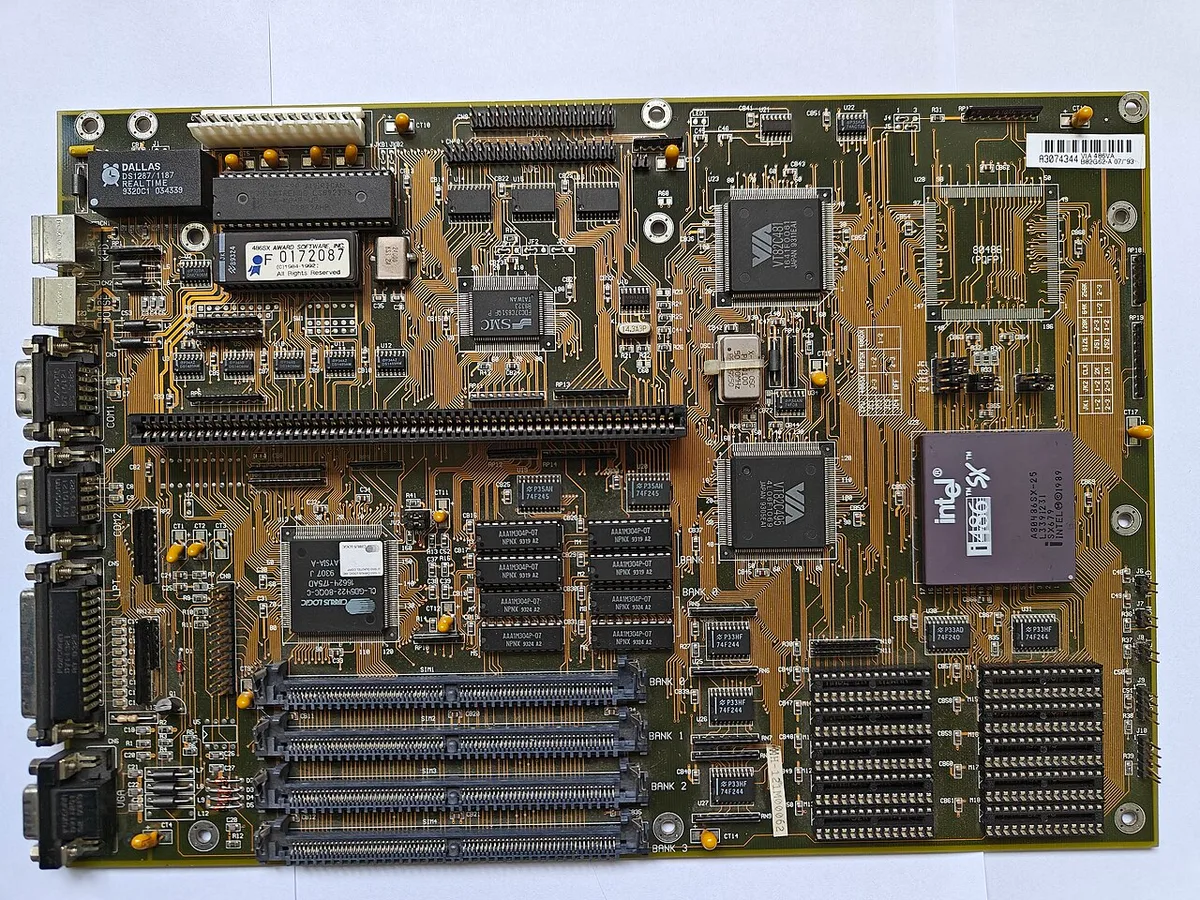
Image source: Wikimedia Commons / Architekt1024 (CC BY)
On many 2026 models, the CPU and GPU are separate packages, not one chip. That means two distinct heat sources and two boost behaviors. Memory may be DDR5 SODIMMs or LPDDR5x soldered modules.
Soldered memory saves space but limits upgrades. A photo of the board would show the GPU package as the largest chip, with RAM nearby and storage slots at the edges.
The memory path matters for latency. A closer RAM placement can help signal quality, though real performance still depends on speed and timings. If a laptop is not using its discrete GPU, GPU detection issues can show up as low performance.
In some cases, the system routes graphics through the integrated graphics path instead.
Thermal Architecture: Heat Pipes, Vapor Chambers, and Fan Placement
Thermal hardware is the difference between a laptop that feels fast and one that only benchmarks fast. Heat pipes move heat from the CPU and GPU to heatsink fins. Vapor chambers spread heat across a wider area on premium models.
Fans then push air through the fins and out the exhaust vents.
Fan placement creates the airflow pattern. Intake usually happens from the bottom. Exhaust often exits the rear or sides.
If intake vents sit on a soft surface, airflow drops and temperatures rise. Dust traps build up around fan blades and fin stacks, so cleaning matters.
A diagram would show positive pressure from intake fans pushing air across the board and out the rear. It would also show how a vapor chamber covers both CPU and GPU. Fan noise under load is not just annoyance.
It can signal that the cooling system is working near its limit.
| Cooling Part | What It Does | What To Watch |
|---|---|---|
| Heat pipes | Move heat to fins | Bent or poorly contacted pipes |
| Vapor chamber | Spreads heat broadly | Added weight and cost |
| Fans | Push air through vents | Dust, blade wear, high noise |
Storage and Connectivity: M.2 Slots, Wi-Fi Cards, and I/O Shielding
Storage and connectivity sit around the edges of the motherboard. Most gaming laptops use M.2 NVMe SSDs, often in the 2280 size. Some models include a second slot for expansion.
The Wi-Fi card usually sits in its own M.2 slot and connects to antennas routed up through the display.
I/O ports connect to the board through shielded traces and controllers. USB-C, HDMI, Ethernet, and audio jacks each need space and routing. A cluttered port area can affect repair access.
It can also influence display output routing if a port connects directly to the discrete GPU.
This section is easy to overlook, but it shapes daily use. Fast storage reduces load times. A stable wireless card helps online play.
Good port shielding reduces interference. If a machine has limited slots, plan storage before buying rather than after.
Visualizing Airflow: Intake Zones, Exhaust Paths, and Dust Traps
Airflow in a gaming laptop follows a simple path. Cool air enters through bottom intake vents. Warm air exits through rear or side exhaust vents.
If you block the intake, temperatures rise fast.
A bottom view would show intake grilles near the fans. A rear view would show exhaust slots above the heat pipes. Some machines also vent through the sides.
Fan blades pull air across the heatsink fins, then push it out.
Dust traps form where air slows down. Common spots include fan corners, heatsink fins, and intake mesh. Soft surfaces like beds or couches also choke airflow.
That can cause loud fans and sudden slowdowns.
| Airflow Part | Typical Location | Common Issue |
|---|---|---|
| Intake vents | Bottom panel | Blocked by soft surfaces |
| Exhaust vents | Rear or sides | Dust buildup at fins |
| Fan blades | Near CPU and GPU | Noise and vibration |
If fan noise rises during play, check intake clearance first. Clean vents before assuming a hardware fault. Many cases of FPS drops when fans get loud come from restricted airflow, not a broken fan.
Manufacturer specifications from NVIDIA GeForce RTX laptop GPUs and Intel Core mobile processors describe mobile power and thermal limits. Those limits help explain why airflow matters so much.
Upgradeability Check: Which Components Are Soldered vs. Swappable
Upgradeability depends on what is soldered to the board. RAM may be SODIMMs or soldered LPDDR5x. Storage is usually swappable if an M.2 slot is open.
The Wi-Fi card is often removable. Batteries and keyboards vary by model.
A teardown view would show screws, brackets, and cable connectors. SODIMM slots are easy to spot. M.2 drives sit under shields.
Soldered memory has no slot and no upgrade path. Some laptops also solder the SSD.
Check the service manual before opening the chassis. Look for warranty stickers and hidden screws. If you want better frame rates without buying parts, tuning settings can help.
Some users game on integrated graphics for lighter titles.
| Component | Common Design | Upgrade Outlook |
|---|---|---|
| RAM | SODIMM or soldered | Mixed |
| SSD | M.2 2280 | Usually swappable |
| Wi-Fi card | M.2 | Often removable |
| Battery | Screwed or glued | Model dependent |
If you want better frame rates without buying parts, boosting FPS without upgrades can help through settings changes. Some users game on integrated graphics for lighter titles.
Common Teardown Mistakes and ESD Safety Protocols
Teardown mistakes usually start with rushing. People strip screws, pry clips too hard, or forget to disconnect the battery. Static discharge can also damage exposed components.
Capacitors may hold charge after power is removed.
ESD safety is simple. Work on a non carpet surface. Use an anti static wrist strap if possible.
Touch a grounded metal point before handling parts. Keep screws sorted by size and location.
Disconnect the battery cable before touching the board. Remove the bottom panel gently and watch for ribbon cables. If a GPU or driver issue appears after reassembly, checking Device Manager can save time.
A laptop not using its dedicated GPU can look like a hardware fault.
If a GPU or driver issue appears after reassembly, checking Device Manager can save time. A laptop not using its dedicated GPU can look like a hardware fault.
Maintenance Workflows for Sustained Performance
Maintenance keeps the internal layout working as designed. Clean dust from intake vents and fan blades. Check temperatures after cleaning.
Reapply thermal paste only if temperatures stay high and the paste is old.
A basic workflow has four steps. Power down and unplug. Remove the bottom panel.
Clean dust with short air bursts. Reassemble and test under load. Do not spray liquid directly into the chassis.
Thermal paste replacement needs care. Use the right amount and avoid over tightening. If FPS drops while charging, check power settings and adapter wattage too.
Software checks can reveal low GPU power limits.
If FPS drops while charging, check power settings and adapter wattage too. Software checks can reveal low GPU power limits.
Frequently Asked Questions About Gaming Laptop Internals
Can you upgrade RAM in most gaming laptops?
Some models use removable SODIMMs, while others use soldered LPDDR5x. Check the service manual before buying memory. A single open slot can still allow an upgrade even when part of the RAM is fixed.
Do gaming laptops use desktop GPUs?
No. They use mobile GPUs with lower power limits and different cooling designs. The architecture may be similar, but sustained performance depends on the laptop chassis and thermal system.
Why does a gaming laptop get hot inside?
The CPU and GPU generate heat in a small space with limited cooling room. Dust, blocked vents, and poor airflow make it worse. Heat pipes and fans can only move heat as fast as the design allows.
Is it safe to open a gaming laptop?
It can be safe if you follow ESD and battery precautions. Warranty terms vary by brand, so check before removing panels. Disconnect the battery and keep screws organized.
How often should you clean laptop fans?
Clean them every few months in dusty rooms. Clean more often if you use the laptop on soft surfaces. Rising temperatures or louder fans are good signs that it is time.
Does storage location affect gaming performance?
Speed matters more than physical location. A fast NVMe SSD reduces load times and texture streaming delays. Extra slots help capacity, not raw frame rates.