If you're shopping for a gaming laptop, the keyboard backlight spec can look like marketing fluff. It isn't. Per-key RGB means each key has its own LED, so colors and brightness can be set key by key.
That changes how the keyboard looks, how easy it is to read, and how much power it draws.
As of 2026, many mid-range and high-end gaming laptops advertise per-key RGB, while budget models often use 4-zone or single-color lighting. Manufacturer specs usually list LED count, software support, and battery claims. The real question is whether that extra control is worth the price for your setup.
what is per-key RGB on a gaming laptop
Per-key RGB is keyboard backlighting where every key has its own LED. You can set colors and brightness for each key separately. It differs from zone RGB, which lights groups of keys together.
It also differs from single-color backlighting, which uses one color.
Why Your Gaming Laptop's Backlight Type Matters More Than You Think
Keyboard lighting affects daily use more than most specs suggest. You notice it in a dark room, during late-night sessions, and when you're trying to find the right key fast. A brighter, clearer layout can reduce eye strain and missed keystrokes.
The backlight type also changes the price. Per-key RGB usually costs more than 4-zone RGB or a single-color backlight. It can also affect battery life, software needs, and how easy the keyboard is to customize.
If you mostly play in a bright room, the premium may not matter much.
For many buyers, the right choice comes down to control versus cost. More control helps with game-specific layouts and personal style. Less control keeps the laptop cheaper and simpler.
That tradeoff is worth understanding before you pay extra.
If you want to change colors later, custom lighting profiles can help you see what your laptop software actually supports.
What Per-Key RGB Actually Is
Per-key RGB means each individual key has its own addressable LED. The keyboard controller can send a different color command to each key. That is why one key can be red, another blue, and another green at the same time.
This is different from zone RGB. Zone RGB groups keys into a few lighting areas, such as WASD, arrows, and the rest of the keyboard. It looks good, but it cannot highlight one specific key without lighting nearby keys too.
Single-color backlighting is even simpler, since every lit key shares one color.
Manufacturer documentation from brands like ASUS and Razer describes these systems as addressable RGB or per-key RGB. The useful detail is not the marketing name. It is how many independent lighting zones the keyboard actually has.
True per-key RGB gives one zone per key, which is the most flexible option.
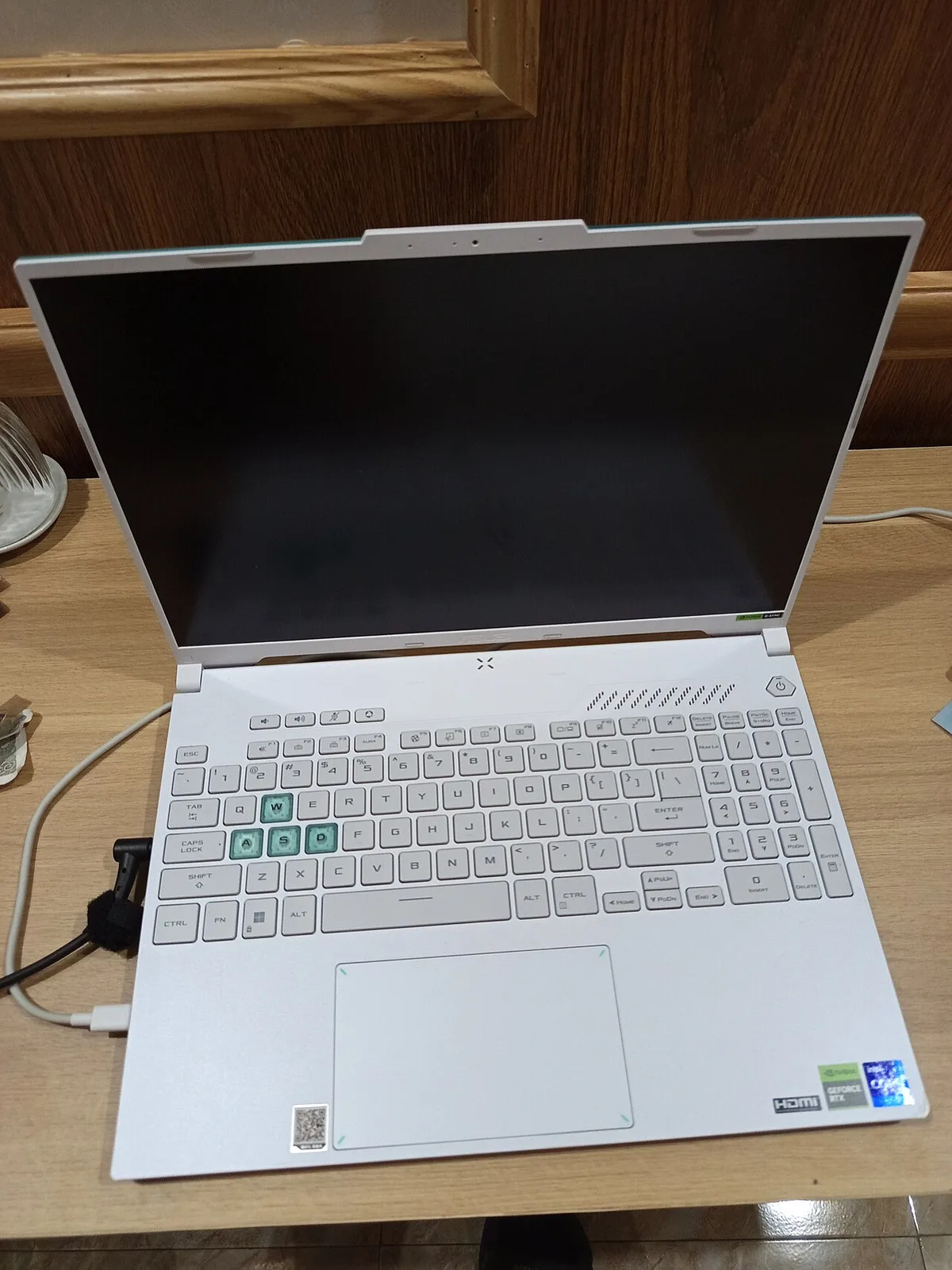
Image source: Wikimedia Commons / HuangWending18072009
How Per-Key RGB Works Inside a Gaming Laptop
A per-key RGB keyboard uses small LEDs under or beside each switch. The laptop's embedded controller manages them through a lighting matrix. Software on the laptop sends color data to that controller, and the controller updates the LEDs.
Most brands use their own software. Examples include ASUS Armoury Crate, MSI Center, Lenovo Vantage, HP Omen Gaming Hub, and Razer Synapse. The software lets you choose colors, effects, brightness, and sometimes game-linked profiles.
Some laptops also store a few profiles in onboard memory, so basic lighting can work without the software running.
Power use depends on brightness and color choice. White or bright colors at maximum brightness usually draw more power than dim red or blue. Aggregate reviews report that the battery impact is often small but noticeable when the laptop is unplugged.
If battery life matters, lowering brightness is one of the easiest fixes.
The keyboard still needs to feel good, not just look bright. If you care about input speed, keyboard latency on gaming laptops is a separate spec worth checking. Lighting does not fix a mushy switch or a slow response.
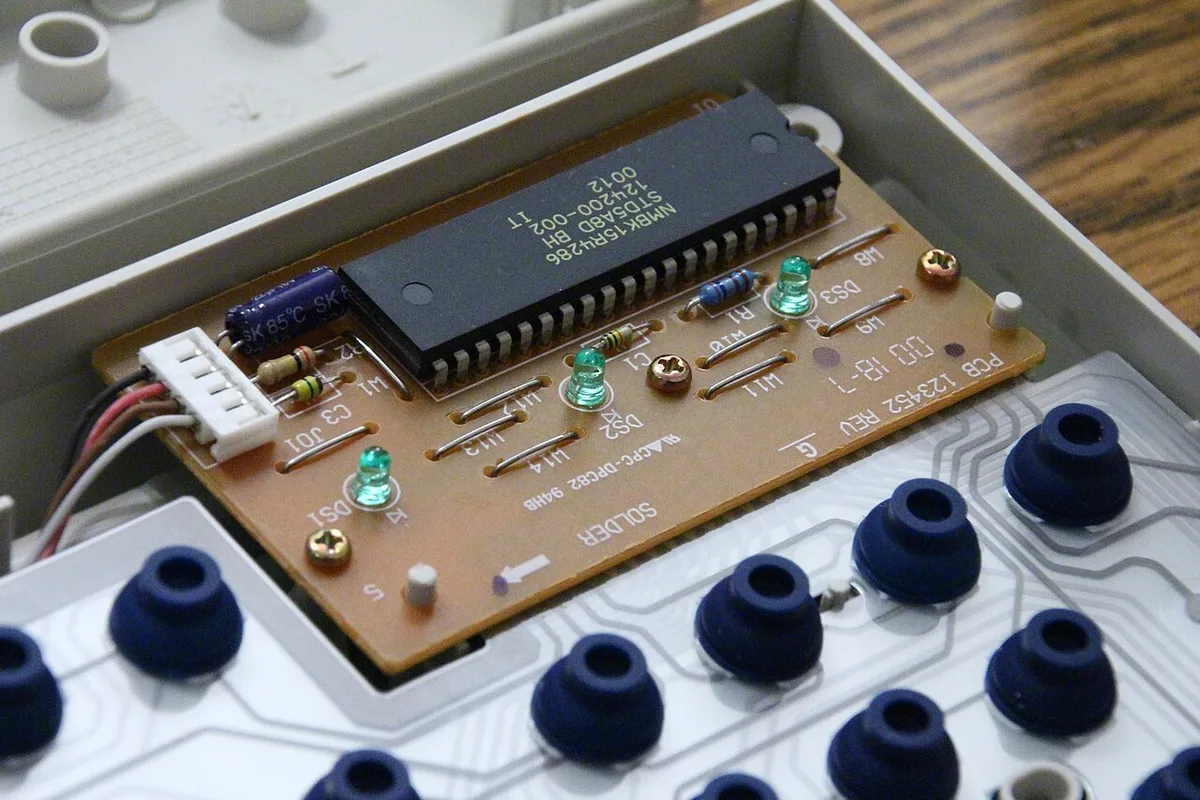
Image source: Wikimedia Commons / Loadmaster (David R. Tribble) This image was made by Loadmaster (David R. Tribble). Email the author: David R. Tribble Also see my personal gallery at Google Photos (CC BY-SA)
Per-Key RGB vs Zone RGB vs Single-Color: Side-by-Side
The three main backlight types solve the same problem in different ways. Per-key RGB gives the most control. Zone RGB gives a good look with fewer parts.
Single-color backlighting keeps cost and complexity low.
| Backlight type | Control level | Typical look | Common on |
|---|---|---|---|
| Per-key RGB | One color per key | Highly customizable | Mid-range and high-end gaming laptops |
| 4-zone RGB | A few key groups | Colorful but less precise | Budget and mid-range gaming laptops |
| Single-color | One color for all lit keys | Simple and uniform | Entry-level gaming laptops |
Per-key RGB is best for players who want to highlight specific keys. You can make WASD one color, ability keys another, and the rest dim. That can help in games with complex keybinds.
It also looks great in a dark setup.
4-zone RGB is often enough for general gaming. It gives color and mood without the cost of a full per-key system. The downside is less precision.
If two important keys sit in the same zone, you cannot separate them.
Single-color backlighting is the most basic option. It helps with typing in low light and keeps the laptop affordable. It will not give the layered look that RGB fans want, but it does the job.
The Real Pros and Cons of Per-Key RGB
Per-key RGB has clear strengths, but it is not automatically the best choice. The biggest benefit is control. You can build layouts that match your games, shortcuts, and preferences.
That is useful if you switch between genres or use complex macros.
Another benefit is visibility. A well-tuned profile can make important keys stand out. This helps in dark rooms and can make a keyboard feel more organized.
Some users also like syncing the laptop with a mouse, headset, or desk lighting.
The downsides are just as real. Per-key RGB costs more, and the software can be heavy. Some lighting apps run background services and need updates.
If the software is buggy, the lighting may flicker, reset, or ignore profiles.
Battery life is the other common complaint. Running bright RGB while unplugged can shorten runtime. The effect varies by laptop, brightness, and color choice.
For travel or school use, dimming the keyboard or using a static low-power color is a smart habit.
If your keyboard stops responding, fixing a gaming laptop keyboard that is not working should come before worrying about lighting profiles. Lighting software cannot fix a hardware or driver problem.
As of 2026, many gaming laptop keyboards also include anti-ghosting and N-key rollover. Those features matter more for competitive play than color control. RGB is a comfort and style feature, not a performance upgrade.
Who Per-Key RGB Is Right For
Per-key RGB fits buyers who care about control and aesthetics. It suits gamers who play in dark rooms and want important keys highlighted. It also suits streamers who want a clean on-camera look.
It is less useful for bright-room players. If you game near a window or under strong lights, the effect is harder to see. In that case, 4-zone RGB or single-color backlighting may be enough.
Competitive players should focus on switch feel and response time first. RGB can help with key memory, but it does not make inputs faster. If you play fast-paced shooters, keyboard latency on gaming laptops matters more than color control.
Students and frequent travelers may prefer simpler lighting. A static color at low brightness is easier on battery. It also avoids software prompts during class or travel.
Per-key RGB is a good fit if you already enjoy customizing gear. It is less appealing if you just want a reliable typing experience. Think about how often you will actually change colors before paying extra.
What Per-Key RGB Costs and Whether It's Worth It
The premium varies by brand and model. As of 2026, per-key RGB often adds about $50 to $150 compared with simpler backlighting. On premium laptops, the difference can be smaller because RGB is bundled with other upgrades.
Whether it is worth it depends on use. If you change profiles often, the value is high. If you leave one color on all the time, the premium is harder to justify.
Battery life is part of the cost too. Bright RGB can reduce runtime when unplugged. Lower brightness or static colors can reduce that impact.
For travel, this matters more than the purchase price.
| Buyer type | Best backlight choice | Why |
|---|---|---|
| Budget buyer | Single-color or 4-zone RGB | Lower cost and simpler software |
| Competitive gamer | Per-key RGB or 4-zone RGB | Focus first on switch feel and rollover |
| Streamer or creator | Per-key RGB | Better visual control on camera |
| Frequent traveler | Single-color or dim per-key RGB | Better battery life |
If your keyboard ever needs repair, replacing a gaming laptop keyboard may cost more than the RGB premium. That makes the original choice more important.
Common Mistakes Buyers Make
Many buyers assume every "per-key RGB" label means the same thing. Some laptops have fewer addressable zones than keys. Check the spec sheet or manufacturer documentation before buying.
Another mistake is ignoring the software. A great keyboard can feel frustrating if the app is slow or unstable. Read verified buyer feedback about lighting software, not just hardware reviews.
Some buyers expect RGB to improve performance. It does not. It can help you remember keybinds, but it will not lower input lag.
If performance is the goal, look at switch type and rollover first.
People also forget about keycap wear. Shine-through legends can fade over time. Once they fade, bright LEDs may look uneven.
Cleaning and gentle use can slow this down.
A common oversight is buying for looks only. A flashy keyboard with poor typing feel gets old fast. Try to test the keyboard in person if possible.
If not, look for detailed reviews of key travel and actuation.
Expert Tips to Get the Most Out of Per-Key RGB
Start with a simple profile. Highlight WASD, ability keys, and modifiers. Leave the rest dim.
This is easier to read and uses less power.
Use static colors for battery savings. Moving effects look fun, but they draw more attention and power. Static red, blue, or white at low brightness is a safe daily choice.
Save profiles to onboard memory if your laptop supports it. That way, basic lighting works even if the software is closed. It also helps after a clean Windows install.
Keep software updated, but do not install every optional component. Some lighting suites include extra services you may not need. A lighter setup can reduce background load.
Clean keycaps carefully. Remove them only if the manual allows it. Use a soft brush and mild cleaner.
Avoid soaking keycaps with printed legends.
If a key stops lighting, check the software profile first. Then update firmware. Hardware failure is possible, but profile conflicts are more common.
Manufacturer documentation from brands such as ASUS can help with model-specific steps.
Frequently Asked Questions
Does per-key RGB improve gaming performance?
No. Per-key RGB does not change input speed or accuracy. It can help you remember keybinds by highlighting important keys.
Performance depends more on switch feel, rollover, and latency.
Can you turn per-key RGB off completely?
Yes. Most laptops let you disable the backlight or set it to black. Some models also have a keyboard shortcut for quick changes.
Turning it off can help battery life.
Does per-key RGB drain battery much?
It can, but the amount varies. Bright white lighting at maximum brightness uses more power than dim colors. Aggregate reviews report a small but noticeable impact when unplugged.
Lower brightness helps.
Is 4-zone RGB enough for most gamers?
Yes, for many buyers. 4-zone RGB gives color and mood without the higher cost. It is less precise than per-key RGB. If you only want a colorful keyboard, it is often enough.
Can you replace a gaming laptop keyboard later?
Sometimes, but it is not always easy. Many laptop keyboards are not simple drop-in parts. Labor and parts can cost more than the RGB premium.
Check repair options before buying.