What is the best SSD type for a gaming laptop? For most gamers, a PCIe Gen 4 NVMe M.2 drive with TLC NAND hits the sweet spot. It balances speed, heat, and price better than anything else on the market right now.
The right choice still depends on your laptop's slots and your game library size.
PCIe Gen 4 drives peak near 7,000 MB/s, while Gen 3 tops out around 3,500 MB/s. Per the PCI-SIG specification, those are the interface ceilings, not guarantees. The real question is which drive fits your machine and your games.
Let's break it down.
what is the best SSD type for a gaming laptop
A Solid State Drive (SSD) with PCIe Gen 4 NVMe suits most gaming laptops. It delivers fast load times without extreme heat. Gen 3 works fine for older machines.
Gen 5 runs too hot for most thin chassis. Match the drive to your laptop's slots first.
Why "Best SSD" Means Something Different for a Gaming Laptop
Gaming laptops are not small desktops. They run hot, draw limited power, and offer tight upgrade space. The fastest drive on paper often loses in a laptop chassis.
Most gaming laptops ship with one M.2 slot. Some add a second. A few still use 2.5-inch SATA bays.
That slot count shapes your choice more than any spec sheet.
Heat is the second big factor. A Gen 5 drive can push past 80 degrees in a thin chassis. Then it throttles.
You paid for speed you never see.
Battery life matters too. Higher power draw means fewer hours unplugged. A Gen 4 drive pulls less power than Gen 5 under load.
Game library size sets capacity needs. Modern titles eat 100GB to 200GB each. A 500GB drive fills fast.
Most gamers land on 1TB or 2TB.
So "best" here means best fit, not best benchmark. Weigh speed against heat, power, and slot limits. Check your laptop's service manual before buying anything.
The same drive can be perfect in one machine and wrong in another.
If you also plan memory upgrades, our guide on how much memory your machine needs helps you budget both at once.
M.2 Slot Keying and Physical Fit
M.2 drives come in different lengths. 2280 is the common size. Some ultraportables use 2230 or 2242. Keying matters too.
M-key slots accept NVMe. B+M slots accept both SATA and NVMe. Check the label near the slot.
Installing the wrong length or key wastes money and time.
Single-sided versus double-sided is another trap. Double-sided drives can clash with motherboard components. Single-sided is safer in tight builds.
Many Gen 4 drives ship single-sided at 1TB and 2TB. Verify before you order.
The SSD Landscape: SATA, NVMe, and PCIe Generations
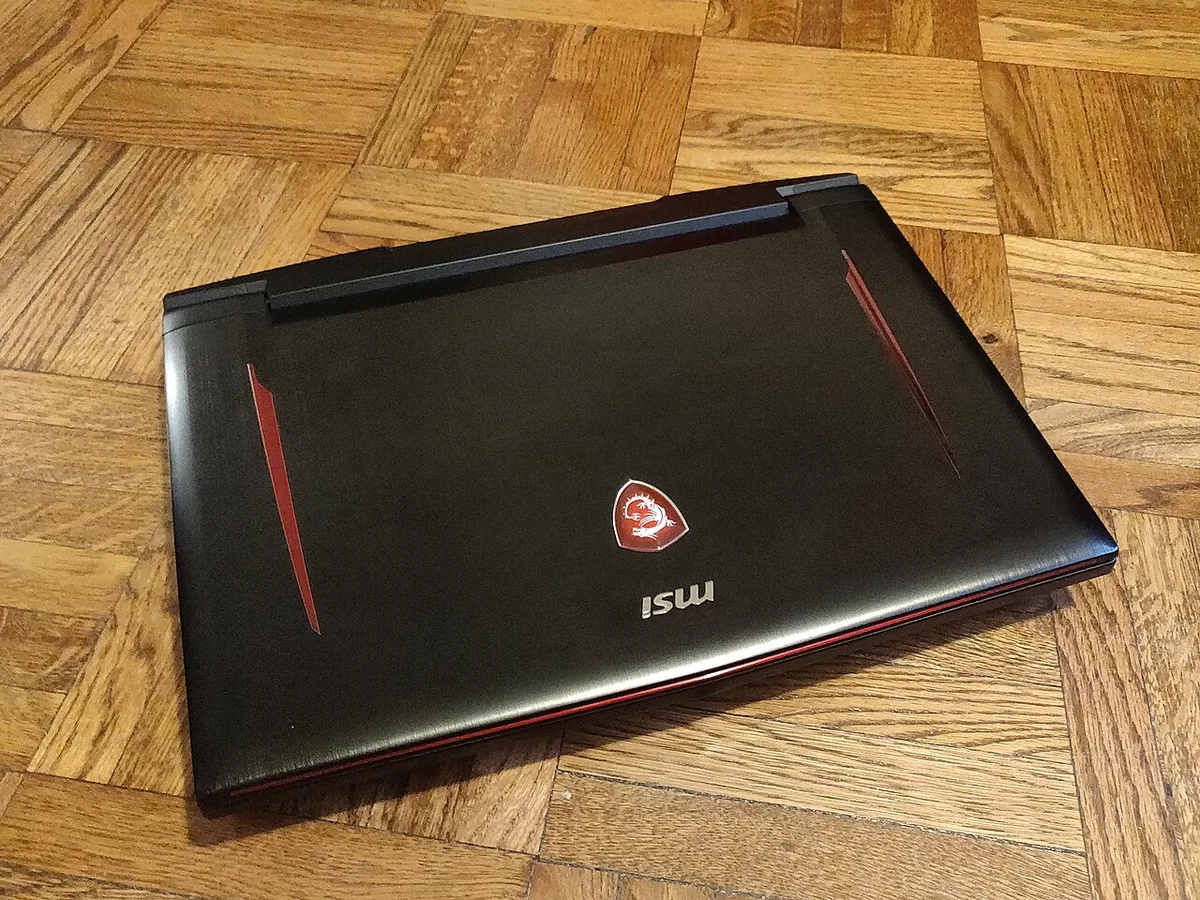
Image source: Wikimedia Commons / Kurt Kaiser
SATA is the oldest interface still common. It caps at about 550 MB/s sequential. That was fast a decade ago.
For gaming today, it is the floor, not the goal.
NVMe replaces the SATA protocol. It runs over PCIe lanes instead of the SATA bus. That removes the bottleneck.
Even a basic NVMe drive beats SATA by a wide margin.
PCIe generations set the ceiling. Gen 3 reaches roughly 3,500 MB/s. Gen 4 doubles that to about 7,000 MB/s.
Gen 5 doubles again to 12,000 MB/s or more. Each step needs matching motherboard support.
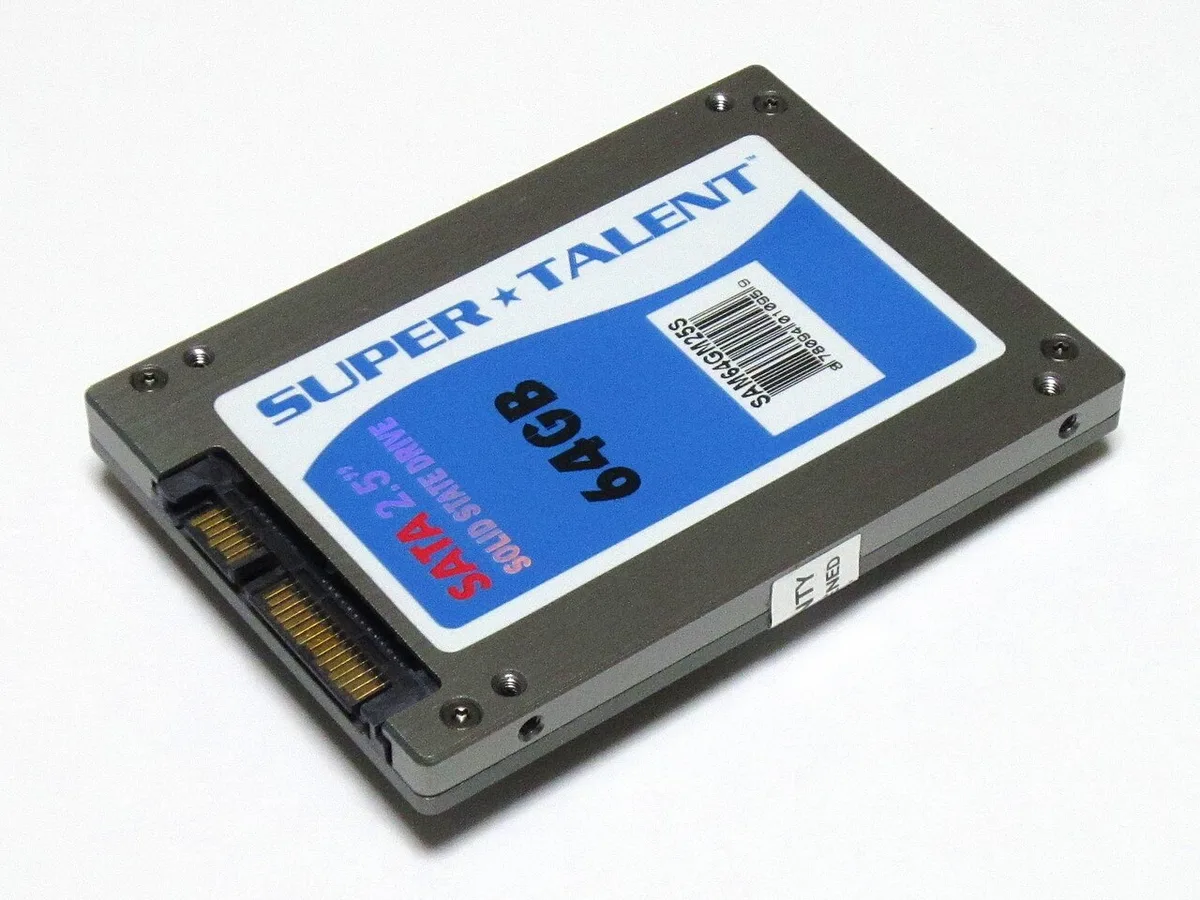
Image source: Wikimedia Commons / photo: Qurren (talk) Taken with Canon IXY 10S (Digital IXUS 210) (CC BY-SA)
For gaming laptops, Gen 4 is the current sweet spot. Most 2022 and newer machines support it. Gen 3 still works well and costs less.
Gen 5 exists but runs hot and drains battery. Per the PCI-SIG specification, Gen 5 bandwidth is roughly 32 GT/s. Few laptops handle that thermally today.
SATA SSDs still make sense as budget upgrades. An older laptop with only a SATA slot benefits. Otherwise, skip SATA for a gaming machine.
The load-time gap is real and visible.
If you want to verify your machine's memory setup while you are at it, see our page on checking your laptop's memory speed.
Inside the Drive: NAND Flash, DRAM, and Cache
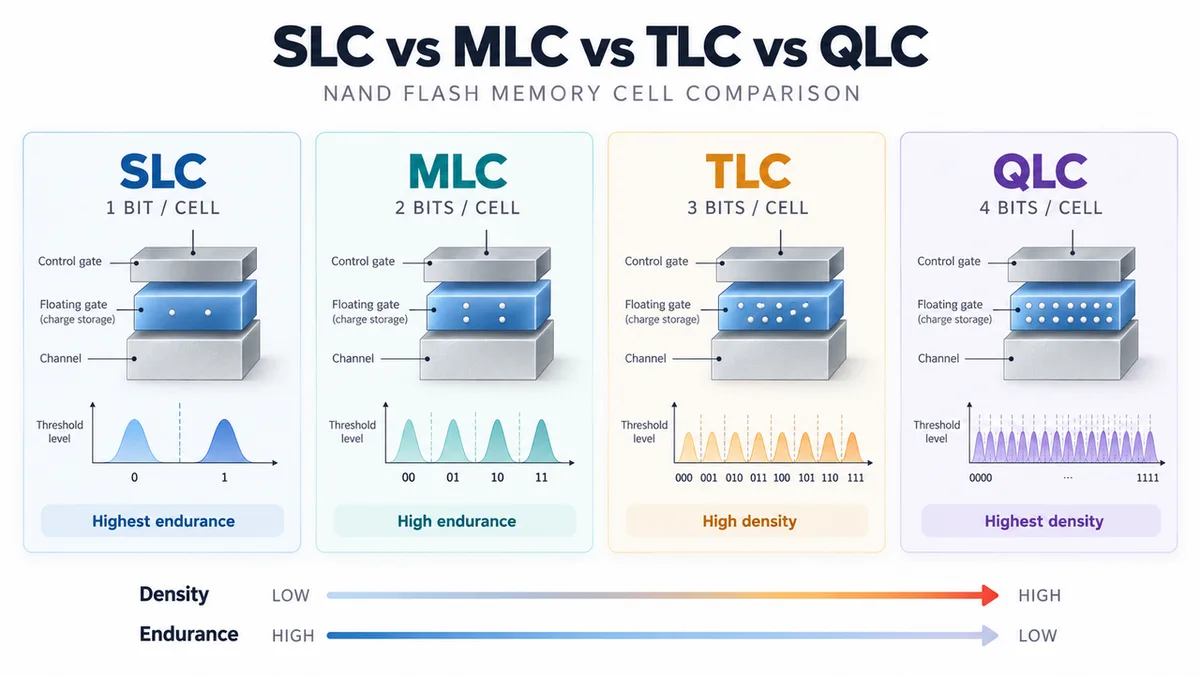
Image source: Wikimedia Commons / Yashtiwari663
The interface is only half the story. The memory inside the drive shapes real performance. Three parts matter most: NAND type, DRAM, and cache.
NAND flash comes in layers. TLC stores three bits per cell. QLC stores four.
TLC is faster and lasts longer. QLC costs less but slows down when full. For gaming, TLC is the better pick.
QLC can stutter during large installs.
DRAM acts as a fast lookup table. Drives with DRAM cache handle random reads better. DRAM-less drives use Host Memory Buffer instead.
HMB borrows system RAM. It works, but not as well under heavy load. Aggregate reviews report smoother performance from DRAM-equipped drives.
SLC cache fakes speed. The drive writes to a fast single-layer buffer first. Then moves data to slower TLC or QLC later.
A big SLC cache feels fast at first. Once it fills, write speeds drop. Game installs and updates expose this drop.
NAND layer count also matters. Modern drives use 176-layer or 232-layer NAND. More layers mean higher density and lower cost.
They do not always mean higher speed. Controller quality matters as much as layer count.
The controller is the brain. Phison, Silicon Motion, and Samsung make common ones. A good controller manages heat, cache, and wear leveling.
Cheap drives often pair good NAND with weak controllers. That pairing kills performance.
When comparing drives, look past the headline speed. Check NAND type, DRAM presence, and controller. Those three decide how the drive feels after months of use, not just on day one.
For memory-heavy workloads alongside gaming, our breakdown of whether 16GB of memory is enough pairs well with this.
Side-by-Side Comparison: SSD Types for Gaming Laptops
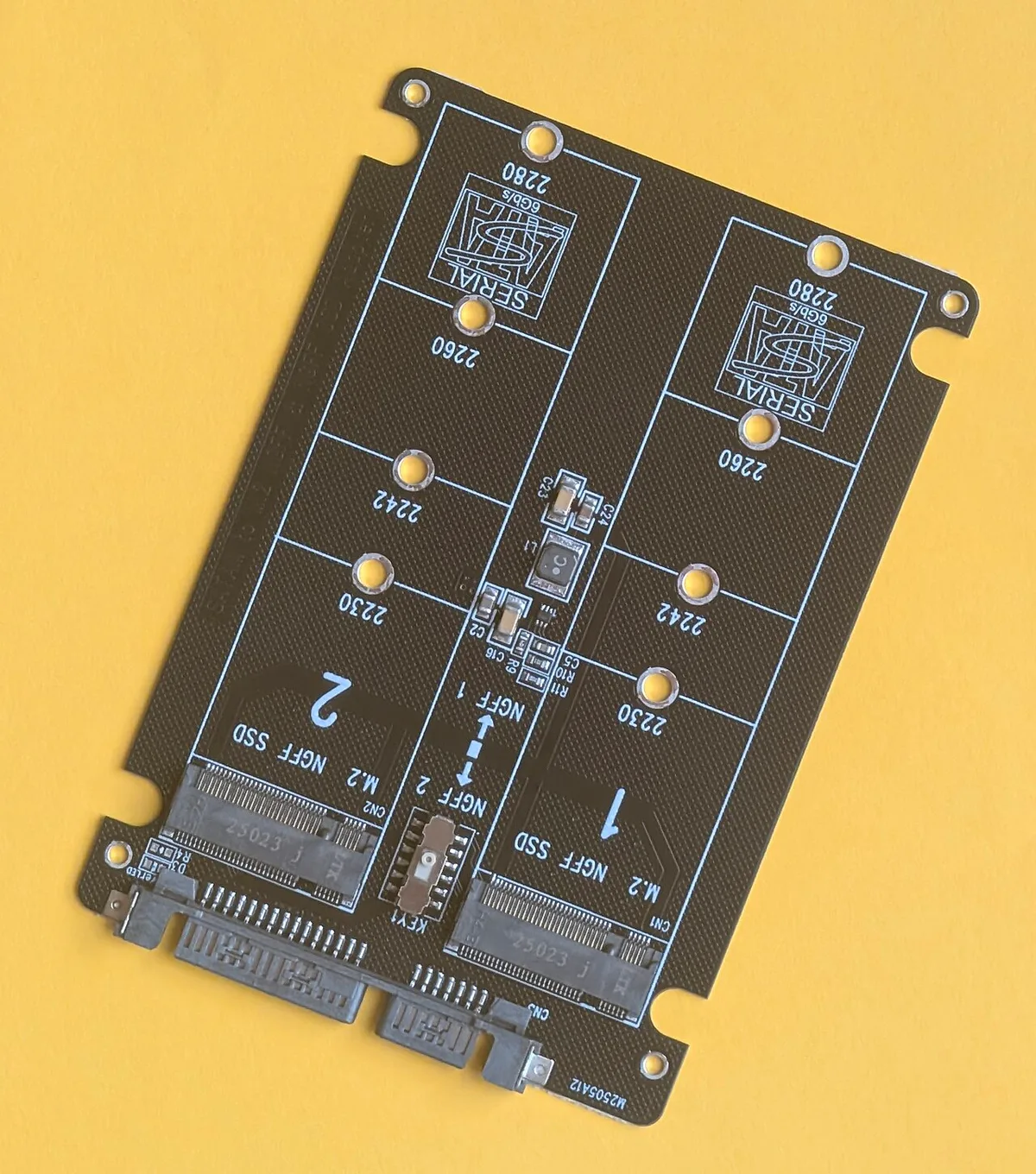
Image source: Wikimedia Commons / Siarhei Besarab (CC BY-SA)
Here is how the main options stack up for a gaming laptop.
| SSD Type | Seq. Speed | Heat | Best For |
|---|---|---|---|
| SATA (2.5" or M.2) | ~550 MB/s | Low | Budget upgrades, older laptops |
| NVMe Gen 3 | ~3,500 MB/s | Moderate | Value builds, Gen 3-only slots |
| NVMe Gen 4 | ~7,000 MB/s | Moderate-High | Most gaming laptops today |
| NVMe Gen 5 | ~12,000 MB/s | High | Thick chassis, future-proofing |
A few notes on reading this table. Sequential speed is the headline number. Real gaming gains come from random reads, not sequential.
A Gen 4 drive wins there too, but the gap narrows.
Heat scales with generation. Gen 5 drives need heatsinks and airflow. Most thin laptops lack both.
That is why Gen 4 stays the practical ceiling for many machines.
Endurance matters for large libraries. Check TBW ratings. A 1TB TLC drive often rates 600 TBW or more.
QLC drives rate lower. For gamers who install and uninstall often, TLC holds up better.
Price per GB favors higher capacity. A 2TB drive costs less per GB than a 1TB. If your slot allows, buy capacity once.
Replacing later costs more in time and hassle.
If you are weighing memory upgrades alongside storage, our guide on stepping up to 32GB covers the trade-offs.
Specs vs. Reality: What Actually Changes In-Game
Benchmarks sell drives. Games tell the truth. The two do not always agree.
Load times are where SSDs shine. Moving from HDD to any SSD cuts loads by 50% or more. Moving from SATA to NVMe cuts them again, but by less.
The jump from Gen 3 to Gen 4 in load times is often one to three seconds. That is real, but small.
Open-world games benefit more. Texture streaming and fast travel rely on random reads. Gen 4 drives reduce pop-in and stutter in large worlds.
Aggregate reviews report smoother traversal in open-world RPGs on Gen 4 versus Gen 3.
DirectStorage is the wild card. Microsoft's API lets games stream assets directly to the GPU. It needs a fast NVMe drive and a supported GPU.
As of 2026, only a handful of titles use it well. That will grow. A Gen 4 drive is ready for it.
Gen 3 may lag.
Competitive esports titles are different. Round-based games load fast on almost any SSD. Gen 3 is plenty.
Spending extra for Gen 4 here buys little.
The honest truth: for most gamers, Gen 4 feels better but not dramatically faster than Gen 3 in daily play. The bigger win is capacity and reliability. Buy the fastest drive your laptop supports and can cool.
Then stop worrying about specs.
If you run hybrid graphics, our explainer on hybrid graphics mode shows how storage and GPU work together.
Matching the SSD to Your Laptop and Playstyle
Different gamers need different drives. Match the SSD to your machine and your library.
Competitive esports players load small maps fast. Round-based games like Valorant or CS2 finish loading in seconds on any SSD. A Gen 3 drive is plenty here.
Save money and spend it on a better mouse or headset.
Open-world RPG fans benefit most from Gen 4. Texture streaming and fast travel rely on random reads. Games like Cyberpunk 2077 or Elden Ring load smoother on Gen 4.
Aggregate reviews report fewer hitches in large worlds.
Streamers who record gameplay to local storage need sustained write speed. QLC drives slow down during long recordings. Pick TLC with a large SLC cache.
A 2TB drive leaves room for raw footage.
Thin-and-light laptop owners should avoid Gen 5. Heat and power draw hurt battery life. Gen 4 or even Gen 3 runs cooler.
Check your chassis thickness before chasing top speeds.
Budget-conscious gamers can still win. A Gen 3 NVMe drive at 1TB costs less than a Gen 4 at 500GB. More capacity beats more speed for most people.
Games do not care about your benchmark score.
Desktop-replacement laptop users have more freedom. Thick chassis handle Gen 5 heat. Extra slots allow a second drive.
These users can chase top specs without penalty.
The golden rule: buy the fastest drive your laptop supports and can cool. Then buy the largest capacity you can afford. Speed feels good for a week.
Capacity matters for years.
If you also upgrade memory, our comparison of dual-channel versus single-channel setups shows how storage and RAM work together.
Common Mistakes When Upgrading a Gaming Laptop SSD
Upgrading an SSD is simple. These mistakes make it painful.
Buying a Gen 5 drive for a Gen 3 laptop. The drive falls back to Gen 3 speeds. You paid triple for nothing.
Check your laptop's PCIe version first.
Ignoring thermal limits. A fast drive in a hot chassis throttles. Read reviews for temperature data.
Some drives ship with heatsinks that do not fit laptop bays.
Forgetting to back up. Cloning fails sometimes. Always back up saves and settings first.
Cloud saves help, but not everything syncs.
Missing the M.2 standoff. Many laptops need a small screw and standoff. Some ship without them.
Check the service manual before ordering.
Installing a double-sided drive in a tight slot. The extra chips hit the motherboard. Single-sided drives avoid this.
Verify the PCB layout before buying.
Skipping the BIOS update. Older BIOS versions may not detect new drives. Update first, then install.
This step saves hours of troubleshooting.
Not enabling TRIM. TRIM keeps SSD performance stable over time. Windows enables it by default.
Check with fsutil behavior query DisableDeleteNotify. A zero means TRIM is on.
Reusing the old drive without wiping. Old data lingers. Secure erase before selling or recycling.
Most drive makers offer free tools.
If you are also swapping memory, our guide on whether 8GB is enough for gaming helps you plan both upgrades together.
Frequently Asked Questions
Is NVMe always better than SATA for gaming laptops?
Yes, if your laptop supports it. NVMe runs over PCIe lanes and is far faster than SATA. SATA caps near 550 MB/s.
Even budget NVMe drives double that. Only use SATA if your laptop has no M.2 slot.
Does an SSD affect gaming FPS?
No, not directly. Frame rate depends on CPU and GPU. An SSD affects load times, texture streaming, and stutter.
It makes games feel smoother. It does not raise your average FPS.
How much SSD storage do I need for gaming?
1TB is the minimum for a modern library. 2TB is better if you play several large titles. Games like Call of Duty exceed 200GB. A 500GB drive fills in weeks.
Buy capacity once to avoid reinstalling.
Can I add a second SSD to my gaming laptop?
Sometimes. Many laptops have one M.2 slot. Some add a second M.2 or a 2.5-inch bay.
Check the service manual. If only one slot exists, replace the drive and clone your data.
Do I need a heatsink on my laptop SSD?
Usually no. Most laptop bays lack space for heatsinks. A thin thermal pad helps.
Gen 5 drives may need more cooling. Check reviews for thermal data before buying a high-speed drive.
How long does an SSD last in a gaming laptop?
Most last five to ten years. TLC drives rate 600 TBW or more at 1TB. Gamers rarely hit that limit.
NAND wear is slow for typical use. Back up data anyway, since failure still happens.
Final Verdict: The Best SSD Type for Most Gaming Laptops
For most gamers, a PCIe Gen 4 NVMe M.2 drive with TLC NAND and DRAM is the best choice. It is fast, cool enough for most chassis, and priced fairly. It handles DirectStorage and large installs without breaking a sweat.
Gen 3 still works for older laptops or tight budgets. Gen 5 is overkill for most thin machines. SATA only makes sense for very old hardware.
Buy 1TB minimum, 2TB if you can. Check your slots before ordering. Match the drive to your laptop, not to a benchmark chart.
Per JEDEC standards, SSD endurance ratings are measured in TBW, so compare those when shopping.
The best SSD is the one that fits your machine, holds your games, and runs cool. Everything else is marketing.