what is the difference between sata and nvme ssds? SATA drives use the older AHCI protocol over a 6 Gbps link, while NVMe drives use PCIe lanes and a protocol built for flash memory. In practice, NVMe is faster and has lower latency, but SATA is cheaper and more compatible.
Manufacturer specifications indicate SATA III tops out around 550 MB/s, while NVMe drives on PCIe Gen 4 can exceed 7,000 MB/s. The right choice depends on your motherboard, budget, and workload, not just the bigger number. Let's break it down.
what is the difference between sata and nvme ssds
SATA SSDs use the AHCI protocol and a 6 Gbps SATA link. NVMe SSDs use PCIe lanes and the NVMe protocol. NVMe is faster, with lower latency and higher IOPS.
SATA is slower, cheaper, and widely compatible. Choose NVMe for speed, SATA for value.
What SATA and NVMe Actually Are (and Why the Difference Matters)
SATA stands for Serial ATA, and it is the interface most people know from hard drives and older SSDs. AHCI is the protocol that tells the system how to talk to a SATA drive. It works, but it was designed for spinning disks, not flash memory.
NVMe stands for Non-Volatile Memory Express. It is a protocol built specifically for SSDs, and it usually runs over PCIe lanes. That means it skips the old SATA bottleneck and talks to the CPU more directly.
This matters because the protocol affects latency, queue depth, and IOPS. A fast NAND chip can still feel limited if the protocol cannot keep up. If you are planning how much storage your gaming PC needs, this distinction helps you avoid paying for speed you cannot use.
The Real Differences: Interface, Protocol, and Form Factor
The biggest difference is the path data takes. SATA uses one 6 Gbps link and AHCI. NVMe uses multiple PCIe lanes and the NVMe protocol.
That is why NVMe has lower latency and much higher random performance.
Form factor is separate from protocol. A 2.5-inch SATA SSD and an M.2 SATA SSD are both SATA. An M.2 NVMe drive is usually NVMe, but the slot must support PCIe.
Some M.2 slots only support SATA, so check the manual.
Heat is another real difference. NVMe drives, especially Gen 4 and Gen 5 models, can run hot under sustained writes. A small heatsink or motherboard M.2 shield often helps.
SATA drives usually need no special cooling.
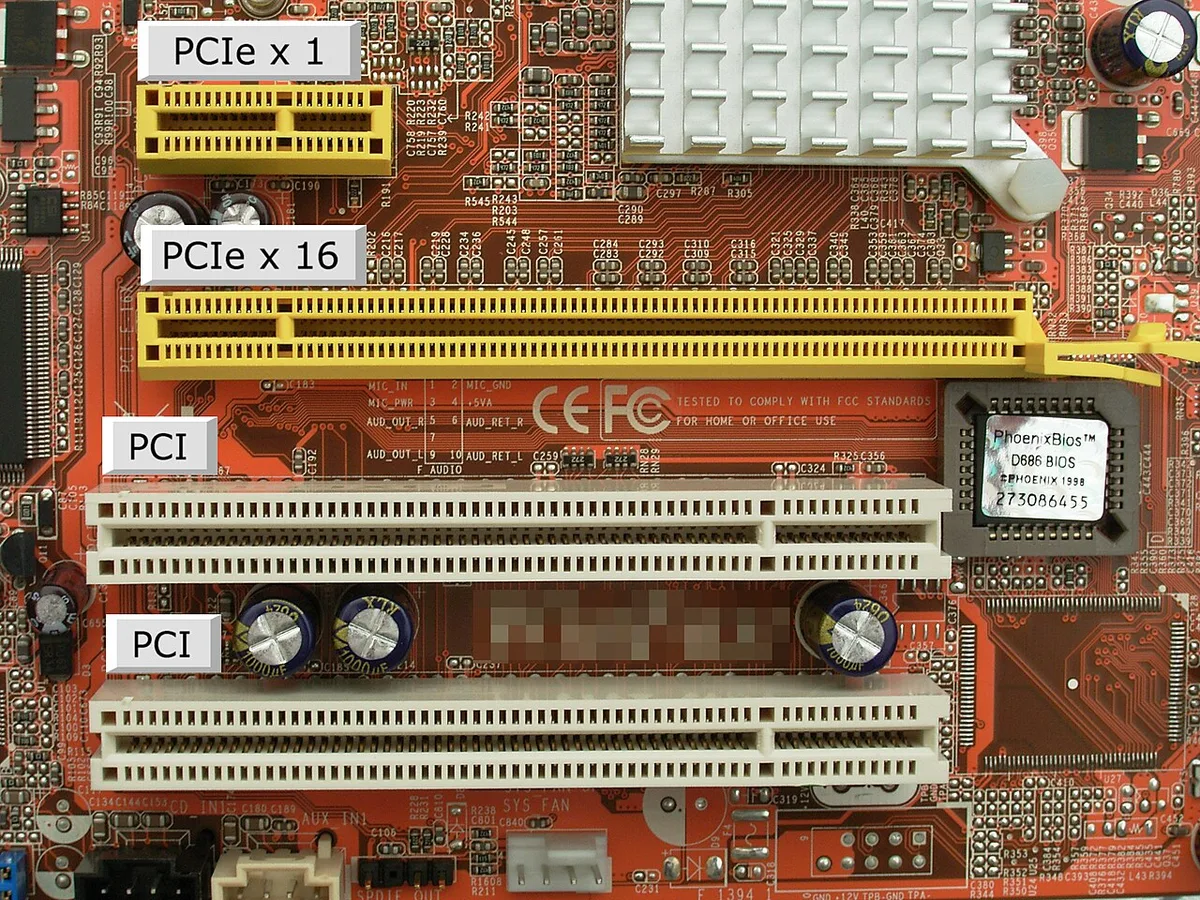
Image source: Wikimedia Commons / The original uploader was Smial at German Wikipedia. (CC BY-SA)
If you want to understand how NVMe speed affects game loading, the protocol advantage shows up most in large asset streaming and fast level loads. For simple desktop tasks, the gap often feels smaller.
Side-by-Side Spec Comparison
Here is a practical comparison based on common consumer drives as of 2026.
| Spec | SATA III SSD | NVMe Gen 3 | NVMe Gen 4 |
|---|---|---|---|
| Interface | SATA 6 Gbps | PCIe 3.0 x4 | PCIe 4.0 x4 |
| Sequential read | ~500-550 MB/s | ~3,000-3,500 MB/s | ~5,000-7,400 MB/s |
| Random 4K read | ~90K IOPS | ~400K-600K IOPS | ~700K-1M+ IOPS |
| Latency | ~100 microseconds | ~40 microseconds | ~25-35 microseconds |
| Queue depth | 1 queue, 32 commands | 65,535 queues | 65,535 queues |
| Best fit | Budget builds, older PCs | Midrange gaming | Workstations, heavy workloads |
PCIe bandwidth is defined by the PCI-SIG standards body, so lane count and generation matter as much as the drive itself. A Gen 4 drive in a Gen 3 slot still works, but it runs at Gen 3 speeds.
Pros and Cons of SATA and NVMe SSDs
SATA SSD pros:
- Lower cost per GB
- Broad compatibility with older systems
- Simple installation and cooling
- Mature, stable ecosystem
SATA SSD cons:
- Lower sequential and random performance
- Higher latency than NVMe
- Less suited to heavy multitasking or large transfers
NVMe SSD pros:
- Much faster reads and writes
- Lower latency and higher IOPS
- Better for content creation and large files
- Stronger fit for modern gaming workloads
NVMe SSD cons:
- Higher price per GB
- Can throttle without cooling
- May share PCIe lanes with other devices
- Some M.2 slots support only SATA
If you are comparing gaming storage type comparison options, an NVMe drive usually gives the better experience, but SATA still makes sense for secondary storage or tight budgets.
Which One You Should Buy, Based on Your Use Case
The right pick depends on what you do with your PC, not just the spec sheet. Here is a practical breakdown by use case.
For everyday browsing, office work, and light gaming, a SATA SSD is still a smart buy. It boots fast, loads apps quickly, and costs less per GB. If you are deciding how much storage a gaming PC needs, a 1 TB SATA drive covers most budgets without overspending.
For modern gaming with large open-world titles, NVMe Gen 3 or Gen 4 is the better fit. Faster streaming reduces texture pop-in and shortens level loads. If you want to know whether NVMe speed affects game loading, the answer is yes, but mostly in asset-heavy games.
For content creation, 4K video editing, or 3D rendering, NVMe Gen 4 is worth the premium. Large file transfers and scratch disk workloads benefit from the extra throughput. SATA would become a bottleneck here.
For older laptops or desktops with only SATA M.2 slots, do not force an NVMe drive. Check the motherboard manual first. Buying the wrong type means returning it.
For secondary storage and backups, SATA is perfectly fine. Save the NVMe slots for your OS and active games.
Common Mistakes When Choosing or Installing an SSD
Buying the wrong M.2 type is the most common error. Many M.2 slots support only SATA, while others support only NVMe. Some support both.
Always check the manual before ordering.
Another mistake is ignoring thermal throttling. A bare Gen 4 NVMe drive can slow down under sustained writes without a heatsink. Motherboard M.2 shields or aftermarket heatsinks solve this cheaply.
People also overpay for speed they will not notice. A 7,000 MB/s drive does not feel twice as fast as a 3,500 MB/s drive in daily use. For gaming and browsing, the difference is small.
Mixing up PCIe generations is another trap. A Gen 5 drive works in a Gen 4 slot, but only at Gen 4 speeds. Do not pay Gen 5 prices if your board cannot use them.
Skipping firmware updates is a quieter mistake. Manufacturer tools often improve stability and performance. Check for updates after installation.
Finally, do not clone a failing drive without checking its health first. Use the manufacturer's diagnostic tool before migrating data.
How to Install or Upgrade to a New SSD
Back up your data first. Use a cloud service or external drive. This step matters more than any other.
Power off the PC and unplug it. Ground yourself to avoid static damage. ESD wrist straps are cheap and worth it.
For a 2.5-inch SATA drive, mount it in the bay and connect the SATA data and power cables. Most cases include mounting brackets. Then close the case and power on.
For an M.2 drive, locate the slot on the motherboard. Remove the retention screw, slide the drive in at a 30-degree angle, then press down and secure the screw. If your drive came with a heatsink, apply the thermal pad and install it.
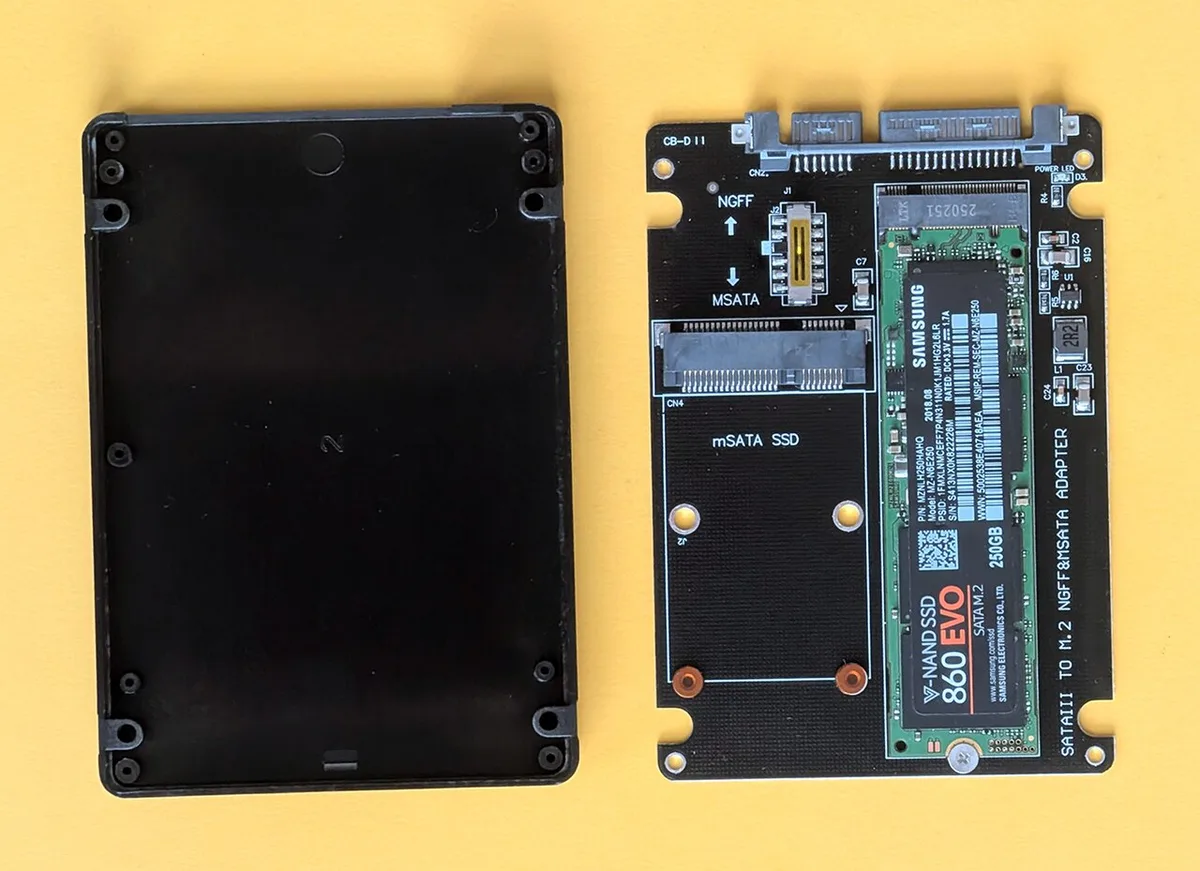
Image source: Wikimedia Commons / Siarhei Besarab (CC BY-SA)
Enter the BIOS to confirm the drive is detected. If it is not, check the slot's SATA or NVMe support in the manual. Some slots disable SATA ports when in use.
Install your operating system or clone your old drive. For cloning, tools from the drive manufacturer usually work best. Samsung Data Migration and Crucial Storage Executive are common examples.
After installation, enable TRIM. Most modern operating systems do this automatically. TRIM helps maintain long-term performance.
Update the drive firmware using the manufacturer's utility. This fixes bugs and can improve stability.
Frequently Asked Questions
Is NVMe always better than SATA for gaming?
No. NVMe reduces load times in asset-heavy games, but the difference is small for most titles. A SATA SSD still delivers a huge jump over a hard drive.
If your budget is tight, SATA is fine for gaming.
Can I put an NVMe drive in a SATA M.2 slot?
No. The slot must support PCIe lanes for NVMe. Check your motherboard manual before buying.
Some M.2 slots support both, but many support only one type.
Do NVMe SSDs need a heatsink?
Not always. Gen 3 drives usually run cool enough without one. Gen 4 and Gen 5 drives often throttle under sustained writes without cooling.
A motherboard M.2 shield or aftermarket heatsink helps.
How long do SSDs last?
Most consumer SSDs are rated for 3 to 5 years of warranty and hundreds of terabytes written. Real-world lifespan depends on write volume and NAND type. QLC drives wear faster than TLC under heavy writes.
Should I upgrade from SATA to NVMe?
Yes, if your motherboard supports NVMe and you do heavy workloads or large file transfers. For basic browsing and office work, the upgrade feels minor. Weigh the cost against the actual benefit.
Does SATA SSD speed matter for everyday use?
Yes, compared to a hard drive. A SATA SSD boots in seconds and opens apps instantly. Compared to NVMe, the difference is smaller for light tasks.
The jump from HDD to SATA is the biggest.
Final Verdict: SATA or NVMe?
For most people building or upgrading a PC in 2026, NVMe is the better default. It costs only slightly more, fits modern motherboards, and leaves room to grow. The performance headroom is real, especially for gaming and creative work.
SATA still earns its place. It is the right choice for older systems, tight budgets, and secondary storage. A SATA SSD is also a great upgrade from a hard drive at a low cost.
If your board supports NVMe, buy NVMe for your boot drive. If it does not, or if budget is tight, SATA is still excellent. Either way, you are getting a massive upgrade over mechanical storage.
The decision comes down to your motherboard, your budget, and your workload. Match the drive to the task, not the marketing.