Figuring out what resolution is best for a gaming laptop can feel overwhelming. You're staring at a spec sheet with 1080p, 1440p, and 4K options, and each one promises something different. The truth is, there's no single right answer.
It depends on your GPU, screen size, and what you actually play.
Manufacturer specs show that a 15.6-inch panel at 1440p hits around 188 pixels per inch, noticeably sharper than 1080p at the same size. That extra clarity costs real frame rates and battery life. Let's walk through how to pick the one that fits your setup.
what resolution is best for a gaming laptop
1440p is the best resolution for most gaming laptops. It balances sharp visuals with playable frame rates on mid-range GPUs. 1080p suits competitive players chasing high refresh rates. 4K works best on high-end GPUs with DLSS upscaling enabled.
Why Resolution Matters More on a Gaming Laptop Than a Desktop
Desktop gamers can swap GPUs whenever they want. Laptop gamers cannot. So your resolution choice locks in performance for years.
Screen size is fixed too. You can't upgrade a 15.6-inch panel to 17.3 inches later. Pixel density, or pixels per inch (PPI), changes how sharp games look at each size.
Thermals matter more on laptops. A GPU running hot may throttle and drop frames. Higher resolutions demand more work from that same chip.
Battery life takes a hit at higher resolutions. The backlight and GPU both draw more power. That matters if you game unplugged.
As of 2026, most gaming laptops ship with 1440p panels in the mid-range tier. The market has shifted away from 1080p as the default. That shift reflects what buyers actually want.
If your laptop suddenly slows down in games, resolution may be part of the cause. Check GPU usage and temps before blaming the panel.
The Short Answer: 1440p Is the Sweet Spot for Most Gamers
For most people, 1440p (also called QHD or WQHD) is the right call. It looks sharp on 15 to 16-inch screens. Frame rates stay playable on mid-range GPUs.
1080p still wins for esports. Competitive titles like CS2 and Valorant run faster at lower resolution. That speed matters more than sharpness.
4K is gorgeous but demanding. You need a high-end GPU like an RTX 4080 or 4090 laptop chip. Even then, you'll lean on DLSS to hit smooth frame rates.
| Resolution | Best For | GPU Tier Needed | Typical FPS (AAA) |
|---|---|---|---|
| 1080p | Esports, budget builds | RTX 4050-4060 | 90-140 |
| 1440p | Most gamers | RTX 4060-4070 | 60-100 |
| 4K | Visual fidelity | RTX 4080-4090 | 40-70 |
If your RTX laptop shows low FPS despite strong hardware, resolution settings may be the culprit. Drop to 1440p or enable upscaling before upgrading anything.
How Resolution, GPU Power, and Screen Size Work Together
Resolution and GPU power are locked together. More pixels means more work per frame. Your GPU has a fixed budget.
Screen size changes how much that resolution matters. 1440p on a 14-inch screen looks incredibly sharp. The same resolution on 17.3 inches looks softer.
GPU tier matters most. An RTX 4050 struggles at 1440p in AAA games. An RTX 4070 handles it comfortably.
VRAM also plays a role at higher resolutions.
Thermal design power (TGP) is the hidden spec. Two laptops with the same GPU chip can perform very differently. A 140W RTX 4070 beats a 90W version by a wide margin.
If your gaming laptop has a low GPU power limit, even 1440p may stutter. Fix that first. Resolution choice means nothing if the chip can't reach full speed.
Render resolution versus output resolution is another lever. You can run a game at 1080p internally and upscale to 1440p. DLSS and FSR do this automatically.
1080p vs 1440p vs 4K: Side-by-Side Comparison
Each resolution serves a different gamer. Here's how they stack up in real use.
1080p (Full HD) delivers the highest frame rates. It's the cheapest option and easiest on the GPU. Text and UI can look slightly soft on larger screens.
1440p (QHD) hits the middle ground. Sharper than 1080p without the heavy cost of 4K. Most mid-range laptops handle it well.
4K (UHD) looks stunning. Fine details pop. But frame rates drop hard without upscaling.
Battery drains fast too.

Image source: Wikimedia Commons / Project Kei (CC BY-SA)
Panel size changes the math. 1080p on a 17.3-inch screen shows visible pixels. 1440p on 15.6 inches looks crisp. 4K only shines on 16 inches or larger.
Consider your games too. Competitive shooters favor speed. Single-player epics favor sharpness.
Match the resolution to your library.
If you boost laptop FPS without upgrading hardware, resolution is often the first setting to lower. It gives the biggest gain per change.
Refresh Rate, Panel Type, and Upscaling: The Hidden Variables
Resolution is only half the story. Refresh rate and panel type shape the experience just as much.
A 144Hz or 165Hz screen feels smoother than 60Hz. That smoothness matters more than resolution in fast games. A 240Hz panel pairs best with 1080p for esports.
Panel type affects color and contrast. IPS panels offer good color accuracy. OLED panels deliver deep blacks and vibrant colors.
Mini-LED bridges the gap with high brightness.
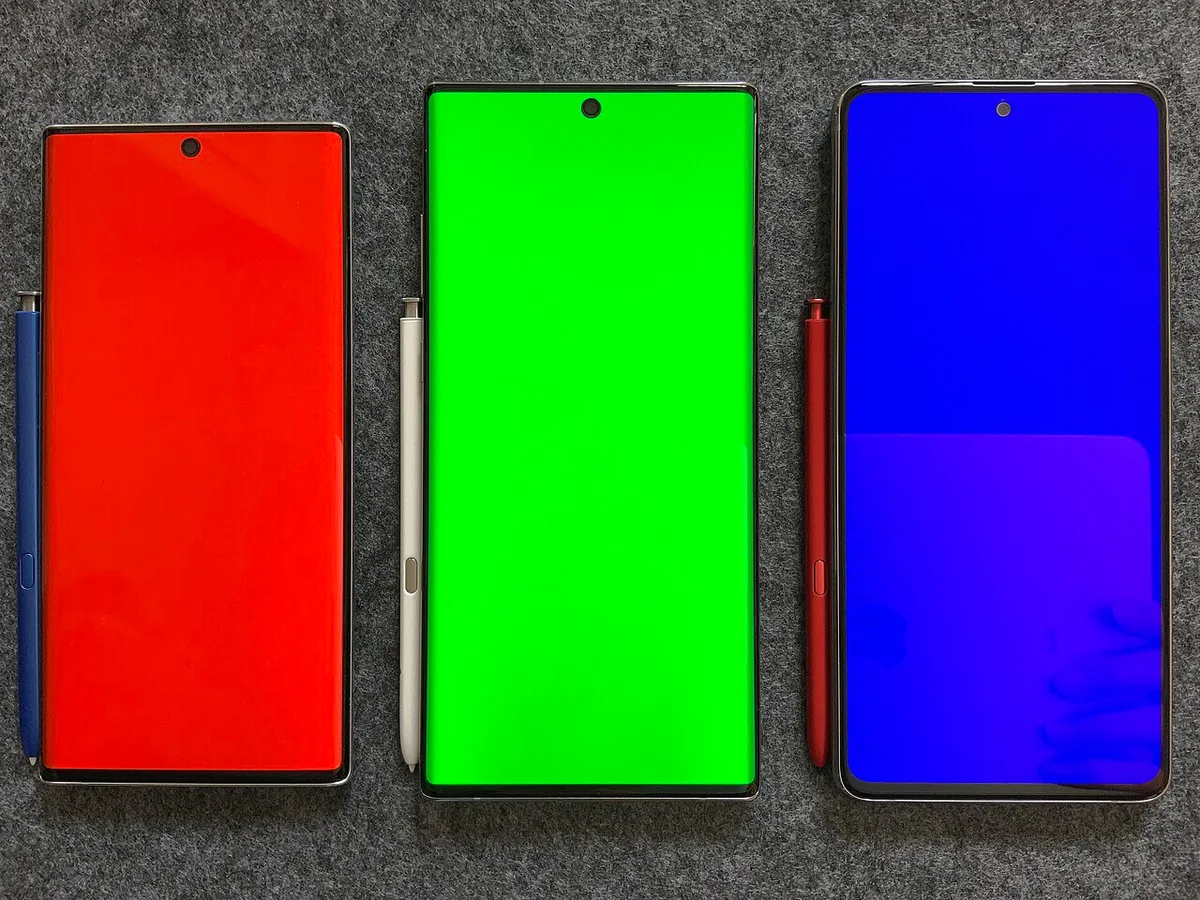
Image source: Wikimedia Commons / Samsung Galaxy Note 10 (CC BY-SA)
Upscaling tech has changed the game. Nvidia's DLSS and AMD's FSR render at lower resolution, then upscale. You get near-native sharpness with much higher frame rates.
Frame generation adds even more. DLSS 3 and FSR 3 create new frames between rendered ones. That boosts smoothness on supported GPUs.
If your laptop is stuck at 60 FPS on a 144Hz display, resolution isn't the issue. Check your settings and GPU usage first.
As of 2026, most gaming laptops combine 1440p with 165Hz or 240Hz panels. That pairing is the new standard. It balances clarity and speed without breaking the budget.
Which Resolution Fits Your Gaming Style
If you play competitive shooters, 1080p is your best friend. It pushes the highest frame rates and pairs well with 240Hz panels. Sharpness takes a back seat to speed.
For AAA single-player games, 1440p is the sweet spot. You get crisp visuals without crushing your GPU. Most mid-range laptops handle it well.
4K makes sense for desktop replacements with high-end GPUs. You'll need an RTX 4080 or 4090 laptop chip. Even then, plan to use DLSS or FSR.
Streamers and creators often prefer 1440p or 4K. The extra clarity helps with editing and overlays. Just leave GPU headroom for encoding.
Budget buyers and students should stick with 1080p. It costs less and runs cooler. Battery life also stretches further at lower resolution.
Frequent travelers benefit from 1080p or 1440p too. Lower resolution means less heat and longer unplugged sessions. That matters on planes and in cafes.
Common Mistakes Gamers Make When Choosing Resolution
The biggest mistake is buying 4K on a mid-range GPU. You'll get choppy frame rates and regret the price. Match the panel to the chip first.
Ignoring refresh rate is another common error. A 4K 60Hz screen feels worse than 1080p at 144Hz in fast games. Speed beats pixels in competitive play.
Some gamers run 1080p on a 1440p panel. That causes pixel scaling blur. The image looks soft and muddy.
Use native resolution whenever possible.
Tiny UI text catches people off guard on 4K 15-inch screens. Windows scaling helps, but not every game supports it well. Test before you commit.
Upscaling gets ignored too often. DLSS and FSR can make 4K playable on weaker hardware. Skipping them leaves free performance on the table.
Thermals get overlooked as well. A hot GPU throttles and drops frames. If your laptop slows down in games, check temps before blaming resolution.
If you want to squeeze more frames from your current machine, lowering resolution is the fastest win. It costs nothing and works instantly.
What Each Resolution Costs and Which GPUs Can Handle It
Price and GPU power move together. Here's what to expect as of 2026.
| Resolution | Typical Laptop Price | GPU Tier | TGP Range | AAA FPS Target |
|---|---|---|---|---|
| 1080p | $800-$1,200 | RTX 4050-4060 | 80W-115W | 90-140 |
| 1440p | $1,200-$2,000 | RTX 4060-4070 | 100W-140W | 60-100 |
| 4K | $2,000-$3,500+ | RTX 4080-4090 | 130W-175W | 40-70 with DLSS |
TGP matters as much as the GPU name. Two laptops with the same chip can perform very differently. A 140W RTX 4070 beats a 90W version by a wide margin.
If power limit is choking performance, even 1440p may stutter. Fix that before adjusting resolution. The chip needs full power to hit its targets.
Budget for the whole package, not just the panel. A 4K screen on a weak GPU is wasted money. Spend on the GPU first, then the display.
Pro Tips to Get the Most From Your Laptop Screen
Match resolution to GPU tier before anything else. That single choice shapes your whole experience.
Enable DLSS or FSR in supported games. Nvidia's official DLSS documentation explains which titles support it. You'll gain frames with little visual loss.
Adjust render resolution scale if a game runs poorly. Dropping from 100% to 80% can save 15-25% performance. The image stays sharp enough.
Update GPU drivers regularly. New drivers often improve performance at higher resolutions. Don't skip updates.
If your laptop is stuck at 60 FPS on a 144Hz display, check your settings. The cap usually comes from V-Sync or a power profile, not the panel.
Calibrate brightness and color for your room. Too bright drains battery. Too dim hides details in dark scenes.
Use a performance power profile while gaming. Balanced mode often limits the GPU. Switching profiles can unlock extra frames.
If the Nvidia settings panel is missing, fix that first. You need it to control GPU behavior. Resolution tweaks mean little without proper driver access.
Frequently Asked Questions
Is 1080p still good for gaming laptops?
Yes, 1080p is still great for gaming laptops. It delivers the highest frame rates and works well on budget GPUs. It's ideal for competitive players who value speed over sharpness.
Does 1440p hurt battery life?
Yes, 1440p uses more power than 1080p. The GPU works harder and the backlight draws more energy. Expect shorter unplugged gaming sessions at higher resolution.
Can an RTX 4060 handle 1440p?
Yes, an RTX 4060 handles 1440p in most games. Expect 60-90 FPS in AAA titles with medium settings. Enable DLSS for smoother results in demanding games.
Should I use DLSS or native 4K?
Use DLSS for 4K on laptops. Native 4K demands too much from mobile GPUs. DLSS keeps visuals sharp while boosting frame rates significantly.
What screen size works best with 1440p?
1440p looks best on 15 to 16-inch screens. Pixel density stays high without tiny text. On 17-inch panels, 4K becomes more worthwhile.
Is 4K worth it on a 15-inch laptop?
Usually no. The screen is too small to show 4K's full benefit. You also pay more and get lower frame rates. 1440p is the better value.