Yes, a gaming laptop should usually be plugged in while you are gaming. Modern gaming laptops need more power than their batteries can comfortably supply for long periods, especially when the CPU and dedicated GPU are working hard. Connecting the proper charger allows the laptop to deliver higher and more stable performance, better frame rates, and access to its full-performance modes.
That does not mean your gaming laptop needs to sit at 100% battery charge all day. If you use it mainly at a desk, a battery charge limit of around 60% to 80%, when your laptop supports one, can be a better long-term setup. It lets you enjoy full plugged-in gaming performance while reducing the amount of time the battery spends at a very high charge level.
So, the simple rule is: plug your gaming laptop in for demanding games, but use a battery care or charge-limit feature if it stays connected most of the time.
Should You Keep a Gaming Laptop Plugged In While Gaming?
For most gaming sessions, yes.
A gaming laptop contains power-hungry components such as a dedicated graphics processor, a high-performance CPU, fast memory, cooling fans, and often a high-refresh-rate display. During a demanding game, these components may need far more power than the battery is designed to provide continuously.
When you plug the laptop into its recommended power adapter, the system can use the available AC power to run the hardware at higher performance levels.
This can result in:
- Higher and more consistent FPS
- Higher CPU and GPU power limits
- Better sustained clock speeds
- Access to performance or turbo modes
- Less reliance on aggressive battery-saving features
- More consistent gaming during long sessions
Running the same game on battery power often causes the laptop to reduce performance to control power consumption.
Why Gaming Laptops Perform Better When Plugged In
A gaming laptop may contain a powerful GPU capable of consuming a significant amount of power by itself. Add the processor, display, fans, storage, and other components, and total power demand can rise quickly.
The battery has limited capacity and discharge capability. If the laptop allowed every component to run at maximum power on battery, runtime could become extremely short, while the battery would face a much heavier load.
Manufacturers therefore use power-management systems that can limit CPU and GPU performance when the charger is disconnected.
This is why you may notice an immediate change in frame rate after unplugging your gaming laptop.
What Happens to FPS When You Unplug a Gaming Laptop?
FPS can drop significantly after unplugging, although the exact difference depends on the laptop, game, GPU, power profile, and system settings.
When battery mode activates, the laptop may:
- Reduce GPU power
- Lower CPU boost clocks
- Switch to a battery-saving profile
- Reduce background performance
- Limit display refresh behavior
- Disable certain high-performance modes
That does not mean the laptop is faulty. In many cases, it is simply protecting battery runtime and controlling power consumption.
Can You Play Games While Your Laptop Is Charging?
Yes. You can play games while a gaming laptop is charging.
In fact, this is the normal way to play demanding PC games on most gaming laptops. The important part is using the correct charger and keeping the laptop properly ventilated.
You do not need to wait until the battery reaches 100% before starting a game.
Is It Bad to Leave a Gaming Laptop Plugged In All the Time?
Leaving a modern gaming laptop plugged in is generally not the same as continuously forcing electricity into a fully charged battery.
Modern laptops have charging-control systems that manage when the battery charges and when charging stops.
However, there is an important difference between overcharging and battery aging.
A modern laptop may prevent uncontrolled overcharging, but lithium-ion batteries still age faster under certain conditions. High temperature and spending long periods at a very high state of charge can increase battery stress over time.
ASUS, for example, advises that frequently keeping a battery under high voltage can accelerate battery aging and provides battery-care features to control charging levels.
So, keeping your laptop connected to power is not automatically harmful. The better question is whether the battery needs to remain at 100% when you rarely use it away from a wall outlet.
Does a Gaming Laptop Bypass the Battery When Plugged In?
In many situations, a plugged-in gaming laptop primarily relies on power supplied through its AC adapter while the charging system manages the battery.
However, you should not assume that every gaming laptop completely disconnects or “bypasses” its battery in exactly the same way.
Power behavior depends on the model and manufacturer.
Some gaming systems can even use battery power temporarily alongside the charger during unusually high power demand. Dell documents this type of behavior as Hybrid Power on certain gaming laptops.
Therefore, the most accurate answer is that plugged-in power management is model-specific.
Does Staying at 100% Reduce Battery Health?
Keeping a lithium-ion battery at 100% does not mean it will suddenly become damaged.
The concern is long-term battery aging.
If a gaming laptop spends nearly every day connected to power, there may be little reason to keep the battery at its maximum charge level continuously.
That is why several laptop manufacturers provide battery-care, conservation, or charge-limit modes.
For example, ASUS provides modes that can limit charging to around 80% or 60% on supported devices, while Lenovo’s Conservation Mode on supported models can keep the battery around the 75% to 80% range.
Does Staying Plugged In Reduce Battery Charge Cycles?
It can reduce unnecessary battery cycling.
Imagine gaming on battery every day and repeatedly draining it from a high charge level to a low level before charging it again. That places repeated cycling demand on the battery.
If you instead game while connected to AC power, the laptop does not have to rely entirely on the battery throughout each gaming session.
There is no need to deliberately unplug a gaming laptop just to make the battery discharge every day.
Should You Limit a Gaming Laptop Battery to 80%?
If your gaming laptop stays plugged in most of the time, an 80% charge limit is a useful option when your model supports it.
You are essentially trading some unplugged runtime for a battery that spends less time sitting at maximum charge.
For a laptop that rarely leaves a desk, that is often a sensible trade.
Is 80% Better Than 100% for Battery Health?
For long periods of plugged-in use, a lower maximum charge can reduce the amount of time the battery spends at a high state of charge.
This is one reason manufacturers offer these features.
Lenovo states that its supported Conservation Mode keeps the battery within roughly 75% to 80% and describes the feature as beneficial for long-term battery health.
ASUS also offers supported charging modes that stop charging around 80% or 60%, depending on the selected battery-health setting.
Does an 80% Battery Limit Reduce Gaming Performance?
Normally, setting a battery charge limit to 80% does not mean limiting your CPU or GPU to 80% performance.
These are two different controls.
A battery charge limit tells the charging system when to stop charging the battery. Gaming performance is primarily determined by factors such as:
- AC adapter power
- CPU and GPU power limits
- Performance mode
- Cooling
- Game settings
- System temperature
So, if your laptop is connected to its proper charger and operating normally, an 80% battery charge target should not be interpreted as an 80% performance limit.
When Should You Charge to 100%?
Charge to 100% when you actually need maximum battery runtime.
For example:
- Before a flight
- Before a long train journey
- Before a day at college or university
- Before working away from an outlet
- Before traveling
- During a power-outage risk
- When you expect to use the laptop unplugged for several hours
There is nothing wrong with using the full capacity of a laptop battery when you need it.
Is 60%, 80%, or 100% Best for a Gaming Laptop?
There is no single percentage that is perfect for every user.
Your ideal charging limit depends on how often you use the laptop away from its charger.
| Charge Target | Best For | Battery Runtime Available | Long-Term Battery Consideration |
|---|---|---|---|
| Around 60% | Laptop stays plugged in almost all the time | Low | Useful for reducing time at high charge |
| Around 80% | Mix of desk use and portable use | Good | Strong balance for many users |
| 100% | Frequent travel and unplugged use | Maximum | Best when maximum runtime matters |
Do not worry if your laptop does not offer all three choices. Battery-care options vary by manufacturer and model.
Why Is My Gaming Laptop Battery Draining While Plugged In?
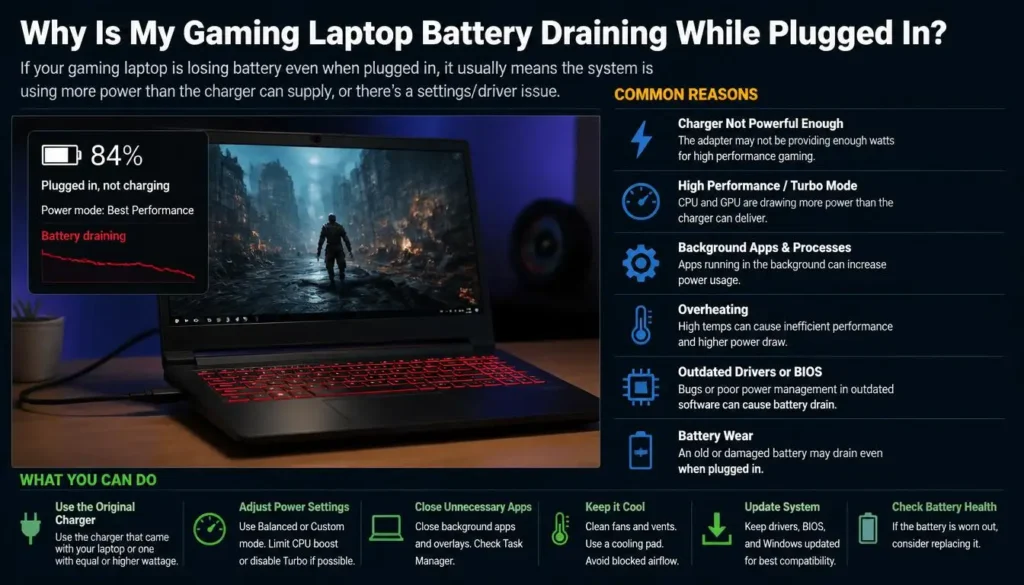
Seeing your battery percentage drop while the charger is connected can be confusing.
It does not always mean the charger or battery is broken.
On some gaming laptops, extremely demanding workloads can require more power than the AC adapter is supplying at that moment. The system may temporarily draw additional energy from the battery to maintain performance.
Dell documents this behavior on certain gaming laptops using Hybrid Power. When system power demand exceeds available adapter capacity, battery power may supplement the adapter during heavy CPU and GPU workloads.
Can the Laptop Use Battery Power While Plugged In?
Yes, some gaming laptops can use battery power even while connected to an AC adapter.
This is not universal, but it can happen on systems designed to combine adapter and battery power under high load.
A small battery drop during an extreme gaming workload may therefore be expected on certain models.
A rapid or continuous drop to very low battery levels, however, deserves further investigation.
What Is Hybrid Power?
Hybrid Power is a power-management approach used by some gaming systems where both the AC adapter and battery can contribute when the laptop’s power demand becomes unusually high.
For example, a demanding game may heavily load both the dedicated GPU and processor at the same time.
Dell explains that supported gaming laptops may begin consuming battery power when the computer’s power requirement exceeds the AC adapter’s capacity.
This behavior is different from simply gaming unplugged.
Can an Underpowered Charger Cause Battery Drain?
Yes.
A charger that cannot provide enough power for your gaming laptop can lead to reduced performance, slow charging, warnings, or battery drain while the system is running.
Dell notes that certain Alienware gaming laptops can draw from the battery when an AC adapter does not provide sufficient power.
This is why using a small phone charger or low-wattage USB-C adapter is not automatically equivalent to using the gaming laptop’s original power brick.
When Should You Be Concerned?
Investigate further if:
- Battery percentage falls rapidly during normal use
- The laptop drains to nearly 0% while connected
- Windows repeatedly disconnects and reconnects the charger
- The charging connector becomes unusually hot
- You receive an incorrect-wattage warning
- Performance suddenly becomes much lower than normal
- The battery is swollen
- The laptop unexpectedly shuts down
In those situations, check the charger, charging port, battery health, manufacturer software, firmware, and hardware support information for your exact model.
Does Charger Wattage Affect Gaming Laptop Performance?
Yes, charger wattage can matter a great deal.
High-performance gaming laptops are designed around specific power requirements.
A charger must provide enough power for the laptop’s CPU, GPU, display, fans, and other hardware while also managing battery charging.
Using an underpowered adapter may prevent the laptop from reaching its expected performance level.
Why the Original or Recommended Charger Matters
The safest choice is the charger supplied with the laptop or a manufacturer-approved replacement with the correct specifications.
The adapter’s wattage is only one part of compatibility. Voltage, charging protocol, connector type, and manufacturer requirements also matter.
Do not choose a replacement charger only because the plug physically fits.
Is USB-C Charging Enough for Gaming?
It depends on the laptop.
Some gaming laptops support USB-C charging, but that does not automatically mean USB-C can provide the same gaming performance as the laptop’s main high-wattage power adapter.
USB-C can be excellent for travel, office work, web browsing, and light tasks on supported machines. For demanding gaming, however, some systems still require their primary charger to reach full performance.
Always check the power requirements for your exact model.
What Happens If You Game on Battery Power?
Gaming on battery power is possible, but it usually involves compromises.
The most obvious ones are lower performance and short battery runtime.
Lower FPS and GPU Performance
When unplugged, the laptop may reduce GPU and CPU power to conserve energy.
As a result, a game that feels smooth while plugged in may run at noticeably lower FPS on battery.
This effect is often more obvious in demanding AAA games than in lightweight games.
Faster Battery Drain
Gaming is one of the heaviest workloads you can place on a laptop.
A dedicated GPU, powerful processor, bright high-refresh-rate screen, memory, storage, Wi-Fi, RGB lighting, and cooling system can all consume power at the same time.
Because of this, gaming can drain a battery far faster than web browsing, document editing, or video playback.
More Charge Cycles
If you repeatedly use most of the battery during gaming and then recharge it, you add more battery cycling over time.
That does not mean you should be afraid to use your battery.
The battery exists to be used.
It simply means there is little benefit in intentionally gaming unplugged every day when a wall outlet is already available.
How to Get Better Gaming Performance on Battery
When you genuinely need to game unplugged, you can make the experience more practical by:
- Limiting FPS
- Lowering graphics settings
- Reducing screen brightness
- Using a balanced power profile
- Turning off unnecessary RGB lighting
- Closing background programs
- Using the integrated GPU for lighter games when practical
- Lowering the display refresh rate if needed
These changes can extend runtime, although battery gaming still will not usually match plugged-in performance.
Gaming Laptop Plugged In vs Battery Power
Here is the practical difference.
| Factor | Plugged In | Battery Power |
|---|---|---|
| Gaming Performance | Usually highest | Usually reduced |
| FPS Stability | Better | Often lower |
| CPU/GPU Power | Higher limits available | Often restricted |
| Gaming Duration | Suitable for long sessions | Limited by battery |
| Battery Cycling | Usually less during AC use | More frequent if regularly drained |
| Best Use | Demanding games | Short or light gaming |
| Portability | Requires an outlet | Full portability |
For serious gaming, plugged-in use is usually the better choice.
Does Gaming While Plugged In Damage the Battery?
Gaming while plugged in does not automatically damage the battery.
What deserves more attention is heat.
Gaming produces a lot of heat because both the CPU and GPU may be operating under heavy load. Batteries also prefer to avoid excessive temperature.
So, good thermal management can be just as important as your charging percentage.
Why Heat Matters
Lithium-ion batteries naturally age over time, and high temperatures can accelerate that process.
A gaming laptop may produce much more heat than a typical office laptop, especially when running demanding games for several hours.
This is why airflow matters.
How Gaming Temperatures Affect Battery Health
The CPU and GPU are not the battery, but all of these components share the same laptop chassis.
Poor airflow can increase internal temperature throughout the machine.
You do not need to obsess over every temperature reading. Instead, focus on preventing obvious cooling problems.
How to Keep the Laptop Cool While Gaming
Use these simple habits:
- Place the laptop on a hard, flat surface
- Keep intake and exhaust vents clear
- Avoid gaming on a bed, blanket, or soft sofa
- Clean dust from vents when needed
- Keep the room reasonably ventilated
- Avoid blocking the rear or side exhaust
- Use the manufacturer’s intended performance and fan modes
A laptop stand can also improve airflow on some designs, even without active cooling fans.
Best Charging Setup for Different Gaming Laptop Users
The best charging setup depends on how you actually use your laptop.
If You Game at a Desk Most of the Time
Keep the laptop connected to its correct charger while gaming.
If your laptop offers a battery-care mode, consider setting the charge target somewhere around 60% to 80%.
This setup gives you AC-powered gaming performance without keeping the battery at maximum charge every day.
If You Use the Laptop at Home and Outside
An 80% charge limit can be a useful compromise.
You retain a reasonable amount of portable battery capacity while reducing the time spent at 100%.
Before a long day away from power, temporarily charge to 100%.
If You Travel Frequently
If you regularly need long battery runtime, using 100% is completely reasonable.
Battery longevity is useful, but so is having enough battery to do your work.
A charging habit that makes the laptop inconvenient is not necessarily a good habit.
If Your Laptop Has No Charge Limit
Do not constantly plug and unplug the charger just to imitate an 80% limit.
Instead:
- Use the laptop normally
- Avoid excessive heat
- Use the proper charger
- Avoid unnecessary deep discharges
- Check for battery-management options in the manufacturer’s software or BIOS
The lack of a charge-limit option does not make your laptop unsafe to use.
Battery Charge Limit Settings by Gaming Laptop Brand
Battery-management features vary between models, even within the same brand. Always check the software and documentation for your exact laptop.
ASUS and ROG
Supported ASUS systems may provide Battery Health Charging or Battery Care options.
ASUS documentation describes an 80% balanced charging mode and a 60% maximum-lifespan mode on supported systems. Some newer MyASUS implementations also provide Battery Care features designed to limit charging for users who remain connected to AC power.
Lenovo Legion
Supported Lenovo laptops may include Conservation Mode through Lenovo software.
Lenovo documents Conservation Mode as keeping the battery around 75% to 80% rather than fully charging it, which can be useful when the computer is constantly connected to an electrical outlet.
Not every Lenovo or Legion model necessarily supports the same feature, so check your specific machine.
MSI
Supported MSI laptops may offer Battery Master or a Battery Health Option.
MSI documentation notes that certain battery modes can cause supported laptops to stop charging at around 60% or 80%.
Dell and Alienware
Dell systems can provide battery charging controls depending on the model, while certain Dell and Alienware gaming laptops also use power-management features such as Hybrid Power.
On supported models, the battery may temporarily supplement AC power during very demanding workloads.
Acer, Predator, and Nitro
Battery charge-limit availability varies between Acer models and software versions.
If you use an Acer Predator or Nitro laptop, check Acer’s battery or system management utility and the support information for your exact model rather than assuming every Acer gaming laptop offers the same charging threshold.
Why Does My Gaming Laptop Say “Plugged In, Not Charging”?
“Plugged in, not charging” does not always indicate a problem.
One possible reason is that a battery charge limit is active.
For example, if your charging target is set to 80% and the battery reaches that level, the software may intentionally stop charging.
MSI specifically documents situations where supported laptops stop charging at 60% or 80% because of their selected battery-health settings.
Other possible causes include:
- Battery conservation mode is enabled
- The battery has reached its charging threshold
- The charger is underpowered
- The adapter is not correctly recognized
- The charging port has a poor connection
- The battery is too hot
- The battery has degraded
- A driver, firmware, or hardware issue is present
If the battery remains below its intended charging limit and still refuses to charge, then troubleshooting is appropriate.
Common Charging Mistakes That Can Shorten Battery Life
You do not need a complicated battery routine, but a few habits are worth avoiding.
Gaming on Battery Every Day When Power Is Available
There is little benefit in repeatedly draining the battery during demanding gaming sessions when you already have access to a wall outlet.
Use AC power for serious gaming.
Keeping the Laptop Extremely Hot
Heat is one of the biggest factors you can actually control.
Keep the cooling system clear and avoid soft surfaces that block airflow.
Draining the Battery to 0% on Purpose
You do not need to completely drain a modern laptop battery before charging it.
Charge it when necessary rather than intentionally forcing deep discharges.
Using the Wrong Charger
An incorrect or underpowered charger may cause poor performance, slow charging, or battery drain under load.
Use the correct specifications for your laptop.
Keeping the Battery at 100% When You Never Need It
If your laptop spends almost its entire life on a desk and offers a supported battery charge limit, using that feature can make more sense than keeping the battery fully charged at all times.
Final Verdict: Should a Gaming Laptop Always Be Plugged In?
A gaming laptop should normally be plugged in when you are playing demanding games because AC power allows the CPU and GPU to operate closer to their intended performance levels. Keeping the laptop plugged in is generally fine, but you do not need to keep the battery at 100% all the time.
If the laptop stays on your desk most days, use a supported 60% to 80% battery charge limit. If you frequently travel or need maximum unplugged runtime, charge to 100% when you need it.
The easiest rule to remember is:
Plug in for gaming, limit the battery charge for long-term desk use when possible, and charge to 100% when portability matters.
Frequently Asked Questions
Is It OK to Leave a Gaming Laptop Plugged In 24/7?
A modern gaming laptop can remain connected to its charger for long periods, but users who rarely need battery power may benefit from a manufacturer-supported battery conservation or charge-limit mode.
Keeping the laptop cool is also important.
Should I Keep My Gaming Laptop Plugged In at 100%?
You can, but keeping the battery at 100% continuously is not necessary if you rarely use the laptop unplugged.
If your laptop offers an 80% or similar charging limit, it can be a useful setting for desk-based use.
Can I Play Games While My Laptop Is Charging?
Yes.
Gaming while connected to the correct charger is normal for a gaming laptop and usually provides better performance than gaming on battery.
Is 80% Better Than 100% for a Gaming Laptop?
For a laptop that stays plugged in most of the time, an 80% charging limit can be a good balance between battery availability and long-term battery care.
If you need maximum portable runtime, 100% is more practical.
Does an 80% Charge Limit Reduce FPS?
A battery charge limit normally controls how full the battery becomes, not how much gaming performance the CPU or GPU can deliver.
When the laptop is connected to the correct power adapter, an 80% charging target does not mean the laptop is limited to 80% performance.
Why Does My Gaming Laptop Lose FPS When Unplugged?
Many gaming laptops reduce CPU and GPU power when running from the battery.
This helps control energy consumption and extend battery runtime, but it can lower gaming performance.
Why Does My Gaming Laptop Battery Drain While Plugged In?
On some models, heavy CPU and GPU workloads can require more power than the adapter is providing, causing the system to temporarily supplement AC power with battery power.
An underpowered or incorrect charger can also cause this problem.
Does a Gaming Laptop Use the Battery While Plugged In?
It can, depending on the model and workload.
Some gaming laptops use power-management systems that allow the battery to contribute during periods of unusually high power demand.
Should I Unplug My Gaming Laptop After It Reaches 100%?
You generally do not need to unplug it immediately every time it reaches 100%.
If your laptop remains plugged in most of the day, using a built-in battery charging limit is usually more convenient than repeatedly connecting and disconnecting the charger.
Can I Leave My Gaming Laptop Plugged In Overnight?
A modern laptop’s charging system manages the battery automatically.
If the laptop frequently stays plugged in overnight and your model supports a battery-care or conservation mode, you may choose to enable it to reduce the amount of time the battery spends at maximum charge.
Should I Remove the Battery When Using a Gaming Laptop Plugged In?
Most modern gaming laptops have internal batteries that are not designed to be routinely removed.
There is generally no need to remove the battery simply because you are gaming while connected to power.
How Can I Extend My Gaming Laptop Battery Lifespan?
Focus on simple habits:
- Avoid excessive heat
- Use the correct charger
- Use a battery charge limit when appropriate
- Avoid unnecessary deep discharges
- Keep cooling vents clear
- Charge to 100% when you genuinely need maximum runtime
- Follow the battery-management recommendations for your specific laptop model
You do not need to treat the battery like a fragile component. Use your gaming laptop normally, keep it cool, and let its built-in battery-management features do their job.