If you have been shopping for a gaming laptop, you may have seen terms such as MUX switch, Optimus, Advanced Optimus, Hybrid Mode, dGPU Mode, or GPU Switch in the specifications. They sound technical, but they all relate to one simple question: which GPU is actually sending the image to your laptop screen?
A MUX switch, short for multiplexer switch, allows a gaming laptop to change the connection between its display and graphics processors. In performance-focused mode, it can connect the dedicated GPU directly to the laptop display instead of routing frames through the integrated GPU.
That direct connection can improve gaming performance and reduce display latency in some situations. The trade-off is higher power consumption and usually shorter battery life.
For gamers who want the highest possible performance from their laptop, understanding how a MUX switch works is worth the few minutes it takes.
What Is a MUX Switch in a Gaming Laptop?
A MUX switch is a hardware component that controls which graphics processor is connected to a laptop’s internal display.
Most modern gaming laptops contain two types of graphics processors:
- An integrated GPU, or iGPU
- A dedicated or discrete GPU, often called a dGPU
The integrated GPU is built into or closely associated with the processor and is designed to use relatively little power. The dedicated GPU is a separate, much more powerful graphics processor designed for demanding workloads such as gaming, 3D rendering, and GPU-accelerated creative applications.
A MUX switch lets the laptop change how these two GPUs interact with the display.
In a typical hybrid graphics configuration, the dedicated GPU may render the game while the integrated GPU remains responsible for displaying the finished frames on the laptop screen.
With a MUX switch set to a direct dGPU mode, the dedicated GPU can bypass the integrated graphics and communicate directly with the display.
ASUS describes its MUX implementation in a similar way: the dedicated GPU can bypass the integrated graphics path and send frames directly to the display, reducing latency and potentially increasing frame rates.
Why Do Gaming Laptops Have Both an iGPU and dGPU?
If a dedicated GPU is much faster, you might wonder why laptops bother using integrated graphics at all.
The answer is battery life.
A powerful dedicated GPU consumes significantly more energy than integrated graphics. Keeping it fully active while you browse the web, write documents, or watch videos would waste battery power.
Hybrid graphics systems solve this problem by allowing the laptop to use different GPUs depending on the workload.
What Is an iGPU?
An integrated GPU is designed for efficiency.
It is usually sufficient for tasks such as:
- Web browsing
- Office applications
- Video playback
- Light photo editing
- General Windows use
Because it consumes relatively little power, using the iGPU can significantly improve battery life compared with running the dedicated graphics processor continuously.
What Is a dGPU?
A dedicated GPU has its own graphics processing resources and usually its own high-speed video memory.
Examples include NVIDIA GeForce RTX and AMD Radeon RX laptop GPUs.
The dGPU is typically used for:
- PC gaming
- 3D rendering
- GPU-accelerated video editing
- AI workloads
- Complex visual effects
- Other graphically demanding applications
The challenge is getting the performance benefits of a powerful dGPU without sacrificing battery life every time the laptop is turned on. That is where hybrid graphics technologies and MUX switches become useful.
How Does a MUX Switch Work?
The easiest way to understand a MUX switch is to look at the path a rendered frame takes before appearing on your screen.
Without a direct dGPU display connection, the path may look roughly like this:
Game → Dedicated GPU → Integrated GPU → Laptop Display
The dedicated GPU renders the game, but the completed frame is transferred through the integrated graphics system before being shown on the internal display.
With a MUX switch operating in a direct dGPU mode, the path becomes:
Game → Dedicated GPU → Laptop Display
The integrated GPU no longer sits in the display path.
This does not suddenly make the graphics processor itself more powerful. Your RTX or Radeon GPU still has the same cores, clock speeds, memory, and power limits.
What changes is the route between the GPU and the display.
Removing the extra graphics path can reduce overhead and allow the dedicated GPU to operate more directly with the screen.
Hybrid Mode vs Discrete GPU Mode
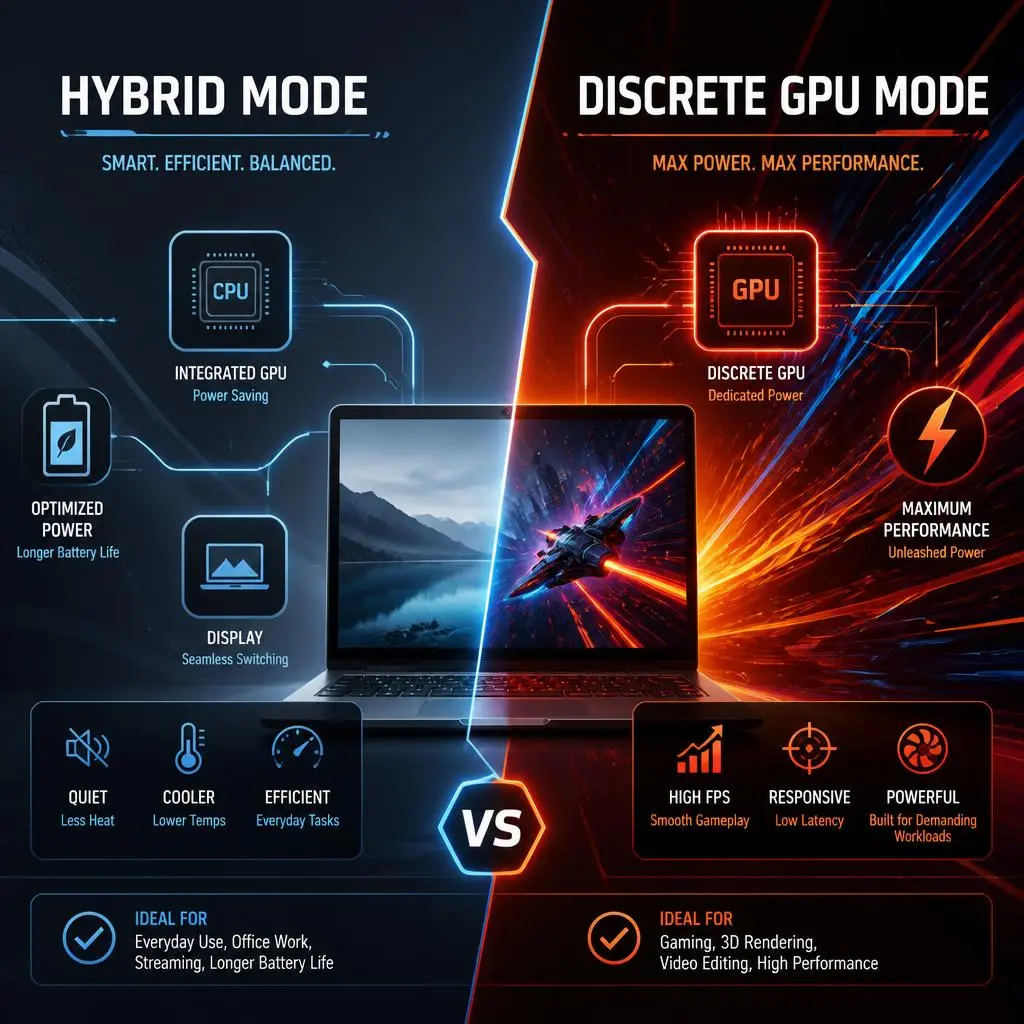
Many gaming laptops offer at least two graphics modes.
Hybrid Mode
Hybrid Mode is designed to balance performance and battery life.
The laptop can use integrated graphics for light tasks and activate the dedicated GPU when an application requires more graphical performance.
The internal display may still be connected through the integrated graphics processor.
This mode is usually best for:
- Working away from a charger
- Browsing
- Watching videos
- School or office work
- Traveling
- General everyday use
Discrete GPU Mode
Discrete GPU Mode connects the laptop display directly to the dedicated graphics processor when the hardware supports it.
Manufacturers may call this:
- dGPU Mode
- Discrete Mode
- Ultimate Mode
- Dedicated GPU Mode
- GPU Only Mode
- Discrete Graphics
- MUX Mode
This is normally the better choice when maximum gaming performance matters more than battery life.
Does a MUX Switch Increase FPS?
A MUX switch can increase FPS, but it does not guarantee the same performance improvement in every game or laptop.
The improvement comes from avoiding some of the overhead involved when rendered frames have to pass through the integrated GPU before reaching the display.
How much difference you see depends on several factors:
- The game
- CPU performance
- GPU performance
- Resolution
- Graphics settings
- Laptop power limits
- Memory configuration
- Display refresh rate
- Whether the game is CPU-bound or GPU-bound
You may see a noticeable improvement in one title and almost no difference in another.
The important point is that a MUX switch removes a potential bottleneck. It does not overclock the GPU or add additional GPU processing power.
When Does a MUX Switch Make the Biggest Difference?
MUX-related performance gains tend to matter most in situations where the system is producing very high frame rates.
Competitive esports games are a good example.
Games such as fast-paced shooters often run at hundreds of frames per second on modern gaming laptops. When the CPU and GPU are exchanging and presenting frames very quickly, eliminating unnecessary display-path overhead can become more meaningful.
A MUX switch can therefore be particularly useful when playing on:
- 144Hz displays
- 165Hz displays
- 240Hz displays
- 300Hz or faster gaming displays
Competitive players who care about every frame and every millisecond are usually the users most likely to appreciate the difference.
When Is the Performance Difference Smaller?
The benefit can become smaller when the GPU itself is already the primary bottleneck.
For example, imagine playing a demanding AAA game at 1440p or 4K with ray tracing enabled. If the dedicated GPU is already operating near its maximum rendering capability, changing the display route may not dramatically increase the frame rate.
That does not mean the MUX switch is useless. It simply means there is less performance being held back by the hybrid display path.
This is why statements such as “a MUX switch always gives 15% more FPS” should be treated cautiously.
There is no universal percentage.
Can a MUX Switch Improve 1% Lows?
Potentially, yes.
Average FPS tells only part of the gaming-performance story. Smooth gameplay also depends on frame-time consistency.
A game running at an average of 150 FPS can still feel inconsistent if it frequently drops to much lower frame rates.
The lowest-performing portions are often represented by metrics such as 1% lows.
Because direct dGPU mode removes some of the overhead associated with hybrid graphics, it may improve frame delivery and 1% low performance in certain games.
However, poor 1% lows can also be caused by:
- CPU limitations
- Insufficient RAM
- Single-channel memory
- Thermal throttling
- Background applications
- Game-engine problems
- Storage bottlenecks
- GPU limitations
A MUX switch is therefore only one piece of the performance puzzle.
Does a MUX Switch Reduce Input Latency?
It can reduce display-related latency because frames no longer need to follow the same indirect route through the integrated graphics processor.
That can be valuable in competitive games where fast visual feedback matters.
For example, when you move your mouse, the game processes the movement, the GPU renders the new frame, and the display finally shows it.
Removing unnecessary steps in that pipeline can help reduce the delay before the updated image reaches the screen.
The actual difference depends on the laptop and workload, so you should not expect the same latency reduction from every system.
MUX Switch vs NVIDIA Optimus
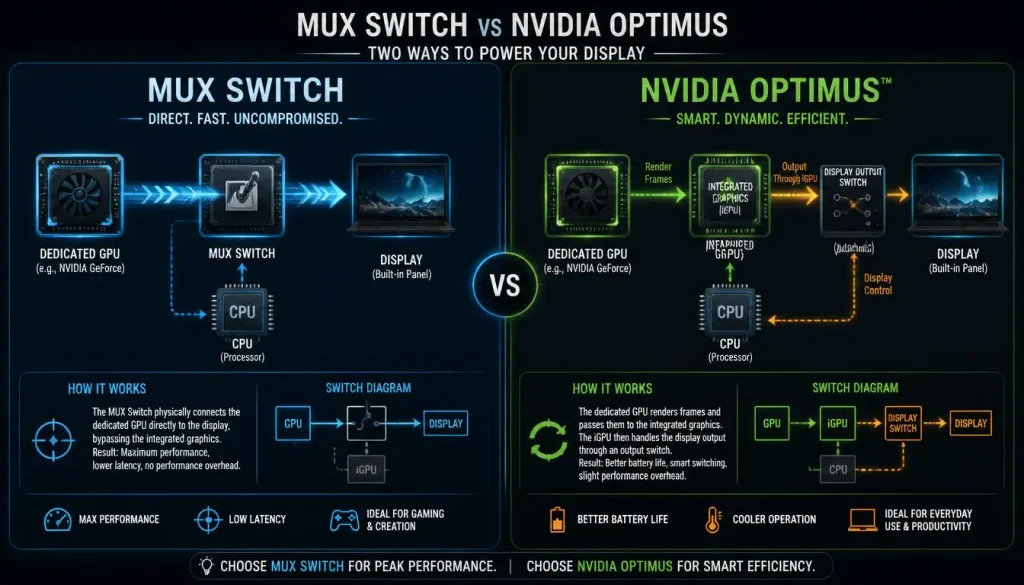
MUX switches and NVIDIA Optimus are related, but they are not the same technology.
Traditional NVIDIA Optimus was designed primarily to improve laptop efficiency.
When you perform light tasks, the integrated GPU handles graphics duties. When you launch a demanding game, the NVIDIA GPU performs the rendering.
However, in a traditional Optimus design, the integrated GPU remains responsible for driving the internal display. The NVIDIA GPU renders the frame and passes it to the integrated graphics system.
That design helps laptops switch between efficient and high-performance graphics without requiring the user to constantly change settings.
The potential disadvantage is display-path overhead.
A manual MUX switch allows the laptop to bypass that traditional hybrid route and connect the dedicated GPU directly to the screen.
MUX Switch vs NVIDIA Advanced Optimus
Advanced Optimus improves significantly on traditional Optimus.
Instead of keeping the integrated GPU permanently in control of the internal display, Advanced Optimus can dynamically change which GPU drives the screen.
During light workloads, integrated graphics can remain active to save power.
When you launch a demanding game, the system can allow the GeForce GPU to directly control the display.
The key advantage is convenience.
A traditional manual MUX implementation may require you to select another GPU mode and restart the laptop.
Advanced Optimus can perform dynamic switching without requiring the same manual reboot process.
NVIDIA also uses Advanced Optimus to support features such as direct GeForce GPU display control, high-refresh-rate gaming, and G-SYNC on compatible laptops.
Is Advanced Optimus Better Than a Traditional MUX Switch?
For most users, Advanced Optimus is more convenient.
You can get the benefits of direct dGPU display access when performance is needed without permanently running the laptop in its highest-power graphics mode.
However, implementation still depends on the individual laptop.
Do not assume every laptop with an NVIDIA GPU automatically supports Advanced Optimus. Check the specifications for your specific model.
MUX Switch vs AMD SmartAccess Graphics
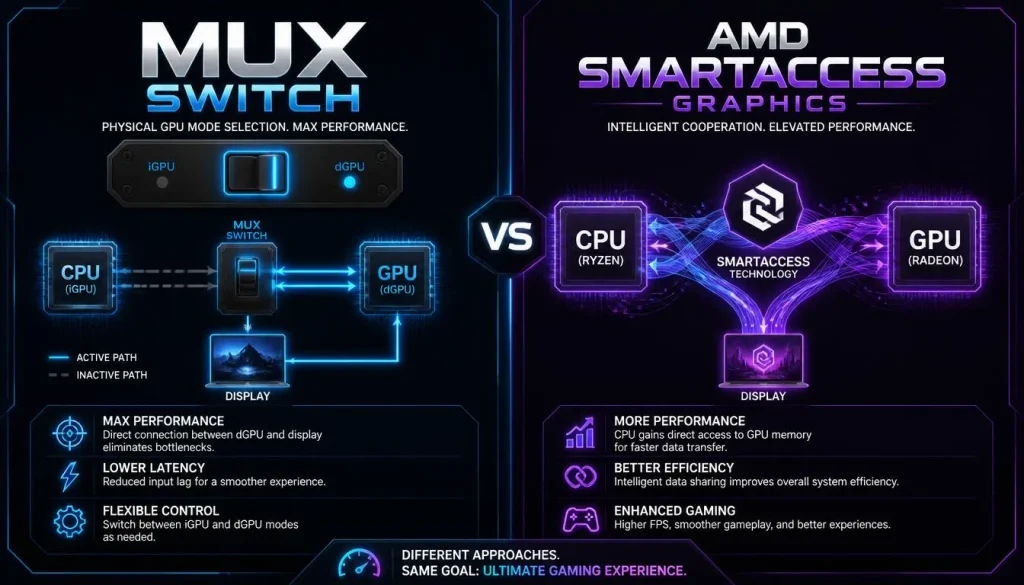
AMD has a comparable approach called SmartAccess Graphics on supported systems.
SmartAccess Graphics can automatically determine whether the workload should use the APU graphics or dedicated Radeon graphics and can provide a direct-to-display path when appropriate.
AMD positions the technology as a way to combine full gaming performance with efficient everyday operation.
It is important not to confuse SmartAccess Graphics with Smart Access Memory.
They are different technologies.
SmartAccess Graphics is related to graphics switching and the display path.
Smart Access Memory is related to processor access to GPU memory.
If you are buying an all-AMD gaming laptop, SmartAccess Graphics is therefore a feature worth checking alongside the laptop’s MUX capabilities.
What Is Windows 11 CASO?
There is another technology that makes the MUX conversation more interesting: Cross Adapter Scan-Out, or CASO.
CASO is a Windows graphics optimization for supported hybrid systems.
It does not physically turn a laptop without a MUX switch into a MUX-equipped laptop.
Instead, it improves how rendered frames move between graphics adapters when the system is operating through a hybrid graphics path.
Microsoft explains that a traditional hybrid path may require additional frame-copy operations between the dedicated and integrated GPUs. CASO reduces that overhead on compatible Windows 11 systems.
The result can be better gaming performance and lower display latency without requiring the display to be physically switched directly to the dGPU.
CASO is integrated into Windows 11 and operates automatically on supported hardware and drivers.
MUX Switch vs CASO: Are They the Same?
No.
The difference is important.
A MUX switch changes the physical display connection so the dedicated GPU can directly drive the internal panel.
CASO optimizes the hybrid graphics path when frames are still being handled across graphics adapters.
Think of it this way:
A MUX switch can create a more direct road.
CASO tries to make the existing indirect road more efficient.
CASO can reduce some of the disadvantages of traditional hybrid graphics, but it does not make every non-MUX laptop identical to a laptop operating in direct dGPU mode.
Manual MUX vs Dynamic GPU Switching
There are broadly two ways manufacturers implement MUX-related switching.
Manual MUX
A manual MUX requires you to change the graphics mode yourself.
You might select:
Hybrid → Discrete GPU
or:
Standard → Ultimate
Depending on the laptop, changing this setting can require a restart because the display connection itself is being reconfigured.
Dynamic Switching
Technologies such as NVIDIA Advanced Optimus and AMD SmartAccess Graphics can automate much of this process on supported systems.
The laptop can prioritize efficient graphics during normal use and switch toward a direct high-performance graphics path when necessary.
For someone who frequently moves between work and gaming, dynamic switching is usually more convenient.
Does a MUX Switch Affect G-SYNC, VRR, and Refresh Rate?
It can.
Some display technologies depend on how the internal panel is connected to the GPU.
When the dedicated NVIDIA GPU directly controls a compatible laptop display, features such as G-SYNC can become available on supported hardware.
Advanced Optimus is specifically designed to allow the GeForce GPU to take direct control of the internal display when needed, including for compatible high-refresh-rate and G-SYNC operation.
The exact behavior depends on the laptop.
A MUX switch does not automatically mean:
- The laptop supports G-SYNC
- The panel supports every VRR technology
- Every GPU mode supports the maximum refresh rate
Always check the display specifications for your exact model.
What Are the Benefits of a MUX Switch?
A MUX switch can provide several practical advantages.
Better Gaming Performance
Direct dGPU mode removes the integrated GPU from the internal-display route, which can improve performance in games where hybrid graphics overhead matters.
Lower Display Latency
A shorter graphics path can reduce display-related latency, particularly during high-frame-rate gaming.
Better Competitive Gaming Experience
High-refresh esports gaming is one of the situations where direct dGPU operation can be particularly valuable.
Better Access to Display Features
Depending on the laptop, direct dGPU control may allow better use of supported high-refresh-rate or variable-refresh technologies.
More Control
A laptop with flexible GPU modes lets you decide whether performance or battery life is more important for what you are doing.
That flexibility is arguably the biggest advantage.
What Are the Disadvantages of a MUX Switch?
Direct dGPU mode is not always the best setting.
Shorter Battery Life
A powerful dedicated GPU requires more energy than integrated graphics.
Keeping it active while unplugged can noticeably reduce battery runtime.
Higher Power Consumption
The dedicated GPU may remain active even during workloads that could easily be handled by integrated graphics.
More Heat
Higher power consumption generally creates more heat.
Increased Fan Noise
More heat may cause the cooling system to run its fans faster.
Restart Requirements
Some laptops require a reboot after changing between Hybrid and Discrete GPU modes.
Dynamic technologies such as Advanced Optimus are designed to avoid much of this inconvenience on supported systems.
MUX Switch On vs Off: Which Mode Should You Use?
There is no reason to force one mode for every situation.
A sensible approach looks like this:
| Situation | Recommended Graphics Mode |
|---|---|
| Competitive gaming | Direct dGPU/MUX mode |
| AAA gaming while plugged in | Direct dGPU/MUX mode |
| Maximum gaming performance | Direct dGPU/MUX mode |
| Web browsing | Hybrid/iGPU mode |
| Office work | Hybrid/iGPU mode |
| Watching videos | Hybrid/iGPU mode |
| Traveling | Hybrid/iGPU mode |
| Maximum battery life | Hybrid/iGPU mode |
| Gaming on battery | Usually Hybrid, depending on priorities |
| GPU-heavy creative work | Often dGPU mode |
If your laptop supports Advanced Optimus or another automatic switching technology, you may not need to change modes manually as often.
How Do You Know If Your Laptop Has a MUX Switch?
There are several ways to check.
Check the Manufacturer’s Specification Page
Search for your exact laptop model.
Look for terms such as:
- MUX Switch
- Advanced Optimus
- SmartAccess Graphics
- GPU Switch
- Discrete GPU Mode
- Hybrid Graphics
- Dedicated GPU Mode
Do not rely only on the laptop series name.
Two laptops that look nearly identical can have different display and GPU-switching capabilities.
Check the Laptop Control Software
Gaming-laptop manufacturers often provide GPU controls inside their own applications.
Depending on your laptop, check software such as:
- ASUS Armoury Crate or MyASUS
- Lenovo Vantage
- MSI Center
- Alienware software
- Acer PredatorSense or NitroSense
- Gigabyte Control Center
The exact names and settings can vary between models and software versions.
Check the BIOS or UEFI
Some laptops place their graphics-switching controls inside the BIOS.
Look for options involving:
- Hybrid Graphics
- Switchable Graphics
- Graphics Mode
- Discrete Graphics
- dGPU Only
Do not change unfamiliar BIOS settings unless you understand what they do.
Check NVIDIA App
On compatible NVIDIA laptops, Advanced Optimus support can be checked through NVIDIA’s software.
NVIDIA currently documents Advanced Optimus information under its system hardware details and provides display-mode controls on supported systems through NVIDIA App.
What Is a MUX Switch Called on Different Gaming Laptops?
One confusing part of buying a gaming laptop is that manufacturers do not always use the words “MUX switch” in their software.
You may instead encounter names such as:
| Setting Name | What It Usually Means |
|---|---|
| Hybrid Mode | Uses both iGPU and dGPU |
| MSHybrid | Microsoft-style hybrid graphics path |
| Discrete Mode | Prioritizes/directly uses the dGPU |
| dGPU Only | Dedicated GPU controls graphics/display |
| Ultimate Mode | Performance-focused GPU mode on some laptops |
| Eco Mode | Integrated graphics focused mode on some laptops |
| GPU Switch | Changes between graphics configurations |
| Switchable Graphics | Controls iGPU/dGPU behavior |
These terms are not completely standardized.
Always consult the documentation for your exact laptop before assuming two manufacturers use a setting in exactly the same way.
How to Enable a MUX Switch on a Gaming Laptop
The process varies by manufacturer, but a typical procedure looks like this:
- Connect your laptop to its charger.
- Open the manufacturer’s control software.
- Locate the GPU or graphics settings.
- Find an option such as GPU Mode, MUX Switch, Hybrid Mode, or Discrete Graphics.
- Select the performance-focused or dGPU-only option.
- Apply the setting.
- Restart the laptop if prompted.
- Launch your game and test performance.
Some laptops also allow the setting to be changed through BIOS or UEFI.
If your laptop supports Advanced Optimus or another dynamic switching solution, you may have additional automatic options.
Is Disabling the Integrated GPU the Same as Enabling a MUX Switch?
No.
This is a common misunderstanding.
Disabling the integrated GPU in Windows Device Manager does not magically change how the laptop display is physically wired.
A real MUX switch is part of the laptop’s hardware design.
The MUX controls the display route at a hardware level.
Simply disabling an iGPU driver or device in Windows is therefore not a substitute for having a proper MUX implementation.
In some cases, manually disabling graphics hardware in Device Manager can even cause unexpected display, driver, battery, or stability problems.
Use your manufacturer’s intended graphics-switching controls instead.
Can an External Monitor Bypass Optimus Without a MUX Switch?
Sometimes.
This depends on how the laptop’s video ports are physically connected.
Imagine a gaming laptop without a MUX switch where the internal display is permanently connected through the integrated GPU.
If one of the laptop’s HDMI, DisplayPort, Mini DisplayPort, or USB-C display outputs is wired directly to the dedicated GPU, connecting an external monitor to that particular port may bypass the internal hybrid graphics path.
That can potentially improve gaming performance.
However, not every laptop is designed this way.
One port may connect to the dGPU while another goes through the iGPU.
HDMI vs DisplayPort vs USB-C
The connector type alone does not tell you which GPU controls it.
An HDMI port is not automatically a dGPU port.
A USB-C port is not automatically an iGPU port.
You must check your specific laptop’s hardware configuration.
Manufacturer documentation, GPU-control software, or GPU topology information can help determine which graphics processor controls each display output.
Does an External Monitor Give the Same Benefit as a MUX Switch?
If the external display port is directly connected to the dedicated GPU, it can bypass the hybrid internal-display path and provide similar performance benefits for that external monitor.
But it does not physically change the internal laptop display.
Once you disconnect the external monitor and return to the built-in screen, the laptop will use whatever internal display path its hardware supports.
Can You Add a MUX Switch to a Laptop That Does Not Have One?
For practical purposes, no.
A MUX switch is not like adding more RAM or installing another SSD.
It is integrated into the laptop’s motherboard, graphics design, firmware, and display-routing architecture.
Adding one after purchase would require hardware and firmware modifications far beyond a normal laptop upgrade.
If direct dGPU display support is important to you, check for it before buying the laptop.
Does a MUX Switch Help With Streaming?
It can help gaming performance while you are streaming if your game benefits from direct dGPU operation.
However, the MUX switch itself is not a dedicated streaming accelerator.
Streaming performance depends on factors such as:
- CPU performance
- GPU encoder
- Streaming resolution
- Game workload
- OBS settings
- Memory capacity
- Internet upload speed
Treat the MUX switch as a graphics-path optimization rather than a streaming feature.
Does a MUX Switch Help With Video Editing or 3D Rendering?
Not necessarily in the same way it helps gaming.
A MUX switch primarily changes how graphics reach the display.
Rendering a video, exporting a project, or calculating a 3D scene may already run directly on the dedicated GPU regardless of which processor drives the screen.
Direct dGPU mode may improve interface responsiveness or certain GPU-accelerated visual workloads, but it will not automatically make every video export or 3D render dramatically faster.
For creative professionals, GPU model, VRAM, CPU performance, RAM, storage, and application support are usually more important considerations.
Do You Need a MUX Switch in a Gaming Laptop?
You do not absolutely need one to play games.
Plenty of gaming laptops can deliver excellent performance without a traditional manual MUX switch.
Modern technologies such as Advanced Optimus, SmartAccess Graphics, and CASO have also made hybrid graphics considerably more sophisticated.
Still, having direct dGPU display capability is valuable if performance is your priority.
You Should Prioritize a MUX Switch If You:
- Play competitive esports games
- Want the highest FPS your laptop can deliver
- Use a high-refresh-rate internal display
- Mostly game while connected to power
- Care about reducing display latency
- Want more control over GPU behavior
It May Matter Less If You:
- Mostly play casual games
- Prioritize long battery life
- Mainly use an external monitor connected directly to the dGPU
- Have an effective dynamic switching system such as Advanced Optimus
- Mostly use the laptop for general productivity
Should You Keep the MUX Switch On All the Time?
You can run direct dGPU mode continuously, but that does not mean you should.
If your laptop spends most of its time plugged into a desk and is primarily used for gaming, leaving it in dGPU mode may be perfectly reasonable.
If you frequently use the laptop on battery, Hybrid Mode is usually more practical.
A simple rule works well:
Use direct dGPU mode when performance matters. Use Hybrid Mode when battery life matters.
Is a MUX Switch Safe to Use?
Yes.
The MUX switch is a feature designed by the laptop manufacturer.
Using the supported dGPU or Hybrid modes available in your laptop’s official software is normal operation.
Direct dGPU mode may increase:
- Power consumption
- GPU activity
- Heat output
- Fan speed
That does not automatically mean it is harming the laptop. Gaming laptops are designed to operate under demanding workloads.
Keep the cooling system clean, avoid blocking ventilation, and use the laptop on a suitable surface.
Is a Gaming Laptop Without a MUX Switch Bad?
No.
A missing MUX switch should not automatically disqualify an otherwise good laptop.
A gaming laptop’s overall performance depends on much more than its GPU-routing system.
You should also consider:
- GPU model
- GPU power limits
- CPU performance
- Cooling design
- RAM configuration
- Screen quality
- Refresh rate
- SSD performance
- Battery capacity
- Build quality
- Price
A well-designed laptop without a traditional MUX switch can easily be better than a poorly cooled MUX-equipped laptop with weaker components.
Look at the complete system.
What Should You Check Before Buying a Gaming Laptop?
If gaming performance is your priority, check more than whether the product page simply says “MUX.”
Look for:
- The exact CPU
- The exact GPU
- GPU power limits
- MUX switch or direct dGPU support
- Advanced Optimus or SmartAccess Graphics support
- Display resolution
- Refresh rate
- VRR, G-SYNC, or FreeSync support
- RAM capacity and configuration
- Cooling performance
- Battery capacity
- External display-port connections
Independent gaming benchmarks are also extremely useful because two laptops with apparently similar specifications can perform quite differently.
Frequently Asked Questions About MUX Switches
What Does MUX Stand For in a Gaming Laptop?
MUX stands for multiplexer. In a gaming laptop, it refers to hardware that can change which GPU is connected to the display.
What Does a MUX Switch Actually Do?
It changes the display path between the integrated and dedicated graphics processors. In direct dGPU mode, the dedicated graphics processor can send frames directly to the internal screen.
Does a MUX Switch Increase FPS?
It can. The amount varies depending on the game, GPU, CPU, resolution, and laptop design. High-frame-rate games may benefit more than heavily GPU-limited titles.
Does a MUX Switch Reduce Input Lag?
It can reduce display-related latency by eliminating some of the overhead created when frames have to pass through integrated graphics before reaching the screen.
Does a MUX Switch Improve 1% Lows?
It may improve frame-time consistency and 1% lows in some games, but 1% low performance is influenced by many other factors, including CPU performance, RAM, thermal limits, and the game engine.
Does a MUX Switch Reduce Battery Life?
Direct dGPU mode usually consumes more power because the dedicated graphics processor remains more actively involved in driving the display. Hybrid or iGPU-focused modes are normally better for battery life.
Does a MUX Switch Increase Temperature?
It can indirectly result in higher temperatures because the dedicated GPU may remain active and consume more power. Higher power consumption can also cause the cooling fans to run faster.
Is MUX Switch the Same as NVIDIA Optimus?
No. Traditional Optimus uses hybrid graphics with the integrated GPU driving the internal display. A MUX switch can allow the dedicated GPU to bypass that path.
Is Advanced Optimus the Same as a MUX Switch?
Advanced Optimus uses dynamic hardware display switching to let compatible NVIDIA laptops change which GPU drives the internal display without requiring the same manual switching process used by many traditional MUX implementations.
Is Advanced Optimus Better Than a Manual MUX?
It is generally more convenient because switching can happen automatically. Actual performance and feature support still depend on the laptop.
Is SmartAccess Graphics the AMD Version of Advanced Optimus?
They are not identical technologies, but they serve a similar broad purpose on supported systems: intelligently switching graphics behavior to combine high-performance gaming with efficient everyday operation.
Is CASO the Same as a MUX Switch?
No. CASO optimizes frame handling in a hybrid graphics path. A MUX switch changes the physical display connection between graphics processors.
Does Windows 11 Need a MUX Switch?
No. Windows 11 works perfectly well on laptops without one. CASO can also reduce hybrid graphics overhead on supported Windows 11 systems, although it is not a replacement for every benefit of direct dGPU display access.
Do AMD Gaming Laptops Have MUX Switches?
Some do. Support depends on the specific laptop rather than simply whether it uses an AMD processor or GPU.
Is a MUX Switch Only for NVIDIA Laptops?
No. MUX switches can also be found in gaming laptops using AMD graphics.
Can I Install a MUX Switch Later?
Normally, no. The feature is integrated into the motherboard, firmware, GPU architecture, and display-routing design.
Is Disabling Integrated Graphics the Same as Turning On a MUX Switch?
No. Disabling the iGPU in Windows does not physically rewire the laptop display to the dedicated GPU.
Does a MUX Switch Matter at 1440p?
It can still matter, but the difference may become smaller when the game is heavily limited by GPU performance.
Does a MUX Switch Matter at 4K?
Potentially, but many games become strongly GPU-bound at 4K. In those situations, the GPU itself may limit performance more than the hybrid display path.
Does a MUX Switch Matter With an External Monitor?
It depends on which GPU controls the laptop’s external display port. If the monitor connects directly to the dedicated GPU, the external display may already bypass the hybrid internal-display route.
Should I Use MUX Mode for Competitive Gaming?
If your laptop is plugged in and you want maximum performance and minimum display latency, direct dGPU mode is generally a sensible choice.
Should I Turn MUX Mode Off When Traveling?
If battery life matters, switching back to a Hybrid or integrated-graphics-focused mode is usually beneficial.
Final Verdict: Is a MUX Switch Worth It?
A MUX switch is one of those gaming-laptop features that sounds more complicated than it really is.
Its job is simple: it controls how your GPU connects to the display.
In a traditional hybrid configuration, the dedicated GPU may render your game while the integrated GPU remains part of the display path. A MUX switch can bypass that route and allow the dedicated GPU to communicate directly with the screen.
For gaming, that can mean higher frame rates, better frame delivery, lower display latency, and better access to certain display features on compatible systems.
The cost is usually higher power consumption and shorter battery life.
Technologies such as NVIDIA Advanced Optimus and AMD SmartAccess Graphics make this process more convenient by dynamically changing graphics behavior on supported laptops, while Windows 11 CASO can reduce some of the overhead found in hybrid graphics systems even when a direct MUX path is not being used.
So, do you need a MUX switch?
Not necessarily.
But if you are buying a gaming laptop for competitive games, high-refresh-rate gaming, or maximum performance while plugged in, a MUX switch or another form of direct dGPU display switching is absolutely a feature worth having.
Just do not judge a laptop by the MUX switch alone. The GPU, CPU, cooling system, display, RAM, power limits, and overall design still matter more when deciding whether a gaming laptop is genuinely good.