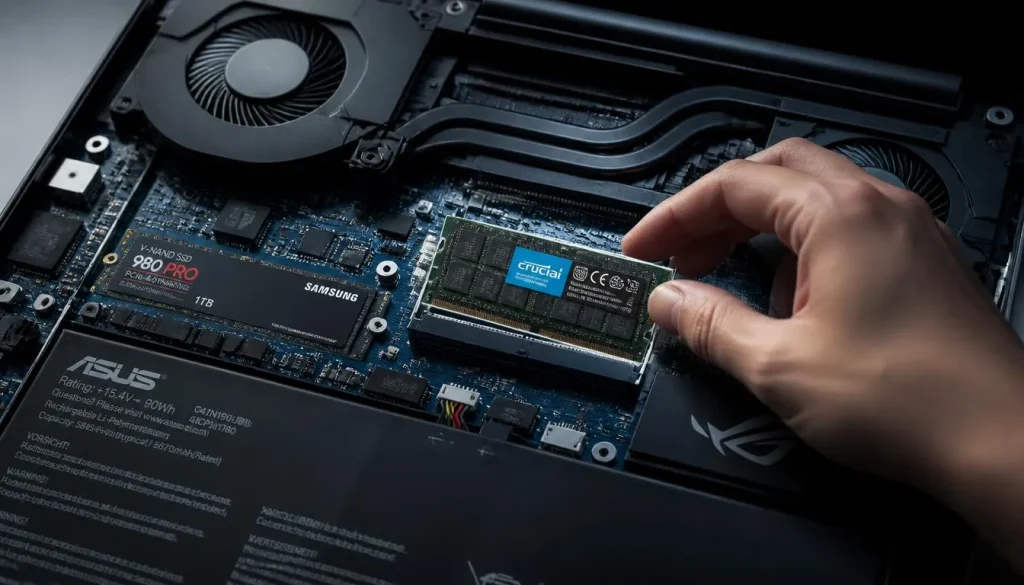
Yes, you can upgrade the RAM and SSD in many gaming laptops, and these are often the two easiest ways to improve an older or entry-level machine. However, not every gaming laptop is designed the same way.
Some models have two removable RAM slots and multiple M.2 SSD slots. Others use soldered memory, have only one storage slot, or combine soldered RAM with a single upgradeable SO-DIMM slot.
That means the real answer to “can you upgrade gaming laptop RAM and SSD?” is:
Usually yes, but you should check the exact specifications of your laptop before buying any new hardware.
In this guide, you will learn how to check whether your laptop is upgradeable, how to choose compatible RAM and SSDs, what performance improvements to expect, how to install the components, and what to do if something goes wrong.
Can You Upgrade RAM and SSD in a Gaming Laptop?
Most gaming laptops are more upgrade-friendly than thin everyday notebooks because manufacturers know gamers may want more memory and storage later.
Here is a quick overview:
| Component | Usually Upgradeable? | What You Need to Check |
|---|---|---|
| RAM | Often | SO-DIMM slots, soldered memory, maximum capacity |
| SSD | Often | M.2 slots, NVMe/SATA support, drive size |
| CPU | Rarely | Usually soldered to the motherboard |
| GPU | Rarely | Usually soldered to the motherboard |
RAM and SSD upgrades are especially common because neither component normally requires replacing the motherboard.
However, never assume that a laptop is upgradeable simply because it is marketed as a gaming laptop.
How to Check If Your Gaming Laptop RAM and SSD Are Upgradeable
Before ordering any components, identify exactly what your laptop supports.
Buying the wrong type of RAM or SSD can leave you with hardware that physically does not fit or simply does not work.
Find Your Exact Gaming Laptop Model
Start by finding the complete model number.
You can usually find it:
- On a sticker underneath the laptop
- Inside Windows System Information
- In the manufacturer’s control software
- On the original packaging
- On the manufacturer’s support website
Do not rely only on a family name such as “Lenovo Legion,” “ASUS ROG,” “Acer Nitro,” or “HP Victus.”
Different generations of the same gaming laptop family may use completely different memory layouts and storage configurations.
Check the Manufacturer’s Service Manual
The service or maintenance manual is one of the best resources for checking upgradeability.
Look for information about:
- Number of RAM slots
- Whether any RAM is soldered
- Maximum supported memory
- DDR generation
- Supported RAM speeds
- Number of M.2 slots
- Supported SSD sizes
- Storage interface
- Battery disconnection procedure
If the manufacturer provides a disassembly diagram, it can also show you exactly where the RAM and SSD are located.
Check Whether the RAM Is Soldered
Gaming laptop RAM can be configured in several ways.
Your laptop may have:
- Two removable SO-DIMM slots
- One soldered RAM module and one SO-DIMM slot
- Fully soldered RAM
- One removable SO-DIMM slot
- Two SO-DIMM slots with one already occupied
If the RAM is fully soldered, you generally cannot upgrade it through a normal memory replacement.
If one portion is soldered and another slot is available, you may still be able to add more memory.
Check the Number of SSD Slots
Some gaming laptops have two or even three M.2 SSD slots, while others have only one.
Possible configurations include:
- One M.2 slot with the original SSD installed
- One occupied M.2 slot plus one empty M.2 slot
- Two occupied M.2 slots
- M.2 SSD plus 2.5-inch SATA bay
- One SSD soldered or proprietary storage configuration
If you have an empty M.2 slot, adding storage is usually easier because you can keep your existing Windows installation untouched.
How to Check Your Current RAM and SSD Before Upgrading
You do not always need to open the laptop immediately.
Windows can tell you a lot about your current hardware.
How to Check Installed RAM
On Windows:
- Press Ctrl + Shift + Esc.
- Open Task Manager.
- Select Performance.
- Click Memory.
You can see your total installed memory, speed, and sometimes the number of slots currently in use.
For example, Task Manager may show:
Slots used: 1 of 2
That usually means you may be able to add another RAM module without removing the existing one.
However, software information should still be confirmed against the laptop’s official specifications.
How to Check Your SSD
Open Task Manager and select:
Performance > Disk
You may see whether the drive is an SSD and sometimes its model number.
You can also use:
Device Manager > Disk drives
Search the model number online or check it against your laptop’s support documentation to determine whether it is SATA or NVMe.
How Do You Know If Your Gaming Laptop Needs an Upgrade?
Upgrading just because you can is not always necessary.
The better question is whether your current hardware is limiting your experience.
Signs You Need More RAM
A RAM upgrade may help if:
- Your laptop has only 8GB of memory
- RAM usage regularly reaches 90–100%
- Games stutter while other programs are open
- Browser tabs reload frequently
- Discord, streaming software, and games compete for memory
- Video editing or content creation feels slow
- Your laptop uses only one memory channel
If you already have enough RAM for your workload, adding more may make very little difference in gaming performance.
Signs You Need a Larger or Faster SSD
An SSD upgrade makes sense if:
- Your drive is nearly full
- You constantly uninstall games to free space
- Your laptop still uses a hard drive
- You need faster file transfers
- You want shorter game loading times
- You need additional storage for recordings or videos
For many gamers, storage capacity is the main reason to upgrade an SSD.
Modern games can consume a significant amount of disk space, so a 512GB drive can fill surprisingly quickly.
How to Choose Compatible RAM for a Gaming Laptop
Laptop RAM compatibility involves more than simply choosing a capacity.
You need to match several specifications.
DDR4 vs DDR5 RAM
DDR4 and DDR5 are different memory generations.
They are not interchangeable.
If your gaming laptop uses DDR4, you cannot replace it with DDR5.
Likewise, a DDR5 laptop requires DDR5-compatible memory.
Always check your laptop specifications before ordering.
Gaming Laptops Usually Use SO-DIMM RAM
Most upgradeable gaming laptops use SO-DIMM memory.
SO-DIMM modules are physically smaller than the DIMMs commonly used in desktop computers.
Desktop RAM will not fit into a normal laptop SO-DIMM slot.
Check RAM Speed
Your laptop may support memory speeds such as:
- DDR4-2666
- DDR4-2933
- DDR4-3200
- DDR5-4800
- DDR5-5200
- DDR5-5600
The supported speed depends on the processor, chipset, motherboard, and BIOS.
Installing faster RAM does not guarantee that it will operate at its advertised maximum speed.
For example, if your laptop supports DDR5-4800 and you install DDR5-5600 memory, the RAM may simply run at 4800 MT/s.
Check Maximum Supported Capacity
Your laptop may support a maximum of:
- 16GB
- 32GB
- 64GB
- 96GB
- Or another model-specific limit
Do not assume that a laptop with two RAM slots automatically supports any capacity you want.
Always verify the maximum supported amount.
How Much RAM Does a Gaming Laptop Need?
The ideal amount depends on what you play and what else you run in the background.
Is 8GB RAM Enough for Gaming?
8GB can still run some lightweight and older games, but it is increasingly restrictive for modern gaming.
You may notice problems when running:
- AAA games
- Discord
- A browser
- Game launchers
- Recording software
- Streaming applications
If your laptop has 8GB and supports an upgrade, moving to 16GB is often one of the most useful improvements you can make.
Is 16GB RAM Enough for Gaming?
For most gamers, 16GB remains a strong practical amount of memory.
It is generally enough for:
- Modern gaming
- Discord
- Web browsing
- Normal background applications
- Light streaming
If you are buying or upgrading a general-purpose gaming laptop, 16GB is a sensible starting point.
When Is 32GB RAM Worth It?
32GB becomes more useful if you:
- Stream while gaming
- Edit videos
- Use large game mods
- Run virtual machines
- Keep many applications open
- Create 3D content
- Use professional creative software
- Play memory-heavy simulation games
For users who game and work on the same laptop, 32GB can provide useful extra headroom.
Do You Need 64GB RAM for Gaming?
For gaming alone, 64GB is usually unnecessary.
It becomes useful mainly for specialized workloads such as:
- Large video projects
- Professional 3D rendering
- Virtual machines
- Large datasets
- Software development environments
- Heavy content creation
More RAM does not automatically mean more FPS.
Once your system has enough memory, adding additional unused capacity generally provides little gaming benefit.
Single-Channel vs Dual-Channel RAM
RAM configuration can sometimes matter almost as much as total capacity.
For example:
- 1 × 16GB = one memory module
- 2 × 8GB = two memory modules
When supported, using two properly matched modules can provide more memory bandwidth.
This can help:
- Some CPU-limited games
- Integrated graphics
- Frame-time consistency
- 1% low FPS
- Certain productivity workloads
However, the exact performance difference varies depending on the laptop, processor, GPU, and game.
Can You Mix RAM in a Gaming Laptop?
Technically, mixed RAM configurations can work, but matched memory is generally the safer choice.
Can You Mix 8GB and 16GB RAM?
In many laptops, yes.
A system may run with an 8GB module and a 16GB module for a total of 24GB.
However, memory-channel behavior may be different from a matched configuration such as 2 × 8GB or 2 × 16GB.
Can You Mix Different RAM Brands?
Sometimes.
The brand itself is usually less important than compatibility.
The modules should ideally have compatible:
- DDR generation
- Voltage
- Speed
- Timings
- Capacity characteristics
Matched kits reduce the risk of instability.
Can You Mix Different RAM Speeds?
Often yes, but both modules will normally operate at a speed supported by the slower module or laptop platform.
For example, mixing DDR4-3200 with DDR4-2666 may cause both modules to run at a lower supported speed.
What About RAM Timings and XMP?
Laptop memory behavior is generally controlled more tightly by the BIOS than desktop memory.
Many laptops do not provide the same manual memory tuning or XMP options found on gaming desktops.
When possible, buy RAM that can run at the required speed using standard supported profiles rather than relying on manual overclocking features.
Single-Rank vs Dual-Rank RAM
Memory rank is different from memory channel.
A RAM module may be single-rank or dual-rank depending on how its memory chips are organized.
In some workloads, dual-rank memory can provide slightly better performance.
However, rank should not be your first concern when upgrading a gaming laptop.
Compatibility, capacity, correct DDR generation, and supported speed are more important.
Can You Add RAM Without Replacing the Existing RAM?
Yes, if your laptop has an empty compatible RAM slot.
For example, if your laptop contains:
1 × 8GB RAM
and has a second empty slot, you may be able to add another 8GB module and reach 16GB.
However, if both slots are already occupied, you will need to replace one or both modules to increase capacity.
If the laptop uses soldered RAM, your options depend on whether an additional SO-DIMM slot is available.
How to Upgrade Gaming Laptop RAM
The exact procedure varies by model, but the general process is straightforward.
Step 1: Shut Down the Laptop
Completely shut down Windows.
Do not simply put the laptop to sleep.
Disconnect:
- Charger
- USB devices
- External monitors
- Headphones
- Other accessories
Step 2: Remove the Bottom Cover
Turn the laptop over and remove the screws holding the bottom panel.
Gaming laptops often use screws of different lengths, so keep track of where each one belongs.
Use a plastic pry tool if necessary.
Avoid forcing the panel.
Step 3: Disconnect the Battery
If your service manual instructs you to disconnect the internal battery, do so before touching the memory or storage.
This reduces the chance of accidentally shorting a component.
Step 4: Locate the RAM
SO-DIMM modules are usually held in place by two metal clips.
Some gaming laptops cover the memory with a shield.
Step 5: Install the New RAM
If replacing a module:
- Push the side clips outward.
- Allow the RAM to lift at an angle.
- Slide it out carefully.
To install the new module:
- Align the notch.
- Insert it at an angle.
- Press it down until the clips lock.
Never force RAM into the slot.
Step 6: Reassemble the Laptop
Reconnect the battery if you disconnected it.
Reinstall the bottom panel and screws.
Step 7: Check the New RAM
After turning the laptop on, open:
Task Manager > Performance > Memory
Confirm that Windows recognizes the new capacity.
The first boot after a memory change can occasionally take longer than normal, especially on some newer systems.
Do not immediately assume something is wrong if the laptop needs extra time to initialize the new memory.
How to Choose the Right SSD for a Gaming Laptop
Laptop SSD compatibility involves interface, physical size, and slot support.
M.2 NVMe vs M.2 SATA SSD
“M.2” describes a physical form factor.
It does not automatically mean NVMe.
An M.2 drive may use:
- NVMe over PCIe
- SATA
A laptop slot may support only NVMe, only SATA, or sometimes both.
Always verify the supported storage interface.
Check the M.2 SSD Size
Common M.2 sizes include:
- 2230
- 2242
- 2260
- 2280
The numbers refer to the physical dimensions of the drive.
M.2 2280 is extremely common in gaming laptops, but you should still check your exact model.
PCIe Gen 3 vs Gen 4 vs Gen 5 SSDs
NVMe SSDs may use different PCIe generations.
Common options include:
- PCIe Gen 3
- PCIe Gen 4
- PCIe Gen 5
A faster-generation SSD can sometimes work in an older-generation slot, but it will normally operate at the maximum speed supported by the laptop.
For example, a Gen 4 SSD installed in a Gen 3-only slot will not reach full Gen 4 performance.
Because of this, buying the most expensive SSD available is not always worthwhile.
Will Any M.2 SSD Work in a Gaming Laptop?
No.
Two M.2 drives can look almost identical while using different protocols or physical layouts.
Before buying an SSD, check:
- M.2 length
- NVMe or SATA support
- PCIe generation
- Physical clearance
- Maximum supported capacity
- Drive thickness
- Manufacturer requirements
Should You Buy an SSD With a Heatsink?
Usually, you should be cautious with large desktop-style SSD heatsinks in laptops.
Gaming laptops have limited internal clearance.
Many laptops already use:
- Factory thermal pads
- Thin heat spreaders
- Metal SSD shields
A bulky aftermarket heatsink may prevent the bottom cover from closing correctly.
If your laptop includes its own SSD cooling solution, follow the manufacturer’s design.
Single-Sided vs Double-Sided SSDs
Some high-capacity NVMe SSDs have memory chips on both sides of the circuit board.
These are known as double-sided SSDs.
Certain thin laptops may not have enough space for thicker double-sided drives.
Gaming laptops often have more internal room, but compatibility still varies.
Check your service manual if you are considering a high-capacity SSD.
How Much SSD Storage Do You Need for Gaming?
The right capacity depends mainly on the size of your game library.
Is 512GB Enough?
512GB can work for casual gaming, but available space disappears quickly after Windows, applications, and several large games are installed.
It is manageable if you do not mind regularly uninstalling games.
Is 1TB Enough for Gaming?
1TB is a strong choice for many gamers.
It gives you more room for:
- Windows
- Applications
- Several large games
- Screenshots
- Updates
- Personal files
For most users upgrading from a 512GB drive, 1TB provides a noticeable improvement in convenience.
When Should You Buy a 2TB SSD?
A 2TB SSD makes sense if you:
- Keep many AAA games installed
- Record gameplay
- Edit videos
- Use the laptop for both gaming and work
- Do not want to manage storage constantly
Is a 4TB SSD Worth It?
A 4TB drive can be useful for very large libraries, but it usually costs significantly more.
Before buying one, verify that your laptop supports the capacity and physical drive configuration.
Can You Add a Second SSD to a Gaming Laptop?
Yes, if your laptop has a second compatible storage slot.
If Your Laptop Has an Empty M.2 Slot
This is the easiest situation.
You can install a second SSD while keeping the original drive and Windows installation unchanged.
If Your Laptop Has Only One M.2 Slot
You will need to replace the existing SSD if you want more storage.
In that case, you need to decide whether to:
- Clone the existing drive
- Perform a clean Windows installation
If Your Laptop Has an M.2 Slot and 2.5-Inch Bay
Some older gaming laptops support both an M.2 SSD and a 2.5-inch SATA drive.
If the necessary cable and mounting hardware are present, you may be able to use both.
Can You Add RAM and SSD Without Replacing the Existing Ones?
Sometimes.
It depends on whether empty slots are available.
If your laptop has:
- One free RAM slot → you can add RAM
- One free M.2 slot → you can add an SSD
- No free slots → you need to replace existing components
This is why “upgradeable” and “expandable” do not always mean the same thing.
A component may be replaceable even when no additional slot exists.
Should You Clone Your Old SSD or Install Windows Fresh?
If you are replacing your main system drive, you have two common options.
Clone the Existing SSD
Cloning copies your existing system to the new SSD.
You can usually keep:
- Windows
- Installed programs
- Games
- Files
- Personal settings
This is convenient if your current Windows installation works well.
Perform a Clean Windows Installation
A clean installation gives you a fresh operating system.
It may be preferable if:
- Windows has accumulated problems
- You want to remove unwanted software
- The old installation is unstable
- You prefer a fresh setup
You will need to reinstall applications and games afterward.
Will You Lose Your Files When Upgrading the SSD?
Not necessarily.
If you are simply adding a second SSD, your original data should remain on the original drive.
If you are replacing the system SSD, your data will not automatically appear on the new drive.
Before replacing the original SSD, either:
- Clone the drive
- Back up your files
- Create recovery media
- Prepare a Windows installation USB
Never remove a system drive containing important data without having a backup.
Check BitLocker Before Replacing the SSD
Some Windows laptops use BitLocker or Device Encryption.
Before changing the system drive, make sure you have access to your recovery information.
It is also wise to back up important files independently even if you plan to clone the drive.
Cloning should never be your only backup.
How to Upgrade a Gaming Laptop SSD
The exact steps vary, but the basic process is similar across many gaming laptops.
Step 1: Back Up Important Files
Create a backup before opening the laptop.
This is especially important if you are replacing the boot drive.
Step 2: Confirm SSD Compatibility
Verify:
- Interface
- Length
- Capacity
- PCIe generation
- Available slot
Step 3: Shut Down and Disconnect the Laptop
Turn the laptop off completely.
Disconnect the charger and all peripherals.
Step 4: Remove the Bottom Cover
Remove the screws and gently release the bottom panel.
Step 5: Disconnect the Internal Battery
Follow your service manual.
Some laptops allow you to disable the internal battery through BIOS before servicing.
Step 6: Find the M.2 Slot
You may see:
- Existing SSD
- Empty slot
- Thermal shield
- Thermal pad
Step 7: Install the SSD
Remove the M.2 retaining screw.
Insert the drive into the slot at a slight angle.
Press it down gently and secure it with the screw.
Step 8: Reinstall Thermal Components
If the laptop uses an SSD shield or thermal pad, reinstall it exactly as designed.
Step 9: Reassemble the Laptop
Reconnect the battery and reinstall the bottom cover.
Step 10: Configure the Drive
Depending on what you installed, you may need to:
- Initialize the SSD
- Create a partition
- Format the drive
- Clone Windows
- Install Windows
What to Do After Installing a New SSD
If you installed a second SSD and it does not appear in File Explorer, do not panic.
The drive may simply need to be initialized.
Check Disk Management
Right-click the Windows Start button and open:
Disk Management
If the SSD appears as unallocated space, you can initialize it and create a new volume.
After formatting and assigning a drive letter, it should appear in File Explorer.
Check BIOS
If Disk Management does not show the SSD, restart the laptop and check whether the drive appears in BIOS or UEFI.
If BIOS cannot detect it, check:
- Installation
- Slot compatibility
- Drive interface
- M.2 seating
- BIOS settings
What to Do After Upgrading RAM
After installing new memory:
- Check total capacity in Task Manager
- Check memory speed
- Verify BIOS recognizes the RAM
- Test demanding games
- Watch for crashes
- Run a memory test if necessary
If the laptop becomes unstable after the upgrade, compatibility is the first thing to investigate.
Do You Need to Update BIOS Before Upgrading RAM or SSD?
Usually, no.
You should not update BIOS simply because you are upgrading RAM or storage.
However, BIOS updates can occasionally improve:
- Memory compatibility
- Storage detection
- System stability
- Hardware support
If your manufacturer specifically mentions a relevant compatibility fix, a BIOS update may help.
Follow the manufacturer’s instructions carefully because interrupting a BIOS update can cause serious problems.
Will Upgrading RAM Increase Gaming FPS?
It can, but only under the right circumstances.
You are more likely to see a difference if:
- Your laptop does not currently have enough RAM
- Memory usage reaches its limit
- The system is using slow single-channel memory
- Your games are memory-sensitive
- Integrated graphics depend heavily on system memory
Possible improvements include:
- Fewer stutters
- Better 1% lows
- Smoother multitasking
- More consistent frame times
However, upgrading from 16GB to 32GB will not suddenly double FPS if the game was already running comfortably within 16GB.
Will an SSD Increase Gaming FPS?
Usually not by much.
An SSD primarily improves:
- Windows boot time
- Game loading time
- Level loading
- Application launch times
- File transfers
- Game installation
- Updates
- General system responsiveness
In some modern games, faster storage can help with asset streaming, but your CPU and GPU usually determine average FPS.
If your laptop already has a reasonably fast NVMe SSD, replacing it with a faster model may not create a dramatic difference in actual gameplay.
How Much Faster Will Your Gaming Laptop Feel?
The answer depends on what is currently limiting the system.
A laptop upgraded from:
8GB RAM + hard drive
to:
16GB RAM + NVMe SSD
can feel dramatically faster in everyday use.
You may notice:
- Faster booting
- Quicker app launches
- Less multitasking slowdown
- Faster game loading
- Less disk activity
- Smoother overall operation
On the other hand, upgrading:
32GB RAM + fast NVMe SSD
to:
64GB RAM + faster NVMe SSD
may produce very little noticeable difference for normal gaming.
RAM Upgrade vs SSD Upgrade: Which Should You Do First?
Use your current problem to decide.
| Your Problem | Upgrade First |
|---|---|
| You only have 8GB RAM | RAM |
| Memory usage reaches 100% | RAM |
| Games stutter while multitasking | RAM |
| Your laptop still uses an HDD | SSD |
| Storage is almost full | SSD |
| You need more installed games | SSD |
| Boot and loading times are slow | SSD |
| You have 16GB RAM but only 256GB storage | SSD |
| You have plenty of storage but insufficient memory | RAM |
If both components are limiting you and your budget allows it, upgrading both can be worthwhile.
Can You Upgrade RAM and SSD at the Same Time?
Yes.
If both components are accessible and compatible, there is no technical reason you cannot upgrade RAM and SSD during the same service session.
This can be convenient because you only need to remove the bottom cover once.
Just make sure you test the system carefully afterward.
If something goes wrong, having two new components can make troubleshooting slightly more complicated because you need to determine which upgrade caused the issue.
Common Problems After Upgrading RAM
Laptop Does Not Boot
If the laptop does not boot after installing RAM:
- Shut it down.
- Disconnect power.
- Open the laptop again.
- Reseat the memory.
- Test one module at a time.
- Confirm compatibility.
Improperly seated RAM is a very common cause.
New RAM Is Not Detected
Possible causes include:
- RAM not fully inserted
- Unsupported capacity
- Incompatible module
- Faulty RAM
- Faulty slot
- Soldered memory limitations
- BIOS compatibility issue
RAM Is Running Slower Than Advertised
This may be completely normal.
Laptop memory speed is controlled by the platform.
A RAM module rated for a higher speed may operate at the maximum speed supported by your processor or motherboard.
Laptop Crashes After the RAM Upgrade
Crashes may indicate:
- Incompatible memory
- Defective module
- Mixed timings
- Unstable configuration
- Poor seating
Test the original memory again.
If the crashes disappear, investigate the new RAM configuration.
Common Problems After Upgrading an SSD
New SSD Does Not Appear in Windows
Open Disk Management.
The SSD may simply need to be initialized and formatted.
SSD Is Not Detected in BIOS
Check:
- Physical installation
- Supported interface
- Correct M.2 slot
- SSD seating
- BIOS storage settings
An M.2 SATA SSD will not necessarily work in an NVMe-only slot.
Windows Does Not Boot After SSD Replacement
Possible causes include:
- Failed cloning
- Wrong boot order
- Missing boot files
- Incorrect partition layout
- Original SSD removed before migration was complete
Check BIOS boot order first.
SSD Is Slower Than Expected
Your SSD may be limited by:
- PCIe generation
- Laptop chipset
- Thermal throttling
- Power settings
- Slot bandwidth
- Background activity
A Gen 4 drive in a Gen 3 slot will operate at Gen 3 speeds.
How Much Does It Cost to Upgrade Gaming Laptop RAM and SSD?
Upgrade cost varies widely depending on:
- DDR4 or DDR5
- Capacity
- SSD speed
- SSD capacity
- Brand
- Region
- Installation fees
A basic 16GB memory upgrade will generally cost less than a high-performance 2TB or 4TB NVMe SSD.
You should compare hardware prices based on compatibility rather than simply choosing the cheapest option.
Professional installation may also add labor charges.
For most gaming laptops, RAM and SSD upgrades remain considerably cheaper than replacing the entire machine.
Should You Upgrade RAM and SSD Yourself?
DIY upgrading can be straightforward if your laptop is designed for user-accessible components.
You may be comfortable doing it yourself if:
- The service manual is clear
- The bottom cover is easy to remove
- RAM and SSD are accessible
- You know how to disconnect the battery
- You understand compatibility
- You are comfortable handling electronic components
A professional technician may be a better option if:
- The chassis is difficult to open
- You are worried about damaging clips or cables
- The laptop is expensive
- You need data migration
- You are unsure about compatibility
- The internal battery is difficult to disconnect
- You have never worked inside a laptop before
Will Upgrading RAM or SSD Void Your Warranty?
This depends on the manufacturer, laptop model, and local warranty terms.
Many gaming laptops are designed with user-accessible RAM and storage.
However, damage caused while performing an upgrade may not be covered.
For example, if you damage:
- The motherboard
- A connector
- Battery cable
- SSD slot
- RAM slot
- Bottom-panel clips
the repair may be treated differently from a normal warranty defect.
Check your manufacturer’s warranty terms before opening the laptop.
When Should You Not Upgrade the Laptop Yourself?
Consider professional help if:
- RAM is soldered
- Storage is difficult to access
- The laptop uses unusual proprietary hardware
- You cannot confirm compatibility
- You need advanced data recovery
- The battery is damaged
- The chassis requires extensive disassembly
Do not force components into a laptop just because they appear physically similar.
Is It Worth Upgrading an Old Gaming Laptop?
Sometimes an inexpensive RAM or SSD upgrade can extend the useful life of an older gaming laptop.
It is more likely to be worth upgrading if:
- CPU performance is still acceptable
- GPU performance still meets your needs
- The laptop has only 8GB RAM
- Storage is too small
- The laptop uses an HDD
- The rest of the system works reliably
Replacing the laptop may make more sense if:
- CPU performance is severely outdated
- GPU cannot run the games you want
- The battery is failing
- Cooling system has serious problems
- Display or motherboard also needs repair
- Upgrade costs approach the value of a newer laptop
Remember that RAM and SSD upgrades cannot turn an old GPU into a modern one.
Can Every Gaming Laptop Be Upgraded?
No.
Upgradeability varies significantly between models.
A gaming laptop may have:
- Two replaceable RAM modules
- One replaceable RAM module
- Partially soldered RAM
- Fully soldered RAM
- One SSD slot
- Two SSD slots
- Multiple storage options
Thin and lightweight gaming laptops sometimes sacrifice upgradeability to save space.
Always research the exact model rather than assuming that every laptop from the same brand has the same configuration.
Are RAM and SSD Upgradeable on Popular Gaming Laptop Brands?
Many major gaming laptop brands offer upgradeable models, but specifications vary by generation.
| Laptop Family | RAM Upgradeability | SSD Upgradeability | Important Note |
|---|---|---|---|
| Lenovo Legion | Varies | Usually available on many models | Check exact generation |
| ASUS ROG | Varies | Often upgradeable | Some models use soldered RAM |
| Acer Nitro | Often upgradeable | Often upgradeable | Slot count varies |
| HP OMEN | Often upgradeable | Often upgradeable | Check model specifications |
| HP Victus | Varies | Often upgradeable | Configuration differs |
| MSI Gaming | Varies | Varies | Check service manual |
| Alienware | Varies | Varies | Highly model-specific |
Do not use this table as a substitute for checking your exact model.
Manufacturers can change internal layouts even between two laptops with very similar names.
Frequently Asked Questions
Can I Upgrade Gaming Laptop RAM From 8GB to 16GB?
Usually, yes, if the laptop supports at least 16GB of RAM and has an available or replaceable SO-DIMM slot.
Check the maximum supported memory and DDR type before buying.
Can I Upgrade From 16GB to 32GB RAM?
Yes, many gaming laptops support 32GB.
You may need to replace both existing modules depending on the current configuration.
Can I Put DDR5 RAM in a DDR4 Gaming Laptop?
No.
DDR4 and DDR5 use different physical and electrical designs and are not interchangeable.
Can I Use 8GB and 16GB RAM Together?
Often, yes.
However, a matched pair usually provides a cleaner and more predictable memory configuration.
Can I Mix Different RAM Brands?
It can work, but matching specifications is more important than matching logos.
For maximum reliability, matched modules are preferable.
Can I Add Another SSD Without Removing the Original SSD?
Yes, if your laptop has an unused compatible SSD slot.
If it has only one slot, you will need to replace the original drive.
Can I Install a 2TB SSD in a Gaming Laptop?
Many gaming laptops support 2TB SSDs, but you should check your exact laptop specifications.
Can a Gaming Laptop Support Two NVMe SSDs?
Many modern gaming laptops do, but not all.
Check the number and type of M.2 slots.
Do I Need to Reinstall Windows After Upgrading the SSD?
Not if you are adding a second SSD.
If you are replacing the Windows drive, you can either clone the old drive or reinstall Windows.
Will I Lose Windows If I Replace My SSD?
Windows will not automatically transfer to the new SSD.
You need to clone the old drive or perform a fresh installation.
Will I Lose My Files After an SSD Upgrade?
Adding a second SSD should not remove files from your existing drive.
Replacing the original SSD requires you to back up or migrate your data first.
Does Upgrading RAM Improve FPS?
It can if your current RAM is insufficient or poorly configured.
If your system already has enough properly configured memory, additional capacity may provide little FPS improvement.
Does Upgrading SSD Improve FPS?
Usually not significantly.
An SSD mainly improves loading times and overall system responsiveness.
Can I Put a PCIe Gen 4 SSD in a Gen 3 Laptop?
Often, yes, if the interface is compatible.
However, the SSD will normally operate at Gen 3 speeds.
Can I Put a Gen 5 SSD in a Gen 4 Laptop?
It may work if backward compatibility and physical requirements are supported, but it will be limited by the laptop’s Gen 4 interface.
Check your manufacturer’s specifications before buying.
Does an NVMe SSD Need a Heatsink in a Gaming Laptop?
Not necessarily.
Many laptops use thin thermal pads or factory heat spreaders.
Large desktop-style heatsinks may not fit inside the chassis.
Why Is My New SSD Not Showing Up?
It may need to be initialized in Disk Management.
If it does not appear in BIOS, check installation and compatibility.
Why Is My Gaming Laptop Not Booting After a RAM Upgrade?
The RAM may be improperly seated, incompatible, or defective.
Reseat it and test one module at a time.
Do I Need to Update BIOS After Installing RAM?
Usually not.
Only consider a BIOS update if the manufacturer provides a relevant compatibility or stability improvement.
Can I Upgrade Both RAM and SSD at the Same Time?
Yes, as long as both components are upgradeable and compatible with your laptop.
Is 16GB RAM and a 1TB SSD Enough for Gaming?
For many gamers, yes.
16GB RAM and a 1TB SSD provide a good balance between gaming performance, multitasking, and storage capacity.
Heavy multitaskers or content creators may prefer 32GB RAM and more storage.
Final Verdict: Should You Upgrade Your Gaming Laptop RAM and SSD?
For many gaming laptops, RAM and SSD upgrades are among the most practical and cost-effective improvements you can make.
Upgrade the RAM if your laptop frequently runs out of memory, uses only 8GB, struggles with multitasking, or has a less-than-ideal memory configuration.
Upgrade the SSD if you are running out of space, want faster loading times, need room for more games, or still use a mechanical hard drive.
The most important step is checking compatibility before buying anything.
Confirm your laptop’s exact model, RAM type, maximum memory capacity, number of SO-DIMM slots, SSD interface, M.2 size, number of storage slots, and warranty conditions.
If your gaming laptop supports both upgrades, adding more RAM and a larger SSD can make it feel faster, more responsive, and much more comfortable to use without the cost of buying an entirely new machine.