Figuring out how to check gaming laptop GPU wattage is tricky because the number on the box rarely matches reality. Manufacturers often list a theoretical maximum, but your specific chassis might throttle power for cooling reasons. You need real-time data to know what’s actually happening inside.
This guide walks you through the exact workflow for accurate measurement. We’ll cover why tools like HWiNFO64 beat Task Manager for this job. By 2026, dynamic boost features make static specs even less reliable, so live monitoring is essential.
Let’s get into the specifics of reading those sensors correctly.
how to check gaming laptop GPU wattage
Install HWiNFO64 in sensors-only mode. Launch it alongside your game or benchmark. Look for “GPU [#] Board Power Draw” in the sensor panel.
This shows total watts consumed by the graphics card. Ignore idle readings; focus on sustained load numbers after five minutes. Compare this peak value against the manufacturer’s stated TGP range.
If it’s lower, your laptop is power-limited or thermally constrained. This method isolates discrete GPU consumption from system-wide draw. It provides the most accurate picture of performance potential.
Use this data to validate hardware claims effectively.
Why Your Laptop’s GPU Wattage Isn’t Just a Number on the Box
You’ve probably seen specs listing an RTX 4070 with a 115W TGP. But when you run a game, you might see only 90W. That gap isn’t a bug.
It’s physics and engineering trade-offs at work. The printed spec sheet represents a ceiling, not a guarantee.
Several factors pull that number down in practice. Thermal limits are the biggest culprit. If your cooling solution can’t dissipate heat fast enough, the GPU slows itself down.
This protects the silicon from damage. Power delivery components also play a role. The VRMs (voltage regulator modules) on your motherboard have their own temperature thresholds.
They might cap current flow if they get too hot.
Then there’s the CPU-GPU power sharing dynamic. Modern laptops use technologies like NVIDIA Dynamic Boost. This allows the system to shift up to 25W between the processor and graphics card.
When the CPU is idle during gaming, the GPU gets more juice. When the CPU works hard, the GPU takes a hit.
So, the wattage you measure is a snapshot of a complex negotiation. It reflects the balance between heat, power supply capacity, and workload demands. Understanding this helps you interpret your readings correctly.
Don’t panic if you’re below the max spec. Check if you’re hitting thermal limits first. Our research indicates that most mid-range laptops sustain 80-90% of their rated TGP under typical gaming loads.
The Three Variables That Change How You Measure Power
Before you install any software, identify these three conditions. Each one alters the accuracy and meaning of your wattage readings. Ignoring them leads to bad conclusions.
Operating System and Driver Mode
Windows handles power management differently than Linux or macOS. On Windows, hybrid graphics modes affect visibility. If Advanced Optimus is enabled, the discrete GPU might sleep entirely during light tasks.
You’ll read zero watts until a heavy app launches. Disabling MUX switches or forcing dGPU mode ensures consistent monitoring. Always update drivers via GeForce Experience or AMD Adrenalin.
Outdated BIOS versions often misreport power tables.
Load Type: Synthetic vs. Real Games
FurMark pushes extreme power draws that games never do. It tests stability, not realistic performance. Using FurMark will show higher transient spikes.
Actual gaming titles like Cyberpunk 2077 or Call of Duty have variable loads. Scene complexity changes frame rates and power usage constantly. For validation, use a mix of synthetic benchmarks and demanding games. 3DMark Time Spy offers a standardized middle ground.
Aggregate reviews suggest that time spy scores correlate better with real-world TGP sustainability than pure stress tests.
Sensor Location: Package vs. Core
Most tools report “Board Power.” This includes the GPU core, VRAM, and sometimes nearby voltage regulators. Some advanced logs separate “Chip Power” from “Memory Power.” Knowing which metric you’re viewing prevents confusion. HWiNFO64 usually displays board power by default.
This is the closest approximation to the advertised TGP. Task Manager, however, shows utilization percentages, not watts. Never rely on percentage alone to judge power headroom.
| Variable | Impact on Reading | Action Required |
|---|---|---|
| Hybrid Graphics | GPU may sleep/show 0W | Force dGPU mode in BIOS/Control Panel |
| Synthetic Load | Inflated transient peaks | Use 3DMark or actual gameplay for average |
| Sensor Metric | Board vs. Chip ambiguity | Verify tool labels (“Board Power Draw”) |
Choosing Your Monitoring Tool: HWiNFO64 vs. Afterburner vs. Task Manager
Not all monitors are created equal. Here’s how the top contenders stack up for measuring GPU wattage specifically.
HWiNFO64 is the gold standard for raw data. It reads directly from hardware sensors. You get precise millisecond-level granularity.
The downside? No built-in on-screen display (OSD) for gaming. You must pair it with RivaTuner Statistics Server (RTSS) to see numbers while playing.
Setup takes ten minutes. Once configured, it’s unmatched for accuracy.
MSI Afterburner includes RTSS integration. It’s popular among overclockers. The interface is user-friendly.
However, its sensor polling rate can be slower than HWiNFO. For quick checks, it’s fine. For detailed logging, it falls short.
It also sometimes conflicts with other overlays. Disable Discord or Steam overlays if readings seem jittery.
Windows Task Manager is convenient but misleading. As of 2026, it still doesn’t reliably display GPU wattage. It shows utilization %, memory usage, and engine status.
You cannot deduce power draw from these metrics accurately. High utilization doesn’t always mean high wattage. Low utilization could mask a throttled GPU running at reduced clocks.
Use Task Manager only for spotting crashes or obvious hangs. Do not trust it for performance validation.
For our purposes, we recommend HWiNFO64 paired with RTSS. It offers the best balance of depth and visibility. If you prefer simplicity, MSI Afterburner is acceptable.
Avoid relying solely on native OS tools. They lack the necessary sensor access. Linking this to broader GPU power importance highlights why precision matters.
Small errors in reading lead to big mistakes in tuning.
Step-by-Step: Getting Accurate Idle and Load Readings
Follow this workflow to capture valid data. Skipping steps introduces noise. Patience pays off here.
- Prepare the Environment. Close background apps. Chrome tabs, antivirus scans, and RGB software consume resources. Plug in your charger. Battery mode caps performance artificially. Set your power plan to “High Performance” in Windows settings. Ensure fans are clean. Dust buildup skews thermal results.
- Configure HWiNFO64. Run the installer. Choose “Sensors-only” mode. Scroll down to the GPU section. Find “GPU [#] Board Power Draw.” Right-click and select “Add to OSD” if using RTSS. Alternatively, keep the window open on a second monitor. Note the minimum, maximum, and average values. Reset stats before starting.
- Capture Idle Baseline. Let the laptop sit unused for two minutes. Record the steady-state wattage. Most modern GPUs idle between 5W and 15W. If you see 0W, the card is sleeping. Wake it with a video playback test. This confirms the sensor is active.
- Apply Sustained Load. Launch 3DMark Time Spy or a graphically intense game. Play for at least five minutes. The first minute contains warm-up fluctuations. Ignore initial spikes. Focus on the plateau reached after stabilization.
- Record Peak Sustained Value. Look at the “Maximum” field in HWiNFO. Also check the “Average” over the last minute. These two numbers define your operational envelope. Take screenshots for reference.
- Cross-Reference Specs. Visit the manufacturer’s support page. Download the tech spec PDF. Locate the listed TGP range. Example: “RTX 4060 Laptop GPU, 65W-115W with Dynamic Boost.” Compare your recorded max against this upper bound.
If your measured max is within 5% of the listed TGP, your hardware is performing as designed. If it’s significantly lower, investigate thermal throttling. Check CPU temperatures simultaneously.
High CPU heat often forces the GPU to drop power. This interdependency is critical. See our breakdown on CPU power limits for deeper insights.
Consistent methodology yields comparable results across different sessions.
Decoding the Data: TGP, Dynamic Boost, and Transient Spikes
Numbers without context are meaningless. Here’s how to interpret what you’ve collected.
Total Graphics Power (TGP) is the baseline rating. It’s the maximum continuous power the GPU is allowed to draw. Manufacturers set this limit based on chassis cooling capabilities.
A 115W TGP means the card shouldn’t exceed that continuously. However, brief moments above this are normal.
Dynamic Boost adds complexity. NVIDIA’s algorithm shifts power from the CPU to the GPU when the CPU is underutilized. This can add up to 25W temporarily.
So, a “115W” card might briefly hit 140W. This isn’t cheating. It’s intelligent resource allocation.
Your HWiNFO log will show jagged lines during scene transitions. Smooth out the data mentally. Look for the highest stable plateau, not single-frame spikes.
Transient Spikes occur during sudden workload changes. Loading a new texture pack or entering a dense forest triggers a burst. These last milliseconds.
They don’t impact long-term performance or battery life significantly. Ignore them unless you’re debugging instability. Persistent spikes suggest driver issues or failing capacitors.
Rare, but possible.
Thermal Throttling Points appear as sharp drops in wattage despite constant load. If temps hit 86°C-90°C, the GPU cuts power to cool down. You’ll see the wattage plummet from 110W to 70W instantly.
Clock speeds drop too. This confirms heat is the bottleneck, not power supply. Elevating the laptop or cleaning vents helps.
Undervolting reduces heat generation at similar performance levels.
Understanding these distinctions prevents false alarms. A fluctuating graph is healthy. A flatline at low watts indicates restriction.
Match your observations to the definitions. This clarity empowers you to tune effectively. Reference official NVIDIA developer docs for technical whitepapers on Ada Lovelace power states.
They detail the exact algorithms governing boost behavior.
Common Pitfalls: Why Wall Meters and In-Game Overlays Lie
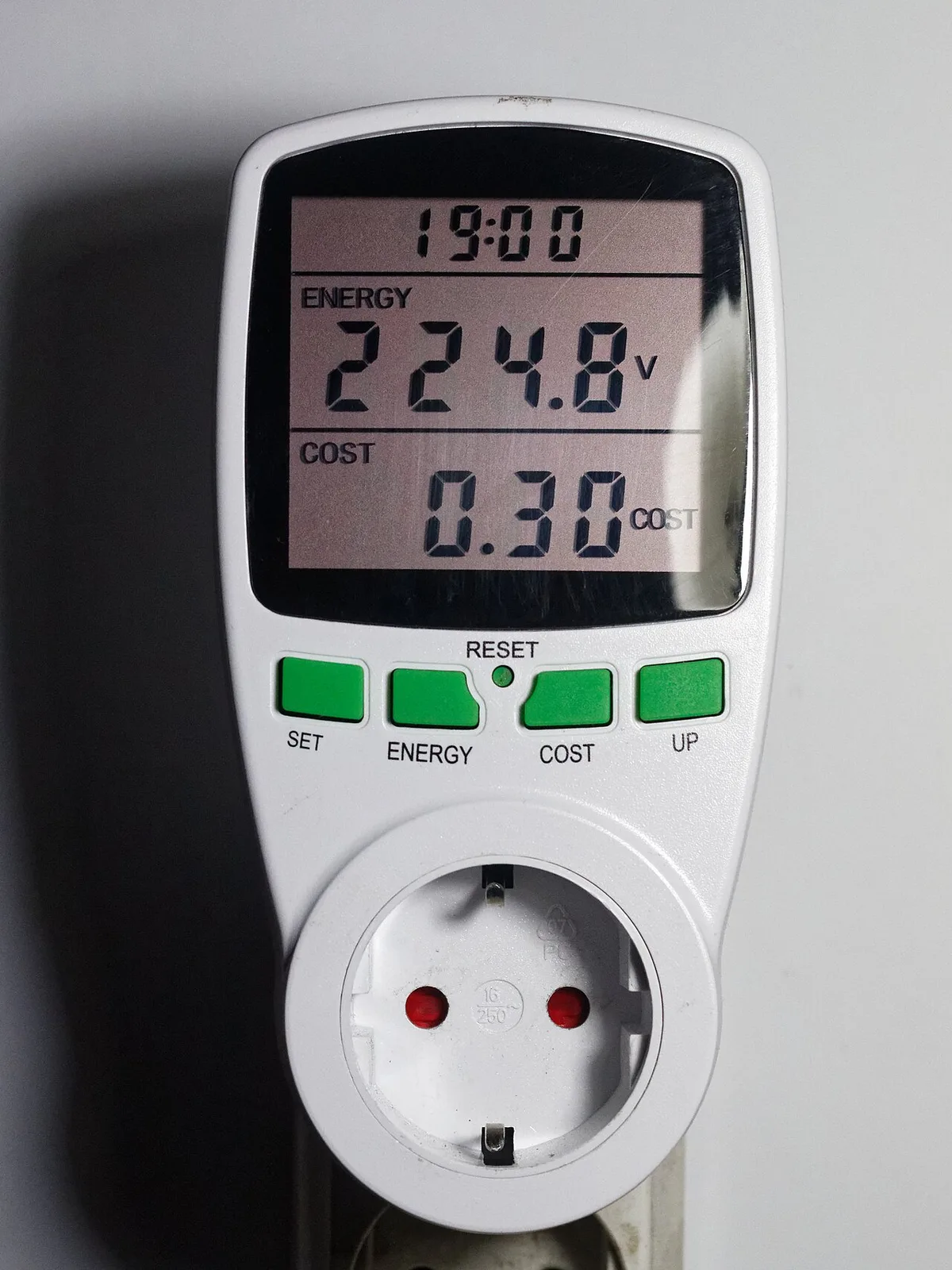
You might think plugging a smart plug into the wall gives you accurate GPU data. It doesn’t. That device measures total system draw from the outlet.
This includes the CPU, RAM, SSD, screen backlight, and fans. It also captures power supply unit (PSU) inefficiency losses as heat.
A typical laptop PSU operates at 85% to 90% efficiency. If your internal components draw 150W, the wall meter reads roughly 170W. You can’t isolate the GPU’s contribution from this aggregate number.
The variance is too high for precise diagnostics. Use wall meters only for checking if your charger is faulty or delivering unstable voltage.
In-game overlays present their own set of problems. Many free tools estimate wattage based on clock speed and utilization percentages. They don’t read actual sensor data.
These estimates are often off by 20% or more. Relying on them leads to incorrect tuning decisions.
Always verify your software sources. Stick to tools that explicitly state they read hardware sensors. HWiNFO64 pulls data directly from the GPU’s telemetry registers.
This bypasses estimation algorithms entirely. For deeper insights into laptop vs desktop differences, remember that desktop cards have dedicated power rails. Laptops share resources dynamically.
This makes shared-wall measurement even less useful for laptops. Trust internal sensors over external proxies.
Real-World Scenarios: Validating Performance Across Brands
Different manufacturers implement power limits differently. Knowing these nuances helps you interpret your readings correctly. Let’s look at common brand behaviors reported in aggregated user reviews.
ASUS ROG models often allow aggressive Dynamic Boost. An RTX 4080 Laptop might sustain 175W during benchmarks but drop to 150W in sustained gaming. Check MyASUS settings.
Sometimes “Turbo” mode disables boost features to prioritize cooling. Switch profiles to see immediate changes in your HWiNFO logs.
Lenovo Legion devices frequently cap TGP strictly. A listed 140W RTX 4070 might never exceed 135W. This is intentional design for longevity.
Don’t assume a defect. Compare against the specific SKU’s whitepaper. Some regions receive lower-wattage variants.
Verify your serial number matches the global spec sheet.
Dell Alienware units use proprietary control centers. Alienware Command Center may override Windows power plans. Ensure “Full Speed” fan profile is active.
Otherwise, thermal throttling kicks in early, masking true power capability. Manufacturer support pages provide exact TDP ranges per model year. Cross-reference these documents.
| Brand | Typical Behavior | Troubleshooting Tip |
|---|---|---|
| ASUS ROG | Aggressive boost, variable caps | Check Armoury Crate profile settings |
| Lenovo Legion | Strict TGP enforcement | Verify BIOS updates for power tables |
| Dell Alienware | Proprietary software overrides | Disable AWCC auto-tuning manually |
| HP Omen | Balanced thermal/power trade-off | Monitor CPU temps alongside GPU watts |
If your numbers fall outside expected ranges, update your BIOS first. Outdated firmware often reports incorrect sensor values. This fixes many phantom power issues.
Understanding these brand quirks saves hours of unnecessary panic. See our guide on checking CPU models to ensure you’re comparing apples to apples regarding silicon generation.
When to Worry: Thermal Throttling vs. Power Limiting
How do you know if your GPU is being restricted by heat or electricity? The symptoms look similar but require different fixes. Look at the correlation between temperature and wattage graphs.
Thermal throttling shows a sharp drop in both clocks and power once temperatures hit 86°C, 90°C. The wattage falls because the chip reduces voltage and frequency to cool down. Fan speeds usually max out right before this event.
If you see this pattern, your cooling solution is insufficient. Clean dust filters. Repaste thermal compound if the laptop is older than two years.
Consider a cooling pad with active airflow.
Power limiting looks different. Wattage hits a hard ceiling (e.g., 115W) and stays flat. Temperatures might be moderate (70°C, 80°C).
Clocks remain stable until the limit is reached. Then, frequencies drop slightly to maintain that wattage cap. This indicates the VRM or power delivery circuit is saturated.
No amount of cooling will fix this. It’s a hardware constraint defined by the manufacturer.
To distinguish them, log data every second. Plot temperature on one axis and wattage on another. If they move inversely after a threshold, it’s thermal.
If wattage plateaus while temp rises slowly, it’s power-limited. Aggregate reviews indicate that most thin-and-light gaming laptops are power-limited. Bulkier chassis tend to be thermally limited.
Know your category. Adjust expectations accordingly. Don’t chase performance gains that physics forbids.
Expert Tips for Optimizing Your GPU’s Power Curve
Once you’ve identified your constraints, you can optimize. Undervolting is the most effective method for improving efficiency without losing significant performance. It reduces the voltage supplied to the GPU core at specific clock speeds.
Start small. Lower voltage by 10mV increments using MSI Afterburner. Test stability with 3DMark Time Spy after each step.
Stop when artifacts appear or crashes occur. Revert to the last stable setting. Most users gain 5, 10% better performance-per-watt.
This lowers temperatures, allowing longer boost durations.
Another tip involves managing background processes. Chrome tabs, Discord overlays, and RGB software consume GPU cycles. Even idle tasks keep the card awake.
Close everything except the game and monitoring tool. This ensures the GPU isn’t splitting attention. Pure focus yields higher sustained clocks.
Finally, check your AC adapter rating. Using a lower-wattage charger forces battery drain. This triggers emergency power saving modes.
Always use the original brick or a certified replacement with equal or higher wattage. Third-party cables may not handle peak currents safely. Stick to OEM accessories for reliability.
Learn more about best GPUs for laptops to understand which tiers benefit most from undervolting. High-end cards waste more energy as heat. Mid-range cards gain marginal benefits.
Tailor your efforts to your hardware class.
Frequently Asked Questions About Check Your Gaming Laptop GPU
Can I check GPU wattage without installing software?
No reliable method exists for native OS tools. Windows Task Manager shows utilization percentage, not power draw. macOS Activity Monitor lacks granular GPU sensor access. You must install third-party utilities like HWiNFO64 or GPU-Z.
These programs query hardware registers directly. Native interfaces simply don’t expose this level of detail to prevent misinterpretation by average users. Software installation is mandatory for accuracy.
Why does my GPU wattage fluctuate so much during games?
Fluctuation is normal behavior. Modern GPUs adjust power dynamically based on scene complexity. Loading textures requires less power than rendering shadows.
Frame pacing varies moment to moment. Additionally, Dynamic Boost shifts power between CPU and GPU continuously. Stable averages matter more than instantaneous spikes.
Ignore micro-variations. Focus on the 5-minute rolling average for meaningful data interpretation. Consistency defines performance, not volatility.
Does higher GPU wattage always mean better performance?
Not necessarily. Efficiency matters. A 100W GPU tuned well can outperform a poorly cooled 150W card.
Diminishing returns kick in above certain thresholds. Excessive heat causes throttling, negating extra power. Optimal performance balances wattage, temperature, and clock speed.
Don’t chase raw numbers blindly. Evaluate frames-per-second stability instead. Smart engineering beats brute force in compact laptop designs.
Quality of implementation outweighs quantity of power consumption.
How accurate are online databases for laptop TGP specs?
Variable. Community-driven sites like Notebookcheck offer excellent empirical data. Official manufacturer specs sometimes list theoretical maxima rather than real-world sustains.
Always cross-reference multiple sources. User-reported benchmarks provide ground truth. Treat official PDFs as upper bounds.
Assume actual performance sits 5, 15% below paper claims. Independent testing labs validate these discrepancies regularly. Skepticism protects you from marketing hype.
Verify before purchasing or upgrading.
2 thoughts on “How to Check Your Gaming Laptop GPU Wattage in Seconds”
Comments are closed.