Is 1TB SSD enough for a gaming laptop? For many players, yes, as long as they keep a focused library and remove games they no longer play. The real issue is not the number on the box.
It is how fast modern game installs grow once updates and patches arrive.
A 1TB solid-state drive usually gives about 931GB of usable space after formatting. Windows, launchers, and one or two large AAA games can eat that quickly. Let's break down what actually matters before you decide.
is 1TB SSD enough for a gaming laptop
Yes for most players who keep a moderate library. No if you install many large AAA games at once. A 1TB drive fits Windows plus about 8 to 12 big games.
Your habits matter more than the capacity number.
What Actually Determines Your Storage Needs
Storage needs come from more than game count. They come from file size, update size, cache size, and how much free space you leave. A drive that looks huge on paper can feel small after one busy season.
A 1TB SSD is often enough for a gamer who plays a few titles at a time. It becomes tight for someone who keeps a massive backlog installed. Modded games, recorded clips, and shader caches add hidden weight too.
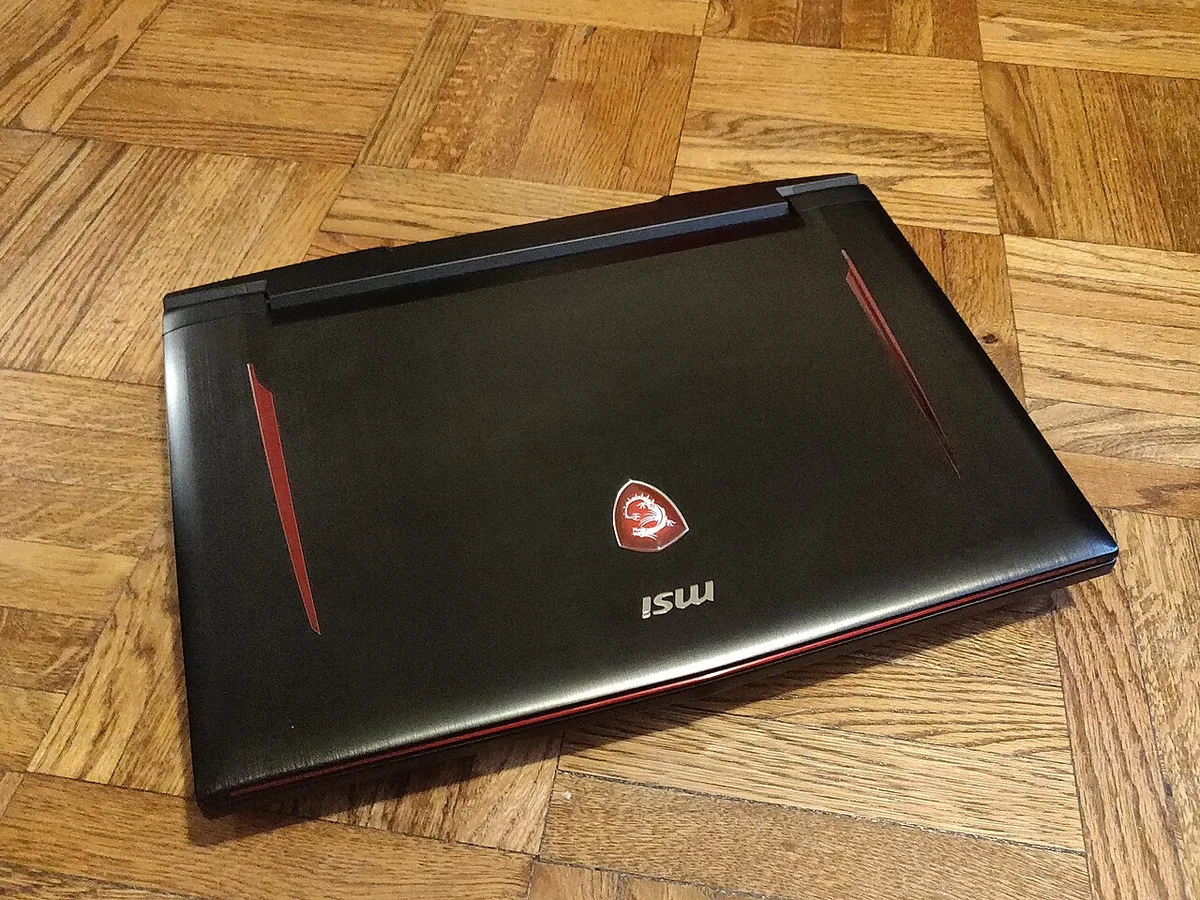
Image source: Wikimedia Commons / Kurt Kaiser
The biggest factor is your install habits. If you finish a game and uninstall it, 1TB works well. If you keep every game "just in case," you'll hit the ceiling fast.
Many launchers also keep update files until the next patch cycle.
Free space matters as much as total space. SSDs slow down when they stay nearly full. A good rule is to leave 10% to 20% free.
That means a 1TB drive should not stay packed to the last gigabyte.
Your laptop also matters. Some models have a second M.2 slot. Others do not.
If there is no second slot, your upgrade path is an external SSD or a full drive replacement.
If you're also checking system fit, see how much memory your laptop really needs. Storage and memory solve different problems, but both shape the gaming experience. JEDEC solid-state drive standards help explain why usable capacity differs from the box label.
| Factor | Why It Matters | Typical Range |
|---|---|---|
| Usable capacity | Formatting and partitions reduce space | About 931GB |
| OS and bloatware | Windows and OEM tools take space | 30GB to 50GB |
| Free space buffer | Helps SSD speed and health | 10% to 20% |
Comparing 512GB, 1TB, 2TB, and 4TB Side by Side
This is where the choice gets real. Each step up in capacity changes how you manage games. It also changes price, heat, and upgrade flexibility.
A 512GB drive is the tightest option. It suits light gaming, esports titles, and users who uninstall often. It can work for a student who plays one or two games at a time.
A 1TB drive is the middle ground. It gives room for Windows, several large games, and some media. For many buyers, it is the safest default as of 2026.
A 2TB drive is better for large libraries. It reduces install and uninstall cycles. It also leaves more room for mods, captures, and future patches.
A 4TB drive is for heavy users. It fits large libraries, content creation, and offline play. It is usually more than a casual gamer needs.
| Capacity | Best For | Main Watch Out |
|---|---|---|
| 512GB | Light gaming and tight budgets | Frequent uninstalling |
| 1TB | Most gamers | Can fill fast with AAA games |
| 2TB | Large libraries and modders | Higher cost |
| 4TB | Creators and offline play | Often unnecessary |
PCI-SIG PCIe specifications matter when comparing SSDs. A fast Gen4 drive helps load times, but capacity still decides how many games stay installed. GPU power limits affect frame rates too; check your laptop's GPU wattage if you're balancing parts.
Which Capacity Fits Your Gaming Style
Match storage to your habits, not your wish list. The best drive is the one that fits how you actually play. Be honest about how many games you keep installed.
Casual gamers usually do fine with 1TB. They play a few favorites and move on. Indie games are small, so the library stays manageable.
AAA single-player gamers need more planning. One modern title can take 100GB to 250GB. Two or three of those games can push 1TB close to full.
Competitive esports players often need less space. Many popular esports titles are under 30GB. That leaves room for updates, replays, and voice chat tools.
Modded game players need extra room. Mods, texture packs, and backups add up quickly. A 2TB drive is often the safer choice here.
Streamers and content creators need the most space. Raw clips, exports, and editing files grow fast. They may want 2TB or more, plus external storage.
College students often benefit from 1TB. It balances cost, portability, and enough space for classes plus games. Graphics mode settings can change battery life, so read about graphics mode settings if you travel often.
Common Mistakes Gamers Make With Storage
The biggest mistake is buying only for today. Game sizes grow over time. A drive that feels roomy now may feel tight next year.
Another mistake is ignoring usable capacity. A 1TB drive does not give 1,000GB to Windows. Formatting and system files reduce the number.
Plan around real usable space.
Many gamers forget about shader caches. These files can grow to several gigabytes per game. They are easy to ignore until storage runs low.
Some users fill the drive to 99%. That can hurt SSD performance. It also leaves no room for updates or temporary files.
Keep a buffer.
Another common error is skipping backups before upgrades. Drive swaps are usually simple, but mistakes happen. Save files, settings, and licenses should be backed up first.
Some buyers assume every laptop is upgradeable. That is not true. Thin models may have soldered storage or only one slot.
Check the manual before buying a larger drive.
Upgrade paths on laptops are limited, so read about upgrade paths on laptops before assuming you can add storage later. The same caution applies to memory upgrades in many thin gaming laptops.
How to Upgrade or Expand Your Laptop Storage
Start with the service manual before buying anything. It tells you how many M.2 slots your laptop has, which form factor fits, and whether the storage is soldered. Some models use 2230 drives, but most use the common 2280 size.
If you have a second slot, expansion is simple. You can add a second SSD and keep your original drive. If you only have one slot, you'll need to clone the old drive to the new one and replace it.
Back up your data first. Save files, launcher settings, and recovery keys matter. BitLocker recovery keys are easy to forget until you need them.
Follow this basic flow:
- Back up files and save data.
- Check the manual for slot count and drive size.
- Buy an NVMe SSD that matches the supported interface.
- Install the drive or clone and swap it.
- Verify the new capacity in BIOS and Windows.
| Upgrade Path | Best When | Main Caution |
|---|---|---|
| Add a second SSD | Extra M.2 slot exists | Check form factor and clearance |
| Replace main drive | Only one slot available | Clone carefully and back up first |
| Use external SSD | No upgrade path | Speed depends on USB or Thunderbolt |
Opening the chassis may affect warranty terms on some models. Many laptops allow RAM and SSD upgrades, but rules vary by brand. Check the manufacturer documentation before you start.
Thermals matter too. Fast Gen4 drives can run hot in tight laptop spaces. If your model supports a heatsink, use one.
The PCIe specifications define the interface, but real-world heat depends on the laptop design.
Expert Tips for Getting the Most From 1TB
Keep a healthy free-space buffer. Aim for 10% to 20% free at all times. That leaves room for updates, temporary files, and SSD maintenance.
Move inactive games to an external SSD. This is easier than uninstalling and redownloading later. It also keeps your main drive focused on games you play often.
Use one library folder per drive in Steam, Epic, or Xbox. This avoids confusion when moving games. It also makes cleanup faster.
Buy TLC NAND when possible. It usually offers better endurance than QLC. Check the TBW rating if you install and remove games often.
Keep save files in cloud storage. Most launchers support this. It protects you during drive swaps and unexpected failures.
Review cleanup tools before running them. Storage Sense can help, but automatic deletion may remove files you wanted. Check the settings and choose carefully.
If you're also weighing graphics memory, see how much VRAM your laptop needs. Storage capacity and VRAM solve different problems, but both affect how smoothly modern games run.
Frequently Asked Questions
Is 1TB enough for AAA gaming?
It can be if you keep only a few large games installed. One or two 150GB titles plus updates can use much of the drive. Uninstall finished games to stay safe.
Can I add a second SSD to a gaming laptop?
Many models have a second M.2 slot, but not all. Check the service manual before buying. Thin laptops may have soldered storage.
Should I choose NVMe or SATA for gaming?
Choose NVMe when the laptop supports it. It offers faster load times. SATA is slower but still fine for many games.
How much free space should I leave on a 1TB SSD?
Leave about 10% to 20%. That helps speed and update room. On 1TB, that means roughly 100GB to 200GB.
Is an external SSD good for gaming?
Yes for overflow and travel. USB-C or Thunderbolt gives better results. It will not match internal NVMe speed.
Does 1TB affect gaming performance?
Capacity alone does not change FPS. Speed and free space matter more. A nearly full drive can slow load times.
Final Verdict: Should You Buy 1TB?
Buy 1TB if you're a moderate gamer with a focused library. It's the safest default for most players. It balances cost, space, and upgrade flexibility.
Buy 2TB if you keep many large games installed. It's also better for modders, creators, and offline play. The extra space reduces constant install cycles.
Stick with 512GB only for light gaming. It works for esports titles and small libraries. It gets tight fast with modern AAA releases.
If you're unsure, 1TB is the practical choice for most gaming laptops as of 2026. You can always add external storage or upgrade later if your habits change.