Can i add a second SSD to my gaming laptop? That depends on your specific model. Some gaming laptops ship with an empty M.2 slot or a spare 2.5-inch bay.
Others cram everything into one drive and leave no room for expansion. The only way to know is to check your exact chassis and service manual.
As of 2026, most mid-range and high-end gaming laptops still offer at least one upgrade path for storage. Manufacturer specifications from brands like ASUS, MSI, and Lenovo confirm that many models support dual-drive layouts. But slot type, form factor, and interface all matter.
Let's walk through what to check before you buy anything.
can i add a second SSD to my gaming laptop
Many gaming laptops support a second SSD. Check for an empty M.2 slot or 2.5-inch bay. Confirm the slot's form factor and interface match your drive.
Verify warranty terms before opening the chassis. Always back up data first.
Why "Can I Add a Second SSD?" Has No Universal Yes
The answer changes based on your laptop model. Two laptops with the same brand name can have completely different internal layouts. One might have two M.2 slots.
Another might have one M.2 slot plus a 2.5-inch bay. A third might have only one M.2 slot total.
Gaming laptops are built around thermal and space constraints. Manufacturers route heat pipes, fans, and batteries through every available millimeter. Storage slots compete for that space.
A thin-and-light gaming laptop might sacrifice a second drive bay to keep weight down. A thicker desktop-replacement model might offer three slots.
Your warranty status also changes the answer. Some brands place warranty stickers over screw holes. Removing them can void coverage.
Others allow user upgrades without penalty. Check your manufacturer's policy before opening the chassis.
The operating system also matters. Windows can manage multiple drives easily. But if your laptop uses BitLocker encryption, adding a drive can trigger a recovery screen.
Save your recovery key before starting.
If you've ever wondered whether other parts can be upgraded too, the answer is usually similar. Many components are soldered. Storage is one of the few areas where upgrades remain possible on most models.
The Short Answer: It Depends on an Open, Compatible Slot
If your laptop has an open slot and the drive fits, yes. If it doesn't, no. That's the whole story in one sentence.
An open slot means a physical connector with no drive installed. An M.2 slot looks like a small horizontal connector on the motherboard. A 2.5-inch bay is a rectangular metal cage with a SATA connector.
Both are common in gaming laptops. Neither is guaranteed.
Compatibility means three things match. The drive's physical size fits the slot. The drive's interface matches the slot's protocol.
The drive's capacity falls within the maximum the slot supports. Miss any one of those and the drive won't work.
Checking your current hardware specs takes about five minutes. Shut down the laptop. Remove the bottom panel.
Look for an empty connector. Then cross-reference what you found with your service manual.
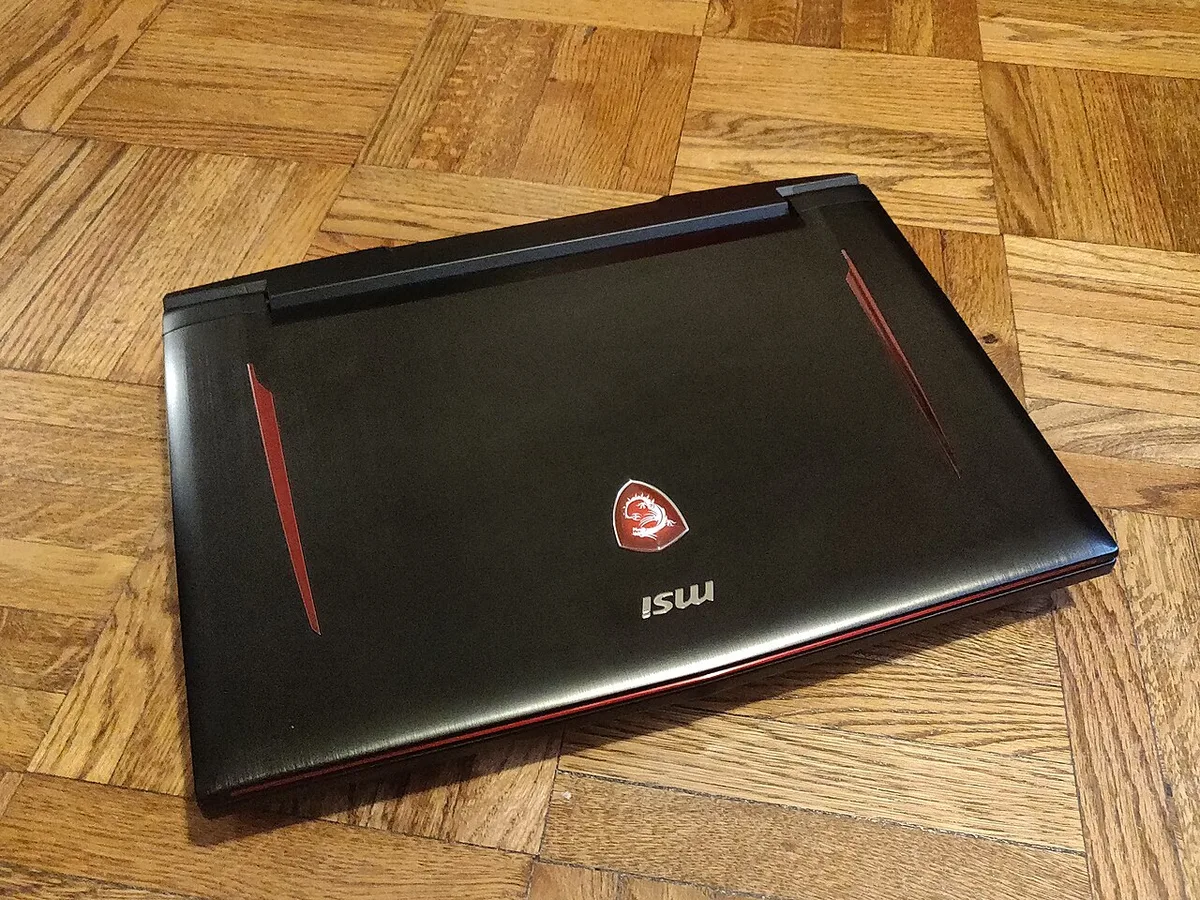
Image source: Wikimedia Commons / Kurt Kaiser
How Gaming Laptops Handle Dual Storage
Most dual-drive laptops use a primary boot drive and a secondary storage drive. The boot drive holds Windows, apps, and frequently loaded games. The secondary drive holds larger game libraries, media files, and backups.
This split keeps the OS responsive while giving you room for big installations.
The primary drive is almost always an M.2 NVMe SSD. NVMe stands for Non-Volatile Memory Express. It's the protocol that lets flash storage communicate directly with the CPU over PCIe lanes.
M.2 is the physical form factor. It's a small stick of memory that screws into the motherboard.
The secondary drive varies. Some laptops use a second M.2 slot, often running at PCIe 3.0 or 4.0 speeds. Others use a 2.5-inch SATA bay.
SATA III maxes out around 550 MB/s. That's slower than NVMe but fine for game storage. Many AAA games load in roughly the same time from a SATA SSD as from a budget NVMe drive.
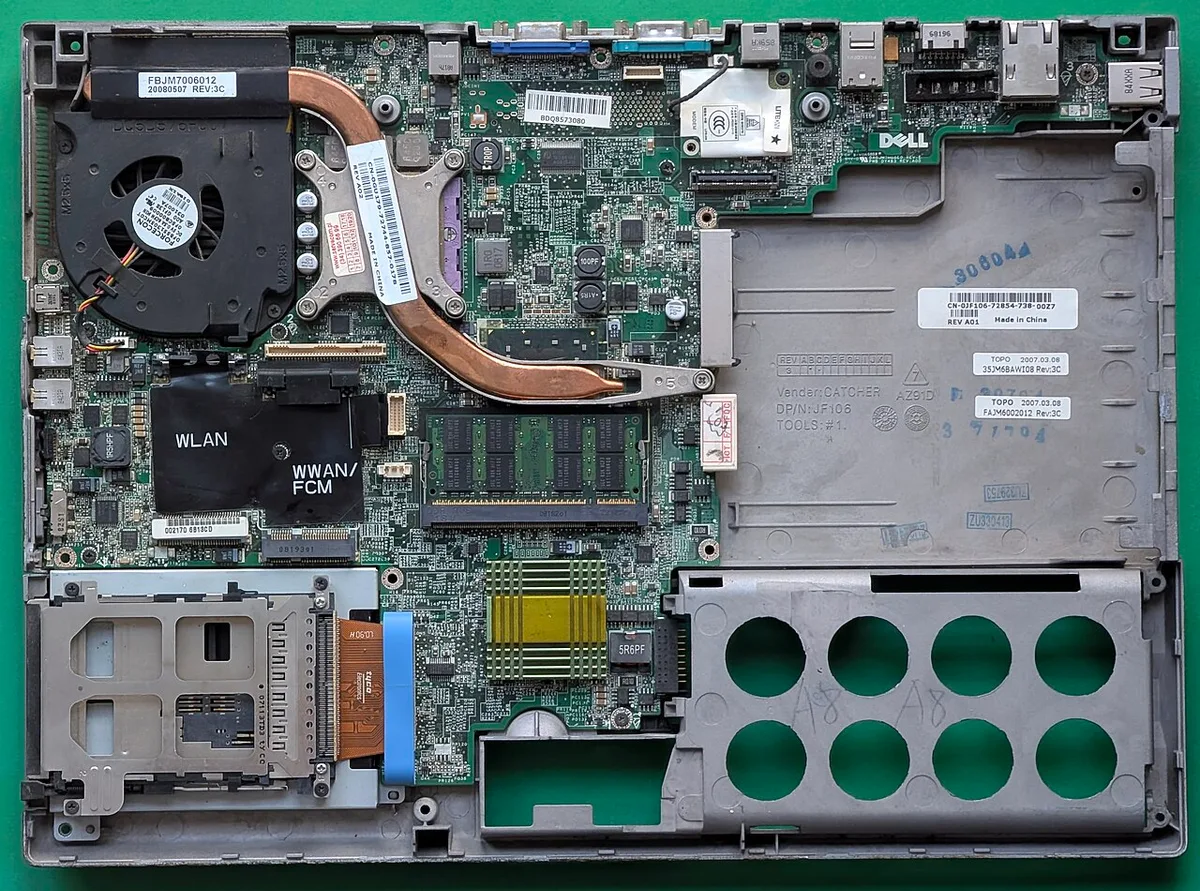
Image source: Wikimedia Commons / Siarhei Besarab (CC BY-SA)
PCIe lane allocation matters here. The CPU has a limited number of lanes. Sharing them between the GPU and storage can reduce speeds.
Some laptops disable the second M.2 slot when certain GPU configurations are active. Check your service manual for these limitations.
Thermal design also plays a role. NVMe drives generate heat under sustained loads. Gaming laptops already run hot.
A second drive without proper cooling can throttle. Some chassis include thermal pads or small heatsinks for the second slot. Others leave the drive exposed to ambient airflow.
If you're thinking about how much storage capacity your games need, factor in game sizes. Modern AAA titles can exceed 100 GB each. A 1 TB drive fills up faster than most people expect.
Compatibility Checklist Before You Buy a Second SSD
Run through this checklist before spending money. Each item takes a few minutes to verify. Skipping one is the most common reason upgrades fail.
- Slot type: Is it M.2 or 2.5-inch? M.2 connectors are small and flat. 2.5-inch bays are rectangular metal cages.
- Form factor: For M.2, check the length. Common sizes are 2230, 2242, 2260, 2280, and 22110. The numbers represent width and length in millimeters. 2280 is the most common for gaming laptops.
- Interface: NVMe or SATA? M.2 slots support one or both. Check your service manual. An M-key slot usually means NVMe. A B+M-key slot often supports both.
- Keying: M-key slots have one notch. B+M-key slots have two. Match the drive's key to the slot.
- Single-sided vs. double-sided: Double-sided modules are thicker. Some slots don't have clearance for them. Single-sided drives are safer for tight spaces.
- Heatsink clearance: If the slot has a heatsink, check the maximum drive height. Adding a drive that's too thick can bend the motherboard.
- Capacity limit: Some older slots max out at 2 TB. Newer ones support 4 TB or more. Verify before buying a large drive.
- Standoff and screw: The mounting hole must align with the drive length. Missing standoffs are a common issue in laptops that shipped with one drive.
Checking your current hardware specs first saves money. A five-minute look inside the chassis prevents a costly return.
JEDEC standards define M.2 form factors and keying. These specifications are maintained by the industry standards body for memory and storage.
Step-by-Step: Check, Install, and Set Up the New Drive
Follow these steps in order. Rushing the process is how people damage laptops.
Before You Open the Chassis
- Back up important data to an external drive or cloud service.
- Save your BitLocker recovery key if encryption is enabled.
- Shut down the laptop completely. Don't just close the lid.
- Unplug the power adapter.
- Remove the battery if it's removable. If it's internal, disconnect the battery cable after opening the bottom panel.
- Use an ESD wrist strap or touch a grounded metal surface to discharge static.
- Gather tools: a Phillips-head screwdriver, plastic pry tool, and a small container for screws.
Physical Installation and Reassembly
- Remove the bottom panel screws. Keep them organized by size.
- Use a plastic pry tool to gently release the panel clips. Work around the edges.
- Locate the empty M.2 slot or 2.5-inch bay.
- Insert the drive at a 30-degree angle. Push gently until it seats.
- Press the drive down and secure it with the standoff screw. Don't overtighten.
- If the slot has a thermal pad, remove the protective film before seating the drive.
- Reconnect the battery cable if you disconnected it.
- Reattach the bottom panel and screws.
BIOS Detection, Initialization, and Formatting
- Power on the laptop and enter BIOS. Look for the drive in the storage section.
- If the drive isn't detected, reseat it and try again.
- Boot into Windows. Open Disk Management.
- Initialize the disk. Choose GPT for modern systems.
- Create a new simple volume and format it as NTFS.
- Assign a drive letter.
- Verify the drive appears in File Explorer.
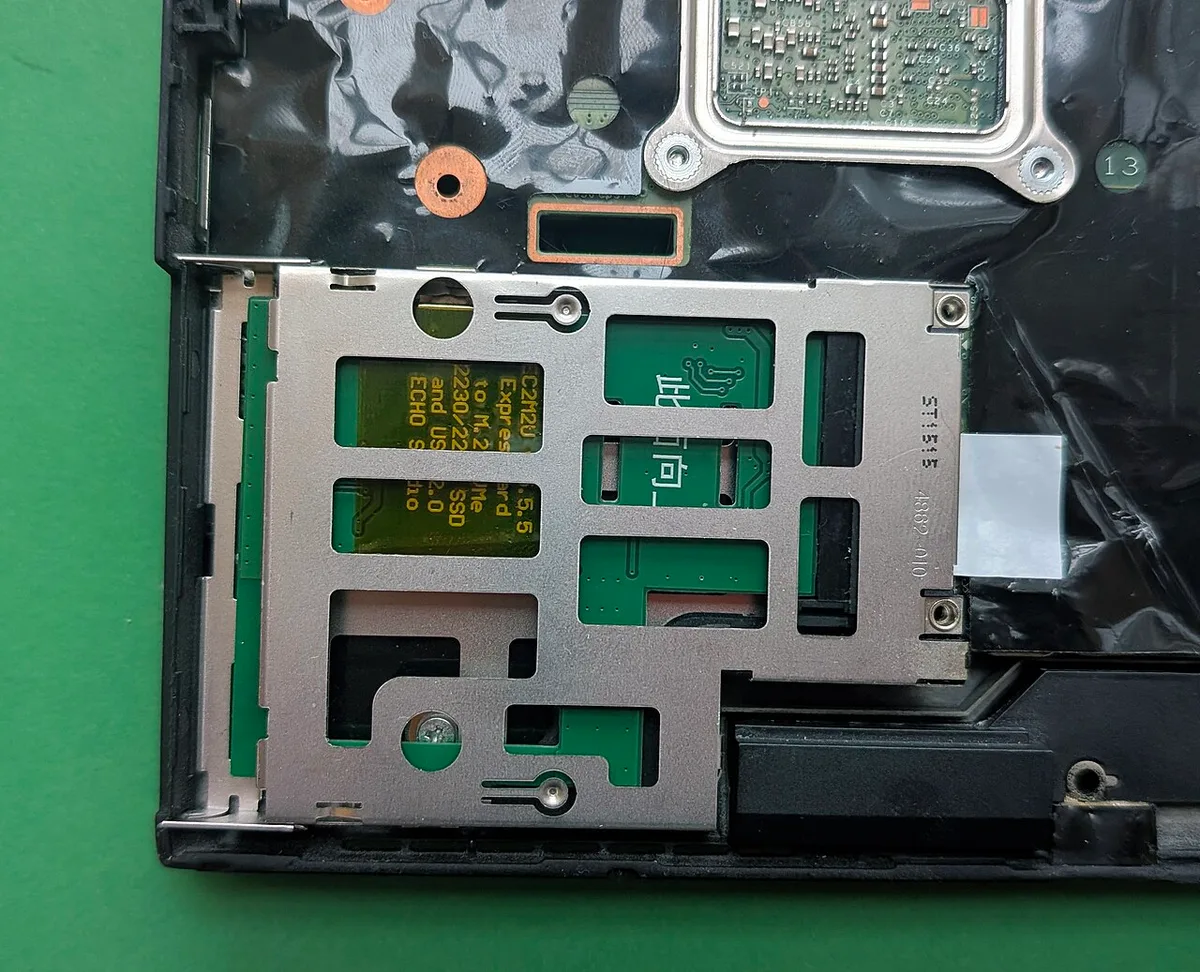
Image source: Wikimedia Commons / Siarhei V (CC BY-SA)
After installation, monitor temperatures during gaming sessions. If the drive runs hot, consider adding a thermal pad or reducing sustained workloads.
NIST provides guidance on media sanitization for anyone planning to sell or recycle an old drive. Their standards help ensure data is properly erased before disposal.
Whether balanced system performance matters to you depends on your full setup. Storage is just one piece of the puzzle. RAM, GPU, and cooling all play a role in how your laptop performs under load.
Add a Second SSD vs. Replace Your Primary Drive
When your laptop has an open slot, adding a second drive is usually the better choice. You keep your current OS installation. You avoid reinstalling Windows and all your apps.
The process takes less time and carries less risk.
Replacing your primary drive makes sense in different situations. If your current boot drive is small, slow, or failing, a fresh NVMe SSD with more capacity solves multiple problems at once. You also avoid the complexity of managing two separate drives.
Adding a second drive wins on convenience. Your Windows installation stays intact. Your game settings and save files remain where they are.
You just format the new drive and start installing games to it. Most game launchers let you choose the install location per game.
Replacing the boot drive wins on simplicity. One drive means one point of failure. You don't manage multiple drive letters or wonder which drive has free space.
A single large NVMe SSD also delivers the fastest possible load times for everything.
If your laptop only has one slot, you don't get a choice. You must replace the existing drive. In that case, clone your old drive to the new one before swapping.
Cloning software from Samsung, Crucial, and WD makes this straightforward.
The decision also depends on your budget. A 1 TB NVMe drive costs roughly $60 to $90 as of 2026. A 2 TB model runs about $100 to $150.
Adding a second 1 TB drive is cheaper than replacing a 512 GB boot drive with a 2 TB model. But replacing gives you one fast drive instead of a fast one and a slower one.
Who should add a second drive? Gamers with large libraries who want to avoid reinstalling Windows. Who should replace?
Anyone whose boot drive is under 512 GB or showing signs of wear.
If you're also considering a RAM upgrade, the same principle applies. Check compatibility before buying. Our guide on how much RAM a gaming laptop really needs covers that side of the equation.
Costs, Capacities, and Real-World Performance Expectations
Storage pricing has dropped significantly over the past few years. As of 2026, a 1 TB NVMe SSD costs between $50 and $80. A 2 TB model runs $90 to $140.
SATA 2.5-inch drives are slightly cheaper per gigabyte but slower.
Capacity choices depend on your game library. A modern AAA title takes 80 to 150 GB. Indie games and older titles use 5 to 20 GB.
If you play five or six current AAA games, a 1 TB drive fills up fast. A 2 TB drive gives more breathing room.
Performance differences between NVMe and SATA matter less than you'd think. Loading a game from a PCIe 4.0 NVMe drive takes roughly 10 to 15 seconds. The same game from a SATA SSD takes 15 to 25 seconds.
The gap is real but small. Both crush mechanical hard drives, which can take 45 to 90 seconds.
PCIe generation affects peak speeds. PCIe 3.0 NVMe drives top out around 3,500 MB/s. PCIe 4.0 drives reach 7,000 MB/s.
PCIe 5.0 drives exceed 12,000 MB/s. But game loading doesn't scale linearly with bandwidth. A PCIe 4.0 drive loads games only slightly faster than a PCIe 3.0 drive.
What actually matters is sustained performance and thermal behavior. A drive that throttles under sustained load performs worse than its spec sheet suggests. Gaming sessions with large open-world games stress storage more than simple level loads.
Check aggregate reviews for real-world sustained write speeds.
Form factor affects price too. M.2 2280 drives are the most affordable and widely available. Smaller form factors like 2230 cost more per gigabyte.
They're often used in handheld gaming devices and thin laptops.
Here's a quick comparison of common options:
| Drive Type | Typical Speed | Price per GB (2026) | Best For |
|---|---|---|---|
| PCIe 4.0 NVMe (M.2 2280) | 5,000-7,000 MB/s | $0.05-$0.07 | Primary or secondary drive |
| PCIe 3.0 NVMe (M.2 2280) | 3,000-3,500 MB/s | $0.04-$0.06 | Budget upgrades, secondary storage |
| SATA III SSD (2.5-inch) | 500-550 MB/s | $0.04-$0.05 | Secondary game storage |
| PCIe 5.0 NVMe (M.2 2280) | 10,000-12,000 MB/s | $0.08-$0.12 | High-end builds, not needed for gaming |
Common Mistakes, Warranty Risks, and Safety Checks
Buying the wrong form factor is the most common mistake. A 2280 drive won't fit in a 2230 slot. An NVMe drive won't work in a SATA-only slot.
Always verify the slot type before purchasing.
Forgetting to check single-sided vs. double-sided clearance is the second most common error. Double-sided modules have components on both sides. Some laptop slots only have clearance for single-sided drives.
The drive physically fits but the bottom panel won't close properly.
ESD damage is a real risk. Static electricity can kill a drive or motherboard. Touch a grounded metal surface before handling components.
Use an ESD wrist strap if you have one. Work on a hard, non-carpeted surface.
Battery safety matters. Internal batteries are lithium-ion. Puncturing one during disassembly can cause fire or explosion.
Remove the battery cable before touching any internal components. If the battery is swollen, stop and seek professional help.
Warranty terms vary by brand. Some manufacturers void warranty if you open the chassis. Others allow upgrades but require you to keep original parts.
Check your specific policy. ASUS and MSI generally allow user upgrades. Some Lenovo models have stricter terms.
Keep your original screws and parts in case you need to revert.
Over-tightening the M.2 screw is another common error. The screw only needs to hold the drive flat. Cranking it down can strip the standoff or crack the drive's PCB.
Finger-tight plus a quarter turn is enough.
Forgetting to initialize the drive in Windows trips up many users. The drive shows up in BIOS but not in File Explorer. Open Disk Management and initialize it as GPT.
Then create a new volume and format it.
BitLocker encryption can complicate things. Adding a drive may trigger a recovery screen on next boot. Save your recovery key to a USB drive or print it before starting.
The key is available in your Microsoft account or through the BitLocker control panel.
If you've ever dealt with GPU upgrade limitations, the same caution applies. Not every component is user-serviceable. Our article on whether you can upgrade a gaming laptop GPU covers similar warranty considerations.
FAQ and Decision Guide: When a Second SSD Makes Sense
Will adding a second SSD void my warranty?
It depends on the brand. Some manufacturers allow user upgrades without affecting coverage. Others void the warranty if you remove the bottom panel.
Check your specific model's warranty terms before opening the chassis. Keep all original parts and screws in case you need to revert.
Can I use any M.2 SSD in any M.2 slot?
No. M.2 slots support different interfaces and form factors. An NVMe drive won't work in a SATA-only slot.
A 2280 drive won't fit in a 2230 slot. Check your service manual for the supported interface, keying, and maximum length before buying.
Do I need to reinstall Windows after adding a second SSD?
No. Windows stays on your primary drive. The new drive appears as a secondary volume.
You format it and start using it immediately. No reinstallation needed. Just point your game launchers to the new drive letter for installations.
How long does the installation take?
The physical installation takes 15 to 30 minutes for most people. BIOS detection and Windows initialization add another 5 to 10 minutes. Plan for about 45 minutes total including prep and cleanup.
First-time builders should budget an hour.
Is a second SSD better than an external drive?
For gaming, yes. An internal NVMe SSD delivers lower latency and higher bandwidth than any USB connection. External drives work well for backups and media storage.
But game load times suffer over USB, even with Thunderbolt. Internal storage is the better choice for active game libraries.
What if my laptop has no second slot?
If there's no open slot, you can't add a second internal drive. Your options are replacing the primary drive or using external storage. Replacing requires cloning or reinstalling Windows.
External drives work but load games slower. Check your service manual to confirm before giving up.
Should I clone my old drive or start fresh?
Cloning is faster. You keep all your settings, apps, and files. Starting fresh eliminates accumulated junk and potential software conflicts.
If your current installation is clean and running well, clone it. If it's been years since a fresh install, consider starting over.
What size second SSD should I buy?
A 1 TB drive suits most gamers. It holds 6 to 10 modern AAA games. A 2 TB drive is better if you keep many games installed.
A 500 GB drive works for smaller libraries or indie games. Match the capacity to your actual usage, not your wishlist.