Gaming laptops don't usually fail overnight. They fade, and the slowdown creeps in until your favorite game stutters or boots take forever. If you've asked why does a gaming laptop get slower over time, the honest answer is that heat, dust, software bloat, and aging parts usually team up.
The good news is that each cause leaves clues, so you can fix the right thing instead of guessing.
Intel's mobile processor guidance shows many gaming CPUs throttle when they hit roughly 95 to 100 C under load. That single number explains a lot of "mystery" slowdowns. Once you know which subsystem is choking, the fix is often simpler than replacing the whole machine.
Let's walk through the decision tree.
Why Your Gaming Laptop Feels Slower Than It Used To
A slow gaming laptop rarely means the whole machine is dying. It usually means one bottleneck is dragging everything else down. The trick is matching the symptom to the subsystem.
Common slowdown patterns include:
- Frame rates drop only after 20 minutes of play
- Boot time stretches from 20 seconds to over a minute
- Games hitch during big scenes but run fine in menus
- Fans get louder while performance stays flat
- Battery life drops and the charger feels hot
If you only see the problem in one game, suspect that game's settings or driver profile. If every game and app feels slower, look at storage, memory, heat, or background software.
A useful rule is this: fast at idle but slow under load points to heat or power. Slow everywhere points to storage, memory, or software. That split saves hours of random tweaking.
The Real Reason: It's Rarely Just One Thing
Gaming laptops age in layers. Thermal paste dries out, dust blocks vents, storage fills up, and Windows collects background tasks. Each layer adds friction, and together they feel like one big slowdown.
Heat is the loud villain. When the CPU or GPU gets too hot, it lowers clock speed to protect itself. That is thermal throttling, and it can cut performance hard even if the laptop still feels normal at idle.
You may also see loud fans, hot palm rests, or sudden frame drops.
Storage is the quiet villain. A nearly full SSD or an old hard drive can make games stutter during asset loading. Memory matters too.
If your laptop has 8 GB of RAM and modern games want more, Windows starts paging to disk, and that feels like lag.
Battery and power delivery also matter. A weak battery, a low-watt charger, or a clogged vent can all reduce boost behavior. In our research, many "old laptop" complaints trace back to heat and storage before true hardware failure.
How Heat, Power, and Software Interact
The three systems are chained together. Heat reduces clock speed. Lower clock speed increases load time.
Longer load keeps the system hot longer. Software bloat adds CPU work on top of that loop.
Power plans matter more than many people think. A "balanced" or "quiet" mode may cap turbo boost to keep temperatures down. That is fine for browsing, but it can make a gaming laptop feel oddly slow in heavy games.
Switching to a performance plan often restores expected behavior, as long as cooling can keep up.
Background software adds invisible load. Launchers, RGB tools, cloud sync, and browser tabs all use CPU, RAM, and disk. A laptop with 100 percent disk usage at idle will not game well, even if the CPU looks fine.
If your machine runs hot on soft surfaces, that is a real cooling problem, not a minor annoyance. A bed or couch blocks intake vents and traps heat. Our guide on soft surfaces and overheating explains why that setup can trigger throttling so quickly.
Diagnose Before You Fix: A Step-by-Step Decision Tree
Don't clean, repaste, or reset anything yet. First, identify the bottleneck. This keeps you from spending money on the wrong fix.
Branch 1: Thermal Throttling
Start here if games run fine for a few minutes, then stutter or drop frames. That pattern screams heat.
Check these signs:
- CPU or GPU temps climb past roughly 90 C during play
- Clock speeds drop while load stays high
- Fans spin at max but temps barely move
- Performance improves right after a break
If that matches, clean the vents and fans first. Dust acts like insulation, and even a thin layer can raise temps. Then check whether the laptop sits on a hard, flat surface with room to breathe.
A stand or raising the laptop can improve airflow without opening anything.
If cleaning and airflow don't help, the thermal paste may be dried out. Manufacturer service manuals often suggest repasting every few years, especially on high-TDP gaming models. Liquid metal can lower temps, but it carries shorting risk and may void warranty.
For most owners, a quality standard paste is the safer choice.
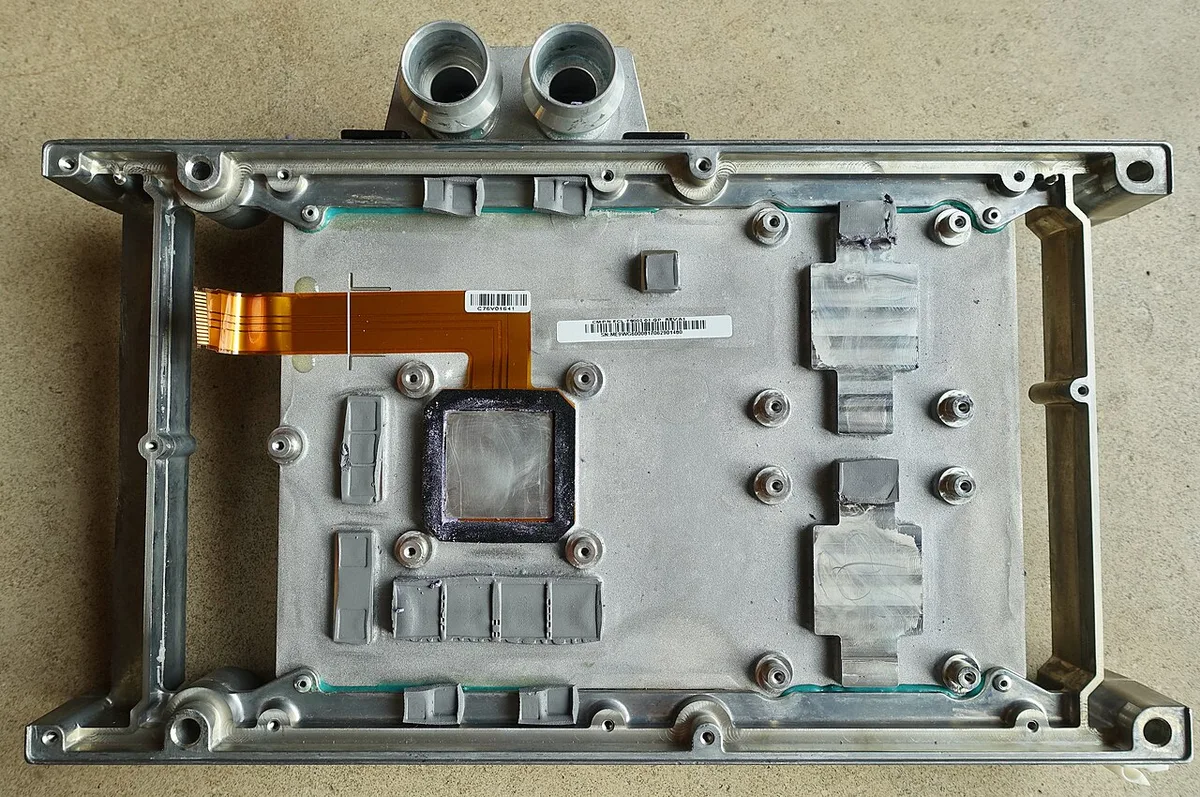
Image source: Wikimedia Commons / Steve Jurvetson from Los Altos, USA (CC BY)
Branch 2: Storage and Memory Bottlenecks
Use this branch if the whole laptop feels sluggish, even in simple tasks. Slow boots, long level loads, and disk usage stuck near 100 percent are classic signs.
Check these signs:
- Boot takes much longer than it used to
- Games hitch while loading new areas
- Task Manager shows high disk usage at idle
- RAM usage stays above 85 percent during play
An NVMe SSD is much faster than an old SATA SSD or hard drive for random reads, which is what games and Windows use constantly. If your laptop still uses a hard drive, upgrading storage is one of the biggest real-world wins. If storage is already an SSD but nearly full, free up space first.
Keeping roughly 15 to 20 percent free helps SSD performance and longevity.
Memory upgrades help when RAM is maxed out. Many gaming laptops ship with 8 GB, and that can be tight for modern titles. If your RAM is soldered, software cleanup becomes more important than hardware upgrades.
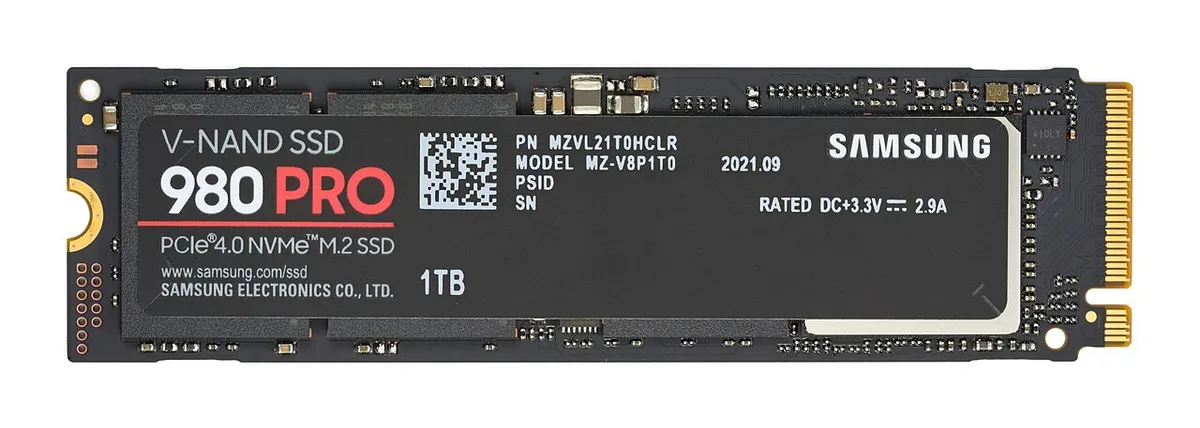
Image source: Wikimedia Commons / D-Kuru (CC BY-SA)
Branch 3: Software and Background Load
Use this branch if temps look normal but performance is inconsistent. Software problems often hide behind "random" lag.
Check these signs:
- CPU spikes at idle with no game running
- Disk usage jumps during updates or cloud sync
- Old driver versions show in Device Manager
- Startup apps take forever to load
Start with Task Manager. Look for processes using CPU, memory, or disk when you are doing nothing. Disable unnecessary startup apps, uninstall bloatware, and update GPU drivers from the official manufacturer site.
A malware scan is also worth doing before deeper repairs.
If the system is badly cluttered, a clean Windows install can restore responsiveness. Back up your files first, because a reset wipes apps and settings. This is usually a software fix, not a hardware fix, and it can make an older laptop feel surprisingly new.
Fix vs. Upgrade: What Actually Restores Performance
Once you know the bottleneck, choose the cheapest fix that solves the real problem. Don't upgrade everything at once. Change one thing, test, and measure.
| Situation | Best first move | Why it helps | When to spend more |
|---|---|---|---|
| Temps hit 90 C plus and frames drop | Clean vents, improve airflow | Removes insulation and restores cooling | Repaste if temps stay high |
| HDD or nearly full SSD | Upgrade to NVMe SSD or free space | Faster random reads and game loading | Add more storage if library is huge |
| RAM maxed during play | Add RAM if upgradeable | Reduces paging to disk | Replace laptop if RAM is soldered and too small |
| High idle CPU or disk usage | Remove bloatware and update drivers | Cuts background load | Clean Windows install if clutter is severe |
| Loud fans but okay temps | Check power plan and fan curves | Prevents unnecessary boost limits | Replace worn fans only if noise is mechanical |
Our research shows that cleaning and airflow fixes often restore a surprising amount of performance on laptops that seemed "old." If you want more targeted help, guides on simple performance gains and cooling and frame rates can help you avoid guesswork.
A quick warning: don't jump straight to liquid metal unless you understand the risks. It can lower temps, but a spill can short components and void warranty. For most owners, standard paste and better airflow are the smarter first steps.
As of 2026, many gaming laptops still use soldered RAM and compact cooling. That means maintenance matters more than it did on older, more modular designs. A laptop that is cleaned, kept cool, and not stuffed with background apps can stay fast far longer than its age suggests.
Mistakes That Make a Slow Laptop Worse
Some fixes create bigger problems. The most common mistake is cleaning with the laptop running or using a vacuum too close to fans. That can damage bearings or push dust deeper into the heatsink.
Another mistake is spraying compressed air at an angle that spins fans too fast. Hold the fan still with a toothpick or plastic tool before blasting air.
Software mistakes are just as common. Installing "PC booster" apps often adds background services and makes the machine slower. Download drivers from NVIDIA or your laptop maker, not random download sites.
If you reset Windows, back up files first, because a reset removes apps and settings.
Thermal mistakes matter most. Repasting with liquid metal can lower temps, but it can also short nearby parts and void warranty. If you open the chassis, use proper ESD precautions and follow the service manual.
Don't guess where pads or screws go.
If performance drops after a change, undo that change first. Troubleshoot one variable at a time. That is faster than stacking fixes and hoping one works.
Never block exhaust with a wall, pillow, or blanket. Don't ignore new fan noise, because it can signal a failing bearing.
What Fixes Cost and What's Worth Spending On
Most slowdowns don't need a new laptop. Start with free fixes: cleaning vents, changing power plans, removing startup apps, and updating drivers. Those often restore a lot of speed.
If hardware is the limit, costs vary by part and labor. Use this rough guide before you spend money.
| Fix | Typical cost | Best for | Skip if |
|---|---|---|---|
| Vent and fan cleaning | $0 to $20 | Dusty laptops | Temps are already normal |
| Cooling pad or stand | $20 to $60 | Hot laps on desks | You need a real internal fix |
| Thermal repaste | $20 to $120 | High temps after cleaning | Warranty is still active |
| RAM upgrade | $30 to $120 | 8 GB systems under load | RAM is soldered |
| NVMe SSD upgrade | $50 to $200 | HDD or full SSD | Storage is already fast |
| Battery replacement | $60 to $180 | Swollen or weak battery | Battery health is fine |
Spend money on the bottleneck, not the symptom. A cooling pad won't fix a full hard drive. A new SSD won't fix dried thermal paste.
If your laptop is older and needs several expensive repairs, compare the total cost with a replacement. Also check warranty status before paying for service.
Keeping It Fast for Years
Maintenance is cheaper than repair. Clean vents and fans on a schedule based on your environment. Dusty rooms need more frequent cleaning.
A good starting point is every three to six months, then adjust based on temps and fan noise. Our guide on fan cleaning frequency can help you set a routine.
Keep airflow simple. Use a hard, flat surface. Raise the rear slightly if intake vents are underneath.
Don't block exhaust with walls or pillows. If temps still climb, lower settings or cap frame rates. That reduces heat without hurting play much.
Protect storage and memory too. Keep 15 to 20 percent of SSD space free. Close heavy browser tabs before gaming.
Uninstall games you don't play. Update GPU drivers from the official site, but don't update everything on launch day if stability matters.
Battery care also helps long-term. Avoid constant 100 percent charge if your laptop supports a charge limit. Keep it cool, because heat ages batteries fast.
A laptop that stays cool and uncluttered usually ages gracefully. Check safe CPU temps when you change settings.
Frequently Asked Questions
Why does a gaming laptop get slower over time?
Dust, dried thermal paste, full storage, low RAM, and background software usually cause the slowdown. Heat triggers throttling, which lowers clock speeds during games. Fixing the bottleneck often restores most performance.
Can dust really make a gaming laptop slower?
Yes. Dust blocks vents and insulates heatsinks, so temps rise. Higher temps trigger thermal throttling.
Cleaning vents and fans can lower temps and restore speed.
Is thermal paste replacement worth it?
It can be worth it when temps stay high after cleaning and airflow fixes. Dried paste reduces heat transfer from CPU or GPU to the heatsink. Use standard paste unless you understand liquid metal risks.
Does adding RAM fix a slow gaming laptop?
Adding RAM helps when memory is the bottleneck. If RAM usage stays high and the system pages to disk, more memory can reduce stutter. It won't fix overheating or a failing drive.
Should I factory reset my gaming laptop?
A reset can help when software bloat, malware, or broken updates cause slowdowns. Back up files first. It won't fix hardware heat or storage wear.
Final Verdict: Your Decision Guide
Start with symptoms, not guesses. If frames drop after warmup, fix heat first. If everything feels slow, check storage and RAM.
If temps are normal but lag is random, clean up software.
Use this simple order: clean vents, improve airflow, free storage, remove bloatware, update drivers, then consider RAM or SSD upgrades. Repaste only after cleaning fails and temps stay high. Replace the laptop only when repair costs stack up or parts are soldered and too small.
For most owners, maintenance restores years of life. Keep it cool, keep storage free, and keep background apps under control. That is the real fix for thermal throttling and long-term slowdown.
1 thought on “Why Your Gaming Laptop Gets Slower Over Time”
Comments are closed.