Liquid metal can make a gaming laptop run cooler, but it is not automatically safe. The real answer depends on your laptop's design, how it is applied, and whether you are willing to accept warranty and damage risks.
Manufacturer specifications show gallium-based liquid metal conducts heat far better than standard paste, but it also conducts electricity. That single trait changes everything about safety.
is liquid metal cooling safe for gaming laptops
Liquid metal cooling can be safe in some gaming laptops. It is not safe by default. Factory-applied systems are safer than DIY.
DIY work raises short and warranty risks. Use it only with proper prep and monitoring.
Why Liquid Metal Is Not Just "Better Thermal Paste"
Liquid metal is a gallium-based thermal interface material. It sits between the CPU or GPU die and the heatsink. Its job is to move heat away fast.
Standard paste uses non-conductive particles in a silicone base. Liquid metal uses a metal alloy that flows when warm. That gives it much higher thermal conductivity.
Thermal conductivity is measured in watts per meter-kelvin. Standard paste often lands around 8 to 12 W/m·K. Many liquid metal products land around 70 to 80 W/m·K.
That sounds like a clear win. It is not that simple. Liquid metal is electrically conductive.
Standard paste is not.
This matters because laptop dies sit close to tiny surface-mount components. A small spill can bridge two contacts. That can kill a board instantly.
Liquid metal also behaves differently under heat. It can spread, creep, or pump out over time. Some laptops handle this well.
Others do not.
If you want a broader cooling plan first, start with cooling fixes before changing thermal materials.
The Real Risks: Shorts, Corrosion, and Voided Warranties
The biggest risk is an electrical short. Liquid metal can touch exposed capacitors, resistors, or traces. It does not need much volume to cause damage.
The second risk is corrosion. Some liquid metal alloys react with aluminum. Many gaming laptops use aluminum cold plates.
That reaction can damage the heatsink over time.
The third risk is warranty loss. Most brands treat DIY thermal work as user damage. If a board fails after repasting, support may deny the claim.
These risks are not rare edge cases. They are the main reason experts treat liquid metal as a specialty mod, not a routine upgrade.
Watch for these warning signs before you even open the laptop:
- Exposed SMDs sitting near the CPU or GPU die
- An aluminum cold plate with no protective coating
- A very tight heatsink with no room for error
- A laptop still under active warranty
- No conformal coating on the surrounding board area
If two or more apply, liquid metal is probably a bad idea. A high-end non-conductive paste is safer.
Factory systems reduce some risk, but they do not remove it. OEM liquid metal can still migrate if the laptop is dropped or overheated.
For context on safe heat levels, review safe CPU range and GPU heat limits.
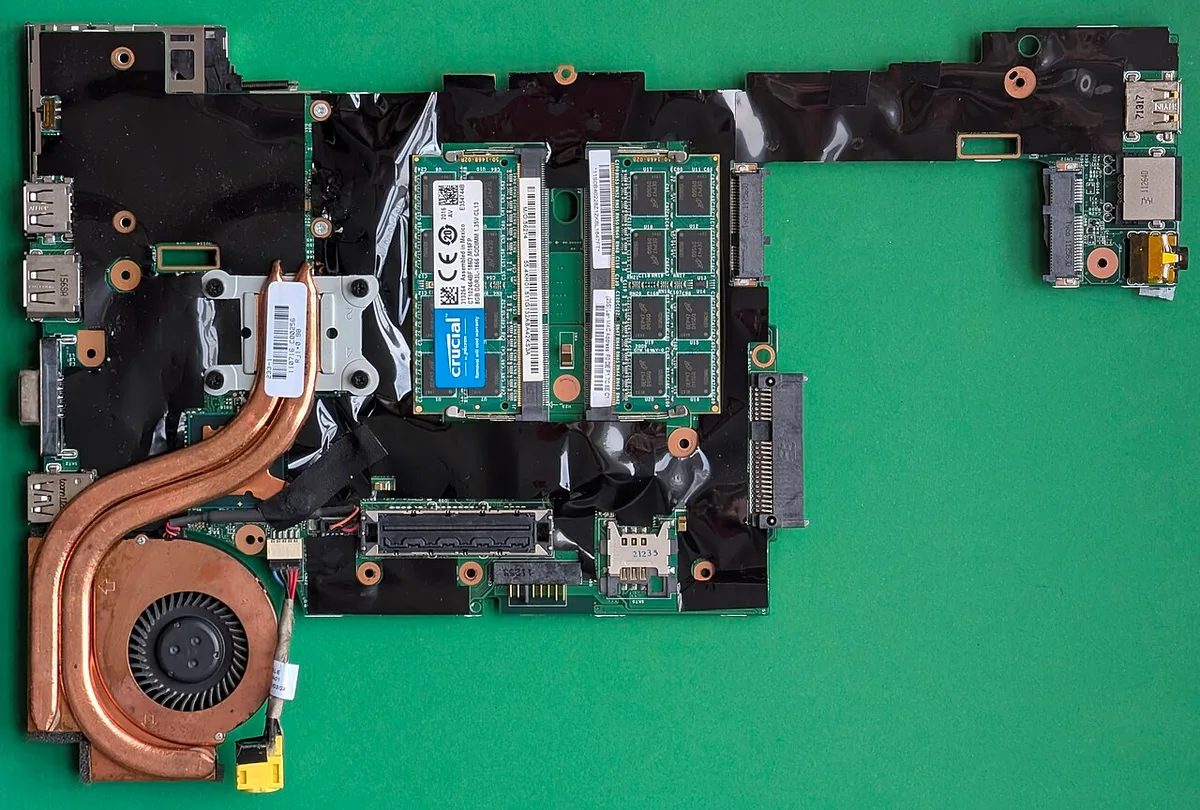
Image source: Wikimedia Commons / Siarhei Besarab (CC BY-SA)
Factory-Applied vs DIY: Where the Danger Actually Lives
Factory-applied liquid metal is different from a home job. OEMs use controlled amounts, proper barriers, and tested pressure. They also design the cooling system around the material.
DIY work adds human error. Too much liquid metal is a common mistake. It only takes a small excess to reach nearby components.
Factory application does not mean zero risk. It means the risk was managed during design. If you open that laptop later, you take ownership of that risk.
Here is the practical split:
| Option | Main advantage | Main risk |
|---|---|---|
| Factory liquid metal | Controlled application and design fit | Harder repairs and possible migration |
| DIY liquid metal | Lower temps and less noise | Shorts, corrosion, warranty loss |
| High-end conventional paste | Safer and easier to clean | Smaller temperature drop |
| Phase-change pad | Clean application and stable spread | May not match liquid metal peak gains |
If your laptop already ships with liquid metal, do not assume it needs more. Many users see better results from cleaning vents, improving airflow, or adjusting fan curves.
If you are troubleshooting heat, normal temps can help you judge whether a repaste is even needed.
How to Apply Liquid Metal Safely (If You Decide To)
Only proceed if the laptop is out of warranty or you accept losing coverage. Read the service manual first. Some brands use special screws, clips, or torque rules.
This process is not for every user. If you are unsure, stop here. A professional repair shop is cheaper than a dead motherboard.
Before you open anything
Check the board around the die. Look for exposed SMDs. Inspect the cold plate material.
Aluminum needs extra caution.
Gather supplies:
- Liquid metal from a reputable maker
- 99% isopropyl alcohol
- Lint-free wipes or swabs
- Plastic pry tools
- Precision screwdrivers
- Conformal coating or clear nail polish for barriers
- Thermal paste cleaner if needed
Application steps
- Power off and unplug the laptop.
- Remove the bottom panel carefully.
- Disconnect the battery before touching the board.
- Remove the heatsink slowly.
- Clean old thermal material fully.
- Inspect the die and surrounding components.
- Apply a thin barrier around exposed SMDs if needed.
- Place one small drop of liquid metal on the die.
- Spread it evenly if the product requires spreading.
- Reinstall the heatsink with even pressure.
- Tighten screws in the correct order.
- Reconnect the battery and close the chassis.
After installation
Boot into BIOS or the OS. Watch temperatures immediately. Use monitoring software to check for spikes or instability.
Run a light load first. Then test a game or benchmark. Listen for fan changes.
Check for unusual smells or shutdowns.
If temps jump wildly, power down. Do not keep testing. Remove the heatsink and inspect for migration.
For fan behavior after the change, fan control can help you tune noise without overcooling.
External safety guidance from UL and OEM service manuals should guide your handling of powered electronics. Intel's official site at Intel is also useful for processor thermal guidance.
Do not treat liquid metal as a fix for poor cooling design. It is a high-risk performance tweak. Safer options often solve the same problem with less danger.
Safer Alternatives That Still Drop Temps
Liquid metal is not the only way to lower temps. Many laptops gain most of their benefit from simpler fixes. Start with airflow, dust, and fan behavior before changing thermal materials.
High-end conventional paste is the safest upgrade. It is non-conductive and easy to clean. It usually drops temps less than liquid metal, but it avoids short risk.
Products like PTM7950 phase-change pads sit between paste and liquid metal. They spread evenly and stay put.
Thermal pads help where gaps exist. They are not for direct die contact on high-end CPUs. Graphite pads can help on some GPUs, but they are not universal.
Undervolting can reduce heat without opening the laptop. It lowers voltage while keeping performance. Fan curve tuning also helps.
These two often match a large part of liquid metal's benefit.
If you want a full plan, reduce temps fast and fan speed control are good starting points. Also improve cooling covers simple fixes.
| Option | Best for | Main tradeoff |
|---|---|---|
| Premium paste | Most users | Smaller temp drop |
| Phase-change pad | Clean installs | Needs heat to activate |
| Undervolting | Quick wins | Silicon lottery |
| Fan tuning | Noise control | More fan noise |
| Cooling pad | Desk use | Limited internal change |
When to Walk Away and Call a Pro
Some laptops are poor liquid metal candidates. Walk away if the board has exposed SMDs near the die. Walk away if the cold plate is uncoated aluminum.
Walk away if the laptop is under warranty.
Also pause if you have never disassembled a laptop. The heatsink can be fragile. Stripped screws and cracked brackets are common first-timer mistakes.
Call a pro if temps stay high after basic cleaning. A technician can inspect mounting pressure, fan health, and paste condition. That costs less than replacing a board.
If you suspect thermal throttling, check software first. A clogged vent can mimic a TIM problem.
Long-Term Maintenance and Re-Checks
Liquid metal is not install and forget. Check temps monthly for the first few months. Watch for slow creep upward.
That can signal pump-out or spreading.
Reapply every 6 to 12 months in heavy-use laptops. Light-use machines may last longer. Remove old residue carefully before reapplying.
Keep the laptop level during use. Tilted gaming sessions can encourage migration. Avoid extreme heat and direct sun.
| Check | Interval | What to look for |
|---|---|---|
| Temps | Weekly at first | Sudden jumps |
| Fan noise | Monthly | New whine or ramping |
| Reapply | 6-12 months | Rising idle temps |
| Cleanup | Each reapply | Residue near SMDs |
Frequently Asked Questions
Can liquid metal damage a gaming laptop?
Yes. It can short exposed components because it conducts electricity. It can also corrode some aluminum cold plates.
Damage risk is highest with DIY work, excess material, and poor board inspection. Factory application lowers but does not remove the risk.
Does liquid metal void warranty?
Usually yes for DIY. Most brands treat user thermal replacement as modification. If a failure happens after repasting, support may deny the claim.
Factory-applied liquid metal is covered under normal warranty terms.
How much cooler does liquid metal make a laptop?
Aggregate reviews report drops often between 5 and 15 degrees Celsius. Results vary by laptop, cooling design, and application quality. Some systems see little gain if airflow or fan curves are the real limit.
Is liquid metal safe on aluminum heatsinks?
Not always. Gallium alloys can react with aluminum. That can pit or corrode the cold plate over time.
Copper cold plates are generally safer. Check the heatsink material before choosing liquid metal.
Should beginners use liquid metal?
No. Beginners should use non-conductive paste or professional service. Liquid metal demands careful prep, barrier work, and monitoring.
A mistake can destroy the motherboard.
Final Verdict: Should You Use Liquid Metal?
Liquid metal is a tool, not a default upgrade. It can lower temps and noise on the right laptop. It can also destroy hardware on the wrong one.
As of 2026, most gaming laptops still ship with conventional paste. That is not a flaw. It is a safety and warranty choice.
Use liquid metal only on out-of-warranty systems with copper cold plates and clean board layouts. For most gamers, premium paste, undervolting, and fan tuning deliver safer gains. If you want the lowest risk, skip liquid metal and check temps before changing anything.
1 thought on “Is Liquid Metal Cooling Safe for Gaming Laptops?”
Comments are closed.