If you're asking how to know if gaming laptop parts are replaceable, the honest answer is: it depends on the exact model. Some gaming laptops let you swap RAM, storage, battery, and cooling parts. Others lock the CPU, GPU, or memory to the motherboard with solder.
Manufacturer specifications are the only reliable starting point, because a part that looks removable in photos may still be glued, soldered, or blocked by a proprietary connector. As of 2026, many gaming laptops still use standard SO-DIMM memory and M.2 storage, but soldered LPDDR memory and BGA graphics are also common. Start with your model number, then work through the decision branches below.
Why Gaming Laptop Parts Are Harder to Replace Than They Look
Gaming laptops pack desktop-level heat into thin chassis. That forces tight layouts, shared cooling, and sometimes soldered parts. A desktop CPU usually sits in a socket.
Many gaming laptop CPUs use BGA packages soldered to the motherboard. The GPU is often handled the same way.
Even when a part is technically replaceable, accessing it can be a project. You may need to remove the keyboard, display cables, battery, or cooling assembly. Screws can hide under rubber feet.
Batteries can be glued down. OEMs may use proprietary connectors or FRU part numbers.
So "replaceable" means more than "exists as a spare part." It means you can remove and reinstall it without destroying nearby parts. If you're checking the parts that are realistically upgradable, treat every claim as model-specific until proven otherwise.
The Condition Variables That Decide Whether a Part Is Replaceable
Replaceability is a chain of conditions. If one link fails, the part is not practically replaceable. Check these variables before buying anything.
- Exact model number and sub-model, such as a specific SKU or region variant.
- Part type, including CPU, GPU, RAM, storage, battery, keyboard, display, or cooling.
- Mounting method, such as socketed, slotted, screwed, clipped, glued, or soldered.
- Connector type, including standard M.2, SO-DIMM, ribbon cable, or proprietary plug.
- Firmware or calibration needs after installation.
- Physical access, meaning how many layers you must remove to reach the part.
- Parts availability in your region and whether OEM stock still exists.
If the part is soldered, stop there. If it is socketed or slotted, continue to compatibility checks. If access requires removing the display or battery, weigh the risk before proceeding.
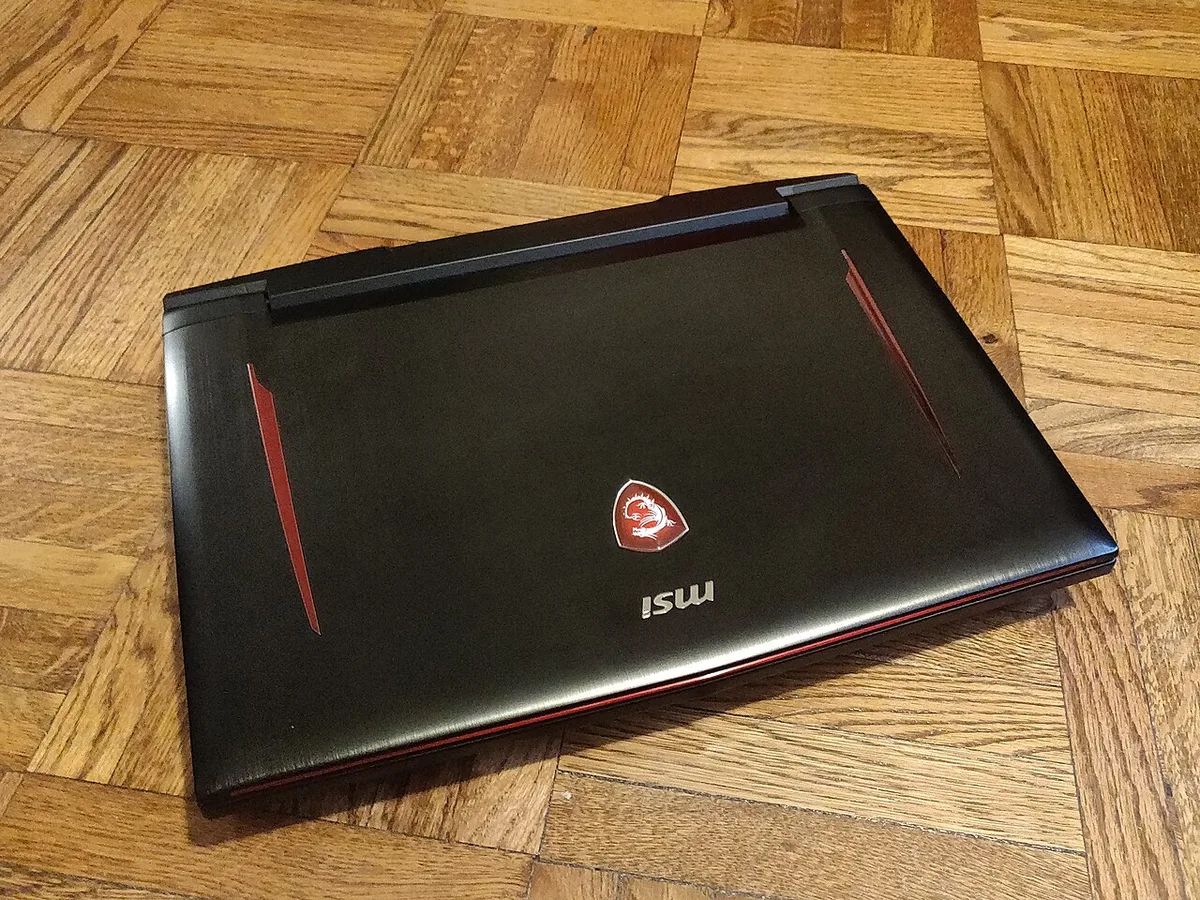
Image source: Wikimedia Commons / Kurt Kaiser
Decision Branch: Soldered vs Socketed CPU and GPU Designs
Start with the CPU and GPU because they decide the laptop's long-term value. If either is soldered, you cannot upgrade it in the normal sense. You can only replace a failed part with an identical one.
Most modern gaming laptops solder the CPU using a BGA package. That is the norm, not the exception. A socketed CPU is possible in some designs, but it is uncommon in thin gaming laptops.
If you need to know whether a gaming laptop processor can actually be upgraded, check the service manual first.
The GPU is even less flexible. Many gaming laptops use soldered graphics chips. Some older or specialized systems used MXM modules, but that is not the current mainstream.
If you are researching why most gaming laptop GPUs cannot be upgraded, expect soldered BGA graphics in most cases.
If your CPU or GPU is soldered, the practical upgrade path is usually RAM, storage, cooling, and battery. That is still useful, but it is not a full platform upgrade.
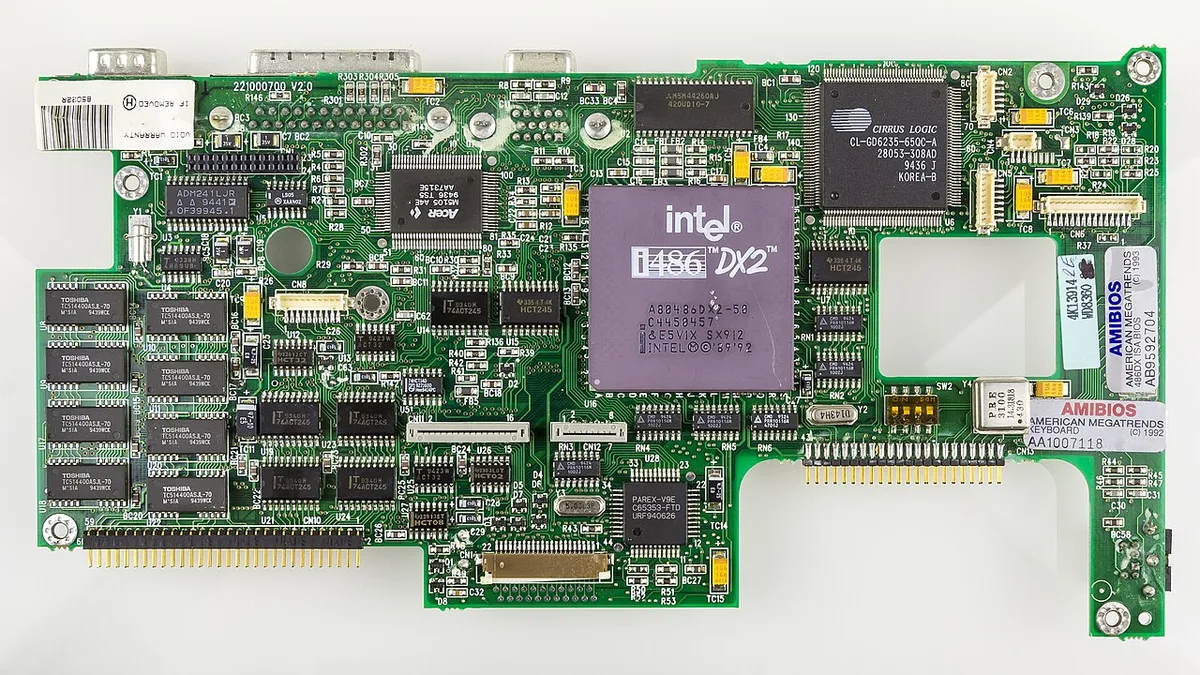
Image source: Wikimedia Commons / Raimond Spekking (CC BY-SA)
Decision Branch: RAM, Storage, and Battery Replacement Paths
RAM is often the easiest win, but not always. Many gaming laptops use SO-DIMM slots. Others solder LPDDR memory to save space and power.
If you have slots, you can usually install a higher-capacity kit. If memory is soldered, capacity is fixed.
Storage is usually more flexible. Most gaming laptops use M.2 SSDs, and some also support SATA drives. Check the interface, keying, and physical length before buying.
An M.2 2280 drive will not fit a 2230 slot without an adapter, and adapters are not always safe or supported. For a detailed walk-through, see how to upgrade a gaming laptop SSD.
Battery replacement is a middle case. Some batteries are screwed in and easy to disconnect. Others are glued and require careful prying.
Lithium-ion batteries can swell, short, or catch fire if punctured. Disconnect power, remove the main battery if possible, and work slowly. If you want to protect long-term battery health, review expert tips for gaming laptop battery health.
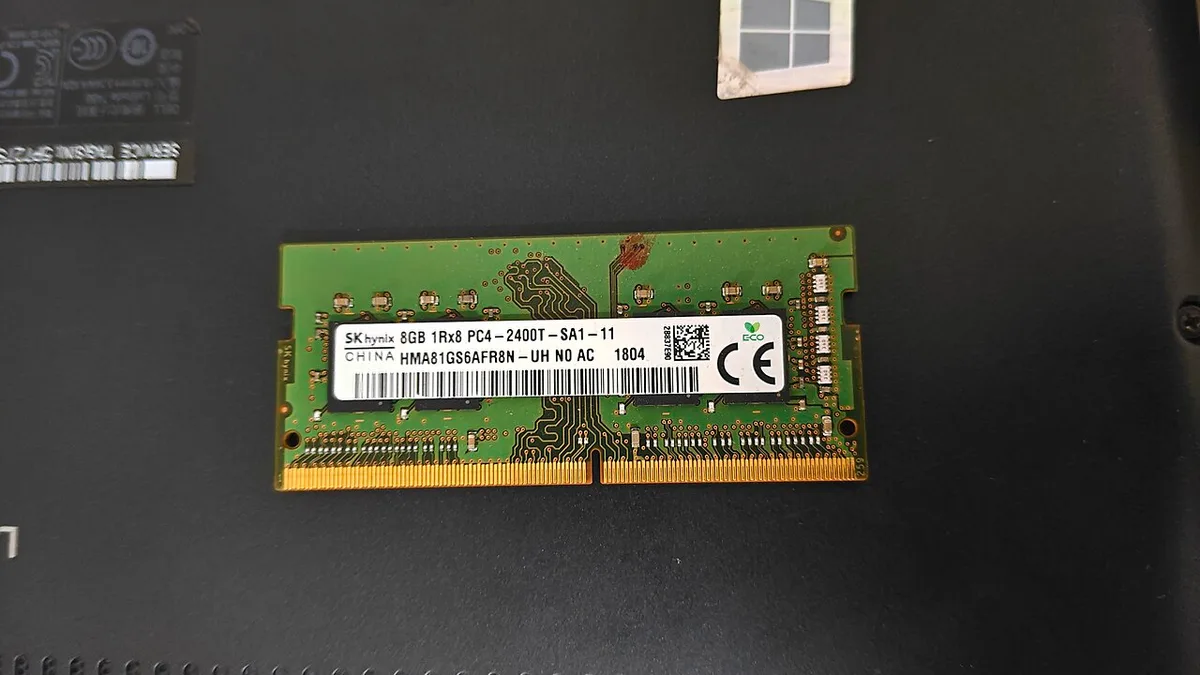
Image source: Wikimedia Commons / Suyash.dwivedi (CC BY-SA)
How to Verify a Part Number Before You Buy Anything
Never buy a part based only on the laptop brand or model family. You need the exact part number, often called a FRU number. That number ties the replacement to your specific configuration.
Use this workflow:
- Find the model and serial number on the chassis label or in system settings.
- Download the official service manual for that exact model.
- Locate the exploded diagram or parts list.
- Match the FRU or part number for the component you need.
- Cross-check the part against the physical connector, screw layout, and dimensions.
- Confirm whether the part is available new, refurbished, or only used.
- Compare the replacement cost against the laptop's current value.
If the service manual is unavailable, look at teardown photos and community repair databases. Treat those as clues, not proof. Also check whether the replacement requires BIOS updates, fan calibration, or adhesive.
A part may physically fit but still fail because firmware expects the original.

Image source: Wikimedia Commons / NASA
For memory standards and slot behavior, the JEDEC memory standards organization is a useful reference point. It helps you understand terms like SO-DIMM, DDR5, and LPDDR without guessing.
Step-by-Step Workflow: From Model Lookup to Working Replacement
Start with the laptop powered off and unplugged. Remove the AC adapter, then disconnect the main battery if the design allows it. Press and hold the power button for 10 seconds to drain residual charge.
Work on a clean, well-lit surface. Use an ESD-safe mat or at least touch a grounded metal object before handling parts. Keep screws organized by size and location.
A simple ice-cube tray or labeled paper works well.
Follow this workflow:
- Confirm the exact model and serial number.
- Download the service manual or parts diagram.
- Identify the part number and connector type.
- Check current pricing and stock.
- Back up important data before opening the chassis.
- Disconnect the battery first.
- Remove the bottom panel carefully.
- Photograph cable routing before disconnecting anything.
- Remove the old part without forcing connectors.
- Install the new part with correct orientation.
- Reassemble and torque screws evenly.
- Power on and test before closing fully.
If the system does not POST, stop. Recheck cable seating, RAM orientation, and SSD keying. If the fan spins but there is no display, test with an external monitor.
If temperatures spike, reopen and inspect thermal paste and heatsink contact.
| Tool | Why It Matters |
|---|---|
| Precision Phillips screwdriver | Prevents stripped screws |
| Plastic spudger | Opens clips without cracking plastic |
| Anti-static strap or mat | Reduces ESD risk |
| Magnetic screw tray | Keeps tiny screws organized |
| Thermal paste | Needed if heatsink is removed |
Do not skip the first-boot test. A loose cable can pass visual inspection but fail under vibration. Run a stress test and monitor temperatures for 15 minutes.
Common Mistakes That Turn a Simple Upgrade Into a Repair
The most common mistake is buying the wrong part. A 1TB M.2 drive may use the wrong interface, length, or keying. A RAM kit may exceed the laptop's supported speed or capacity.
Always match the FRU number or exact OEM specification.
Another mistake is forcing connectors. Ribbon cables, especially display and keyboard cables, can tear at the ZIF latch. If a connector resists, check the lock tab.
Never pull a cable straight up by the wire.
People also forget hidden screws. Rubber feet, labels, and plastic caps often hide fasteners. Pulling a panel with a hidden screw attached can crack the chassis.
Inspect every edge before prying.
Thermal paste mistakes are common too. Too much paste can squeeze onto nearby components. Too little paste can cause hot spots.
If you remove the heatsink, clean both surfaces and apply a small pea-sized amount.
Battery handling is another risk. A swollen battery should not be compressed or punctured. If you see swelling, stop and replace it safely.
Do not charge or store a swollen battery indoors near flammable materials.
Finally, do not assume all parts are calibrated automatically. Some keyboards, trackpads, or fans may need firmware updates or EC resets after replacement. Check the service manual for post-install steps.
Costs, Parts Availability, and When Replacement Stops Making Sense
Replacement cost should include more than the part. Add tools, thermal paste, shipping, and your time. A $40 SSD upgrade is reasonable.
A $300 motherboard repair on a three-year-old laptop may not be.
Parts availability changes by region and model age. New OEM parts may disappear within a few years. Refurbished parts can be cheaper but may have unknown wear.
Used parts from donor laptops can work well for screens, keyboards, and chassis parts.
Use this simple decision table:
| Situation | Usually Makes Sense? |
|---|---|
| RAM upgrade with open slots | Yes |
| SSD upgrade to M.2 NVMe | Yes |
| Battery replacement at fair cost | Yes |
| Soldered CPU or GPU failure | Usually no |
| Motherboard replacement on older laptop | Rarely |
| Cracked display with cheap panel available | Often yes |
A good rule is the 50 percent rule. If repair cost exceeds half the laptop's used market value, pause. Consider whether the same money buys a newer used system with better support.
Also check whether the upgrade solves the actual bottleneck. Adding RAM will not fix a weak GPU. Replacing storage will not fix overheating.
Match the repair to the symptom before spending money.
Safety, Warranty, and Legal Considerations Before You Open the Laptop
Opening a gaming laptop can affect warranty coverage. Some manufacturers allow user-replaceable parts like RAM and storage. Others require authorized service for battery, display, or motherboard work.
Read the warranty terms before removing screws.
Safety matters most with batteries and power components. A lithium-ion battery can release toxic gas and catch fire if damaged. Work away from heat sources.
Do not short battery terminals. If a battery is swollen, handle it with care and recycle it properly.
Electrostatic discharge can kill components before you see damage. Use an anti-static strap or work on an ESD-safe surface. Avoid carpeted areas.
Handle circuit boards by the edges.
High-voltage capacitors can retain charge even when the laptop is off. This is more common around power circuitry and displays. Disconnect the battery and wait before touching those areas.
Legal and compliance details vary by region. Right-to-repair laws may require manufacturers to provide parts and manuals. E-waste rules may require proper recycling.
If you sell or donate a laptop, wipe storage securely and remove personal accounts.
For safety standards, organizations like UL publish product safety guidance. For warranty questions, check the manufacturer's official support terms and your local consumer protection agency.
Frequently Asked Questions
How do I know if my gaming laptop CPU is replaceable?
Check the service manual first. Most modern gaming laptop CPUs are soldered to the motherboard using BGA packaging. If the manual shows a socket and removable heatsink, it may be replaceable.
Even then, CPU upgrades are uncommon and risky.
Can I upgrade soldered RAM on a gaming laptop?
No, not in the normal sense. Soldered LPDDR memory is fixed to the motherboard. You cannot add capacity or speed.
If your laptop has SO-DIMM slots, you can usually upgrade those instead.
Is it safe to replace a gaming laptop battery myself?
It can be safe if you follow proper precautions. Disconnect power, avoid puncturing the battery, and use the correct replacement. Stop immediately if the battery is swollen.
Lithium-ion batteries can catch fire if mishandled.
Where do I find the correct part number for my laptop?
Use the model and serial number to find the official service manual. Look for the FRU or part number in the exploded diagram. Match that number exactly before buying.
Do not rely only on the laptop family name.
When should I stop repairing and replace the laptop?
Stop when repair cost exceeds about half the laptop's used value. Also stop if the CPU or GPU is soldered and failed. In those cases, a newer used laptop may be the better investment.
2 thoughts on “Can You Replace Gaming Laptop Parts? Here’s How to Know”
Comments are closed.