Replacing a gaming laptop battery is mostly a visual job. Screw maps, clip locations, and connector types change by model, so the same steps can look different on two laptops.
Most lithium-ion packs are rated for about 300 to 500 charge cycles before capacity drops. After that, runtime falls even when the laptop still works fine. The part number on the battery label matters more than the brand name on the lid.
how to replace a gaming laptop battery
how to replace a gaming laptop battery starts with the exact OEM part number. Power down, unplug, and discharge residual power. Remove the bottom chassis and disconnect the battery cable first.
Swap the pack, reconnect, and reassemble. Calibrate with a full charge and discharge.
Why Gaming Laptop Battery Replacement Depends on Visual Cues
Gaming laptops pack dense hardware into thin chassis. Battery placement shifts around cooling pipes, fans, and daughterboards. A screw that looks standard may be shorter or longer than its neighbor.
Photos help you track fastener locations. A quick phone photo before each removal step saves guesswork later. Diagrams in service manuals also show hidden clips under rubber feet or hinge covers.
Visual cues matter most when the battery sits under the keyboard or motherboard. In those layouts, the battery is not the first part you see. You may need to remove shields, speakers, or drive brackets first.
Check the chassis for symbols near screws. Some makers use color dots or small icons to mark battery screws. Those marks are easy to miss under dust or glare.
If you cannot clearly identify the battery, stop there. A wrong move can bend a cell or tear a ribbon cable. That is why model-specific photos beat generic instructions.
Key Identifiers on the Battery and Chassis
The battery label carries the details that matter. Look for the OEM part number, voltage rating, and watt-hour capacity. Match all three when ordering a replacement.
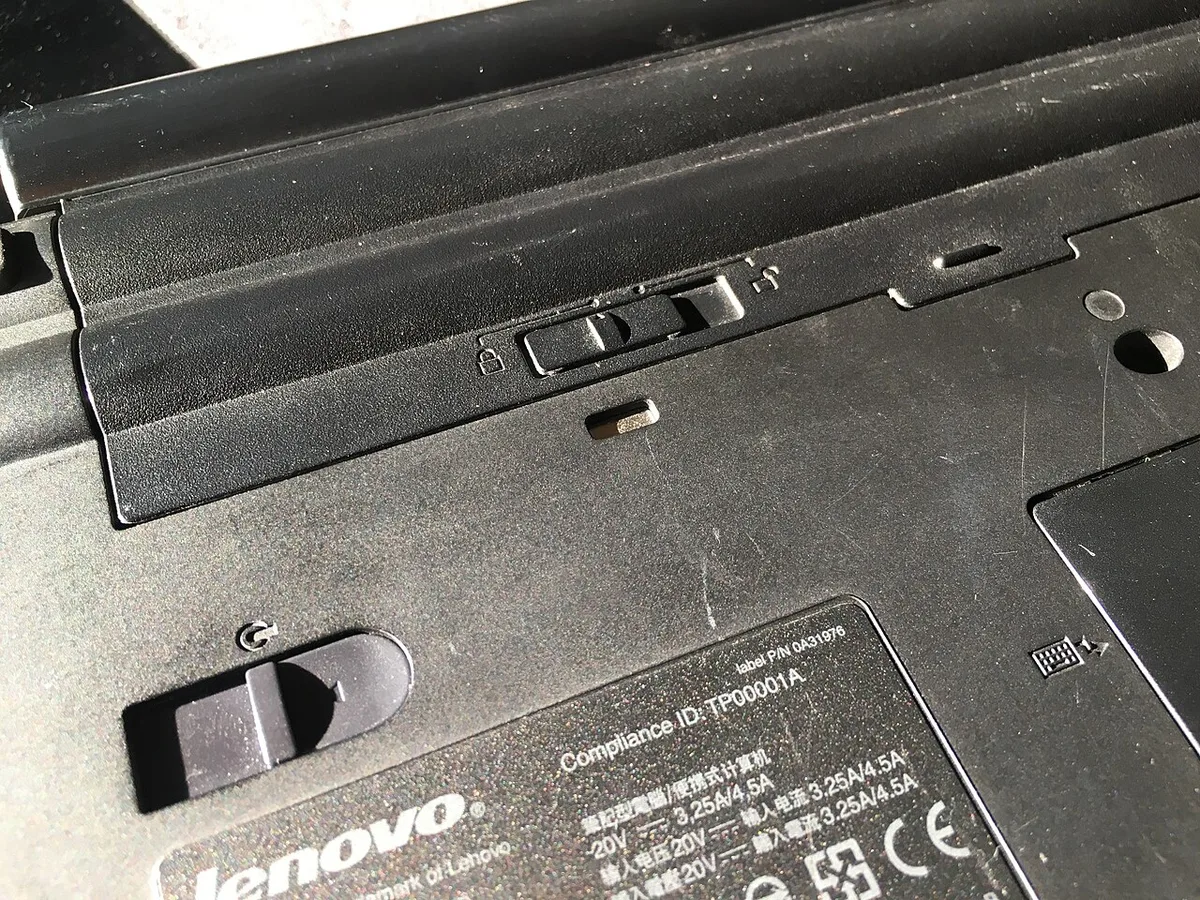
Image source: Wikimedia Commons / Pittigrilli
Connector type is another key identifier. Some packs use a small plug, while others use a flat ribbon cable. Count the pins and note cable direction before unplugging.
Screw type tells you what tools to prepare. Phillips, Torx, and hex screws can all appear on one chassis. Keep each screw group separate during teardown.
Adhesive is common on slim gaming laptops. Pull tabs may sit under the cells. If there are no tabs, adhesive strips may hold the pack flat against the frame.
Check for swelling before you touch the battery. A puffed cell can press against the chassis or trackpad. If you see bulging, treat it as a safety issue, not a routine repair.
A health report can confirm whether replacement is worth it. Many systems show battery health in settings or BIOS. If capacity is near 80 percent or lower, a new pack may restore useful runtime.
You can also review protecting long-term battery health before ordering. It helps you decide if replacement is the right fix.
Step-by-Step Replacement With Visual Cues
Work on a clean table with good light. Use an anti-static wrist strap if you have one. Keep screws in labeled cups or a magnetic mat.
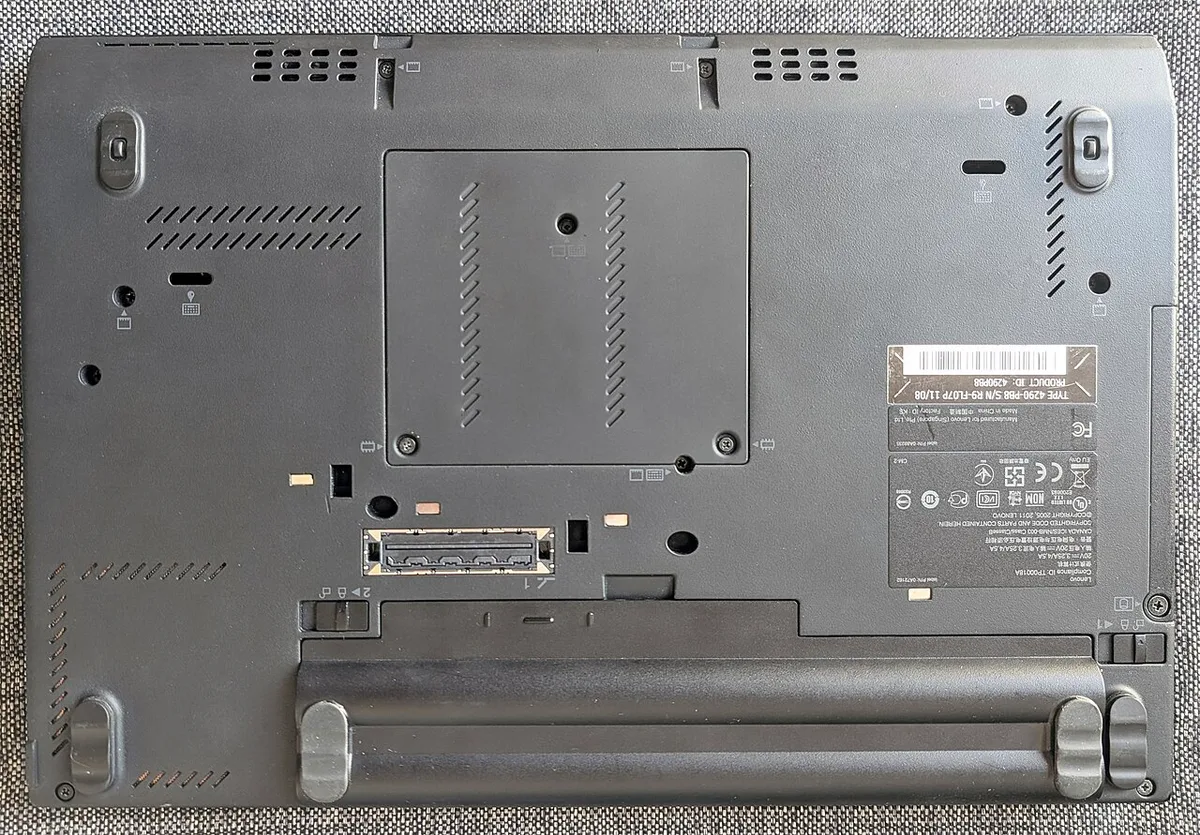
Image source: Wikimedia Commons / Siarhei V (CC BY-SA)
- Shut down the laptop. Unplug the AC adapter and remove all accessories.
- Hold the power button for 10 seconds to discharge residual power.
- Remove the bottom chassis screws. Note their positions in a photo.
- Use a plastic pry tool to release clips. Work slowly around the edges.
- Disconnect the battery cable first. Do not pull by the wires.
- Remove battery screws or release adhesive tabs. Lift the pack evenly.
- Seat the new battery in the same orientation. Check for cable clearance.
- Reconnect the battery cable firmly. Route it away from fans and heat pipes.
- Reinstall the chassis. Tighten screws snug, but do not overtighten.
- Power on and check battery status in the operating system.
If the battery is glued down, use isopropyl alcohol sparingly. Let it soften adhesive before lifting. Never bend or puncture the cells.
Visual checks matter during reassembly. Make sure no cable is pinched under the chassis. A pinched cable can cause shorts or charging faults.
Some laptops need an embedded controller reset after battery replacement. If the new pack shows zero percent or will not charge, shut down and repeat the power button hold. Manufacturer service manuals can confirm model-specific reset steps.
Common Visual Mistakes That Damage Hardware
A common mistake is removing the battery cable last. Always disconnect it first. This reduces the risk of shorting the board while tools are inside.
Another mistake is forcing the bottom panel. If it resists, a screw or clip may still be attached. Check screw holes and edge seams before prying harder.
Stripped screws happen when the driver is not seated fully. Use the correct size and press straight down. If a screw spins freely, stop and reassess.
Adhesive removal causes many cell punctures. Do not use metal tools to pry a glued battery. Use plastic tools and slow, even pressure.
Cable damage is easy to overlook. Ribbon cables can snag on screw posts or fan shrouds. Compare cable routing with your photos before closing the chassis.
Thermal paste can smear during chassis removal on some models. If you disturb cooling hardware, reapply paste as needed. Otherwise temperatures may rise after reassembly.
Dust and debris can hide screw heads. Clean the area with compressed air before starting. A hidden screw can crack plastic when forced.
If the battery is swollen, do not compress it. Isolate it in a fire-safe container and recycle it properly. The CPSC battery safety guidance is a useful reference for handling concerns.
OEM vs Aftermarket Batteries: What to Look For
OEM packs usually match the original dimensions and connector exactly. They often cost more and may be harder to find for older models. Aftermarket packs can be cheaper but vary in quality.
| Factor | OEM Battery | Aftermarket Battery |
|---|---|---|
| Fit | Usually exact | Varies by seller |
| Connector | Matches original | May differ |
| Capacity claim | Often conservative | Sometimes overstated |
| Price | Higher | Lower |
| Warranty | Often 1 year | Varies widely |
| Safety docs | Easier to verify | Must check carefully |
Look for safety certifications on the label or listing. Standards such as IEC 62133 and UN 38.3 are common battery safety references. If a seller cannot confirm certifications, choose another option.
Capacity is not the only spec that matters. A higher watt-hour rating may not fit the chassis. Check physical dimensions and cell layout before buying.
Connector pin count and cable length matter too. A pack that fits but has a short cable can strain the port. Compare photos with your original battery.
If you plan other upgrades, check compatibility first. A storage upgrade or memory change may affect heat and power draw. See what parts of a gaming laptop can be upgraded for broader context.
Aftermarket batteries can be fine when sourced carefully. Read verified buyer feedback for swelling, charging, or recognition issues. Manufacturer service manuals often list approved part numbers for comparison.
For daily use planning, setting a battery charge limit can reduce wear. It is a useful habit after installing a new pack.
Costs, Specs, and What to Expect
As of 2026, battery prices vary by model and region. OEM packs often cost more but match the chassis exactly. Aftermarket packs can save money if the specs and connector match.
A realistic budget includes parts and tools. Labor adds cost if you hire a technician. Swollen batteries may need special disposal.
| Cost Item | Typical Range |
|---|---|
| OEM battery | $80 to $180 |
| Aftermarket battery | $40 to $120 |
| Basic tools | $10 to $25 |
| Professional labor | $60 to $120 |
Specs matter as much as price. Match watt-hours, voltage, and dimensions. A 90 Wh pack will not fit where a 56 Wh pack sits.
Expect 30 to 90 minutes for the job. Adhesive, hidden clips, or motherboard-over-battery layouts add time. If charging behavior seems odd after install, why a gaming laptop loses charge while plugged in can help you separate battery issues from charger issues.
Safety Warnings and Li-Ion Handling Rules
Li-ion cells can overheat if punctured, bent, or shorted. A swollen pack raises that risk. Treat swelling as a disposal issue, not a minor cosmetic flaw.
Disconnect the battery cable before removing anything else. Use plastic tools, not metal pry bars. Keep screws and tools away from cell surfaces.
Do not charge a damaged or swollen battery. Do not compress it to make it fit. If a cell vents or smells sharp, move away and ventilate the room.
Recycle through certified e-waste or battery drop-off programs. Standards such as IEC 62133, UL 1642, and UN 38.3 relate to cell safety and transport. Check local rules for damaged lithium-ion disposal.
If the chassis is hard to open or the battery is glued under the board, professional help is safer. A mistake can damage the motherboard or cooling system.
Post-Install Calibration and Health Checks
Calibration helps the system read the new pack correctly. Charge to 100 percent, then use the laptop on battery until it reaches low charge. Recharge to full again.
Windows can generate a battery report with powercfg /batteryreport. Compare design capacity with full charge capacity. A large gap after calibration may point to a bad pack or firmware issue.
If the battery is not recognized, repeat the residual power discharge. Shut down, unplug, and hold the power button for about 10 seconds. Some models also need an embedded controller reset.
Performance on battery may still be limited. Gaming laptops often reduce power draw when unplugged. That is normal, not a defect.
For daily habits, is it safe to leave a gaming laptop plugged in covers charge behavior after replacement. A charge limit near 80 percent can reduce wear for long-term storage.
Frequently Asked Questions
How long does gaming laptop battery replacement take?
Most replacements take 30 to 90 minutes. Simple bottom-access designs are faster. Adhesive, hidden screws, or motherboard-over-battery layouts take longer.
Take photos as you go. That saves reassembly time.
Can I use an aftermarket battery safely?
Yes, if it matches the part number, voltage, dimensions, and connector. Check safety certifications and verified buyer feedback. Avoid listings with vague specs or no certification details.
What if the new battery is not recognized?
Disconnect power, shut down, and hold the power button for 10 seconds. Reconnect and test again. If it still fails, check the cable seating and part compatibility.
Some models need an embedded controller reset.
How do I know if my battery is swollen?
Look for a raised trackpad, uneven bottom panel, or visible bulging. A swollen pack may push against the chassis. Stop using it and recycle it properly.
Do not compress or puncture it.
Should I calibrate after installing a new battery?
Yes. Charge to full, discharge to low, then recharge. This helps the system estimate capacity more accurately.
It will not fix a defective pack.
Will replacing the battery void warranty?
It can. Many warranties allow user-serviceable parts, but terms vary by brand and region. Check your warranty before opening the chassis.
Keep the old battery until the new one works.
2 thoughts on “How to Replace a Gaming Laptop Battery Step-by-Step”
Comments are closed.