Can a gaming laptop use a wired controller? Yes, in most cases it's as simple as plugging in a USB cable. The real question isn't whether it works, it's how well your specific setup handles it.
Modern Windows laptops treat most wired gamepads as plug-and-play HID devices, so driver installs usually happen automatically. As of 2026, USB polling rates of 1000 Hz and wired latency around 1 to 4 ms are standard on quality controllers. Still, port type, controller protocol, and game support all matter.
Below, we'll walk through the variables that actually decide your experience.
can a gaming laptop use a wired controller
Yes, most gaming laptops accept wired controllers. Plug the controller into a USB port. Windows installs the driver automatically.
Most games recognize it within seconds. Compatibility depends on port type and controller protocol. Wired input cuts latency to 1-4 ms.
What Actually Determines Wired Controller Compatibility
Four things decide whether your wired controller works well on a gaming laptop. Port type, controller protocol, operating system support, and game input support. Get one wrong and you'll get lag, double inputs, or no recognition at all.
Port type. Most controllers ship with USB-A or USB-C cables. Many gaming laptops now ship USB-C only. A USB-C to USB-A adapter solves this, but cheap adapters can add latency or drop connections.
Controller protocol. Xbox controllers use XInput, which Windows supports natively. PlayStation controllers use a different protocol. They work wired, but need extra software for full button mapping and haptics.
Operating system. Windows 10 and 11 handle most wired pads automatically. SteamOS and Linux need more setup.
Game input support. Some older PC games only read DirectInput devices. Modern games expect XInput. Mismatch means the game won't see your controller.
If you're running a newer laptop, check whether it has USB4 ports. USB4 support can affect which controllers and hubs work cleanly.
Per USB-IF specifications, standard USB 2.0 ports deliver 5 V at 500 mA, enough to power most controllers. USB 3.0 ports deliver 900 mA. That extra headroom matters if you're running a controller plus a headset through the same hub.
| Controller | Protocol | Windows Native | Extra Software Needed |
|---|---|---|---|
| Xbox Wireless Controller (wired) | XInput | Yes | No |
| PlayStation DualSense (wired) | Custom HID | Partial | DS4Windows or Steam Input |
| Switch Pro Controller (wired) | DirectInput/HID | No | Steam Input or third-party |
| 8BitDo (wired) | XInput/DirectInput switchable | Yes (XInput mode) | No |
One more factor people miss: USB selective suspend. Windows can put idle USB devices to sleep to save power. That causes a wired controller to stop responding mid-match.
You can disable it in Power Options. We'll cover that in troubleshooting.
Decision Branches by Port, Controller, and Operating System
USB-C vs USB-A vs Adapters
Most controllers still ship with USB-A cables. Many 2024-2026 gaming laptops dropped USB-A entirely. If your laptop only has USB-C, you need an adapter or a controller with a USB-C cable.
Adapter quality matters. A passive USB-C to USB-A adapter works fine for data. Active adapters add cost but improve reliability on some hubs.
Avoid no-name adapters. They fail under sustained load.
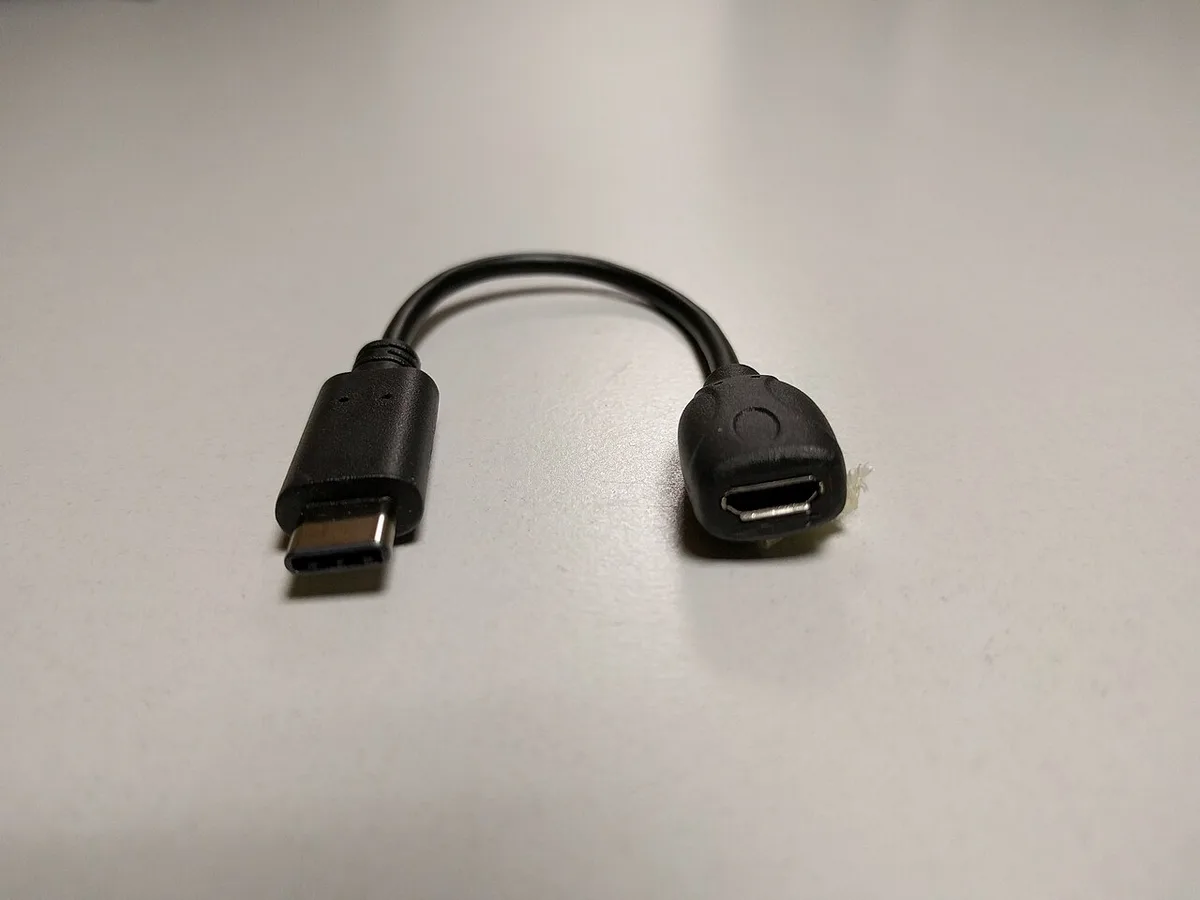
Image source: Wikimedia Commons / Rotkaeppchen68 (CC BY-SA)
Xbox vs PlayStation vs Switch Pro Controller
Xbox controllers are the safest bet on Windows. They're XInput native. Plug in, play.
Microsoft's Xbox Support documentation confirms they work without third-party software.
PlayStation DualSense controllers work wired over USB. Basic buttons work out of the box. Adaptive triggers and haptics need DS4Windows or Steam Input.
Switch Pro Controllers work wired but need Steam Input or a third-party tool for most games.
Windows vs SteamOS
Windows 10 and 11 auto-install drivers for major controllers. SteamOS on handhelds like the Steam Deck supports wired controllers too, but mapping can be manual.
If you're considering Linux gaming setups, expect more manual configuration. Driver support varies by distro.
Step-by-Step Setup and Verification
Follow these steps in order. Each one takes under a minute.
- Plug the controller into a USB port on the laptop.
- Wait for Windows to install the driver. You'll see a notification.
- Open the Game Controllers panel. Press Windows key, type "joy.cpl", hit Enter.
- Select your controller and click Properties. Test every button and stick.
- Launch your game. Check the in-game controller settings.
- Remap buttons if needed. Use Steam Input or the Xbox Accessories app.
Verification checklist:
- Controller appears in joy.cpl
- All buttons register
- Sticks center properly
- No double inputs
- Game recognizes controller in settings
If the controller doesn't appear in joy.cpl, try a different USB port. Front ports on some laptops are charge-only. That's a common trap.
For keeping your system clean, graphics driver updates and manufacturer control software both affect how peripherals behave. Outdated GPU drivers can cause input stutter in some games.
Steam Input: When It Helps and When It Breaks Things
Steam Input is Steam's controller translation layer. It reads your controller and converts it into a format the game understands. It's powerful.
It can also cause problems.
When Steam Input helps:
- Playing a game that doesn't support your controller natively
- Using a PlayStation or Switch controller on a PC game
- Customizing button layouts and dead zones
- Enabling gyro aiming on supported controllers
When it breaks things:
- Double inputs, because both Steam and the game read the controller
- Button mapping conflicts
- Lag from translation overhead
- Games that already support XInput natively
The fix: Disable Steam Input per game when the game already supports your controller. Right-click the game in Steam, select Properties, go to Controller, and set "Override for [Game]" to "Disable Steam Input".
If background apps are running, they can add input lag on top of Steam Input overhead. Close them before testing. That single step fixes a lot of "my controller feels laggy" complaints.
Microsoft's Xbox Support documentation confirms that Xbox controllers work natively on Windows without third-party software. That's why they're the default choice for most PC gamers.
Latency, Polling Rate, and Power Reality
Wired controllers cut input delay. Most wired pads run 1 to 4 ms. Wireless pads often sit at 8 to 16 ms.
That gap matters in fighters and shooters. It matters less in slow games.
Polling rate also matters. A 1000 Hz controller reports input every millisecond. A 125 Hz controller reports every 8 milliseconds.
Check the spec sheet before buying.
Power is simpler. USB 2.0 supplies 5 V at 500 mA. USB 3.0 supplies 5 V at 900 mA.
Most controllers draw far less. A powered hub helps when you add a headset or capture card.
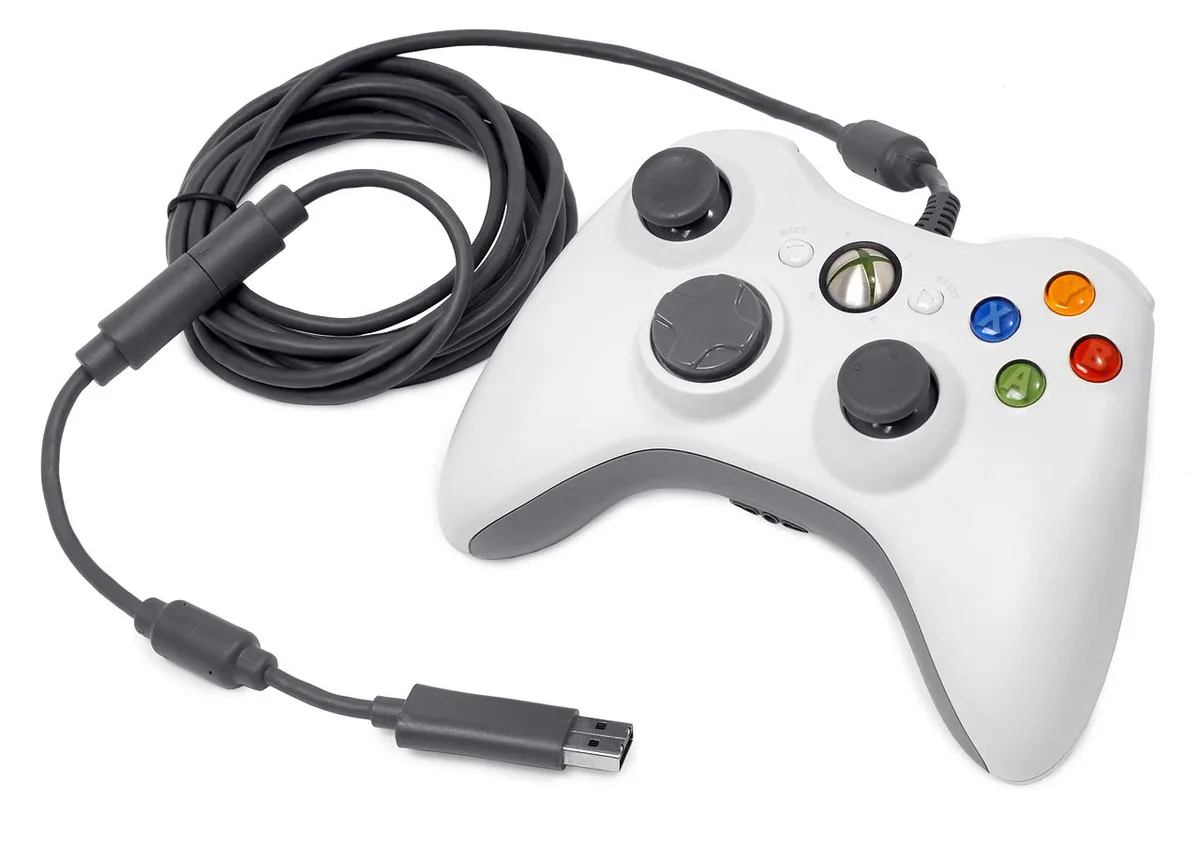
Image source: Wikimedia Commons / Evan-amos
| Factor | Wired | Wireless |
|---|---|---|
| Typical latency | 1 to 4 ms | 8 to 16 ms |
| Polling rate | Up to 1000 Hz | Often 250 to 500 Hz |
| Power source | USB bus | Battery |
| Best for | Competitive play | Couch play |
One caveat. Wired input cannot fix game-side lag. If the game runs at 30 fps, your controller still waits for the next frame.
For smoother play, reduce background load and keep the GPU as primary. Also check dedicated GPU settings.
Common Mistakes That Make a Wired Controller Feel Broken
Most problems come from setup, not hardware. Watch for these.
- Leaving Steam Input on for XInput games. This causes double inputs.
- Using a charge-only USB port. Some front ports lack data lines.
- Plugging into an unpowered hub with too many devices.
- Forcing a connector. USB-C has no top or bottom, but USB-A does.
- Ignoring cable strain. Pulling by the cord damages ports.
- Skipping calibration. Drift often comes from dead zones, not hardware.
- Running old firmware. Controllers get updates through vendor apps.
If your laptop runs hot, input can stutter. Silent mode and turbo mode change power limits and can affect USB behavior.
Troubleshooting Before You Blame the Controller
Start simple. Swap ports. Try a rear or side port.
Then test in joy.cpl.
If the controller is missing:
- Open Device Manager.
- Expand "Human Interface Devices" or "Xbox Peripherals".
- Uninstall the device.
- Unplug and replug.
- Let Windows reinstall the driver.
If the controller appears but drifts, recalibrate in Steam or the vendor app. Check dead zones. Set them slightly above resting values.
If input drops mid-match, disable USB selective suspend. Go to Power Options, then USB settings. Set "USB selective suspend setting" to Disabled.
If ports are full or weak, use a powered hub. It supplies its own power.
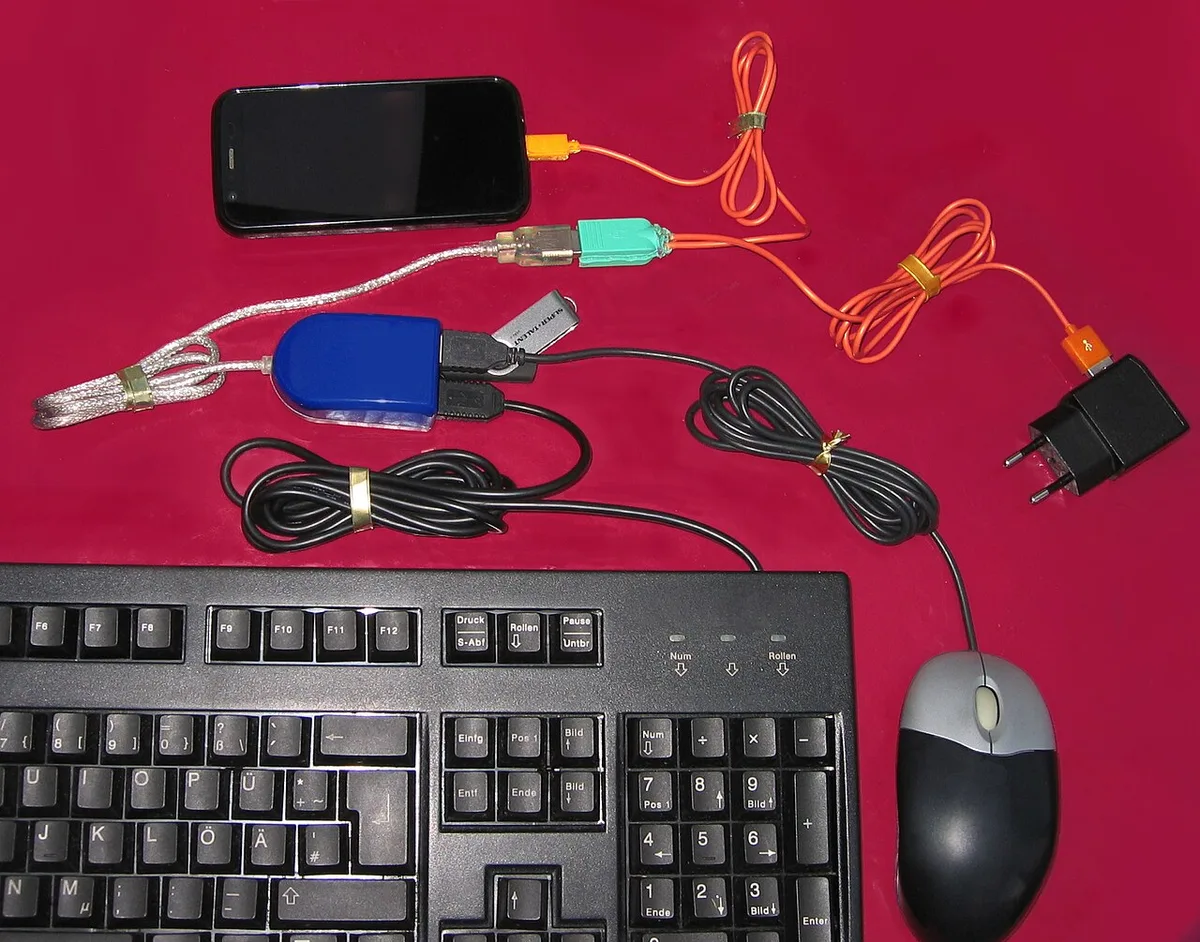
Image source: Wikimedia Commons / Hans Haase (CC BY-SA)
For deeper issues, diagnose hardware problems before replacing anything. Also safe BIOS updates can fix USB firmware bugs on some laptops.
Final Decision Guide: Which Wired Setup Fits Your Laptop
Match your setup to your goal.
- Competitive play: Use an Xbox controller wired at 1000 Hz. It is XInput native.
- PlayStation fan: Use DualSense wired. Enable Steam Input only if needed.
- Switch owner: Use Switch Pro wired with Steam Input.
- Travel setup: Pack a USB-C cable or a short adapter.
- Tournament play: Wired is often required. Bring your own cable.
- Budget build: Pick a third-party XInput pad from 8BitDo or PowerA.
- Few ports: Add a powered USB hub.
If your laptop has only USB-C, buy a quality adapter. Do not trust random cables. Check USB4 support if you plan to use docks.
For network stability, Ethernet vs Wi-Fi matters more than controller choice. Pair a wired pad with a wired connection for the lowest delay.
Frequently Asked Questions
Can any gaming laptop use a wired controller?
Yes, in most cases. Windows supports common pads over USB. You need the right port and cable.
Some games still need XInput support.
Do wired controllers work on Steam Deck or SteamOS?
Yes, they do. Plug in via USB-C or an adapter. Steam Input handles mapping.
Expect more setup than on Windows.
Why is my wired controller not detected?
Try a different port first. Then check joy.cpl. Reinstall the driver in Device Manager.
Disable USB selective suspend if it drops later.
Is wired always lower latency than wireless?
Usually yes. Wired pads run 1 to 4 ms. Wireless pads often run 8 to 16 ms.
Game frame rate still matters more.
Can I use a PlayStation controller wired on PC?
Yes. Basic buttons work over USB. Adaptive triggers and haptics need Steam Input or DS4Windows.
Does a wired controller need drivers?
Most do not. Windows installs them automatically. Some third-party pads need vendor software for full features.