You've probably had that moment where the match is going great and then your character freezes for half a second. That's usually the network, not the laptop. When you ask, "is Wi-Fi or Ethernet better for gaming on a laptop," the honest answer is that Ethernet is usually more stable, but modern Wi-Fi can be very good in the right room.
The deciding factor is rarely raw download speed. It's latency, jitter, and packet loss. IEEE 802.3 Ethernet and IEEE 802.11 Wi-Fi handle those differently, and your laptop's ports, router placement, and game type matter just as much.
Why Your Connection Choice Makes or Breaks the Game
Gaming traffic is small but unforgiving. A video stream can buffer. A game can't pause mid-shot and wait for packets.
That's why a connection that looks fast on a speed test can still feel awful during ranked play.
Latency is the time it takes a packet to travel from your laptop to the game server and back. Jitter is how much that time varies. Packet loss is how many packets never arrive.
For competitive shooters, stable latency matters more than a huge bandwidth number.
You don't need to memorize networking theory. You just need to know which variables you can control. Router distance, wall material, channel congestion, cable quality, and background uploads all change the result.
If you play casual single-player games, either option can work well. If you play Valorant, CS2, Apex Legends, or ranked fighting games, consistency becomes the whole story. A 20 ms connection that stays at 20 ms beats a 12 ms connection that spikes to 90 ms.
Ethernet: The Gold Standard for Competitive Play
Ethernet is a wired connection that sends data over a cable instead of radio waves. That removes most interference from the path between your laptop and the router. It also gives you a dedicated, predictable route.
For gaming, the big advantages are low jitter and very low packet loss. A local wired hop often adds less than 1 ms. The connection is full-duplex, meaning your laptop can send and receive at the same time without sharing airtime.
Security is another plus. A physical cable is harder to intercept than wireless traffic. That matters if you're on a shared network, a dorm, or a temporary setup.
The drawback is convenience. Many thin gaming laptops no longer include a built-in RJ-45 port. You may need a USB-C Ethernet adapter, a Thunderbolt dock, or a small network switch.
Cable routing can also be annoying if your router is in another room.
Ethernet also isn't magic. A bad cable, a weak router, or an overloaded upstream connection can still ruin performance. Use a quality Cat6 or Cat6a cable for modern Gigabit or Multi-Gigabit networks.
Wi-Fi 6/6E/7: When Wireless Finally Caught Up
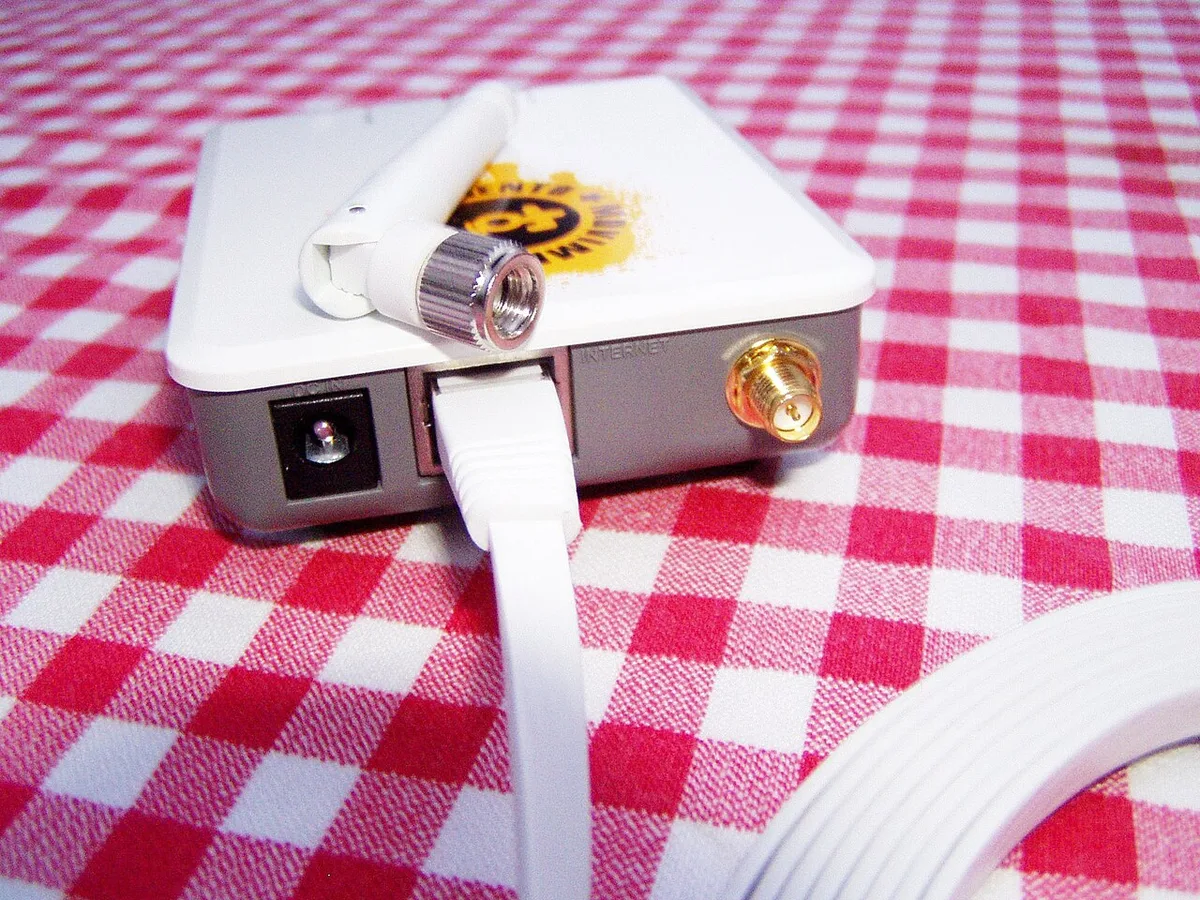
Wi-Fi has improved a lot. Wi-Fi 6, Wi-Fi 6E, and Wi-Fi 7 use technologies like OFDMA and MU-MIMO to serve multiple devices more efficiently. Wi-Fi 6E and Wi-Fi 7 can also use the 6 GHz band, which is less crowded than older 2.4 GHz and 5 GHz bands.
That matters in apartments. If ten nearby networks are fighting over the same channels, older Wi-Fi can feel laggy even when your internet plan is fast. A clean 6 GHz channel can make wireless gaming feel much closer to wired.
Wi-Fi 7 adds features like Multi-Link Operation, which lets compatible devices use multiple bands at once. Manufacturer specifications indicate this can improve reliability, but you need a Wi-Fi 7 router, compatible laptop hardware, and good placement to see the benefit.
Wireless still has weaknesses. Walls, mirrors, fish tanks, microwaves, and Bluetooth devices can interfere. Distance also reduces signal quality.
The closer and cleaner the path, the better your ping stability.
For casual gaming, a strong Wi-Fi 6 or newer setup is often enough. For competitive play, wireless is a calculated risk. It can be excellent, but it's never as predictable as a cable.
Side-by-Side Showdown: Latency, Jitter, and Stability
Here's the practical comparison. These are typical ranges, not guarantees, because routers, ISPs, and homes vary.
| Factor | Ethernet | Modern Wi-Fi |
|---|---|---|
| Local latency | Usually under 1 ms | Often 1-10 ms |
| Jitter | Very low | Low to moderate |
| Packet loss | Rare in good setups | More likely with interference |
| Mobility | None | Full within range |
| Setup effort | Cable and port needed | Quick pairing |
| Best for | Competitive ranked play | Casual play and portability |
The table shows why Ethernet wins on consistency. It doesn't always win on convenience. If your laptop lives on a desk near the router, wired is the easy call.
If you move between rooms, wireless wins by default.
Bandwidth is where people get tricked. A 500 Mbps Wi-Fi connection doesn't help if your game server only needs a small, steady stream of packets. What you want is low variation, not just high speed.
A useful test is to run a latency test during busy hours, not just at midnight. Watch for spikes, not just averages. If your ping jumps from 18 ms to 80 ms every few minutes, that's the problem you're trying to solve.
The Laptop Reality Check: Ports, Dongles, and Portability
Laptops change the Ethernet equation. A desktop can keep a cable plugged in forever. A gaming laptop is often carried, docked, undocked, and moved.
That's why many people choose Wi-Fi even when they know wired is technically better.
If your laptop has an RJ-45 port, Ethernet is simple. Plug in the cable and set the network priority if needed. If it doesn't, you'll need an adapter.
A basic USB-C Ethernet adapter can be inexpensive, but cheap ones can overheat or disconnect.
A Thunderbolt dock is more convenient if you already use one. It can provide Ethernet, power, and display output from one cable. It costs more, but it keeps the desk clean and makes docking fast.
Portability is the real trade-off. Wi-Fi lets you play on the couch, in a hotel, or at a friend's house. Ethernet ties you to the router.
For many laptop owners, that flexibility is worth a small stability trade.
This is also where system tuning matters. Keeping your graphics workload sorted, limiting background apps, and using manufacturer control software can reduce stutters that people wrongly blame on the network. If you're chasing every frame, it helps to set your dedicated GPU as default and stop background apps from lowering gaming FPS before blaming Wi-Fi.
Who Should Stick With Wi-Fi (And Who Must Go Wired)
The choice isn't binary. It depends on your specific gaming habits and environment. If you play single-player RPGs or strategy games, latency spikes rarely ruin the experience.
You can afford the convenience of wireless.
Competitive multiplayer changes everything. In titles like Counter-Strike 2 or League of Legends, a 50 ms spike can mean losing a round. Here, Ethernet is non-negotiable for serious players.
The stability simply outweighs the hassle of cables.
Consider your living situation too. Renters in old buildings often deal with thick walls that block signals. Moving furniture to hide cables might violate lease terms.
In these cases, high-quality Wi-Fi 6E is a practical compromise.
Students moving between dorms benefit from portability. Carrying a dongle everywhere gets tedious fast. A strong laptop Wi-Fi card handles campus networks well enough for casual play.
Save wired connections for your home setup.
We also see many streamers who need both. They use Ethernet for game traffic and Wi-Fi for chat or secondary tasks. This split approach maximizes bandwidth usage without cluttering the desk.
Ultimately, ask yourself how much risk you tolerate. If "rubber-banding" makes you rage-quit, go wired. If you mostly chill and enjoy the freedom to move, modern Wi-Fi serves you just fine.
Setup Secrets: Optimizing Either Connection for Peak Performance
Getting the best performance requires more than just plugging in. Small tweaks make a big difference. Start with driver hygiene.
Outdated Network Interface Card drivers cause instability regardless of connection type.
For Ethernet users, check your cable category. Cat5e works for Gigabit speeds, but Cat6 offers better shielding against crosstalk. Ensure your router ports are set to auto-negotiate correctly.
Manual forcing can sometimes break compatibility.
Wi-Fi optimization starts with placement. Keep your router away from metal objects and microwaves. Elevate it if possible.
Use a Wi-Fi analyzer app to find the least congested channel on the 5 GHz band.
Enable Quality of Service (QoS) on your router. This prioritizes gaming traffic over downloads or streaming. Most modern routers have a dedicated gaming mode.
Turn it on. It prevents background updates from stealing your bandwidth mid-match.
Don't forget system-level adjustments. Disable power-saving modes on your network adapter. Windows often turns off radios to save battery, causing lag spikes.
Search for "Device Manager," find your NIC, and uncheck "Allow the computer to turn off this device."
Regular firmware updates matter too. Both routers and adapters receive patches for security and performance. Check manufacturer sites quarterly.
Keeping your graphics drivers updated ensures the whole pipeline runs smoothly, not just the network layer.
Common Pitfalls That Ruin Even the Best Connections
Many gamers blame their connection when the issue lies elsewhere. First, avoid confusing bandwidth with speed. A 1 Gbps plan doesn't guarantee low ping.
Your ISP's routing to the game server matters more.
Second, ignore the "bufferbloat" effect. When your upload queue fills up, latency skyrockets. Limit your upload speed slightly below maximum capacity in router settings.
This keeps packets flowing freely during heavy loads.
Third, don't overlook interference sources. Bluetooth headsets operate on the same 2.4 GHz band as older Wi-Fi. Switch your headset to 5 GHz or use a wired microphone.
Microwaves and baby monitors also disrupt signals.
Fourth, beware of cheap adapters. Not all USB-C Ethernet dongles are created equal. Some lack proper heat sinks and throttle under load.
Look for models with aluminum housings and trusted chipsets like Realtek RTL8153.
Fifth, stop running speed tests while gaming. These tools saturate your connection. Test when idle.
Then monitor ping using in-game stats or third-party tools like PingPlotter during actual matches.
Finally, don't neglect physical maintenance. Dust buildup in router vents causes overheating and throttling. Clean your gear regularly.
A hot router drops packets silently. Verify your laptop cooling system is working too, since thermal throttling affects CPU processing of network packets.
Verdict: Making the Final Call for Your Rig
So, which one wins? For pure competitive integrity, Ethernet remains king. Its deterministic behavior eliminates variables that wireless introduces.
You pay for certainty.
However, the gap has narrowed significantly. Wi-Fi 6E and Wi-Fi 7 deliver near-wired performance in ideal conditions. If your setup allows clean line-of-sight and minimal interference, wireless is viable for most genres.
Evaluate your priorities honestly. Do you value mobility or millisecond consistency? Casual gamers gain little from dragging a cable across the floor.
Hardcore competitors lose nothing by staying tethered.
Hybrid strategies work well too. Use Ethernet for ranked sessions. Switch to Wi-Fi for exploration or co-op campaigns.
This balances performance with comfort effectively.
Remember that hardware quality dictates results. A premium Wi-Fi 6 card beats a budget Ethernet adapter every time. Invest in good components regardless of your choice.
Our research suggests that for 90% of laptop owners, modern Wi-Fi is sufficient. Only the top tier of esports enthusiasts truly needs wired exclusivity. Choose based on your skill level and patience for setup friction.
Frequently Asked Questions
Does Ethernet really reduce ping compared to Wi-Fi?
Yes, typically by 1 to 5 milliseconds locally. The bigger benefit is reduced jitter. Stable ping feels smoother than marginally faster average ping.
Wi-Fi variance causes rubber-banding, which hurts gameplay more than slight base latency.
Can I use Wi-Fi for professional esports tournaments?
No. Official events almost always mandate wired connections. Organizers provide Ethernet jacks at stations.
Wireless introduces unpredictable interference risks. Professional standards require the determinism that only physical cables offer.
Do I need a special router for gaming Wi-Fi?
Not necessarily, but it helps. Routers with QoS and MU-MIMO manage traffic better. Wi-Fi 6 support is crucial for efficiency in crowded homes.
Budget routers struggle with multiple devices. Upgrade if you notice congestion issues.
Is a Thunderbolt dock worth it for Ethernet?
If you already own one, yes. It consolidates connections cleanly. Buying one solely for Ethernet is expensive.
A simple $20 USB-C adapter performs identically for gaming. Reserve docks for multi-monitor setups needing extra bandwidth.
Why does my Wi-Fi lag only at night?
Neighbors use their networks heavily after work. Channel congestion increases dramatically. Switch to the 5 GHz or 6 GHz band immediately.
These frequencies have more channels and less crowding than 2.4 GHz. Also, enable automatic channel selection on your router.
2 thoughts on “Wi-Fi vs Ethernet for Gaming on a Laptop: Which Wins?”
Comments are closed.