If you've ever opened a PC case and wondered what all those parts actually do, you're not alone. What are the main parts inside a gaming pc is one of the most common questions new builders ask. The good news is that every gaming PC, from a budget box to a high-end rig, is built from the same core components.
Once you can name them and spot them, the whole machine starts to make sense.
As of 2026, a typical mid-range build packs a CPU, GPU, motherboard, RAM, storage, PSU, cooler, and case fans into one chassis. Manufacturer specs from Intel and AMD list the socket, memory type, and power draw you need to match. This guide walks you through each part visually, so you know exactly what to look for before you buy or build.
what are the main parts inside a gaming pc
A gaming PC's main parts are the CPU, GPU, motherboard, RAM, storage drive, power supply, cooler, and case. The CPU handles game logic. The GPU renders graphics.
The motherboard connects everything. RAM holds active data. Storage saves your games.
The PSU delivers power.
Why You Need to See Inside a Gaming PC
A photo or diagram does more than a parts list ever could. Seeing the layout helps you understand how heat, cables, and airflow move through the case. It also shows why a bulky graphics card might block a RAM slot or why a tall CPU cooler might not fit under a side panel.
Most beginners memorize component names but freeze when they open the case. That gap between knowing the name and spotting the part is where mistakes happen. A visual reference closes that gap fast.
Our research shows that first-time builders who study a labeled photo before unboxing reduce assembly errors sharply. They also catch compatibility problems, like a cooler taller than the case allows, before spending money.
If you'd rather skip the build entirely, a prebuilt machine gets you gaming faster. But knowing the inside still helps you upgrade later.
The Core Parts You'll Find in Every Build
Every gaming PC shares the same eight core parts. The CPU, or Central Processing Unit, is the brain that runs game logic and physics. The GPU, or Graphics Processing Unit, draws the images on your screen.
The motherboard is the main circuit board that connects everything.
RAM, or Random Access Memory, holds the data your games need right now. Storage, usually an NVMe SSD, saves your OS, games, and files. The PSU, or Power Supply Unit, converts wall power into the voltages your parts need.
A CPU cooler keeps the processor from overheating. The case houses and protects it all.
Image source: Wikimedia Commons / Multicherry (CC BY-SA)
Case fans round out the build. They push cool air in and pull hot air out. Without them, even a great cooler struggles to keep temps down.
PCIe, or Peripheral Component Interconnect Express, is the standard that connects the GPU and storage to the motherboard. PCI-SIG maintains this standard, and as of 2026 most builds use PCIe 4.0 or 5.0 lanes.
If you're shopping for a graphics card, a solid GPU makes the biggest visual difference. For the board that ties it together, a quality motherboard sets your upgrade ceiling.
Walking Through the Inside From Front to Back
Start at the front of the case. You'll usually see intake fans pulling cool air in. Behind them sits the motherboard, mounted vertically against the right side panel.
The CPU hides under its cooler near the top of the board.
The GPU slots in horizontally, usually in the top PCIe x16 slot. It's the largest part inside and often the heaviest. Below or beside it, you'll find RAM sticks in the DIMM slots, running parallel to the CPU socket.
Storage drives live in two places. M.2 SSDs slot directly into the motherboard, often under a small heatsink. Larger 2.5-inch or 3.5-inch drives mount in trays behind the motherboard tray or at the front.
The PSU sits at the bottom rear, feeding cables upward. Its fan usually faces down, pulling air from beneath the case. Cables route behind the motherboard tray to keep the front clean.
A diagram would show this front-to-back flow clearly. Cool air enters low and front, passes over the GPU and CPU, then exits through rear and top fans. That path is the reason component placement matters.
How to Identify Each Component by Sight
Each part has a distinct look once you know what to spot. The CPU is a small square chip with hundreds of tiny pins or pads on its underside. It sits in a socket with a metal retention arm.
You rarely see the chip itself because the cooler covers it.
The GPU is easy to spot. It's a long rectangular card with fans on the underside and a metal backplate on top. Power cables plug into its side or top edge.
Its size is the main thing to check before buying a case.
RAM sticks are thin green or black bars with chips on both sides. They snap into long slots next to the CPU socket. A motherboard shows its identity through the socket, DIMM slots, PCIe slots, and M.2 slots arranged on its surface.
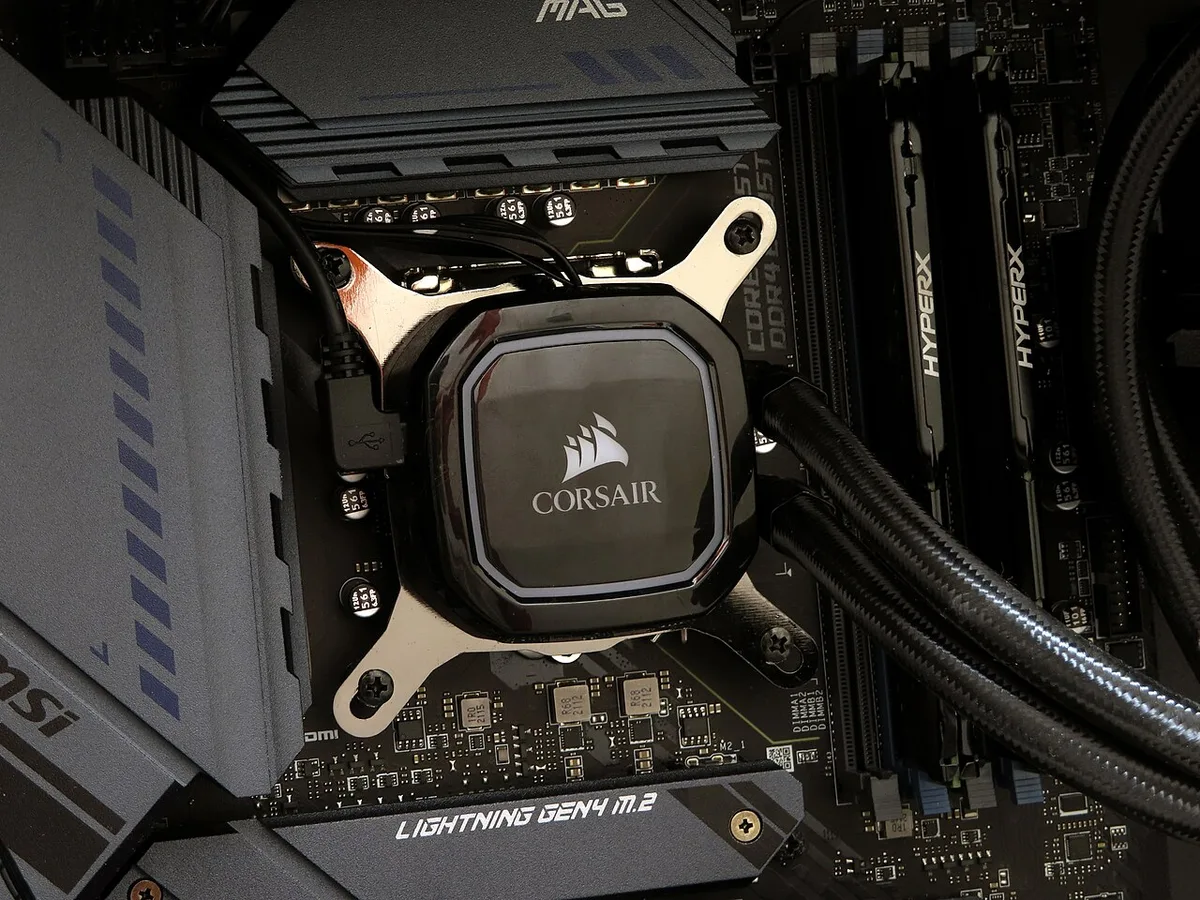
Image source: Wikimedia Commons / Chi Ho Chan from Hong Kong (CC BY)
The CPU cooler sits on top of the processor. Air coolers have a metal heatsink with fins and one or more fans. Liquid coolers have a pump block on the CPU, tubes running to a radiator, and fans on the radiator.
The PSU is a metal box with a fan and a bundle of cables. The case itself is the outer shell with mesh or glass panels.
Knowing these shapes helps you spot problems before powering on. A GPU sagging toward the bottom of the case, a cooler fan hitting a RAM stick, or a cable blocking airflow all show up visually.
Case Sizes and What Fits Inside Each One
Case size determines which parts fit and how much room you have for airflow. The three common sizes are Full Tower, Mid Tower, and Small Form Factor. Each supports different motherboard form factors.
| Case Size | Motherboard Support | GPU Length Limit | Cooler Height Limit |
|---|---|---|---|
| Full Tower | E-ATX, ATX | 400mm+ | 180mm+ |
| Mid Tower | ATX, Micro-ATX | 330-360mm | 160-170mm |
| Small Form Factor | Mini-ITX | 200-300mm | 50-90mm |
Mid Tower is the most popular choice. It fits most ATX boards and full-size GPUs while staying manageable on a desk. Full Tower suits builders who want custom liquid cooling or multiple large drives.
Small Form Factor cases demand careful part selection. A GPU that's too long won't fit. A cooler that's too tall hits the side panel.
PSU size often drops to SFX format.
Before buying, check three numbers. GPU length in millimeters. CPU cooler height in millimeters.
PSU form factor. Manufacturer spec sheets list all three. Matching them to the case spec sheet prevents the most common build mistake.
If budget is your main concern, a budget-friendly build can still deliver solid 1080p gaming. And if you want everything in one box, a PC with a monitor included saves setup time.
Cable Paths and Airflow You Can See
Good cable management isn’t just about aesthetics. It’s critical for thermal performance. A diagram of a well-managed build shows cables tucked behind the motherboard tray, leaving the main chamber clear for air movement.
When you see a messy bundle in front of the fans, it creates turbulence. That turbulence traps heat around your GPU and CPU.
Most modern cases feature rubber grommets or velcro straps along the back panel. These hold power and data cables flat against the metal. This keeps the view inside clean.
It also ensures intake fans aren’t blocked by loose wires. If you’re building from scratch, route your 24-pin ATX power connector first. Then handle the EPS CPU power cables.
Finally, tuck away the SATA and USB headers.
Airflow direction matters as much as cable tidiness. Positive pressure means more air enters than exits. This pushes dust out through gaps instead of sucking it in.
Negative pressure does the opposite. Most gaming PCs aim for neutral or slightly positive pressure. You achieve this by balancing intake and exhaust fan counts.
Visualizing the path helps you troubleshoot later. If temperatures spike during gaming, check the airflow map. Are intakes facing cool ambient air?
Is the rear exhaust unobstructed? Often, the issue is simple blockage. A thick cable bundle or a poorly placed drive cage can kill circulation.
Manufacturer documentation from case brands like Fractal Design or Corsair provides specific mounting points. Use them. They’re engineered to keep lines organized.
Ignoring these guides leads to clutter that looks bad and performs worse. For those who prefer simplicity, a tidy setup guide offers practical tips on organizing peripherals and internal wiring alike.
Visual Mistakes First-Time Builders Make
The most common error is forcing parts into incompatible slots. Beginners often try to install an M.2 SSD without removing the standoff screw underneath. This cracks the board.
Another frequent mistake is forgetting the I/O shield. Installing the motherboard before sliding the shield into the rear cutout means you have to disassemble everything to fix it.
Thermal paste application causes confusion too. Many people apply too much, creating a mess that insulates rather than conducts heat. Or they forget it entirely, leading to immediate overheating upon boot.
The visual cue here is a pea-sized dot in the center of the CPU heat spreader. Any more is waste. Any less risks poor contact.
Cable orientation errors are subtle but damaging. Plugging the wrong PCIe power connector into a GPU can melt ports. Always match the pin count visually.
An 8-pin connector doesn’t fit a 6+2 slot unless aligned correctly. Rushing this step leads to permanent hardware damage.
Another oversight is ignoring standoffs. Metal posts raise the motherboard off the case tray. Without them, solder joints touch grounded metal.
This shorts the system instantly. Check every hole. Ensure a brass standoff sits beneath each screw point.
Missing one is easy to spot if you look closely at the board layout.
RAM installation mistakes involve partial seating. Sticks click in when secure. If they don’t click, they aren’t seated.
Boot failures follow. Look for equal exposure of gold contacts on both sides. Uneven spacing means one side is higher than the other.
Push down firmly until symmetric.
Finally, neglecting fan orientation. Fans blow air in the direction their frame arrows indicate. Mounting them backward reverses airflow.
Your hot air stays trapped. Inspect the blades and housing labels before securing screws. Correct placement ensures efficient cooling throughout the chassis.
Quick Size and Compatibility Reference
Before buying any part, verify dimensions against your case specifications. This table summarizes key measurements you must cross-check. Ignoring these numbers results in returns and wasted time.
| Component | Critical Dimension | Typical Range | Verification Source |
|---|---|---|---|
| GPU | Length (mm) | 250–350mm | Case Spec Sheet |
| CPU Cooler | Height (mm) | 150–170mm | Case Spec Sheet |
| Motherboard | Form Factor | ATX/mATX/ITX | Case Support List |
| PSU | Length (mm) | 140–180mm | Case Clearance Data |
| RAM | Height (mm) | 30–45mm | Cooler Clearance Zone |
GPU length is the biggest constraint. High-end cards exceed 300mm. Measure from the bracket to the shroud tip.
Leave at least 10mm clearance for cables. Mid-towers usually support up to 360mm. Compact builds require checking SFX PSU compatibility alongside short GPUs.
CPU cooler height limits vertical space. Tall dual-tower air coolers reach 165mm. Low-profile alternatives sit under 90mm.
Liquid coolers depend on radiator thickness plus fan depth. A 240mm rad with 25mm fans adds 50mm total. Confirm your case top supports this stack.
Motherboard form factor dictates layout. ATX boards need larger trays. Micro-ATX fits smaller spaces.
Mini-ITX requires specialized compact cases. Mixing these up wastes money. Check socket type separately.
LGA 1700 needs different mounting brackets than AM5.
PSU length affects cable routing room. Modular units allow cleaner installs. Non-modular bundles take up valuable interior volume.
Verify maximum supported length in millimeters. Some tight ITX cases limit PSUs to 120mm. Standard ATX units run 140, 160mm.
RAM clearance interacts with coolers. Large heatsinks overhang DIMM slots. Low-profile memory avoids conflict.
High-performance kits with RGB lights add height. Check manufacturer notes for max supported RAM height under the cooler. Failure to do so prevents lid closure.
For deeper dives into component selection, graphics card specs detail physical requirements beyond just performance metrics. Matching these physical traits ensures smooth assembly.
FAQs
Do I need all eight core parts to boot a PC?
No. You can technically boot with just CPU, motherboard, RAM, PSU, and storage. However, without a GPU, video output depends on integrated graphics.
Many CPUs lack iGPUs. Also, cooling is mandatory. Running without a cooler triggers instant shutdown protection.
Case fans improve longevity but aren’t strictly required for initial POST.
How do I know if my RAM is compatible with my motherboard?
Check the Qualified Vendor List (QVL) on the manufacturer’s website. Match speed, voltage, and timing. DDR4 and DDR5 are physically incompatible due to notch positions.
Also verify capacity limits. Most consumer boards support up to 128GB across four slots. Dual-channel operation requires matching pairs for best stability.
What happens if I plug in the wrong power connector?
Modern connectors are keyed to prevent misinsertion. Forcing them damages pins. The 12VHPWR adapter used for high-end NVIDIA GPUs has specific orientation marks.
Incorrect insertion melts plastic insulation. Fire risk exists though rare. Always align keys gently.
Never use excessive force. If it resists, remove and inspect alignment.
Can I reuse old parts in a new gaming PC?
Yes, within limits. Storage drives, RAM, and GPUs often work across generations. Power supplies degrade over time; replace if older than five years.
Coolers may need new mounting brackets for newer sockets. Motherboards rarely transfer due to chipset differences. Check physical interfaces like SATA versus NVMe for drive compatibility.
Why does my PC shut down randomly under load?
Overheating or insufficient power are primary culprits. Thermal throttling protects components by cutting clocks. Shutdown occurs if temps exceed safe thresholds.
Check cooler seating and paste application. PSU wattage might be inadequate for peak spikes. High-end GPUs draw transient loads exceeding rated watts.
Upgrade PSU margin by 20% above calculated TDP sum.