What is a dual purpose gaming and work pc? It is one machine built to switch between demanding games and daily work without forcing you to buy two computers. The trick is balance, not maxing out every part.
Manufacturer specifications indicate a modern 8-core CPU and 32 GB of RAM handle both office multitasking and many AAA games at 1440p. The right build depends on your actual apps, not a generic parts list. Let's start with the real problem most buyers miss.
The Real Problem With "One PC For Everything"
A dual-purpose PC sounds simple until you try to buy one. Many people chase the highest GPU they can afford and ignore the rest of the machine. That works for gaming, but workloads like video editing, code compilation, or large spreadsheets punish weak CPUs, slow storage, or low memory.
If your work is mostly email, browsing, and documents, a mid-range gaming PC can be perfect. If your work involves rendering, 3D modeling, or heavy multitasking, the same "balanced" build may feel slow by lunchtime. The mistake is treating balance as the same spec for everyone.
Think of it as a decision tree, not a shopping list. Start with your two heaviest tasks, one for work and one for play. Then build around the harder one, while keeping the other one smooth.
What a Dual-Purpose Gaming and Work PC Actually Is
A dual-purpose gaming and work PC is a single desktop or small form factor system tuned for both interactive gaming and productive daily work. It uses consumer parts, not a dedicated workstation GPU, but it is configured to avoid the usual gaming PC weak spots.
That means enough CPU cores for background tasks, enough RAM for browser tabs and creative apps, fast NVMe storage for project files, and a GPU that can play games without starving your work software. It is not a gaming PC with extra RAM tossed in. It is a deliberate middle ground.
If you want a deeper comparison, read about the difference between a gaming PC and a workstation before you choose a platform. For most buyers, the consumer route wins on price and upgrade options. Intel processor documentation is a useful place to check TDP and core counts when you compare CPUs.
The Three Variables That Decide Your Build
Three variables shape almost every good dual-purpose build. Get these right, and the rest becomes easier.
- Workload intensity: Light office work needs less CPU and RAM than video editing or 3D work.
- Gaming target: 1080p esports, 1440p AAA, and 4K gaming ask very different things from the GPU.
- Constraints: Budget, desk space, noise tolerance, and upgrade plans all matter.
If your work is light, spend more on the GPU. If your work is heavy, spend more on the CPU, RAM, and storage. If both are heavy, you are in enthusiast territory, and a two-PC setup may be smarter.
As of 2026, a sensible mid-tier build often lands around $1,500. That is not a rule. It is a useful anchor when you start comparing parts.
Branching Your Build by Work Type
The biggest mistake is buying for an average user. You are not average. Your job decides the right branch.
Light Office and Knowledge Work
This branch fits email, documents, spreadsheets, video calls, and browser-heavy work. A modern 6-core or 8-core CPU is enough. 16 GB of RAM works, but 32 GB gives you breathing room for many tabs and apps.
Spend the money on the GPU and monitor. A mid-range graphics card will play most games well at 1080p or 1440p. Fast NVMe storage still matters because slow boots and app launches annoy you every day.
Creative and Production Workloads
This branch fits photo editing, video editing, motion graphics, and audio work. CPU core count matters more here. 32 GB of RAM is the safer floor, and 64 GB is worth it for large timelines or heavy plugins.
Color accuracy matters as much as refresh rate. A 144 Hz monitor feels great in games, but a panel with strong sRGB or DCI-P3 coverage protects your work. If you run professional creative software, check whether your apps benefit from more VRAM before buying a GPU.
Development, Data, and Heavy Compute
This branch fits programmers, data analysts, and anyone running local models or large builds. Single-core speed helps interactive work, but core count helps compiles and parallel tasks. Fast storage reduces wait time when projects are large.
A workstation-style CPU may be tempting, but consumer platforms often give better value. If you are unsure, compare this path with a dedicated workstation before spending. For coding and daily use, see how much technical knowledge is needed to use a gaming PC so you do not overcomplicate the setup.
What's Actually Inside a Balanced Build
A balanced build is not a list of expensive parts. It is a set of parts that do not choke each other. The CPU, GPU, RAM, storage, and cooling should all support the same goal.
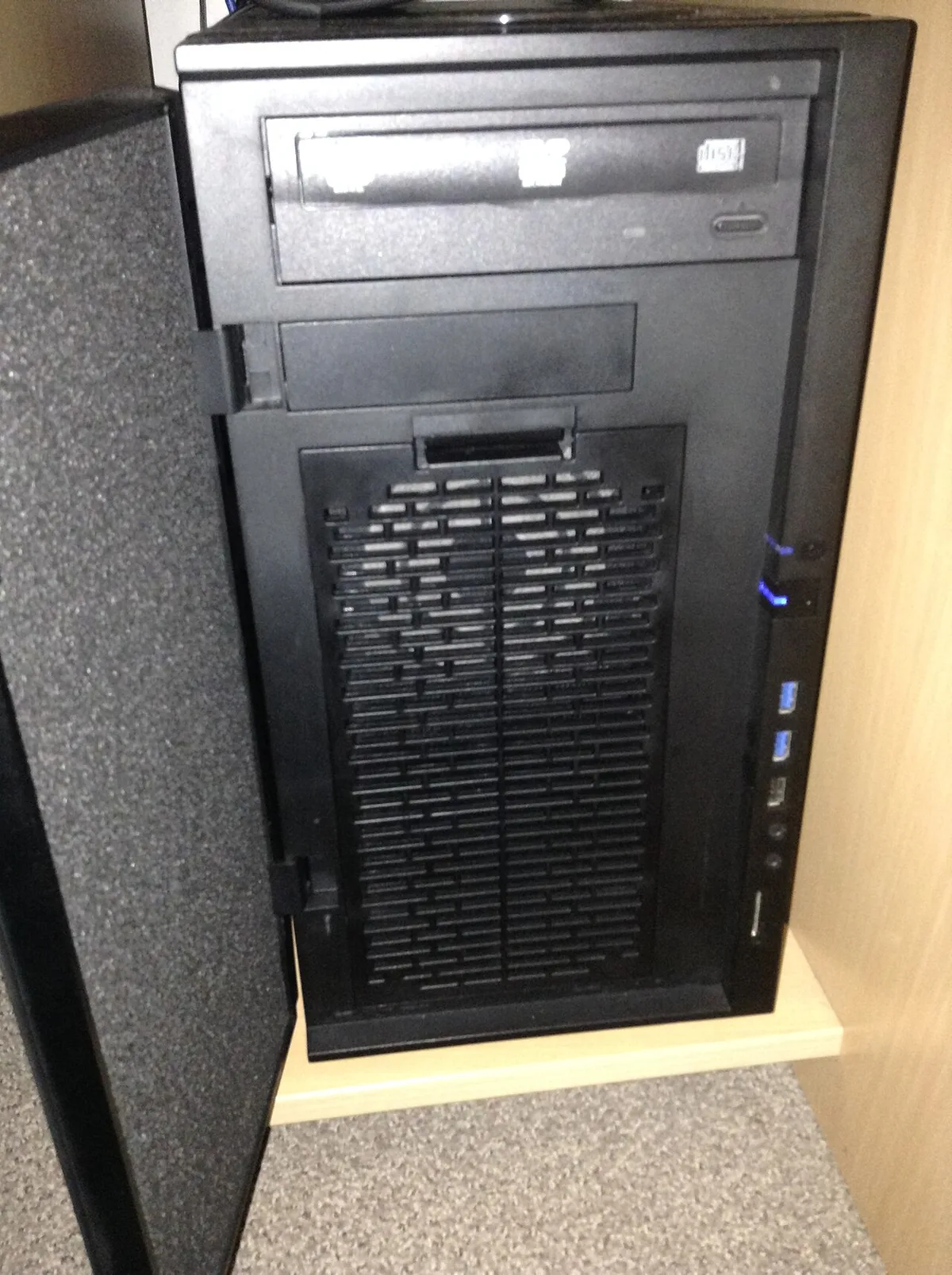
Image source: Wikimedia Commons / deavmi (CC BY-SA)
| Component | What to Prioritize | Common Mistake |
|---|---|---|
| CPU | Cores for your work, strong single-core for games | Buying a gaming chip with too few cores |
| GPU | VRAM and performance for your target resolution | Overspending on 4K power you will not use |
| RAM | 32 GB for mixed use, 64 GB for heavy creative work | Stopping at 16 GB for modern multitasking |
| Storage | 1 TB NVMe minimum, 2 TB better | Using a slow drive for active projects |
| Cooling | Quiet airflow under sustained load | Cramming hot parts into a tiny case |
| PSU | Quality unit with headroom | Buying by wattage alone |
If you want a wider view of part selection, a balanced gaming PC configuration guide can help you avoid mismatched components. Gaming performance depends on more than the GPU, so check the whole system before you buy.
For everyday productivity, a gaming PC can be a strong work machine when the RAM and storage are right. If your work is heavier, compare this build with a dedicated workstation before you commit.
Dual-Purpose PC vs. the Alternatives
A dual-purpose PC is not always the best buy. Sometimes two simpler machines are cheaper, safer, or easier to live with.
| Option | Best For | Main Trade-off |
|---|---|---|
| Dedicated gaming PC | Pure gaming value | Weak for heavy creative work |
| Dedicated workstation | Rendering, CAD, and compute | Higher cost and fewer upgrade paths |
| Gaming laptop with dock | Travel and small spaces | Heat, battery limits, and price |
| Console plus work laptop | Simple living-room setup | Two ecosystems and two devices |
| Two-PC streaming setup | Serious streamers | Desk space, cost, and complexity |
If you game hard but work light, a gaming PC plus a cheap office laptop can be the smarter buy. If you render video all day, a workstation may pay for itself in saved time. If you stream, compare single-PC streaming setups before adding a second machine.
For a tight desk, smaller desk-friendly builds may beat a full tower. NVIDIA's official GPU specifications are worth checking when your work depends on VRAM.
How to Plan, Build, and Avoid Costly Mistakes
Start with your two hardest tasks, one for work and one for play. Then build around the harder one and keep the other one smooth.
- List your real apps, games, and file sizes.
- Set a budget tier before picking parts.
- Choose CPU cores and RAM for your work.
- Choose GPU power for your target resolution.
- Check socket, memory, PSU, and case fit.
- Assemble, install drivers, and tune cooling.
- Benchmark work apps and games separately.
Common mistakes include buying a CPU with too few cores for creative work, stopping at 16 GB of RAM for heavy multitasking, and ignoring storage speed. Another big one is buying a GPU for 4K gaming when your monitor and work are 1440p. If you edit video or design graphics, check whether creative work on a gaming rig fits your software before you buy.
If your day involves many tabs and apps, see how well gaming PCs multitask under real load.
What It Costs at Each Tier
Budget tiers are guides, not rules. Prices move, and regional stock changes fast.
| Tier | Typical Budget | What You Usually Get |
|---|---|---|
| Entry | $800 to $1,000 | 6-core CPU, 16 GB RAM, mid-range GPU, 1 TB NVMe |
| Mid | $1,400 to $1,800 | 8-core CPU, 32 GB RAM, stronger GPU, 2 TB NVMe |
| High-end | $2,300 to $3,000 | 12-core CPU, 32 to 64 GB RAM, high-end GPU, premium cooling |
| Enthusiast | $4,000+ | Top CPU, 64 GB RAM, flagship GPU, quiet premium build |
Mid-range builds often hit the sweet spot for both gaming and work. High-end builds make sense when your income depends on render times or large datasets. Do not forget electricity and peripherals.
A loud, hot, power-hungry machine costs more over time. If you want a baseline before spending, review mid-range gaming PC specs to see what balanced parts look like in practice.
Frequently Asked Questions
Is a gaming PC good enough for work?
Yes, for many jobs. A gaming PC handles office apps, browsing, video calls, and multitasking well when it has enough RAM and fast storage. Heavy creative, engineering, or data work may need more cores, memory, or a workstation GPU.
How much RAM should a dual-purpose PC have?
32 GB is the safer floor for mixed gaming and work. 16 GB can work for light office tasks and esports, but modern browsers and creative apps eat memory fast. Choose 64 GB if you edit large video projects or run heavy plugins.
Should I buy a workstation GPU or a gaming GPU?
Most buyers should choose a gaming GPU. Workstation GPUs help with certified drivers, large VRAM, and specific professional apps. If your software does not need those features, a consumer GPU gives better gaming value.
Can one PC handle gaming and video editing well?
Yes, if the CPU, RAM, storage, and GPU are balanced. Video editing needs strong multi-core performance and enough memory. Gaming needs GPU power.
A mid to high-end build with 32 GB RAM and fast NVMe storage is a solid starting point.
Is a dual-purpose PC cheaper than buying two computers?
Often yes. One machine saves money, desk space, cables, and maintenance. It only fails when both workloads are extreme, because then compromises cost more than a second device.
Final Decision Guide
Use simple if and then logic.
- If your work is light and your games are demanding, spend more on the GPU.
- If your work is heavy and your games are light, spend more on CPU, RAM, and storage.
- If both are heavy, consider a workstation or a two-PC setup.
- If space is tight, choose a compact case with strong airflow.
- If noise bothers you, budget for better cooling and a quality PSU.
- If you are unsure, buy a balanced mid-tier build and upgrade later.
The right machine is the one that fits your two hardest tasks, not the one with the biggest spec sheet. Buy for your real workflow, leave room for upgrades, and test both work and play before you call the build done.
2 thoughts on “What Is a Dual-Purpose Gaming and Work PC? Explained”
Comments are closed.