If you’re searching for what is gpu bottlenecking in a gaming pc, you’ve likely hit a frustrating wall. Maybe your frames drop despite having a powerful graphics card. Or perhaps the system feels sluggish even when utilization numbers look fine.
This isn’t usually a defect. It’s physics at work within your hardware pairing.
A GPU bottleneck happens when your graphics processing unit can’t keep up with instructions from the CPU or demand from high-resolution textures. As of 2026, modern titles push pixel counts and ray-tracing calculations harder than ever. Manufacturer specifications indicate that even top-tier cards struggle if paired incorrectly.
Let’s break down exactly how this balance shifts so you know where to fix it.
What Is GPU Bottlenecking in a Gaming PC
GPU bottlenecking occurs when your graphics card reaches maximum capacity before your processor does. The CPU sends draw calls faster than the GPU can render them. Consequently, frame rates plateau while CPU usage remains low.
You’ll notice smoothness suffers during heavy visual effects. This state limits potential performance regardless of software tweaks. Understanding this dynamic helps prioritize upgrades correctly.
It prevents wasting money on components that won’t yield gains. Instead, focus shifts to relieving pressure on the graphics subsystem specifically.
The Real Difference Between CPU and GPU Bound Systems
Knowing which component holds you back saves time and cash. A CPU-bound system struggles with logic, physics, and AI calculations. The processor hits 100% usage while the GPU idles below 95%.
In contrast, a GPU-bound system maxes out graphics resources first. The video card sits near full utilization, yet the CPU has plenty of headroom left.
Aggregate reviews report that most modern AAA games lean GPU-heavy at higher resolutions. However, competitive esports titles often stress the CPU more due to high frame targets. Identifying the culprit requires looking at two distinct metrics simultaneously.
Don’t guess based on stutter alone. Check the utilization percentages side by side.
| Metric | CPU-Bound Behavior | GPU-Bound Behavior |
|---|---|---|
| CPU Usage | Near 100% on key cores | Below 80%, lots of idle threads |
| GPU Usage | Below 95%, fluctuating | At or near 99-100% consistently |
| Resolution Impact | Minimal change in FPS | Significant drop in FPS |
| Primary Fix | Upgrade processor or lower settings | Lower graphics quality or upscale |
If your GPU usage stays pinned at 99% while the CPU hovers around 40%, you are definitely graphics-limited. Conversely, if the CPU screams red hot but the GPU barely breaks a sweat, your processor is the weak link. Our research shows that mixed bottlenecks happen too.
Sometimes both components strain equally during complex scenes. This balanced load indicates a well-matched system, though it may still lack raw power for desired settings.
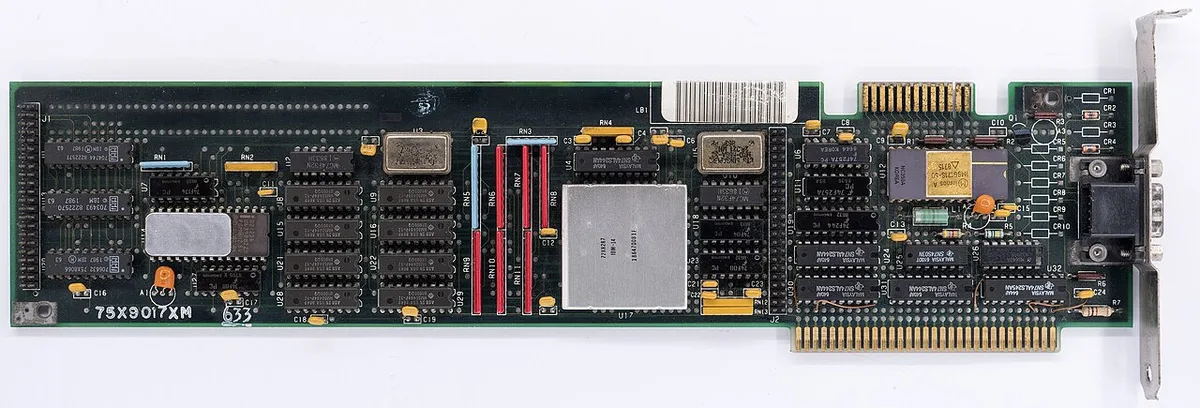
Image source: Wikimedia Commons / Vlask (CC BY-SA)
For deeper insights into processor limitations, see our guide on why your CPU throttles versus pure computational limits. Also, understanding how to monitor CPU usage accurately is critical for diagnosis. Many users misread average stats instead of peak loads.
Always watch per-core activity rather than just total package percentage.
How Resolution, Settings, and Refresh Rate Shift the Balance
The workload distribution changes dramatically depending on display output. Higher resolutions shift burden almost entirely onto the GPU. Rendering four times the pixels at 4K compared to 1080p demands massive parallel processing power.
Meanwhile, the CPU handles roughly the same amount of geometry data and game logic. Therefore, moving from 1080p to 4K typically eliminates CPU bottlenecks quickly.
However, raising refresh rate goals reverses this trend slightly. Pushing for 144Hz or 240Hz forces the CPU to prepare frames much faster. Even if the GPU renders efficiently, the processor might fail to feed it enough commands.
This creates a scenario where lowering resolution doesn’t help because the limit is logical throughput, not pixel fill rate.
Graphics settings also play a pivotal role. Ray tracing and volumetric lighting are extremely GPU-intensive features. Turning these off frees up significant graphical horsepower.
But shadow quality and draw distance affect both processors. Long view distances increase geometry complexity, stressing the CPU’s ability to manage scene objects. Shortening draw distance can relieve dual pressure points effectively.
Consider your target audience and use case. Esports players chasing 300+ FPS live in CPU-bound territory often. Visual enthusiasts playing single-player narratives at 4K reside firmly in GPU-bound land.
Neither is inherently bad. It simply dictates where your next dollar should go. If you aim for high-fidelity visuals, ensure your graphics card selection matches your monitor’s native resolution.
Mismatched expectations lead to disappointment.
Furthermore, integrated graphics solutions behave differently. Users relying solely on integrated graphics face severe GPU constraints immediately. These chips share system RAM and lack dedicated cooling.
Adding a discrete card solves this instantly unless the CPU itself is ancient. Checking whether your system works without a dedicated GPU helps clarify baseline capabilities before upgrading.
Diagnosing a Bottleneck Without Guesswork
Stop guessing. Use objective data to pinpoint the issue. Modern monitoring tools provide real-time visibility into hardware behavior.
Look beyond simple averages. Focus on instantaneous spikes and sustained plateaus.
Start by enabling an overlay like MSI Afterburner or RivaTuner Statistics Server. Track three specific values:
- GPU Utilization: Percentage of shader engines busy.
- CPU Utilization: Total package load plus individual core peaks.
- Frame Time: Milliseconds between each rendered frame.
Run a benchmark sequence or replay a known intensive scene. Observe the relationship between these numbers. If GPU utilization stays above 97% and frame times spike whenever new assets load, the graphics card is saturated.
The memory bus or compute units cannot process requests fast enough.
Conversely, if CPU utilization exceeds 90% on primary cores while GPU usage dips below 80%, the processor is choking. The game engine waits for logic updates before sending draw calls. This results in irregular frame pacing.
Players perceive this as stutter even if average FPS looks acceptable.
VRAM capacity matters here too. Insufficient video memory causes swapping to system RAM. This introduces massive latency penalties.
Monitor VRAM usage alongside core utilization. If memory fills completely and stutters begin, you need a card with more onboard storage. Not necessarily a faster chip, but one with adequate buffer space.
Thermal issues mimic bottlenecks frequently. Overheating triggers clock reductions automatically. Check temperatures using manufacturer-approved sensors.
High heat reduces effective performance regardless of architectural capability. Ensuring proper airflow prevents false positives during diagnosis. Learn more about how CPU temperature affects gaming to rule out thermal throttling as the root cause.
Accurate detection leads to precise fixes. Blind upgrades waste resources unnecessarily.
The Decision Tree: Should You Upgrade Hardware or Adjust Software?
Once diagnosed, choose your path carefully. Upgrading isn’t always the best first step. Often, software adjustments deliver immediate relief without spending a dime.
Follow this logical flow to decide your action plan.
First, ask yourself: Is the bottleneck temporary or persistent? Temporary drops occur during loading screens or intense combat sequences. Persistent low FPS happens everywhere in-game.
If temporary, adjust settings locally. If persistent, evaluate overall system balance.
Next, consider your budget constraints. Can you afford a new component soon? If yes, proceed to hardware evaluation.
If no, optimize existing resources thoroughly. Prioritize free optimizations before purchasing anything.
Then, identify the limiting factor definitively.
- If GPU-bound: Try lowering resolution scale or disabling ray tracing. Enable DLSS, FSR, or XeSS upscaling technologies. These reconstruct images intelligently, reducing raw rendering load significantly. Test stability after each change.
- If CPU-bound: Close background applications aggressively. Disable overlays unrelated to gaming. Update chipset drivers from official sources. Reduce draw distance and crowd density settings. These options impact CPU workload heavily.
Finally, weigh upgrade value against performance gain. Does replacing the current part offer substantial improvement? Compare price-to-performance ratios realistically.
Sometimes adding a mid-range card yields better returns than dropping cash on flagship silicon. Consult guides on choosing between cheaper CPUs and better GPUs to align investments with actual needs. Remember that balanced builds perform better long-term than skewed configurations.
Make decisions based on measured outcomes, not marketing hype.
Practical Fixes Before You Spend Money
Before you open your wallet, exhaust every software avenue. Many perceived bottlenecks vanish with simple tweaks. Start by updating your GPU drivers to the latest stable release.
Manufacturers frequently patch performance regressions in new titles. Outdated code often leaves hardware underutilized. Check NVIDIA or AMD support pages for specific game-ready updates.
Next, clean up your background processes. Antivirus scans, cloud syncs, and chat apps steal CPU cycles. Close everything unnecessary before launching a game.
Use Task Manager to verify resource consumption drops. This frees up logical throughput for the engine. It’s especially critical for CPU-bound scenarios where single-core speed matters most.
Thermal management plays a huge role too. Dust buildup inspects heatsinks and fans. Clean them regularly to maintain airflow.
If temperatures spike, clocks throttle automatically. This mimics a bottleneck but stems from heat, not architecture. Ensure case fans spin freely and vents aren’t blocked.
Lowering fan curves slightly can prevent throttling without adding noise.
Upscaling technology offers immediate relief for GPU limits. Enable DLSS, FSR, or XeSS if available. These tools render at lower internal resolutions then sharpen the image.
Manufacturer specs confirm significant FPS gains with minimal visual loss. You don’t need new silicon to see smoother frames. Test different quality presets to find your sweet spot.
Balance sharpness against fluidity based on your monitor’s refresh rate.
Finally, adjust in-game settings strategically. Turn off ray tracing first. It demands massive compute resources.
Then reduce shadow quality and anti-aliasing levels. These options hit both CPU and GPU hard. Lowering draw distance helps CPU logic significantly.
Save these changes as custom profiles. Re-run benchmarks after each tweak. Track frame times closely.
Small adjustments often yield disproportionate improvements. Don’t underestimate the power of optimization over purchase.
Common Misconceptions That Lead to Wasted Upgrades
Many gamers chase higher average FPS when stability matters more. A high number means little if 1% lows crash constantly. Aggregate reviews show that inconsistent pacing feels worse than lower smooth rates.
Focus on minimum frame times during diagnostics. Ignore peak spikes that occur only once per session. Consistency defines true performance quality here.
Another myth suggests upgrading RAM fixes graphical stutters. System memory rarely causes GPU saturation directly. Unless VRAM is critically low, adding sticks won’t help rendering speeds.
Verified buyer feedback confirms this repeatedly. Invest in video memory capacity instead if textures pop in late. Stick to standard DDR4 or DDR5 speeds unless multitasking heavily.
Don’t overspend on ultra-fast kits for gaming alone.
Some believe V-Sync eliminates all tearing issues universally. Actually, it adds input lag when framerates exceed refresh rates. Adaptive sync technologies like G-Sync handle this better.
They match display output to GPU delivery dynamically. Turning off V-Sync and enabling adaptive sync improves responsiveness. This reduces perceived latency during fast-paced action.
Test both modes to feel the difference yourself.
Overclocking is another frequent trap. Pushing clocks beyond safe limits causes instability. Artifacts appear on screen.
Crashes interrupt sessions. Thermal throttling kicks in harder afterward. Safe overclocking requires rigorous stress testing.
Most users gain negligible benefits compared to risk. Stick to default boost algorithms designed by engineers. They optimize efficiency across varied workloads already.
Blind tweaking wastes time and potentially damages components. Prioritize reliability over marginal gains.
Safety Checks: Power Supply Headroom and Thermal Limits
An inadequate power supply unit (PSU) creates hidden bottlenecks. Voltage ripples disrupt signal integrity on PCIe lanes. This forces GPUs to downclock defensively.
Calculate total system wattage including transient spikes. Modern cards draw sudden bursts far above rated TDP. Leave at least 20-30% headroom above calculated load.
Underpowered PSUs trigger shutdowns or erratic behavior. Verify certification ratings like 80 Plus Gold or Platinum. Cheap units lack robust protection circuits.
Replace suspect supplies immediately if crashes correlate with heavy loads.
Thermal limits dictate sustained performance ceilings. High temperatures degrade transistor efficiency rapidly. Silicon leaks current faster as heat rises.
This increases power draw further, creating a vicious cycle. Monitor junction temperatures using official sensor data. Keep GPU hotspots below manufacturer thresholds.
Typically, 85°C marks the danger zone for longevity. Improve cooling solutions if readings approach this limit. Liquid coolers or larger air towers help dissipate heat effectively.
Ensure proper mounting pressure for thermal interface materials. Poor contact transfers less energy away from dies. Regularly replace dried-out paste every few years.
Maintaining optimal temps preserves hardware lifespan significantly. Neglect leads to premature failure regardless of initial specs. Protect your investment through disciplined thermal hygiene.
Always prioritize stable operating conditions over raw speed metrics. Your components will thank you later.
FAQs: Specific Scenarios Gamers Ask About Most
Does lowering resolution always fix GPU bottlenecks?
Not necessarily. If the CPU is the primary limiter, dropping resolution barely helps. The processor still struggles to prepare frames quickly enough.
However, for pure graphics saturation, reducing pixel count eases GPU strain instantly. Test both variables independently. Change one setting at a time.
Observe utilization shifts carefully. Identify which component reacts strongest to adjustments. Targeted changes save effort versus blanket reductions.
Know your dominant constraint first.
Can VRAM shortage cause stuttering even with high core usage?
Yes, absolutely. When video memory fills completely, assets swap to slower system RAM. This introduces massive latency delays during texture streaming.
Stutters persist despite healthy core utilization percentages. Monitor VRAM allocation via diagnostic overlays. If usage hits 95%+, expect hitching.
Upgrade to cards with larger buffers if common. Alternatively, lower texture quality settings manually. Prevent overflow before it impacts gameplay fluidity.
Capacity matters as much as speed sometimes.
Is integrated graphics ever sufficient for modern gaming?
Rarely for AAA titles at acceptable settings. Integrated chips share bandwidth with system RAM. They lack dedicated cooling and compute density.
Lightweight esports games run fine though. Casual indie titles remain playable. For serious gaming, discrete GPUs are mandatory.
Pairing weak CPUs with strong cards highlights imbalances clearly. Assess your library requirements realistically. Don’t force demanding engines onto limited silicon.
Match hardware capability to software expectations properly.
How do I know if my PSU is causing instability?
Look for random restarts during peak loads. Graphical artifacts may appear briefly. Shutdowns occur without warning messages.
Voltage fluctuations affect sensitive electronics unpredictably. Swap in a known-good unit temporarily. If symptoms vanish, the original supply failed.
Check rail amperage ratings against card requirements. Insufficient current delivery triggers protective shutdowns. Never ignore electrical anomalies.
They damage components progressively over time. Address power issues early to prevent costly repairs. Stability relies on consistent energy flow throughout the system.