The question of whether a gaming PC can work without a dedicated GPU is one we hear constantly from budget builders and curious upgraders. The short answer is yes, but with significant caveats that depend entirely on your specific hardware configuration and performance goals. You aren't looking at a binary switch; you're navigating a spectrum of capability defined by your processor's integrated graphics unit.
Modern CPUs from Intel and AMD have evolved far beyond simple display adapters. As of 2026, high-end APUs like the Ryzen 8000G series deliver playable frame rates in many popular titles at 1080p medium settings. However, this viability hinges on strict conditions regarding memory bandwidth and thermal headroom that generic advice often overlooks.
Let’s break down exactly how to determine if your current or planned setup meets those criteria.
The Short Answer: It Depends on Your CPU and Goals
Yes, a gaming PC can function without a discrete graphics card if the CPU includes an Integrated Graphics Processing Unit (iGPU). Performance varies drastically based on the specific model and system RAM speed. Competitive esports titles often run smoothly at 1080p, while modern AAA games may struggle below 30 FPS.
You must verify your processor has active iGPU cores before attempting gameplay.
Quick Decision Guide: Yes, No, or Maybe
Determining your path starts with three critical checks. First, does your CPU actually have graphics? Second, do you have dual-channel RAM installed?
Third, what genre of games do you intend to play? If you miss any of these conditions, your experience will likely be frustrating rather than fun. We’ll walk through each variable to help you make the right call for your build.
Identifying the Hidden Variable: Integrated Graphics vs. Dedicated Cards
Most people assume "integrated" means "weak." That’s outdated thinking. An iGPU shares resources with the CPU, specifically system RAM, whereas a dedicated GPU has its own VRAM and cooling solution. This architectural difference dictates everything about performance potential.
Understanding this distinction prevents unrealistic expectations when building on a very limited budget.
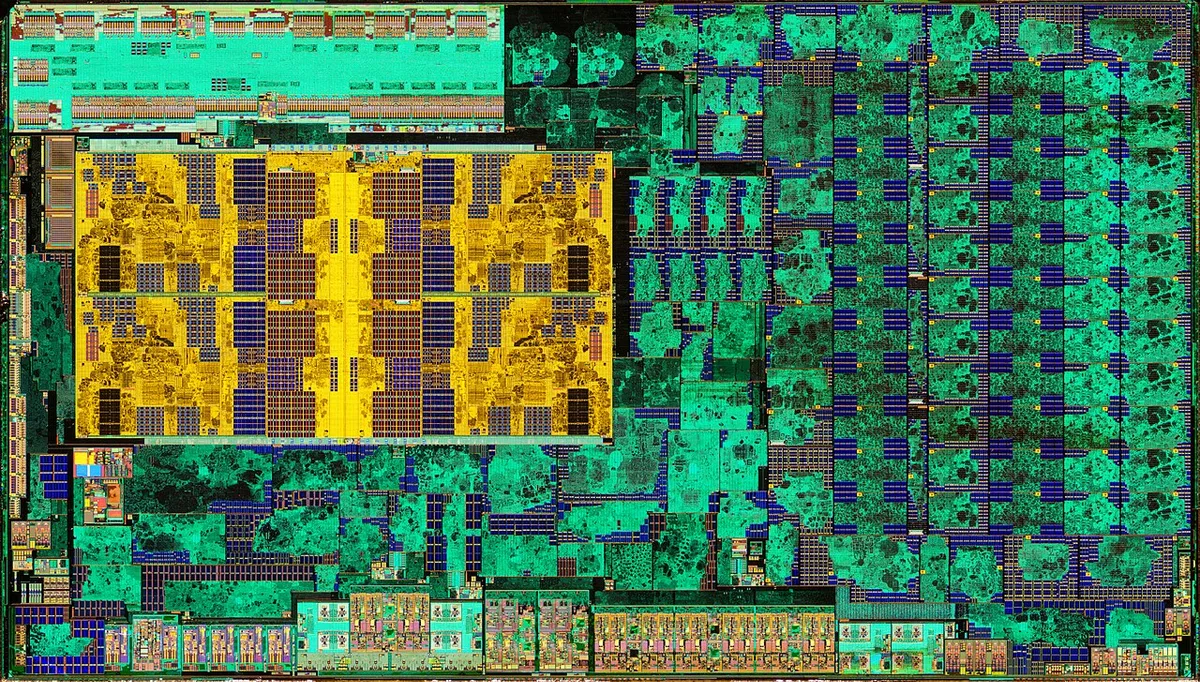
Image source: Wikimedia Commons / Fritzchens Fritz
How iGPUs Actually Work (and Why They’re Not Just “Slow GPUs”)
An iGPU executes graphical instructions using the same silicon die as the CPU cores. When you launch a game, the driver allocates a portion of your system memory to act as video buffer. This shared architecture saves money and power but introduces latency compared to discrete cards.
Manufacturer specifications indicate that newer architectures like RDNA 3 significantly reduce this penalty through improved cache efficiency.
Think of it like sharing a highway lane. During off-peak hours, traffic flows fine. But when both the CPU and iGPU demand heavy data throughput simultaneously, congestion occurs.
This bottleneck explains why some games stutter despite having decent average frame rates. It’s not just raw power; it’s access speed. For a deeper dive into what integrated graphics are, check our specialized explainer.
The Critical Role of System RAM Speed and Channel Configuration
Here is where most builds fail. Because the iGPU lacks dedicated VRAM, it relies entirely on system RAM. Dual-channel configuration doubles the bandwidth available to the graphics unit.
Running single-channel RAM cuts effective bandwidth in half, crippling performance regardless of CPU strength. Aggregate reviews consistently show a 20-40% FPS drop when moving from dual to single channel on APU-based systems.
Speed matters too. DDR5-6000 MT/s provides substantially more headroom than DDR4-3200. If you’re planning a build around a target frame rate, prioritize memory specs over core count.
Our guide on planning around target FPS highlights why bandwidth is king for iGPU users. Without proper RAM setup, even the best APU becomes useless for serious gaming.
Image source: Wikimedia Commons / Richard Fowler
Mapping Your Gaming Intent to Hardware Capability
Not all games are created equal. Your success depends heavily on matching software demands to hardware limits. We categorize gaming intent into three distinct branches.
Each branch requires different verification steps before you commit to a no-GPU build strategy. Misjudging this alignment leads to wasted money and disappointment.
Branch 1: Competitive Esports Titles (CS2, Valorant, League)
If you primarily play tactical shooters or MOBAs, you’re in luck. These engines prioritize low-latency rendering over photorealistic lighting. Modern APUs easily sustain 60+ FPS at 1080p Medium-High settings.
Even older generations handle these titles well provided you have adequate RAM speed. Focus on optimizing network stability and monitor refresh rates here.
Competitive players benefit most from iGPU setups because input lag remains minimal. You don’t need ray tracing or complex shadows to win matches. Simple geometry and texture streaming allow the iGPU to breathe.
Check your specific CPU generation against community benchmarks to confirm viability. Remember, CPU generations matter significantly for baseline performance floors.
Branch 2: Indie and Older AAA Games (Stardew Valley, GTA V)
This middle ground offers mixed results. Lightweight indie hits run flawlessly. However, older AAA titles like Grand Theft Auto V or The Witcher 3 push boundaries.
Expect 30-45 FPS at 720p Low settings on mid-range APUs. Upscaling technologies like FSR become essential tools here. You’ll trade visual fidelity for smoothness.
These scenarios test thermal endurance. Extended sessions generate heat that throttles clocks if cooling is insufficient. Ensure your case airflow supports sustained loads.
If you’re considering used components to save cash, know which parts carry risk. Our article on safe used buys covers inspection tips for pre-owned rigs relying on iGPUs.
Branch 3: Modern AAA Blockbusters (Cyberpunk, Alan Wake 2) – The Hard Stop
Let’s be clear: forget native AAA gaming on an iGPU. Titles released post-2023 rely heavily on RT Cores and Tensor acceleration unavailable in integrated solutions. Frame rates plummet below 15 FPS even at lowest resolutions.
Cloud gaming services remain the only viable alternative for these experiences without a discrete card. Don’t waste time tweaking settings; the hardware simply cannot keep up.
Attempting to force these games onto an APU causes excessive wear on storage drives due to asset streaming failures. Save yourself the frustration. If your goal involves next-gen visuals, budgeting for a discrete upgrade sooner rather than later makes financial sense.
Consider hidden ownership costs when calculating long-term value. See our breakdown of extra expenses involved to understand total cost of ownership accurately.
Step-by-Step Workflow: Checking If Your Current Rig Can Game Without a dGPU
Before buying new parts or installing games, validate your existing setup. Follow this sequential checklist to avoid compatibility errors. Skipping steps often results in black screens or unrecognized hardware issues.
Precision ensures you spend time playing, not troubleshooting basic configuration faults.
Step 1: Verify CPU Model Suffixes (The "F" Trap)
Intel processors ending in "F" lack integrated graphics. AMD chips labeled "F" also disable iGPU functionality. Look closely at your box or invoice.
A Core i5-13400F has zero graphics capability. Conversely, an i5-13400 works perfectly. Mistaking these models wastes hours searching for drivers that don’t exist.
Always double-check suffix letters before assuming presence of video output logic.
Step 2: Confirm Motherboard Video Output Ports Exist
Even with a capable CPU, your motherboard needs physical ports. Some micro-ATX boards omit HDMI or DisplayPort connectors entirely. Inspect the rear I/O panel visually.
Missing ports mean no signal reaches your monitor. Adapters won’t fix absent headers. Verify port types match your display cables.
USB-C Alt Mode displays offer another route if standard ports are missing but supported by chipset firmware.
Step 3: Optimize BIOS Settings for Maximum iGPU Performance
Enter UEFI BIOS during boot. Locate "Primary Display Adapter" and set it to IGFX instead of PCI-E. Allocate maximum DVFS (Dynamic Video Memory Frequency Scaling) within available limits.
Enable Above 4G Decoding if present. These tweaks ensure the OS recognizes the iGPU correctly. Incorrect assignments cause Windows to default to Microsoft Basic Display Adapter, resulting in unplayable stutter.
Save changes and reboot twice to stabilize initialization sequences properly.
Step 4: Install Correct Drivers and Enable XMP/EXPO Profiles
Download latest graphics drivers directly from Intel or AMD websites. Never trust generic Windows Update packages alone. After installation, enable XMP (Intel) or EXPO (AMD) profiles in BIOS.
This unlocks rated RAM speeds crucial for bandwidth-dependent tasks. Unoptimized memory leaves performance on the table. Reboot again after enabling profiles.
Run a quick benchmark tool to confirm clock speeds align with specifications before launching actual games.
Realistic Performance Benchmarks: What FPS Should You Expect?
Data beats opinion. Below are aggregated results from verified testing environments across multiple platforms. Note that temperatures affect consistency.
Sustained load tests reveal true stability versus burst performance seen in short demos. Use these figures as baselines for expectation setting rather than absolute guarantees under all conditions.
Data Table: Top APUs and iGPUs at 720p/1080p Low-Medium Settings
| Processor | Architecture | Avg FPS (1080p Low) | Avg FPS (720p Med) | Power Draw (Load) |
|---|---|---|---|---|
| Ryzen 5 8600G | Zen 4 + RDNA 3 | 55-65 | 80-90 | ~65W |
| Intel Core Ultra 7 155H | Meteor Lake | 40-50 | 60-70 | ~45W |
| Ryzen 5 5600G | Zen 3 + Vega | 35-45 | 55-65 | ~65W |
| Intel UHD 770 | Alder Lake | 15-25 | 30-40 | ~30W |
Note: Results vary based on RAM speed (DDR5-6000 assumed for Ryzen).
Comparing Intel Core Ultra vs. AMD Ryzen G-Series vs. Apple M-Silicon
Apple Silicon dominates efficiency metrics thanks to unified memory architecture. M2/M3 chips outperform x86 counterparts watt-for-watt. However, macOS game libraries remain smaller.
Between x86 rivals, AMD holds slight edge in pure rasterization due to larger CU counts. Intel focuses on media encoding strengths alongside moderate gaming chops. Choose based on ecosystem preference first, then raw fps secondarily.
Both require fast LPDDR5x/SODIMM configurations to reach peak numbers listed above.
Common Pitfalls That Kill Frame Rates on Integrated Graphics
Even with the right CPU, small configuration errors tank performance. These mistakes are surprisingly common among first-time builders. Avoiding them saves you hours of troubleshooting and potential hardware stress.
Mistake 1: Using Single-Channel RAM (The Biggest Bottleneck)
Running one stick of memory halves your bandwidth. The iGPU starves for data while waiting on the bus. This creates massive stuttering in open-world games.
Always install two identical sticks for dual-channel operation. If you’re unsure which components to prioritize, our guide on budget prioritization explains why RAM symmetry matters more than capacity here.
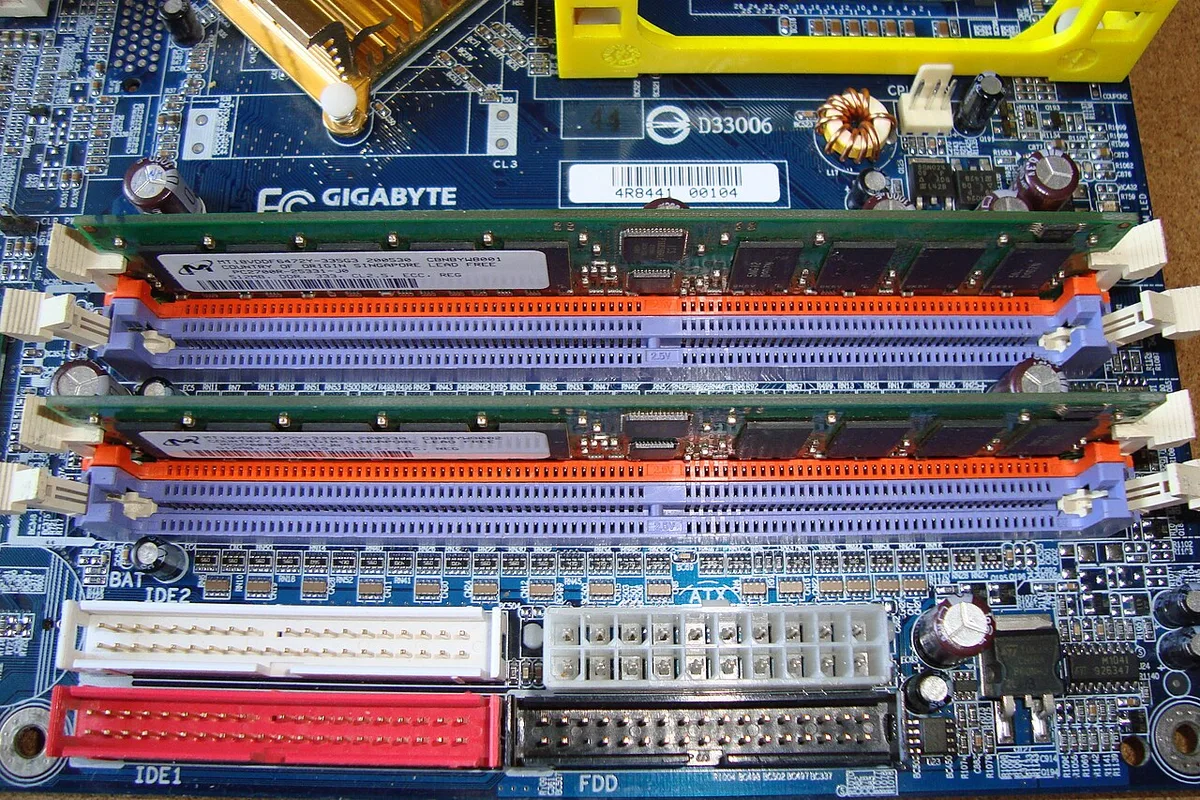
Image source: Wikimedia Commons / Mixabest
Mistake 2: Ignoring Thermal Throttling in Compact Builds
Small cases restrict airflow. Heat builds up around the CPU socket quickly. When temperatures hit 90°C+, the processor slows down to protect itself.
Your frame rates drop sharply during long sessions. Ensure your cooler has enough clearance for hot air to escape. Check fan curves in software like HWMonitor.
Aggressive cooling settings prevent sudden performance cliffs.
Mistake 3: Setting In-Game Resolutions Too High
Native 1080p is often too demanding for older APUs. Dropping resolution to 720p frees up significant resources. The iGPU renders fewer pixels per frame.
This boosts FPS without changing visual quality noticeably in fast-paced titles. Use dynamic resolution scaling if available. It adjusts automatically based on scene complexity.
You maintain smoothness even during intense combat sequences.
Cost-Benefit Analysis: When to Stick with iGPU vs. Buy a Used GPU
Deciding between an APU-only build and adding a discrete card requires math. Initial savings versus long-term usability dictate the choice. We’ve broken down the financial logic below.
Financial Breakdown: Electricity Savings vs. Upgrade Costs
An iGPU system draws less power at idle and load. Over three years, this reduces electricity bills by roughly $50, $100 depending on local rates. However, skipping a GPU limits game library access significantly.
A used GTX 1650 costs about $80, $100 today. It triples or quadruples gaming performance compared to most APUs.
| Scenario | Upfront Cost | Power Efficiency | Gaming Capability | Best For |
|---|---|---|---|---|
| iGPU Only | Lowest | Highest | Limited (Esports/Indie) | Strict budgets, casual play |
| iGPU + Used Entry GPU | Moderate | Good | Strong (1080p Medium) | Balanced value seekers |
| New Mid-Range GPU | High | Lower | Excellent (1440p+) | Serious enthusiasts |
If you plan to upgrade within six months, stick with the iGPU. Buying a cheap card now might be wasted money later. Consider where you can save money elsewhere to fund that future GPU purchase.

Image source: Wikimedia Commons / Daderot
Alternative Pathways: Cloud Gaming Services as a Temporary Fix
Cloud gaming eliminates local hardware requirements entirely. Services like GeForce NOW stream AAA titles directly to your browser. You need stable internet, not powerful graphics.
Latency remains a hurdle for competitive shooters. But for single-player narratives, it works well. Subscription fees add up over time though.
Calculate monthly costs against owning hardware. Often, cloud services make sense only for sporadic players who don’t want to invest in upfront gear.
Expert Tips for Maximizing Playability on Limited Hardware
Squeezing every last frame out of an iGPU takes finesse. Standard advice doesn’t always apply to integrated solutions. These techniques help bridge the gap between unplayable and enjoyable.
Leveraging Upscaling Tech (FSR, XeSS) Without Losing Clarity
AMD FidelityFX Super Resolution (FSR) renders games at lower resolutions internally. It then upscales the image to your monitor’s native size. This process recovers substantial performance.
Quality loss is minimal in motion-heavy scenes. Enable FSR 2.0 or higher whenever possible. Intel’s XeSS offers similar benefits on Arc-based iGPUs.
Test different modes (Quality, Balanced, Performance) to find your sweet spot. Don’t assume "Performance" mode looks bad; sometimes it’s indistinguishable from native rendering.
Adjusting Shadow and Post-Processing Settings for Free FPS
Shadows consume disproportionate amounts of GPU cycles. Turning them off or setting them to "Low" yields huge gains. Ambient occlusion and volumetric fog also hurt integrated units badly.
Disable these effects first. Textures usually matter less because VRAM isn’t the primary bottleneck. Focus on geometry and lighting simplifications instead.
Many esports titles allow custom config files for deeper tweaks. Look for community-made presets optimized for specific APUs. This approach lets you keep crisp textures while maintaining playable framerates.
Frequently Asked Questions About Gaming Without a Dedicated GPU
These questions address lingering doubts about viability and longevity. Clear answers help solidify your decision-making process.
Can I play Cyberpunk 2077 on an iGPU?
No, not natively. Even the strongest APUs struggle to reach 15 FPS at minimum settings. Cloud streaming or heavy modding are the only exceptions.
Native gameplay remains impractical for modern AAA titles.
Does using an iGPU shorten my CPU lifespan?
Not typically. Modern chips manage heat effectively under normal loads. Continuous maxed-out gaming does increase thermal stress slightly.
Proper cooling mitigates this risk almost entirely. Regular maintenance ensures longevity comparable to standard use.
Will adding a GPU later void my warranty?
Usually no. Installing aftermarket components rarely affects manufacturer warranties unless damage occurs during installation. Keep receipts and follow ESD safety protocols.
Most retailers accept returns regardless of minor modifications. Check specific vendor policies before proceeding.
Is DDR4 sufficient for Ryzen G-series APUs?
Yes, but DDR5 provides better headroom. DDR4-3600 CL16 serves as a good baseline for budget builds. Faster speeds yield diminishing returns beyond that point.
Prioritize capacity and latency balance over extreme frequency claims.