You've probably seen it happen: a smooth game suddenly stutters during a big fight, then recovers a minute later. That pattern is often CPU thermal throttling during gaming, and it means the processor is slowing itself down to avoid overheating. It is a protection feature, not a random glitch.
In our research, manufacturer specifications indicate that most modern CPUs begin aggressive frequency reduction once they hit their junction temperature limit, often around 95°C to 100°C for Intel chips and roughly 90°C to 95°C for many AMD Ryzen models. The real fix is not always new hardware. It starts with finding where heat is getting trapped.
what is cpu thermal throttling during gaming
CPU thermal throttling during gaming means the processor lowers its clock speed to stay below its safe temperature limit. It happens when cooling cannot remove heat fast enough. You may see FPS drops, stutter, or unstable frame times.
The fix depends on airflow, paste, power limits, and case design.
Why Your FPS Drops Mid-Game: The Reality of Thermal Throttling
Thermal throttling is when a CPU reduces its clock speed because it is too hot. The processor is protecting its silicon from damage, but your game pays the price in lower FPS and uneven frame times.
Modern chips boost above their base clock when cooling allows it. Intel calls this Turbo Boost. AMD uses Precision Boost.
When heat builds faster than the cooler can remove it, those boost clocks collapse back down.
The drop can look like a GPU problem, especially in open-world games. If you see sudden frame-time spikes while GPU usage stays high, the CPU may be hitting its thermal limit. That is why checking package temperature matters before assuming you need a signs of a CPU bottleneck.
Heat can come from the CPU cores, the VRMs that feed them power, or a saturated heatsink. Each one needs a different fix. A dusty tower fan will not solve dried thermal paste, and a new cooler will not fix a power limit set too high in BIOS.
As of 2026, most gaming CPUs still throttle aggressively near their rated limits, so stable cooling remains part of performance, not just comfort. Manufacturer documentation from Intel and AMD describes these boost and thermal behaviors.
Identifying the Source: Is It CPU Cores or VRMs?
CPU cores and VRMs can both cause throttling, but they behave differently. Core heat usually rises fast under load and drops fast when the load stops. VRM heat often builds slowly and can keep throttling even after the CPU cores cool slightly.
If core temperature hits the limit first, you are likely dealing with paste, mounting pressure, or airflow. If VRM temperature is high while core temperature is moderate, the motherboard power delivery may be overheating.
Use monitoring software such as HWInfo64 or MSI Afterburner. Watch package temperature, per-core temperature, VRM temperature if available, and clock speed. A throttled CPU often shows clock speed dropping while load stays high.
Stress tests help separate the causes. Prime95 and Cinebench R23 push the CPU hard. If throttling appears only in games, case airflow or fan curves may be the issue.
If it appears in every stress test, look closer at cooling hardware.
Do not confuse GPU throttling with CPU throttling. Check both before changing parts. A power limit setting that is too aggressive can also mimic a cooling problem.
Diagnostic Workflow: Isolating Heat Before Touching Hardware
Start with data before opening the case. Guessing wastes time and can make cooling worse.
- Log a real gaming session with a tool like MSI Afterburner or OCAT. Note FPS, frame times, package temperature, and clock speed.
- Run a controlled CPU stress test for 10 minutes. Record the maximum package temperature and the point where clock speed drops.
- Check fan speeds and temperatures at idle. If idle temperature is high, dust, fan failure, or poor mounting is likely.
- Inspect BIOS settings for power limits, fan curves, and temperature thresholds. Reset to defaults if someone changed them.
- Only then remove the cooler, clean old paste, and reapply thermal interface material.
This order matters. If you repaste first but the real issue is a fan pointed the wrong way, you will not see improvement. If you tune power limits first but the paste is dried out, the CPU may still throttle under long sessions.
A simple table helps:
| Check | What to Look For | Likely Cause |
|---|---|---|
| Idle temp above 50°C | Poor contact or dust | Paste or airflow |
| Load temp hits limit fast | Heat not leaving CPU | Cooler or paste |
| VRM temp high | Board power heat | Case airflow |
| Clocks drop after 5 min | Heatsink saturation | Cooler capacity |
If the problem follows ambient room temperature, the room may be the bottleneck. In hot climates without air conditioning, even a good cooler can struggle. Newer chips can boost harder, so a cooling setup that worked for an older generation may not keep up, especially if you are comparing newer CPU generations.
Branch 1: Addressing Airflow and Dust Accumulation
If monitoring shows heat building slowly, start with airflow. Dust acts like insulation on heatsinks and fans. It also blocks intake vents, especially in laptops.
Clean dust with short bursts of compressed air. Do not spin fans with high-pressure air because that can damage bearings. Hold the fan still while cleaning.
Check fan orientation. A common setup uses front and bottom fans as intake and rear and top fans as exhaust. This creates positive pressure and pushes hot air out instead of trapping it.
For laptops, clean intake grilles and exhaust ports. A cooling pad can help, but it cannot fix blocked internal vents. Elevating the rear of the laptop also improves airflow.
Cable management matters in small cases. Loose cables can block fan paths and create dead zones. In compact SFF builds, even a few millimeters of clearance can change temperatures.
If temperatures improve after cleaning but still throttle, the cooler may be undersized for the CPU. That is where long-term PC upkeep costs show up, because a better cooler or case can cost more than expected.
Branch 2: Solving Interface Issues (Paste and Mounting Pressure
Thermal paste fills microscopic gaps between the CPU heat spreader and the cooler base. Without it, air pockets trap heat. Old paste can dry out, pump out, or separate.
Reapply paste when temperatures climb over time, after removing a cooler, or when mounting pressure is uneven. Use a small amount, often about a pea-sized dot in the center. Spreading can work, but too much paste can act as insulation.
Mounting pressure matters as much as paste. A cooler that is too loose leaves gaps. A cooler that is too tight can warp the motherboard or CPU socket area.
Follow the manufacturer torque pattern and tighten in stages.
Laptop paste replacement is harder because many models use liquid metal or specialized pads. Check the service manual before opening the chassis. Some laptops also have cooling issues tied to heat pipe contact rather than paste alone.
High-conductivity paste helps, but it is not magic. A paste rated at 12 W/mK will not fix a cooler that cannot move heat away fast enough. Match the material to the hardware.
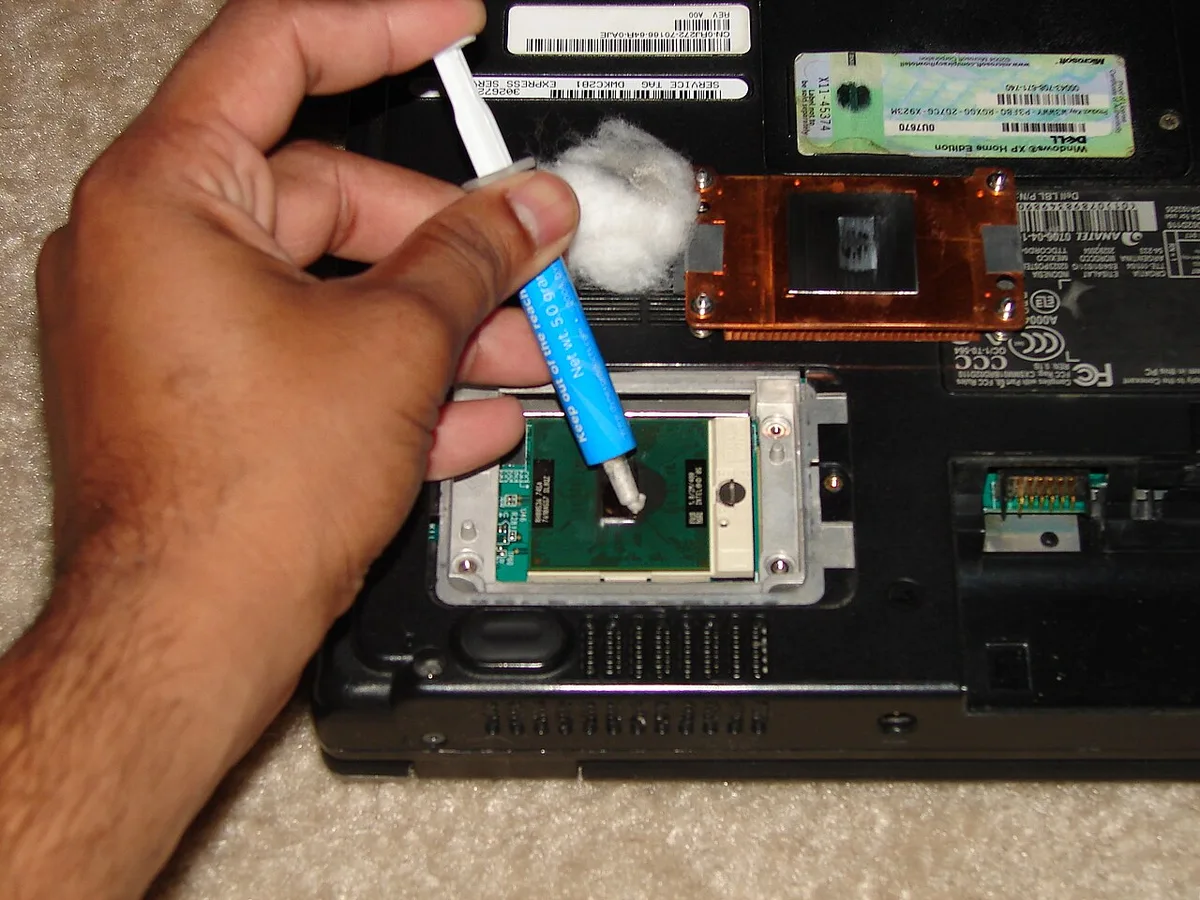
Image source: Wikimedia Commons / Jyothis at ml.wikipedia (CC BY-SA)
If you are comparing platforms, chip vendor differences can affect boost behavior and cooling needs, but the diagnostic steps stay the same.
Branch 3: Tuning Power Limits and Undervolting in BIOS
Sometimes the hardware is fine, but the settings are pushing too hard. Modern motherboards often ship with relaxed power limits to maximize benchmark scores. This can cause unnecessary heat during long gaming sessions.
Check your BIOS for Package Power Tracking (PPT) and Sustained Power Limit (SPPT). Lowering these values slightly can reduce heat output without hurting real-world FPS. For example, dropping a 125W CPU limit to 105W might keep temperatures well below throttling thresholds.
Undervolting is another powerful tool. It reduces the voltage supplied to the cores while maintaining stability. This cuts heat generation directly.
Start small, maybe -50mV offset. Test stability with Cinebench. If it crashes, raise the voltage back up.
Be careful here. Aggressive undervolting can cause instability or blue screens. Always have a recovery plan, like clearing CMOS if the system won’t boot.
Manufacturer guides from ASUS or MSI usually explain safe ranges for their boards.
If you’re unsure about BIOS tweaks, stick to software solutions first. Tools like Ryzen Master or Intel XTU allow adjustments within Windows. They’re safer because they reset on reboot.
But remember, these tools don’t fix physical cooling issues. They only manage how much heat the chip creates.
Desktop vs. Laptop: Different Problems, Different Fixes
Laptops face unique thermal challenges due to space constraints. A desktop has room for large heatsinks and multiple fans. A laptop relies on tiny vapor chambers and compact blowers.
In laptops, dust accumulates quickly in narrow vents. Cleaning requires disassembly, which can void warranties. Many users opt for external cooling pads instead.
These help marginally by improving ambient airflow around the chassis. They rarely solve internal saturation.
Desktops offer more flexibility. You can swap stock coolers for aftermarket towers or AIO liquid loops. Upgrading case fans is cheap and effective.
Positive pressure setups prevent dust ingress better than neutral pressure configurations.
Laptop thermals also depend heavily on surface placement. Using a soft blanket blocks bottom intakes. Hard surfaces like desks ensure proper ventilation.
Elevating the rear helps hot air escape faster.
For gamers considering upgrades, understanding this distinction matters. A desktop build strategy prioritizes cooling headroom. Laptops force compromises between thickness and performance.
If you buy used components, check thermal history carefully. Used laptop parts may hide degraded paste or worn fans.
Common Mistakes That Worsen Thermal Performance
Overconfidence leads to bad fixes. One major error is applying too much thermal paste. Excess paste acts as an insulator rather than a conductor.
Stick to pea-sized amounts unless instructions say otherwise.
Another mistake is ignoring fan curves. Default BIOS profiles often prioritize silence over cooling. During heavy loads, fans may not spin fast enough.
Manually adjusting curves ensures higher RPMs when temperatures rise above 70°C.
Some users disable speed stepping features thinking it boosts performance. C-State transitions help idle efficiency. Disabling them increases baseline heat even at low load.
Keep these enabled unless troubleshooting specific latency issues.
Cleaning with vacuum cleaners damages electronics. Static discharge risks fry sensitive chips. Use compressed air cans held upright.
Short bursts prevent moisture buildup inside components.
Finally, assuming all throttling is harmful ignores context. Brief spikes under extreme load are normal. Constant throttling indicates failure.
Don’t panic over momentary dips. Focus on sustained averages over ten-minute intervals.
Maintenance Schedule: Keeping Temperatures Stable Long-Term
Prevention beats repair. Establish a routine cleaning schedule every six months. Dust filters should be washed monthly in dusty environments.
Check fan bearings annually for wobble or noise.
Replace thermal paste every three to five years. Older compounds degrade significantly. High-end pastes last longer but still fail eventually.
Monitor temperature trends using logging software. A gradual rise signals aging interfaces.
Update BIOS regularly. Manufacturers patch microcode bugs affecting power delivery and thermal sensors. Newer versions often optimize boost algorithms for better efficiency.
Keep drivers current. Chipset updates improve communication between OS and hardware. Outdated drivers can misreport temperatures or mishandle power states.
Visit official vendor sites for downloads.
Consider environmental factors. Room temperature affects delta T calculations. Summer heat raises baseline temps.
Adjust expectations accordingly. In humid climates, corrosion poses additional risks to contacts. Regular inspection prevents costly failures down the line.
Frequently Asked Questions About CPU Throttling
Does thermal throttling damage my CPU?
No. Throttling protects the chip. It prevents silicon degradation by reducing voltage and frequency.
Permanent damage occurs only if cooling fails completely and temperatures exceed absolute maximums for extended periods. Normal throttling is safe.
Can I game comfortably at 90°C?
Yes, briefly. Most CPUs tolerate up to 95-100°C safely. However, sustained exposure accelerates wear.
Aim for under 85°C for longevity. Occasional peaks during intense scenes aren’t critical concerns for modern processors designed for resilience.
Is liquid cooling always better than air?
Not necessarily. Large dual-tower air coolers match many 240mm AIOs. Liquid excels in compact spaces or high-density builds.
Air offers reliability and lower maintenance costs. Choose based on case size and budget constraints rather than assumed superiority.
Why does my laptop throttle instantly?
Thin designs limit heat dissipation capacity. Vapor chambers saturate quickly under load. Ensure vents remain unblocked.
Consider repasting if older than two years. Software optimizations like limiting frame rates also reduce instantaneous thermal spikes effectively.
2 thoughts on “Why Your CPU Throttles During Gaming: Causes & Fixes”
Comments are closed.