You can't always feel heat from a graphics card while gaming. Fans may roar, yet performance still drops. That's why knowing how to check gpu temperature while gaming matters before a crash happens.
A quick reading tells you whether the card is working hard or running too hot.
Manufacturer specifications often list a maximum junction temperature near 95°C to 100°C for many modern GPUs. That number is the hard safety ceiling, not the comfort zone. In this guide, we'll show you what to watch on screen and what the readings mean.
First, let's separate the two temperature numbers that confuse most players.
Why You Need to See Your GPU’s Heat, Not Just Guess It
A hot GPU does not always announce itself with loud fans. The card can throttle clocks before the noise becomes obvious. That means frame times get worse while the game still looks normal.
Real-time monitoring gives you a direct view of what the hardware is doing. You can see temperature, clock speed, power draw, and fan speed in one place. That makes it easier to connect a stutter to a thermal event.
This matters most during demanding moments. Ray tracing, high-resolution textures, and long sessions push the card harder. A cooling solution that works at 1080p may struggle at 4K.
You should also pair GPU readings with CPU load. A weak processor can create similar symptoms. Our guide on reading CPU load while gaming helps you separate the two.
If the CPU is maxed out, the GPU may not be the real culprit.
Laptop users have even less margin for error. Thin chassis trap heat and shorten boost periods. Watching the graph can show whether the issue is a hot chip or a limited cooler.
The Two Numbers That Matter: Edge Temp vs. Hotspot Temp
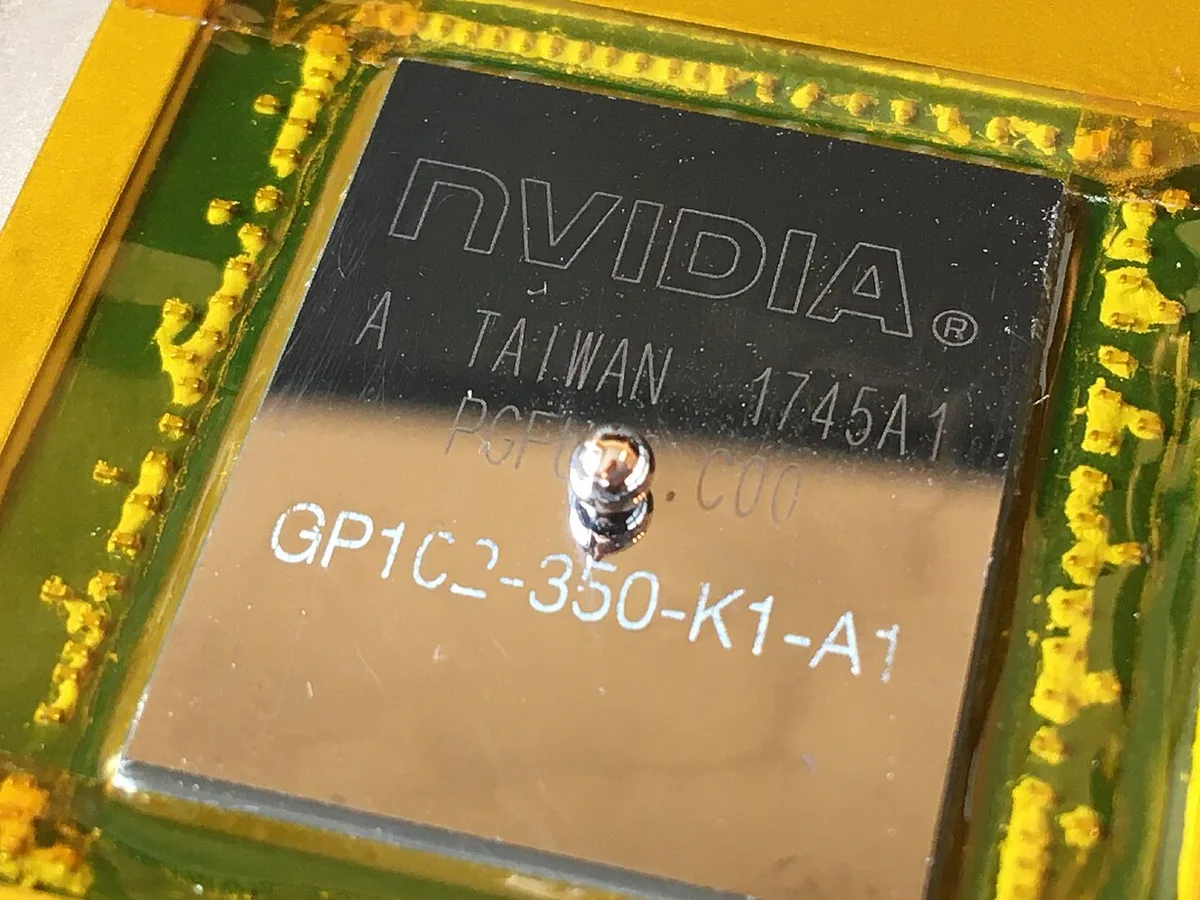
Image source: Wikimedia Commons / Phiarc (CC BY-SA)
Most monitoring tools show at least two GPU temperatures. The first is edge temperature, often called GPU temperature. The second is hotspot temperature, sometimes called junction temperature.
Edge temperature measures the cooler part of the silicon. It is useful for basic health checks. Hotspot temperature measures the hottest point on the die.
That number usually rises first during heavy gaming.
A normal gap between them is often around 10°C to 20°C. If the gap grows much larger, the cooler may not be making good contact. That can happen with old thermal paste or poor mounting pressure.
VRAM temperature is another number worth watching. GDDR6X memory can run hotter than the core. Some cards report a memory junction temperature with its own limit.
Here is a simple way to read the pair during a gaming session:
| Reading | What It Usually Means | Action |
|---|---|---|
| Edge temp steady, hotspot temp rising | Heat is concentrating in one area | Check airflow and fan curve |
| Both temps rising together | Overall heat load is high | Lower settings or improve cooling |
| Edge temp high, hotspot temp close | Cooler may be saturated | Clean dust and test paste |
| VRAM temp near its limit | Memory is the hot spot | Improve case airflow |
Do not panic over a brief spike. Look for sustained readings across a full match or benchmark run. That pattern tells you more than one hot frame.
Choosing Your Visual Tool: Native Overlays vs. Dedicated Monitors
You have two broad choices for on-screen data. Native overlays come from the GPU maker or operating system. Dedicated monitors use third-party tools with deeper sensor access.
Native tools are easy to enable. NVIDIA App, AMD Software, Xbox Game Bar, and Steam all offer some metrics. They usually show FPS, temperature, and sometimes power draw.
Dedicated tools give more detail. HWiNFO64 can report sensor names, minimum values, maximum values, and averages. MSI Afterburner plus RivaTuner Statistics Server can place those values neatly on screen.
The best choice depends on how much detail you need. A casual player may only need FPS and temperature. An overclocker or builder may need clock stability and power data.
| Tool Type | Strength | Limitation | Best For |
|---|---|---|---|
| Native overlay | Simple and low friction | Fewer sensors | Quick checks |
| Afterburner + RTSS | Custom layout and wide support | Setup takes time | Daily gaming |
| HWiNFO64 sensor panel | Deep hardware detail | Can look crowded | Troubleshooting |
| Mobile companion app | Keeps screen clean | Needs stable connection | Streamers |
As of 2026, many users prefer a hybrid setup. They run HWiNFO64 for logging and Afterburner for the on-screen display. That gives both live feedback and post-game data.
Avoid running several heavy overlays at once. They can add CPU work and frame pacing issues. Keep the display to the metrics you actually use.
Setting Up HWiNFO64 and MSI Afterburner for Clear On-Screen Data
Start with one clean installation path. Install MSI Afterburner first, then enable RivaTuner Statistics Server. Install HWiNFO64 separately if you want deeper sensor logging.
Open HWiNFO64 and choose Sensors-only mode. Look for your GPU entry, then find the temperature sensors. Edge, hotspot, and VRAM labels may differ by brand.
In Afterburner, open the monitoring tab. Check the GPU temperature box for on-screen display. Add hotspot and VRAM temperatures if they are available.
Next, set the on-screen display settings in RTSS. Choose a corner that does not block the minimap or crosshair. Use a transparent background and a readable font size.
A good starter layout includes:
- GPU temperature
- Hotspot temperature
- GPU clock speed
- GPU power draw
- FPS
- CPU temperature
Set warning thresholds carefully. Many users choose a visual alert near 85°C for hotspot readings. That is a caution zone, not an automatic failure.
Save the profile before launching a game. Test in a simple menu first. Make sure the overlay appears and does not flicker.
If the overlay fails to inject, check fullscreen mode. Borderless windowed mode often works best. Also update the GPU driver and RTSS version.
Reading the Graphs: Identifying Throttling in Real-Time
A temperature number alone is not enough. You need to watch how it behaves over time. A flat line at 70°C is usually fine.
A sawtooth pattern may indicate throttling.
Thermal throttling often shows a cycle. The GPU heats up, clocks drop, temperature falls, then clocks rise again. You may see FPS bounce with it.
Clock speed is the companion metric. If temperature rises and clock speed drops at the same time, heat is likely limiting performance. If clocks stay flat while FPS drops, the issue may be elsewhere.
Transient spikes are normal. A sudden 85°C reading for one second is less concerning than 85°C for five minutes. Sustained load tells the real story.
Use this quick visual guide while gaming:
- Green zone: 65°C to 75°C during normal load
- Yellow zone: 76°C to 84°C during heavy load
- Red zone: 85°C and above for sustained periods
- Critical range: near the rated maximum for your card
Remember that ambient room temperature changes everything. A card that runs 70°C in winter may run 80°C in summer. High altitude and poor case airflow can push readings higher too.
Log the session if you want proof. HWiNFO64 can save minimum, maximum, and average values. Compare those numbers after changing fans, paste, or settings.
For more context on heat-related performance loss, see our article on how CPU heat affects gaming performance. The same principle applies to GPUs: sustained heat changes behavior before hardware fails.
Common Visual Mistakes That Lead to Wrong Conclusions
A single high reading can cause panic, but it does not always mean danger. A two-second spike to 90°C during a cutscene is different from 90°C across a full match. Watch averages, maximums, and how long the heat lasts.
Many players also check only the edge temperature. That number can look safe while the hotspot is much hotter. Show both values on your overlay if the tool supports them.
Unit confusion is another easy trap. Celsius and Fahrenheit can be mixed up when comparing readings online. Confirm the unit before deciding whether a number is normal.
Sensor labels can mislead too. "GPU Temp" often means edge temperature, while "Hot Spot" or "Junction" means the hottest die area. Some systems also show integrated graphics sensors that are not your main card.
Common mistakes include:
- Reacting to one spike instead of a sustained trend
- Ignoring hotspot temperature
- Comparing your reading to another GPU model
- Blocking the overlay with game UI
- Running too many monitoring tools at once
- Trusting an old or mislabeled sensor
A better habit is to log a baseline. Run the same game scene for ten minutes and note the average, maximum, and minimum. That gives you a reliable reference for future changes.
Interpreting Temperature Ranges by Hardware Class (Desktop vs. Laptop)
Temperature expectations change with the cooling design. A large desktop tower with strong airflow has more thermal headroom than a thin laptop. Compare your readings to the right hardware class.
| Hardware Class | Typical Gaming Edge Temp | Typical Hotspot Temp | Notes |
|---|---|---|---|
| Desktop with good airflow | 60°C to 72°C | 70°C to 82°C | Usually the most stable setup |
| Desktop with limited airflow | 68°C to 78°C | 78°C to 88°C | Dust and cable clutter matter |
| Laptop with standard cooling | 72°C to 84°C | 82°C to 92°C | Boost clocks may drop sooner |
| Thin or compact laptop | 78°C to 88°C | 88°C to 95°C | Fans may run loud at load |
| Small form factor PC | 70°C to 82°C | 80°C to 90°C | Case size limits cooler choice |
Memory temperature deserves its own check. VRAM can run hotter than the core, especially during high-resolution gaming. If your tool shows a memory junction reading, compare it against the card's listed limit.
Ambient room temperature also shifts the whole range. A system that runs 68°C in winter may run 76°C in summer. Test under the conditions where you actually play.
Using Thermal Data to Optimize Fan Curves and Undervolting
Thermal data is most useful when you act on it. Start with a stock baseline. Play a demanding scene for ten minutes and record the average and maximum temperatures.
Then adjust the fan curve in small steps. A common starting point is 40% fan speed at 50°C, 60% at 70°C, 80% at 80°C, and 100% at 85°C. Test the same scene again and compare the results.
If temperatures drop but noise becomes annoying, find a middle ground. You may prefer slightly higher temperatures with quieter fans. That is a valid choice if the readings stay within safe limits.
Undervolting can reduce heat without a big performance loss. Lower the core voltage in small increments and test stability. Watch for crashes, artifacts, black screens, or clock drops.
A safe workflow looks like this:
- Record stock baseline data
- Adjust one fan curve point
- Test the same game scene
- Save the profile if results improve
- Try a small undervolt
- Test stability for at least 30 minutes
- Revert changes if problems appear
Do not change everything at once. If performance becomes unstable, you will not know which change caused it. Keep notes for each test.
When to Worry: Critical Thresholds and Hardware Safety Limits
Most modern GPUs protect themselves. If temperatures get too high, the card lowers clock speeds first. If that is not enough, it can shut down to prevent damage.
Edge temperature and hotspot temperature need different thresholds. A sustained edge reading near 85°C is a warning sign for many cards. A sustained hotspot reading near 90°C or higher deserves closer attention.
| Reading | Status | Recommended Action |
|---|---|---|
| Edge below 75°C | Comfortable | No action needed |
| Edge 75°C to 84°C | Warm but common | Check airflow if sustained |
| Hotspot 85°C to 89°C | Caution zone | Improve cooling soon |
| Hotspot 90°C+ | High | Reduce load and inspect hardware |
| Near rated maximum | Critical | Stop and troubleshoot |
Repeated critical readings are the real problem. Clean dust from heatsinks and fans first. Then check whether case airflow is blocked by cables or closed panels.
If the hotspot stays far above the edge temperature, the cooler may have poor contact. Old thermal paste or uneven mounting pressure can cause that gap. Repasting may help, but it can affect warranty coverage.
Manufacturer documentation lists the maximum safe temperature for each GPU. Compare your readings to that number instead of using a generic internet rule. If the card hits its limit during normal use, contact the manufacturer or seller.
Frequently Asked Questions About GPU Monitoring
What is a safe GPU temperature while gaming?
For many modern cards, sustained edge temperatures around 65°C to 75°C are comfortable. Hotspot readings can run 10°C to 20°C higher. Brief spikes matter less than sustained heat.
Compare your reading to the card's rated maximum.
Why does my GPU temperature jump around?
Game scenes change load quickly. Frame rate targets, background apps, and driver behavior also affect heat. Monitoring tools sample at different intervals too.
Watch the average across a full match instead of reacting to every spike.
Should I stop gaming at 85°C?
Not always. 85°C can be normal for some cards and a caution zone for others. If the hotspot stays there for long periods or clock speeds drop, reduce settings and improve cooling. Check the manufacturer's listed limit.
Does monitoring software slow games?
Lightweight overlays usually have a small impact. Heavy logging or several tools running together can add CPU work and frame pacing issues. Use only the metrics you need and test with one tool at a time.
Can I trust built-in GPU temperature readings?
Most modern GPUs report accurate sensor data. Confusion usually comes from which sensor is displayed. Check whether the reading is edge, hotspot, or memory temperature before comparing it to advice online.