What is a motherboard CPU socket? It is the physical interface on a motherboard that holds a CPU and connects its electrical contacts to the board. You can think of it as a precision docking point, not just an empty hole.
A wrong match or rough install can bend pins or stop a PC from booting.
As of 2026, common desktop platforms use different pin counts. Intel LGA1700 has 1700 contacts, while AMD AM5 has 1718 pins. The contacts live in the socket or on the CPU package, depending on design.
That visual difference is the first thing you should check before buying parts.
What a Motherboard CPU Socket Actually Is
A motherboard CPU socket is a small, reinforced mounting area that lets a processor connect to the board without being permanently soldered. It usually includes a housing, metal contacts, and a retention system. The retention system holds the CPU flat and level while power and data signals pass through.
Most desktop sockets use a zero insertion force design. That means the CPU drops in with almost no pressure. A lever or load plate then locks it in place.
This design protects delicate pins and pads during installation.
A socket is not the same as a chipset. The socket decides which CPU packages physically fit. The chipset decides which features and connections the board supports.
You need both to match before you upgrade.
If you are planning a platform change, check CPU generations first. A newer CPU generation may need a different socket even when the board looks similar.
Why You Need to See It, Not Just Read About It
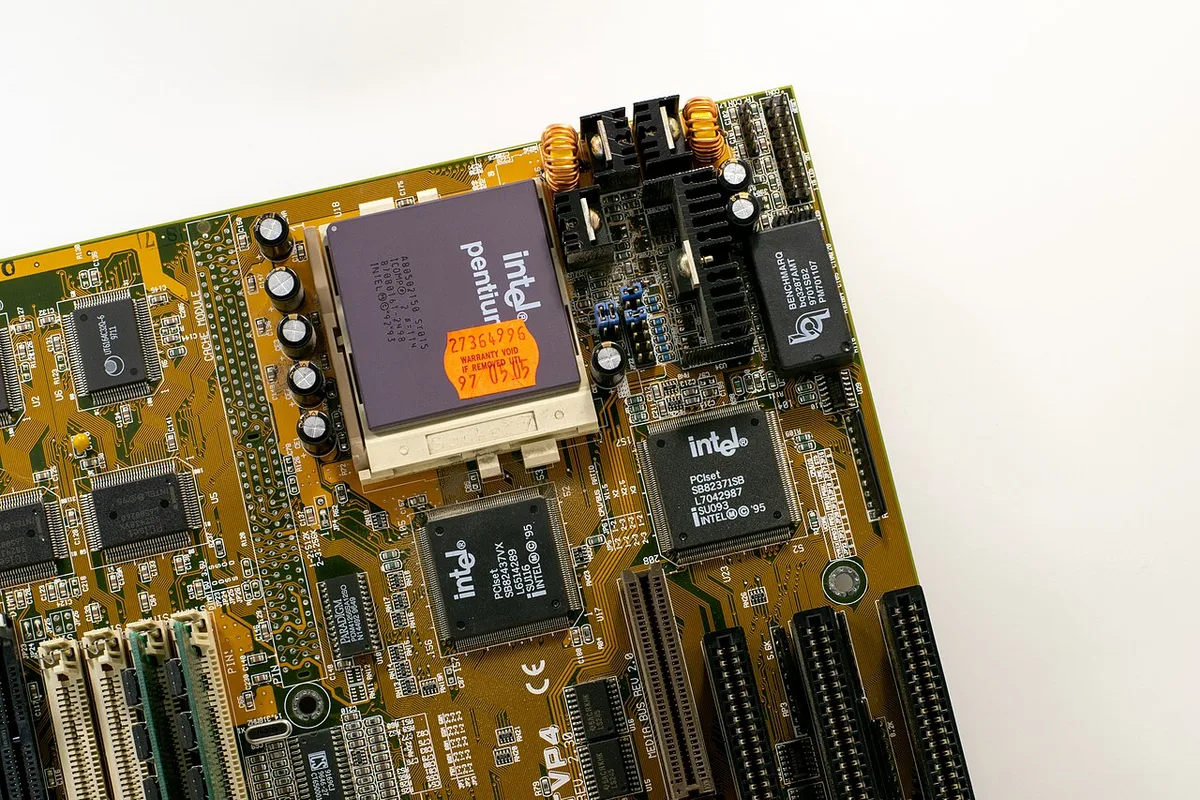
Image source: Wikimedia Commons / Oligopolism
Words can describe a socket, but photos show the real risk points. You can spot pin density, lever direction, alignment marks, and the socket cover in seconds. That visual check prevents many beginner mistakes before the CPU ever touches the board.
A diagram also makes the LGA versus PGA difference obvious. In one design, the pins are in the socket. In the other, the pins are on the CPU.
Once you see that, you know where the damage can happen.
| What you see | What it means | Why it matters |
|---|---|---|
| Metal pins inside socket | Likely LGA socket | Do not touch or clean with tools |
| Pins on CPU underside | Likely PGA socket | CPU pins bend easily |
| No visible socket pins | Could be BGA or covered socket | Check manual before buying |
Manufacturer photos are the safest reference. Intel and AMD publish socket and installation images in their product documentation. Board makers also show socket covers and lever positions in manuals.
The Physical Parts You'll Actually Spot on the Board
The socket is more than a square hole. It is a small assembly with several parts that work together. Knowing each part helps you install the CPU without forcing anything.
- Socket housing: the plastic or metal frame that guides the CPU.
- Contacts: tiny metal points that touch CPU pads or pins.
- Socket cover: a plastic cap that protects contacts when no CPU is installed.
- Retention frame: the metal piece that presses the CPU into place.
- Backplate: the support under the board for cooler mounting.
- ZIF lever: the handle that releases or locks the CPU.
- Load plate: the metal lid that spreads pressure across the CPU.
- Alignment notch: a cutout that only allows one orientation.
The socket cover is often bright colored. Remove it gently before installation. Keep it in case you need to ship or store the board later.
The lever may feel stiff. That is normal. It should move smoothly in one direction.
If it feels jammed, stop and check the CPU position.
Cooler mounting pressure also matters. A large cooler can stress the socket if tightened unevenly. Tighten screws in a cross pattern and follow the board manual.
LGA vs. PGA vs. BGA: Identifying the Socket by Sight
The three common mounting styles are easy to tell apart once you know what to look for. LGA means land grid array. PGA means pin grid array.
BGA means ball grid array.
| Type | Where contacts live | Common on desktop boards | Visual clue |
|---|---|---|---|
| LGA | Contacts are in socket | Yes | Flat CPU underside, pins in socket |
| PGA | Pins are on CPU | Less common now | CPU underside has many pins |
| BGA | Solder balls under CPU | Laptops and small devices | No removable socket |
LGA is common on many modern desktop boards. The CPU has flat pads on the bottom. The socket has tiny pins that touch those pads.
This moves pin damage risk from the CPU to the socket.
PGA puts the pins on the CPU. That makes the CPU look like a small bed of nails. It can be easier to inspect, but bent CPU pins are a common repair issue.
BGA is different. The CPU is soldered to the board. There is no normal socket for the user to open.
That design saves space, but it removes the easy upgrade path.
Before choosing parts, verify the exact socket name. A board might support one socket while the CPU supports another. If you are unsure, compare the platform and generation details before purchase.
What a Correct CPU Installation Looks Like Step by Step
A correct install is calm, slow, and visual. You should never need force. If something resists, stop and recheck alignment.
- Power off the system and disconnect the power cable.
- Ground yourself before touching parts.
- Remove the socket cover without prying the socket.
- Find the triangle marker on the CPU and the socket corner.
- Align the CPU notch with the socket key.
- Lower the CPU straight down without sliding it.
- Check that it sits flat with no gap.
- Close the load plate evenly.
- Lock the ZIF lever into place.
- Apply thermal paste if needed.
- Install the cooler with even pressure.
- Boot the system and check BIOS detection.
The triangle markers are your best friend. Match them every time. Do not rotate the CPU to make it fit.
If the orientation is wrong, the CPU will not sit flat.
A flat seat is the main success signal. The CPU should rest naturally in the socket. You should not see one corner raised.
If the CPU will not sit flat, remove it and inspect both sides. Look for bent pins, debris, or a crooked retention frame. Reinstall only after the cause is clear.
For safety, follow ESD precautions and manufacturer instructions. The ESD Association provides general guidance on static control. Board and CPU manuals give the exact lever and cooler steps for your model.
If you are checking system behavior after installation, monitor CPU usage and temperature during light and heavy loads. That helps confirm the CPU is seated and cooled correctly.
The Alignment Marks and Keying You Can't Ignore
Every socket and CPU has physical alignment marks. These are not decorative. They prevent you from installing the CPU backwards or rotated.
The most common mark is a small triangle on one corner of the CPU and the matching corner of the socket. Some designs use a notch on one edge instead. Either way, the mark always sits in the same corner.
A diagram would show the triangle pointing to the same corner every time. If you see the triangle on the top-right of the CPU, it should match the top-right of the socket. Never guess.
Rotate the board or CPU until the marks line up.
Keying also exists inside the socket. Small plastic tabs or missing pins create a physical barrier. If the CPU does not drop in smoothly, the keying is blocking it.
That usually means the CPU is rotated 90 or 180 degrees.
Check the socket cover before installation. It often has the same triangle mark. That gives you a reference point even before the CPU is in hand.
Some boards use different marker styles. Intel and AMD both use corner triangles, but the exact socket layout varies. Always check the manual for your specific board model.
If you are upgrading from an older platform, compare the socket name carefully. A similar-looking board can use a different generation. CPU generation differences matter for compatibility, so verify the exact socket before buying.
Visual Mistakes That Bend Pins and Break Sockets
Most socket damage comes from a few repeat mistakes. All of them are visible before they become expensive.
Forcing a misaligned CPU is the most common error. The CPU should drop in with almost no pressure. If you feel resistance, stop.
Remove the CPU and check the orientation marks again.
Closing the lever at an angle is another frequent mistake. The lever should move straight down in its intended path. If it catches or feels uneven, the load plate may be sitting crooked.
Reopen it and reset the CPU.
Leaving debris or thermal paste in the socket causes contact problems. Even a tiny speck can prevent a pin from touching a pad. Inspect the socket under good light before every install.
Touching the socket pins directly can also cause issues. Skin oils attract dust and can corrode contacts over time. Handle the CPU by its edges only.
Over-tightening the cooler is a slower form of damage. Too much pressure can warp the board or crack the socket housing. Tighten cooler screws in a cross pattern and stop when resistance feels firm.
If you notice bent pins after installation, do not power on the system. Powering a damaged socket can short components. Remove the CPU and inspect both parts carefully.
Thermal throttling symptoms often appear after poor installation, so monitor temperatures closely.
Matching the Socket, CPU, and Chipset the Right Way
A socket match alone is not enough. You also need chipset and platform compatibility. These three layers work together but they are not the same thing.
The socket is the physical fit. The chipset is the feature set. The platform is the overall generation and support level.
A CPU can fit the socket but lack chipset support for certain features.
For example, a board may have the right socket but an older chipset. That can limit PCIe lanes, USB ports, or memory speed. Always check the board's CPU support list before purchasing.
Platform upgrades often mean replacing more than the CPU. A new socket may require new RAM type or a new cooler bracket. Budget for those changes before you start.
If you are unsure whether your current PC needs an upgrade, look for bottleneck signs first. High CPU usage at low resolutions often points to a processor limit. That can help you decide if a socket change is worth the cost.
Manufacturer compatibility tools are the best reference. Intel and AMD both publish socket and CPU support lists. Board makers also maintain QVL lists for memory and CPU support.
Frequently Asked Questions
Can I install a CPU without looking at the socket?
No. You must visually confirm alignment marks and socket type before installation. Skipping this step risks bent pins or a misaligned CPU.
Always inspect the socket under good light first.
What if the CPU won't sit flat?
Remove the CPU and check for bent pins, debris, or a crooked retention frame. Reinstall only after you find and fix the cause. Never force a CPU into the socket.
Are all motherboards socketed?
No. Many laptops and small devices use soldered BGA CPUs. Desktop boards are usually socketed for easier upgrades.
Check the product specifications before assuming.
How do I know which socket my board has?
Check the motherboard manual or the printed label near the socket. You can also search the board model on the manufacturer website. The socket name is usually listed in the specifications.
Is a bent pin always fatal?
Not always. A single bent pin can sometimes be straightened with care. Multiple bent pins or broken contacts usually require professional repair or replacement.
Powering on with damaged pins risks further harm.
Does the socket affect gaming performance?
Indirectly. The socket determines which CPUs you can install. A better CPU can improve frame rates and reduce bottlenecks.
The socket itself does not change performance directly. Monitoring CPU usage while gaming helps confirm your processor is keeping up.
Final Verdict: What Matters Most When You Open the Box
The socket is the foundation of every CPU install. Get the physical match right first. Then verify chipset and platform compatibility.
Take your time during installation. Look at the alignment marks. Check for debris.
Close the lever smoothly. These small habits prevent most damage.
If you are upgrading, plan the full platform cost. A new socket may need new RAM, cooler, or board. Check the support list before you buy anything.
The best visual habit is simple. Stop and look before you press. That pause saves more sockets than any tool.
CPU temperature effects on gaming performance are worth tracking after any install. A well-seated CPU with proper cooling runs cooler and more stable. That stability matters more than any single spec on the box.