If your gaming laptop gets hot, loud, or slow mid-match, you need a clear path, not random tips. Learning how to troubleshoot gaming laptop overheating starts with reading symptoms, then matching them to the right fix. Guessing wastes time and can make the problem worse.
Manufacturer specifications indicate most laptop CPUs are designed to throttle near 95 to 100 C, while many GPUs throttle near 85 to 90 C. That gives you a real baseline before you blame the game or the laptop. Let's walk through the checks that separate dust, bad paste, power settings, and hardware faults.
how to troubleshoot gaming laptop overheating
Start by monitoring CPU and GPU temperatures while gaming. Clean blocked vents and fans if temps stay high. Check power settings, drivers, and background apps next.
Repaste or service the cooling system if dust is not the cause. Stop gaming if temps exceed safe limits or shutdowns occur.
What Overheating Looks Like in a Gaming Laptop
Overheating is not just a hot bottom panel. It shows up as sudden FPS drops, stutter, loud fans, hot keys, and surprise shutdowns. If you notice mid-game freezing, heat may be the trigger, not a software bug.
Watch for these warning signs during a real gaming session:
- GPU or CPU temps climb fast in the first 10 to 15 minutes
- Fan speed stays at maximum even in menus
- Performance drops after the laptop gets hot
- The charger area or underside feels too hot to touch
- The game closes or the laptop shuts down
Some warmth is normal. Sustained high temps are not. As of 2026, most gaming laptops still rely on heat pipes, fans, and thermal paste to move heat away from the CPU and GPU.
If any part of that path is blocked, heat builds fast.
The Conditions That Decide Your Best Fix
The right fix depends on what changed and how the laptop behaves. A dusty two-year-old machine needs a different plan than a new laptop running hot on a bed. Use these conditions before you buy anything.
If the laptop is older than two years, expect dust and dried paste to be likely causes. If it is new and hot, check power settings, BIOS updates, and game settings first. If it only overheats on soft surfaces, airflow is probably the main issue.
Think through these variables:
- Age of the laptop and last service date
- Ambient room temperature and dust level
- Vent placement and surface under the laptop
- CPU and GPU load during the game
- Whether temps spike suddenly or rise slowly
- Warranty status before opening the chassis
If temps are high but stable, cleaning and settings may solve it. If temps spike within minutes, a fan, paste, or heat pipe issue is more likely. If shutdowns happen, treat it as urgent.
How to Diagnose Temps, Fans, and Thermal Throttling
You cannot troubleshoot what you do not measure. Start with monitoring software, not guesswork. HWiNFO, MSI Afterburner, and Core Temp are common tools for reading CPU and GPU temperatures.
Run your usual game, not just a benchmark, and note the highest values.
Manufacturer thermal specifications from Intel and NVIDIA help you judge those readings. In general, CPUs may throttle near 95 to 100 C, while many GPUs throttle closer to 85 to 90 C. Idle temps should usually stay under 50 to 60 C.
| What you see | Likely meaning | Next check |
|---|---|---|
| High temps, loud fans | Cooling path is struggling | Clean vents and fans |
| FPS drops as temps rise | Thermal throttling | Check power and paste |
| Shutdown during load | Safety cutoff | Stop and inspect hardware |
| Hot only on soft surfaces | Blocked intake | Elevate the laptop |
Stress tests like Cinebench, 3DMark, or FurMark can reveal problems, but use them carefully. They create sustained load and can push a weak cooling system to its limit. For diagnosis, short gaming sessions are often safer and more realistic.
If dust is visible at the vents, follow a careful blocked vent cleaning process before replacing parts. Do not blow dust deeper into the chassis with high-pressure air.
Decision Branches: Dust, Paste, Power, or Hardware Fault
Once you have numbers, sort the problem into one of four branches. This keeps you from repasting a laptop that only needs a settings change.
If dust blocks vents or fans, clean first. If cleaning helps but temps return quickly, the paste may be dried out. If temps are high only in performance mode, power settings may be the cause.
If cleaning and settings do not help, a fan, heat pipe, or motherboard fault is possible.
Use this branch logic:
- Dust branch: visible lint, blocked vents, uneven fan noise, temps improve after cleaning
- Paste branch: laptop is 2 to 4 years old, temps spike under load, cleaning did not help
- Power branch: high temps only in high-performance mode, idle temps are normal
- Hardware branch: fan does not spin, rattles, or temps stay extreme after all basic fixes
Before opening the chassis, check thermal paste replacement timing and your warranty status. Many manufacturers allow basic cleaning, but disassembly can void coverage. If the laptop is under warranty, contact authorized service first.
Step-by-Step Fixes From Free to Advanced
Start with the cheapest, safest fixes. Work upward only if the data supports it. This order prevents unnecessary risk.
- Place the laptop on a hard, flat surface.
- Elevate the rear slightly for better intake airflow.
- Close heavy background apps and browser tabs.
- Update GPU drivers and the laptop BIOS.
- Switch to a balanced power plan for testing.
- Clean external vents with short bursts of compressed air.
- Use a cooling pad if it improves temps.
- Repaste the CPU and GPU if cleaning fails.
- Replace a dead or noisy fan through service.
For basic safe disassembly, use the model's service manual. A service manual lookup can show screw locations, clip points, and cable warnings. Keep screws organized and avoid forcing plastic panels.
Tools and materials:
| Item | Use | Note |
|---|---|---|
| Compressed air | Dust removal | Short bursts only |
| 99% isopropyl alcohol | Paste cleanup | Avoid lower concentrations |
| Thermal paste | Heat transfer | Match laptop design |
| Plastic pry tool | Panel removal | Reduces case damage |
| Small screwdriver set | Disassembly | Magnetic tips help |
Do not use liquid metal unless the manufacturer supports it and you understand the shorting risk. Keep paste away from capacitors and VRMs. If the laptop has a vapor chamber, follow the manual closely, because the layout differs from standard heat pipes.
Thermal Paste, Pads, and Cooling Pads Compared
Thermal paste fills microscopic gaps between the CPU or GPU die and the heat sink. Thermal pads suit memory chips and VRMs. A cooling pad improves intake airflow, but it cannot fix dried paste, blocked vents, or a dead fan.
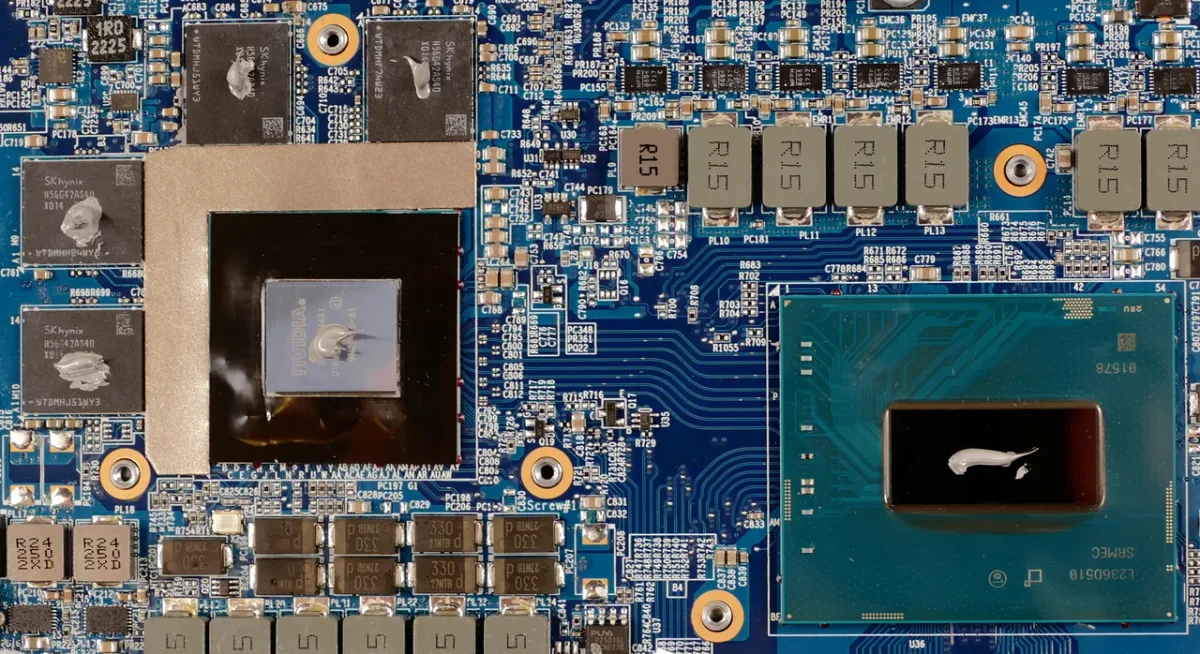
Image source: Wikimedia Commons / System76 (CC BY-SA)
| Option | Best for | Limitation |
|---|---|---|
| Thermal paste | CPU and GPU die | Needs careful application |
| Thermal pads | VRMs and memory | Lower conductivity than paste |
| Cooling pad | Bottom intake laptops | Does not repair internal cooling |
| Liquid metal | Advanced users only | Shorting and spill risk |
Standard non-conductive paste is the safest choice for most users. Liquid metal conducts heat well, but it is electrically conductive and can damage nearby components. If you are considering repasting steps, check the service manual lookup first.
Mistakes That Make Heat Problems Worse
Small mistakes can turn a simple airflow issue into a repair job. Avoid these common errors:
- Gaming on beds, couches, or carpets that block intake vents
- Blowing dust deeper into the chassis with high-pressure air
- Using too much thermal paste or the wrong type
- Ignoring shutdowns and continuing to game
- Opening the laptop while it is under warranty
- Using liquid metal without knowing the board layout
Heat also stresses the battery. If the deck stays hot for long sessions, review long-term upkeep and safe cleaning habits before the problem spreads.
When DIY Stops and Warranty or Repair Begins
DIY is reasonable for cleaning, settings changes, and basic repasting. Stop when the issue involves fan replacement, heat pipe damage, or motherboard-level faults. Those repairs need tools, parts, and model-specific knowledge.
Check warranty status before opening the chassis. Many brands cover cooling failures during the standard period, but damage from improper service may be excluded. In the US, the Magnuson-Moss Warranty Act limits blanket warranty voiding, but proof of damage still matters.
Seek professional help if:
- A fan does not spin or makes grinding noise
- Temps stay extreme after cleaning and repasting
- The laptop shuts down even at idle
- Liquid metal or paste has spilled
- The chassis has swollen battery signs
Frequently Asked Questions
How hot is too hot for a gaming laptop?
CPUs often throttle near 95 to 100 C, while GPUs often throttle near 85 to 90 C. Sustained temps above those ranges, or sudden shutdowns, mean you should stop gaming and inspect the cooling path. Idle temps should usually stay below 50 to 60 C.
Can a cooling pad fix overheating?
A cooling pad can lower intake temps on laptops with bottom vents. It will not fix dried paste, blocked heat pipes, or dead fans. Use it as support while you address the real cause.
Should I repaste my gaming laptop?
Repaste when cleaning and settings fail, especially after two to four years. Follow the service manual and use non-conductive paste unless the design supports liquid metal. Stop if warranty coverage matters to you.
Is it safe to use compressed air?
Short bursts from the correct direction are usually safe. Avoid high pressure and do not spin fans with air. Never blow dust deeper into the chassis.
Does overheating void warranty?
Heat damage can be excluded if it results from misuse or neglect. Opening the chassis may also affect coverage. Check your warranty terms and use authorized service when unsure.
Can thermal throttling damage the laptop?
Throttling protects hardware by reducing performance. It is not damage by itself, but repeated overheating can shorten component life. Fix the cooling path to prevent long-term wear.