If you've ever wondered what does cpu power limit mean in a gaming pc, you're likely seeing lower frame rates than expected despite having powerful hardware. It’s not that your processor is broken or outdated. Instead, it’s hitting an invisible ceiling set by the manufacturer to protect the silicon from overheating or drawing too much current.
This cap dictates exactly how many watts your CPU can consume during intense workloads. For instance, most mid-range chips like the Intel Core i5-13600K default to a PL1 of 125W but can burst higher for short periods. Understanding these thresholds helps you diagnose whether your system is thermally constrained or simply following its programmed safety rules.
Let's break down how these limits actually affect your gameplay and stability.
What Does CPU Power Limit Mean in a Gaming PC?
A CPU power limit sets the maximum electrical wattage your processor draws from the motherboard. Manufacturers define this as Package Power Limits (PL). These caps prevent thermal runaway and ensure component longevity.
If the CPU hits this wall, it reduces clock speeds immediately. This drop causes stuttering in games. You aren't losing performance because the chip is slow.
You lose speed because the software restricts energy flow. Think of it as a fuel injector limiter on a car engine. The engine can go faster, but the computer says no.
Decoding PL1, PL2, and Tau: The Three Numbers That Dictate Performance
To grasp why your frames dip, we need to look at the three specific metrics governing power delivery. These aren't random numbers; they form a precise algorithmic handshake between the CPU and the motherboard VRMs.
PL1: The Long-Duration Ceiling
PL1, or Package Power Limit 1, represents the sustainable power draw your CPU maintains indefinitely. This is the "safe" baseline. If you run Cinebench for ten minutes, your average consumption should hover near this number.
For example, a typical high-end desktop might have a PL1 of 125W. Exceeding this for too long risks permanent degradation. Your cooler must dissipate this heat continuously.
If it can't, temperatures rise until thermal throttling kicks in anyway.
PL2: The Short-Burst Allowance
PL2 allows the CPU to exceed PL1 temporarily. This is where turbo frequencies live. Modern processors rely on this headroom for single-threaded tasks like web browsing or game loading screens.
A common configuration sees PL2 set at 1.25x to 2x the PL1 value. So, if PL1 is 125W, PL2 might be 180W or even 250W. This burst gives you snappy responsiveness without committing to dangerous sustained heat levels.
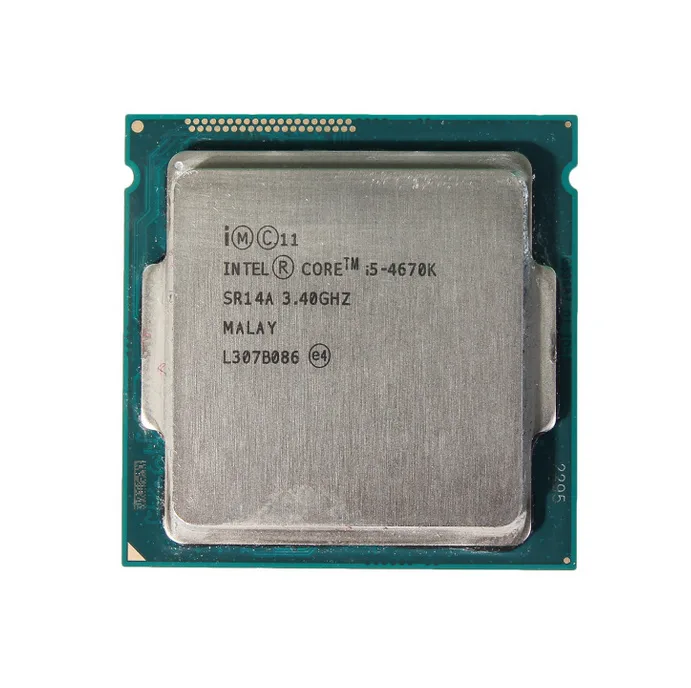
Image source: Wikimedia Commons / Kolpar1 (CC BY-SA)
Tau: The Time Window
Tau defines how long the CPU stays at PL2 before dropping back to PL1. This is measured in seconds. Intel defaults often sit around 28 seconds.
During this window, your multi-core clocks remain elevated. Once Tau expires, the power constraint snaps shut. If your cooling solution isn't robust enough to handle the transition, you'll see immediate frequency drops.
This timing mechanism prevents voltage regulators from overheating during prolonged heavy loads.
| Metric | Function | Typical Value (Mid-High Range) | Impact on Gaming |
|---|---|---|---|
| PL1 | Sustainable Power Cap | 125W | Determines long-term stability |
| PL2 | Burst Power Cap | 180W – 250W | Handles initial load spikes |
| Tau | Burst Duration | ~28 Seconds | Controls how long boost lasts |
Understanding these variables helps when planning your component budget allocation. Spending more on a better cooler effectively raises your usable PL1 threshold. Cheap coolers force earlier thermal throttling, rendering high PL settings useless.
Always check manufacturer specs for your specific SKU. As of 2026, many boards allow unlocking these limits via BIOS, provided your VRM quality supports the extra amperage.
Thermal Throttling vs. Power Limiting: Diagnosing the Real Bottleneck
Gamers often confuse two distinct phenomena that both result in slower speeds. Knowing which one affects your rig changes how you fix it. One is a physical temperature issue.
The other is an electronic restriction.
Identifying Thermal Throttling
Thermal throttling occurs when the CPU junction temperature hits TjMax (usually 100°C). At this point, the processor forcibly lowers clocks to generate less heat. This is a protective shutdown mechanism.
You'll notice gradual slowdowns rather than sharp drops. Temperatures stay pinned at the maximum limit. Fans spin at full RPM constantly.
This happens regardless of power limits. Even if PL1 is set low, poor airflow causes this.
Recognizing Power Limit Throttling
Power limiting happens when package power hits PL1 or PL2. Clocks drop instantly once the wattage cap is reached. Temperatures might still be moderate (say, 70°C, 80°C).
The CPU has thermal headroom left but refuses to draw more juice. This feels abrupt. Frame times spike suddenly then stabilize at a lower rate.
This indicates your board or BIOS is restricting current.

Image source: Wikimedia Commons / Intel Free Press (CC BY)
Using HWInfo64 for Diagnosis
Open HWInfo64 sensors-only mode. Run a stress test like Prime95 Small FFTs. Watch two rows: "CPU Package Power" and "Core Temperatures."
- If Power hits PL1/PL2 while Temps are <90°C, you have a power bottleneck. Raise limits in BIOS.
- If Temps hit 100°C while Power is below PL1, you have a cooling bottleneck. Upgrade your heatsink or improve case airflow.
Many users mistakenly buy expensive liquid coolers thinking they’ll unlock hidden FPS. But if their motherboard VRMs are weak, raising PL just destabilizes the system. Check our guide on prioritizing parts for limited budgets to balance cooling costs against board quality.
Sometimes, a $50 air cooler paired with a decent board outperforms a $150 AIO on a cheap motherboard due to stable power delivery.
When to Raise Limits: High-End Builds with Robust Cooling
Raising power limits makes sense only under strict conditions. You need excess thermal capacity and strong voltage regulation. Without these, increasing PL leads to instability or shortened lifespan.
Prerequisites for Unlocking PL
Before touching BIOS settings, verify three things:
- VRM Quality: Your motherboard needs sufficient phase count (e.g., 12+1 phases) to deliver clean power. Weak VRMs overheat when pushed past stock limits.
- Cooling Headroom: Your cooler must maintain sub-80°C temps during sustained all-core loads at default settings.
- Silicon Lottery: Not every chip boosts equally. Some degrade faster under high voltage. Use tools like Curve Optimizer (AMD) or undervolting (Intel) to mitigate risk.
Benefits of Higher PL Settings
Increasing PL1 and PL2 allows the CPU to sustain higher clock speeds longer. In CPU-bound titles like Counter-Strike 2 or Valorant, this translates directly to higher minimum FPS. Smooth frame pacing improves competitive play.
Streamers also benefit from consistent encoding framerates without sudden dips.
However, diminishing returns kick in quickly. Going from 125W to 150W might yield +5% performance. Jumping to 200W could offer +8% but doubles heat output.
Calculate efficiency gains carefully. Our analysis of value component mixes suggests focusing on GPU upgrades first unless you’re playing esports exclusively.
Safe Adjustment Strategy
Start conservatively. Increase PL1 by 10W increments. Test stability with OCCT or Linpack.
Monitor VRM temperatures using onboard sensors. If VRMs exceed 90°C, stop. Back off the limit.
Never ignore warning signs from monitoring software. Stability trumps raw benchmark scores every time.
When to Lower Limits: Silent SFF Builds and Laptop Gaming
Sometimes, reducing power limits is smarter than raising them. This strategy prioritizes noise control and battery life over peak throughput. It’s ideal for compact setups where heat dissipation is physically constrained.
Small Form Factor (SFF) Constraints
Mini-ITX builds struggle with airflow. Dense components trap heat rapidly. Running a CPU at full PL generates excessive waste heat inside the chassis.
This forces fans to ramp up loudly. By capping PL1 at 65W or 80W, you drastically reduce thermal load. The system runs quieter and cooler.
Performance loss in modern games is often negligible compared to acoustic comfort.
Laptop Thermal Management
Laptops share heat pipes between CPU and GPU. If the CPU hogs all available thermal bandwidth, the GPU throttles harder. This creates a vicious cycle of lag.
Locking CPU power to a conservative level ensures the GPU gets adequate cooling headroom. Many gamers report smoother overall experiences by slightly nerfing the CPU. See our comparison of desktop vs laptop differences for more insights on portable gaming trade-offs.
Efficiency Curves Matter
Modern CPUs scale non-linearly. Doubling power rarely doubles performance. Often, 80% of max speed comes from 50% of max power.
Exploiting this curve lets you save energy without noticeable FPS drops. For example, an i7-13700K running at 100W might achieve 95% of its 180W score. The remaining 5% isn’t worth the extra fan noise.
Adjusting these values requires trial and error. Use Windows Power Plans alongside BIOS tweaks for granular control.
Step-by-Step: Monitoring and Adjusting Power Settings Safely
Adjusting power limits isn’t a blind guess. It requires precision tools and methodical testing. Rushing this process risks instability or silent data corruption.
Follow this workflow to tweak your BIOS settings without breaking your system.
Prepare Your Monitoring Tools
Download HWInfo64 and set it to "Sensors-only" mode. This provides real-time telemetry on package power, core temperatures, and VRM status. Keep the log running during tests.
You need historical data to spot spikes that happen too fast for the eye to catch. Ensure your cooling solution is dust-free and fans are spinning correctly before you start. A dirty heatsink skews baseline readings immediately.
Enter the BIOS/UEFI Interface
Restart your PC and press Del or F2 repeatedly. Navigate to the Tweaker or Advanced CPU Configuration menu. Look for options labeled "Long Duration Power Limit" (PL1) and "Short Duration Power Limit" (PL2).
Some boards label these as "Package Power Tracking." Note the current values. Write them down. If something goes wrong, you’ll need to revert to stock quickly.
Never change multiple variables at once. Change one setting, save, reboot, and test.
Stress Test and Validate Stability
Run Cinebench R23 for ten minutes. This simulates sustained multi-core load. Watch your HWInfo64 logs closely.
Did the CPU hit 100°C? Did power drop below your new PL1 target? If temps stayed under 85°C and clocks remained high, the increase was successful.
Next, run a gaming session for thirty minutes. Games behave differently than synthetic benchmarks. They fluctuate between single and multi-core usage.
Check for micro-stutters or sudden frame drops. These indicate throttling events.
| Action | Tool Used | Success Criteria | Failure Sign |
|---|---|---|---|
| Baseline Read | HWInfo64 | Stable idle temps <40°C | Idle temps >50°C |
| BIOS Edit | UEFI Menu | Values saved correctly | Boot loop / Black screen |
| Synthetic Load | Cinebench R23 | No thermal throttling | Clocks drop below base |
| Real-World Use | Game Benchmark | Consistent FPS averages | Sudden 1% low dips |
If you encounter crashes, lower the voltage slightly or reduce the PL by 5W increments. Patience pays off here. Aggressive tuning often yields marginal gains but significant risk.
For those building on a tight budget, understanding hidden ownership costs helps justify spending on quality monitoring software rather than expensive hardware replacements later.
The Hidden Risks: VRM Stress, Electromigration, and Warranty Implications
Pushing power limits beyond factory defaults carries consequences that aren't always visible in benchmark scores. We’re talking about long-term component health and legal warranties. Ignoring these factors can shorten your rig’s lifespan significantly.
Voltage Regulator Module (VRM) Overheating
Your motherboard’s VRMs convert DC power from the PSU into the precise voltage the CPU needs. When you raise PL1 and PL2, you force these components to deliver more current. Cheap motherboards with few phases struggle here.
Their VRMs overheat, leading to unstable power delivery. This causes random restarts or blue screens. High-quality boards use larger heatsinks and more phases to distribute heat.
Always monitor VRM temperature sensors in BIOS or via software. If they exceed 90°C, back off. The CPU might be fine, but the board is cooking.
Electromigration and Silicon Degradation
Electromigration is the physical wearing away of microscopic metal traces inside the CPU due to high electron flow. Higher voltages accelerate this process. While modern chips are robust, running them at elevated voltages for years reduces their operational life.
This isn't immediate failure. It’s gradual decay. You might see higher leakage currents or reduced overclocking headroom after six months.
Manufacturers design default settings to balance performance with longevity. Deviating from these norms voids that guarantee.
Warranty Voidance Policies
Most major vendors, including Intel and AMD, explicitly state that manual voltage adjustments outside specified ranges void warranty coverage. If your chip fails prematurely, support teams will check the BIOS logs. Evidence of aggressive power manipulation leads to claim rejection.
Consider this trade-off carefully. Is a 3% FPS gain worth losing free replacement rights? For many users, the answer is no.
Stick within manufacturer guidelines unless you have extended protection plans. Our research on spending priorities suggests investing in better coolers first, as they extend life without risking warranty violations.
Common Misconceptions About TDP and Marketing Specs
Marketing materials often blur the lines between technical specifications and consumer expectations. This confusion leads gamers to make poor purchasing decisions. Let’s clear up the biggest myths surrounding Thermal Design Power.
TDP Is Not Maximum Power Draw
Thermal Design Power (TDP) originally referred to the amount of heat a cooling system needed to dissipate. Today, manufacturers use it loosely to describe nominal operating points. It does not represent peak power consumption.
An i9 processor rated at 125W TDP can easily pull 250W+ during bursts. Assuming your cooler handles only the TDP rating guarantees throttling. Always look at PL2 values for worst-case scenario planning.
Buy coolers rated for well above the advertised TDP.
Base Clock vs. Boost Clock Reality
Base clock is the guaranteed minimum frequency under full load. Boost clock is the maximum achievable frequency under light, short-duration loads. Most games fall somewhere in between.
They don’t sustain max boost across all cores. Nor do they stay at base clock constantly. Expect dynamic scaling.
If you assume your CPU runs at 5.0GHz permanently because the box says so, you’re misjudging performance. Real-world averages matter more than headline numbers.
Wattage Ratings Don't Equal Performance
Higher wattage doesn't automatically mean faster processing. Efficiency varies wildly between architectures. A newer chip might outperform an older one while using less power.
Comparing raw watts ignores IPC (Instructions Per Cycle) improvements. Focus on benchmark results for specific workloads instead of spec sheets. Aggregate reviews show that efficiency curves favor modern nodes.
Saving money on prebuilt systems often means accepting outdated, inefficient silicon that generates excess heat for minimal gain.
FAQs: Quick Answers for Gamers and Builders
These questions address the most frequent concerns raised by enthusiasts tweaking their rigs. Short answers provide clarity without overwhelming detail.
Does raising PL1 hurt my CPU immediately?
No. Modern CPUs have built-in safeguards against instant damage. However, sustained high power increases wear over time.
Think of it like driving a car at redline RPM. It works, but engines age faster. Occasional bursts are fine.
Constant elevation accelerates electromigration. Monitor temperatures religiously. If you keep junction temps below 85°C, degradation remains minimal for typical usage lifespans.
Why does my game stutter when I enable XMP?
XMP affects RAM timing, not CPU power directly. But tighter timings increase memory controller stress. This draws extra power from the CPU’s uncore domain.
If your PL1 is already maxed out, the CPU sacrifices core clocks to accommodate memory overhead. Loosen RAM timings slightly or raise PL1 marginally. Balance is key.
Unstable memory manifests as micro-stutters identical to thermal throttling. Verify stability with MemTest86 before blaming power limits.
Can laptops adjust power limits easily?
Rarely. Laptop manufacturers lock BIOS access to prevent overheating incidents. Software solutions like ThrottleStop offer limited control.
They can undervolt cores to reduce heat generation indirectly. True PL adjustment usually requires engineering firmware modifications. Risky and unsupported.
Most mobile gamers rely on external cooling pads or conservative graphics settings. Desktop flexibility simply doesn't exist in compact chassis designs constrained by battery safety regulations.
Is undervolting safer than lowering power limits?
Yes, generally. Undervolting reduces energy consumption without capping frequency ceilings artificially. The CPU still boosts if thermal headroom allows.
Lowering PL forces artificial caps regardless of temperature. Undervolting improves efficiency naturally. Try negative voltage offsets in BIOS first.
If stability holds, you’ve gained thermal room. Then optionally raise PL to utilize that space. This two-step approach maximizes both silence and speed.
Do background apps affect power limit behavior?
Absolutely. Browsers, Discord, and RGB software consume cycles. They eat into the available power budget.
During heavy gaming, these processes compete for resources. Closing unnecessary programs frees up headroom for the game engine. Task Manager shows per-process power impact roughly.
Disable startup items you don’t need. A cleaner OS environment ensures consistent frame times. Micro-management of software matters as much as hardware tuning.
1 thought on “What Is CPU Power Limit? Gaming PC Guide”
Comments are closed.