What is a custom built gaming pc? It is a machine assembled from individually chosen parts, or configured part by part through a builder, rather than bought as a finished box. The phrase covers everything from a first-time DIY build at the kitchen table to a boutique water-cooled showcase rig.
Per manufacturer specifications, a typical mid-range build in 2026 pairs a six-core processor with 32GB of DDR5 memory and a current-generation graphics card. That combination targets 1440p gaming at high refresh rates. The path you pick depends on your budget, your skill level, and how much time you want to spend.
what is a custom built gaming pc
A custom built gaming PC is a computer assembled from individually selected components. It can be built by hand or configured through a builder. Parts include the processor, graphics card, memory, and storage.
Each component can be upgraded separately later. The result is a machine tailored to your budget and games.
What "Custom Built Gaming PC" Actually Means Today
A custom built gaming PC means you, or a builder you hire, choose every major part yourself. You are not limited to whatever a manufacturer pre-packaged. You pick the processor, the graphics card, the memory, the storage, the case, and the cooling.
There are two common forms. The first is a true DIY build, where parts arrive in separate boxes and you assemble them yourself. The second is a boutique build, where you select parts on a configurator and the vendor assembles and tests the machine for you.
Both count as custom. The difference is who holds the screwdriver. Aggregate reviews report that DIY builds often cost less at the same tier, while boutique builds save time and reduce risk for beginners.
If you have never opened a case before, a boutique build is a smart first step. If you want to learn and save money, DIY is the better fit. For a deeper look at the fundamentals every builder should know, the hardware basics guide covers sockets, chipsets, and form factors in plain terms.
The Build Spectrum: DIY, Boutique, Kit, and Hybrid Paths
Not every custom build looks the same. The spectrum runs from fully hands-on to fully hands-off.
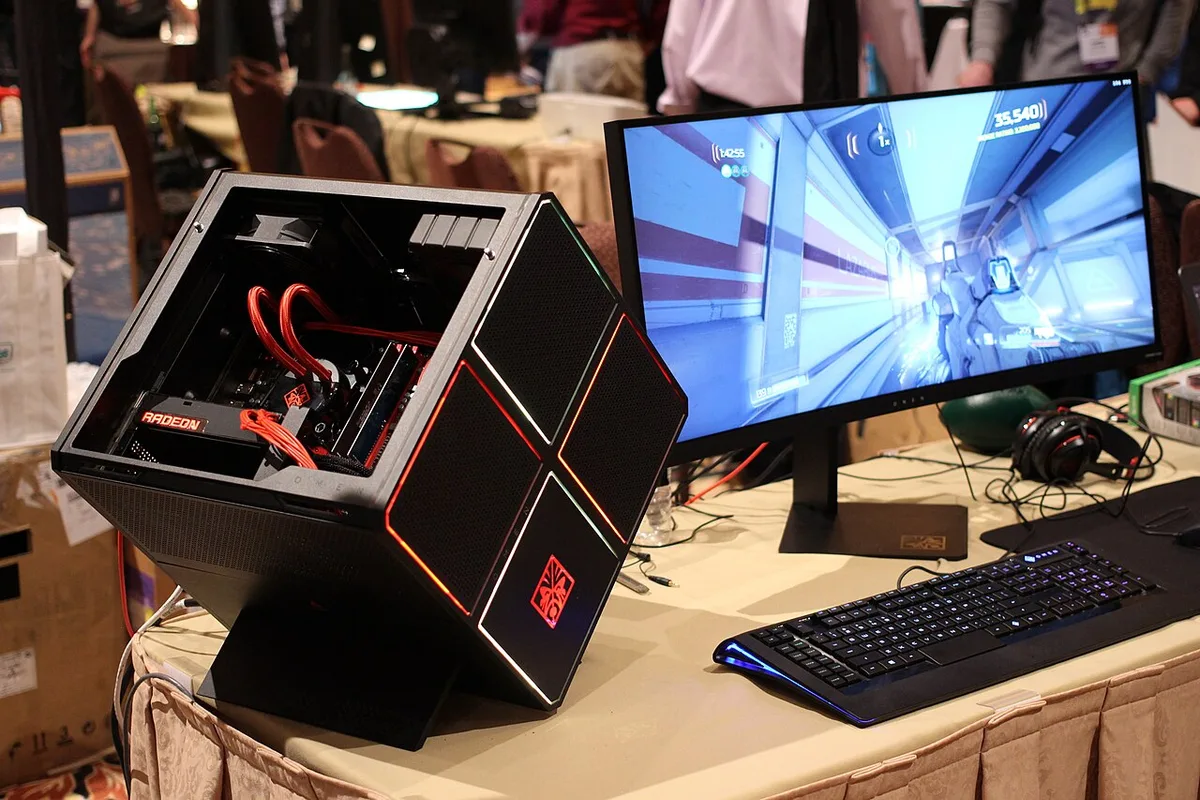
Image source: Wikimedia Commons / Maurizio Pesce (CC BY)
A DIY build means you buy parts and assemble them yourself. A kit build ships all parts together with instructions, often pre-tested for compatibility. A boutique build is configured online and assembled by a vendor.
A hybrid build mixes these, like buying a prebuilt and swapping the graphics card yourself.
| Path | Who Assembles | Best For | Skill Needed |
|---|---|---|---|
| DIY | You | Saving money, learning | Low to medium |
| Kit | You, with guided parts | First-timers wanting safety | Low |
| Boutique | Vendor | Busy buyers, gift builds | None |
| Hybrid | Mixed | Upgraders, tinkerers | Low to high |
Your choice here shapes everything else. A kit is great if you want guidance but still want to learn. A hybrid suits someone upgrading an older machine piece by piece.
Choosing Your Path: Budget, Skill, Time, and Goal Branches
This is where the decision tree kicks in. Match your situation to a branch.
If your budget is under $900 and you have patience, go DIY with an entry-level tier. If your budget is $1,200 to $1,600 and you want 1440p gaming, a mid-range DIY or kit build fits. If your budget is above $2,000, you can chase high-end parts or a boutique build.
If you have zero free time but a healthy budget, pick boutique. You pay a premium, but you skip the assembly and troubleshooting. If you have a weekend free and want to learn, DIY is the better value.
If you already own a decent PC and just want more frames, a hybrid upgrade path makes sense. Swap the graphics card first, then the processor if needed. This spreads cost over time.
Skill matters too. If you are comfortable watching a tutorial and following steps, DIY is realistic. If the thought of applying thermal paste makes you nervous, start with a kit or boutique build.
Match the parts so nothing bottlenecks. A balanced gaming PC build pairs a capable processor with a matching graphics card, so neither part wastes the other's power.
What's Inside: Core Components and Compatibility Checks
Every custom build rests on seven core parts. Each one has a job, and they must work together.
- Processor (CPU): the brain of the system.
- Graphics card (GPU): renders games and visuals.
- Motherboard: connects everything and sets your upgrade ceiling.
- Memory (RAM): handles active tasks and multitasking.
- Storage (SSD or HDD): holds your games and files.
- Power supply (PSU): delivers stable power.
- Case and cooling: houses parts and keeps them cool.
Compatibility is the trap most beginners hit. The CPU socket must match the motherboard. The RAM type must match what the board supports.
The case must fit the graphics card length and the cooler height.
Per Intel and AMD platform documentation, socket and chipset pairings change by generation. Always check the manufacturer's compatibility list before buying. A tool like PCPartPicker flags most conflicts automatically.
| Component | Key Compatibility Check |
|---|---|
| CPU and motherboard | Socket type and chipset |
| RAM and motherboard | DDR type and supported speed |
| GPU and case | Card length and clearance |
| Cooler and case | Cooler height limit |
| PSU and case | Form factor and wattage |
For a deeper look at the fundamentals every builder should know, the hardware basics guide covers sockets, chipsets, and form factors in plain terms. If you are weighing a first build on a tight budget, an entry-level guide helps set realistic expectations.
Custom vs. Prebuilt vs. Console: Real Trade-Offs
Each option serves a different kind of buyer. None is universally best.
| Factor | Custom Build | Prebuilt | Console |
|---|---|---|---|
| Upfront cost | Often lower at same tier | Higher | Lowest |
| Upgradeability | Full | Limited | None |
| Learning curve | Medium | None | None |
| Performance per dollar | High | Medium | High for price |
| Time to play | Days to weeks | Same day | Same day |
A custom build wins on upgradeability and value. A prebuilt wins on convenience. A console wins on simplicity and living-room fit.
If your goal is 4K gaming at high refresh rates with room to grow, a custom build is the stronger long-term choice. If you just want to play tonight, a console or prebuilt gets you there faster.
For most gamers, a mid-range custom build hits the sweet spot. It balances cost, performance, and future upgrades. How long a well-built rig lasts depends on the parts you pick, but five to seven years is common with smart upgrades.
If you want to compare tiers, the mid-range specification breakdown shows what defines that class.
From Box to Boot: The Build and Setup Workflow
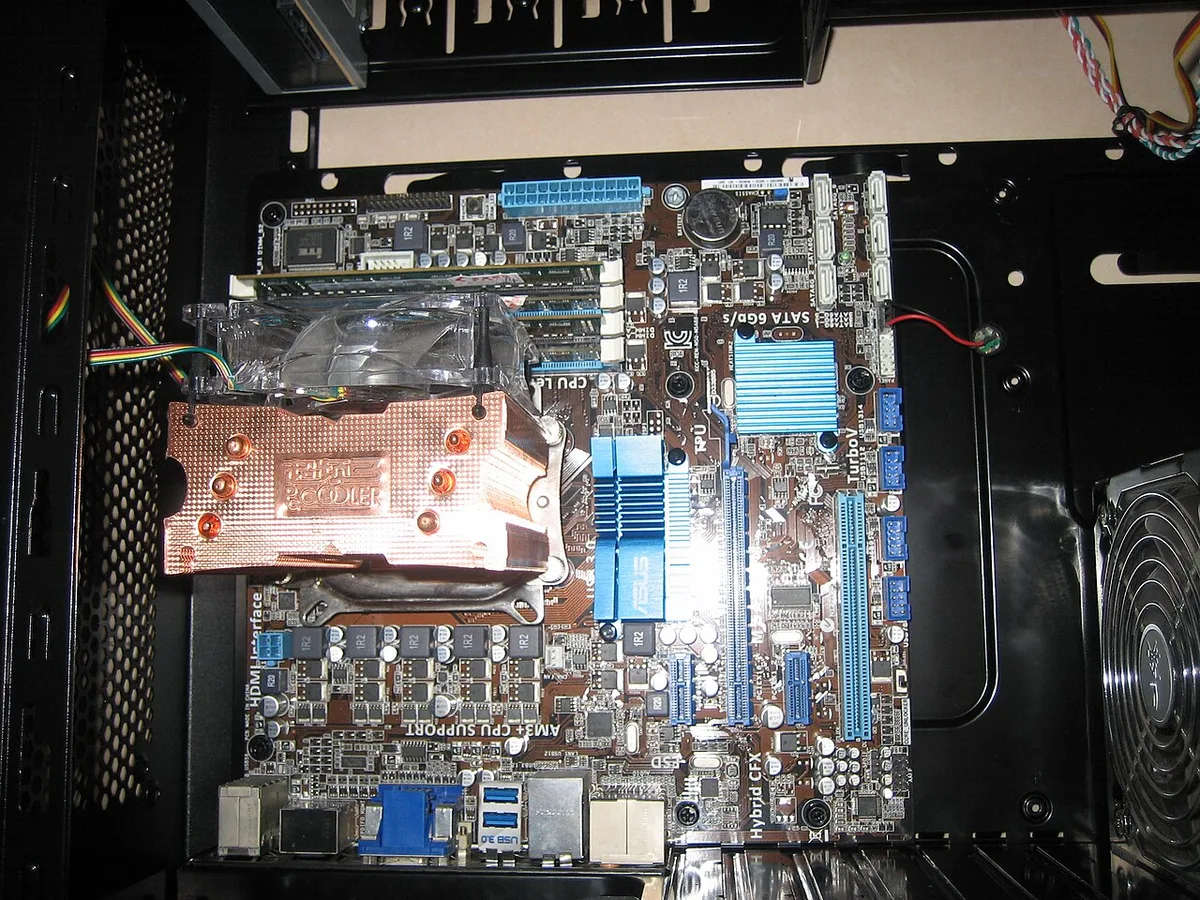
Image source: Wikimedia Commons / Porsche 911GT2 (CC BY-SA)
The build itself is a sequence, not a single event. Work in a clean, well-lit space and keep small parts in a tray so nothing rolls away.
Start with the case. Install the power supply and route its cables before mounting the motherboard. Standoffs go in first, then the board drops into place.
Install the processor next. Lift the retention arm, align the triangle marker on the chip with the socket, and press gently until it seats. Apply a pea-sized dot of thermal paste, then mount the cooler.
The image above shows the socket and retention arm clearly, which helps avoid bent pins.
Seat the memory by pressing firmly until both clips click. Install the storage drive into its slot or tray. Then mount the graphics card into the top PCIe slot and secure it with screws.
Cable routing comes last. Connect the 24-pin motherboard power, the CPU power, and the GPU power. Route cables behind the motherboard tray for airflow.
First boot is the moment of truth. Power on and watch for POST, the Power-On Self Test. If the screen stays black, check the monitor cable, reseat the RAM, and verify the GPU power connectors.
Once POST passes, enter the BIOS. Enable XMP or EXPO for your RAM speed, set the boot drive order, and save. Then install Windows from a USB drive.
Install chipset drivers, GPU drivers, and run Windows Update. Finish with a stress test using a tool like Prime95 for the CPU and a benchmark like 3DMark for the GPU. If temperatures stay under 85 degrees Celsius under load, your cooling is adequate.
Cost Tiers, Specs, and Realistic Performance Targets
Budgets shape everything. As of 2026, three tiers cover most buyers.
| Tier | Budget | Target Resolution | Example Pairing |
|---|---|---|---|
| Entry | $700 to $900 | 1080p, 60 to 120 FPS | Six-core CPU, entry GPU |
| Mid-range | $1,200 to $1,600 | 1440p, 100+ FPS | Eight-core CPU, mid GPU |
| High-end | $2,000+ | 4K, 120+ FPS | Top CPU, flagship GPU |
Entry builds handle esports titles and older AAA games well. Mid-range builds are the sweet spot for most gamers. High-end builds chase maximum fidelity and ray tracing.
Memory matters more than people expect. 16GB is the floor for gaming in 2026. 32GB is the smarter pick if you multitask or stream. DDR5 speeds of 6000 MT/s are a common sweet spot for current AMD platforms.
Storage should be NVMe SSD. A 1TB drive is the practical minimum. 2TB gives breathing room for large game installs.
Power supply sizing follows a simple rule. Add the CPU and GPU TDP, then add 150 watts of headroom. A mid-range build usually needs 650 to 750 watts.
Look for 80 Plus Gold efficiency or better.
Performance targets depend on the game. Esports titles run at hundreds of FPS on modest hardware. Demanding single-player games may need a high-end GPU for 4K.
Set your target before you buy.
Common First-Build Mistakes and How to Avoid Them
First builds fail in predictable ways. Knowing them in advance saves hours of frustration.
Forgetting motherboard standoffs is the classic error. The board must sit on standoffs, not directly on the case tray. Direct contact can short the board.
Installing the CPU cooler with too much or too little thermal paste is common. A pea-sized dot is enough. Too much paste squeezes out and makes a mess.
Not seating RAM fully causes no-POST failures. Press until you hear both clips click. If one side stays loose, the board will not boot.
Cable management mistakes cause thermal problems. A bundle of cables blocking the front intake restricts airflow. Route cables behind the tray and use zip ties.
Buying an underpowered PSU is risky. If the wattage is too low, the system can crash under load or damage components. Always size up.
Forgetting to enable XMP or EXPO leaves RAM running at slow default speeds. Check the BIOS after the first boot.
Skipping the stress test means you miss problems early. Run Prime95 and 3DMark before you install your games. Catching a heat issue now beats discovering it mid-match.
Safety, Warranty, and Compliance Basics
Safety starts before you touch a part. Work on a grounded surface and use an ESD wrist strap. Static discharge can kill a processor or memory module instantly.
Power supplies carry high voltage even when unplugged. Never open a PSU enclosure. Buy units with UL listing and overcurrent protection.
The 80 Plus program certifies efficiency, which also reduces heat.
Thermal safety matters. Poor cable routing can block fans and cause overheating. Keep cables away from spinning blades and hot surfaces.
Warranties vary by part. CPUs and GPUs usually carry three-year warranties. Motherboards often run three years.
PSUs range from five to ten years depending on the model. Keep your receipts and register products where required.
Compliance standards apply to components. RoHS restricts hazardous substances. FCC certification covers electromagnetic interference.
These markings appear on the packaging and product labels.
If you are unsure about a step, stop and check the manufacturer manual. Manufacturer documentation from brands like ASUS, MSI, Gigabyte, and ASRock is the authoritative source for installation details. Never force a part into place.
Frequently Asked Questions
Is a custom built gaming PC cheaper than a prebuilt?
Often yes, especially at mid and high tiers. DIY builds skip the assembly markup and bloatware. Boutique builds cost more than DIY but still offer part choice.
Sales and regional pricing can flip the math, so compare current prices before deciding.
How long does it take to build a gaming PC?
A first build takes four to eight hours including setup and troubleshooting. Experienced builders finish in one to two hours. Allow extra time for cable management and the first boot.
Do I need coding or technical skills?
No. Building a PC is mechanical, not programming. You follow instructions, seat parts, and connect cables.
Basic comfort with tools and tutorials is enough.
Can I upgrade a custom build later?
Yes, that is the main advantage. You can swap the graphics card, add memory, or replace the processor when compatible. Check socket and chipset support before upgrading the CPU.
What if a part arrives dead on arrival?
Contact the retailer or manufacturer for an RMA. Most components carry warranties from one to ten years. Test each part as you build so you catch issues early.
Is liquid cooling necessary?
No. Air coolers handle most builds well. Liquid cooling helps in small cases or high-end systems.
It adds cost and maintenance, so choose based on your case size and CPU.