What is a good FPS for a gaming laptop depends on the games you play, your screen refresh rate, and how competitive you are. For some people, 60 FPS feels smooth. For others, 144 FPS is the real floor.
Manufacturer specifications and in-game benchmarks show that the same GPU can produce very different frame rates at 1080p, 1440p, or 4K. As of 2026, most gaming laptops ship with panels between 120Hz and 240Hz, so your target should match both the hardware and the screen.
Why "Good FPS" Isn't One Number
A good frame rate is not a universal score. It is a match between your game, your settings, and your display.
Average FPS tells only part of the story. The 1% lows matter just as much, because they show the slowest frames during busy scenes. A laptop that averages 90 FPS but drops to 45 FPS in firefights will feel worse than one that holds a steady 75 FPS.
Frame pacing matters too. Smooth 60 FPS can feel better than jumpy 90 FPS if the frame times swing wildly. That is why competitive players often cap their frame rate slightly below the maximum, rather than chasing the highest possible number.
Your display refresh rate sets the ceiling. A 60Hz panel cannot show 144 FPS, even if the GPU renders it. A 144Hz panel can, but only if the game, settings, and cooling allow it.
If you notice sudden frame drops during intense scenes, it helps to compare your symptoms with common low frame rate issues before changing settings.
What Actually Determines Your FPS Target
Your FPS target starts with the GPU, but it does not end there. The CPU, resolution, settings, and cooling all shape the final number.
GPU power is the biggest factor. A laptop GPU with higher TGP, meaning more watts allowed to the chip, usually delivers more frames. Two laptops with the same GPU name can perform very differently if one has a 95W limit and another has a 140W limit.
Resolution changes the workload fast. 1080p is lighter. 1440p asks for more. 4K on a laptop is heavy, and it often forces you to lower settings or use upscaling.
Settings matter more than many people expect. Shadows, volumetric effects, ray tracing, and dense foliage can cut frame rates sharply. Competitive players often lower these first because they cost frames without helping aim.
Upscaling can raise FPS without a huge visual penalty. NVIDIA DLSS, AMD FSR, and Intel XeSS render at a lower resolution, then reconstruct the image. Frame generation can add even more frames, but it can also add latency, so it is not ideal for every competitive game.
Cooling is the quiet limiter. A laptop that runs hot may throttle the GPU or CPU and lose frames after ten minutes. If heat buildup is already a concern, learning what thermal throttling looks like can save you from blaming the wrong part.
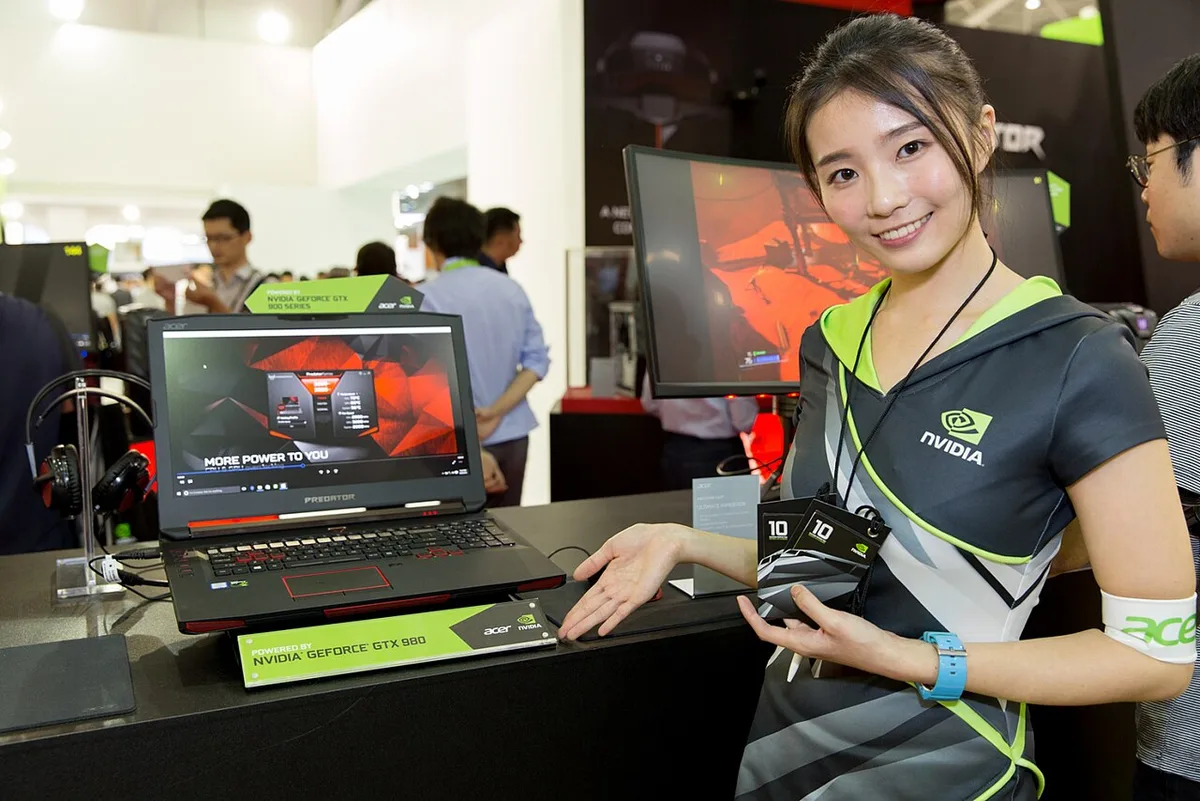
Image source: Wikimedia Commons / NVIDIA Taiwan (CC BY)
| Factor | What It Changes | Practical Takeaway |
|---|---|---|
| GPU TGP | Raw rendering power | Higher wattage usually means higher FPS |
| Resolution | Pixel workload | 1080p is easiest, 4K is hardest |
| Settings | Visual detail vs speed | Lower shadows and effects first |
| Cooling | Sustained performance | Heat can erase early benchmark gains |
| Upscaling | Frame rate and clarity | Great for single-player, mixed for esports |
FPS Targets by Game Type
Different games reward different frame rates. A story game and a ranked shooter do not need the same target.
For cinematic single-player games, 60 FPS is a solid goal. It feels smooth, and it lets you enjoy high settings. Some players are happy at 45 to 50 FPS if the visuals are strong and the frame pacing is stable.
For open-world and action games, 60 to 90 FPS is a comfortable range. You get smoother camera movement without forcing every setting to low. This is often the sweet spot for gaming laptops with 120Hz or 144Hz panels.
For competitive shooters, 120 to 144 FPS is a practical target. Games like Valorant, CS2, Apex Legends, and Fortnite benefit from faster response and clearer motion. Many esports players aim even higher when the hardware allows it.
For casual, turn-based, or strategy games, 30 to 60 FPS can be enough. These games are less sensitive to tiny input delays. Spending money to chase 240 FPS in a slow game rarely makes sense.
| Game Type | Good Target | Why It Fits |
|---|---|---|
| Story and cinematic AAA | 60 FPS | Smooth motion with high settings |
| Open-world action | 60 to 90 FPS | Balanced visuals and responsiveness |
| Competitive shooters | 120 to 144 FPS | Lower input lag and clearer tracking |
| Strategy and turn-based | 30 to 60 FPS | Less motion sensitivity |
| Esports at high level | 240+ FPS | Maximum responsiveness on capable panels |
FPS Targets by Display Refresh Rate
Your screen refresh rate should guide your target. Chasing frames beyond what the panel can show mostly wastes battery and heat.
A 60Hz panel tops out at 60 visible frames per second. If your laptop averages 90 FPS on a 60Hz screen, the extra frames may reduce input lag slightly, but you will not see smoother motion. VSync or an adaptive sync setting can help reduce tearing.
A 120Hz or 144Hz panel makes 90 to 120 FPS worthwhile. This is where many gaming laptops land. It feels much smoother than 60 FPS, and it does not demand extreme hardware in every game.
A 165Hz or 240Hz panel rewards 144 to 240 FPS. These panels suit competitive players. The benefit is clearest in fast shooters, where tracking and reaction time matter.
A 360Hz panel is for a narrow group. You need a powerful laptop, a light game, and low settings to use it well. For most players, the jump from 240Hz to 360Hz is harder to notice than the jump from 60Hz to 144Hz.
Adaptive sync matters here. VESA Adaptive Sync, often seen as FreeSync or G-Sync Compatible, matches the panel refresh to the GPU output. That can reduce tearing and stutter when FPS moves around.
Manufacturer details from NVIDIA and display standards groups explain why this helps.
Image source: Wikimedia Commons / Michal Klajban (CC BY-SA)
| Panel Refresh Rate | Useful FPS Target | Best Match |
|---|---|---|
| 60Hz | 60 FPS | Casual and story games |
| 120Hz or 144Hz | 90 to 120 FPS | Balanced gaming |
| 165Hz or 240Hz | 144 to 240 FPS | Competitive play |
| 360Hz | 240+ FPS | Esports on strong hardware |
How to Find Your Realistic FPS Target on Your Laptop
You do not need to guess. A short test loop will tell you what your laptop can actually do.
- Pick one game you play often. Do not test five games at once.
- Set the resolution to your normal play resolution. For many laptops, that is 1080p or 1440p.
- Choose a preset. Start with medium or high, not ultra.
- Play a repeatable scene for five minutes. A busy combat area works well.
- Watch average FPS, 1% lows, and temperatures. Use a monitoring tool if your laptop does not show them.
- Lower the heaviest settings if the 1% lows drop too far. Shadows, foliage, and effects are common culprits.
- Retest after each change. Change one thing at a time.
- Compare the result to your panel refresh rate. If you hit 130 FPS on a 144Hz screen, you are in a strong spot.
A good target is one you can hold for a full session. If the first ten minutes look great but the laptop overheats later, the real target is lower. If your cooling needs attention, steps like cleaning vents safely and adjusting fan speed can help stabilize frame rates.
You can also improve overall laptop performance before deciding you need new hardware.
Keep notes. Write down the game, resolution, preset, and FPS. That makes future upgrades easier to judge.
Common Mistakes That Waste Performance
Many players chase the wrong fixes first. They drop every setting to low, blame the GPU, or buy new gear before checking the basics.
- Playing on battery instead of wall power cuts performance and frame rates.
- Running ultra settings in every game often costs more frames than it adds visual value.
- Watching only average FPS hides stutter, because the 1% lows tell the real story.
- Leaving VSync on in competitive games can add input lag.
- Skipping driver updates means missing game-specific fixes and optimizations.
- Blocking vents or gaming on soft surfaces traps heat and lowers sustained FPS.
- Pairing a weak CPU with a strong GPU can create a bottleneck.
- Running uncapped frame rates can add heat and uneven frame pacing.
If your laptop suddenly drops frames, compare the symptoms with common low frame rate causes. If heat seems involved, check whether cooling affects frame rate and whether thermal throttling is happening.
If your FPS looks fine for ten minutes and then falls, treat it as a cooling problem first. Clean the vents, raise the laptop slightly, and adjust fan speed before you change game settings.
The Specs That Actually Set Your Ceiling
Your FPS ceiling comes from the whole system, not just the GPU name. Two laptops with the same graphics chip can perform very differently.
GPU TGP, meaning the watts allowed to the graphics chip, is a big divider. A 140W GPU usually beats a 95W version of the same chip. CPU power matters too, especially in CPU-heavy games and busy multiplayer scenes.
RAM and storage affect smoothness more than raw FPS. 16GB is a practical baseline for modern gaming. Slow storage can cause hitching when a game streams new areas.
The display sets the visible ceiling. A 60Hz panel cannot show more than 60 frames per second. A 144Hz or 240Hz panel can, but only if the hardware and cooling support it.
Upscaling can stretch your ceiling. NVIDIA DLSS, AMD FSR, and Intel XeSS render at a lower resolution and rebuild the image. That can turn an unplayable 45 FPS into a smoother 75 FPS without buying new hardware.
| Spec | Why It Matters | Practical Target |
|---|---|---|
| GPU TGP | Real graphics power | Higher wattage is better |
| CPU | Game logic and draw calls | Match the GPU tier |
| RAM | Multitasking and stutter | 16GB minimum |
| Storage | Asset loading | SSD, not HDD |
| Panel Hz | Visible smoothness | Match your FPS goal |
If you want more frames without new hardware, review ways to improve overall laptop performance. If temps climb during long sessions, learn how to reduce temperature fast.
FAQs
Is 60 FPS good enough for a gaming laptop?
Yes, 60 FPS is good for most story, single-player, and casual games. It feels smooth and works well on a 60Hz panel. Competitive players may want 120 FPS or more for lower input lag.
Does a 144Hz screen need 144 FPS?
No, but 144 FPS is the best match for a 144Hz panel. You can still enjoy smoother motion at 90 to 120 FPS. Adaptive sync can reduce tearing when FPS moves around.
Why does my FPS drop after a few minutes?
Heat is the likely cause. The laptop may be thermal throttling to protect the CPU or GPU. Clean the vents, improve airflow, and check fan behavior before lowering settings.
Should I use DLSS or FSR?
Use them when you need more FPS or play at higher resolutions. They work well in many single-player games. Competitive players should test latency, because frame generation is not ideal for every shooter.
Can a cooling pad improve FPS?
Yes, sometimes. A cooling pad can lower surface and internal temperatures. That may reduce throttling and stabilize frame rates, especially on hot laptops.
Final Verdict: Your Personal FPS Target
Your best target depends on what you play and what you can hold consistently.
- Casual or story games: aim for 60 FPS with stable frame pacing.
- Balanced all-around play: aim for 60 to 90 FPS.
- Competitive shooters: aim for 120 to 144 FPS.
- High-level esports: push toward 240 FPS or higher if the hardware allows.
- Strategy or turn-based games: 30 to 60 FPS is often enough.
Match the target to your panel refresh rate. Do not chase 240 FPS on a 60Hz screen. Watch 1% lows, not just averages.
Keep the laptop cool, because heat can erase a good benchmark in minutes.
If you are unsure, start at 60 FPS on medium settings. Then raise settings or resolution until the frame rate and smoothness feel right for your game.