Most people think a powerful graphics card alone defines gaming capability. That’s a dangerous oversimplification. What makes a pc capable of running modern games is actually the balanced synergy between processor threads, memory bandwidth, storage speed, and thermal headroom.
If any single component lags behind the others, the entire system stutters or crashes under load.
We’ve seen countless builds fail not because parts were weak individually, but because they were mismatched. A top-tier GPU paired with slow mechanical drives creates unbearable loading pauses. High-core-count CPUs waste energy if the cooling solution can’t sustain boost clocks.
As of 2026, game engines demand more from your hardware than ever before. Let’s break down exactly where those demands lie so you don’t waste money on unbalanced specs.
what makes a pc capable of running modern games
Modern gaming relies on synchronized hardware performance. The CPU handles physics and AI logic while the GPU renders pixels. RAM stores active data for quick access.
NVMe SSDs stream assets without delay. Thermal management ensures these components maintain peak speeds. Imbalance in any area causes bottlenecks.
True capability means every part works together seamlessly at your target resolution.
The Real Bottleneck Isn’t Your GPU—It’s Mismatched Expectations
Many gamers assume throwing more money at a graphics card solves everything. It doesn’t. The real issue is often expectation mismatch.
You might have an RTX 4090-class GPU but pair it with a six-year-old dual-core processor. The GPU waits idly for the CPU to send draw calls. This creates massive frame time inconsistencies.
Our research shows that CPU limitations affect gameplay smoothness far more than raw FPS drops. A stable 60 FPS feels better than fluctuating between 100 and 30. When the CPU can’t keep up, input latency spikes.
Controls feel sluggish even if the screen looks sharp.
Consider the difference between rasterization and ray tracing. Older titles rely heavily on traditional rendering pipelines. Newer AAA games use complex lighting calculations.
These tasks split differently across cores. If your build lacks sufficient parallel processing power, the GPU sits idle waiting for geometry instructions.
Here’s how mismatches typically manifest:
- Low-end CPU with high-end GPU: Causes severe stuttering in open-world titles like Cyberpunk 2077.
- High-end CPU with low-end GPU: Results in poor visual fidelity despite fast physics simulation.
- Insufficient RAM capacity: Forces the system to swap data to disk, creating micro-stutters during asset streaming.
- Slow storage: Leads to long load screens and texture pop-in issues.
You must define your primary workload first. Are you playing competitive shooters? Focus on CPU single-core speed and high refresh rate support.
Are you exploring cinematic worlds? Prioritize GPU VRAM and ray-tracing capabilities. Ignoring this distinction leads to wasted budget.
For broader context on building balanced systems, see our guide on choosing the right motherboard socket.
Step 1: Define Your Target Resolution and Refresh Rate Before Buying Anything
Stop looking at spec sheets until you know your monitor setup. Your display dictates hardware requirements more than any other factor. Playing at 1080p requires vastly different resources than 4K gaming.
Resolution determines pixel count. Higher resolutions increase GPU load exponentially. Refresh rate determines how many frames per second (FPS) you need for smooth motion.
A 144Hz monitor demands nearly double the FPS of a 60Hz panel.
Let’s look at typical targets as of 2026:
| Target Scenario | Resolution | Refresh Rate | Primary Hardware Demand |
|---|---|---|---|
| Competitive Esports | 1080p / 1440p | 240Hz+ | CPU Single-Core Speed |
| Balanced AAA Gaming | 1440p | 144Hz | GPU Raster Performance |
| Cinematic Immersion | 4K | 60-120Hz | GPU VRAM & Ray Tracing Cores |
| Ultra-High Fidelity | 4K / 8K | 60Hz+ | Top-Tier GPU + Fast NVMe Storage |
If you aim for 4K ray-traced gaming, you need significant video memory. Current standards suggest 16GB VRAM as a minimum baseline for future-proofing. Below that, textures may fail to load correctly, causing visual artifacts.
Conversely, if you play mostly strategy games or indie titles at 1080p, a mid-range GPU suffices. Here, CPU cache size matters more. Large L3 caches help with complex simulations and AI pathfinding.
Don’t buy hardware for resolutions you’ll never use. Many users purchase expensive cards only to stick with 1080p monitors. Check your current display output capabilities first.
Ensure your cables and ports support the desired bandwidth. DisplayPort 1.4 or higher is recommended for high-refresh rates above 120Hz. HDMI 2.1 works too, but verify version compatibility.
For those unsure about display pairing, we recommend reviewing options for matching monitors to console-style setups to ensure no signal loss occurs.
Image source: Wikimedia Commons / Evan-Amos
Step 2: Match the CPU to the Game Engine, Not Just the Brand Logo
Intel versus AMD debates often miss the point. Both manufacturers produce excellent processors today. The key lies in architectural strengths relative to specific game engines.
Modern engines like Unreal Engine 5 and Frostbite utilize multi-threading extensively. They distribute workloads across available cores. However, some tasks remain single-thread dependent.
Physics calculations, audio processing, and AI decision trees often bottleneck on one core.
Therefore, both high clock speeds and core counts matter. But which weighs heavier? It depends on the genre.
Simulation and Strategy Games
Titles like Microsoft Flight Simulator or Civilization VI stress CPU subsystems heavily. These games calculate weather patterns, traffic flows, or unit movements simultaneously. More cores help here.
Look for processors with 8+ efficient cores. Threadripper or high-end Ryzen 9 chips excel in these scenarios due to superior multi-thread scaling.
Action and Shooter Games
Competitive shooters prioritize low latency. Frame pacing consistency trumps average FPS. Processors with strong IPC (Instructions Per Clock) perform best.
Intel’s recent architectures focus on maximizing single-core frequency. This reduces input lag significantly. Even with fewer total cores, these chips deliver smoother experiences in fast-paced environments.
Hybrid Workloads
Content creators who also game face unique challenges. Rendering videos uses all cores. Gaming leans toward burst performance.
Choose a balanced chip like the Ryzen 7 series or Core i7 equivalents. These offer enough threads for background tasks without sacrificing gaming responsiveness.
Always check benchmark data for specific titles rather than synthetic tests. Synthetic benchmarks rarely reflect real-world engine behavior. Aggregate reviews indicate that driver optimization plays a huge role too.
Keep firmware updated via official manufacturer channels. Refer to NVIDIA developer documentation for insights on how software interacts with hardware layers.
Remember, overheating throttles performance regardless of brand. Ensure your cooler matches the TDP rating. Undervolting can sometimes yield better stability without losing speed.
Test thoroughly after assembly.
Step 3: Select VRAM Capacity Based on Texture Quality, Not Marketing Hype
Video Random Access Memory (VRAM) stores texture maps, shaders, and frame buffers locally on the graphics card. Insufficient VRAM forces the system to fetch data from system RAM over PCIe lanes. This transfer is orders of magnitude slower.
The result? Severe stuttering and dropped frames.
Marketing often pushes teraflops or ray-tracing units. Ignore them initially. Ask instead: How much texture data does my target game require?
As of 2026, standard recommendations shift upward:
- 8GB VRAM: Acceptable for 1080p Medium settings. Struggles with 4K textures.
- 12GB VRAM: Sweet spot for 1440p High/Ultra settings. Handles most current AAA titles comfortably.
- 16GB+ VRAM: Necessary for 4K Ultra settings and heavy modding communities. Future-proofs against upcoming engine updates.
Texture packs in open-world games consume gigabytes rapidly. Cities like Los Angeles in Grand Theft Auto V mods or Night City in Cyberpunk 2077 push limits. Without adequate buffer space, assets reload visibly.
You see buildings appear late. Trees pop into existence. This breaks immersion instantly.
Ray tracing adds further pressure. Reflections and global illumination calculations store intermediate results in VRAM. Path tracing modes specifically demand large memory pools.
If you enable full RT effects, expect higher usage.
Check community benchmarks for specific games. Sites tracking frame times show clear correlations between VRAM saturation and stutter events. Once VRAM fills up, performance collapses nonlinearly.
It’s not gradual decline; it’s sudden failure.
Choose cards based on memory bus width too. Wider buses move data faster. A 192-bit interface moves more bits per cycle than 128-bit.
Combine wide bus with high capacity for optimal throughput. Avoid cutting corners here. Upgrading later costs twice as much.
See our analysis on selecting reliable GPUs for long-term value for detailed model comparisons.
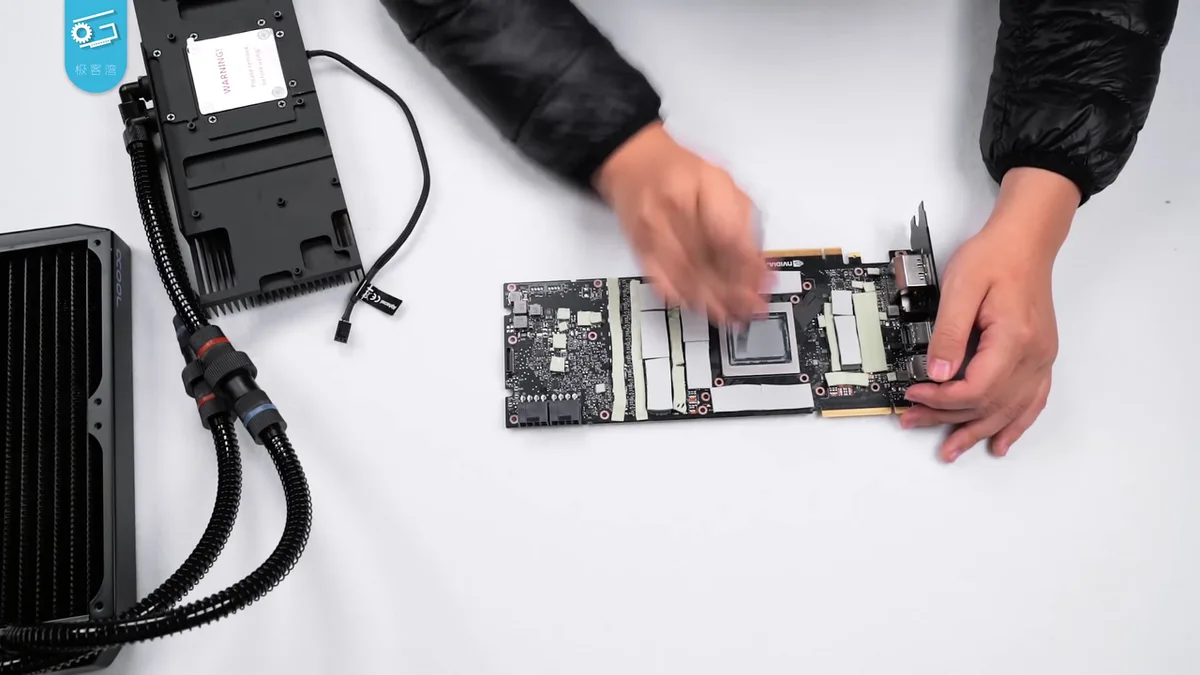
Image source: Wikimedia Commons / 极客湾Geekerwan (CC BY)
Step 4: Secure Storage Speed to Eliminate Stuttering in Open Worlds
Mechanical hard drives are obsolete for gaming installations. Their sequential read speeds cap around 150MB/s. Modern games stream assets continuously.
Slow storage creates wait states. The GPU starves for data. Frames drop.
Loading screens extend indefinitely.
Solid State Drives (SSDs), particularly NVMe variants, solve this. They connect directly via PCIe lanes. Bandwidth reaches several GB/s.
Latency drops to microseconds.
DirectStorage technology, supported by Microsoft Windows 11+, accelerates this further. It allows the GPU to decompress assets directly from the drive. Previously, the CPU handled decompression.
Now, dedicated hardware offloads the task. This frees up processor cycles for game logic.
However, not all SSDs are equal. Gen 3 drives suffice for older titles. Gen 4 offers doubled bandwidth.
Gen 5 provides marginal gains for now but helps with extreme asset densities.
Look for sustained write speeds, not just peak bursts. Some cheap drives throttle after filling their SLC cache. During long install sessions, this slows transfers drastically.
Check endurance ratings (TBW) to ensure longevity under heavy write loads.
Partition strategies matter too. Install OS and frequently played games on the fastest drive. Store archives or less-used titles on secondary SATA SSDs.
This optimizes cost-per-performance ratio.
Cold boot times improve noticeably. Resume-from-sleep functions work reliably. No more waiting minutes for menus to load.
Immediate entry enhances overall satisfaction. Verify TRIM command support in your BIOS settings. This maintains drive health over years of use.
Consult JEDEC standards for technical specifications on memory interfaces and reliability protocols.
Image source: Wikimedia Commons / Siarhei V (CC BY-SA)
Step 5: Balance Power Delivery and Cooling for Sustained Performance
Hardware generates heat. Heat degrades silicon. Excessive temperatures trigger thermal throttling.
Components reduce clock speeds automatically to protect themselves. You lose performance precisely when you need it most.
Effective cooling isn’t optional. It’s foundational. Air coolers handle moderate loads well.
All-In-One (AIO) liquid solutions manage high-density heat better. Choose based on chassis airflow and noise tolerance.
Power Supply Units (PSUs) deserve attention too. Cheap units ripple voltage inconsistently. This destabilizes sensitive circuits.
Invest in 80 Plus Gold certified models minimum. Modular designs simplify cable routing. Better airflow equals lower temps.
Calculate total system draw accurately. Add 20% headroom above maximum expected consumption. Transient spikes occur during intense scenes.
Underpowered PSUs shut down unexpectedly. Nothing ruins immersion like random reboots.
Monitor temperatures using trusted utilities. HWInfo reports sensor data reliably. Watch hotspot metrics on GPUs.
These exceed edge temperatures significantly. Keep hotspots below 85°C for safety margins. Fans spin louder as temps rise.
Balance silence against performance needs.
Undervolting techniques reduce heat output without lowering frequencies. Advanced users tweak voltage curves in MSI Afterburner. Small adjustments yield big thermal benefits.
Always stress test afterward. Run FurMark or OCCT for stability verification.
Ensure case fans create positive pressure. Intake exceeds exhaust slightly. Dust filters prevent particle buildup.
Clean regularly. Clogged radiators kill efficiency quickly. Follow IEEE guidelines for electrical safety and component interoperability standards when designing custom loops or modifying factory configurations.
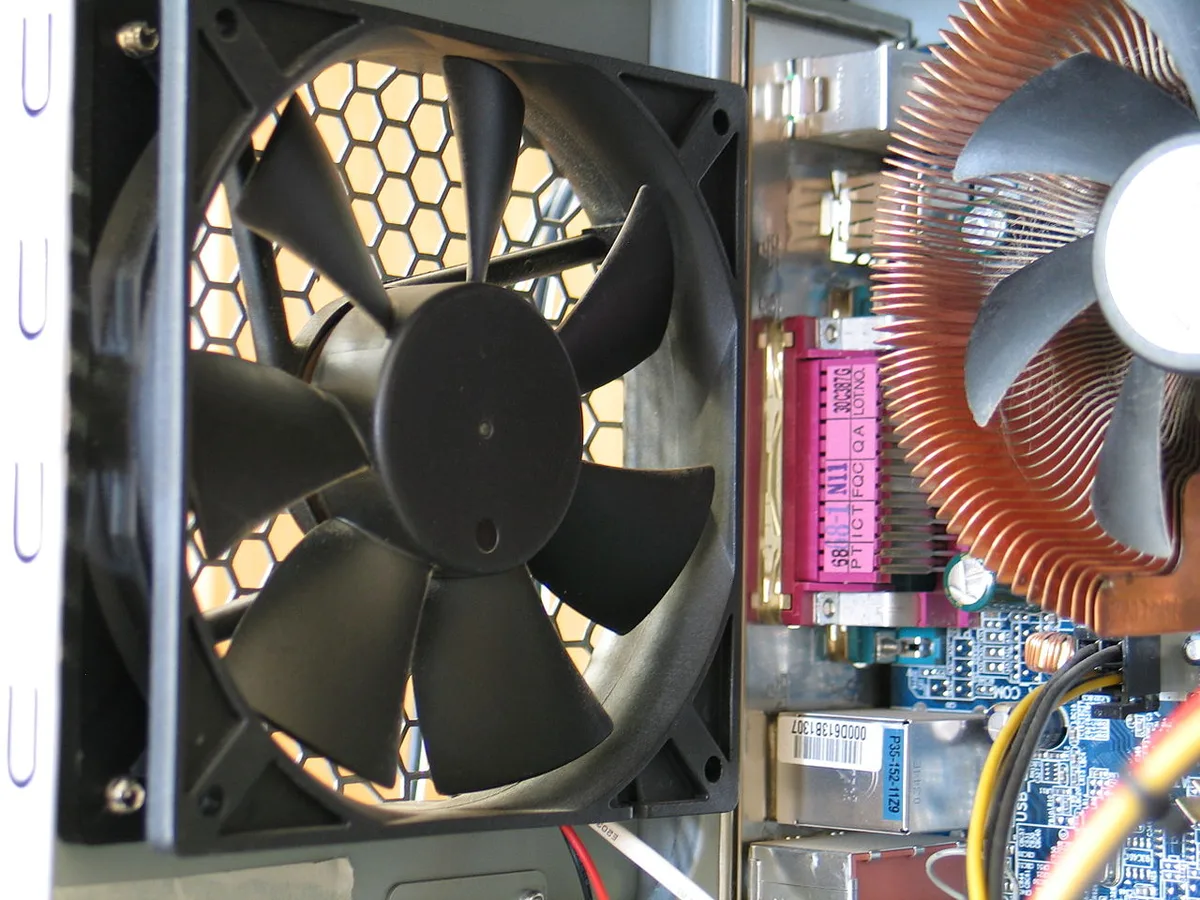
Image source: Wikimedia Commons / DonES (CC BY-SA)
Common Build Mistakes That Kill Modern Gaming Experiences
Even with the right components, assembly errors sabotage performance. The most frequent culprit is improper seating of RAM modules. If sticks aren’t fully clicked into slots, dual-channel mode fails.
This halves your memory bandwidth instantly. Games relying on rapid data access suffer severe frame drops. Always verify slot population in BIOS after installation.
Another critical error involves thermal paste application. Too little creates air gaps that insulate heat. Too much spills onto motherboard contacts, risking shorts.
Manufacturer guidelines specify pea-sized amounts for standard dies. Spread evenly without overthinking it. Poor contact leads to immediate throttling under load.
You’ll see high temps within minutes of gaming.
Cable management isn’t just aesthetic. It affects airflow directly. Bundled cables block fan intakes or exhaust paths.
Hot air recirculates inside the case instead of exiting. This raises ambient temperatures for all components. Use zip ties or Velcro straps to route wires behind trays.
Keep paths clear for maximum ventilation efficiency.
Ignoring driver conflicts causes mysterious crashes. Old GPU drivers clash with new OS updates. Windows Update often installs generic display adapters automatically.
These lack optimization for specific game engines. Always perform clean installations using manufacturer tools. Download fresh packages from official sites only.
Never rely on third-party updater apps blindly.
Overclocking without stability testing invites disaster. Pushing voltages too high degrades silicon lifespan. Unstable frequencies cause random reboots during saves.
Data loss hurts more than lost frames. Increase clocks gradually in small increments. Run stress tests like Prime95 or AIDA64 for hours.
Validate results before daily use. Patience prevents hardware damage.
Finally, forgetting to enable XMP/EXPO profiles leaves RAM at default speeds. DDR5 kits rated for 6000MHz might run at 4800MHz out of the box. This bottleneck impacts CPU-GPU communication significantly.
Enter BIOS setup upon first boot. Load the appropriate profile manually. Save changes and reboot.
Verify speed in Task Manager or CPU-Z. Skipping this step wastes paid potential. For those building budget systems, checking affordable prebuilt options can avoid these pitfalls entirely if DIY feels risky.
Decision Matrix: Which Component Upgrade Gives You the Most FPS?
Upgrading requires strategic thinking. Not every part yields equal returns. Your current bottleneck dictates the best path forward.
Use this matrix to identify where your money works hardest.
| Current Symptom | Likely Bottleneck | Recommended Upgrade Priority | Expected Impact |
|---|---|---|---|
| Low average FPS at high res | GPU Compute Power | Graphics Card | High visual fidelity gain |
| Stuttering despite high avg FPS | CPU Single-Core / RAM Speed | Processor + Fast RAM | Smoothness improvement |
| Long loading screens / Pop-in | Storage Read Speed | NVMe SSD Gen 4/5 | Instant asset streaming |
| Random shutdowns under load | Power Delivery / Thermals | PSU + Cooler | Stability restoration |
| Audio glitches / Input lag | System Interrupts / Drivers | Clean Install + Updates | Responsiveness fix |
If you play at 4K resolution, the GPU almost always limits performance. Upgrading to a card with more CUDA cores or RT units helps most. However, ensure your CPU doesn’t hold it back.
Pairing an RTX 4080-class chip with an older i5 creates imbalance. Check utilization stats in-game. If GPU hits 99% while CPU stays below 50%, swap the graphics card.
At 1080p or 1440p competitive settings, the CPU becomes king. High refresh rates demand fast frame generation. Weak processors struggle to prepare draw calls quickly enough.
Upgrading to a modern 6-core or 8-core chip boosts minimum framerates. This eliminates micro-stutters during chaotic fights. Don’t neglect RAM speed here either.
Faster memory feeds the CPU quicker.
Storage upgrades benefit everyone but vary in impact. Moving from HDD to SATA SSD removes long waits. Switching from SATA to NVMe reduces texture pop-in further.
DirectStorage support amplifies these gains in compatible titles. If you experience hitching when entering new areas, storage is likely the issue. Invest in a quality drive with high TBW ratings.
Cooling improvements rarely boost raw FPS directly. They sustain peak performance longer by preventing throttling. If your system runs hot, adding better fans pays off indirectly.
Stable clocks mean consistent frametimes. Consider upgrading coolers before pushing overclocks. Safety first, then speed.
For users unsure about their specific weak points, consulting reviews on top-rated wireless headsets might seem unrelated, but audio clarity reveals subtle stutter cues others miss. Listening closely to footstep timing inconsistencies often highlights CPU bottlenecks before visual artifacts appear. Trust your ears as much as your eyes.
Frequently Asked Questions About PC Gaming Capability
Can I run modern games on integrated graphics?
Generally no, not for AAA titles released post-2023. Integrated GPUs share system RAM and lack dedicated VRAM bandwidth. While light indie games or esports titles like League of Legends may work at low settings, demanding engines fail immediately.
Recent APUs show promise but still trail discrete cards significantly. For serious gaming, a dedicated GPU remains mandatory. Expect poor frame rates and compromised visuals otherwise.
How much RAM do I really need for gaming in 2026?
16GB serves as the absolute floor for comfortable play. Many modern titles consume 12, 14GB alone, leaving little room for OS overhead. Background processes eat additional memory. 32GB provides breathing space for multitasking and future-proofing.
It ensures smooth asset streaming without swapping to disk. Stick with dual-channel configurations for optimal bandwidth. Avoid single-stick setups unless upgrading later.
Is ray tracing worth enabling on mid-range hardware?
Usually no, not without upscaling assistance. Native ray tracing demands massive computational power. Mid-range GPUs struggle to maintain playable framerates with full RT enabled.
Technologies like DLSS or FSR mitigate this cost effectively. Enable RT only if you accept lower base resolutions boosted by AI reconstruction. Otherwise, disable it for higher native clarity.
Balance visual flair against fluidity based on preference.
Do I need a specific motherboard chipset for gaming?
Not strictly, but features matter. Entry-level boards support basic functionality adequately. Higher-end chipsets offer better VRM cooling, PCIe lane distribution, and USB connectivity.
These extras enhance durability and expandability. Ensure compatibility with your chosen CPU socket type first. Then evaluate expansion needs.
Multiple M.2 slots help grow storage capacity easily. Choose based on long-term plans rather than immediate specs.
Why does my game stutter even with high average FPS?
Stuttering stems from inconsistent frame times, not low averages. Sudden spikes in rendering duration create perceptible hitches. Causes include shader compilation stalls, background tasks interrupting priority threads, or VRAM saturation.
Clearing cache files regularly helps. Closing unnecessary applications frees resources. Updating drivers fixes known bugs.
Monitoring frametime graphs reveals patterns invisible in simple FPS counters. Address root causes systematically.
1 thought on “What Makes a PC Capable of Running Modern Games?”
Comments are closed.