why does a gaming laptop freeze during games? Usually because heat, power, or driver trouble pushes the system past what it can handle. The freeze is a symptom, not the disease.
Most freezes trace back to a short list. CPU or GPU temps climb too high. The AC adapter cannot feed peak draw.
A driver hangs. Memory fills up. Each cause leaves different clues, and the clues matter more than the cause list.
why does a gaming laptop freeze during games
A gaming laptop freezes during games when heat, power, memory, or a driver exceeds safe limits. Hard freezes point to hardware or thermal trouble. Soft freezes point to driver or memory trouble.
Check temps, adapter wattage, RAM use, and recent updates first.
Hard Freeze vs Soft Freeze vs BSOD: What Your Laptop Is Actually Doing
A hard freeze means nothing responds. The keyboard, mouse, and screen all lock. You usually have to hold the power button for 10 seconds to force a shutdown.
A soft freeze is different. The game stops, but Windows still partly works. You can open Task Manager, or the cursor still moves.
That gap matters, because it narrows the cause fast.
A BSOD is a crash, not a freeze. Windows stops, shows an error code, and restarts. A TDR recovery is milder.
The screen goes black for a few seconds, then the game comes back with a driver message.
If the laptop recovers on its own, suspect the GPU driver first. If it needs a hard reset, suspect heat or power first. If it blue-screens, note the stop code before rebooting.
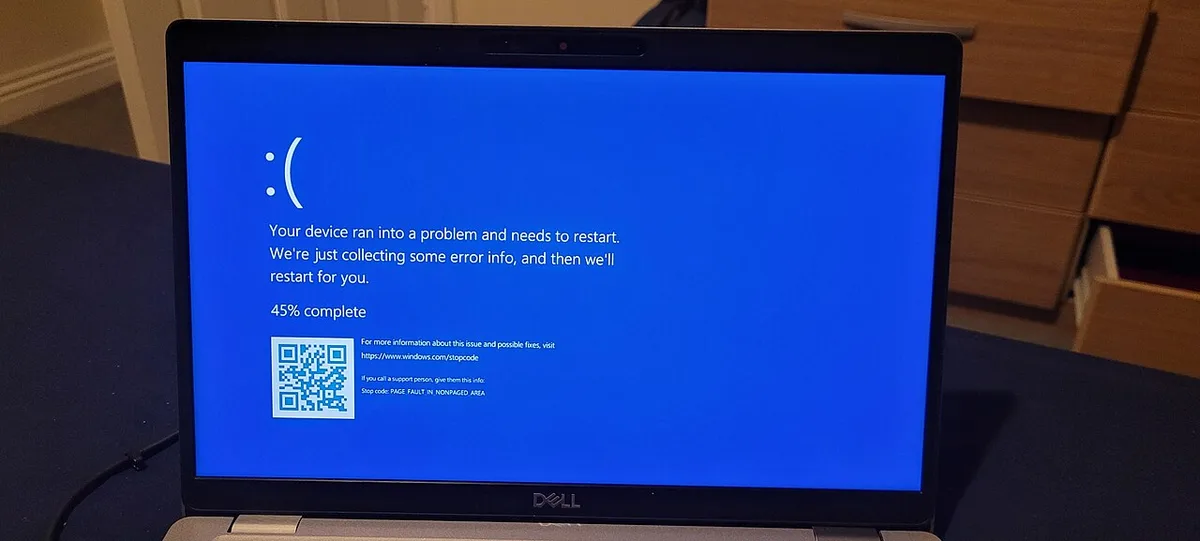
Image source: Wikimedia Commons / QueenBarenziah (CC BY)
The Decision Tree: Match Your Symptom to the Real Cause
Start with timing. Timing tells you more than any spec sheet.
If the freeze happens after 20 to 40 minutes, treat it as heat soak. The cooling system cannot keep up once the chassis warms through. Clean vents first.
Then check temps.
If the freeze happens the instant a game launches, treat it as driver or VRAM trouble. The GPU tries to allocate memory and fails. Roll back the driver or lower texture settings.
If the freeze happens only on battery, treat it as power limit trouble. The system drops TGP to save power. Plug in, or raise the power profile.
If the screen goes black but fans keep spinning, treat it as a display path issue. Try an external monitor. If that works, the panel or cable is suspect.
If the freeze follows a Windows or driver update, uninstall that update. Then reinstall cleanly.
Step-by-Step Diagnostic Workflow Before You Touch Any Hardware
Do not open the chassis yet. Software checks come first.
- Note the exact symptom. Hard freeze, soft freeze, BSOD, or black screen.
- Note the timing. Immediate, after 10 minutes, or after an hour.
- Plug in the original AC adapter. Check the wattage on the brick.
- Open Task Manager during a game. Watch CPU, GPU, RAM, and disk.
- Run a temperature monitor. HWMonitor and MSI Afterburner are common tools.
- Check Event Viewer. Look for Event ID 41, 6008, or driver errors.
- Update or roll back the GPU driver. Use a clean install.
- Test with one game at lower settings. Then test with another game.
- Scan storage health. A failing SSD can freeze the whole system.
- Run a memory test if RAM use looks wrong.
If temps stay under 90C and RAM use stays under 85 percent, move to driver and power checks. If temps spike fast, move to cooling.
A service manual helps before any internal work. It shows screw locations and thermal parts.
Cooling, Thermal Paste, and the Heat Soak Problem
Heat is the most common cause of a gaming laptop freeze during games. The CPU and GPU share tight cooling. Once heat soak sets in, clocks drop and the system locks.
Clean the vents first. Dust blocks airflow fast. Use short bursts of compressed air.
Do not spin the fans with high pressure.
Raise the laptop. A hard, flat surface beats a bed or couch. A stand helps more than most people expect.
Check thermal paste if the laptop is two years old. Old paste dries and pumps out. Repasting can drop temps by several degrees.
Manufacturer specs usually list safe CPU limits near 95 to 100C and GPU limits near 85 to 90C. Sustained temps above those ranges are a warning.
Do not chase low temps at the cost of loud fans. Tune the fan curve instead. Quiet mode can cause freezes by starving the cooler.
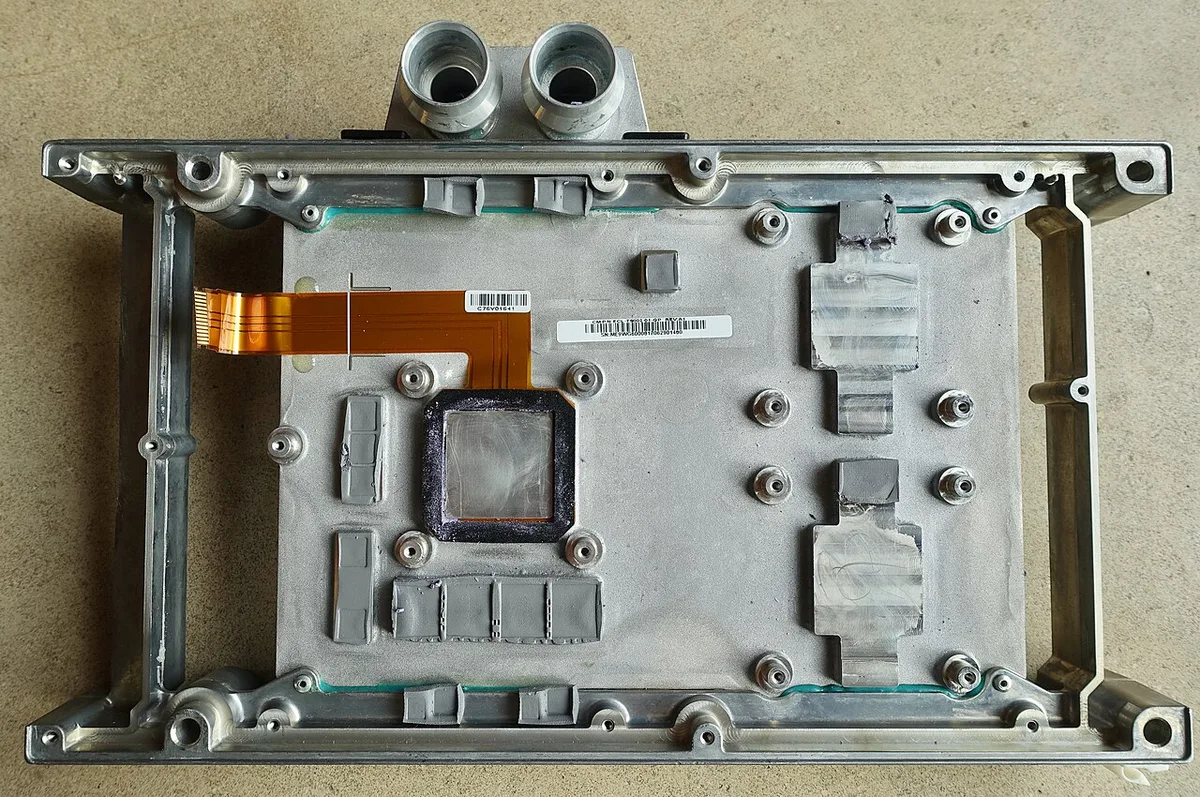
Image source: Wikimedia Commons / Steve Jurvetson from Los Altos, USA (CC BY)
Driver, VRAM, and Power Delivery Fixes That Actually Work
Drivers cause more freezes than bad hardware. A clean reinstall fixes many of them. Use DDU in Safe Mode, then install the latest driver from the maker.
Check VRAM usage during gameplay. If it hits 95 percent, lower textures. High texture packs can freeze a 6GB or 8GB card.
Check the AC adapter wattage. A 180W brick on a 230W system will throttle and freeze. This is common with third-party chargers.
See how to choose the right charger wattage before buying a replacement.
Check background apps. Chrome, Discord, and RGB software can eat RAM and CPU. Close them before gaming.
Check power settings. Performance mode helps, but it also raises heat. Balance mode is safer for long sessions.
If the laptop loses charge while plugged in, read why a gaming laptop loses charge while plugged in. That points to adapter or battery trouble.
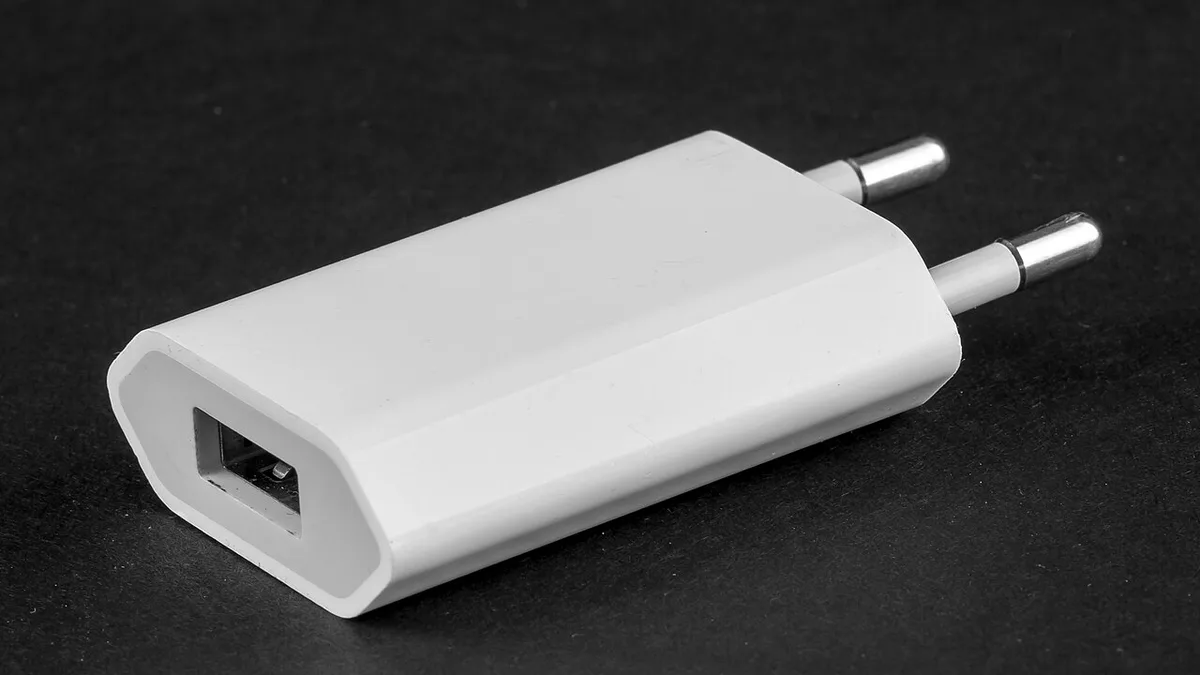
Image source: Wikimedia Commons / Raimond Spekking (CC BY-SA)
Frequently Asked Questions
Why does my gaming laptop freeze but not crash?
A freeze means the system is stuck, not dead. The GPU driver or a background process may be hung. The OS waits instead of shutting down.
Check temps and driver logs first.
Can low RAM cause a gaming laptop to freeze?
Yes. When RAM fills, Windows uses the page file on storage. That slows everything.
Heavy games with 8GB RAM can freeze. 16GB is safer for modern titles.
Does overheating always cause a freeze?
No. Overheating usually causes throttling first. A freeze happens when throttling is not enough.
Clean cooling and fresh paste reduce both risks.
Should I update my GPU driver to fix freezes?
Sometimes. A bad driver can freeze games. But a new driver can also break things.
If freezes started after an update, roll back. If they started before, update cleanly.
Can a bad SSD freeze a gaming laptop?
Yes. If the SSD stalls, the whole system waits. Check SMART data and free space.
Keep at least 15 percent free on the drive.
Is a cooling pad worth it?
Sometimes. A pad helps if vents are blocked. It does little if the internal cooler is clogged.
Clean internals first, then add a pad.
Mistakes That Make Freezes Worse (Or Waste Your Money)
The biggest mistake is guessing instead of measuring. People swap RAM or buy a new charger when the real problem is dust or a bad driver. That wastes money and time.
Another common mistake is repasting before cleaning vents. Fresh paste on a clogged cooler changes nothing. Clean first, then measure, then repaste if temps still spike.
Do not use a vacuum directly on vents. It can spin fans too fast and damage bearings. Short bursts of compressed air are safer.
Do not install driver updates the day they drop. New drivers sometimes break games. Wait a week.
Check forums for reports first.
Do not run a freeze test on a soft surface. Beds and couches block intake vents. Test on a hard, flat desk.
Do not ignore the original AC adapter. A cheaper third-party brick may not deliver peak wattage. That causes throttling and freezes.
Check the brick rating before blaming the laptop.
Do not assume more RAM fixes every freeze. If RAM use stays under 80 percent during gameplay, more memory will not help. Look at temps and driver logs instead.
Do not overclock or undervolt until the baseline is stable. Tune only after the system runs clean. Otherwise you chase two problems at once.
Do not open the chassis without the right tools. Stripped screws and broken clips cost more than a repair. See what tools you need to open a gaming laptop before starting.
Real Scenarios: Three Common Freeze Patterns and How They Resolved
Scenario one. A three-year-old laptop freezes after 30 minutes of Cyberpunk 2077. Temps hit 98C on the CPU.
The user cleaned vents and repasted. Temps dropped to 85C. Freezes stopped.
Total cost was under 15 dollars.
Scenario two. A new laptop freezes the instant Valorant launches. Temps were fine.
The freeze happened after a driver update. The user rolled back to the previous driver. The game ran clean again.
No hardware change needed.
Scenario three. A laptop freezes only on battery during Apex Legends. Plugged in, it runs fine.
The battery could not supply peak TGP. The user lowered graphics settings and capped FPS. Freezes stopped on battery.
This is a power limit, not a defect.
Each scenario followed the same path. Match the symptom to the cause. Fix the cause.
Verify with a stress test.
For a similar power issue, read why a gaming laptop loses charge while plugged in. That points to adapter or battery trouble.
Final Decision Guide: Fix It Yourself or Send It In
Fix it yourself if the cause is software, dust, or settings. These are low risk and low cost. Driver reinstalls, vent cleaning, and power profile changes take under an hour.
Fix it yourself if the laptop is out of warranty and the part is cheap. Thermal paste and cleaning supplies cost little. A new AC adapter is also reasonable.
Send it in if the laptop is under warranty. Opening the chassis may void coverage. Check the warranty terms first.
Send it in if the cause is a failing GPU or motherboard. These are expensive and hard to replace. A professional diagnosis is worth the fee.
Send it in if you are not comfortable with internal work. Stripped screws and damaged connectors cost more than a repair. A step-by-step guide to opening a gaming laptop helps if you want to try.
When in doubt, measure first. Temps, RAM, and adapter wattage tell you most of the story. Fix the cheap and easy things first.
Escalate only when the data points to hardware.
If the issue is a weak charger, check how to choose the right charger wattage before buying a replacement. A mismatched adapter causes freezes that look like hardware failure.
1 thought on “Why Does Your Gaming Laptop Freeze During Games?”
Comments are closed.