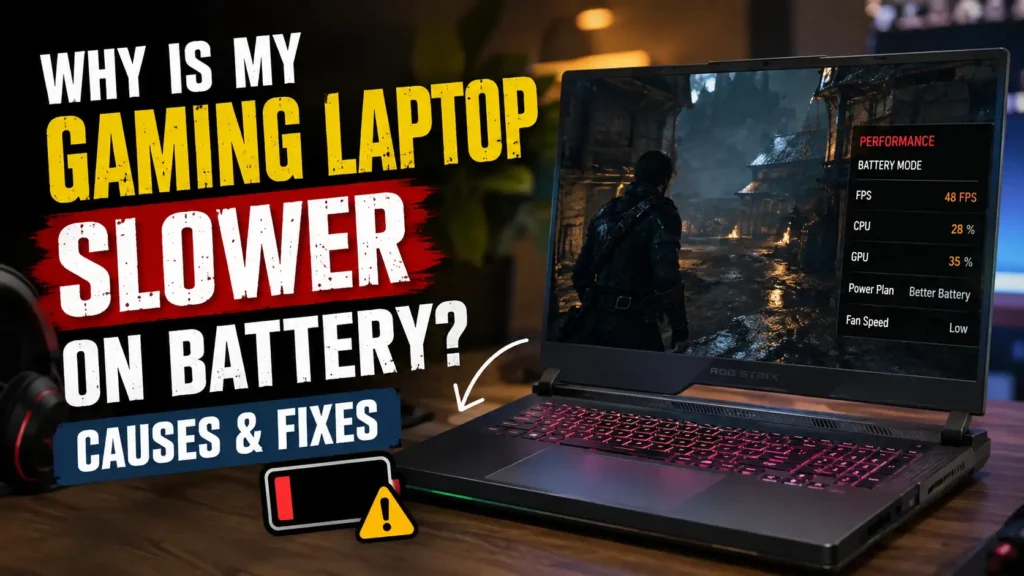
If your gaming laptop suddenly feels slower the moment you unplug the charger, there is probably nothing wrong with it. Gaming laptops are designed to reduce CPU and GPU power on battery so they can control heat, power draw, and battery drain. Windows may also change its power mode, your GPU software can limit frame rates, and your laptop manufacturer’s software may switch to an Eco or Silent profile.
That is why a game that runs smoothly while plugged in can lose FPS, stutter, or even become locked around 30 FPS on battery.
The good news is that you can usually improve battery gaming performance. You just need to find out which power limit or setting is holding the laptop back.
This guide explains why it happens, what is normal, what is not, and which settings are actually worth changing.
Is It Normal for a Gaming Laptop to Run Slower on Battery?
Yes. Some performance loss on battery is completely normal for a gaming laptop.
A modern gaming laptop may contain a high-performance CPU and a dedicated NVIDIA GeForce RTX or AMD Radeon GPU. Under a heavy gaming load, those components can require far more power than the laptop is willing or able to draw continuously from its internal battery.
When the charger is connected, the laptop can use a much larger power budget. Once you unplug it, the system has to balance three things:
- Gaming performance
- Battery runtime
- Heat and fan noise
Performance usually loses that argument.
Windows itself lets laptops use different power modes when plugged in and when running on battery. Microsoft’s current Windows settings include options such as Best power efficiency, Balanced, and Best performance.
So if you see lower FPS after unplugging your laptop, that alone does not mean the battery, GPU, or laptop is defective.
The real concern is an unusually severe slowdown.
For example, dropping from 120 FPS to a lower but playable frame rate can be expected on some laptops. Dropping to single-digit FPS, freezing during normal desktop use, or shutting down under load deserves further investigation.
Why Does My Gaming Laptop Slow Down When Unplugged?
Several power-management systems can affect performance at the same time. That is why changing one Windows setting does not always fix the problem.
Here are the most common causes.
The Battery Cannot Provide the Same Gaming Power Budget as the Charger
Look at the power rating on a typical gaming-laptop charger and you may see 180W, 230W, 280W, 300W, or another relatively high figure.
That does not mean your laptop uses that amount every second. It does show how much power a gaming system may need when the CPU, GPU, display, cooling system, memory, storage, and other components are working hard.
The internal battery has a different job. It needs to provide portable power while staying within safe electrical and thermal limits.
Because of that, manufacturers commonly reduce component power limits when the laptop is unplugged.
The result is simple:
Plugged in: More CPU/GPU power → higher clock speeds → higher FPS
On battery: Lower CPU/GPU power → lower clock speeds → lower FPS
No Windows setting can completely remove a physical power limitation built into the laptop.
Windows May Switch to a Lower Power Mode
Windows can apply different power behavior when a laptop runs on battery.
Go to:
Settings → System → Power & battery → Power mode
Depending on your system, you may see options such as:
- Best power efficiency
- Balanced
- Best performance
Microsoft states that Best performance prioritizes performance, while power-efficient modes are designed to reduce energy use.
If your laptop switches to a battery-saving profile after you unplug it, CPU responsiveness and overall gaming performance may drop.
This should be one of the first settings you check.
CPU Power Throttling Lowers Clock Speed
Your processor does not run at its maximum boost frequency all the time.
Its speed depends on temperature, workload, voltage, and available power.
When you unplug a gaming laptop, the firmware or power-management software may reduce the CPU’s power limit. Once that happens, boost clocks can fall.
For example, you may notice that:
- CPU clock speed becomes lower
- CPU package power drops
- frame times become less consistent
- CPU-heavy games lose FPS
- background applications feel slower
This is often called power-limit throttling.
It is different from thermal throttling.
Thermal throttling happens because the processor gets too hot. Power throttling can happen even at perfectly safe temperatures because the laptop is intentionally limiting electrical power.
Battery Power Can Limit GPU Wattage and Clock Speed
The dedicated GPU is often the biggest reason gaming performance changes dramatically on battery.
Laptop GPUs operate within manufacturer-defined power limits. When battery power becomes the main source, the laptop may lower:
- GPU wattage
- GPU clock speed
- memory behavior
- boost frequency
- frame-rate targets
You may hear the term TGP, or Total Graphics Power.
In simple terms, TGP describes the GPU’s allowed power budget.
A GPU that gets significantly less power cannot maintain the same boost clocks it reaches while the charger is connected.
That is why graphically demanding games often show a much larger battery-performance drop than web browsing or document editing.
NVIDIA BatteryBoost May Limit Gaming Performance
If your laptop has an NVIDIA GPU, check BatteryBoost.
NVIDIA describes BatteryBoost as a technology that balances GPU and CPU power usage, battery discharge, image quality, and frame rate to extend gaming battery life.
That is useful when you want to game away from an outlet.
It can also explain why your laptop suddenly targets a lower FPS on battery.
If your game seems to become capped around 30 FPS after unplugging, BatteryBoost is one of the first settings worth checking.
Remember that disabling or relaxing a battery-oriented FPS limit will not give you free performance. Higher FPS means more power consumption and shorter battery life.
AMD Radeon Chill or HYPR-RX Eco May Reduce Power Use
AMD laptops have their own power-saving tools.
Radeon Chill dynamically adjusts frame rate according to in-game movement. AMD says the feature can reduce FPS when less movement is happening in order to save power and lower GPU temperature.
AMD also offers HYPR-RX Eco on supported hardware. It is specifically designed around power savings and can enable features such as Radeon Chill.
If you use an AMD-powered gaming laptop, check AMD Software: Adrenalin Edition before assuming Windows is responsible for the slowdown.
Hybrid Graphics Can Change Which GPU Your Game Uses
Most modern gaming laptops contain two graphics processors:
Integrated GPU (iGPU): Uses less power and is built into the processor.
Dedicated GPU (dGPU): Provides much higher gaming performance but consumes more power.
Technologies such as NVIDIA Optimus, Advanced Optimus, hybrid graphics, MUX switches, and manufacturer GPU modes control how these processors are used.
Battery-focused modes may favor the integrated GPU or restrict the dedicated GPU.
If a game launches on integrated graphics instead of your RTX or Radeon GPU, the performance difference can be enormous.
Check which GPU is actually running the game before changing graphics settings.
Your Manufacturer’s Eco or Silent Mode May Override Windows
Gaming laptops usually have another layer of power management beyond Windows.
Examples include:
| Laptop Brand | Common Control Software |
|---|---|
| ASUS | Armoury Crate |
| Lenovo | Lenovo Vantage |
| MSI | MSI Center |
| Acer | NitroSense |
| HP | OMEN Gaming Hub |
| Dell/Alienware | Alienware Command Center |
| Razer | Razer Synapse |
Names vary between models, but common profiles include:
- Performance
- Turbo
- Balanced
- Silent
- Eco
- Battery Saver
This is important because setting Windows to Best performance does not necessarily override a power restriction applied by your laptop’s firmware or manufacturer utility.
Always check both.
Energy Saver Can Become More Aggressive at Low Battery Levels
If your laptop performs reasonably well at 80% battery but becomes extremely slow at 20%, Windows Energy Saver or an OEM battery-saving profile may be involved.
Windows includes energy-saving controls designed to extend runtime by reducing unnecessary power consumption.
That behavior is useful when you are trying to finish work before the battery dies.
It is less useful when you are trying to maintain a high frame rate in a game.
An Aging Battery Can Make the Problem Worse
Normal battery throttling and a damaged battery are not the same thing.
Lithium-ion batteries lose capacity as they age. Microsoft notes that battery capacity naturally declines over time and provides built-in tools for checking battery condition and usage.
A worn battery may not automatically cause low gaming FPS, but battery-related problems deserve attention if you also notice:
- sudden shutdowns
- unusually fast discharge
- incorrect battery percentages
- large performance changes that started recently
- inability to sustain demanding workloads
- swelling or physical deformation
A swollen battery should not continue to be used.
Why Is My Gaming Laptop Stuck at 30 FPS on Battery?
A near-exact 30 FPS limit is different from random poor performance.
If your game repeatedly runs around 30 FPS only after you unplug the charger, look for a frame-rate cap first.
Common causes include:
- NVIDIA BatteryBoost
- AMD Radeon Chill
- an in-game FPS limiter
- V-Sync behavior
- manufacturer battery profiles
- game-specific power-saving settings
NVIDIA’s BatteryBoost has historically been designed around efficient unplugged gaming and frame-rate management rather than maximum possible FPS.
Start by checking your GPU software and the game’s frame-rate settings.
Do not immediately assume your graphics card is failing.
What About NVIDIA WhisperMode?
WhisperMode is often mentioned alongside laptop FPS limits, but there is an important distinction.
NVIDIA currently describes WhisperMode as a technology designed to make a plugged-in laptop quieter by intelligently pacing frame rates and adjusting game settings for better power efficiency.
So if your issue occurs only on battery, BatteryBoost and battery-specific power profiles are generally more relevant.
WhisperMode can still affect FPS behavior when enabled, so it is worth checking if you are troubleshooting a persistent frame-rate cap.
How to Fix a Gaming Laptop That Is Slow on Battery
You may not be able to match plugged-in performance exactly, but you can often improve it significantly.
Work through these fixes in order.
Set Windows On-Battery Mode to Best Performance
Open:
Settings → System → Power & battery
Find Power mode and select:
Best performance
Microsoft specifically recommends Best performance when improved system performance is the priority.
Test your game again.
If FPS improves, Windows power management was at least part of the problem.
Expect shorter battery life after making this change.
Check NVIDIA BatteryBoost
On supported NVIDIA gaming laptops, open the NVIDIA software available on your system and look for BatteryBoost or battery-related gaming options.
Check whether:
- BatteryBoost is enabled
- an FPS target is active
- the game has a specific frame-rate limit
Temporarily change the setting and retest the same area of the same game.
Do not compare different maps, scenes, or matches because workload differences can make your results misleading.
Check AMD Radeon Chill and HYPR-RX Eco
Open AMD Software: Adrenalin Edition.
Look for:
- Radeon Chill
- HYPR-RX Eco
- frame-rate targets
- game-specific profiles
If Radeon Chill is enabled, check its minimum and maximum FPS values.
If you want more performance and accept shorter battery life, test with the power-saving feature disabled or adjusted.
Make Sure the Game Uses the High-Performance GPU
In Windows 11, you can check per-app graphics preferences.
Go to:
Settings → System → Display → Graphics
Choose or add your game.
Open its graphics options and select the high-performance GPU where appropriate.
Then confirm through Task Manager, your GPU monitoring software, or an in-game overlay that the dedicated GPU is actually active.
Check Optimus, MUX, Hybrid, and Eco Modes
Open your laptop manufacturer’s control software.
Look for settings such as:
- Hybrid Mode
- Optimus
- Advanced Optimus
- GPU Mode
- MUX Switch
- Eco Mode
- Discrete GPU Mode
- Standard Mode
The exact options vary by laptop.
Be careful here. A dGPU-only mode may improve graphics performance, but it can dramatically increase battery consumption.
Some laptops may also require a restart before a graphics-mode change takes effect.
Change the Laptop’s Performance Profile
If your laptop switches to Silent, Eco, or Battery mode when unplugged, try a more performance-oriented profile.
Then rerun your test.
If the laptop refuses to enable Turbo or maximum-performance mode on battery, that may be intentional. Some performance profiles are available only while AC power is connected.
Remove Unwanted FPS Caps
Check all possible locations:
- in-game graphics settings
- NVIDIA settings
- AMD Adrenalin
- laptop control software
- third-party frame limiters
- V-Sync settings
If your FPS is fixed at exactly 30, 45, or 60, a limiter is more likely than ordinary GPU throttling.
Update Your GPU Driver
Drivers can affect power management as well as game performance.
NVIDIA and AMD both provide official driver update tools for supported graphics hardware.
If the battery slowdown appeared immediately after a driver update, however, blindly installing another version is not always the best answer.
Check whether the issue started after:
- a GPU driver update
- Windows Update
- a BIOS update
- a manufacturer utility update
That timeline can tell you where to investigate.
Update Chipset Drivers and BIOS When Appropriate
Laptop power management involves more than the GPU.
Your chipset drivers, firmware, embedded controller, BIOS, and manufacturer software may all affect battery performance.
Use your laptop manufacturer’s support page for model-specific BIOS and firmware updates.
Avoid installing firmware intended for a different laptop model.
Adjust Game Settings for Battery Play
If you truly need to play unplugged, optimize for consistent performance rather than maximum visual quality.
Start with:
- disable or reduce ray tracing
- reduce shadows
- lower volumetric effects
- use DLSS, FSR, or XeSS when supported
- reduce resolution if necessary
- choose a sensible FPS cap
- close unnecessary background software
For many games, a stable 45 or 60 FPS feels much better than constantly jumping between 40 and 90 FPS.
Why Is My Gaming Laptop Still Slow on Best Performance Mode?
This confuses many users.
You set Windows to Best performance, unplug the charger, launch a game—and it is still much slower.
That can be completely normal.
Windows power mode is only one part of the chain.
Your laptop may still be controlled by:
Battery hardware limits → BIOS/firmware → manufacturer power profile → GPU software → Windows → game settings
If the laptop’s firmware limits the GPU to a lower power level on battery, selecting Best performance in Windows cannot magically make the battery behave like a 240W charger.
So if Best performance does not solve the problem, check GPU wattage, CPU clocks, active GPU, BatteryBoost or Radeon Chill, and the laptop manufacturer’s performance profile.
5-Minute Test to Find Out What Is Limiting Performance
Instead of changing ten settings randomly, run a simple A/B test.
Use the same game, resolution, graphics preset, location, and FPS monitoring tool for both tests.
Test 1: Play While Plugged In
Record:
- average FPS
- CPU clock speed
- GPU clock speed
- GPU utilization
- GPU power
- temperature
Test 2: Unplug the Charger
Wait a few seconds for the power profile to change.
Record the same values again.
Test 3: Compare the Results
Use this table as a quick guide:
| Symptom | Likely Cause |
|---|---|
| FPS locks almost exactly at 30 | BatteryBoost or another FPS cap |
| GPU clock and power drop sharply | GPU power limit |
| CPU clock falls significantly | CPU power limit |
| Dedicated GPU stops being used | Hybrid/iGPU setting |
| FPS falls only below low battery percentage | Energy Saver or OEM battery profile |
| Windows Best performance changes nothing | Firmware/OEM/GPU power restriction |
| Laptop shuts off during gaming | Battery, power, or hardware issue |
| Even basic desktop use becomes extremely slow | Driver, battery, firmware, or system problem |
This test will tell you much more than simply watching FPS.
How to Check If Your Battery Is Causing the Slowdown
Windows 11 includes a useful battery-report tool.
Open Command Prompt as administrator and run:
powercfg /batteryreport
Press Enter.
Windows creates an HTML battery report and tells you where it was saved. Microsoft documents this command as the built-in method for generating detailed battery information.
Open the report and look for:
- Design Capacity
- Full Charge Capacity
- Battery usage
- Capacity history
Design Capacity vs Full Charge Capacity
Design Capacity is approximately what the battery was designed to hold when new.
Full Charge Capacity shows how much charge it can currently hold.
Some reduction over time is normal.
A large difference means the battery has experienced substantial wear, although battery wear alone does not prove it is responsible for your FPS problem.
Use the report together with symptoms such as sudden shutdowns, unstable percentages, and very short runtime.
Does Your Gaming Laptop Slow Down Only at Low Battery?
If performance is good at 70% but terrible at 20%, focus on low-battery power saving.
Check:
Settings → System → Power & battery
Look at Energy Saver settings and any automatic battery thresholds.
Then check your laptop manufacturer’s software for additional low-battery profiles.
If the behavior suddenly started after months of normal use, also run the battery report described above.
A laptop that becomes slightly more conservative at low charge may be behaving as designed.
A laptop that nearly freezes every time the battery reaches a particular percentage deserves further troubleshooting.
How Much Performance Do Gaming Laptops Lose on Battery?
There is no reliable universal percentage.
One gaming laptop might lose a modest amount of performance. Another may lose most of its GPU performance because its firmware applies much stricter battery limits.
The difference depends on:
- laptop model
- CPU
- GPU
- battery design
- firmware
- manufacturer power profiles
- game
- graphics settings
- FPS caps
Be skeptical of claims such as “every gaming laptop loses exactly 50% performance on battery.”
That is not how laptop power management works.
If you want to know the real difference for your machine, benchmark it yourself.
| Test | Plugged In | On Battery |
|---|---|---|
| Average FPS | Record yours | Record yours |
| 1% Low FPS | Record yours | Record yours |
| CPU Clock | Record yours | Record yours |
| GPU Clock | Record yours | Record yours |
| GPU Power | Record yours | Record yours |
Your own results are more useful than a generic number from a completely different laptop.
Best Settings for Gaming on Battery
There are two sensible ways to configure a gaming laptop on battery.
Choose based on what matters more to you.
If You Want the Best Possible FPS
Try:
- Windows Power Mode: Best performance
- Dedicated GPU: Enabled for the game
- NVIDIA BatteryBoost: Adjust or disable if it is limiting FPS
- Radeon Chill: Adjust or disable if needed
- OEM Profile: Highest battery-supported performance mode
- Ray Tracing: Off or Low
- Upscaling: DLSS/FSR/XeSS when available
- FPS Target: 45–60 if maximum FPS is unstable
- Background Apps: Close unnecessary programs
Remember that the laptop may still enforce hardware-level limits.
If You Want Longer Battery Life
Try:
- Windows Power Mode: Balanced or efficiency-focused
- BatteryBoost/Radeon Chill: Enabled where useful
- FPS Cap: 30–45
- Graphics Settings: Medium
- Ray Tracing: Off
- Screen Brightness: Reduced
- Keyboard RGB: Reduced or off
- Refresh Rate: Lower if your laptop supports easy switching
- Background Apps: Minimized
There is no perfect setting that gives desktop-level gaming performance and long battery life at the same time.
Why Does Better Battery Gaming Performance Drain the Battery So Fast?
Because higher performance requires more electrical power.
Increasing CPU clocks, GPU clocks, FPS, display refresh rate, and brightness all increase power consumption.
That is why disabling power-saving features may improve FPS but shorten your gaming session dramatically.
This is also why laptop manufacturers intentionally limit performance on battery in the first place.
They are trying to prevent the battery from being emptied extremely quickly while also keeping temperatures and electrical load under control.
Should You Game While Your Laptop Is Plugged In?
For maximum gaming performance, yes.
Gaming laptops are generally designed to deliver their highest performance while connected to the appropriate AC adapter.
That allows the CPU and GPU to operate within their intended high-performance power profiles without relying entirely on the battery.
You do not need to unplug the laptop every time the battery reaches 100%.
Many modern laptops include battery-care features or charge limits for users who keep their machines connected to power regularly. Microsoft also recommends using available smart-charging features where supported as part of long-term lithium-ion battery care.
When Is Slow Performance on Battery Not Normal?
Lower FPS during unplugged gaming is normal.
These symptoms are more concerning:
- Windows becomes nearly unusable immediately after unplugging
- the laptop shuts down while the battery still shows charge
- battery percentage suddenly jumps or falls
- the system freezes repeatedly
- performance recently became much worse without any setting changes
- CPU speed remains extremely low even during light workloads
- the battery lasts only a few minutes
- Windows reports battery problems
- the battery casing is swollen
If you notice these signs, investigate battery health, drivers, firmware, temperatures, and hardware instead of assuming normal gaming throttling is responsible.
A swollen battery requires immediate attention and should not continue to be charged or used normally.
Frequently Asked Questions About Gaming Laptop Slower on Battery
Why does my gaming laptop FPS drop when I unplug it?
Unplugging the charger usually causes the laptop to switch to battery-specific CPU, GPU, and system power limits. Windows, GPU software, and manufacturer utilities may also activate more power-efficient settings, which lowers FPS.
Why does my gaming laptop drop to 30 FPS on battery?
A stable 30 FPS limit often points to a frame-rate cap rather than raw hardware failure. Check NVIDIA BatteryBoost, AMD Radeon Chill, in-game FPS limits, V-Sync, and your laptop’s battery profile.
Why is my gaming laptop still slow on Best performance mode?
Windows Best performance cannot override every hardware or firmware restriction. Your BIOS, manufacturer software, GPU power limit, BatteryBoost, hybrid graphics mode, or battery itself may still restrict performance.
Can I get full gaming performance on battery?
Usually not. You may improve battery performance by changing power and GPU settings, but many gaming laptops intentionally restrict CPU and GPU power when unplugged.
Does NVIDIA BatteryBoost reduce FPS?
It can. BatteryBoost is designed to balance frame rate, GPU and CPU power, image quality, and battery discharge rather than maximize raw FPS.
Should I disable NVIDIA BatteryBoost?
Disable or adjust it only if higher FPS matters more than battery runtime. If you are happy with the frame rate and want longer unplugged gaming, keeping it enabled may make more sense.
Does Radeon Chill lower FPS?
Yes, it can intentionally lower frame rate when less in-game movement is occurring. AMD describes Radeon Chill as a power-saving feature that dynamically regulates frame rate.
Why does my laptop switch to integrated graphics on battery?
Hybrid graphics systems may prioritize the integrated GPU because it uses less power. Check Windows graphics preferences, Optimus or hybrid settings, and your laptop manufacturer’s GPU mode.
Does a MUX switch affect battery gaming performance?
It can. A MUX switch changes how the display and dedicated GPU are connected. Depending on your laptop, switching GPU modes can affect performance, battery runtime, and whether the dedicated GPU stays active.
Can a bad battery make a gaming laptop slow?
A worn battery does not automatically cause poor FPS, but battery or power-delivery problems can contribute to abnormal behavior. Run powercfg /batteryreport and look for other symptoms such as shutdowns, unstable battery percentages, or extremely short runtime.
Why does my gaming laptop slow down below 20% battery?
Windows Energy Saver or your laptop manufacturer’s low-battery profile may activate at a certain charge level. Check your Power & battery settings and OEM control software.
Is gaming while plugged in bad for the battery?
Gaming while plugged in is the normal way to get maximum performance from a gaming laptop. Heat and prolonged time at a very high state of charge can affect lithium-ion battery aging over the long term, so use your laptop’s battery-care or smart-charging features when available.
Final Thoughts
If your gaming laptop is slower on battery, the laptop is probably doing exactly what it was designed to do.
The charger gives the CPU and GPU access to a much larger performance budget. Once you unplug it, Windows, the GPU driver, laptop firmware, and manufacturer software may all start prioritizing battery life.
Start with the simplest checks:
Set Windows to Best performance → check BatteryBoost or Radeon Chill → confirm the dedicated GPU is active → inspect your laptop’s performance profile → compare CPU and GPU clocks plugged in versus on battery.
If performance is still lower afterward, that does not automatically mean something is broken. Some gaming laptops simply cannot deliver their full CPU and GPU performance from battery power.
However, if the entire laptop becomes unusually slow, shuts down, freezes, or shows abnormal battery behavior, generate a Windows battery report and investigate the battery, drivers, firmware, and hardware.
For most gamers, the practical answer is straightforward: use the charger when you want maximum FPS, and treat battery gaming as a lower-power mode designed for portability rather than peak performance.