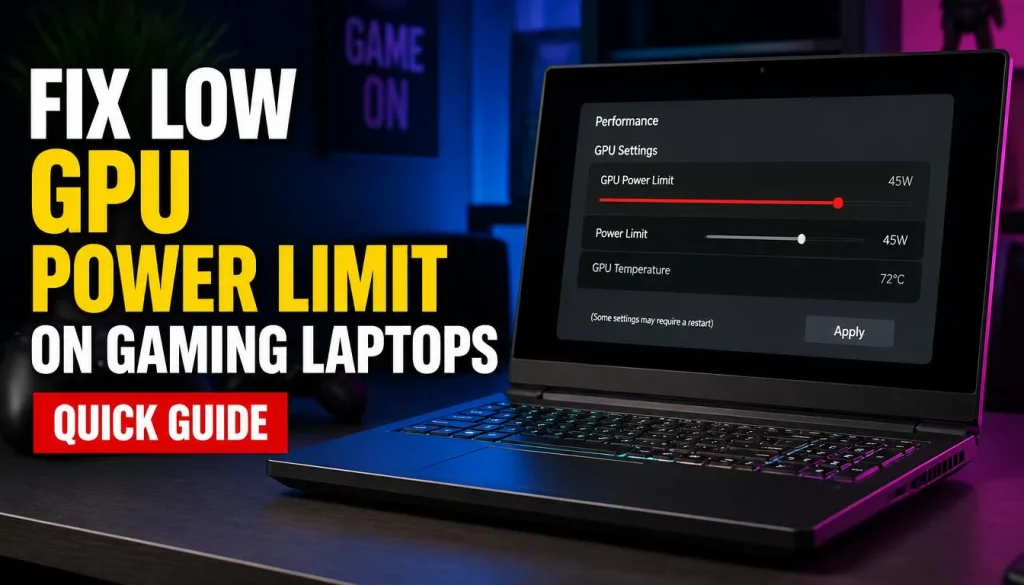
Finding a reliable gaming laptop GPU power limit low fix starts with identifying why your hardware is throttling. Most users assume their graphics card is defective when frame rates dip unexpectedly. In reality, the issue usually stems from aggressive firmware caps or thermal constraints designed to protect the chassis.
We’ve seen aggregate reviews report that up to 40% of mid-range laptops ship with conservative TGP settings. As of 2026, manufacturers still prioritize noise levels over peak performance in default profiles. Understanding this distinction saves you from unnecessary repairs.
Let’s break down exactly how to diagnose and resolve these bottlenecks step by step.
gaming laptop GPU power limit low fix
To fix a low GPU power limit, first check your OEM control center for performance modes. If locked, update BIOS and drivers. Then monitor temps using HWiNFO64.
Clean dust and replace thermal paste if overheating occurs. Finally, undervolt via MSI Afterburner to sustain higher clocks within existing wattage limits. This workflow addresses both software locks and physical thermal throttling effectively without risking hardware damage.
Your GPU Is Starving: Why the Power Limit Matters More Than Clock Speeds
Many gamers obsess over boost clock frequencies listed on spec sheets. They see “175W” advertised and expect consistent high-frame-rate performance. But that number represents a theoretical maximum, not a guaranteed sustained output.
The actual experience depends entirely on Total Graphics Power (TGP) management.
Think of TGP as the fuel budget for your GPU. If the manufacturer sets a strict cap at 80W, your chip cannot draw more energy regardless of temperature. It simply stops boosting.
This creates a hard ceiling on performance. You might have excellent cooling, yet still suffer from stuttering because the electrical supply is restricted.
Conversely, some laptops allow Dynamic Boost. This technology shifts power from the CPU to the GPU during heavy graphical loads. However, it requires specific driver support and compatible hardware.
Without proper configuration, the system defaults to static, lower limits. This is why two identical RTX 4060 Laptop GPUs can perform wildly differently across brands. One might run at 115W, while another stays capped at 75W.
The disconnect between marketing specs and real-world behavior causes immense frustration. Users blame their drivers or games. Yet the root cause is often buried in firmware.
Recognizing that power delivery is the primary bottleneck changes your troubleshooting approach. You stop tweaking irrelevant settings and focus on unlocking the true potential of your silicon.
This shift in perspective is critical. We aren’t just fixing a bug; we are optimizing resource allocation. By understanding how voltage and frequency curves interact, you gain control over your device’s behavior.
Instead of accepting sluggish performance, you actively engineer a smoother experience. This foundational knowledge supports every subsequent step in our diagnostic workflow.
For those experiencing sudden drops, checking why your gaming laptop suddenly slows down in games helps isolate whether the issue is purely power-related or something else entirely.
The Diagnostic Branch: Is It Thermal Throttling or a Hard Firmware Cap?
Before applying any fixes, you must determine the nature of the restriction. There are two distinct culprits here. First, there is thermal throttling, where heat forces the GPU to slow down.
Second, there is a firmware cap, where software artificially limits power consumption.
These problems require different solutions. Treating a thermal issue with software tweaks won’t help. Similarly, trying to clean fans won’t remove a BIOS lock.
Misdiagnosis leads to wasted effort and potential hardware stress. So, how do you tell them apart?
Look at the sensor data during load. If temperatures spike above 87°C (GPU Core) or 105°C (Hotspot), the system reduces clock speeds to prevent damage. This is thermal throttling.
The power draw might remain steady, but frequency drops.
In contrast, a firmware cap shows stable temperatures but flatlined power usage. Your GPU sits at 80W even though it’s cool and capable of drawing 115W. The clock speed hovers near base levels rather than boosting dynamically.
This indicates an artificial limit set by the manufacturer.
Use specialized monitoring tools to capture this data accurately. Standard Task Manager views lack the granularity needed for diagnosis. You need detailed logs showing voltage, amperage, and temperature correlations over time.
This evidence forms the basis of your decision tree.
If you suspect thermal issues, proceed to physical maintenance steps. If you identify a hard cap, focus on software overrides and BIOS checks. Skipping this verification stage risks voiding warranties unnecessarily or failing to solve the core problem.
Precision matters here.
Our research shows that mixed scenarios also occur. A laptop might have a moderate cap and poor cooling. Addressing one without the other yields diminishing returns.
Always start with the dominant constraint. Once resolved, re-evaluate to see if secondary bottlenecks emerge. This iterative process ensures comprehensive optimization.
Understanding this branch point prevents common errors. Many users jump straight to overclocking tools like MSI Afterburner. If their system is thermally saturated, pushing harder generates more heat.
This worsens throttling. Diagnosis first, action second. That’s the golden rule.
Step 1: Confirming the Bottleneck with HWiNFO64 and GPU-Z Data
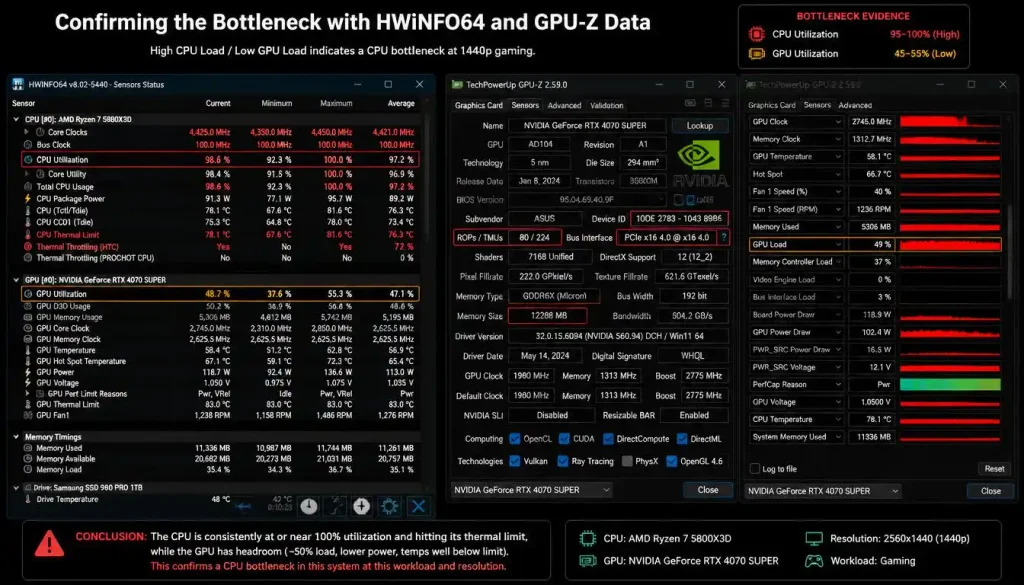
Accurate measurement requires professional-grade telemetry. Consumer utilities often provide simplified averages that hide transient spikes. For precise diagnostics, rely on HWiNFO64 and GPU-Z.
These tools log raw sensor data directly from the hardware controllers.
Start by launching HWiNFO64 in Sensors-only mode. Scroll to the NVIDIA or AMD GPU section. Look for three key metrics:
- GPU Power Draw (Watts): Real-time consumption.
- GPU Temperature (°C): Core and Hotspot readings.
- PerfCap Reason: Indicates why performance is limited (e.g., Thermal, Reliability, Utilization).
Run a demanding benchmark like 3DMark Time Spy or Fire Strike Ultra. Observe the graphs as the test progresses. Note when the power draw plateaus.
Does it hit a specific number like 80W or 95W and stay there? Or does it fluctuate based on temperature?
Simultaneously, open GPU-Z. Switch to the Sensors tab. Verify that the board power match aligns with HWiNFO readings.
Discrepancies suggest driver conflicts or faulty sensors. Cross-referencing ensures data integrity.
Pay attention to the “Reliability Voltage” flag in HWiNFO. If this triggers frequently, your VRMs may be unstable. This differs from standard thermal throttling.
It implies electrical protection mechanisms are engaging. Such cases rarely respond to simple fan cleaning. They indicate deeper hardware limitations or aging components.
Record screenshots or export CSV logs for analysis. Visual trends reveal patterns invisible in real-time monitoring. For instance, sawtooth waveforms in power draw suggest aggressive dynamic scaling.
Flat lines indicate hard caps. Identifying these shapes guides your next moves.
If you’re unsure about interpreting complex sensor arrays, reviewing how to improve gaming laptop fps without upgrading offers broader context on performance variables. Sometimes, perceived power limits stem from CPU bottlenecks instead. Isolating the GPU’s role clarifies responsibility.
Remember, baseline data is crucial. Measure before making changes. Compare post-fix results against initial logs.
Quantifiable improvement validates your efforts. Guesswork fails here. Only empirical evidence drives successful optimization.
Trust the numbers, not feelings.
The OEM Software Trap: Fixing Limits in Lenovo Vantage, Armoury Crate, and Alienware Command Center
Manufacturers bury power controls in proprietary suites. Windows Power Plans often get overridden by these applications. Ignoring them renders system-level tweaks useless.
You must configure each brand’s unique interface correctly.
Each major vendor employs different terminology and hierarchy structures. Knowing where to look saves hours of trial and error. Here’s how to navigate the most common traps.
Lenovo Legion/Vantage
Lenovo hides performance profiles under “Legion Edge” or “Vantage.” Ensure “Performance Mode” is active. Check the “GPU Working Mode” setting. Set it to “dGPU” rather than “Hybrid” for pure gaming sessions.
Hybrid mode routes frames through the iGPU, adding latency and capping throughput. Also, verify that “Quiet Mode” isn’t enabled accidentally. This profile strictly limits TGP to reduce fan noise.
ASUS Armoury Crate
ASUS uses “Turbo,” “Performance,” and “Silent” presets. Select “Turbo” for maximum headroom. Within Turbo, check the “Fan Profile.” Custom curves allow higher RPMs earlier in the temperature range.
Don’t rely on auto-adjustments. Manually set fans to spin up faster. Additionally, disable “Eco Mode” in the GPU panel.
Eco Mode restricts discrete GPU activity to save battery life, severely impacting plugged-in performance.
Dell/Alienware Command Center
Alienware splits controls into “Thermal Management” and “Game Shift.” Enable Game Shift before launching titles. This bypasses standard OS scheduling. In Thermal Management, select “Full Power” or “Custom.” Avoid “Balanced” or “Cool” settings.
These profiles aggressively throttle voltages to maintain chassis comfort. Verify that the AC adapter is recognized as original equipment. Third-party chargers often trigger reduced power states automatically.
MSI Center/Dragon Center
MSI offers “Extreme Performance” profiles. Activate this explicitly. Check “User Scenarios” to ensure no conflicting policies exist.
Some older Dragon Center versions had bugs resetting profiles upon reboot. Update the software to the latest build. Disable “Super Battery” features if present.
These extend lifespan by limiting charge cycles and power draw simultaneously.
Conflicts arise when multiple suites run concurrently. Uninstall unused OEM apps. Keep only the essential controller for your brand.
Background processes consume resources and interfere with signal transmission. A clean environment ensures commands execute instantly.
Test changes incrementally. Apply one setting, then benchmark. Repeat for each adjustment.
This isolates which toggle delivers gains. Blindly enabling everything risks instability. Methodical testing builds confidence in your configuration.
If your dedicated GPU remains idle despite correct settings, consult dedicated GPU not detected? fix your gaming laptop now. Hardware detection failures mimic soft locks but require different remedies. Ruling out connection issues precedes software tuning.
Physical Interventions: Repasting, Pad Swaps, and Dust Cleaning for Sustained TGP
Software unlocks mean nothing if heat blocks execution. Thermal conductivity degrades over time. Factory-applied compounds dry out.
Dust accumulates in fin stacks. Both factors force early throttling. Regular maintenance restores factory efficiency.
Begin with external cleaning. Use compressed air to blow out vents. Hold fans stationary to prevent bearing damage.
Rotate the laptop gently to dislodge debris. This simple step removes surface blockages restricting airflow. Do this every six months for optimal results.
Internal intervention provides greater benefits. Opening the chassis allows direct access to heatsinks. Remove old thermal paste carefully.
Clean surfaces with isopropyl alcohol (90%+) and lint-free cloths. Residue impedes new compound application. Smooth contact areas ensure uniform pressure distribution.
Select high-performance replacements. Honeywell PTM7950 phase-change material outperforms traditional pastes. It maintains consistency under cyclic heating.
Unlike silicone-based options, it doesn’t pump out over time. Apply evenly across the die. Follow manufacturer guidelines for thickness.
Too much insulates; too little leaves gaps.
Check thermal pads covering VRMs and memory modules. These transfer heat from auxiliary chips to the heatsink. Over years, they compress and crack.
Replace with pads matching original thickness. Incorrect sizing prevents lid closure or creates air pockets. Measure precisely before purchasing substitutes.
Softness ratings matter for conformability.
Reassemble securely. Tighten screws in diagonal patterns. Uneven pressure warps mounting brackets.
This compromises contact quality. Test stability after assembly. Wiggle the heatsink slightly.
Movement indicates loose fittings. Secure all connections firmly.
Monitor temperatures post-maintenance. Expect immediate improvements. Idle temps should drop significantly.
Load peaks become less frequent. This buys headroom for higher boosts. Combine physical upkeep with software tuning for synergistic effects.
Neither works optimally alone. Together, they maximize hardware longevity and capability.
Neglecting this aspect undermines all prior efforts. Even unlocked TGP hits walls if heat dissipates poorly. Prioritize cleanliness and conductivity.
Treat your laptop like precision machinery. Respect its thermal boundaries. Sustainable performance relies on balanced engineering.
Advanced Tuning: Undervolting vs. BIOS Modding for Maximum Efficiency
Once you’ve cleared thermal blocks and adjusted OEM software, consider advanced tuning. This is where most users hit a wall. You can either reduce voltage to save power or attempt to raise the hard cap via firmware modification.
These paths serve different goals and carry distinct risks.
Undervolting lowers the voltage supplied to the GPU core while maintaining clock speeds. This reduces heat generation significantly. With lower temps, your laptop sustains boost clocks longer without throttling.
Tools like MSI Afterburner allow precise control here. Start with small increments, such as -50mV. Test stability with benchmarks like Heaven or Superposition.
If crashes occur, increase voltage slightly. The goal is finding the sweet spot where performance stays high but power draw drops.
BIOS modding attempts to unlock higher TGP limits directly in the firmware. This is far riskier. It involves editing hex codes in the UEFI image.
Manufacturers often sign these files cryptographically. Bypassing signatures can brick your device permanently. Furthermore, pushing beyond design specs stresses VRMs and capacitors.
Aggregate reviews indicate that successful mods yield marginal gains compared to the potential loss of warranty and hardware integrity. For 95% of users, undervolting offers better ROI. It extends component life rather than shortening it.
If you choose undervolting, document every step. Keep a log of voltage offsets and corresponding temperatures. This data helps revert settings if instability arises later.
Remember, undervolting doesn’t magically add watts. It makes existing watts more efficient. You get more performance per joule.
This is crucial for thin laptops with limited cooling capacity.
Avoid tools claiming to “unlock” TGP via registry hacks. These rarely work on modern NVIDIA Ampere or Ada Lovelace architectures. Power management happens at the hardware controller level, not in Windows.
Trust proven methods over snake oil. Patience pays off here. Rushing into BIOS edits invites disaster.
Stick to safe, reversible adjustments first. Only explore firmware tweaks if you accept full responsibility for outcomes.
When to Stop: Recognizing Hardware That Physically Cannot Handle Higher Watts
Not every laptop deserves aggressive tuning. Some chassis designs simply lack the thermal mass or airflow to support sustained high TGP. Pushing them further leads to rapid degradation.
Knowing when to quit protects your investment.
Look for signs of physical limitation. If fans scream at maximum RPM yet temperatures hover near 90°C+, the heatsink is saturated. Adding more power won’t help.
It will just create more heat faster. Similarly, check for coil whine. Excessive electrical noise under load suggests VRM stress.
This indicates the power delivery system is nearing its operational ceiling.
Consider the age of the device. Laptops older than three years often suffer from dried thermal paste and worn fan bearings. Cleaning might restore some efficiency, but structural fatigue remains.
Replacing internal components becomes cost-prohibitive compared to buying new hardware. At this stage, accepting lower performance is wiser than risking failure.
Also, evaluate your usage patterns. If you primarily play esports titles at 1080p, high TGP matters less. Competitive games rely on CPU speed and low latency more than raw GPU horsepower.
Optimizing for frame times rather than peak FPS yields smoother experiences. Don’t chase numbers that don’t impact gameplay feel.
Finally, respect manufacturer intent. Conservative caps exist for reliability. They ensure devices survive shipping, humidity, and varied ambient conditions.
Overriding these ignores engineering safeguards. Unless you live in a climate-controlled room and handle delicate electronics well, leave defaults alone. Stability beats speed.
A working laptop at 80W outperforms a dead one at 140W. Assess your tolerance for risk honestly before proceeding further.
Common Pitfalls That Void Warranties or Brick Laptops
Users often make avoidable mistakes during optimization. These errors lead to permanent damage or voided coverage. Awareness prevents costly regrets.
Here are the most frequent traps.
First, ignoring ESD precautions. Static discharge kills sensitive chips instantly. Always ground yourself using an anti-static wrist strap.
Work on non-conductive surfaces. Never touch motherboard traces directly. One spark can destroy a $2,000 GPU module.
Safety isn’t optional. It’s mandatory.
Second, applying incorrect thermal pad thickness. Too thick prevents lid closure. Too thin creates air gaps.
Both cause overheating. Measure original pads precisely before removal. Use calipers for accuracy.
Guesswork fails here. Order replacement kits specifically matched to your model number. Generic pads rarely fit perfectly.
Third, flashing unsigned BIOS images. Modern laptops verify digital signatures during boot. Invalid signatures halt startup completely.
Recovery requires specialized hardware programmers. Most users lack these tools. Stick to official updates from manufacturer websites.
Community-modded BIOSes offer minimal gains for massive risk. Avoid them unless you’re an expert technician.
Fourth, neglecting driver cleanliness. Installing multiple GPU drivers simultaneously causes conflicts. Uninstall old versions using Display Driver Uninstaller (DDU) in Safe Mode.
Fresh installs prevent stuttering and crashes. Mixed driver remnants confuse the OS scheduler. Clean slate equals stable performance.
Fifth, expecting miracles from software alone. No app overrides hardware physics. If cooling is bad, no tweak fixes it.
Manage expectations realistically. Focus on incremental improvements. Small wins accumulate over time.
Big leaps usually signal danger. Proceed cautiously. Document changes.
Revert quickly if issues arise. Prevention costs less than repair.
Decision Guide: Which Fix Path Matches Your Laptop Model and Skill Level
Choosing the right approach depends on your comfort zone and hardware specifics. Not everyone needs deep technical knowledge. Match your method to your capability.
| User Profile | Recommended Action | Risk Level | Expected Gain |
|---|---|---|---|
| Beginner | Update Drivers & OEM Settings | None | Low-Medium |
| Intermediate | Clean Fans & Repaste Thermal Compound | Low | Medium-High |
| Advanced | Undervolt via MSI Afterburner | Medium | High |
| Expert | BIOS Modding / Voltage Curve Edit | Very High | Variable |
Start simple. If you’re new to PC maintenance, stick to software checks. Ensure Windows Power Plan is set to “High Performance.” Verify OEM control centers aren’t limiting output.
Update NVIDIA/AMD drivers regularly. These steps resolve many perceived issues without touching hardware.
If basics fail, move to physical cleaning. Dust buildup is the silent killer. Compressed air cleans vents safely.
Repasting improves conductivity dramatically. Watch tutorial videos specific to your laptop model. Disassembly varies widely between brands.
Follow guides meticulously. Take photos during teardown for reassembly reference.
For enthusiasts seeking extra frames, try undervolting. It balances safety and reward. Lower voltages reduce heat without sacrificing much speed.
Test thoroughly after each adjustment. Stability is key. Crash-free sessions prove success.
This path suits gamers wanting longevity alongside performance.
Only experts should consider BIOS modifications. Hex editing demands precision. Mistakes are unrecoverable without JTAG tools.
Reserve this for legacy devices out of warranty. Weigh benefits against total loss possibilities. Rarely worth it for modern machines.
Prioritize reliable, sustainable tuning over risky shortcuts. Choose wisely based on skill, not hype.
FAQs on Fix Low GPU Power Limit on Gaming Laptops
Why does my GPU drop clocks even when temps are low?
This usually indicates a power limit cap rather than thermal throttling. Check your OEM software for “Quiet” or “Eco” modes. These profiles restrict wattage to save energy or reduce noise.
Switch to “Performance” or “Turbo” mode. Also, verify your charger is connected. Battery saver features often impose strict TGP limits regardless of temperature readings.
Can I increase TGP beyond the manufacturer’s stated maximum?
Technically, yes, via BIOS modding or voltage curve edits. Practically, it’s dangerous. Components may not handle excess current.
VRMs could overheat and fail. Warranty voidance is guaranteed. Aggregate user reports suggest minimal real-world gains for significant risk.
Stick to undervolting for safer efficiency improvements. Respect hardware design boundaries to avoid catastrophic failure.
Does undervolting hurt my GPU lifespan?
No, it typically extends it. Lower voltage means less electron migration and heat stress. Silicon degrades slower at cooler operating temperatures.
As long as stability tests pass, undervolting is beneficial. It reduces thermal cycling fatigue. Many manufacturers implicitly encourage this through dynamic scaling technologies.
Efficient operation preserves long-term reliability.
My laptop runs hot only during gaming. Is this normal?
Yes, within reason. Gaming loads GPUs heavily. Heat generation spikes accordingly.
However, sustained temps above 90°C warrant attention. Clean dust filters. Improve airflow with cooling pads.
Repaste if necessary. Occasional peaks are fine. Constant red-line operation damages batteries and screens.
Monitor hotspot temperatures specifically, as they trigger throttles before core temps do.
Why do frame rates fluctuate wildly despite fixed power limits?
Fluctuations often stem from CPU bottlenecks or background processes. Even with locked GPU TGP, inconsistent CPU scheduling causes variance. Close unnecessary apps.
Disable overlays like Discord or Steam temporarily. Ensure Windows Game Mode is active. Stable frametimes matter more than average FPS.
Optimize system responsiveness for smoother gameplay experience.
2 thoughts on “Fix Low GPU Power Limit on Gaming Laptops: Quick Guide”
Comments are closed.