How to clean gaming laptop vents safely starts with one rule: never treat the vents like a leaf blower target. Dust mats, fan imbalance, and static discharge can turn a quick cleanup into an expensive repair. You want cooler temps, but you also want the laptop to survive the process.
Manufacturer specifications and ESD Association guidance point to controlled bursts, grounded tools, and model-specific disassembly rules. As of 2026, most gaming laptops still rely on compact fans and dense heat sinks that clog faster than desktop towers. Let's walk through the safe method from the outside in.
Why Bad Vent Cleaning Advice Can Cost You a Laptop
Bad advice usually sounds fast and harmless. Spray hard. Spin the fan.
Poke the grille. That is where damage starts.
Gaming laptops run hot because the CPU and GPU share a small cooling path. Dust narrows that path. Airflow drops.
Temperatures rise. Then thermal throttling cuts performance to protect the chips. If you push harder with the wrong method, you can bend fins, loosen fan bearings, or force dust deeper.
The biggest risk is not dirt. It is force. A fan spinning at high speed from compressed air can overspeed the bearing.
A vacuum can create static. Liquid propellant from a canned duster can leave residue. Each mistake may not show right away.
Later, the fan gets louder, temps climb, or a bearing fails.
Warranty terms matter too. Many brands allow external cleaning. Internal work may require specific steps or authorized service.
Check the service manual before removing panels. If seals or screws look tamper-sensitive, stop and use professional help.
Heat buildup in gaming laptops often starts with blocked intake vents. That is why gentle cleaning beats aggressive cleaning. You are not trying to polish the inside.
You are restoring airflow with the least force possible.
Common warning signs include:
- Fans ramping up during light tasks
- Hot air feels weak at the exhaust
- The chassis gets hot near the vents
- Frame rates drop after 20 to 30 minutes
- Fan noise changes from smooth to gritty
These signs do not prove a clog. They point to cooling stress. You still need temperature checks before and after cleaning.
Baseline numbers keep you honest.
Pet hair, carpet fibers, and smoke residue stick differently. Hair forms mats. Fine dust coats fins.
Grease from hands can make dust cling. If temperatures do not improve after cleaning, the issue may be dried thermal paste, a blocked heat sink, or a failing fan.
How Gaming Laptop Cooling Actually Works
A gaming laptop moves heat in a tight loop. The CPU and GPU create heat. Heat pipes move heat away from the chips.
The heat sink spreads it. Fans push air through fins and out the exhaust vents. Intake vents pull cool air in.
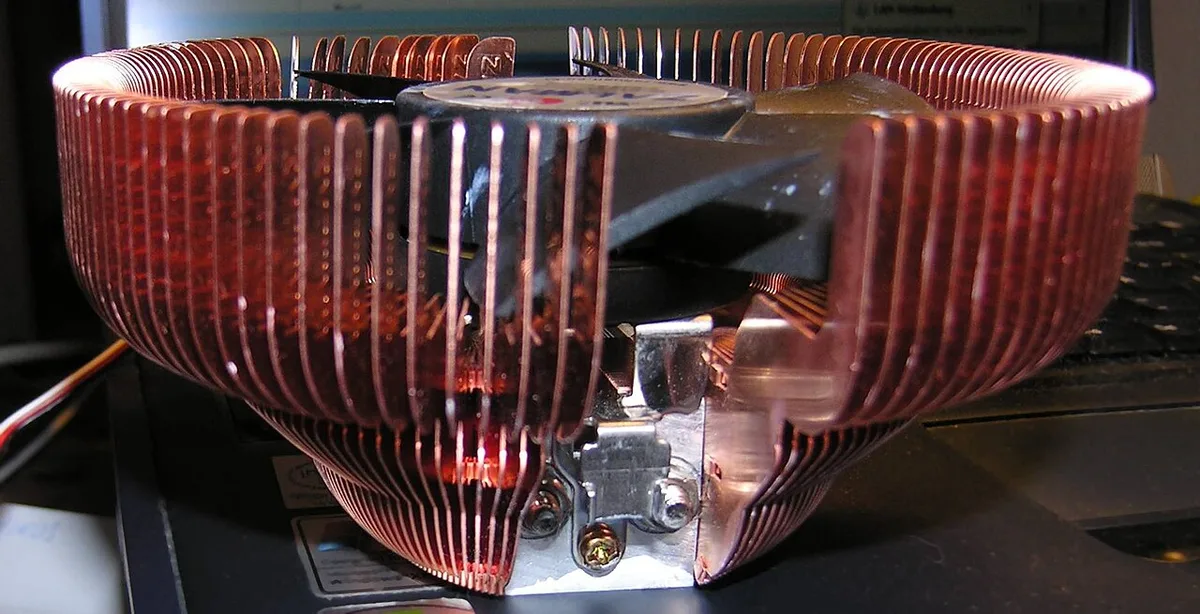
Image source: Wikimedia Commons / Audrius Meskauskas, Audriusa (talk · contribs) (CC BY-SA)
The image shows why vent cleaning matters. If intake vents clog, the fan has less cool air to move. If exhaust vents clog, hot air stays trapped.
Both problems raise temperatures. The fan may spin faster to compensate. That increases noise and power draw.
Not every laptop uses the same cooling layout. Some use heat pipes. Others use vapor chamber cooling.
Both still depend on airflow through vents. A vapor chamber can spread heat well, but it cannot fix blocked airflow. Dust on fins still acts like insulation.
Thermal throttling under sustained load is the laptop's safety response. When temperatures cross a set limit, the processor reduces speed. You may see lower FPS, stutter, or sudden fan spikes.
Cleaning vents can help, but it cannot fix dried thermal paste, a failed fan, or poor room airflow.
Room temperature matters too. A laptop in a 28 C room starts closer to its limit. Clean vents help more when the room is cool.
They do not create extra cooling capacity beyond the design.
Fan speed in RPM changes with load. Cleaning does not change the fan curve. It lowers resistance so the same curve can move more air.
Intake vents are often on the bottom or sides. Exhaust vents are usually at the back or sides. Cleaning the wrong vent first can push dust into the fan.
The Right Tools and Prep Before You Start
The right tools are boring. That is good. You do not need harsh cleaners or high pressure.
| Tool | Why it matters | Notes |
|---|---|---|
| Compressed air or electric air duster | Moves loose dust | Use short bursts only |
| ESD-safe soft brush | Lifts stuck dust | Anti-static bristles |
| Microfiber cloth | Wipes grilles | Dry or lightly dampened |
| Isopropyl alcohol, 90% or higher | Cleans residue | Apply to cloth, not vents |
| Anti-static wrist strap | Reduces static risk | Clip to grounded metal |
| Flashlight | Inspects fins | Shows dust mats |
Prep matters as much as tools. Power down fully. Unplug the charger.
Remove the battery if it is removable. Ground yourself before touching internal parts. Work on a hard, clean surface.
Avoid carpet.
Read the OEM service manual first. It shows panel removal, screw order, and cable paths. If the manual says do not remove a panel, do not remove it.
Some models hide vents behind the bottom cover. Others expose them fully from outside.
Cleaning interval guidance depends on use. A laptop used on a desk in a clean room may need less frequent cleaning. A laptop used on carpet, with pets, or in dusty rooms needs more attention.
Check temperatures monthly instead of guessing.
Do not use household vacuums. They can create static and pull small parts. Do not use liquids inside vents.
Do not spin fans with air. Hold the fan blade gently if the manual allows access. The goal is controlled airflow, not force.
Keep canned air upright. Keep the nozzle about an inch away. Short bursts prevent condensation.
Do not use cotton swabs inside vents because fibers can snag on fins and fan blades.
Step-by-Step: Safely Cleaning Gaming Laptop Vents
External Cleaning First
Start outside. This handles most dust without opening the chassis.
- Place the laptop on a stable table.
- Power it off and unplug it.
- Inspect intake and exhaust vents with a flashlight.
- Use short air bursts across the grille.
- Move dust away from the laptop, not into it.
- Wipe the grille with a dry microfiber cloth.
- Repeat until airflow feels clear.
Use short bursts of 1 to 2 seconds. Keep the nozzle about an inch away. Do not seal the nozzle against the vent.
Do not spray at an angle that pushes dust into the fan.
Internal Cleaning (Only If the Manual Allows)
Internal cleaning is only for models with safe access. Follow the service manual exactly.
- Remove screws in the listed order.
- Lift panels without forcing clips.
- Ground yourself with an ESD strap.
- Hold fan blades still with a plastic tool if allowed.
- Use short bursts to move dust out of the chassis.
- Brush only loose dust from fins and fan blades.
- Reinstall screws in the correct order.
Let the laptop sit open for a few minutes. Any moisture from cleaning should fully evaporate. Do not power on immediately if you used alcohol near components.
Reassemble carefully. Verify fan operation after boot.
Small cooling improvements can help between deep cleanings. Elevating the rear, cleaning the desk, and avoiding soft surfaces all reduce dust intake. Do not block exhaust paths with walls or monitors.
After cleaning, run a short game session and compare temperatures. Look for lower peaks and quieter fan behavior. If nothing changes, the problem may be internal and not vent-related.
Risk Factors That Make This More Dangerous Than It Looks
The process looks simple because vents are visible. The risk sits inside the chassis.
Static discharge is the quiet one. Dry air and synthetic clothing raise static risk. A small discharge can damage sensitive parts.
Grounding and ESD-safe tools reduce that risk. They do not remove it completely. Per ESD Association guidance, grounding and ESD-safe tools are standard controls for electronics handling.
Fan damage is the loud one. Spinning a fan with air can exceed its design speed. The motor and bearing take the load.
A fan that sounds fine today may rattle later. If you hear scraping or clicking after cleaning, stop using the laptop and inspect it.
Liquid residue is another risk. Canned air held at an angle can release propellant. That residue can attract dust and leave a film.
Keep the can upright. Use short bursts. Let surfaces dry.
Battery handling adds risk. Some gaming laptops have internal batteries. Do not puncture, bend, or short them.
If the battery swells or smells, do not clean the laptop yourself. Seek professional service. UL safety information for electronic devices and batteries supports careful handling around lithium-ion packs.
Warranty risk is practical. Some brands seal screws or require authorized service. Opening the chassis may affect coverage.
Check the warranty terms before internal work. External cleaning is usually safer for warranty status.
Airflow direction also matters. Blowing into an exhaust vent can push dust into the fan and heat sink. Clean intake and exhaust separately.
Move dust out of the chassis, not deeper inside. Use light, not force.
If the laptop is still under warranty and running hot, contact support before opening it. A documented cooling issue may be covered. Cleaning first can complicate a warranty claim.
Mistakes That Damage Fans, Fins, and Warranties
Most damage comes from impatience, not dust. People see a dirty vent and attack it like a clogged gutter. The laptop needs less force, not more.
Spinning the fan is the classic mistake. A blast of air can push blades past their safe speed. Bearings take the hit.
The fan may sound fine for days, then start clicking. If you hear new noise after cleaning, stop and inspect it.
Vacuum cleaners are another common error. They can create static and pull at delicate parts. They also move dust in unpredictable ways.
A soft brush and short air bursts are safer.
Blowing into the wrong vent causes trouble too. Pushing air through an exhaust vent can drive dust into the heat sink. Clean intake and exhaust separately.
Always move debris out of the chassis.
Too much pressure bends fins. Heat sink fins are thin. Bent fins reduce airflow and can touch each other.
Use distance, not force. A nozzle about an inch away is enough for loose dust.
Cleaning while the laptop is powered is a serious mistake. Fans can start spinning. Components can short.
Always shut down fully and unplug. Remove a removable battery if the manual allows.
Skipping ESD protection is easy to justify until a board fails. Static damage may not be instant. It can weaken parts and cause later faults.
Grounding and ESD-safe tools reduce that risk. ESD Association guidance covers standard controls.
Warranty mistakes are less dramatic but costly. Some models use tamper seals or specific screw patterns. Opening the wrong panel can void coverage.
Check the service manual first. If the laptop is still under warranty, contact support before internal work.
Common post-cleaning warning signs include:
- New clicking or grinding
- Higher temperatures than before
- Fan speed stuck at maximum
- Weak airflow at exhaust
- Burning smell or unusual heat
These signs need action, not another cleaning pass. A loud fan causes guide can help separate noise from failure. New sounds after maintenance usually point to physical damage.
Also watch for throttling warning signs. Cleaning should improve temps. If performance still drops, dust may not be the cause.
Thermal paste, a fan fault, or blocked heat pipes may be involved.
When to Stop DIY and Call a Pro
DIY cleaning has a clear limit. External dust removal is reasonable. Deep internal service is not always safe.
Stop when the job requires tools, force, or guesswork.
Call a professional if temperatures stay high after careful cleaning. That points to a deeper issue. Dried thermal paste, a failing fan, or a blocked heat sink need proper service.
A regular fan cleaning schedule helps prevent buildup, but it cannot fix worn parts.
Stop immediately for battery concerns. Do not open a chassis with a swollen battery. Do not puncture or bend the pack.
A sweet or chemical smell is a warning. UL safety information supports careful handling of lithium-ion devices. Seek authorized service.
Strange fan behavior also means stop. Grinding, scraping, or vibration after cleaning suggests bearing damage. A fan that does not spin is worse.
Running the laptop can overheat the CPU or GPU. Power down and get service.
Warranty status changes the decision. If the laptop is under warranty, internal cleaning can complicate claims. Some brands require authorized technicians.
Ask support before removing panels. Keep photos of vents and dust if you report a cooling issue.
Water or liquid damage is another hard stop. Do not clean vents after a spill. Power off and seek service.
Moisture can hide under components. Airflow cleaning will not fix corrosion.
A professional cleaning may include fan replacement, thermal paste reapplication, and fin inspection. These steps need proper tools. They also need the right paste and torque.
Guessing here can make things worse.
Between services, use simple cooling fixes to reduce heat. Elevate the rear. Keep vents clear.
Use a hard surface. Avoid carpet and blankets. These steps lower dust intake and improve airflow.
If you need faster relief, fast temperature fixes can help while you arrange service. Lower graphics settings. Cap frame rates.
Reduce background load. These are temporary controls, not a repair.
Real Scenarios: What Actually Happens in the Wild
Dust problems look different in real use. A clean desk and a pet-heavy bedroom create different buildup. Aggregate service reports show that vents clog from patterns, not just time.
Scenario one: a student uses a laptop on a bed for months. Intake vents sit against fabric. Airflow drops.
The fan runs loud during light tasks. After external cleaning, noise drops and temps fall 5 to 10 C. The improvement lasts only if the laptop moves to a hard surface.
Scenario two: a gamer with a cat notices hair around the exhaust. Hair forms mats at the grille. Short air bursts clear the outer layer.
Internal dust remains on fins. Temps improve slightly, but not enough. This is where professional cleaning becomes useful.
Scenario three: an older laptop shows no dust at the vents. Yet temps spike under load. The issue is likely dried thermal paste, not vents.
Cleaning cannot fix that. This is why baseline temperatures matter.
| Scenario | Likely cause | Expected result from vent cleaning |
|---|---|---|
| Bed use | Blocked intake | Moderate temp drop |
| Pet hair | Grille mats | Noise reduction, small temp drop |
| Older laptop | Paste or fan wear | Little to no change |
Common heat causes often overlap with vent clogs. High ambient room temperature, poor airflow, and heavy loads all raise heat. Cleaning vents helps one part of the system.
It does not change the whole cooling design.
Real-world results also depend on fan health. A worn bearing may sound loud even after dust removal. A failing fan may spin slowly.
Cleaning cannot restore mechanical wear. It only removes resistance.
Before and after checks should include idle and load temperatures. Compare the same game or benchmark. Keep room temperature similar.
A 3 to 8 C improvement after cleaning is realistic for a dusty laptop. A 15 C drop usually means another issue was fixed too.
Frequently Asked Questions
Can I use a vacuum to clean laptop vents?
No. Vacuums can create static and pull at small parts. Use short bursts from an air duster instead.
Keep the nozzle about an inch away and move dust out of the chassis.
Should I spin the fan while cleaning?
No. Do not spin the fan with compressed air. High speed can damage bearings.
Hold the blade still if the manual allows internal access. External cleaning should not touch the fan.
How often should I clean vents?
It depends on use. Dusty rooms, pets, and carpet use shorten the interval. Many gaming laptops benefit from checks every three to six months.
Track temperatures instead of guessing.
Can cleaning fix thermal throttling?
Sometimes. If dust blocks airflow, cleaning can reduce throttling. If thermal paste is dried or a fan is failing, cleaning will not help.
Compare before and after temperatures to know.
Is isopropyl alcohol safe near vents?
Yes, at 90% or higher, when used correctly. Apply it to a cloth, not directly into vents. Let all moisture fully evaporate before powering on.
When should I get professional service?
Seek service if temps stay high, fans grind, or the battery swells. Also use professionals for internal cleaning under warranty. They can inspect fins, fans, and thermal paste safely.
Final Verdict: The Safe Way to Keep Your Laptop Cool
The safest approach is gentle, grounded, and model-specific. Clean the outside first. Use short air bursts.
Keep the fan still. Check temperatures before and after. Do not force anything.
External cleaning solves many airflow problems. Internal cleaning requires the service manual and ESD protection. If the laptop is under warranty, ask first.
If temps stay high, the issue may be deeper than dust.
Good cooling is a system, not a single cleaning. Vent maintenance, desk setup, room temperature, and load all matter. Clean vents help, but they cannot overcome poor airflow or worn parts.
Keep the process boring. That is how you avoid expensive mistakes. Boring tools and short bursts win here.
3 thoughts on “How to Clean Gaming Laptop Vents Safely”
Comments are closed.