What parts of a gaming laptop can be upgraded depends on whether the CPU, GPU, RAM, and storage are soldered or socketed. Many gaming laptops let you add RAM or an M.2 NVMe SSD, but some lock both to the motherboard. Manufacturer specifications and service manuals show which parts are user-replaceable.
As of 2026, PCIe 4.0 and DDR5 are common, but not universal.
Per JEDEC memory standards, SO-DIMM modules come in fixed capacities and speeds, and your board may only accept certain ones. Check the service manual before buying anything. That saves money and avoids compatibility headaches.
Let's walk through the parts that usually matter most.
The Short Answer: What's Actually Upgradeable in a Gaming Laptop
The safe default answer is simple. Storage and RAM are the parts most likely to be upgradeable. The CPU and GPU are usually soldered to the motherboard and are not practical upgrades for most owners.
Here is the typical breakdown:
| Part | Usually Upgradeable? | Main Catch |
|---|---|---|
| M.2 NVMe SSD | Yes | Slot size, PCIe generation, and free slot count |
| RAM (SO-DIMM) | Sometimes | Soldered memory, single slot, or speed limits |
| Wi-Fi card | Sometimes | BIOS whitelist or CNVi-only design |
| Battery | Usually | Connector type, adhesive, and regional part availability |
| Cooling fans | Sometimes | Model-specific screws and cable routing |
| Display panel | Rarely | Bezel adhesive, cable length, and panel fit |
| CPU/GPU | Almost never | BGA soldering and firmware pairing |
If you only want more game storage, an SSD upgrade is the cleanest win. If you want smoother multitasking, RAM is the next place to look. For frame-rate gains, cooling and storage help more than most people expect, especially when a laptop starts getting slower over time.
Why Your Laptop Model Matters More Than the Brand Name
Brand names tell you the warranty path and support style. They do not tell you what is soldered inside. Two laptops with the same badge can use very different boards.
The real deciding factor is the exact model number. That number points to the service manual, parts list, and disassembly notes. A Dell G-series chassis may allow two RAM slots, while a thin model from the same brand may have soldered memory.
Use this quick check before buying parts:
- Find the full model number on the bottom label or in system settings.
- Download the official service manual from the manufacturer.
- Look for "user-replaceable" or "CRU" language.
- Check the parts list for SO-DIMM, M.2, battery, and fan part numbers.
- Confirm the BIOS version and update policy.
This step matters more than any forum post. It also protects you from buying a 2280 SSD for a laptop that only accepts 2230 drives. If you are already tracking dust buildup, cleaning the vents safely can reveal how easy the bottom panel is to remove.
The Condition Variables That Decide Everything (Soldered vs. Socketed)
Soldered means the part is permanently attached to the motherboard. Socketed means it plugs into a slot and can usually be swapped. Gaming laptops mix both designs, sometimes even within the same chassis.
The main condition variables are:
- RAM type: DDR4 or DDR5 SO-DIMM vs. soldered LPDDR
- Memory layout: dual-channel vs. one socket plus soldered memory
- Storage slots: one or two M.2 slots, sometimes plus a 2.5-inch bay
- Wi-Fi design: standard M.2 E-key vs. Intel CNVi
- Thermal design: whether the heatsink and fans are serviceable
- BIOS rules: whitelist cards, RAID settings, or storage mode limits
If the RAM is soldered, no amount of speed claims will help. You are limited to the factory capacity. If one slot is soldered and one is open, you can usually add a matching module, but mismatched speeds may default to the slower SPD profile.
For storage, the slot is only half the story. The PCIe generation matters too. A PCIe 4.0 SSD will work in many PCIe 3.0 slots, but it will not reach its full speed.
Standards from PCI-SIG define the interface, while the laptop vendor decides how many lanes and slots you get.
Branch 1: RAM — Can You Add More Memory or Is It Locked In?
RAM upgrades are the most common question because memory pressure shows up as stutter, slow alt-tabbing, and background apps fighting for space. The answer is usually yes or no based on soldering.
Start here:
- Open the service manual and find the memory section.
- Check whether the laptop uses SO-DIMM slots or soldered LPDDR.
- Count the slots and maximum supported capacity.
- Match the speed, voltage, and form factor.
- Install in matched pairs when possible.
A 16GB to 32GB move makes sense for heavy multitasking, streaming, or large game installs. An 8GB to 16GB move is often the cheapest stability upgrade. Buying faster RAM than the board supports is wasted money.
Memory compatibility is not just capacity. DDR5 SO-DIMMs and DDR4 SO-DIMMs are physically different and not interchangeable. Some laptops also cap the speed at a lower JEDEC profile even if the module is rated higher.
If you are already seeing frame drops, more RAM can help, but it will not fix thermal throttling or a weak GPU. It is one piece of the puzzle, not the whole repair.
Branch 2: Storage — M.2 NVMe Slots, 2230 vs. 2280, and Hidden Bays
Storage is the easiest upgrade with the biggest daily payoff. Most modern gaming laptops use M.2 NVMe SSDs, but the physical size matters. A 2280 drive is 80mm long.
A 2230 drive is 30mm long. Some compact chassis only accept the shorter size.
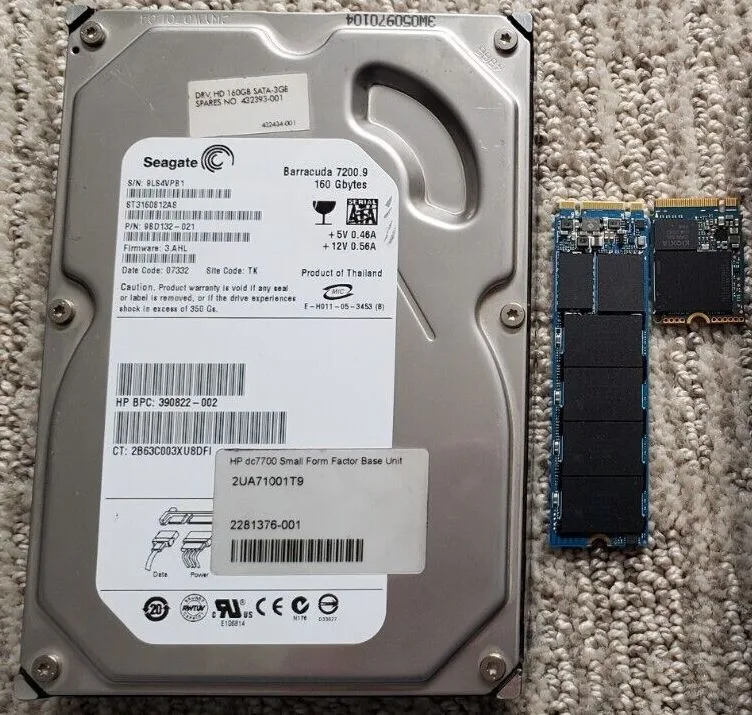
Image source: Wikimedia Commons / User5515
Before ordering, verify these points:
- Slot count: one, two, or none free
- Supported length: 2230, 2242, or 2280
- PCIe generation: 3.0, 4.0, or 5.0
- Interface: NVMe vs. SATA
- Heatsink clearance: some SSDs are too tall with a heatsink attached
- Boot drive plan: clone first or clean install
A Gen4 NVMe drive is a strong fit for most 2024 to 2026 gaming laptops. Gen5 drives are faster on paper, but many laptops do not have the thermal headroom or slot support to use them well. If you are measuring power consumption, a faster SSD can also add brief load spikes during large file moves.
For many users, a 1TB or 2TB upgrade is the practical sweet spot. It keeps large games installed without juggling external drives. If the laptop has only one slot, clone the old drive to a USB enclosure first, then swap and restore.
Battery health is a separate issue, but storage upgrades often happen during the same teardown. If you are already inside the chassis, it can be smart to check battery charge limits and swelling signs before closing it back up.
Branch 3: Wi-Fi Cards, Battery, Cooling, and Display Panels
Wi-Fi upgrades are possible only when the laptop uses a standard M.2 E-key card. Some designs use Intel CNVi, which ties wireless functions to the chipset and blocks a normal card swap. Even on supported models, BIOS whitelists can reject third-party cards.
Wi-Fi 6E and Wi-Fi 7 cards can improve latency, but only with a compatible router.
Battery replacement is usually the most practical non-storage upgrade. A swollen or weak battery should be replaced, not ignored. Check the connector type, screw layout, and whether adhesive holds the pack in place.
Battery design capacity is measured in watt-hours. A battery at 80 percent or less of design capacity often shows shorter runtime.
Cooling parts are model-specific. Fans, heatsinks, and thermal pads may be replaceable, but part numbers matter. Fresh thermal paste can lower temperatures if the old paste has dried out.
It will not fix a bad fan or blocked vents. Thermal paste is not a permanent fix. Dust, fan wear, and poor airflow still matter.
Display panel swaps are rarely worth it. Adhesive bezels, cable routing, and panel fit make the job risky. A higher refresh rate panel may not be supported by the existing cable or firmware.
Display upgrades can also require a new bezel and different cable length.
| Part | Upgrade reality | Best for |
|---|---|---|
| Wi-Fi card | Conditional | Supported M.2 E-key designs |
| Battery | Usually practical | Swollen or worn packs |
| Cooling fans | Model-specific | Noisy or failing fans |
| Display panel | Rarely practical | Expert-only repairs |
If your laptop runs hot, start with vent cleaning and cooling and FPS checks before buying parts.
The Upgrade Workflow: From Service Manual to Successful POST
Start with the official service manual. It shows screw locations, cable paths, and removal order. Manufacturer specifications are more reliable than forum photos.
PCIe speed and lane rules come from PCI-SIG, but your laptop vendor decides how many lanes are wired.
Then follow this workflow:
- Back up important files and create recovery media.
- Power off, unplug the charger, and hold the power button to discharge.
- Open the bottom panel and keep screws sorted by length.
- Disconnect the battery before touching storage or memory.
- Install the part without forcing connectors.
- Reconnect the battery and reassemble.
- Power on and enter BIOS to confirm detection.
- Boot into the OS and run a stress or health test.

Image source: Wikimedia Commons / NASA
Compatibility checks should happen before the screwdriver comes out. Match RAM speed, SSD length, and battery part number. If the laptop has BitLocker or FileVault, suspend encryption before major changes.
Take photos during disassembly. They make reassembly easier. Use an ESD strap or grounded surface.
If you are tracking power draw during upgrades, test after installation with a normal workload. After POST, check Device Manager, SSD health, and memory speed.
Mistakes That Brick Laptops and Void Warranties
The biggest mistake is assuming every screw and connector is obvious. Hidden clips and short cables break easily. A stripped screw can turn a simple upgrade into a board-level repair.
Common errors include:
- Using the wrong SSD length or M.2 screw
- Mixing RAM speeds and expecting the faster one to run
- Reusing old thermal paste or applying too much
- Forgetting Wi-Fi antenna cables
- Puncturing or bending the battery
- Ignoring BIOS storage mode settings
- Closing the chassis with a cable pinched under a screw
Do not pry connectors from the top. Pull from the plug body. Keep liquids away from the work area.
If a battery is swollen, do not charge or puncture it. Recycle it properly.
Warranty terms vary by region and brand. In the US, the Magnuson-Moss Warranty Act limits blanket warranty voiding for user service, but damage from installation is still your responsibility. Check the official terms before opening the case.
If the laptop already loses charge while gaming, do not assume an upgrade will fix it. Power behavior can point to charger, battery, or board issues. See battery safety basics before replacing anything.
What Upgrades Are Actually Worth the Money (and Which Aren't)
Storage upgrades usually offer the best value. A 1TB or 2TB NVMe SSD costs far less than a new laptop and solves the most common storage pain. RAM is worth it when you are stuck at 8GB or running heavy multitasking.
Battery replacement makes sense when runtime has collapsed. Repasting helps when temperatures are high and fans are loud. A Wi-Fi card swap only matters if the current one is slow and the BIOS allows it.
Skip display swaps, CPU swaps, and GPU swaps in most cases. They cost too much and carry too much risk. If the laptop is slowing down, compare upgrade costs against a replacement and review performance decline over time.
For gaming smoothness, software tuning can help too. Optimizing your gaming laptop may deliver gains before you spend money on hardware. External USB4 or Thunderbolt SSDs are a good alternative when internal slots are full.
A 32GB kit is useful for creators, but many gamers do not need it. A cooling pad is cheaper than internal cooling repair but less effective.
Frequently Asked Questions
Can you upgrade the GPU in a gaming laptop?
Usually no. Most gaming laptop GPUs are soldered to the motherboard. A few older or niche systems used MXM modules, but that is not the modern norm.
Is upgrading RAM worth it on a gaming laptop?
Yes when you are at 8GB or have one open slot. The benefit is smaller if you already have 16GB or more and your games are GPU-limited.
Can I add a second SSD to my gaming laptop?
Only if a free M.2 slot exists and supports the drive length. Check the service manual for slot count, PCIe generation, and supported sizes.
Does upgrading storage void the warranty?
Often no for user-replaceable parts, but damage during installation can. Read the manufacturer warranty terms for your region before opening the chassis.
Should I upgrade thermal paste or buy a cooling pad?
Repaste helps when temperatures are high and the paste is old. A cooling pad improves airflow. Neither will overcome a weak GPU or bad fan.
3 thoughts on “What Gaming Laptop Parts Can You Actually Upgrade?”
Comments are closed.