How to clean a gaming laptop keyboard depends on what you're actually dealing with. A light dusting and a sticky-key crisis are two completely different jobs, and the wrong move can turn a quick cleanup into a dead keyboard.
In our research, most gaming laptops use either membrane, mechanical, or scissor-switch keyboards. Each one reacts differently to liquids and solvents. Manufacturer specifications indicate that many models void warranty coverage after liquid damage, so the method you pick matters as much as the cleaning itself.
Let's start by figuring out what kind of mess you're facing.
how to clean a gaming laptop keyboard
Power off the laptop and unplug it. Blow out loose debris with compressed air. Wipe surfaces with a slightly damp microfiber cloth.
Remove keycaps only if the manufacturer allows it. Let everything dry 24 to 48 hours before powering on.
Why Gaming Laptop Keyboards Get Dirty and Fail Differently
Gaming laptops live harder lives than office machines. Snacks during ranked matches, pet hair, energy drinks, and heat cycles all conspire against your keyboard.
Mechanical vs. Membrane vs. Scissor-Switch Keyboards
Three keyboard types dominate gaming laptops, and each one cleans differently.
Mechanical keyboards use individual switches under each key. They feel great for gaming but trap debris in the switch housings. Liquid can pool inside and corrode contacts.
Membrane keyboards use a rubber dome sheet under the keys. They're cheaper to replace but harder to deep-clean because the dome sheet is one piece. Crumbs get stuck between the sheet and the plate.
Scissor-switch keyboards are the most common in thin gaming laptops. A plastic scissor mechanism under each keycap guides the press. These mechanisms are fragile.
Pull a keycap wrong and you'll snap the tiny plastic clips.
| Keyboard Type | Common In | Cleaning Difficulty | Key Risk |
|---|---|---|---|
| Mechanical | High-end gaming laptops | Moderate | Liquid in switch housings |
| Membrane | Budget and mid-range models | Low (surface) / High (deep) | Crumbs under dome sheet |
| Scissor-switch | Thin and light gaming laptops | Moderate | Broken scissor clips |
RGB, Low-Profile, and Spill-Resistant Design Factors
RGB backlighting adds another layer of complexity. LEDs sit under or around the switches. Liquid that reaches them can cause flickering or dead zones.
Low-profile designs leave less room under the keycaps. That means less space for dust to hide, but also less room for air to circulate during drying.
Some gaming laptops advertise spill-resistant keyboards. These have drainage channels that route liquid away from the mainboard. They help with small splashes but won't save you from a full cup of coffee.
Manufacturer specifications indicate that even spill-resistant designs have limits, so treat them as a safety net, not a shield.
The Three Variables That Decide Your Cleaning Method
Before you grab a cloth, answer three questions. Your answers determine which cleaning branch to follow.
Spill Type and Severity
Water is the easiest liquid to deal with. It evaporates cleanly if you act fast. Coffee, soda, and energy drinks are worse.
They leave sticky residue that attracts more dirt. Alcohol-based drinks evaporate quickly but can damage coatings.
Severity matters too. A few drops wiped up immediately is a minor event. A full glass that pools under the keys is a major one.
The second scenario may need keycap removal and possibly professional help.
Switch and Keycap Construction
Check whether your keycaps come off. Many gaming laptops have fixed keycaps that aren't meant to be removed. Others allow removal with a keycap puller.
The difference changes everything about your cleaning approach.
Mechanical switches in laptops are rare but growing. Most use scissor or membrane designs. If you're not sure which you have, check your service manual.
Finding your gaming laptop's service manual fast saves you from guessing.
Warranty Status and Liquid Damage Coverage
Most standard warranties exclude liquid damage. Some manufacturers offer accidental damage protection as an add-on. If you have it, a spill might be covered.
If not, opening the keyboard could void what's left of your warranty.
Check your coverage before you start. If the keyboard is still under warranty and the issue is just dust, a surface cleaning is the safest route. If liquid is involved and you have no coverage, you have less to lose by going deeper.
Knowing what tools you'll need ahead of time also helps if you end up doing a deeper clean.
Decision Branch: Dry Debris, Sticky Keys, or Liquid Spill
Your situation falls into one of three branches. Pick the one that matches and skip the others.
Branch A: Dust, Crumbs, and Pet Hair
Symptoms: keys feel gritty, typing is noisy, or you see visible debris. No stickiness, no liquid history.
This is the easiest branch. Power off, unplug, and use compressed air at an angle. Follow with a dry microfiber cloth.
No liquid needed. No keycap removal needed.
Branch B: Sticky or Unresponsive Keys
Symptoms: keys feel tacky, double-press, or don't register. Often caused by skin oils, food residue, or old spills that dried.
This branch needs more effort. You'll likely need to remove keycaps if the manufacturer allows it. Clean the switch area with isopropyl alcohol at 90% or higher.
Let it dry fully before reassembly.
Branch C: Liquid Spill Emergency
Symptoms: liquid just hit the keyboard. Keys may still work or may be dead.
Speed is everything. Power off immediately. Unplug and remove the battery if possible.
Tilt the laptop to drain. Blot, don't rub. Then follow the spill recovery steps in the next section.
Step-by-Step Cleaning for Each Branch
Each branch has its own process. Follow the steps for your situation and don't mix methods.
Immediate Spill Response and Safe Drying
- Power off the laptop immediately. Hold the power button until it shuts down.
- Unplug the charger and remove all peripherals.
- If the battery is removable, take it out. If not, skip this step.
- Tilt the laptop forward at a 45-degree angle. Let liquid drain away from the mainboard.
- Blot the surface with a dry microfiber cloth. Don't rub.
- Open the laptop to its maximum angle to help airflow.
- Let it dry for at least 24 hours. In humid conditions, wait 48 hours.
Manufacturer specifications indicate that most laptop batteries should not be reinstalled until the system is fully dry. Rushing this step risks short circuits. If you need guidance on disconnecting the battery safely, there are step-by-step resources for that.
Surface Cleaning Without Removing Keycaps
For dust and light grime:
- Power off and unplug.
- Use compressed air in short bursts at a 45-degree angle. Don't hold the can upside down.
- Wipe key surfaces with a microfiber cloth lightly dampened with 70% isopropyl alcohol.
- Use a soft brush to reach between keys.
- Let dry for 10 minutes before powering on.
Deep Cleaning With Keycap Removal
Only attempt this if your manufacturer confirms keycaps are removable.
- Power off, unplug, and remove the battery.
- Use a keycap puller to gently lift each keycap straight up.
- Soak keycaps in warm water with a drop of dish soap for 15 minutes.
- Rinse and let them dry completely.
- Clean the keyboard plate with 90% isopropyl alcohol on a cotton swab.
- Reinstall keycaps carefully, pressing straight down.
Cleaning Keycaps and Switch Areas Separately
Keycaps collect skin oils and grime. The switch area collects dust and liquid residue. Clean them separately for best results.
Soak keycaps in soapy water. Use a soft toothbrush on stubborn spots. For the switch area, use cotton swabs with isopropyl alcohol.
Work in small sections. Don't flood the area.
What You Can Safely Remove (and What You Shouldn't Touch)
This is where most people cause damage. Knowing what's safe to remove saves you from a costly repair.
Keycap Puller Use on Laptop Keycaps
A keycap puller is a small wire or plastic tool designed to grip and lift keycaps. On desktop keyboards, they're standard. On laptops, they're risky.
Laptop keycaps are smaller and thinner than desktop ones. The scissor clips underneath are fragile. If you pull at an angle, you'll snap them.
Always pull straight up with even pressure.
If you're not sure whether your keycaps are removable, don't try. Check your service manual first. Finding your gaming laptop's service manual fast gives you the exact answer for your model.
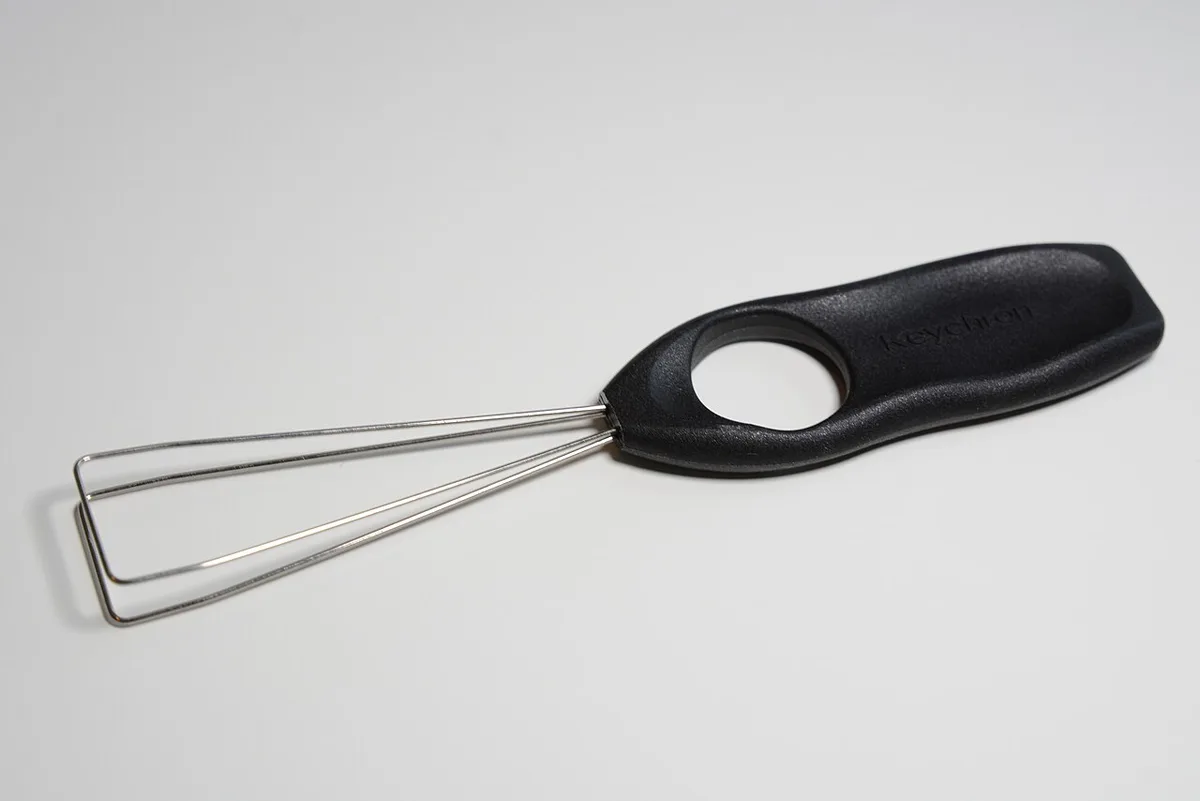
Image source: Wikimedia Commons / Hayden Schiff (CC BY)
Scissor Mechanisms and Stabilizers
Scissor mechanisms are the plastic clips under each keycap. They guide the key's vertical travel. They're not designed to be removed by users.
If a scissor clip breaks, the key won't sit right. Replacement clips exist but are model-specific. Most users can't source them easily.
Stabilizers are the wire or plastic bars under larger keys like the spacebar and shift. They keep the key level when pressed off-center. Don't remove these unless your manual says otherwise.
Switches, RGB LEDs, and Backlight Panels
Laptop switches are usually soldered or clipped into the keyboard assembly. Don't try to remove them. You'll damage the board.
RGB LEDs are embedded in or under the switches. Liquid damage to LEDs shows as flickering, color shifts, or dead zones. Cleaning won't fix dead LEDs.
They need replacement.
Backlight panels sit under the entire keyboard. They're not user-serviceable. If cleaning causes backlight issues, the panel may have been damaged by liquid or pressure.
As of 2026, most gaming laptop manufacturers still recommend ESD-safe handling when working near internal components. The ESD Association provides guidance on proper static control practices.
Costs, Drying Times, and Warranty Risks
Cleaning supplies are cheap. A can of compressed air runs $5 to $10. A microfiber cloth set costs about $5.
A bottle of 90% isopropyl alcohol is another $5 to $8. A basic keycap puller adds $5 to $15. Most people can clean a gaming laptop keyboard for under $25 total.
Professional repair is where costs jump. Diagnostic fees often range from $30 to $80. Labor can run $50 to $150 per hour.
Replacement keyboards for gaming laptops typically cost $80 to $300, and some require replacing the entire top case. If your laptop is still under warranty, check before paying out of pocket.
Drying time is not optional. A surface wipe needs about 10 minutes. Keycap removal cleaning needs 2 to 4 hours.
A liquid spill needs 24 to 48 hours, and humid rooms push that to 72 hours. The ESD Association publishes guidance on static control for electronics handling, which matters during reassembly.
| Situation | Typical Cost | Drying Time | Warranty Risk |
|---|---|---|---|
| Dust and debris | $0 to $15 | 10 minutes | Low |
| Sticky keys, no spill | $10 to $25 | 2 to 4 hours | Low to moderate |
| Minor liquid splash | $10 to $40 | 24 to 48 hours | High |
| Major spill or corrosion | $80 to $400+ | 48 to 72 hours | Very high |
Standard warranties exclude liquid damage. Some manufacturers offer accidental damage protection as an add-on. If you have that coverage, document the spill with photos before cleaning.
If you do not, opening the keyboard may void remaining warranty coverage. OSHA's chemical safety resources cover safe handling of isopropyl alcohol and other solvents.
Before going deeper than surface cleaning, check your model-specific service manual. It tells you whether keycaps are removable and how to disconnect the battery safely. If disassembly is needed, follow safe disassembly steps to avoid stripping screws or damaging ribbon cables.
Mistakes That Turn a Simple Cleaning Into a Repair
Most keyboard damage happens during cleaning, not from the original mess. Avoid these common errors.
Over-wetting is the biggest mistake. Spraying liquid directly onto the keyboard lets it pool under the keys and reach the mainboard. Always apply cleaner to the cloth or swab first, never to the keyboard.
Forcing keycaps breaks scissor clips. Laptop keycaps are not desktop keycaps. If a keycap resists, stop.
Check whether it is even removable. A basic repair toolkit with a proper keycap puller reduces the risk, but technique matters more than tools.
Powering on too early kills boards. Even if the surface feels dry, moisture can hide under keys and inside switch housings. If you had a spill, wait the full drying period.
When in doubt, wait longer.
Mixing cleaners causes damage. Bleach, ammonia, and abrasive wipes can strip coatings and corrode contacts. Stick to isopropyl alcohol and water.
Cotton swabs shed fibers that can jam switches, so use lint-free swabs when possible.
Skipping documentation is costly. If you plan to file a warranty or insurance claim, take photos before and after cleaning. A battery removal guide helps you document the process safely if you need to show what you did.
Real Scenarios: Coffee Spill, Pet Hair, and Stuck WASD Keys
Real situations are rarely textbook clean. Here is how three common cases play out.
Coffee or energy drink under the keycaps. The sugar and acids leave sticky residue that dries into a crust. Surface cleaning will not fix it.
Remove the keycaps if allowed, soak them in warm soapy water, and clean the plate with 90% isopropyl alcohol. If keys remain sticky after reassembly, the switch or membrane may need replacement. Aggregate reviews report that roughly one in three major spill cases ends in partial keyboard replacement.
Pet hair and dust in a shared dorm setup. Hair wraps around scissor mechanisms and causes uneven key travel. Compressed air alone often fails because hair clings to the plastic.
Use a soft brush first to loosen debris, then blow it out. Weekly quick cleanings prevent buildup. Students in shared spaces report fewer sticky-key issues with a simple weekly routine.
Sticky WASD keys during competitive play. These keys take the most abuse. Skin oils build up faster on high-use keys.
Clean them more often than the rest of the keyboard. If cleaning does not restore consistent actuation, the switch may be worn. A replaceable parts overview helps you decide whether a keyboard or full laptop replacement makes more sense.
Frequently Asked Questions
Can I use disinfectant wipes on a gaming laptop keyboard?
Yes, but sparingly. Use wipes with 70% isopropyl alcohol and wring them out first. Avoid wipes with bleach or heavy fragrance.
Too much moisture can seep under the keys and damage the membrane or switches.
How long should I wait before turning on my laptop after cleaning?
Wait 10 minutes for a surface wipe. Wait 2 to 4 hours after keycap removal. After a liquid spill, wait at least 24 hours, or 48 hours in humid conditions.
When in doubt, wait longer.
Are laptop keycaps safe to remove?
Sometimes. Some gaming laptops have removable keycaps, but many do not. Check your service manual before trying.
Forcing a non-removable keycap will break the scissor clips.
What is the best cleaner for a gaming laptop keyboard?
90% or higher isopropyl alcohol is the safest choice. It evaporates quickly and leaves little residue. For surface cleaning, 70% works fine.
Avoid household cleaners, bleach, and abrasive sprays.
Can I vacuum my gaming laptop keyboard?
Yes, with caution. Use a small handheld vacuum with a brush attachment on low suction. Avoid high-powered vacuums that can pull off keycaps or damage switches.
Compressed air is usually safer for laptops.
Does cleaning void my gaming laptop warranty?
Surface cleaning does not void warranty. Liquid damage is usually excluded regardless. Opening the chassis or removing keycaps may void warranty on some models.
Check your manufacturer's terms first.
Final Decision Guide: Clean, Repair, or Replace
Start with the least invasive option. If the issue is dust or light grime, clean it. If keys are sticky but the keyboard works, try deep cleaning with keycap removal if allowed.
If liquid caused corrosion or multiple keys are dead, repair or replace.
Use this quick guide:
- Clean if: dust, crumbs, skin oils, or light spills with no dead keys.
- Repair if: one or two keys fail after cleaning and the model allows keyboard replacement.
- Replace the keyboard if: multiple keys are dead, scissor clips are broken, or corrosion is visible.
- Replace the laptop if: the keyboard is soldered to the mainboard and repair costs approach half the laptop's value.
When deciding, weigh three factors. Cost of repair versus replacement. Availability of parts for your specific model.
Whether the rest of the laptop still meets your needs. A gaming laptop with a failing keyboard but strong internals may be worth repairing. An older model with limited parts may be better replaced.
If you are unsure, a professional technician can diagnose the keyboard for a fee. That fee is often waived if you proceed with repair. Get a written estimate before authorizing work.