Gaming laptops pack powerful hardware into thin chassis with limited airflow. That combination makes dust buildup a constant threat. If you want to know how to clean a gaming laptop without causing damage, the right approach depends on your machine's condition.
Manufacturer service documentation suggests internal cleaning every 6 to 12 months for most gaming laptops. The process ranges from a simple exterior wipe to a full disassembly with thermal paste replacement. We'll walk you through the decision tree so you pick the right depth of cleaning for your machine.
how to clean a gaming laptop
Power down and unplug the laptop. Remove the bottom panel. Blow dust from fans and heatsink fins with compressed air.
Clean fan blades with 99% isopropyl alcohol. Replace thermal paste if it is older than 12 to 24 months. Reassemble and test temperatures.
Why Gaming Laptops Clog Faster Than Standard Laptops
Gaming laptops pull more air through their chassis than standard laptops. Their high TDP components generate serious heat. That heat demands aggressive cooling with larger fans and more vents.
Those bigger fans move more air, but they also pull in more dust. Pet hair, carpet fibers, and ambient particles stick to heatsink fins and fan blades. Within 6 months, a gaming laptop can accumulate enough debris to raise temperatures by 10 to 15 degrees Celsius.
Standard laptops with lower power draw don't need the same airflow. Their smaller fans move less air and collect less debris. That's why a gaming laptop often needs cleaning twice as often.
The chassis design makes things worse. Most gaming laptops draw intake air from the bottom. Placing them on beds, carpets, or laps blocks that intake and accelerates dust accumulation.
Over time, clogged vents create a feedback loop. Higher temperatures spin fans faster. Faster fans pull in more dust.
The cycle continues until performance drops or the system shuts down to protect itself.
Heat is the root cause of most gaming laptop performance issues. Dust is just the trigger. Understanding this relationship helps you decide when cleaning is urgent and when it can wait.
The thermal paste between the CPU and GPU dies and the heatsink also degrades over time. It dries out and loses conductivity. Even a clean heatsink won't transfer heat well if the paste is old.
That's why cleaning and repasting often go together.
Aggregate user reviews report that gaming laptops in pet-heavy households need cleaning every 3 to 4 months. In clean, air-conditioned rooms, 12 months may be fine. Your environment matters as much as your usage habits.
Common signs your gaming laptop needs cleaning:
- Fan noise at idle or light tasks
- Temperatures above 90 degrees Celsius under load
- Sudden FPS drops during gaming
- Unexpected shutdowns during heavy use
- Hot air barely exiting the exhaust vents
These symptoms appear gradually. Most users don't notice until performance has already degraded. Regular monitoring with tools like HWMonitor or MSI Afterburner helps catch the decline early.
The fans themselves are precision components. When dust coats the blades, they become unbalanced. An unbalanced fan vibrates, wears out bearings faster, and can eventually fail.
Replacing a laptop fan costs more than a cleaning kit. Prevention is cheaper than repair.
Check Warranty, Dust Load, and Thermal Paste Age First
Before you touch a screwdriver, check three things. These determine your cleaning approach and whether you should open the chassis at all.
First, check your warranty status. Most OEM warranties cover 1 to 2 years. Opening the chassis often voids coverage unless the manufacturer explicitly allows user service.
Dell, HP, and Lenovo publish service manuals that permit user access for certain models. Others seal the chassis with tamper stickers. Check your laptop's service manual before proceeding.
Second, assess the dust load. Shine a flashlight through the vents. If you see a thin layer of dust, a quick vent clean may suffice.
If you see thick mats of debris or pet hair, you need full disassembly. The ESD Association recommends working on a non-carpet surface with an anti-static wrist strap regardless of cleaning depth.
Third, estimate thermal paste age. If the laptop is under 12 months old, the paste is likely still effective. Between 12 and 24 months, performance depends on usage intensity.
Beyond 24 months, repasting is almost always beneficial. Manufacturer specs indicate that thermal paste loses roughly 30% of its conductivity within the first year of heavy gaming use.
These three variables create your decision matrix. A laptop under warranty with light dust and fresh paste needs only an exterior clean. A laptop out of warranty with heavy dust and old paste needs full disassembly and repasting.
Everything else falls between.
Condition variables that affect your decision:
- Warranty status: active, expired, or void-if-opened
- Dust load: light surface film, moderate buildup, or heavy matting
- Thermal paste age: under 12 months, 12 to 24 months, or over 24 months
- Battery type: removable (easy disconnect) or internal (requires careful handling)
- Screw types: Phillips, Torx, or hex (varies by manufacturer)
If you're unsure about any variable, err on the side of caution. A quick vent clean won't damage anything. A botched disassembly can destroy the motherboard or battery.
Decision Branch: Quick Vent Clean vs. Full Disassembly
This is where the decision tree branches. Your condition variables from the previous section determine which path to take.
Branch A: Quick Vent Clean. Choose this if your warranty is active, dust is light, and thermal paste is under 12 months old. The steps are simple.
Power down and unplug. Use short bursts of compressed air through the exhaust and intake vents. Hold fan blades in place with a toothpick or cotton swab to prevent overspinning.
Wipe the exterior with a microfiber cloth and 99% isopropyl alcohol.
Branch B: Full Disassembly. Choose this if your warranty is expired, dust is moderate to heavy, or thermal paste is over 12 months old. This requires removing the bottom panel, disconnecting the battery, and cleaning internal components.
It also allows repasting and thermal pad replacement.
If your warranty is active but dust is heavy, you face a dilemma. Opening the chassis risks voiding coverage. In this case, try a vent clean first.
If temperatures don't improve, contact the manufacturer for authorized service. Dell, HP, Lenovo, ASUS, MSI, and Acer all offer paid cleaning services for in-warranty machines.
The decision flow in practice:
- Active warranty + light dust + fresh paste: quick vent clean only
- Active warranty + heavy dust: vent clean first, then manufacturer service if needed
- Expired warranty + light dust + fresh paste: vent clean, monitor temps
- Expired warranty + moderate dust: full disassembly, clean only
- Expired warranty + heavy dust + old paste: full disassembly, clean and repaste
Don't skip the vent clean step even when planning full disassembly. Blowing dust out before opening reduces the amount that falls onto the motherboard. It also gives you a baseline to compare post-clean temperatures.
One more factor: your comfort level with electronics. Full disassembly requires steady hands and patience. If you've never opened a laptop, start with a vent clean.
Build confidence before attempting internal work. Opening the chassis safely is a skill worth learning, but rushing it leads to stripped screws and broken clips.
Safe Step-by-Step Deep Clean for a Gaming Laptop
This section covers Branch B: full disassembly and deep cleaning. Follow these steps in order. Skipping or reordering steps risks damage.
Tools you'll need:
| Tool | Purpose | Notes |
|---|---|---|
| Phillips #0 and #1 screwdrivers | Remove chassis screws | Magnetic tip helps |
| Torx T5/T6 screwdrivers | Some manufacturers use Torx | Check service manual |
| Plastic spudger | Pry open clips | Never use metal |
| Compressed air (canned or electric) | Blow dust from components | Short bursts only |
| 99% isopropyl alcohol | Clean fan blades and surfaces | 90% minimum |
| Microfiber cloth | Wipe exterior and screen | Lint-free |
| Anti-static wrist strap | Prevent ESD damage | Clip to chassis ground |
| Thermal paste | Replace old paste | Non-conductive preferred |
| Cotton swabs | Detail cleaning | Lint-free variety |
Step 1: Power down and unplug. Shut down the operating system. Unplug the AC adapter.
Hold the power button for 10 seconds to discharge residual power.
Step 2: Remove the bottom panel. Flip the laptop over. Remove all screws.
Note which screws go where. Some are longer than others. Use a plastic spudger to release clips along the edges.
Lift the panel carefully.
Step 3: Disconnect the battery. This is critical. Locate the battery connector on the motherboard.
Gently pull the connector straight up. Never pry with metal tools. If the battery is removable, take it out entirely.
Step 4: Blow out dust. Use compressed air in short bursts. Focus on fans, heatsink fins, and vent channels.
Hold fan blades stationary with a toothpick. Never let fans spin freely. Free-spinning fans generate voltage that can damage the motherboard.
Step 5: Clean fan blades. Dip a cotton swab in 99% isopropyl alcohol. Wipe each blade individually.
Remove all dust and residue. Let dry for 2 minutes before proceeding.
Step 6: Clean the heatsink fins. Use compressed air first. Then use a soft brush or cotton swab with IPA for stubborn debris.
Work from the inside out. Push dust toward the exhaust vent.
Step 7: Inspect thermal paste. If the paste is dry, cracked, or discolored, plan to repaste. If it looks fresh and moist, you may skip repasting.
But if the laptop is over 12 months old, repasting is recommended regardless of appearance.
Step 8: Reassemble. Reconnect the battery. Replace the bottom panel.
Insert screws in their original positions. Tighten snugly but don't overtighten. Stripped screw holes are difficult to repair.
Step 9: Test. Power on and monitor temperatures under load. Use a stress test like Prime95 or FurMark.
Compare results to your pre-clean baseline.
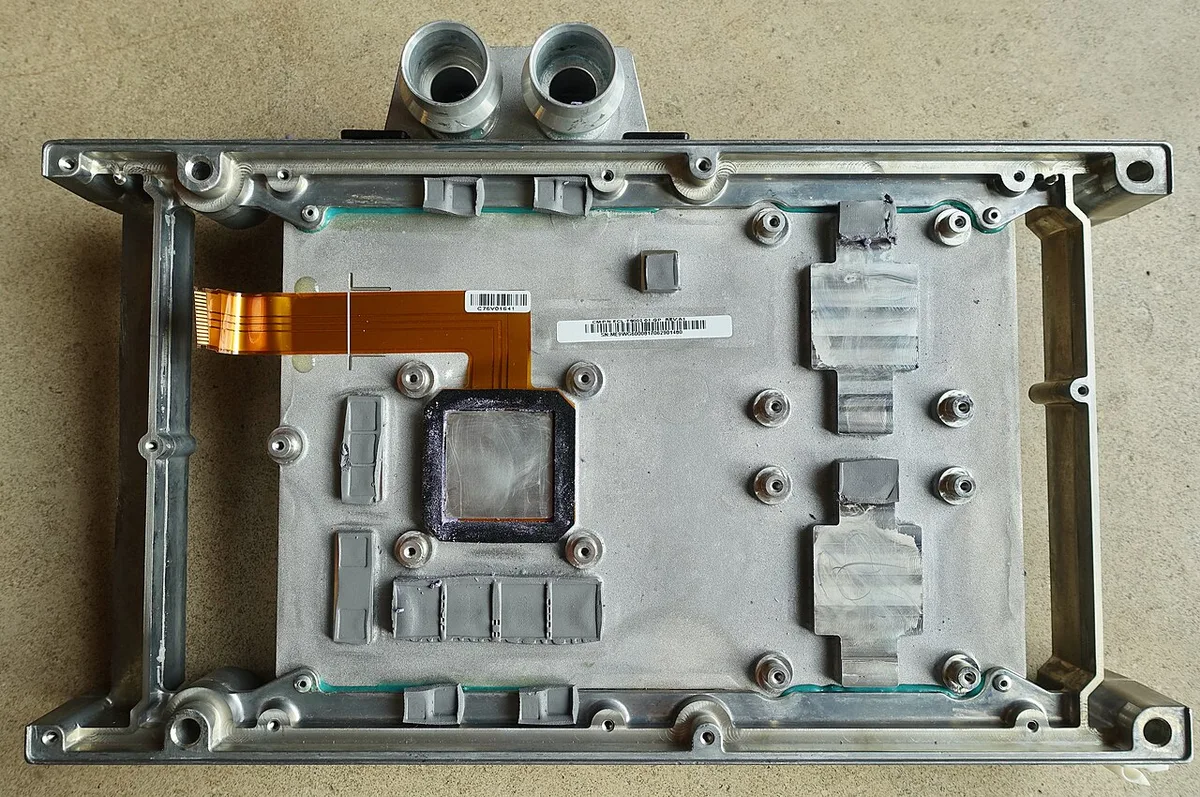
Image source: Wikimedia Commons / System76 (CC BY-SA)
The right precision tools make a significant difference. A magnetic screwdriver prevents lost screws. A proper spudger avoids cracked plastic clips.
Don't improvise with kitchen tools or pocket knives.
For battery disconnection steps, follow the manufacturer's specific sequence. Some batteries have multiple connectors. Missing one can cause a short circuit.
Repasting and Thermal Pads: When Cleaning Isn't Enough
Cleaning removes dust. Repasting restores thermal conductivity. If your temperatures remain high after a thorough clean, the thermal paste is the next suspect.
Thermal paste fills microscopic gaps between the CPU/GPU die and the heatsink. Over time, it dries, pumps out, or degrades. Once it loses conductivity, no amount of cleaning will fix overheating.
Aggregate reviews report that repasting reduces load temperatures by 5 to 15 degrees Celsius on laptops older than 18 months.
The repasting process:
- Remove the heatsink. Unscrew the retention screws in the order specified by the service manual. Lift the heatsink straight up. Don't twist or slide it.
- Clean the old paste. Use 99% isopropyl alcohol and a lint-free cloth. Remove all residue from both the die and the heatsink base. The surfaces should be mirror-clean.
- Apply new paste. Use a pea-sized drop for each die. Spread it evenly with a plastic card or let the heatsink pressure spread it. Don't use too much. Excess paste squeezes out and can short components.
- Replace thermal pads if needed. Check the pads on VRAM and VRM components. If they're compressed, crumbling, or discolored, replace them. Match the original thickness. Common sizes are 0.5mm, 1.0mm, and 1.5mm. Pad conductivity ranges from 6 to 12 W/mK.
- Reinstall the heatsink. Align it carefully. Tighten screws in a cross pattern. Don't overtighten. Uneven pressure causes poor contact.
Thermal paste selection matters. Non-conductive paste is safer for laptops. Liquid metal offers better conductivity but is electrically conductive.
If it spills onto nearby components, it can short-circuit the motherboard. For most users, a quality non-conductive paste with 8 to 12 W/mK conductivity is the right choice.
Thermal pads are often overlooked. They cool VRAM and voltage regulators. Degraded pads cause VRAM overheating, which manifests as graphical artifacts or crashes.
Replacing pads costs a few dollars and takes minutes. It's worth doing during any deep clean.
After repasting, expect a curing period. Some pastes require 24 to 48 hours of normal use to reach full conductivity. Don't judge results immediately.
Run a stress test after 48 hours for accurate comparison.
Keeping the battery healthy during deep cleaning is essential. Disconnect it before any internal work. Lithium-ion batteries can short if tools touch the terminals.
A shorted battery can swell, leak, or catch fire.
If temperatures don't improve after cleaning and repasting, the issue may be hardware-level. A failing fan, degraded thermal pads, or a warped heatsink base can all cause persistent overheating. In that case, professional service is the next step.
The decision tree doesn't end here. Cleaning is ongoing maintenance, not a one-time fix. Set a reminder based on your environment and usage.
Pet owners and heavy gamers should clean every 3 to 4 months. Light users in clean environments can stretch to 12 months. Regular monitoring prevents small problems from becoming expensive repairs.
Tools and Cleaners That Actually Belong Near Your Laptop
Not every cleaning product is safe for electronics. Using the wrong cleaner can dissolve coatings, corrode contacts, or leave residue that attracts more dust.
Isopropyl alcohol at 99% concentration is the gold standard. It evaporates quickly and leaves no residue. At 90%, it works but contains more water.
Below 90%, the water content risks corrosion. Never use rubbing alcohol with additives like aloe or fragrance.
Compressed air comes in two forms. Canned air uses a propellant that can spray liquid if tilted. Electric dusters produce consistent airflow without propellant risk.
Canned air costs less upfront. Electric dusters cost more but last longer and are safer for components.
Cleaners to avoid completely:
- Glass cleaner (ammonia damages anti-glare coatings)
- Household disinfectant wipes (moisture and chemicals harm circuits)
- WD-40 (leaves oily residue, attracts dust)
- Acetone or nail polish remover (dissolves plastic)
- Water or distilled water (corrosion risk)
For exterior surfaces, a slightly damp microfiber cloth works. Wring it until barely damp. Never spray liquid directly onto the laptop.
Spray onto the cloth first, then wipe.
ESD-safe tools matter as much as cleaners. A basic tool kit for laptop work should include anti-static wrist straps, grounded mats, and plastic pry tools. The ESD Association publishes guidelines for safe electronics handling that are worth reviewing before any internal work.
Fan blades require special attention. Cotton swabs with IPA work for detail cleaning. Soft-bristled brushes reach tight spaces.
Never use metal tools near fan blades. A bent blade creates vibration that damages bearings.
Screen cleaning deserves its own approach. Use a dry microfiber cloth first. For stubborn smudges, dampen the cloth with distilled water.
Avoid pressure. Laptop screens are thin and crack under force. Anti-glare coatings scratch easily.
Keyboard cleaning is often overlooked. Compressed air removes debris between keys. For sticky keys, use a cotton swab with IPA.
Don't remove keycaps on gaming laptops unless the service manual confirms it's safe. Many use scissor switches that break easily.
Storage and organization matter too. Keep screws sorted by size and location. Use a magnetic tray or labeled containers.
Lost screws inside the chassis can short circuits. Power consumption monitoring after cleaning confirms your work didn't affect electrical draw.
Mistakes That Void Warranties or Kill Components
Even experienced technicians make these errors. Knowing them in advance saves expensive repairs.
Stripped screws are the most common mistake. Using the wrong screwdriver size or angle rounds out the head. A stripped screw requires drilling or specialized extractors.
Both risk damaging the chassis or motherboard. Always verify screwdriver size before applying force.
Forcing clips is the second most common error. Plastic retention clips snap under pressure. Once broken, the bottom panel won't sit flush.
Gaps allow dust entry and compromise cooling. Use gentle, even pressure with a plastic spudger. If a clip resists, check for a hidden screw.
Liquid damage from cleaning is preventable but common. IPA evaporates quickly, but puddles form if applied excessively. Always apply cleaner to the tool, not the component.
Let surfaces dry for 2 minutes before reconnecting power.
ESD damage is invisible until it's catastrophic. A static discharge can weaken a component without immediate failure. The component fails weeks later, making diagnosis difficult.
Work on hard surfaces, not carpet. Ground yourself before touching internals.
Thermal paste mistakes cause overheating or shorts. Too much paste squeezes onto the motherboard. Too little leaves gaps.
Liquid metal on non-liquid-metal-compatible laptops causes permanent damage. Follow the manufacturer's paste specification.
Battery mishandling is the most dangerous mistake. Lithium-ion batteries puncture, swell, or ignite if damaged. Never use metal tools near battery terminals.
Disconnect the battery before any other internal work. If the battery shows swelling, stop immediately and seek professional help.
Warranty voiding happens in several ways:
- Breaking tamper seals or warranty stickers
- Opening sealed chassis on warranty-locked models
- Using unauthorized replacement parts
- Physical damage during user service
- Moisture damage from improper cleaning
Check your warranty terms before opening anything. Some manufacturers allow user access for RAM and storage but not for cooling systems. Upgrade compatibility checks help you understand what your specific model allows.
Fan overspinning during cleaning damages bearings. Hold blades stationary with a toothpick or cotton swab. Never use compressed air on spinning fans.
The voltage generated by free-spinning fans can fry the motherboard's fan controller.
Cable and connector damage is subtle but serious. Ribbon cables tear if pulled at an angle. Connectors crack if pried with metal tools.
Always pull connectors straight up by the plastic housing, never by the wires.
Reassembly errors cause post-clean failures. Missing screws create gaps. Over-tightened screws strip threads.
Misaligned panels stress internal components. Follow the service manual's screw torque specifications. If none exist, snug is sufficient.
Post-Clean Testing and Realistic Temperature Targets
Cleaning without verification is incomplete. Testing confirms your work and catches problems before they become failures.
Start with a baseline comparison. Record temperatures before cleaning using HWMonitor, MSI Afterburner, or the manufacturer's utility. Note idle and load temperatures for both CPU and GPU.
After cleaning, run the same tests and compare.
Realistic temperature targets after a proper clean:
| Condition | CPU Temp | GPU Temp |
|---|---|---|
| Idle | 35-45°C | 30-40°C |
| Light load | 50-65°C | 45-60°C |
| Gaming load | 70-85°C | 65-80°C |
| Stress test | 80-90°C | 75-85°C |
These ranges vary by model. Thin-and-light gaming laptops run hotter. Thick chassis models run cooler.
Compare against your specific model's specifications, not generic targets.
Testing procedure:
- Boot normally and let the system idle for 10 minutes. Record idle temps.
- Run a light workload like web browsing for 5 minutes. Record temps.
- Launch a demanding game for 15 minutes. Record peak temps.
- Run a stress test like Prime95 or FurMark for 10 minutes. Record peak temps.
- Monitor for throttling indicators in monitoring software.
If temperatures improved by 5 to 15 degrees, the cleaning worked. If they didn't improve, check your thermal paste application. Uneven spread or insufficient quantity causes poor contact.
Fan noise should decrease after cleaning. Louder fans often indicate remaining dust or unbalanced blades. Reopen and inspect if noise persists.
A grinding sound suggests bearing damage requiring fan replacement.
Performance benchmarks matter too. Run a consistent benchmark before and after. 3DMark, Cinebench, or game-specific benchmarks work. Improved temperatures should translate to higher scores if thermal throttling was occurring.
Battery behavior changes post-clean. If the laptop was overheating, the battery may have been under stress. Battery health monitoring after cleaning catches degradation early.
Lithium-ion batteries degrade faster at high temperatures.
Watch for new problems. If the laptop won't boot after reassembly, check battery connection first. If fans don't spin, check fan connectors.
If temperatures are worse than before, the heatsink may be improperly seated. Systematic troubleshooting beats random part swapping.
Give thermal paste 24 to 48 hours to cure. Some pastes improve conductivity over time. Re-test after the curing period for final numbers.
Don't panic if initial results seem modest.
Upgrading older hardware sometimes becomes necessary when cleaning alone can't restore performance. A clean cooling system with degraded silicon still limits performance. Cleaning buys time but doesn't fix aging components.
Document your results. Keep a log of temperatures, dates, and actions taken. This history helps identify trends and plan future maintenance.
A laptop cleaned every 6 months with logged results rarely surprises you with sudden failures.
Frequently Asked Questions
How often should I clean my gaming laptop?
Every 6 to 12 months for most users. Pet owners and heavy gamers should clean every 3 to 4 months. Light users in clean, air-conditioned rooms can stretch to 12 months.
Monitor temperatures monthly to catch buildup early.
Can I clean a gaming laptop without opening it?
Yes, with a vent clean. Use compressed air through the exhaust and intake vents. Hold fan blades stationary to prevent damage.
This helps with light dust but won't fix heavy buildup or degraded thermal paste. It's a maintenance step, not a deep clean.
Does cleaning a gaming laptop void the warranty?
It depends on the manufacturer and model. Some OEMs allow user access for cleaning and upgrades. Others seal the chassis with tamper stickers.
Check your service manual before opening. If unsure, contact the manufacturer for authorized service options.
What temperature is too hot for a gaming laptop?
Sustained temperatures above 95 degrees Celsius indicate a problem. Most gaming laptops throttle performance around 90 to 95 degrees. Brief spikes to 95 are normal under heavy load.
Consistent readings above 95 require immediate attention.
Should I replace thermal paste every time I clean?
Not necessarily. If the paste looks moist and intact, cleaning alone may suffice. But if the laptop is over 12 months old, repasting is recommended.
The paste degrades even if it looks fine. Combining cleaning and repasting saves disassembly time.
Is liquid metal worth the risk for gaming laptops?
For most users, no. Liquid metal offers superior conductivity but is electrically conductive. A spill can short-circuit the motherboard.
Non-conductive paste with 8 to 12 W/mK conductivity is safer and sufficient for most gaming laptops. Liquid metal is best left to experienced technicians.