A mini-ITX gaming PC is a full desktop built around the smallest standard motherboard size. The whole point is fitting real gaming power into a case that fits on a shelf or travels to a friend's house. But small size changes everything about how the machine is built.
The mini-ITX standard fixes the motherboard at 170 mm by 170 mm. That single number shapes every part choice, from cooler height to GPU length. Let's walk through what that means in practice.
what is a mini itx gaming pc
A mini-ITX gaming PC is a full desktop in a tiny case. It uses a 170 mm by 170 mm motherboard. It runs standard gaming parts like a desktop GPU.
The small size saves space and boosts portability. It also makes cooling and cable routing harder.
What a Mini-ITX Gaming PC Actually Is (and Why Size Is the Whole Story)
A mini-ITX gaming PC is not a laptop in a box. It is a real desktop with a real graphics card, real desktop CPU, and standard gaming memory. The only thing that's small is the motherboard and the case around it.
The motherboard is the anchor. Every mini-ITX board measures 170 mm by 170 mm. That is roughly the size of a standard sheet of paper folded twice.
Because the board is so small, everything else has to adapt.
What adapts? The case, the cooler, the power supply, and the cable routing. A full ATX board has room for four memory slots and multiple expansion slots.
A mini-ITX board usually has two memory slots and one PCIe slot. That one slot holds your graphics card.
So the question is never "can it play games." It can. The question is whether the case and cooler can keep that hardware cool. That is where most people get tripped up.
If you are new to desktop hardware, our guide on what beginners must know about PC hardware covers the basics. A mini-ITX build is just a smaller version of the same idea.
The Visual Cues That Separate a True Mini-ITX Build From a Small Tower
A true mini-ITX build is defined by its motherboard, not its case size. Many people call any small tower a mini-ITX PC. That is a common mistake.
The motherboard is what matters.
Look inside the case. If the board has four memory slots and multiple expansion slots, it is not mini-ITX. It is likely micro-ATX or full ATX in a compact case.
A real mini-ITX board has two memory slots and one PCIe slot.
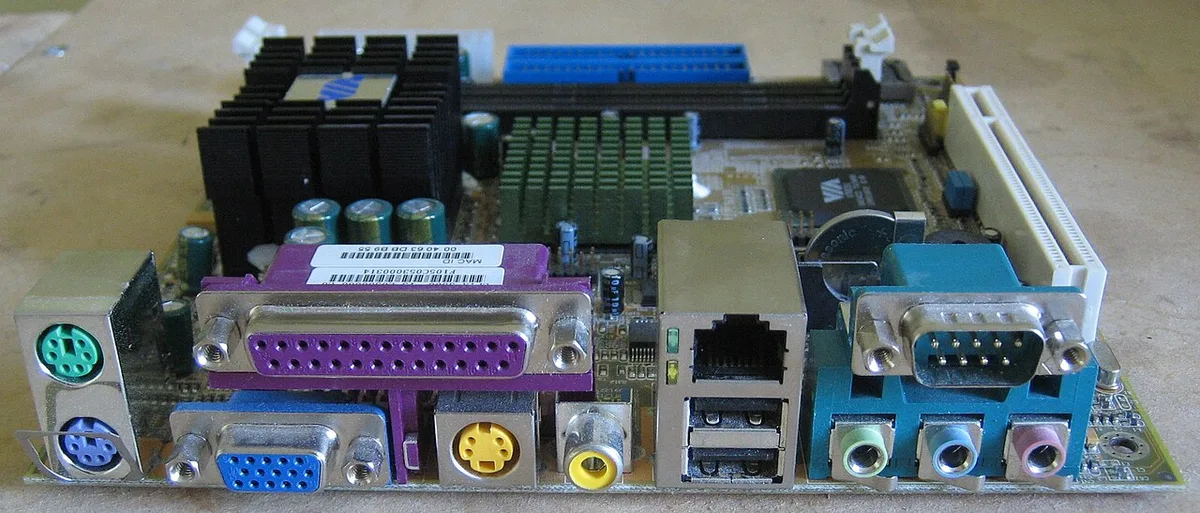
Image source: Wikimedia Commons / A Meaden (CC BY-SA)
The case size alone is misleading. Some cases hold mini-ITX boards but are large enough for full ATX boards too. Others are so small that only the tiniest GPUs fit.
The motherboard tells you the real story.
Check the rear I/O panel too. Mini-ITX boards have a smaller rear panel than ATX boards. Count the USB ports and audio jacks.
Fewer ports usually means a smaller board.
Cable routing is another visual clue. In a true mini-ITX build, cables are packed tight against the panels. There is no open space behind the motherboard tray.
The PSU is often mounted sideways or on a bracket near the front.
If you see a large gap behind the motherboard tray, the case is probably built for a bigger board. That is not a problem, but it is not a true compact build either.
What's Inside: Motherboard, GPU, PSU, and Cooler Compatibility
Four parts define a mini-ITX build. Each one has strict size limits. Get any of them wrong and the build fails.
Motherboard. Always 170 mm by 170 mm. Check the socket and chipset match your CPU. Most boards have two memory slots and one M.2 storage slot.
Some have Wi-Fi built in.
Graphics card. This is the hardest part to fit. Measure the case clearance for GPU length and thickness. A thick three-fan card may not fit in a small case.
Check the manufacturer's case specs before buying.
Power supply. Most mini-ITX cases use SFX or SFX-L units. These are smaller than standard ATX power supplies. SFX-L is slightly longer and often has a larger fan.
Check which one your case accepts.
CPU cooler. Low-profile coolers are the norm. Measure the cooler height limit in the case specs. A tall tower cooler will not fit.
Many builders use a 120 mm or 240 mm AIO liquid cooler instead.
| Part | Typical Limit in Small Cases | What to Check |
|---|---|---|
| Motherboard | 170 mm x 170 mm | Socket and chipset match |
| GPU | 200-330 mm length | Case spec sheet |
| PSU | SFX or SFX-L | Case manual |
| Cooler | 40-70 mm tall (air) | Case clearance |
Our article on what a gaming PC is and how it works explains how these parts interact. In a mini-ITX build, that interaction is tighter and less forgiving.
How Cooling and Airflow Change in a Tight Case
Small cases trap heat. That is the single biggest challenge in a mini-ITX build. The parts are close together and airflow is restricted.
In a large case, hot air rises and exits through top or rear fans. In a small case, the GPU and CPU sit close to each other. Their heat blends together.
The result is higher temperatures under load.
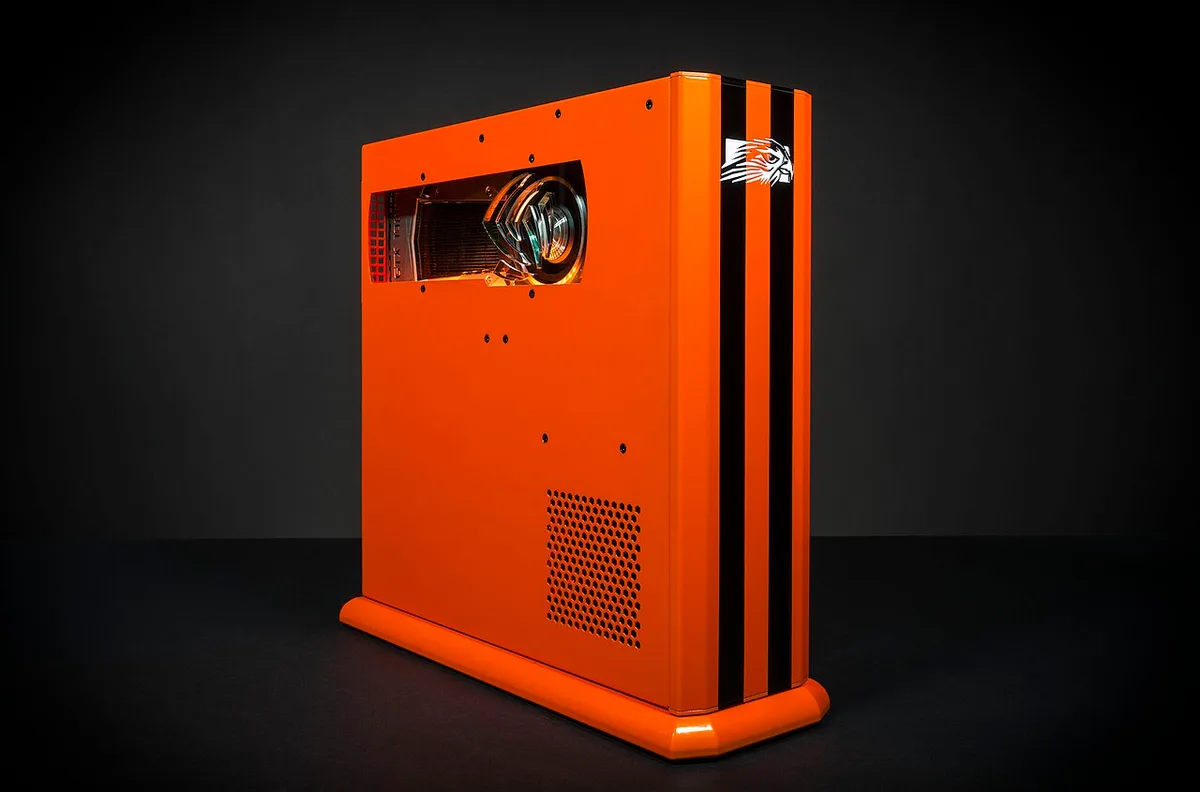
Image source: Wikimedia Commons / Falcon Northwest (CC BY-SA)
The fix is planning airflow before you build. Decide where air enters and exits. Most small cases have one or two intake fans and one exhaust.
Some use positive pressure, where intake exceeds exhaust, to push dust out through gaps.
Fan size matters too. A 92 mm fan moves less air than a 120 mm fan. But a 92 mm fan fits where a 120 mm fan will not.
Check the case specs for supported fan sizes.
Cable management affects airflow. Loose cables block air paths. Route cables flat against the panels.
Use modular PSU cables to reduce clutter. Every cable you remove from the airflow path helps.
Temperature targets vary by part. CPUs often throttle above 95 degrees Celsius. GPUs throttle at different points depending on the model.
Check the manufacturer's spec sheet for exact limits.
Aggregate reviews of compact builds report that GPU temperatures run 5 to 10 degrees higher than in full-size cases. That is normal. The goal is keeping temperatures below throttle points, not matching a large tower.
Step-by-Step Build Flow for a Compact Gaming PC
Building a mini-ITX PC is not harder than a full-size build. It just requires more planning. Follow these steps in order.
Measure first. Check GPU length, cooler height, and PSU type against the case spec sheet. Write the numbers down before buying parts.
Install the PSU. Mount it on its bracket or in its bay. Route the main cables before anything else goes in. This is much harder once the board is installed.
Install the motherboard. Drop it in carefully. Connect the front panel headers, USB ports, and audio. These are fiddly in tight spaces.
Install CPU, RAM, and storage. Do this outside the case if possible. It is easier to seat RAM and M.2 drives on a table.
Install the cooler. Apply thermal paste and mount the cooler. Check that it does not block RAM or PCIe slots.
Install the GPU. Slide it into the PCIe slot. If the case uses a riser cable, connect it first. Secure the GPU with screws.
Route and connect cables. Connect power to the GPU, CPU, and motherboard. Tuck cables flat against panels. Zip-tie where possible.
Test before closing. Power on and check POST. Verify temperatures in BIOS. Fix any issues before installing panels.
Install panels and fans. Close the case. Install any remaining fans. Check that no cables are pinched.
Final test. Boot into the OS. Run a stress test. Monitor temperatures for 30 minutes. Adjust fan curves if needed.
Our guide on how gaming PC parts work together helps here. In a compact build, part compatibility is tighter and errors are harder to fix after the fact.
Per manufacturer documentation from case makers, always check the official spec sheet for exact clearances. Dimensions vary between models even within the same brand. Do not trust third-party lists alone.
One more tip. Build on a large, clean table. Small parts roll and drop easily.
A magnetic screwdriver tray saves time and frustration. Keep all screws sorted by type from the start.
Mini-ITX vs Micro-ATX vs ATX: Which Size Makes Sense?
Mini-ITX is the smallest standard size. Micro-ATX is the middle option. Full ATX is the largest and most flexible.
Choose mini-ITX when desk space, portability, or a clean look matters most. Choose micro-ATX when you want a smaller case but still need extra PCIe slots or memory slots. Choose full ATX when you want the easiest build, the most airflow, and the simplest upgrades.
A mini-ITX build saves space but limits part choices. A micro-ATX build gives you more room for cooling and storage. A full ATX build is the most forgiving for first-time builders.
If you want a compact machine that still plays modern games well, mini-ITX makes sense. If you plan to add multiple drives or expansion cards, micro-ATX is often the safer pick. If you do not care about size, full ATX keeps things simple.
Our guide to a balanced gaming PC configuration can help you match size to your goals. Balance matters more in small cases because one wrong part can block another.
Costs, Specs, and Realistic Performance Expectations
Mini-ITX parts often cost more than full-size equivalents. SFX power supplies, low-profile coolers, and compact cases carry a small-size premium. As of 2026, expect to pay more for the same performance in a smaller box.
A realistic mid-range mini-ITX gaming PC may include a six-core or eight-core CPU, a mid-range GPU, 16 GB of RAM, and a 1 TB NVMe drive. That setup can deliver smooth 1080p gaming and solid 1440p results in many titles.
| Part | Typical Mini-ITX Range | Notes |
|---|---|---|
| Case | $80 to $250 | Smaller cases cost more |
| SFX PSU | $90 to $180 | Check wattage headroom |
| Low-profile cooler | $30 to $120 | Height limits vary |
| Motherboard | $120 to $300 | Fewer slots than ATX |
| GPU | $250 to $700+ | Length and thickness matter |
Do not expect a tiny case to match a large tower on temperatures. Expect higher fan noise under load. Expect less upgrade room later.
For a clearer picture of performance targets, see what specifications define a mid-range gaming PC. The same performance rules apply. The case just makes them harder to achieve.
Mistakes That Ruin Compact Builds (and How to Avoid Them)
The biggest mistake is buying parts before checking clearances. Measure first. Always.
Common errors include:
- Buying a GPU that is too long or too thick
- Choosing a cooler that exceeds the case height limit
- Using an ATX PSU in an SFX-only case
- Ignoring front intake and rear exhaust placement
- Leaving cables loose in the airflow path
- Forcing panels closed and pinching wires
- Skipping a test boot before final assembly
Another mistake is assuming all small cases cool the same. Some have mesh panels and strong fan support. Others use solid panels and rely on a single exhaust fan.
Read the airflow design before buying.
Power planning matters too. A compact case may have less room for long cables. Modular PSUs help.
Non-modular units can create bulky cable bundles that block fans.
If you are new to desktop hardware, review how gaming PC parts work together. In a mini-ITX build, one oversized part can break the whole layout.
Maintenance, Upgrades, and Long-Term Ownership
Small cases collect dust faster because airflow is tighter. Clean dust filters every few weeks. Use short bursts of compressed air.
Keep the case off the floor if possible.
Upgrades are possible but limited. You can usually swap the GPU, RAM, storage, and sometimes the CPU. You cannot add extra expansion cards.
You may not fit a larger cooler later.
Plan upgrades around the original case limits. Check the GPU length again before buying a new card. Check the cooler height before replacing the CPU.
Check PSU wattage before adding a more powerful GPU.
Cable management also affects long-term health. Loose cables can rub against fans. Pinched cables can fail over time.
Secure everything during the first build and recheck after transport.
A mini-ITX PC can last for years if temperatures stay under control. Our article on how long a gaming PC lasts covers lifespan factors. Heat and dust are the main threats in compact builds.
Use a UL-certified PSU from a reputable brand. Cheap power supplies are a poor fit for tight spaces where heat and airflow are already stressed.
Frequently Asked Questions
Is a mini-ITX gaming PC hard to build?
It is not hard, but it requires more planning. The parts are the same as a full-size build. The difference is tighter space and stricter compatibility.
Measure clearances first and route cables carefully.
Can a mini-ITX PC run modern games well?
Yes. It can run the same games as a larger desktop with the same CPU and GPU. Performance depends on the parts, not the case size.
Cooling may limit sustained performance in very small cases.
Does a mini-ITX case need special parts?
Often yes. Most use SFX or SFX-L power supplies. Many need low-profile CPU coolers.
GPU length and thickness must match the case spec sheet. Always check the manufacturer documentation.
Is mini-ITX better than a gaming laptop?
It depends on your needs. A mini-ITX desktop offers easier upgrades and better cooling than most laptops. A laptop is more portable.
Choose based on travel frequency and upgrade plans.
How much does a mini-ITX gaming PC cost?
Costs vary by parts and case size. Expect a small-size premium on cases, PSUs, and coolers. A mid-range build often costs more than an equivalent full-size build.
Budget for cooling and cable management accessories.
Can I upgrade a mini-ITX gaming PC later?
Yes, but within limits. GPU, RAM, storage, and CPU upgrades are common. You cannot add extra expansion cards.
Larger coolers or PSUs may not fit the original case.